You typed out a message on your iPhone 17, hit send, and nothing happened, or worse, a red exclamation point showed up next to it with a "Not Delivered" warning. Maybe your texts are landing on your email instead of your phone number, group photos refuse to go through, or iMessage just stopped working after you set up the phone. Because the iPhone 17 is an eSIM-only device with no physical SIM tray, a few of these problems trace back to how your eSIM and lines are configured rather than to a card you can pop out. The good news is that texting is fully supported on this model, and most send failures come from settings you can fix in a couple of minutes.
Work through the steps below in order. They start with the quickest, safest checks and move toward the official reset and support paths only at the end, so you avoid erasing anything before you need to.
Retry the message and try sending it as a plain text
When a single message fails with a red exclamation point and a "Not Delivered" alert, the fastest fix is right there in the conversation. First confirm you actually have a network connection, then retry the send.
Check your network connection, whether cellular or Wi-Fi.
Next, tap the red exclamation point next to the message.
Tap Try Again.
If it still won't send, tap the red exclamation point again and tap Send as Text Message.
Sending as a text routes the message over SMS instead of iMessage, which is handy when the recipient is unreachable on iMessage. Keep in mind your carrier's SMS or messaging rates may apply when you fall back to a plain text.
Confirm your cellular line is on and the right number is picked
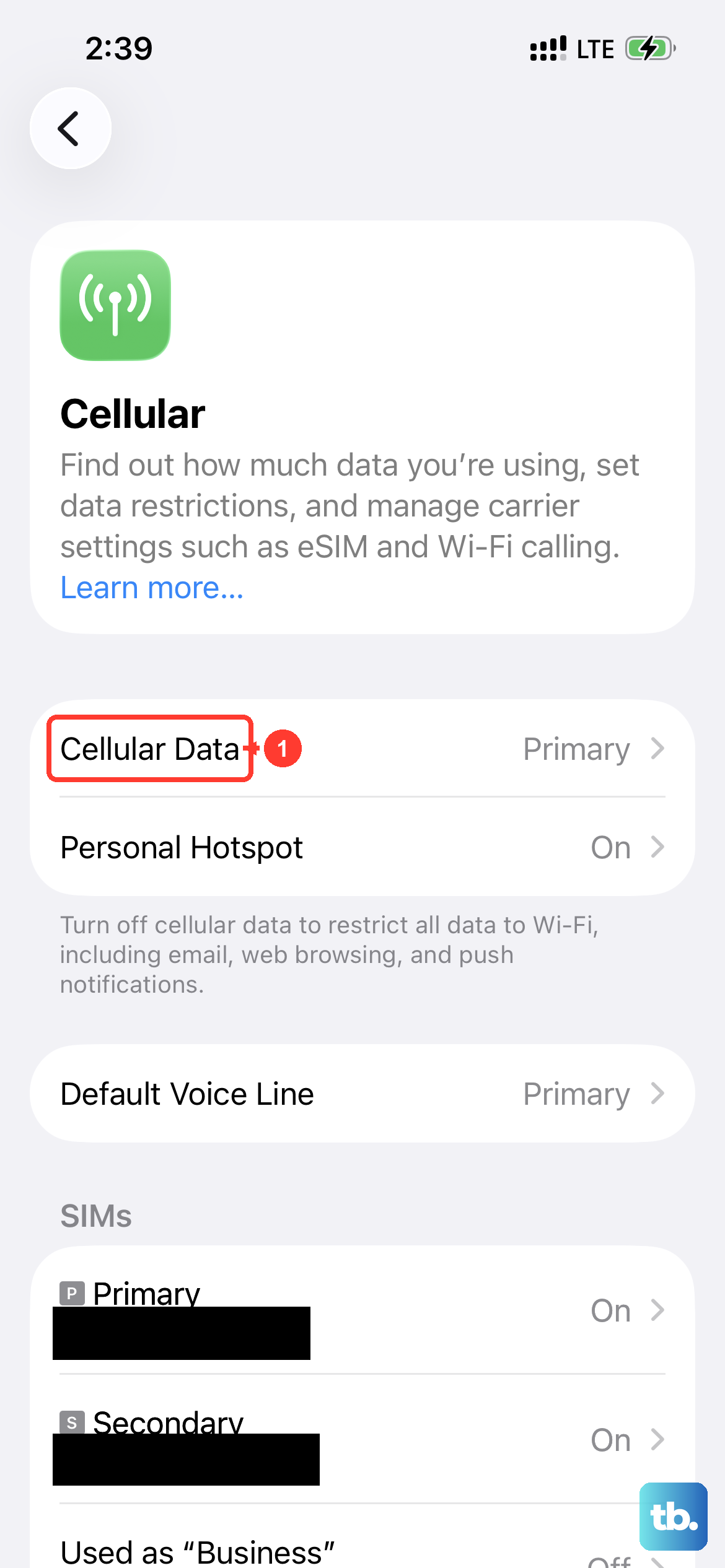
SMS needs a working cellular connection, so a line that is switched off or set to the wrong number will quietly block your texts. Open Settings then Cellular and make sure your phone line is turned on. If you use more than one line or eSIM, confirm the correct number is selected for messaging.
It is also worth remembering that your carrier has to support whatever message type you are sending. SMS, MMS, and RCS each depend on carrier support, so if one type fails while another works, the limitation may be on the network side rather than on your iPhone.
Restart the iPhone 17 to clear a temporary glitch
Powering the phone off and back on resolves a surprising number of short-lived messaging hiccups. For a normal restart, use the power-off slider or restart through Settings, wait a few seconds, then turn the phone back on and try sending again.
If the iPhone is frozen and won't respond to a normal restart, force restart it instead. On the iPhone 17, which uses Face ID and has no Home button, the sequence is specific, so follow it exactly.
- 1.Press and quickly release the volume up button.
- 2.Press and quickly release the volume down button.
- 3.Press and hold the side button until you see the Apple logo (this might take longer than 10 seconds).
Make sure your number is selected in Send and Receive
If your replies are showing up at your email address instead of your phone number, the issue is your Send and Receive setting. Go to Settings then Apps then Messages then Send and Receive and choose the phone number or email address you want to use to start new conversations.
If your phone number doesn't appear in that list at all, you'll need to link it to your Apple Account or set up Text Message Forwarding so the number becomes available for messaging.
Switch on Send as Text Message for group and MMS messages
Group messages that include photos travel as MMS, and if those won't send, there is a dedicated toggle for it. Go to Settings then Apps then Messages and turn on Send as Text Message.
If you don't see that option, your carrier might not support the feature, which points back to a network limitation rather than a phone setting you can change.
Free up storage for picture messages
When photos or videos refuse to send, a full storage drive is a common culprit. Check that your iPhone has enough available storage before retrying a media message, and clear out apps, photos, or videos you no longer need if space is tight.
Once you have freed up room, open the conversation again and resend the photo or video so it has the space and connection it needs to go through.
Toggle iMessage off and back on and verify your time zone
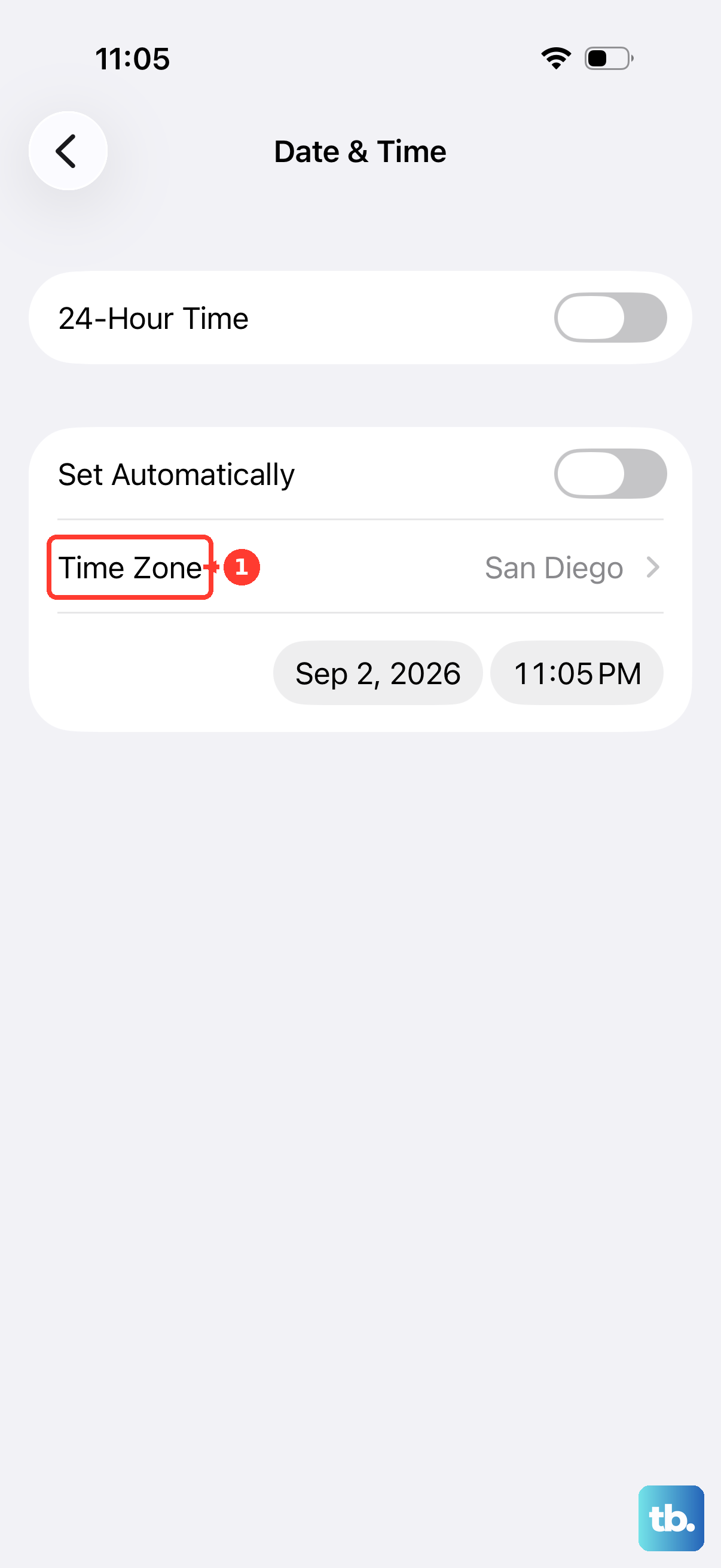
If the problem is specific to iMessage rather than plain texts, a clean off-and-on cycle usually clears it. Before you start, make sure you are connected to cellular data or Wi-Fi, and that your date and time zone are correct in Settings then General then Date and Time, since an incorrect time zone can interfere with iMessage.
Go to Settings then Apps then Messages and turn iMessage off.
After that, restart your iPhone.
Return to Settings then Apps then Messages and turn iMessage back on.
A spinning gear next to your number means iMessage is verifying automatically, and that can take up to 24 hours, so don't keep toggling it off and on while it works. If a prompt warns that your carrier may charge for the SMS used to activate iMessage, tap Turn On.
Resolve the iOS 26 inactive eSIM activation issue
After updating to iOS 26, some owners cannot activate iMessage with their phone number when an inactive eSIM shares the same number as the active line. Because the iPhone 17 is eSIM-only, this is purely a matter of cleaning up your eSIMs rather than removing a card.
The simplest fix is to update to iOS 26.1 or later. If you would rather solve it manually, do the following.
Go to Settings then Cellular, find the inactive eSIM that has the same number as your active line, and tap Delete eSIM.
Then go to Settings then Apps then Messages then Send and Receive and tap the displayed phone number to activate iMessage.
Turn on Wi-Fi Calling where cellular is weak
In a spot with little or no cellular coverage, Wi-Fi Calling can keep you connected over your internet connection instead of the cell network. Go to Settings then Cellular then Wi-Fi Calling and turn on Wi-Fi Calling on This iPhone.
This is most useful as a coverage workaround for areas where your signal is too weak to reliably push messages and calls through.
Install the latest version of iOS
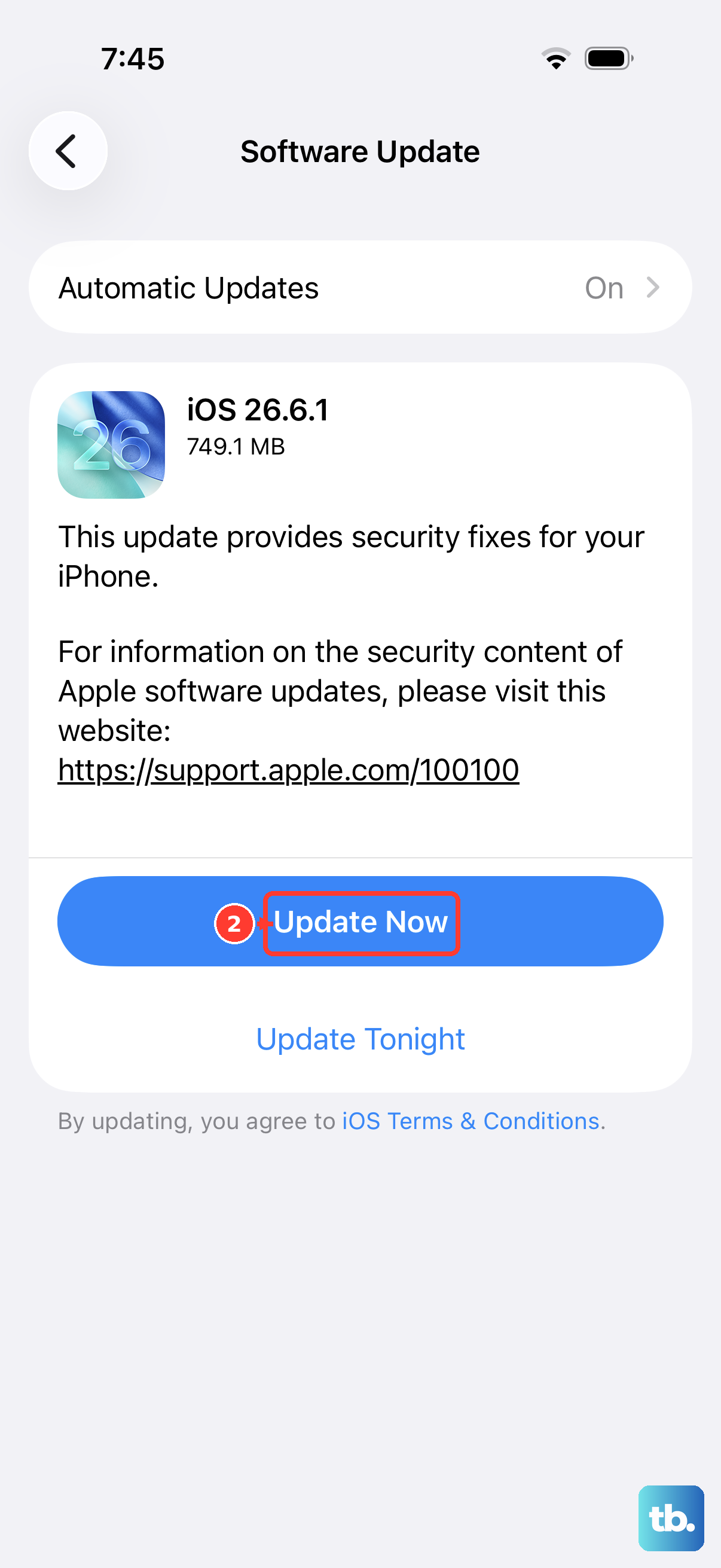
Running the current version of iOS clears up bugs that older builds may still carry, including some that affect messaging. Back up your iPhone first, then connect it to power and Wi-Fi before you begin.
Go to Settings then General then Software Update.
If an update is available, tap Download and Install.
Follow the onscreen instructions.
When texts still won't send, erase the iPhone or reach out for help
If you have worked through everything above and messages still fail, it is time to bring in the people who manage the part that is broken. For SMS, MMS, or RCS problems, contact your wireless carrier, since those message types depend on the network. For iMessage problems, contact Apple Support.
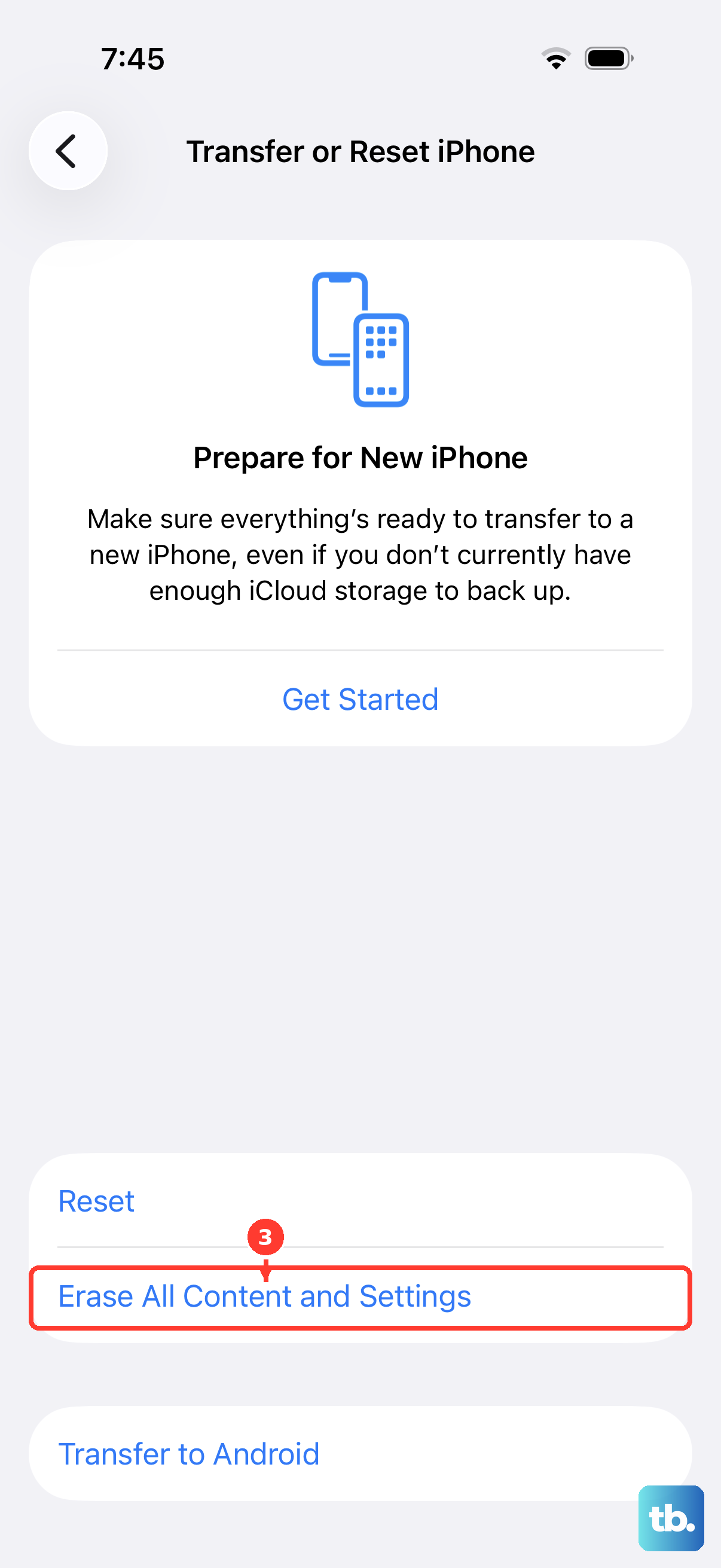
A factory reset is the most extreme step and erases all of your data, so treat it as a true last resort and back up first. To erase the device, go to Settings then General then Transfer or Reset iPhone then Erase All Content and Settings. The process requires your device passcode and Apple Account password, and it permanently removes all personal information, content, and settings from the iPhone.
Frequently Asked Questions
Why are my texts going to my email instead of my phone number?
That happens when your phone number isn't selected for starting new conversations. Go to Settings then Apps then Messages then Send and Receive and choose the phone number you want to use. If your number isn't listed, link it to your Apple Account or set up Text Message Forwarding so it becomes available.
Does the iPhone 17 use a physical SIM card for texting?
No. The iPhone 17 is eSIM-only and has no physical SIM tray, so it is activated with an eSIM. Texting is still fully supported, and line and activation issues are handled through eSIM management in Settings then Cellular rather than by swapping a card.
I just updated to iOS 26 and iMessage won't activate with my number. What now?
If you have an inactive eSIM that shares the same number as your active line, that can block iMessage activation. Update to iOS 26.1 or later, or go to Settings then Cellular, tap Delete eSIM on the inactive one, then go to Settings then Apps then Messages then Send and Receive and tap your phone number to activate iMessage.
Why does a spinning gear keep showing next to my number in iMessage?
The spinning gear means iMessage is verifying your number automatically, and that can take up to 24 hours. Let it finish rather than repeatedly turning iMessage off and on, which only restarts the process.
Should I contact my carrier or Apple when texts fail?
It depends on the message type. For SMS, MMS, or RCS issues, contact your wireless carrier, since those rely on the network. For iMessage issues, contact Apple Support.