
When your headphones stop working with your iPhone 17, it can ruin everything from your workout playlist to an important call. The issue might be with wired headphones using the USB-C port or wireless ones like AirPods. Start with the straightforward checks below.
A browser based online headphone test makes this easy to confirm. If both sides play test tones correctly there, the headphones can play audio, but an intermittent connection or a problem with another app may still be the cause.
Restart Your iPhone 17
A force restart can help with temporary audio glitches. To restart, press and quickly release the Volume Up button, then press and quickly release the Volume Down button. Finally, press and hold the Side button until you see the Apple logo appear. After the phone restarts, reconnect your headphones and check the audio again.
Check the Physical Connection
For wired headphones, make sure the USB-C plug is fully inserted into the port. If you feel any wiggle or the connection seems loose, there might be lint packed inside. Gently remove loose lint with a soft, dry brush, keeping moisture out of the port. Debris can interfere with the connection.
For Bluetooth headphones, ensure they're charged and powered on. Try pairing them with another device to help narrow down the problem. If they also fail there, check the headphones' pairing instructions and contact their manufacturer for help.
Verify the Audio Output
Sometimes your iPhone 17 sends sound to the wrong place. Open Control Center and press and hold the audio card in the top-right corner. A list of available outputs will appear. Make sure your headphones are selected here, not the iPhone speaker or another Bluetooth device.
You can also check this while playing media by tapping the AirPlay icon, which looks like a triangle with circles. This lets you manually route audio back to your headphones.
Forget and Re-Pair Your Bluetooth Headphones
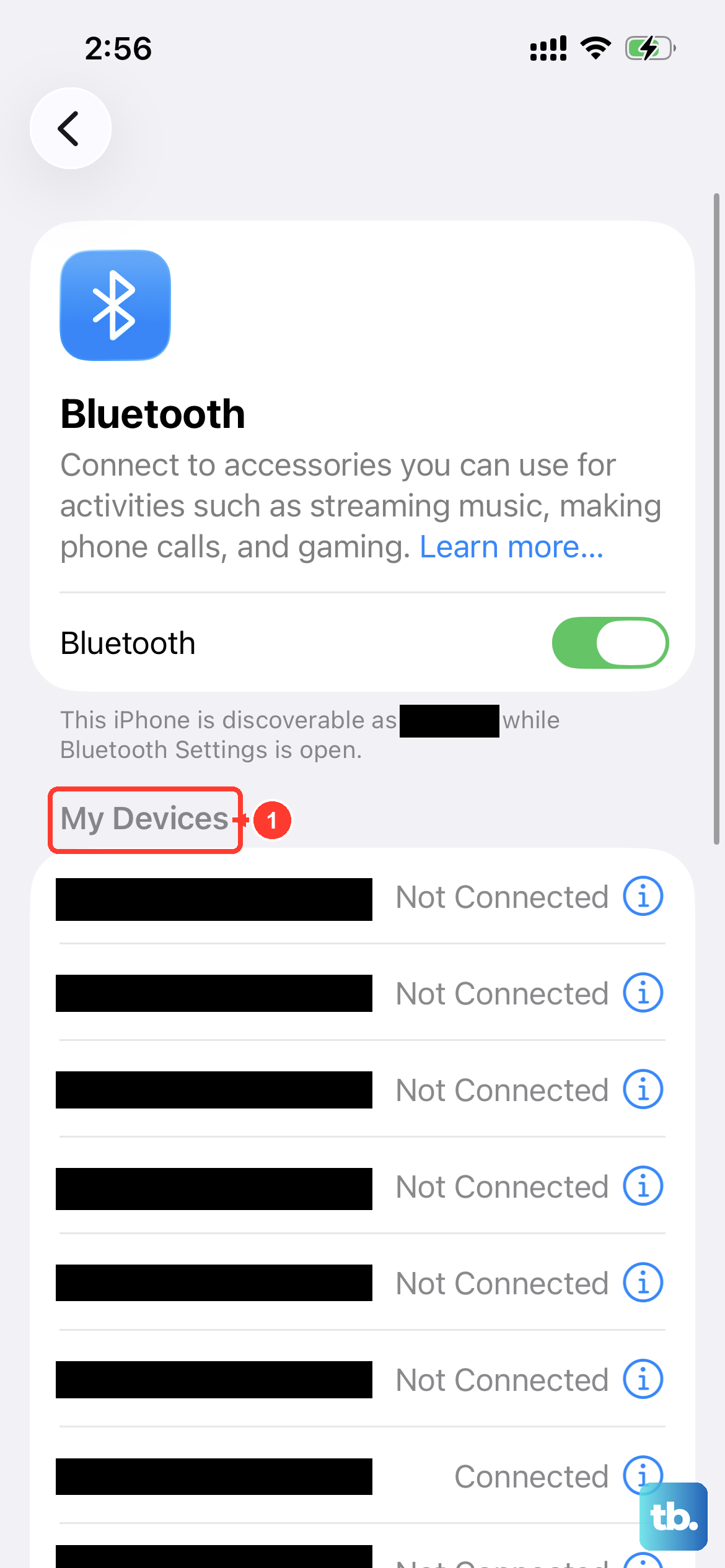
If your wireless headphones are connected but not playing sound, a fresh pairing often helps. Go to Settings > Bluetooth and tap the info icon (i) next to your headphones' name. Tap Forget This Device and confirm.
Then, put your headphones back into discovery mode and select them again from the Bluetooth menu on your iPhone. Check the headphones' instructions if you need help making them discoverable.
Toggle Bluetooth Off and On
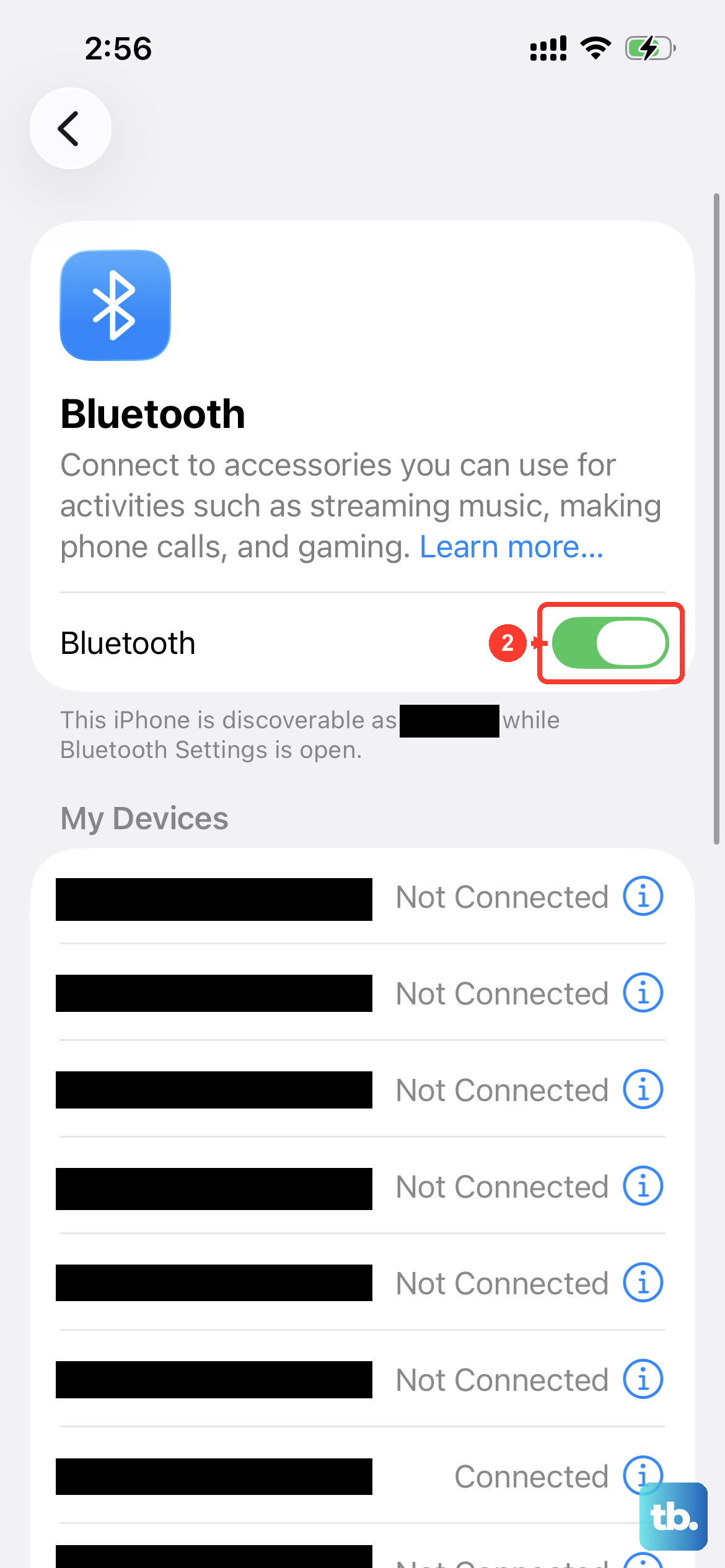
Go to Settings > Bluetooth, turn Bluetooth off, then turn it back on. Turn your headphones off and back on, and keep them close to your iPhone 17. Make sure they're fully charged or connected to power before trying to connect again.
Check for Software Updates
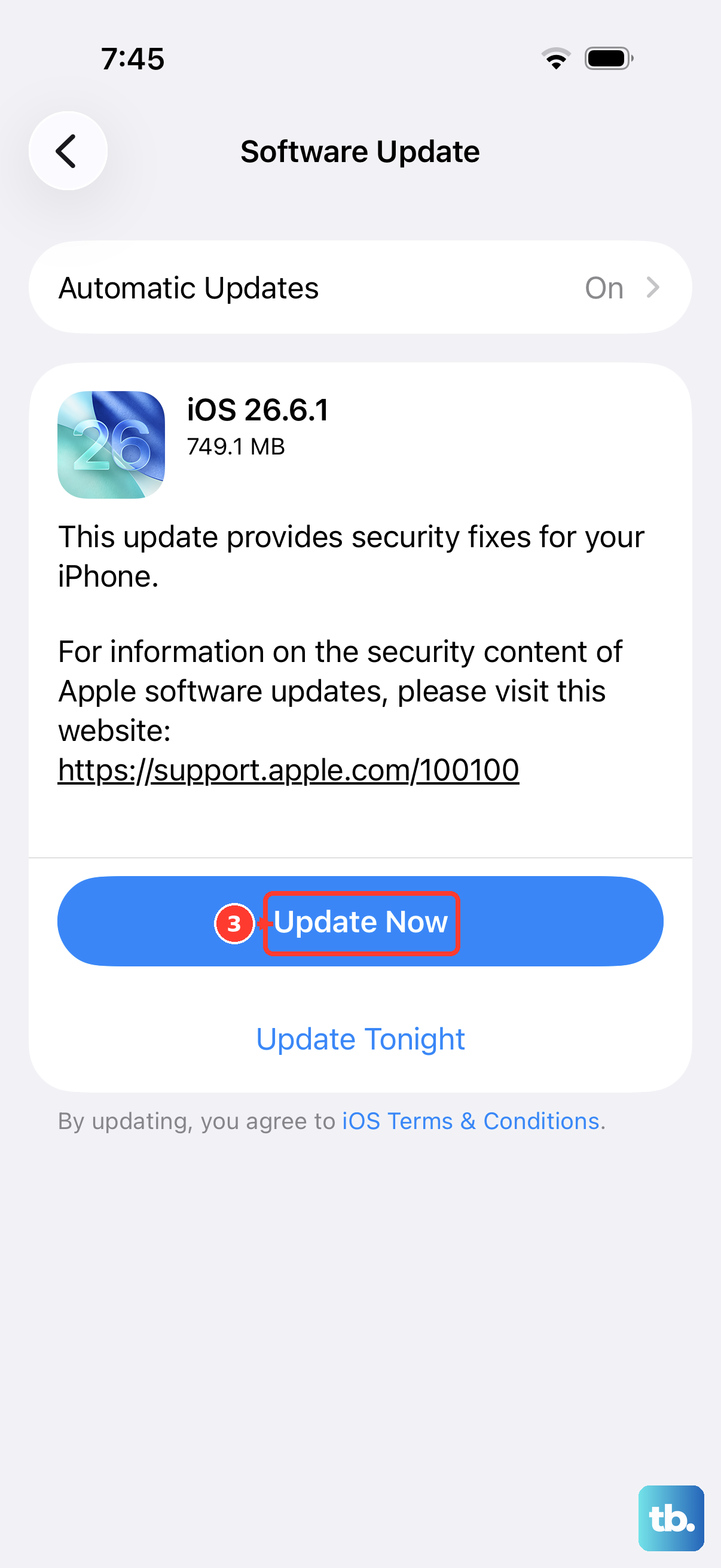
Software updates can include bug fixes. Go to Settings > General > Software Update to check for the latest version of iOS. Back up your iPhone first, then connect it to power and Wi-Fi before downloading and installing an available update.
Inspect the Volume and Silent Mode
It sounds obvious, but always check. Press the Volume Up button on the side of your iPhone while your headphones are connected. For missing call or alert sounds, also check Silent mode in Settings > Sounds & Haptics. The iPhone 17 has no Ring/Silent switch; you can press and hold the Action button above the volume buttons to toggle Silent mode if that is its assigned function.
Reset All Settings
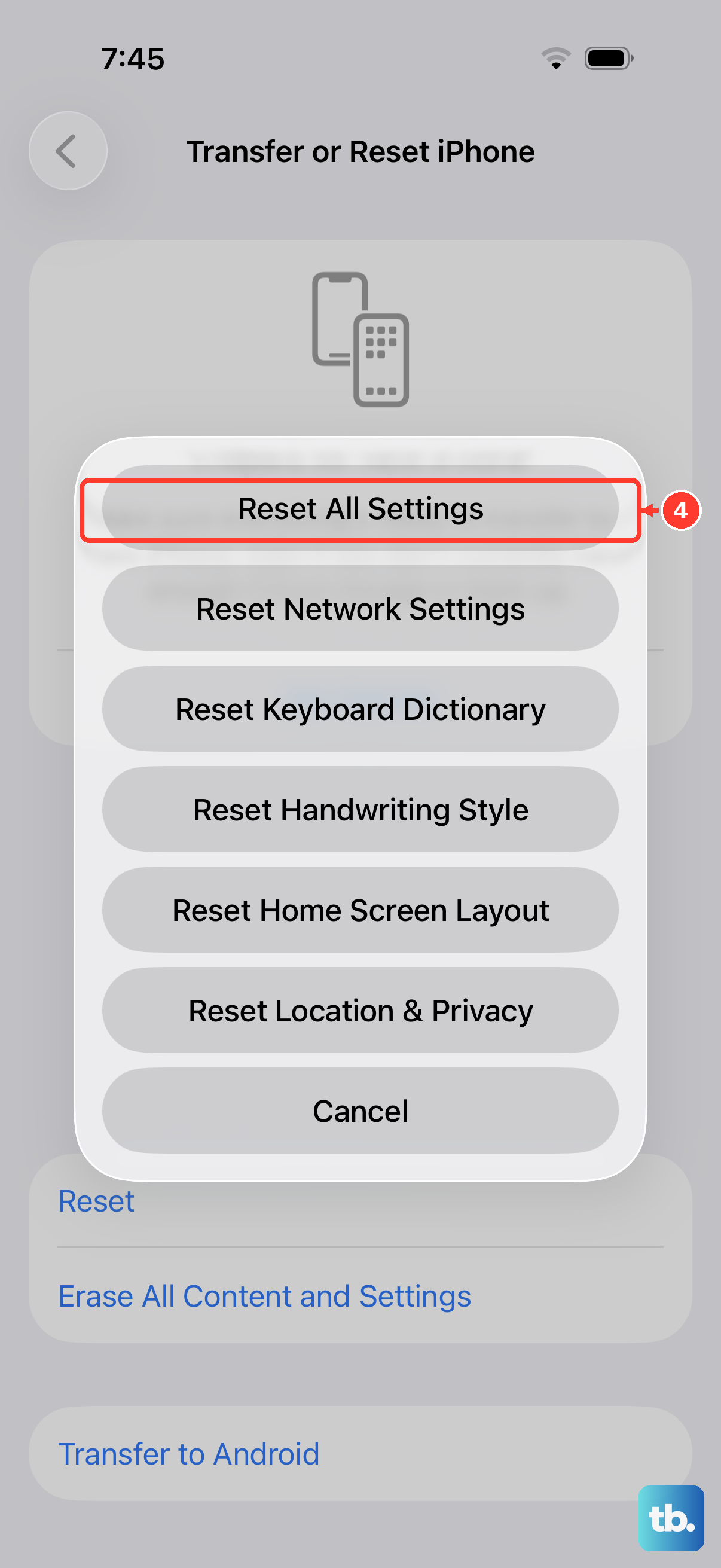
If the earlier checks haven't helped with persistent audio problems, you can try resetting system settings. Go to Settings > General > Transfer or Reset iPhone > Reset > Reset All Settings.
This keeps your photos, apps, messages and other personal data, but resets system settings and removes Apple Pay cards. You'll need to rejoin Wi-Fi, re-pair Bluetooth devices and your Apple Watch, and set up Face ID again. Display settings and other preferences also return to defaults.
Check for Accessory Restrictions
If your headphones use a companion app, check that the app has Bluetooth access. Go to Settings > Privacy & Security > Bluetooth and turn on access for that app. If the headphones connect to other devices but not your iPhone, unpair them from those devices and try pairing with your iPhone again.
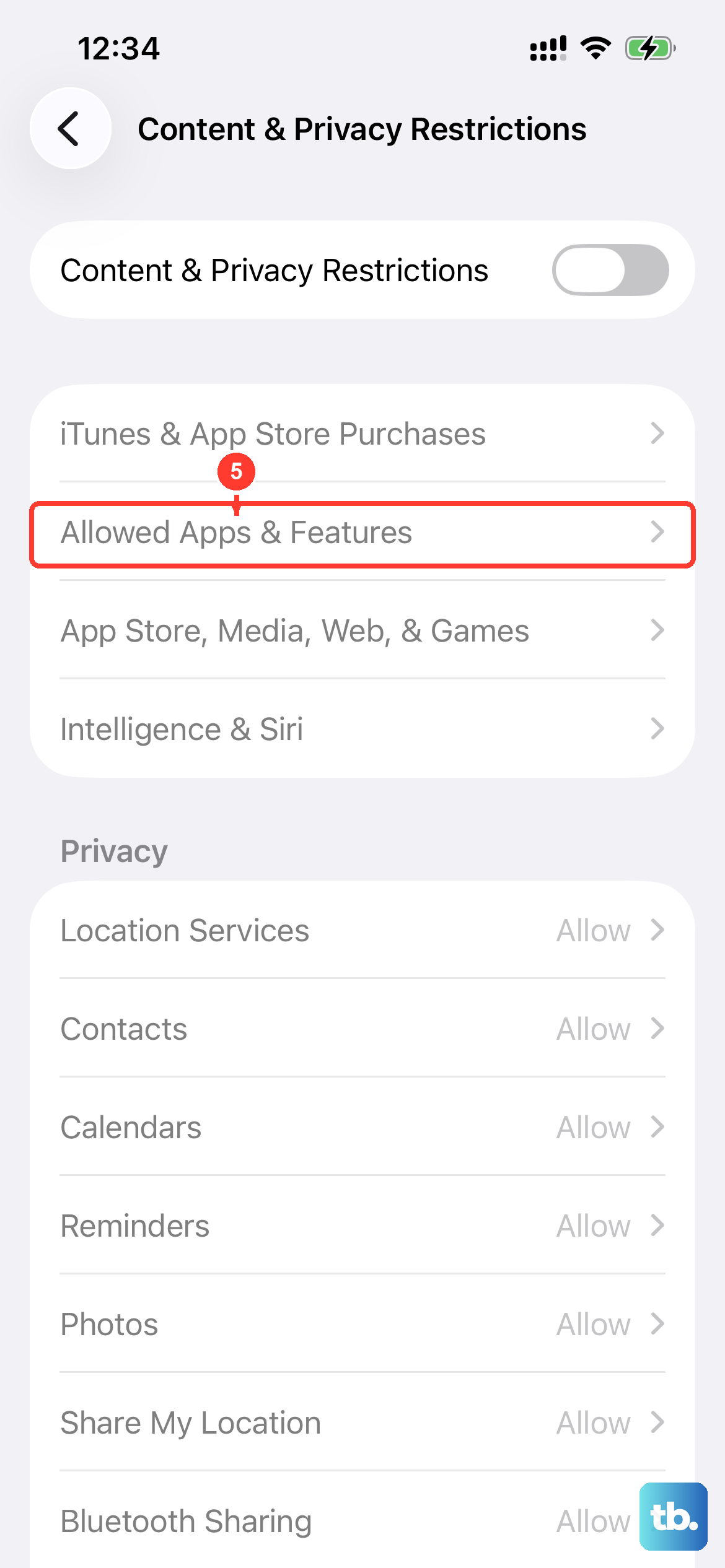
If call audio plays through the speaker instead of your headphones, go to Settings > Accessibility > Touch > Call Audio Routing and choose Automatic or Bluetooth Headset. If Screen Time restrictions are set up on the phone, also open Settings > Screen Time > Content & Privacy Restrictions and make sure the app or feature you need is allowed.
Clean Your Headphones
For wired headphones, check the USB-C plug for any debris or damage. For wireless earbuds like AirPods, gently clean the speaker meshes with a dry, soft-bristled brush. Earwax or lint buildup can severely muffle or block sound entirely, making it seem like the phone is at fault.