
Your iPhone 17 Pro's camera app is lagging when you switch between modes. You tap Photo to Video, or 1x to telephoto, and the viewfinder freezes for several seconds before catching up.
This is a confirmed software issue tied to the iPhone 17's new AI image processing pipeline. Apple has acknowledged camera issues on the iPhone 17 family and has been iterating on camera fixes through the iOS 26.x point releases, though mode-switching lag specifically continues to show up in user reports.
Here is what is happening, what you can do right now, and what to expect when Apple ships the next patch.
What the Bug Looks Like
The most common pattern is a multi-second freeze when you switch camera modes. You tap from Photo to Cinematic, or from the rear camera to the front-facing camera, and the viewfinder stops updating.
The screen might show the last frame from before the switch, or it might go partially blank. After a few seconds, the camera comes back to life and you can shoot normally.
A related variant is the front camera lagging on its own, even without a mode switch. The viewfinder updates choppily, frames look distorted, or there's a noticeable delay between you moving and the preview catching up. This shows up most often during selfie video calls or when the front camera has been active for a long time.
The Quick Workarounds
Until Apple ships the next patch, three things help in the moment.
First, close and reopen the Camera app. Swipe up from the bottom edge of the screen, pause at the App Switcher, and swipe up on the Camera card to close it. Then reopen from the home screen. The fresh launch typically clears the lag for the next several minutes of shooting.
Second, restart the iPhone. Hold the Side button and either volume button until the power-off slider appears, slide to power off, then hold the Side button again to turn it back on. A full restart resets the camera daemon and clears any stuck state.
Third, if the lag hits mid-shooting, switch modes once more to force the pipeline to re-sync. The bug sometimes clears itself after you toggle through modes, which is counterintuitive but consistently reported.
Free Up Background Resources
The camera lag gets worse when other apps are competing for memory and CPU. Two things to check.
Close apps you're not actively using. Swipe up to the App Switcher and swipe up on each app card to close it. iOS normally handles this fine, but on the iPhone 17 with the camera bug, freeing memory helps the camera daemon stay responsive.
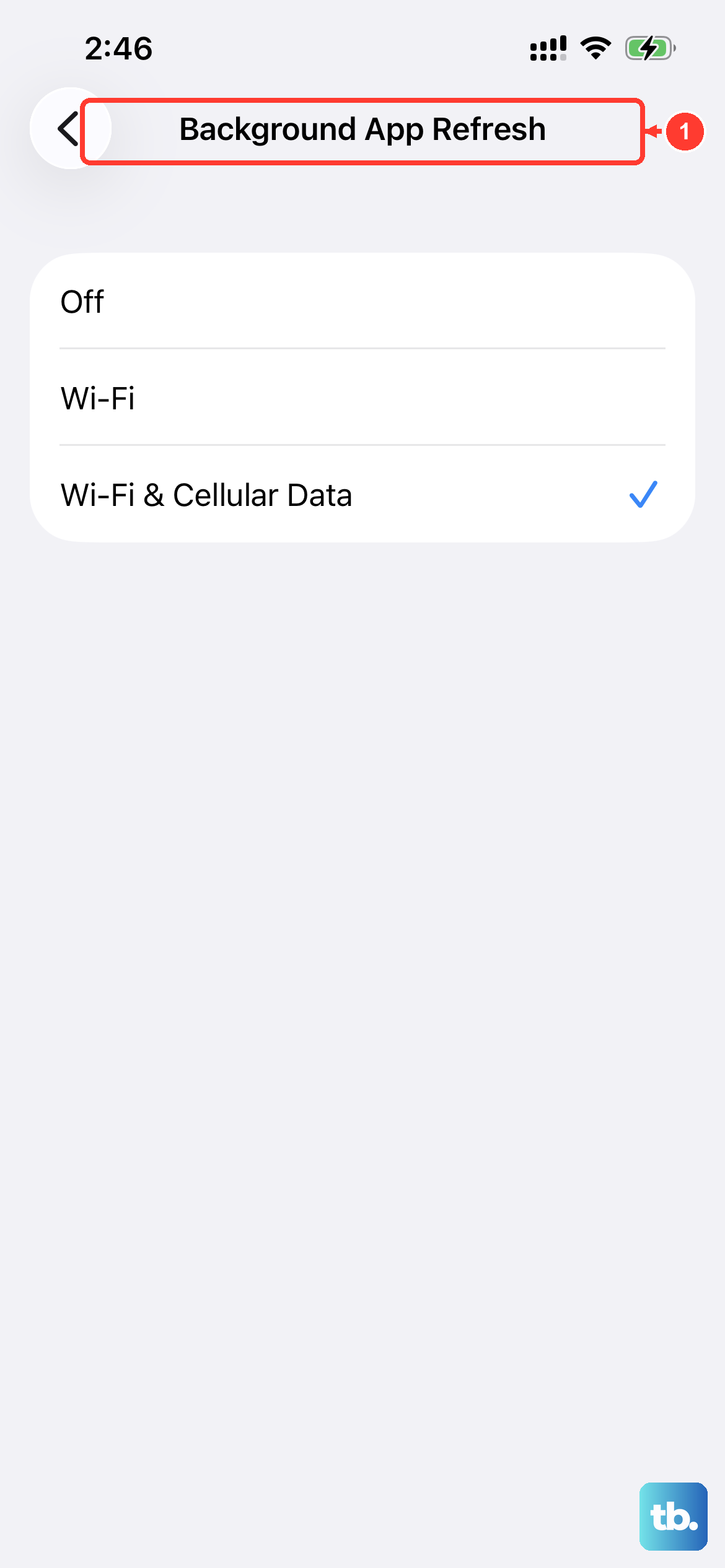
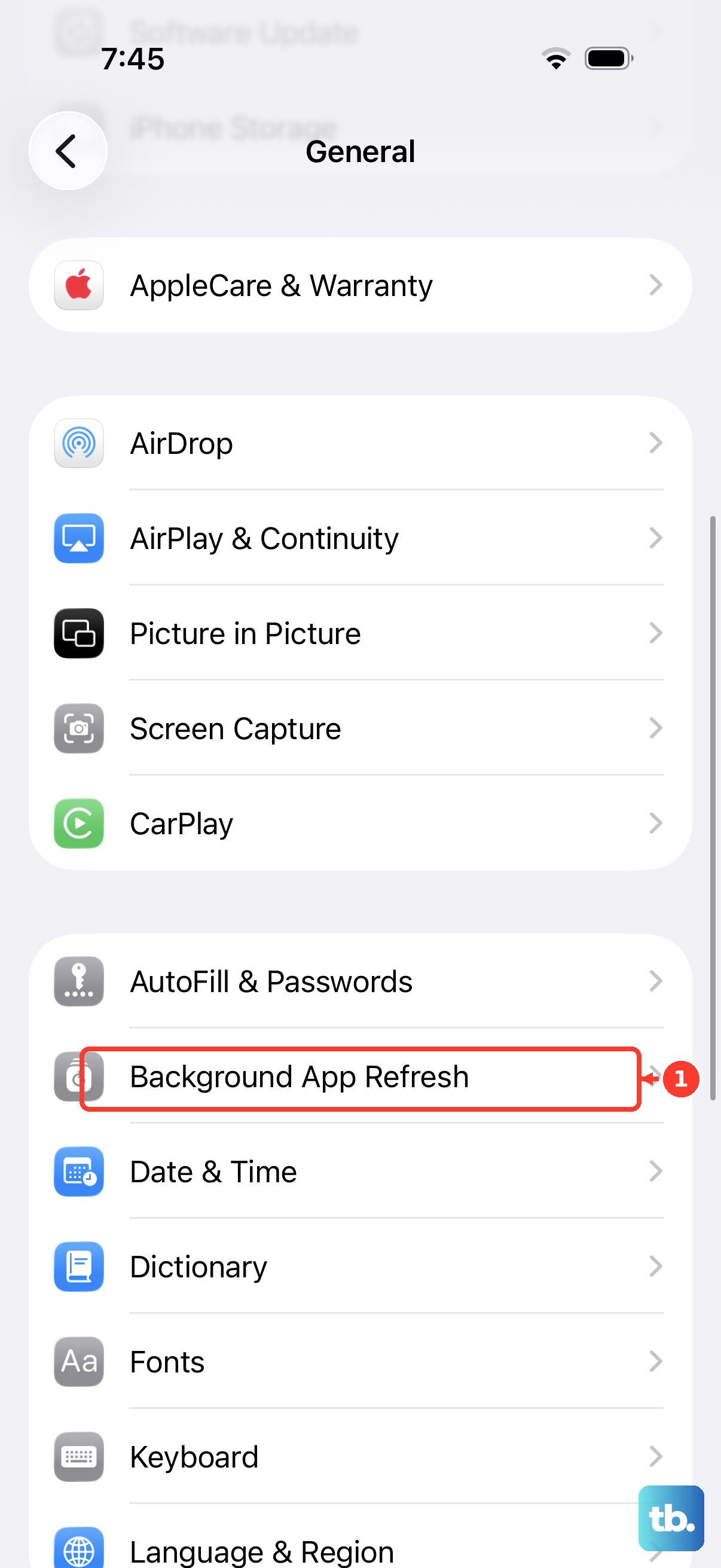
Turn off background app refresh for apps that don't need it. Go to Settings > General > Background App Refresh and toggle off apps that don't need to update in the background (social media, games, weather widgets). This keeps the camera from competing with refreshing apps for processing time.
Try Disabling Apple Intelligence
The camera path on iPhone 17 leans on the same AI processing layer that powers Apple Intelligence. Some users report that turning Apple Intelligence off reduces the camera lag, presumably by easing the load on the shared processing pipeline.
Go to Settings > Apple Intelligence & Siri and toggle the main switch off. Wait a few minutes for the disabled state to settle, then test the camera.
If the camera responsiveness improves, the AI features were contributing to the issue. You can either leave Apple Intelligence off, or re-enable it after the next iOS update lands and see if Apple has fixed the underlying conflict.
Update to the Latest iOS Version
Apple has been iterating on camera performance through the iOS 26.x point releases. iOS 26.0.1 specifically included camera stability and image-processing improvements for iPhone 17 and iPhone Air. Later point releases have continued that work.
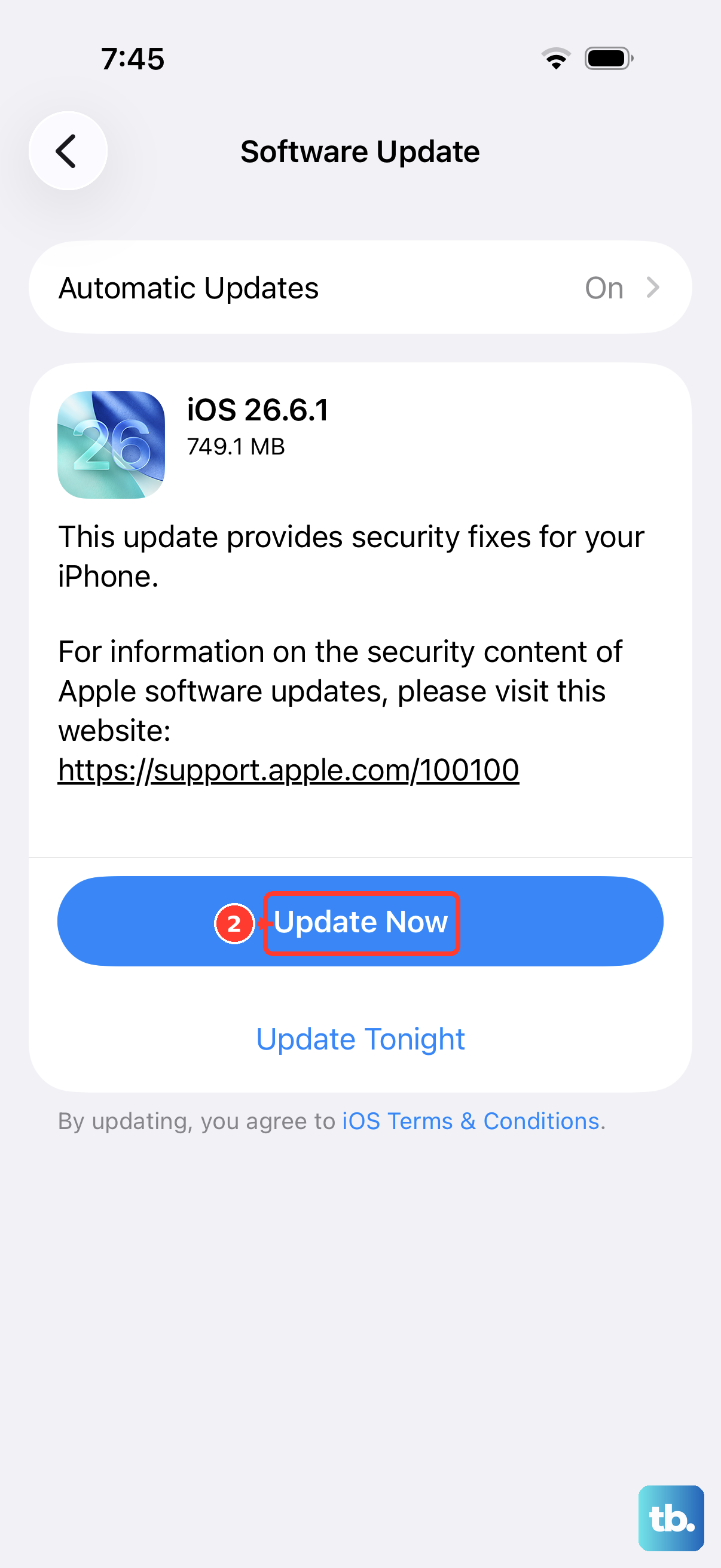
Go to Settings > General > Software Update. Each point release tends to include camera pipeline improvements, even when the release notes don't specifically mention them.

Updating gets you the latest performance fixes plus positions you to receive the next patch when it lands.
If the Lag Persists After All Workarounds
If you've closed apps, restarted, disabled Apple Intelligence, and you're on the latest iOS but the camera still lags, the next path is a fresh setup.
Back up your iPhone to iCloud or to a computer. Then either restore from backup or set up as a new iPhone and reinstall apps manually. Fresh setups occasionally clear stuck camera state that a regular restart misses.
If even fresh setup doesn't help, contact Apple Support. A small number of iPhone 17 Pro units have shipped with camera hardware issues that present as software lag but are actually defective camera modules. Apple's diagnostic can identify these, and units under warranty get replacement at no cost.
What This Doesn't Affect
The bug is specific to the camera app. Your photo library and previously-shot photos and videos are fine.
The lag doesn't affect image quality once a photo is captured. Even if the viewfinder freezes, the resulting photo is still sharp and properly exposed. The issue is purely in the live preview pipeline, not the capture itself.
Your other camera-using apps (Instagram, Snapchat, Zoom) may or may not be affected depending on whether they use the iOS camera daemon or their own. Most use the system camera so they exhibit the same lag, but third-party camera apps with their own pipeline are typically immune.