
If your iPhone Air videos are stuttering, freezing, or lagging during playback, it's a common issue that usually has a straightforward fix. Whether you're streaming from YouTube or watching clips you shot, the steps below cover the most likely causes and solutions.
Restart Your iPhone Air
The quickest fix is a simple restart. Hold the Side button and either volume button until the power-off slider appears, then drag it. Wait a few seconds, then press the Side button to turn it back on. This clears temporary glitches that can cause video stutter.
Force Restart After a Battery Depletion
If your iPhone Air became unresponsive after the battery died, a force restart often gets it back. Quickly press and release Volume Up, then Volume Down, then press and hold the Side button until the Apple logo shows up. If a normal cable charge doesn't work, attach a magnetic battery pack to the back to wake the screen first, then do the force restart.
Free Up Storage Space
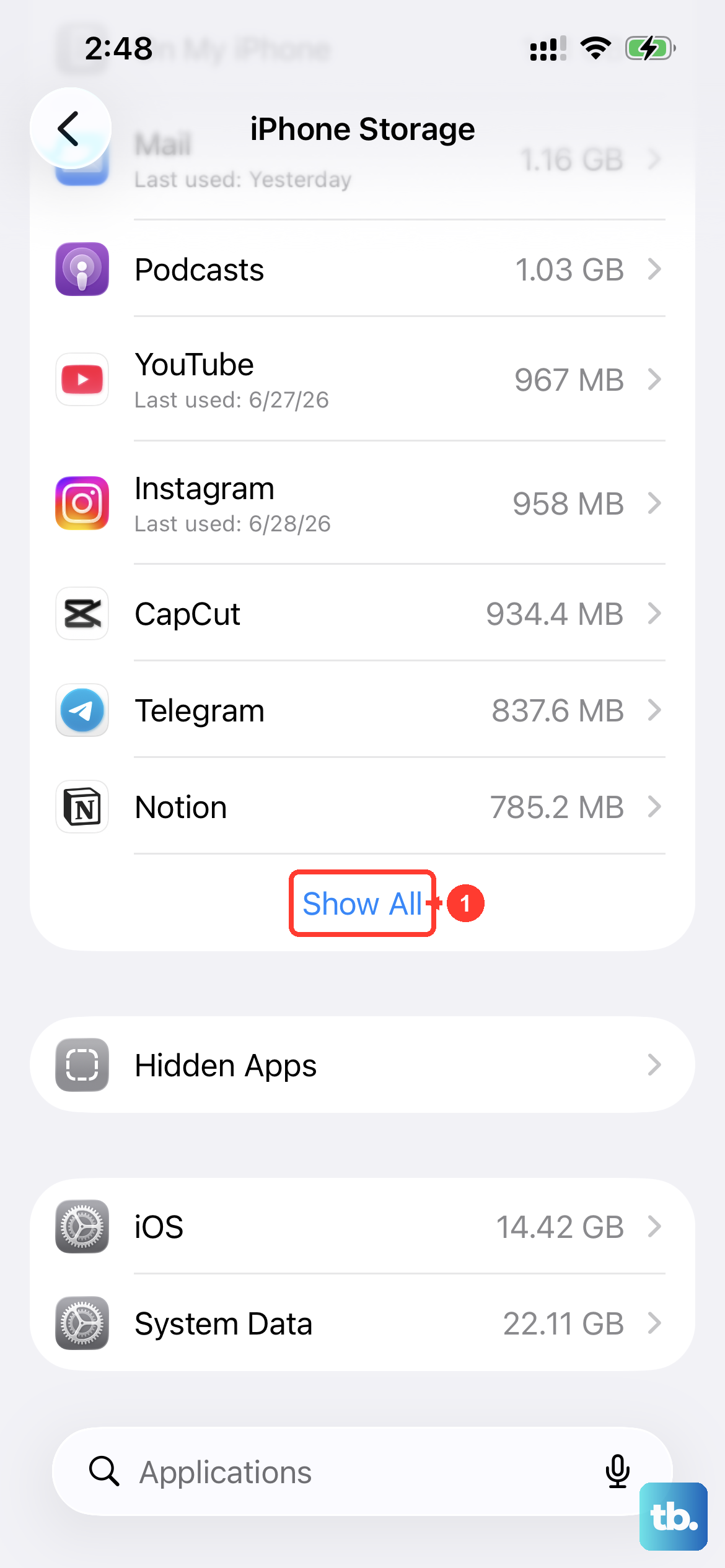
Low storage is a prime cause of video lag. Go to Settings > General > iPhone Storage and check your available space. If it's under a couple of gigabytes, delete unused apps, offload photos to iCloud, or clear out old videos. Your phone needs room to buffer and process video files.
Check Your Internet Connection
For streaming videos, weak Wi-Fi or cellular signal causes buffering and lag. Try switching between Wi-Fi and 5G to see if the problem persists. If you're on Wi-Fi, restart your router or move closer to it. Even videos stored in iCloud can stutter if the connection drops intermittently.
Update to the Latest iOS 26
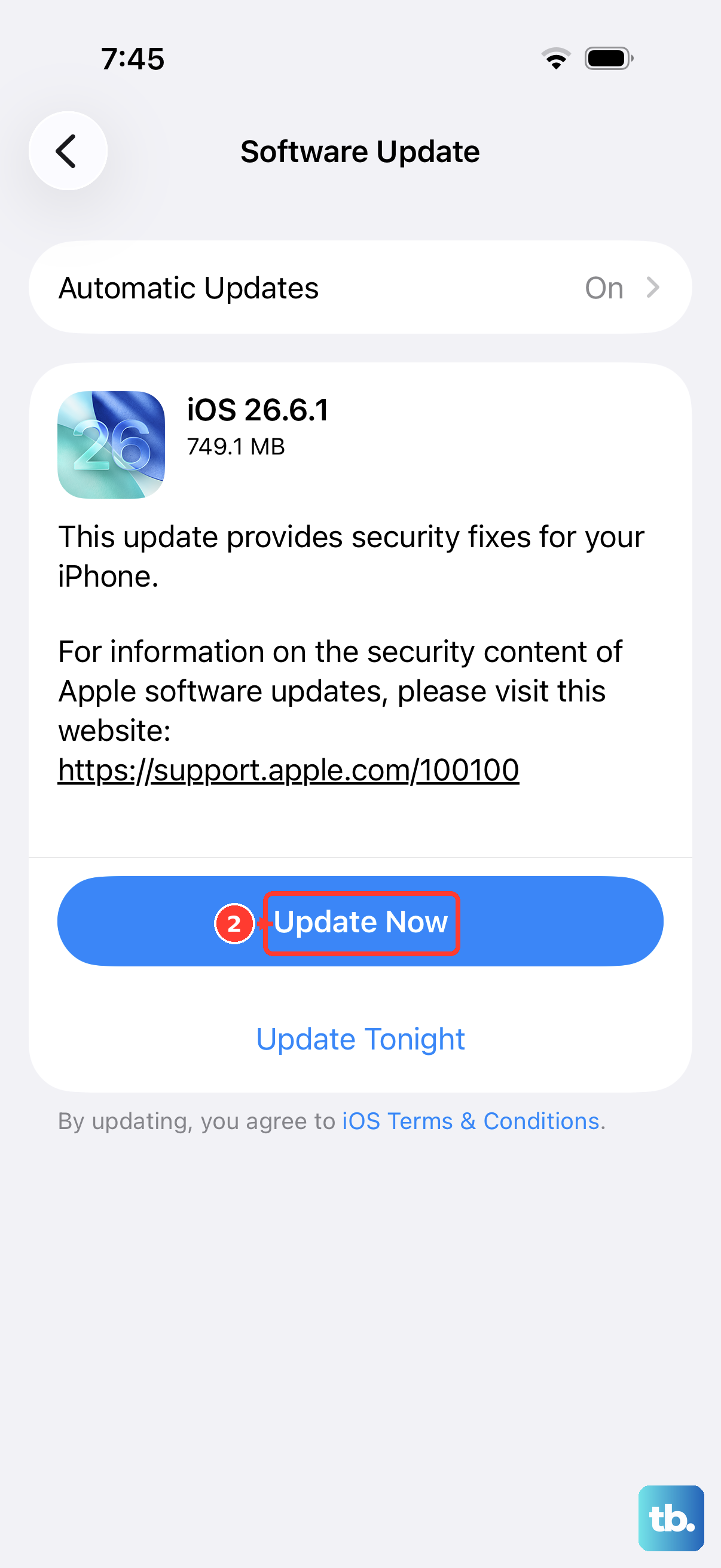
Apple regularly releases patches for video playback issues. Go to Settings > General > Software Update and install any available updates. The known firmware bug in iOS 26.4.2 might affect performance, so updating to a newer version could fix it directly.
Reset All Settings
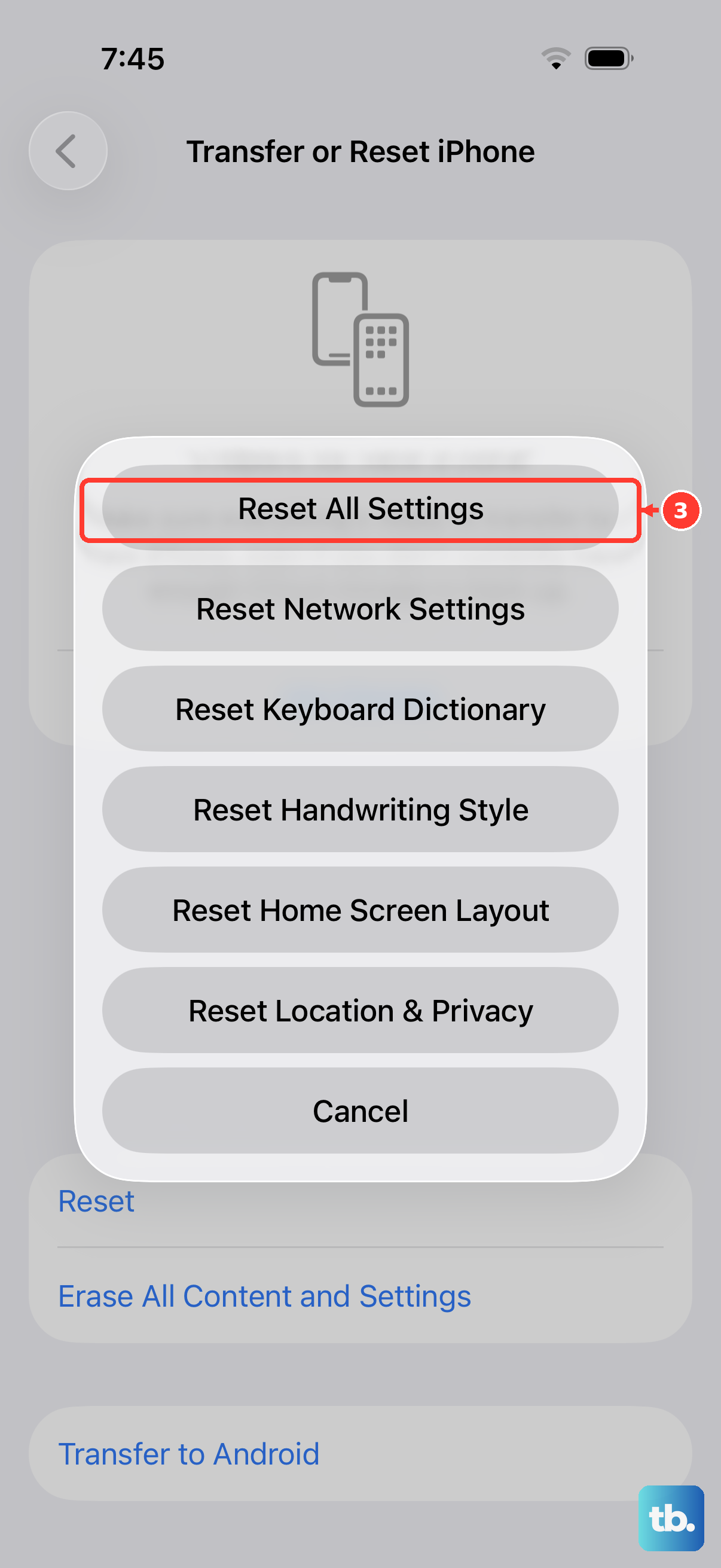
If software settings have gone awry, resetting them won't delete your data. Navigate to Settings > General > Transfer or Reset iPhone > Reset > Reset All Settings. You'll need to re-enter Wi-Fi passwords, but it often clears up persistent glitches that cause video lag.
Manage Background App Refresh
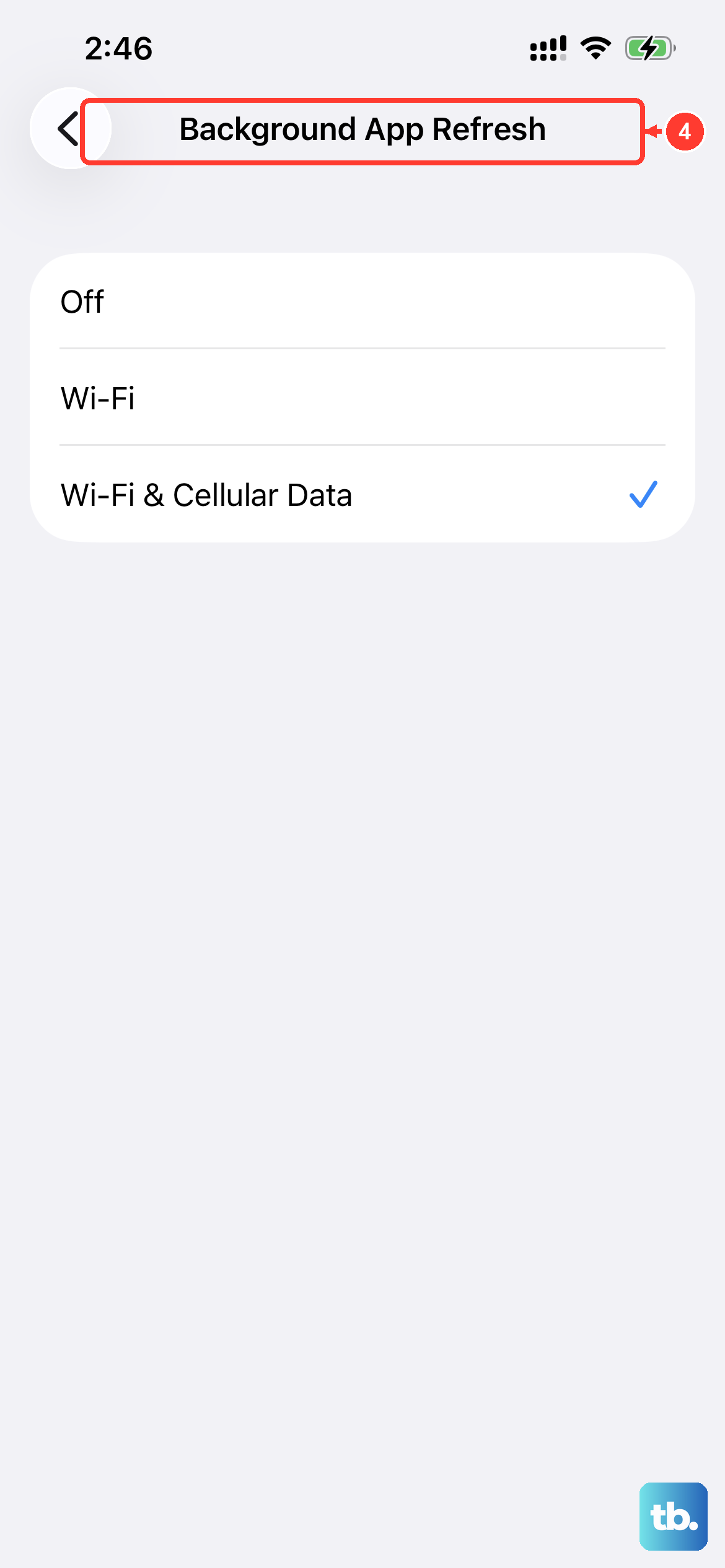
Too many apps refreshing in the background can choke performance. Go to Settings > General > Background App Refresh and turn it off for video apps you don't need running in the background. Close other apps from the App Switcher as well to free up RAM.
Check for Corrupted Video Files
If only one specific video lags, the file itself might be damaged. Try playing a different video to rule this out. If the file is corrupted, re-download it or transfer the original again from a backup.
Use a Different Video Player
Sometimes the issue is app-specific. Try playing the same video in Apple's built-in Photos app, a third-party player like VLC, or a streaming app. If only one player lags, reinstall that app or check for updates in the App Store.
Erase All Content and Settings (Factory Reset)
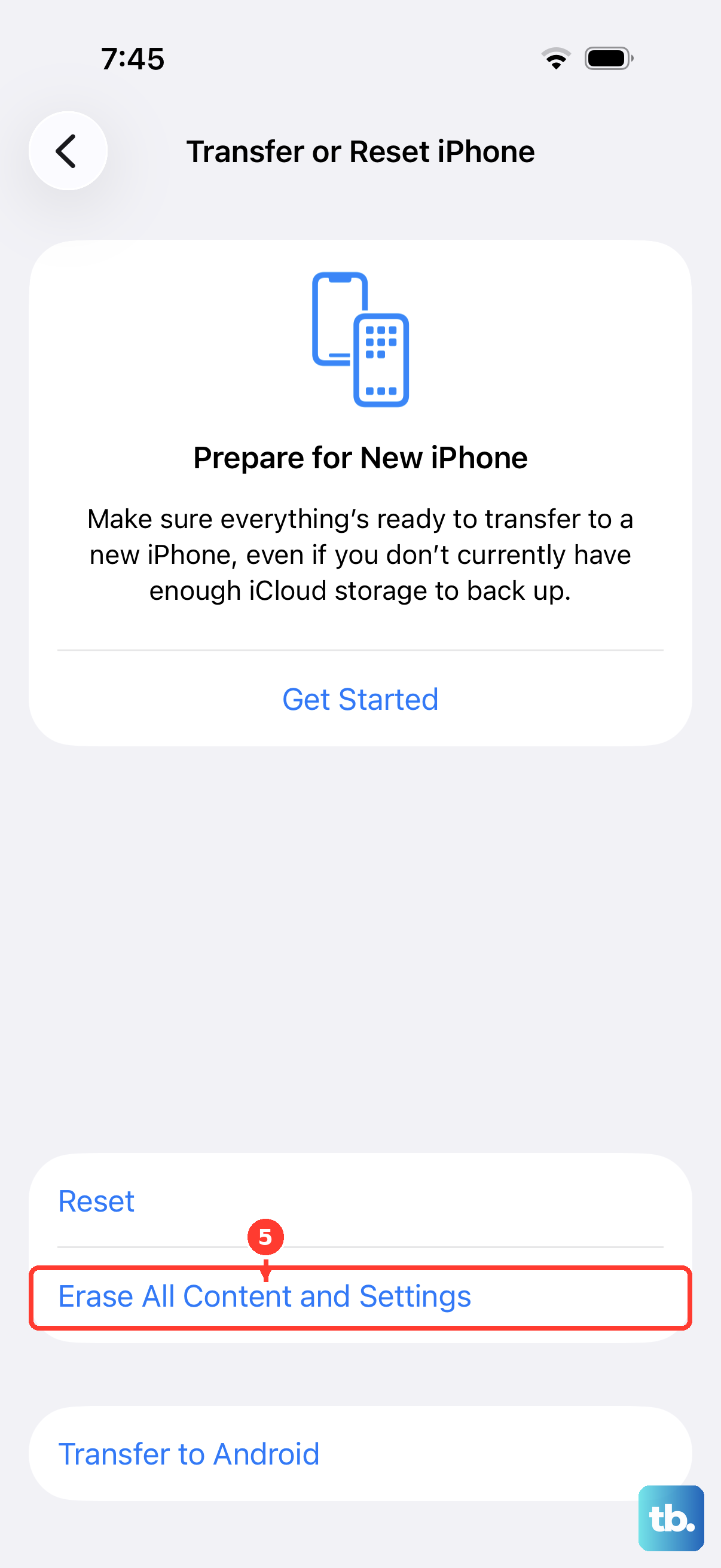
As a last resort, a factory reset wipes everything and gives you a clean slate. Back up your iPhone Air first via iCloud or a computer. Then go to Settings > General > Transfer or Reset iPhone > Erase All Content and Settings. This should resolve any deep software corruption causing video lag.