
Email stops working on your iPhone Air and you're left staring at a loading spinner or a "Cannot Connect to Server" message. It's a pain, but most of these issues have a straightforward fix.
Before anything else, check that you're actually connected to the internet, open a webpage or try any other app that uses data. Also make sure your email provider isn't having a widespread outage (a quick Twitter search or their status page will tell you). If both look fine, start with the fastest fix.
If your iPhone Air is completely unresponsive, maybe the battery drained fully and now it won't turn on, attach a magnetic battery pack (Qi2 or MagSafe) to the back. That often wakes it up enough to take a cable charge. Then perform a force restart: quickly press and release the Volume Up button, then quickly press and release the Volume Down button, then press and hold the Side button until the Apple logo appears. Once the phone is back on, try email again.
Quick Network Reset Toggle Airplane Mode
Sometimes your iPhone Air just needs a fresh network handshake. Swipe down from the top right to open Control Center and tap the airplane icon. Wait about 30 seconds, then tap it again to turn Airplane Mode off. This forces the phone to reconnect to all radios, cellular, Wi‑Fi, Bluetooth, and often clears temporary email hiccups.
Switch Between Wi‑Fi and Cellular Data
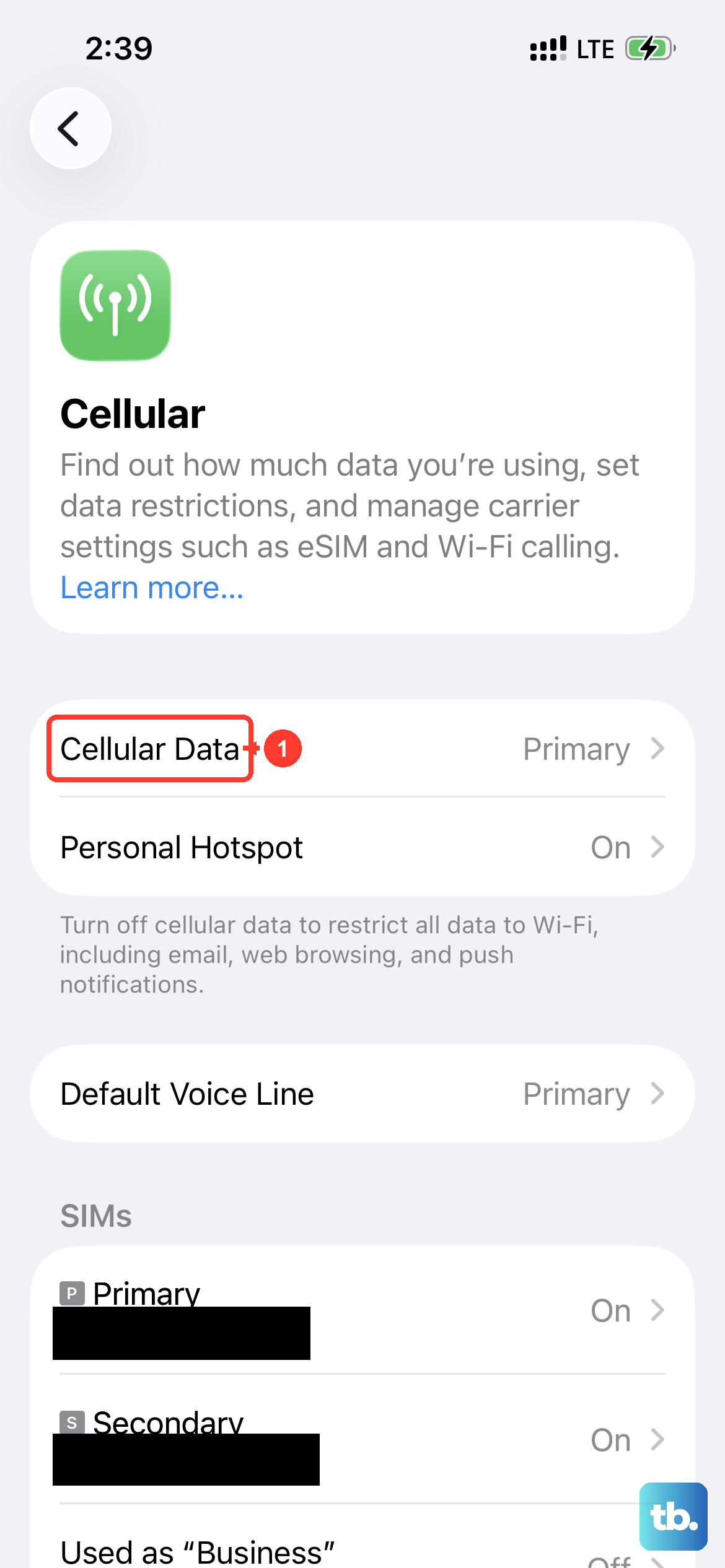
If Airplane Mode didn't do the trick, try swapping your active connection. Go to Settings > Wi‑Fi and toggle it off, then see if email works over cellular. If it does, the problem is your Wi‑Fi network (try restarting your router). If email fails on cellular too, head to Settings > Cellular and scroll down to make sure the Mail app has cellular data enabled, the toggle should be green.
Check Your Mail Fetch & Push Settings
Your iPhone Air can either push new emails as they arrive or fetch them on a schedule. If Push isn't working, you might not see new messages for hours. Go to Settings > Apps > Mail > Mail Accounts > Fetch New Data. Turn on Push if your email provider supports it (most do for iCloud, Outlook, and Exchange). For other accounts, set a fetch interval like Every 15 Minutes or Every Hour. If you see "Manually" selected, emails will only appear when you open the Mail app.
Restart the Mail App Itself
A simple app restart can clear a frozen or glitchy Mail session. Swipe up from the bottom of the screen and pause about halfway up, the App Switcher will appear. Find the Mail card and swipe it up to close it. Wait a couple of seconds, then tap the Mail icon to relaunch. Nine times out of ten, that's all it takes.
Enable Background App Refresh for Mail
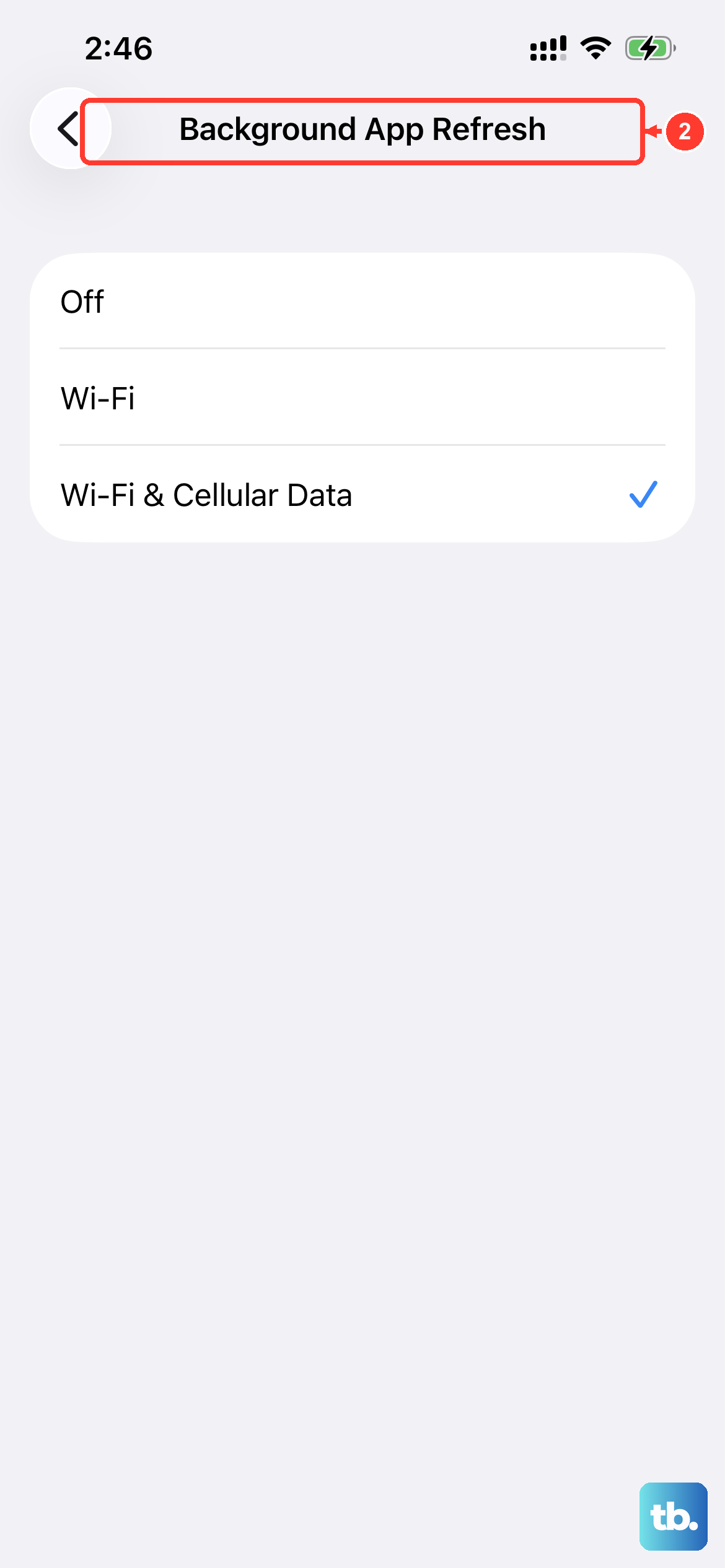
If Mail isn't allowed to refresh in the background, it won't download new messages until you actively open it. Go to Settings > General > Background App Refresh and choose Wi‑Fi & Cellular Data or Wi‑Fi. Then scroll down the list and make sure the toggle next to Mail is turned on.
Verify Your Email Password
Sometimes your password changes on the server side (because you reset it elsewhere, or your IT department forced a rotation). Try logging into your email on a computer or in a browser. If that works, the credentials are fine. If it doesn't, update your password, then update it on your iPhone Air: go to Settings > Apps > Mail > Mail Accounts, tap the account, then tap Account and enter the new password.
Disable VPN & Proxy Temporarily
VPNs or proxy configurations can block the specific ports that email servers use. Go to Settings > General > VPN & Device Management and toggle off any active VPN connection. If you use a third‑party VPN app, open it and disconnect. Test email again, if it works, you know the VPN was the culprit. You can usually add an exception for your mail server inside the VPN app.
Check Date & Time Set Automatically
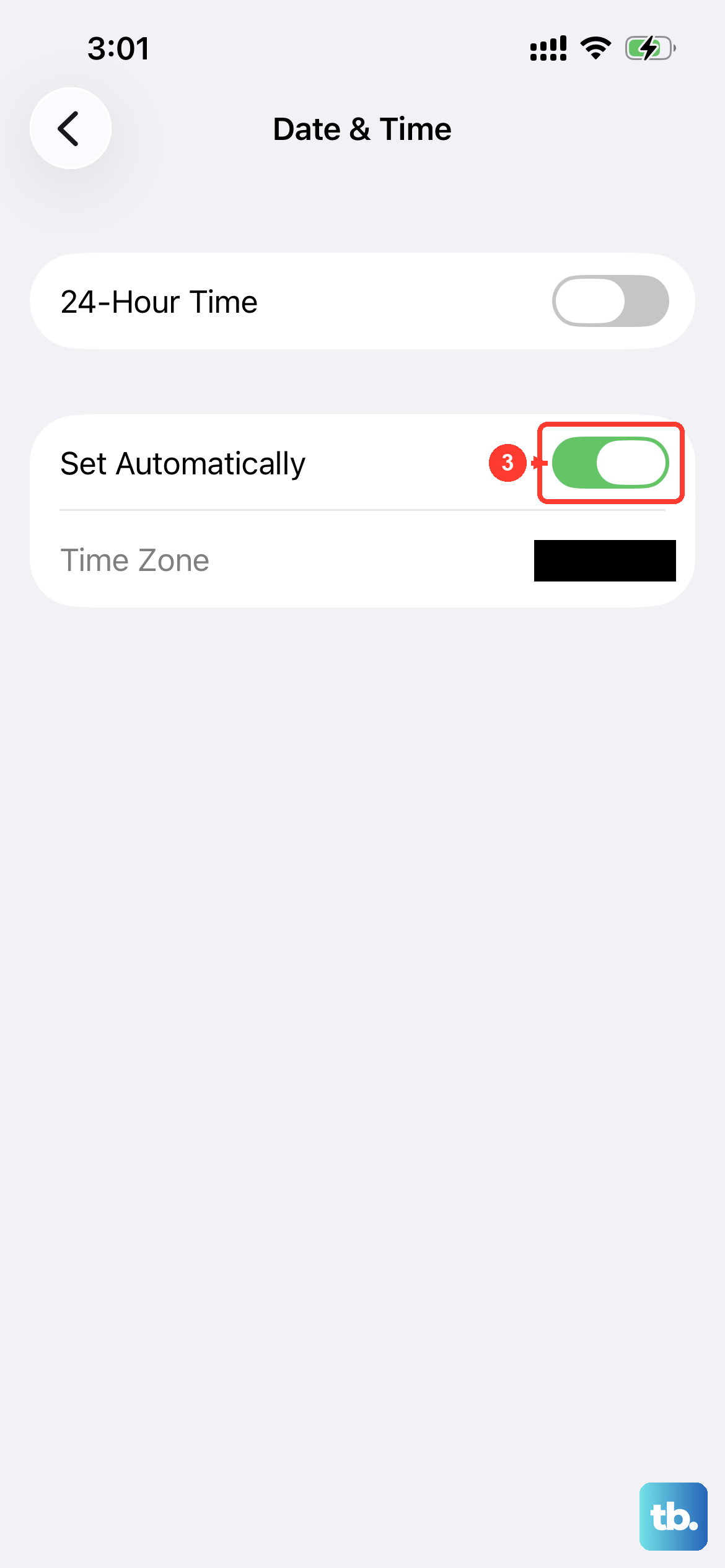
Believe it or not, an incorrect date or time can break email security certificates, causing the Mail app to refuse a connection. Go to Settings > General > Date & Time and turn on Set Automatically. If it's already on, toggle it off, wait a few seconds, then turn it back on. That forces your iPhone Air to re‑sync with Apple's time servers.
Update iOS (Firmware Fixes)
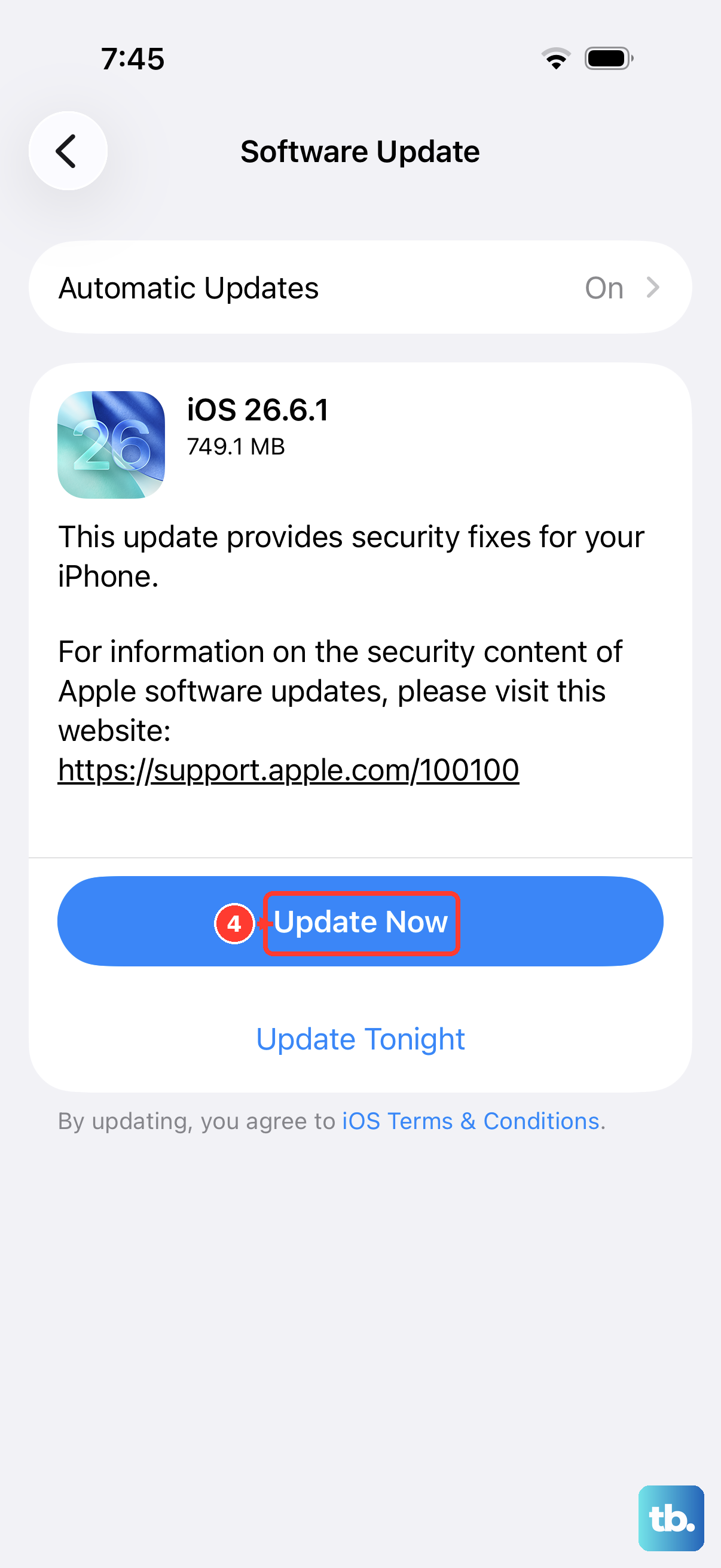
Apple regularly releases iOS updates that patch mail‑related bugs. Go to Settings > General > Software Update. If an update is available, download and install it. The iPhone Air runs iOS 26, and some early builds had intermittent mail sync problems, a later update likely addressed them.
Delete and Re‑Add Your Email Account
If the server‑side settings have changed or become corrupted, wiping the account off your phone and re‑adding it is often the cleanest fix. Go to Settings > Apps > Mail > Mail Accounts. Tap the account causing trouble, then tap Delete Account. Don't worry, this only removes it from your phone, not from the server. Then tap Add Account, choose your provider, and sign in again. Your old emails will redownload.
Check Notification Settings (If Emails Arrive but Don't Alert You)
Maybe messages are coming in, but your iPhone Air isn't buzzing or showing a banner. Go to Settings > Notifications > Mail. Make sure Allow Notifications is on, then choose your preferred alert style (Lock Screen, Banners, etc.). Also check that the sound isn't set to "None."
Reset All Settings (Last Resort)
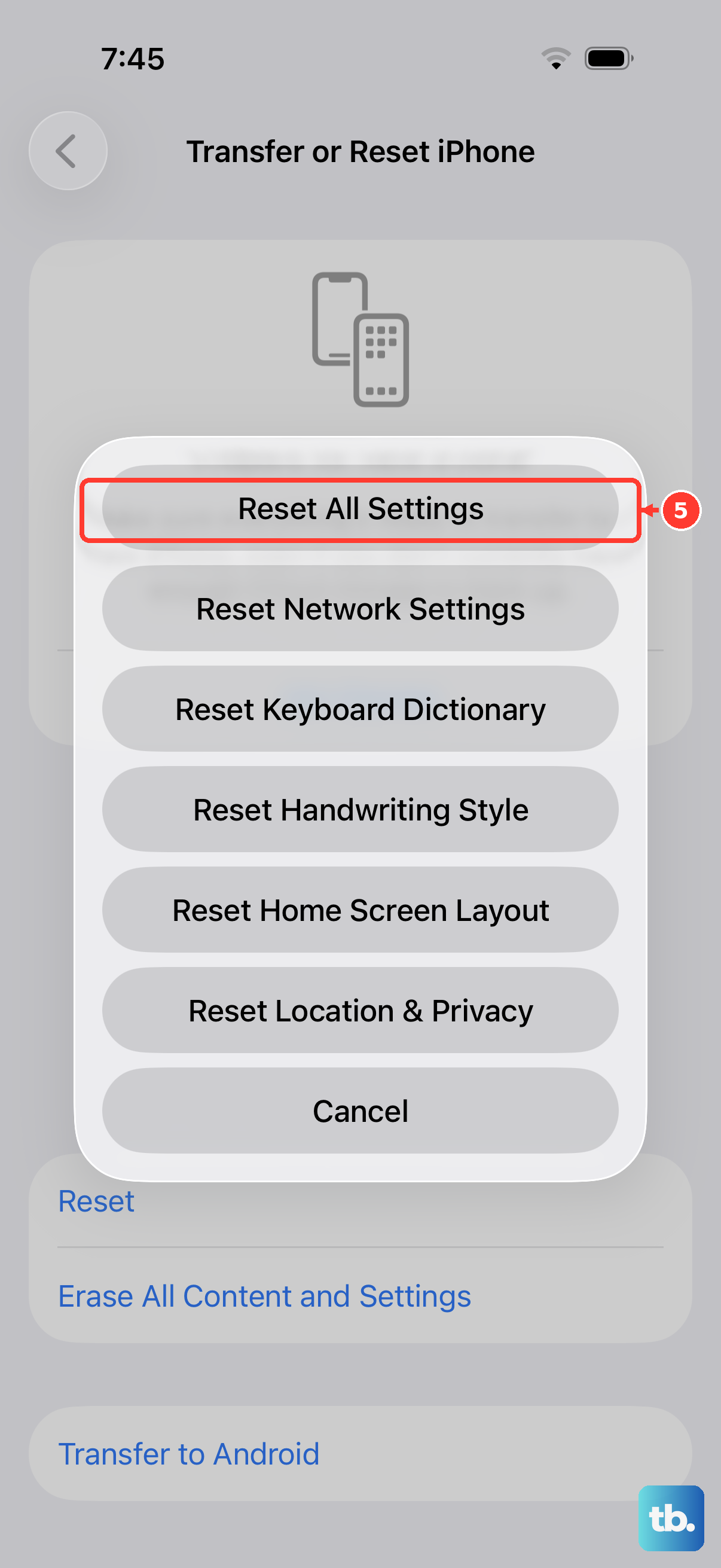
If you've tried everything and email still misbehaves, Reset All Settings wipes out your customizations, Wi‑Fi passwords, wallpapers, ringtone choices, but doesn't delete your data or apps. Go to Settings > General > Transfer or Reset iPhone > Reset > Reset All Settings. Your iPhone Air will restart, and you'll need to re‑enter Wi‑Fi passwords and reconfigure a few preferences, but it often clears stubborn Mail app configuration corruption.
One last thing: if you're using a third‑party email app like Gmail or Outlook, make sure it's updated through the App Store. Sometimes the stock Mail app works fine while third‑party apps have their own bugs. Most email problems on the iPhone Air are solved by one of these steps, so work through them in order, you'll probably find the fix before you reach the end.