You set your iPhone 16 on the pad, walked away, and came back to a battery that did not budge. Wireless charging should be effortless, so when nothing happens it is genuinely confusing, especially since your iPhone 16 absolutely supports it. The good news is that most wireless-charging failures come down to placement, the case, or the power adapter, and you can usually sort them out in a few minutes. Work through the nine fixes below in order, starting with the quickest and safest checks before anything drastic.
First, the reassurance. The iPhone 16 and iPhone 16 Plus do charge wirelessly. Apple's official Tech Specs list MagSafe wireless charging up to 25W and Qi2 wireless charging up to 25W, and the phone has a built-in magnet array and alignment magnet. So the feature is real and the problem is almost always something fixable, not a missing capability.
Use a Certified Charger With a Strong Enough Power Source
Wireless charging only works with proper hardware behind the pad. The iPhone 16 supports MagSafe up to 25W and Qi2 up to 25W, but it still needs a Qi-certified charger paired with a compatible power adapter. A charger that is not certified, or one plugged into a weak or dead source, can look fine and still deliver nothing.
Apple's instructions are straightforward. Connect your charger to power, using the power adapter that came with your accessory or a power adapter recommended by the manufacturer. Then place the charger on a level surface and set the iPhone on it with the display facing up.
Speed depends on the adapter too. For full-speed MagSafe charging on the iPhone 16, Apple says to connect the MagSafe Charger to a recommended 30 watt or greater Apple USB-C power adapter. So the headline 25W MagSafe figure requires a 30W or greater adapter, and a smaller brick will charge more slowly, which can feel like a malfunction even though it is working as designed.
Give it a moment after you set it down. According to the official guidance, your iPhone should start charging a few seconds after you place it on the wireless charger. If nothing happens after several seconds, move on to alignment.
Center the Phone and Clear the Gap Between It and the Pad
Wireless charging is finicky about position. Apple's advice is to place your iPhone on the charger with the display facing up, and for best performance, to place it in the center of the charger or in the location recommended by the manufacturer. A phone that is even slightly off the coil may not pick up power.
Just as important is what sits in between. Apple warns not to place anything between your iPhone and the charger. Magnetic mounts, magnetic cases, or other objects between your iPhone and the charger might reduce performance or damage magnetic strips or RFID chips.
If you use a stand, mount, or pop-socket, take it off and try the phone directly on a clean pad. Re-center the phone, wait a few seconds, and watch for charging to begin.
Take Off a Thick, Metal, or Battery Case
Some cases simply block the connection. Apple's guidance is clear. If your iPhone is not charging or is charging slowly and your iPhone has a thick case, metal case, or battery case, try removing the case.
This matters even more for MagSafe. For MagSafe charging specifically, the official setup steps say to keep the charging surface clear of any metal objects, so a metal case or metal plate can stop charging entirely.
Remove the case, set the bare phone on the charger, and see whether it starts. If it does, the case is your culprit and you may need a thinner or charger-compatible one.
Pull Out Cards, Badges, and Key Fobs if You Use MagSafe
If you charge with a MagSafe Charger, watch what is tucked against the back of the phone. Apple specifically warns not to place credit cards, security badges, passports, or key fobs between your iPhone and MagSafe Charger.
These items are not just a charging problem, they can be damaged in the process and can interfere with charging at the same time. If you use a wallet case or a card holder on the back, remove the cards before placing the phone on the MagSafe Charger.
Stop the Phone From Wandering Off the Coil
A subtle cause is movement. Apple notes that if your iPhone vibrates, when it gets a notification for example, your iPhone might shift position, and this can cause the charging mat to stop providing power to your iPhone.
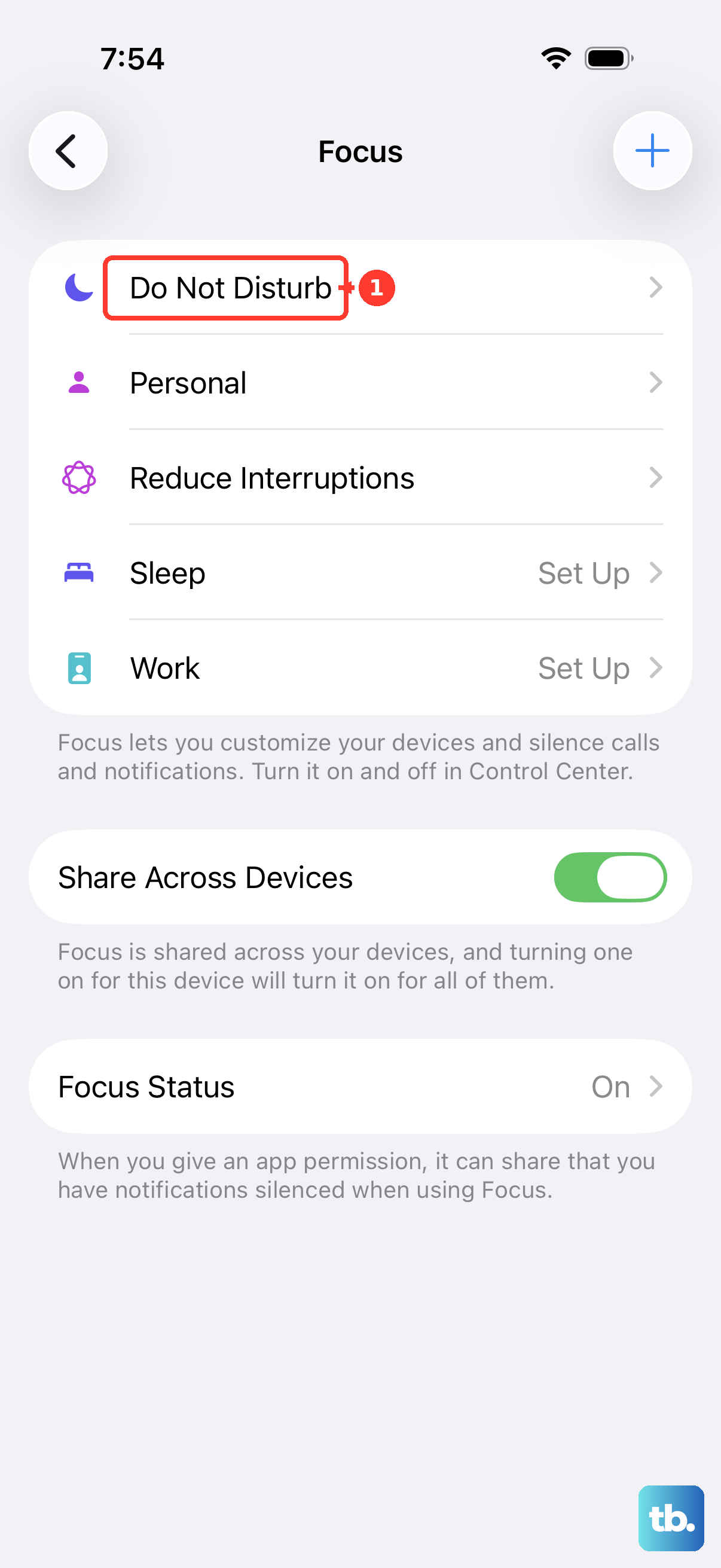
If your phone tends to creep across a flat pad over time, the fix is to keep it still. Apple suggests turning off vibration, using Do Not Disturb, or using a case to prevent movement so the phone stays aligned with the coil.
This is worth checking if charging starts and then mysteriously stops a little while later, especially overnight when notifications keep arriving.
Plug In the Adapter First, Then Place the Phone
Order of operations matters with MagSafe. Apple notes that it is important to plug into a power source before placing your iPhone on the MagSafe Charger, so power up the adapter first, then set the phone down.
If charging never starts when you place the phone first, try reversing the sequence. Connect the MagSafe Charger to its 30W or greater Apple USB-C power adapter, confirm the adapter is plugged into a working outlet, and only then rest the iPhone on the charger face up.
This small habit also helps with chargers that need a moment to negotiate power before the phone arrives.
When a Pause Near 80% Is Normal, Not a Fault
If charging slows or pauses around 80%, that is frequently expected behavior rather than a defect. Apple explains that iOS 13 and later use Optimized Battery Charging to slow the rate of battery aging by reducing the time that your iPhone spends fully charged.
Heat plays a role too. Apple's guidance is that heat can limit charging above 80%, and suggests trying to move your iPhone and charger to a cooler location.
If your phone is warm, take it off the charger, let it cool for a while away from sunlight or other heat sources, and then try again on a cooler surface.
Restart the iPhone, Then Force Restart if It Is Frozen
A quick software reset clears a lot of temporary glitches. Restart the iPhone first the normal way and try charging again.
If the phone is unresponsive or frozen, perform a force restart. The iPhone 16 uses Face ID and has no Home button, so the sequence is as follows.
- 1.Press and quickly release the volume up button.
- 2.Press and quickly release the volume down button.
- 3.Press and hold the side button until you see the Apple logo, which might take longer than 10 seconds.
Once the Apple logo appears, let the phone finish booting, then set it back on the charger and check whether charging resumes.
Rule Out a General Charging Fault and Update iOS
To tell a wireless-only problem from a broader charging fault, try charging with a USB-C cable. If the phone refuses to charge over the cable too, the issue is not specific to wireless charging.
From there, run through Apple's general charging troubleshooting. Remove any debris from the charging port on the bottom of your device, restart your iPhone, and try a different USB cable or charger. Also make sure that you have the latest version of iOS.
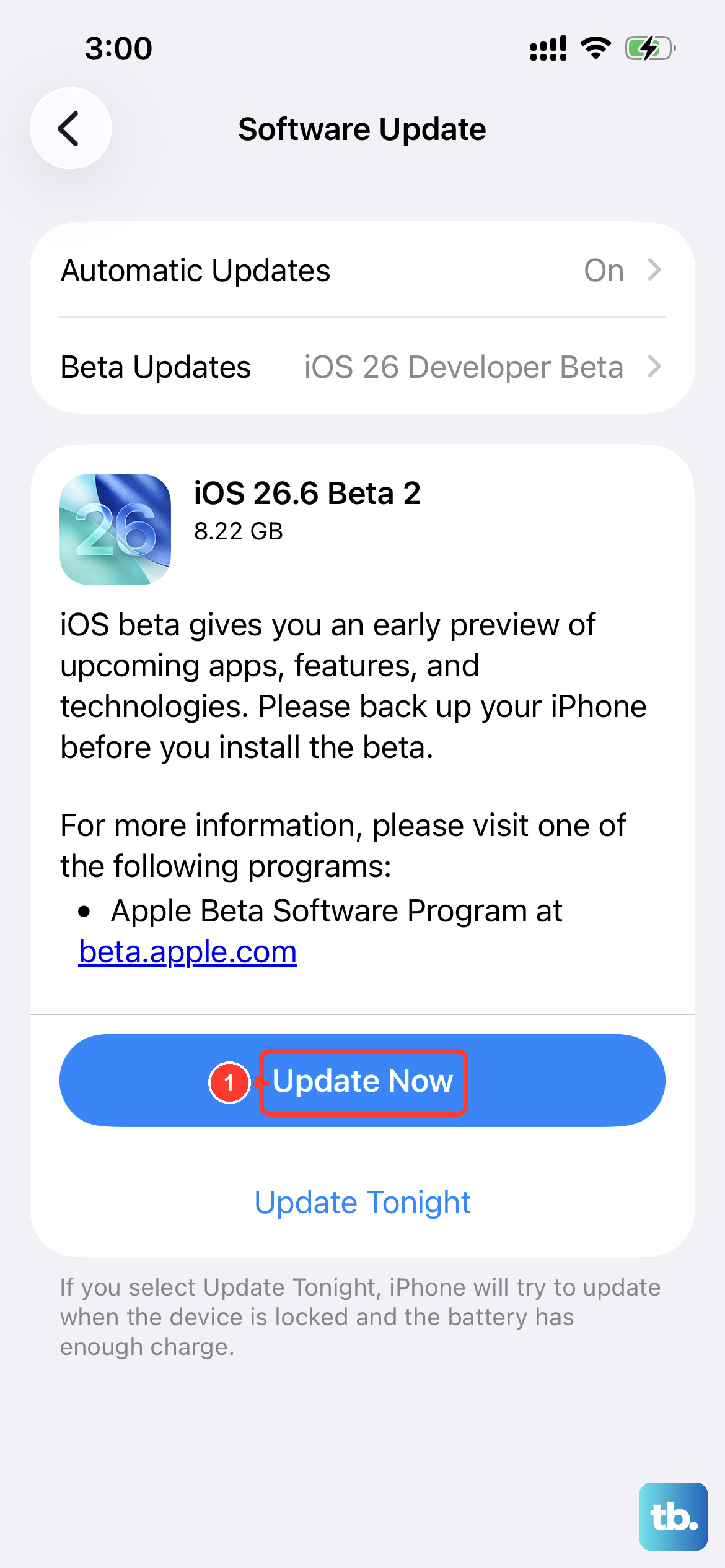
To update, go to Settings > General > Software Update. If an update is available, tap Download and Install, then follow the onscreen instructions. Apple advises backing up your device using iCloud or your computer first, and plugging your device into power and connecting to the internet with Wi-Fi before updating.
If wireless charging still fails after everything above, an erase is the final software step, and it should be treated carefully because it removes everything. Before you do it, create a backup. According to the official guidance, you can restore content, settings, and apps from this backup to a new or newly erased iPhone.
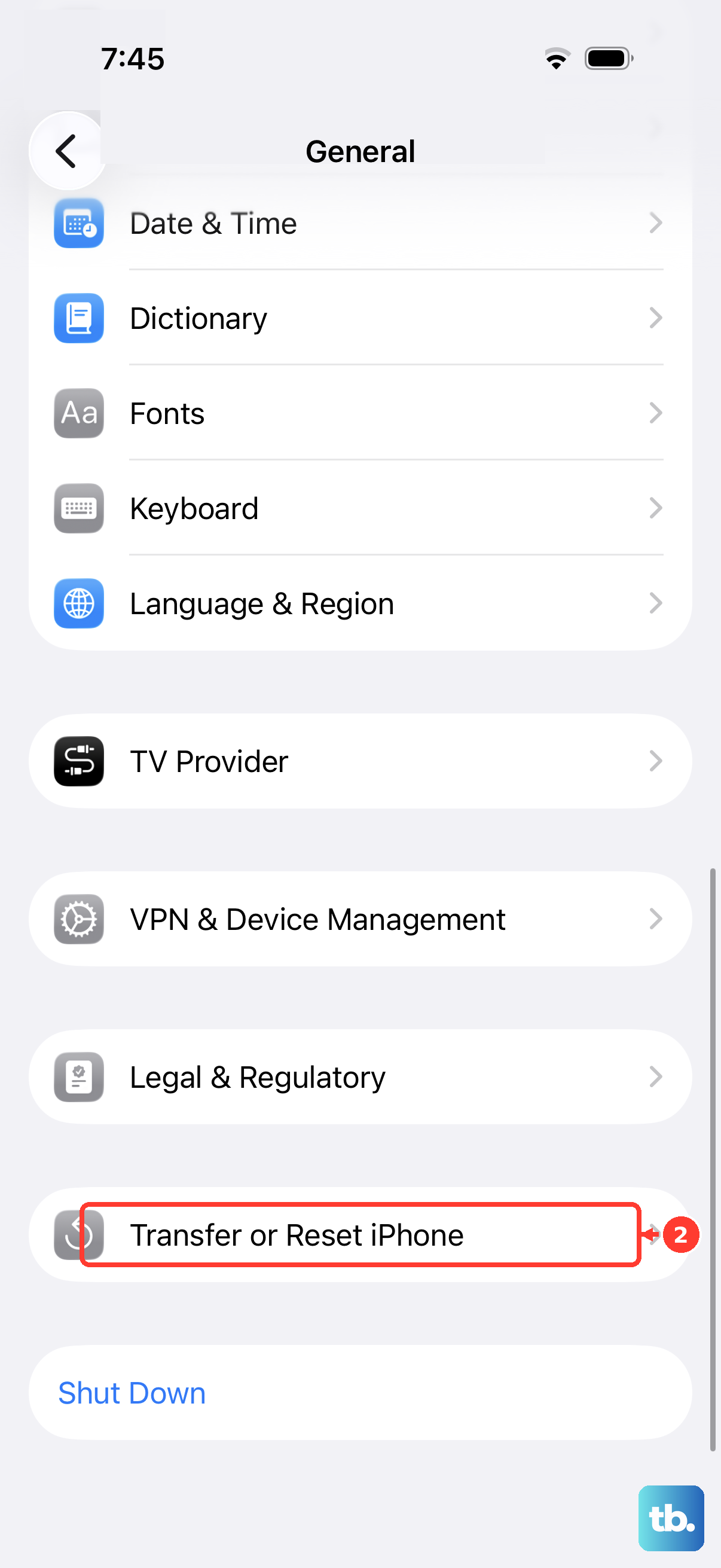
Once you have a backup, the path is Settings > General > Transfer or Reset iPhone > Erase All Content and Settings. Be aware this erases all data on the phone, so do not skip the backup.
If the device still will not power on or charge after that, it likely needs repair. Apple's direction is plain. If your device still will not power on or charge, you might need service, and you should get service through Apple's support channels.
Frequently Asked Questions
Does the iPhone 16 actually support wireless charging?
Yes. Apple's official iPhone 16 Tech Specs list MagSafe wireless charging up to 25W and Qi2 wireless charging up to 25W, and the phone includes a built-in magnet array and alignment magnet. It charges wirelessly via MagSafe and Qi2 and Qi.
Why is my iPhone 16 charging slowly on MagSafe?
Full-speed MagSafe charging needs the right power. Apple recommends a 30W or greater Apple USB-C power adapter for up to 25W MagSafe charging. A smaller adapter, a thick or metal case, or heat can all reduce the speed.
Is it a problem if charging pauses around 80%?
Usually not. Apple explains that iOS 13 and later use Optimized Battery Charging to reduce the time your iPhone spends fully charged. Heat can also limit charging above 80%, so moving the phone and charger to a cooler location can help.
How do I force restart an iPhone 16 if it freezes during charging?
Press and quickly release the volume up button, then press and quickly release the volume down button, then press and hold the side button until you see the Apple logo, which might take longer than 10 seconds.
What should I do if none of the fixes work?
Back up your phone, then erase it as a last resort by going to Settings > General > Transfer or Reset iPhone > Erase All Content and Settings. If the device still will not power on or charge, you might need service, so use Apple's get service path.