
When your iPhone 16's voice assistant stops responding, it feels like a core feature of your phone has gone offline. Whether Siri isn't listening for "Hey Siri" or just isn't responding to your commands, the fixes are usually straightforward. Let's get it working again.
Confirm Siri is Actually Enabled
It sounds obvious, but settings can get changed, especially after an iOS update. Head to Settings > Siri & Search on your iPhone 16. Make sure both "Listen for 'Hey Siri'" and "Press Side Button for Siri" are toggled on.
While you're there, tap on Siri Responses. If your phone is often in silent mode, enable the "Always" option so you can still hear Siri's replies.
Check for Sound Recognition Interference
This is a common culprit. The Sound Recognition accessibility feature, designed to listen for things like alarms or doorbells, automatically disables "Hey Siri" when it's active. To check, go to Settings > Accessibility > Sound & Name Recognition > Sound Recognition.
If it's turned on, that's likely why Siri is ignoring you. Toggle it off and try saying "Hey Siri" again. I've seen this fix the issue more times than I can count.
Retrain Siri to Your Voice
If Siri has trouble understanding you, especially in a noisy environment or if your voice has changed slightly, retraining can help. Go back to Settings > Siri & Search and toggle "Listen for 'Hey Siri'" off and then back on.
Your iPhone 16 will walk you through the setup process again. Speak each phrase clearly when prompted. This gives Siri a fresh, clear sample of your voice to work with.
Restart Your iPhone 16
A simple restart clears out temporary software glitches that can affect the microphone or Siri services. On the iPhone 16, you can do a standard restart by holding the Side button and either volume button, then sliding the power off slider.
For a more thorough reset, try a force restart. Quickly press and release the Volume Up button, then the Volume Down button, then press and hold the Side button until you see the Apple logo appear. This doesn't erase any data.
Inspect Your Microphones
The iPhone 16 has multiple microphone ports. If they're blocked, Siri can't hear you. Check the primary mic at the bottom next to the USB-C port, the front mic near the speaker, and the rear mic by the camera array.
Look for lint, dust, or case obstruction. Gently clean the ports with a soft, dry brush. Be very careful not to push debris further in, especially around the USB-C port, which is known to collect lint.
Review Your Focus Modes
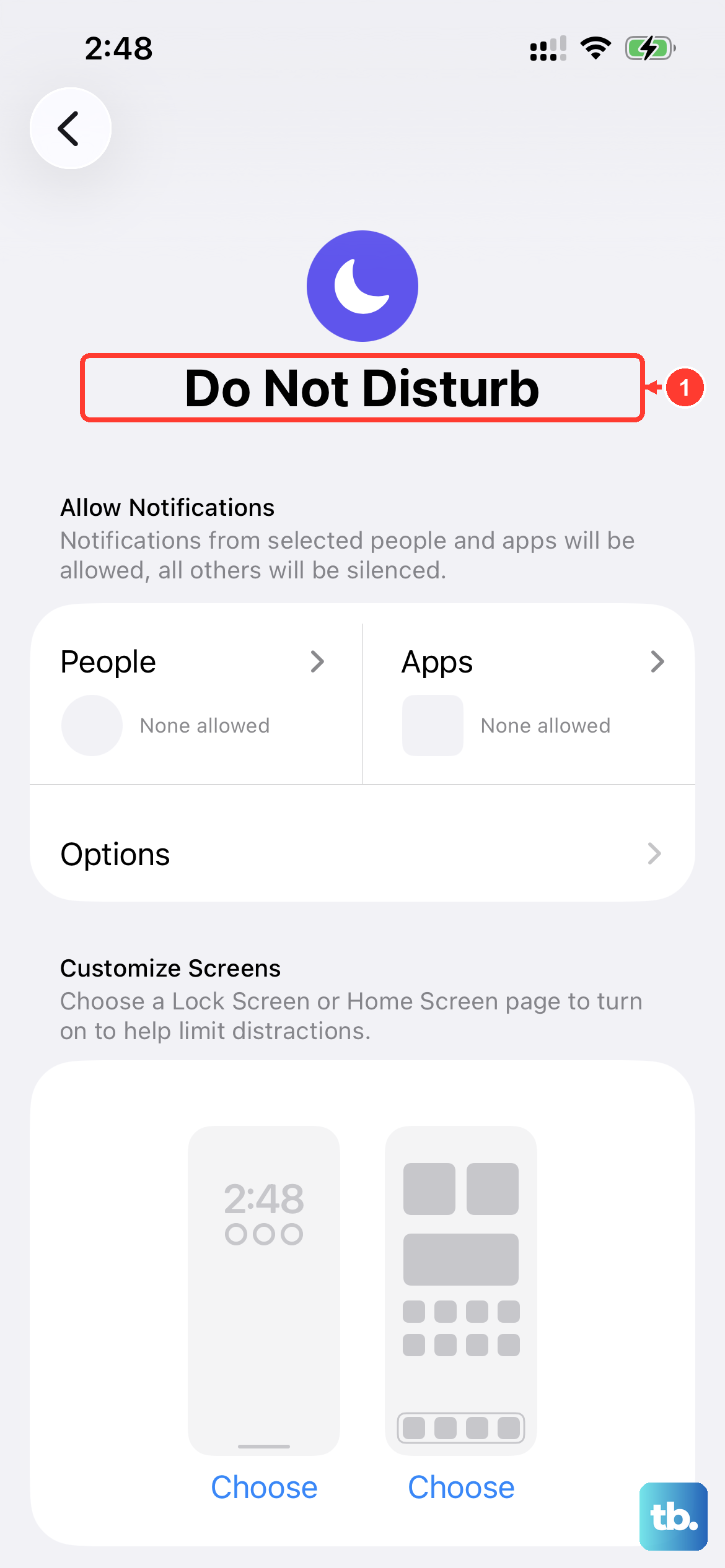
Focus modes like Do Not Disturb, Sleep, or Work can be configured to silence notifications and, sometimes, Siri. Open Settings > Focus and check your active Focus.
Tap on the Focus and look for the "Allow Notifications From" section. Make sure Siri & Dictation is not set to be silenced or blocked by the current Focus profile.
Update to the Latest iOS
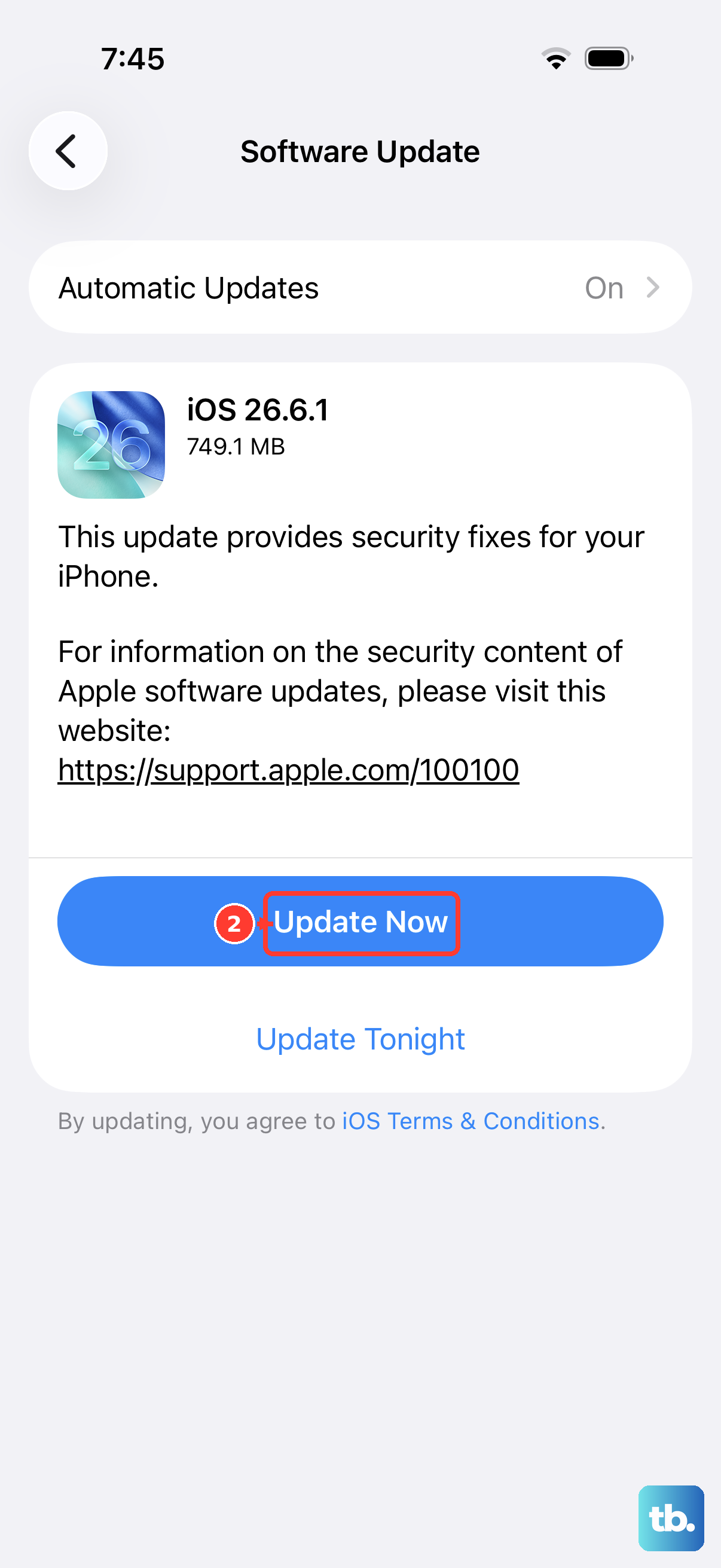
Apple regularly releases updates that fix bugs, including ones related to voice recognition and assistant functionality. With your iPhone 16 running iOS 26, it's good to stay current.
Go to Settings > General > Software Update. If an update is available, install it. It's a good idea to plug your phone into power using a proper USB-C cable and MFi charger during the update process.
Check for Connected Audio Devices
Siri will try to route its listening and speaking through connected Bluetooth devices like AirPods or car stereos. If that connection is spotty, Siri might fail.
Go to Settings > Bluetooth and temporarily disconnect any accessories. Then, try "Hey Siri" again directly on your iPhone's speaker. If it works, the issue is with the Bluetooth link, not Siri itself.
Reset All Settings
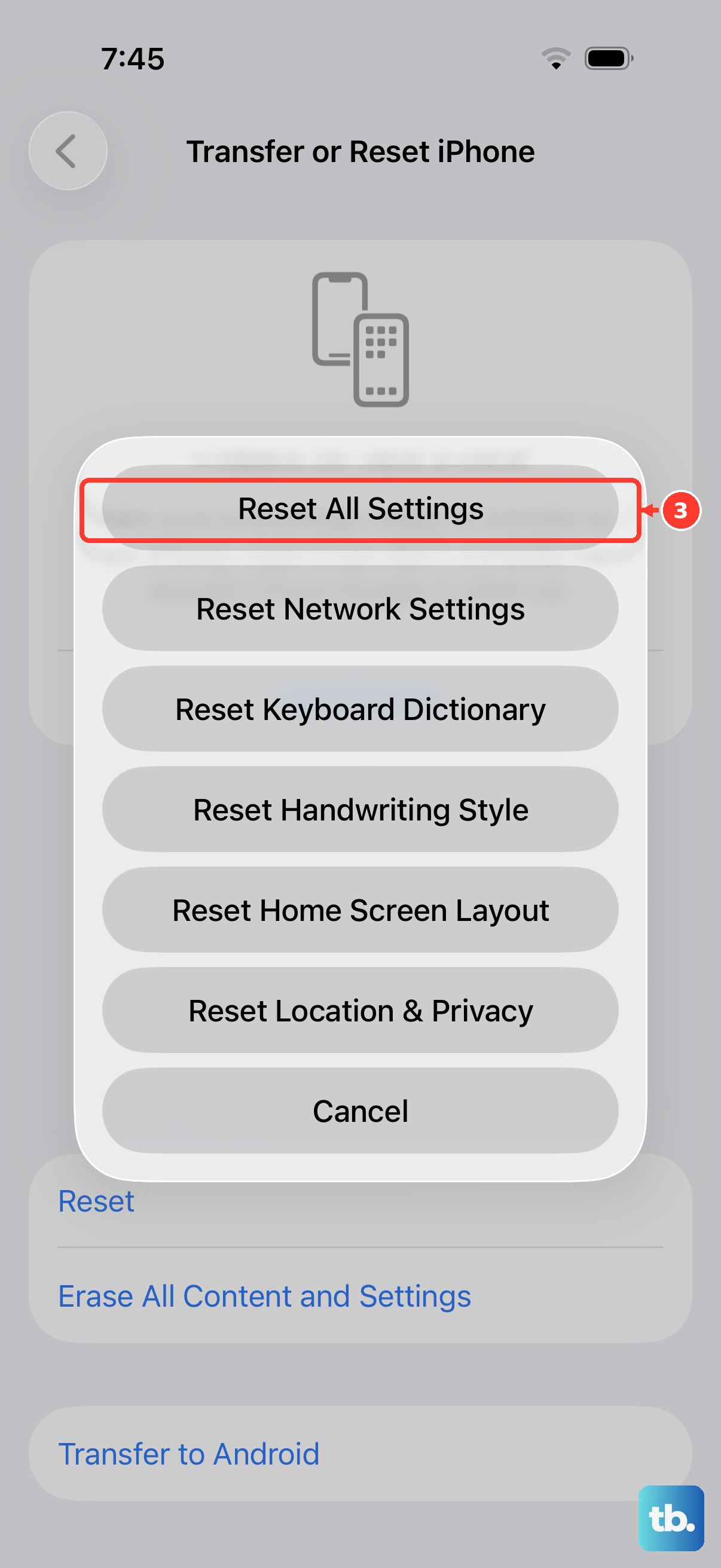
This is a stronger step that resets every system setting, network, display, privacy, and Siri, back to factory defaults without touching your personal data or apps. It can clear a deep configuration conflict.
Before you proceed, know you'll need to re-enter Wi-Fi passwords and reconfigure some preferences. To do it, go to Settings > General > Transfer or Reset iPhone > Reset > Reset All Settings. Enter your passcode to confirm.
Ensure a Stable Network Connection
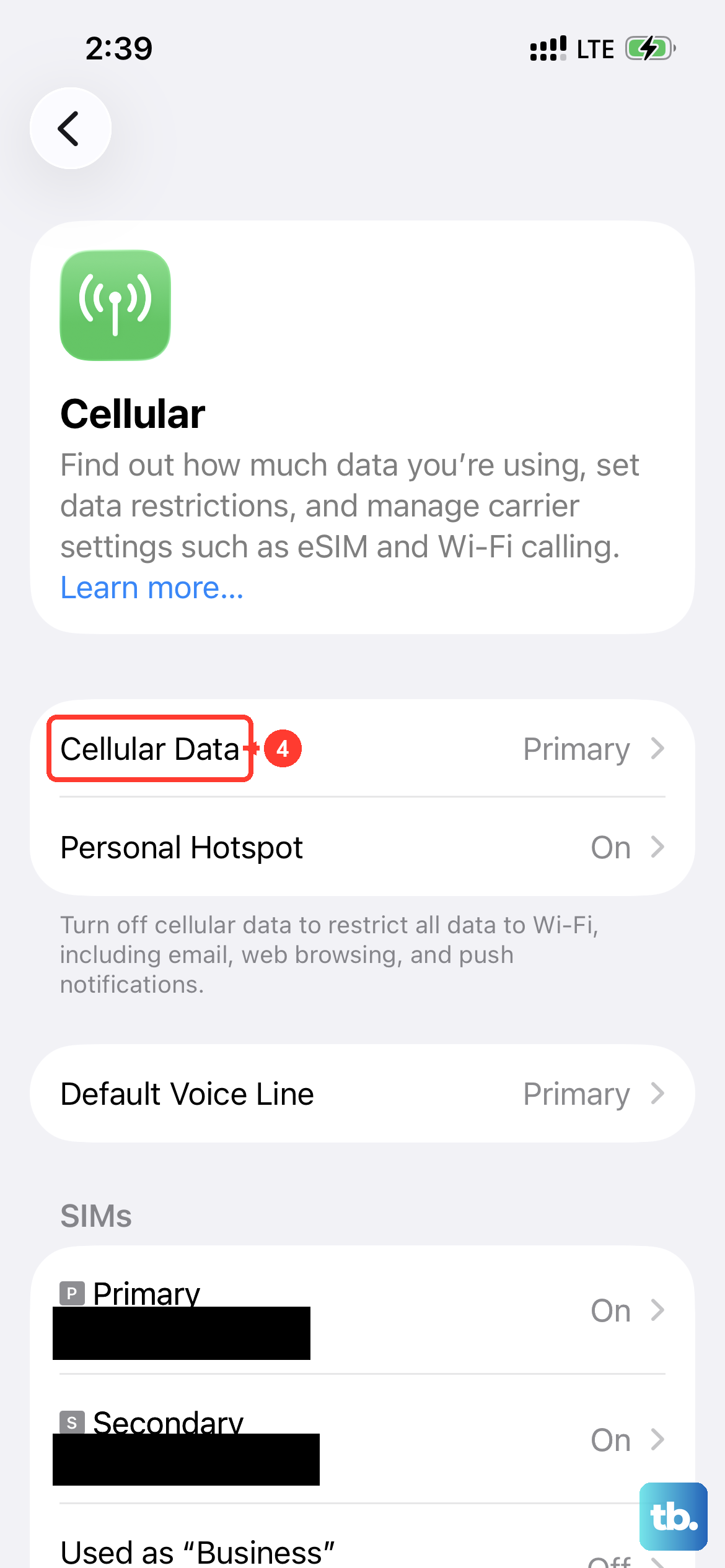
While many Siri requests are processed directly on your iPhone 16 for privacy and speed, some commands still require an internet connection for information like web searches, sports scores, or detailed navigation.
Make sure you have a strong Wi-Fi or cellular data signal. You can test this by asking Siri something simple that needs the web, like "What's the weather tomorrow?" If it fails, your network might be the issue.