
When your iPhone 16's internet crawls, it can feel like you're stuck in the past. Videos buffer endlessly, web pages hang, and apps refuse to load. I'd start by checking your cellular data mode, as that can help with slow cellular speeds.
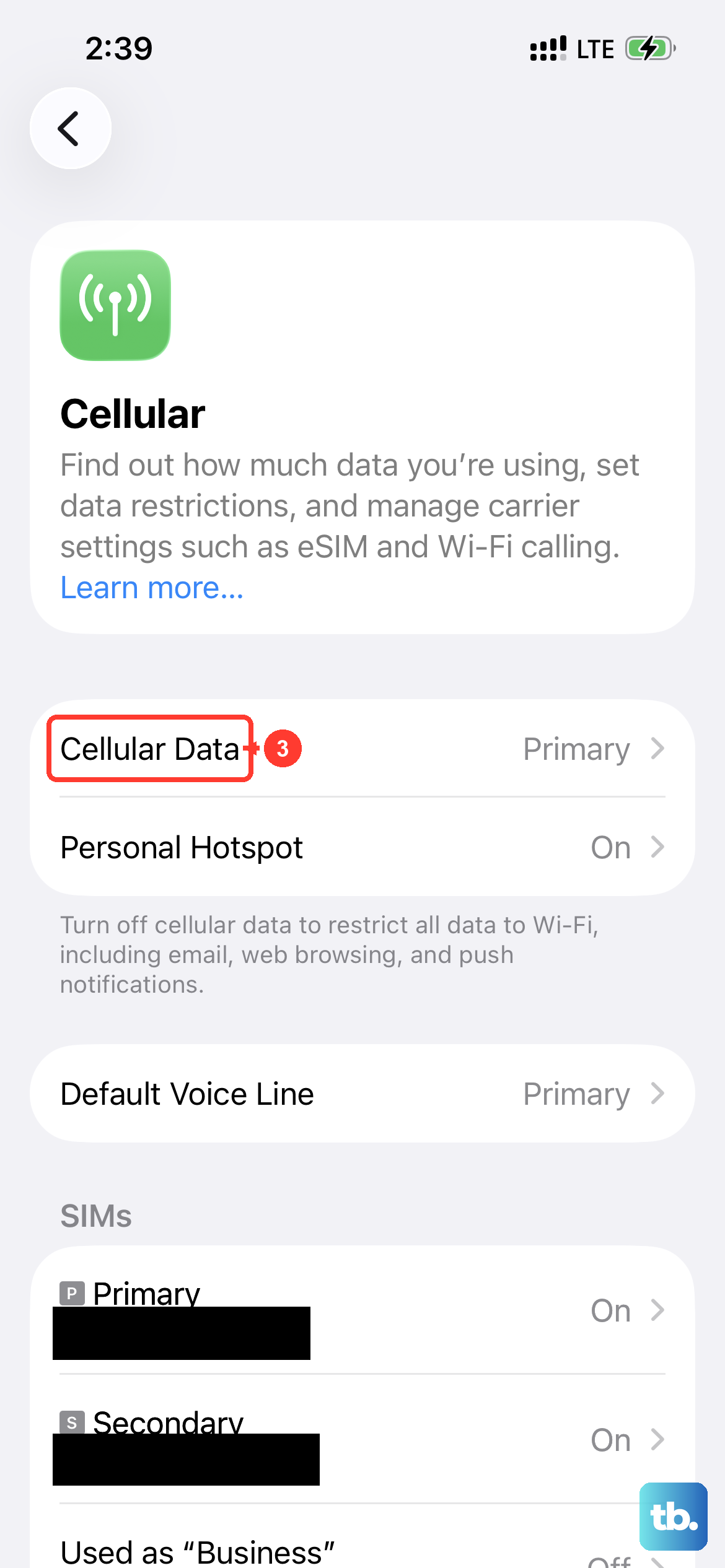
Go to Settings > Cellular > Cellular Data Options > Voice & Data. Choose "5G Auto" to let your phone switch to LTE when 5G doesn't offer a noticeably better experience, or "5G On" to use 5G whenever it's available. If it's on "LTE," your phone won't use 5G even when it's available.
Reset Your iPhone 16's Network Settings
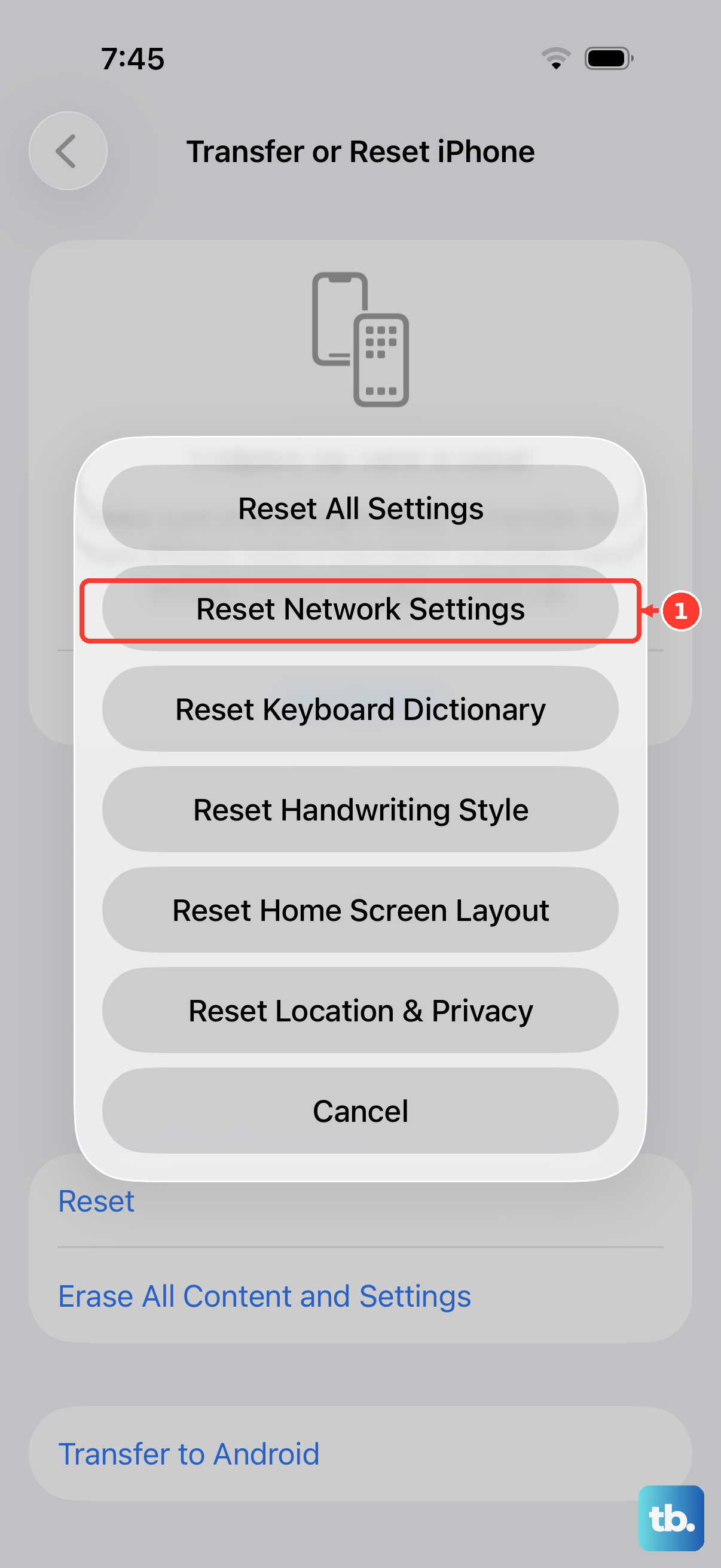
Try a network settings reset only if the other fixes below fail. This will erase all saved WiFi networks and passwords, cellular settings, and VPN and APN settings, so make sure you have your WiFi passwords handy. If your school or workplace manages your network, check with its administrator first.
Head to Settings > General > Transfer or Reset iPhone > Reset. Tap "Reset Network Settings" and enter your passcode to confirm. Your iPhone 16 will restart, and you'll need to reconnect to WiFi networks.
Manage Background App Refresh
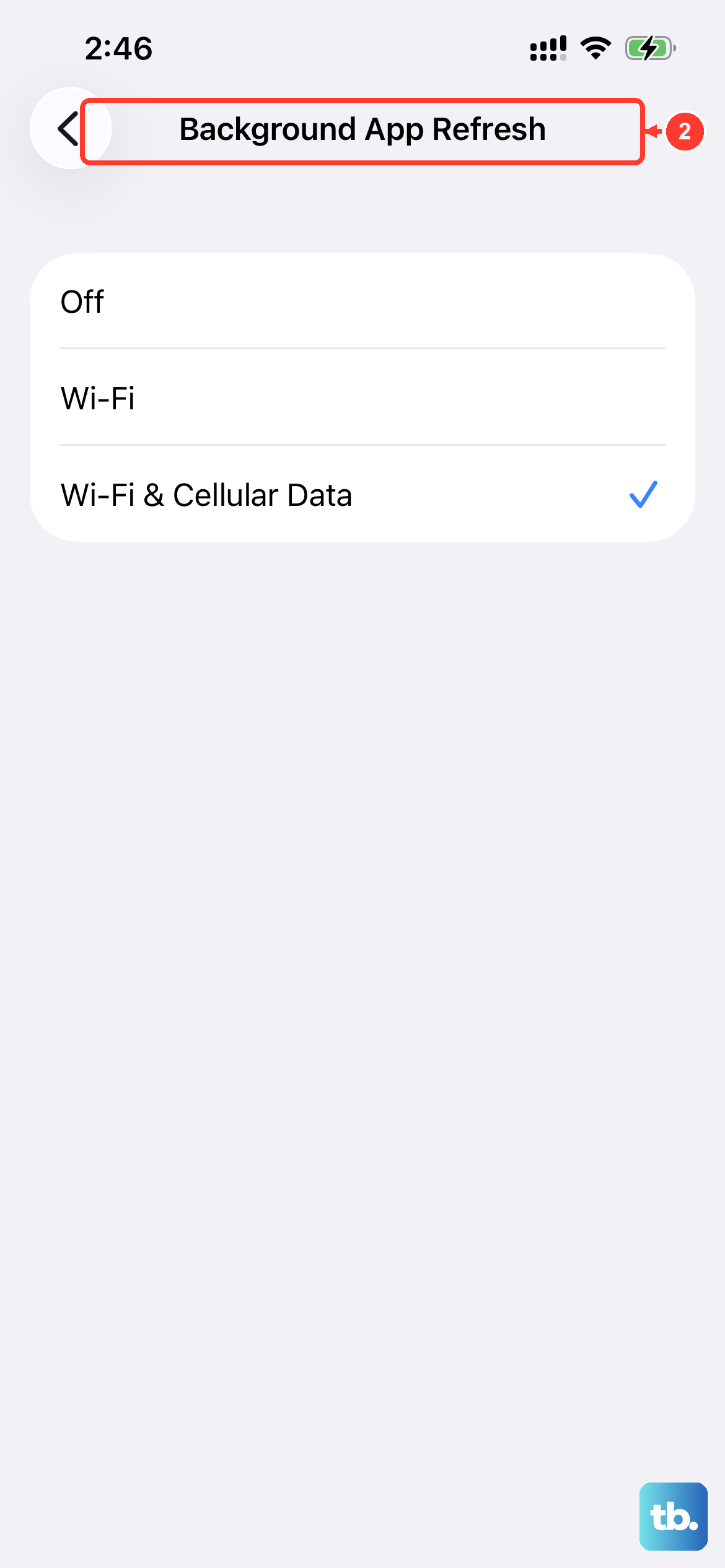
Apps updating in the background can consume bandwidth and slow down your active tasks. You can control this globally or for specific apps.
Open Settings > General > Background App Refresh. Tap Background App Refresh again and choose Off to disable it completely, or use the app list on the previous screen to disable it for apps that don't need constant updates, like games or streaming services you only use manually.
Check and Toggle Connectivity Assist
Connectivity Assist uses cellular data in addition to WiFi when your WiFi connection is slow or unusable. It can improve your connection, but it may use more cellular data.
To check it, go to Settings > Wi-Fi, make sure Wi-Fi is on, and scroll down. Toggle Connectivity Assist off, test your speed, then turn it back on and test again. See which setting gives you better performance in your current location.
Clear Safari History and Website Data
Over time, Safari's cache and website data can become bloated and cause slowdowns. Clearing it out is a good periodic maintenance step.
Navigate to Settings > Apps > Safari. Scroll down and tap "Clear History and Website Data." Choose a timeframe, then tap "Clear History." This can log you out of websites, so you may need to sign in again, but it may help if stored website data is causing loading problems.
Disable VPN and Content Blockers Temporarily
VPNs reroute your traffic through another server, which can add latency. Similarly, aggressive content or ad blockers can interfere with how web pages load.
If you're using a VPN, open the VPN app and disconnect it, then test your speed. For Safari content blockers, go to Settings > Apps > Safari > Extensions and toggle them off one by one to see if any are causing the slowdown.
Update iOS to the Latest Version
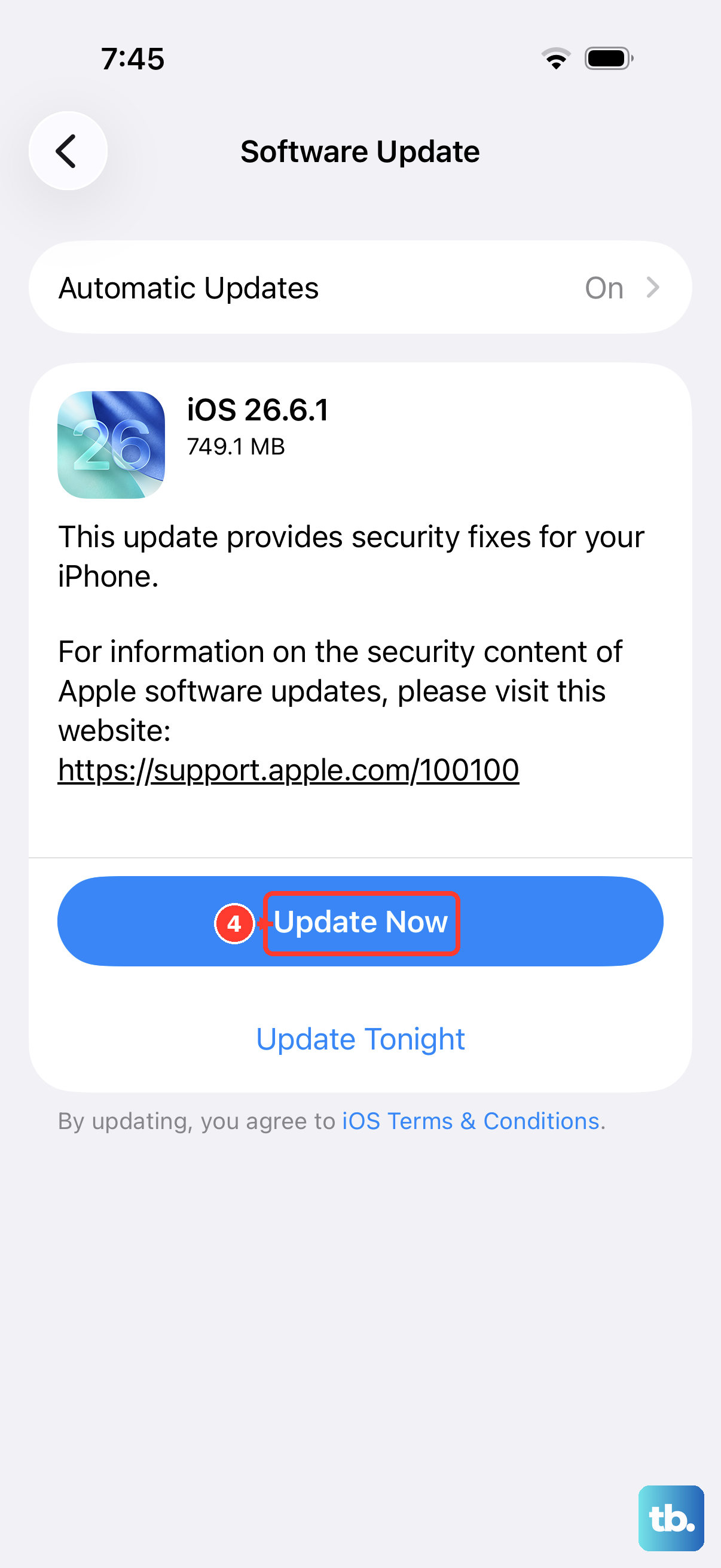
Apple frequently releases updates that include connectivity improvements and bug fixes. An outdated version of iOS could be the source of your network problems.
Go to Settings > General > Software Update. If an update is available, tap "Download and Install." It's best to do this while connected to WiFi and a power source.
Perform a Force Restart
A force restart may help with temporary software glitches. It's different from a normal restart and doesn't delete any data.
Quickly press and release the Volume Up button. Quickly press and release the Volume Down button. Then, press and hold the Side button. Keep holding it until you see the Apple logo appear, then release.
Review Your Cellular Data Plan and Coverage
Sometimes the issue isn't your phone, but your plan or location. Your carrier might be throttling your data speeds if you've exceeded a monthly cap.
Check the coverage map for your carrier in your area. Also, try moving to a different location, as building materials or network congestion can drastically affect signal strength. If you're in a dense area, switching from 5G to LTE can sometimes provide a more stable, if not peak-speed, connection.