A screen that pulses, blinks, or shifts brightness on your iPhone 16 is unsettling, especially on a phone this new. The good news is that flickering on the 6.1-inch Super Retina XDR OLED display is often a temporary software hiccup, a dirty or pressured screen, or a setting that is pushing the panel harder than it needs to. Work through the fixes below in order, starting with the safest and simplest checks, and only move toward a reset or repair if the flicker survives everything else.
If the fault comes and goes, an online monitor test helps you reproduce it on demand with solid colors and gradient patterns.
A quick note before you start: the base iPhone 16 does not have a ProMotion variable-refresh display, so there is no "Limit Frame Rate" option to toggle, and iOS has no Android-style Safe Mode. Ignore any advice that mentions those; they do not apply to this model.
Rule Out The Obvious Physical Causes First
Before you touch a single setting, treat the flicker as a possible physical problem. Apple's guidance is to make sure the screen is clean and free of any debris or water, disconnect any USB-C accessories, and remove any cases or screen protectors.
A smear of grease, a trapped droplet, a case that presses against the edges of the panel, or a faulty charger or accessory can all make the display misbehave. Clean the glass with a soft, dry cloth, pull the phone out of its case, peel back or remove a poorly fitted screen protector, and unplug anything connected to the port.
- 1.Wipe the screen clean and confirm there is no debris or moisture on it.
- 2.Disconnect any USB-C cables or accessories.
- 3.Remove the case and any screen protector, then check whether the flicker continues.
If the flickering stops once the case or protector is off, you have found the culprit; reseat the protector properly or switch to one that fits the iPhone 16 correctly.
Restart The iPhone 16 To Clear A Software Glitch
A simple restart clears temporary software glitches, and it is Apple's first recommended step for a screen that isn't working correctly. Power the phone off, wait a few seconds, then power it back on and watch the display for a minute or two.
This costs you nothing and frequently resolves a flicker that crept in after heavy use, a long session, or a recently opened app. If the screen behaves normally afterward, you are done.
Force Restart When The Screen Is Frozen Or Won't Stop Flickering
If a normal restart isn't possible because the screen is frozen, or if the flickering simply won't stop, a force restart is the next move. The button sequence on the iPhone 16 must be done exactly in this order.
- 1.Press and quickly release the volume up button.
- 2.Press and quickly release the volume down button.
- 3.Press and hold the side button until you see the Apple logo, then let go.
Do not hold the volume buttons; they only need a quick press and release. Only the side button is held, and you release it the moment the Apple logo appears.
Adjust Brightness And Turn Auto-Brightness Off Then On
If the brightness seems to pulse, dim, or shift on its own, the adaptive brightness feature may not be adapting correctly. Apple notes that you can turn Auto-Brightness off and then back on to reset that behavior. Go to Settings > Accessibility > Display & Text Size, scroll to Auto-Brightness, and toggle it off, then on again.
It also helps to set the brightness manually for a moment to see whether the flicker tracks with brightness changes. Open Settings > Display & Brightness and drag the slider up and down, watching how the panel responds.
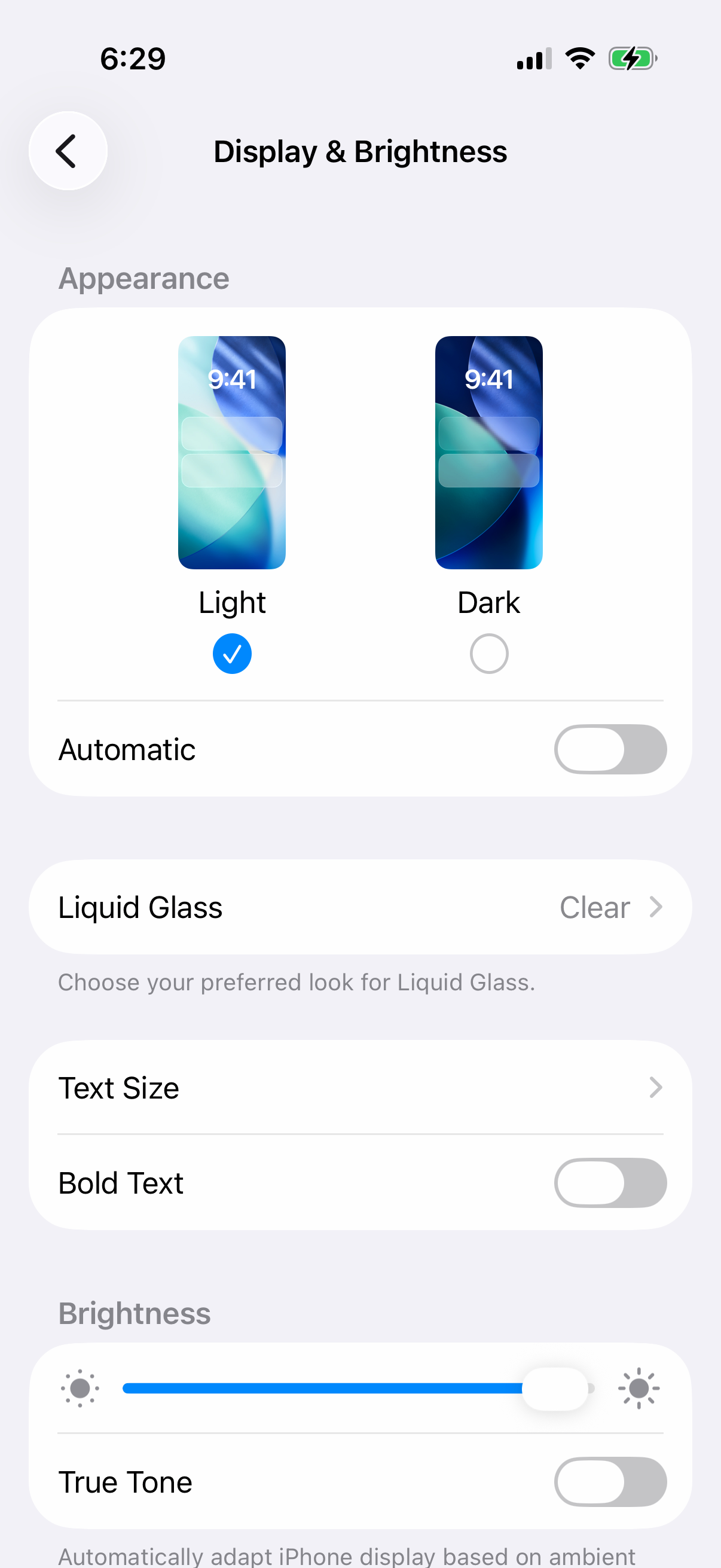
If the flicker only appears while Auto-Brightness is hunting for the right level, leaving it off and setting brightness yourself can keep the display steady.
Calm The Display With Reduce Transparency And Reduce White Point
Some flicker is really the panel struggling with demanding visual effects rather than a fault in the screen itself. Two accessibility controls ease that load. In Settings > Accessibility > Display & Text Size, turn on Reduce Transparency, which "improves contrast by reducing transparency and blurs on some backgrounds."
In the same Display & Text Size screen, you can also turn on Reduce White Point, which "reduces the intensity of bright colors." Lowering the strain from bright, high-contrast elements can stop the shimmering or pulsing you see on certain screens.
Try one at a time so you can tell which, if either, settles the display. You can switch them back off later if they make no difference.
Turn On Reduce Motion For Animation And Transition Flicker
If the flicker shows up mainly during onscreen animations, app launches, or transitions between screens, the motion effects are the likely trigger. Go to Settings > Accessibility > Motion and turn on Reduce Motion.
This dials back the animated transitions across iOS, which can remove the flickering that only appears while the interface is moving. It is a safe, reversible change, so keep it on if it helps and switch it off if it does not.
Update iOS To Fix Display Bugs
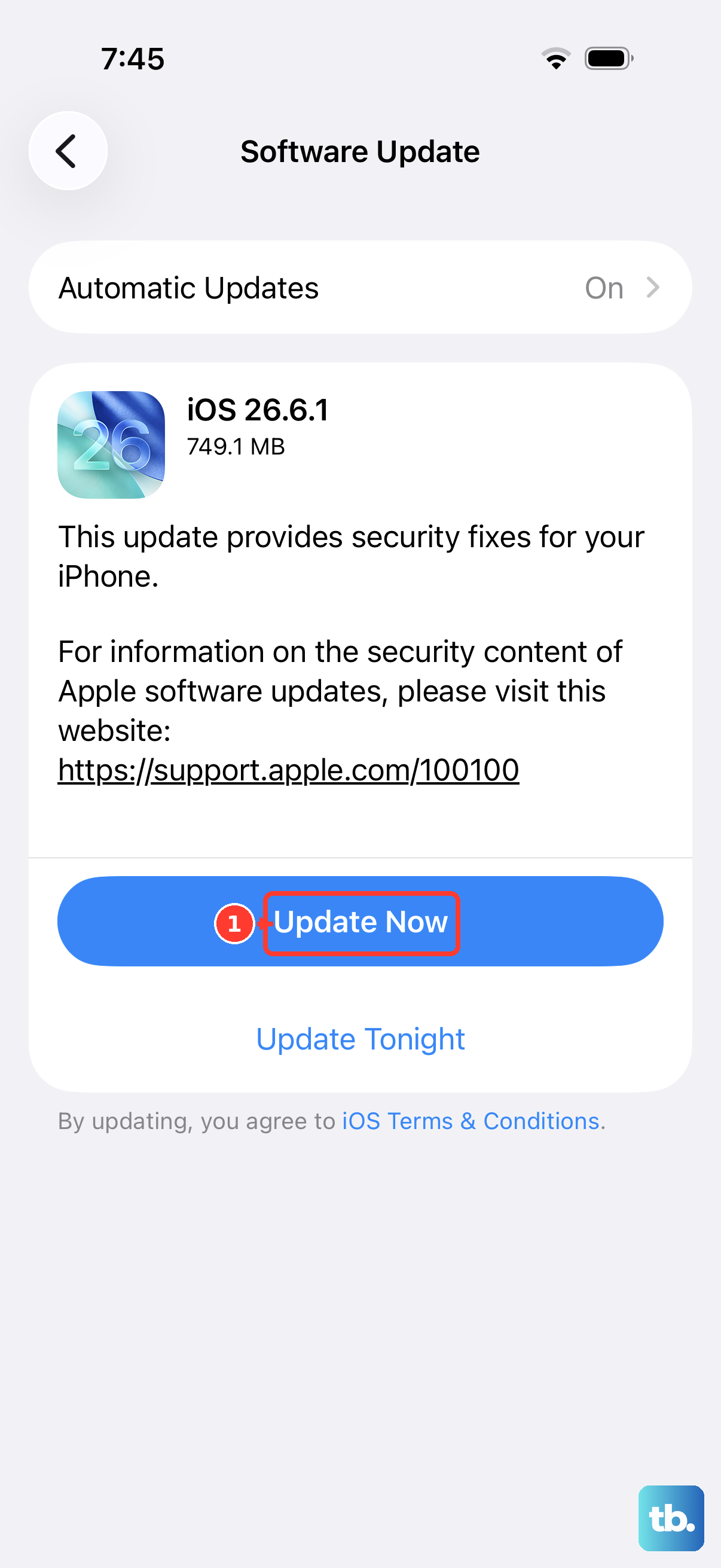
Software bugs that affect the display are routinely patched in iOS updates, so make sure your iPhone 16 is current. As of June 2026, the latest release for the iPhone 16 family is iOS 26.5. Go to Settings > General > Software Update and tap Download and Install if an update is available.
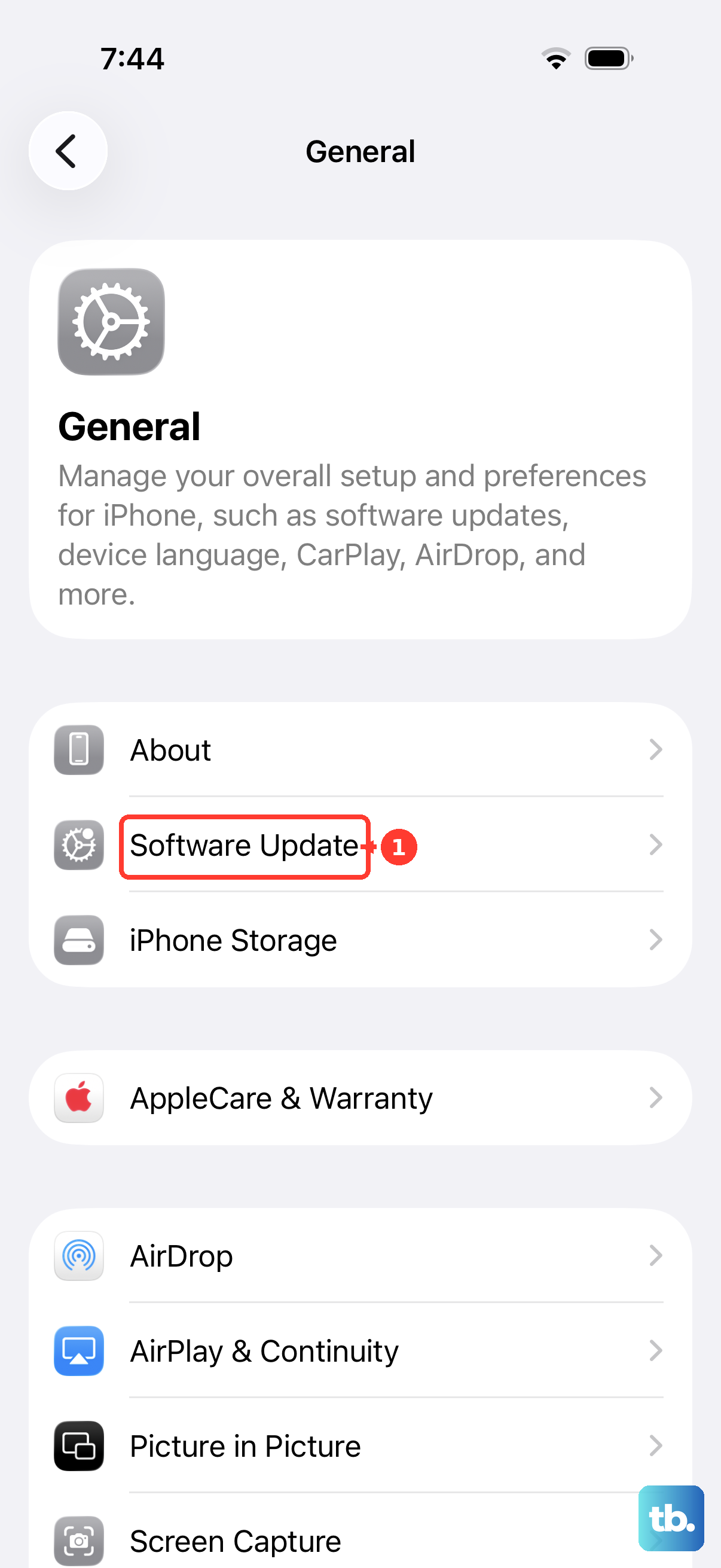
When you update, your data and settings remain unchanged, but it is still smart to back up first in case anything goes wrong. To stay current automatically from now on, you can enable Settings > General > Software Update > Automatic Updates.
Erase All Content And Settings As A Last Software Step
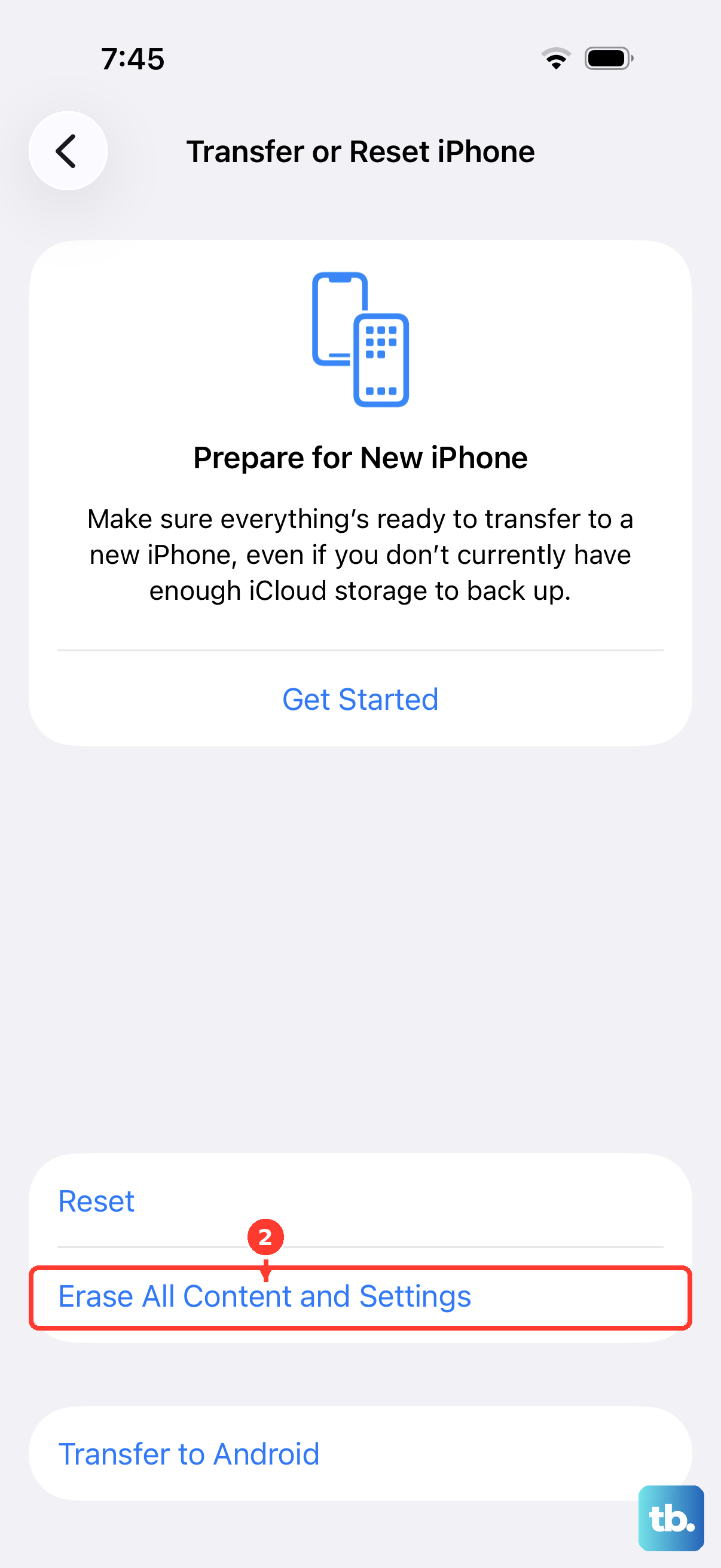
If nothing above helps and you suspect a deeper software problem, a full erase is the final software-level option before service. This is destructive, so back up your iPhone first. Erasing removes all content, settings, and personal information and restores the iPhone to factory settings, so a backup is essential.
- 1.Back up your iPhone 16 so your data is safe.
- 2.Go to Settings > General > Transfer or Reset iPhone > Erase All Content and Settings.
- 3.Tap Continue, then enter your passcode or Apple Account password.
If you use an eSIM, you can choose to keep or erase it during this process; erasing the eSIM requires contacting your carrier to set it up again. Once the phone restarts as new, restore your backup and check whether the flicker is gone.
Contact Apple Or Set Up Service When Flickering Continues
If the screen still flickers after every step above, the cause is likely hardware and the phone may need service. Apple offers in-person support at a Genius Bar or an Apple Authorized Service Provider, where technicians can inspect the iPhone and explain your options, and mail-in repair is available if you cannot visit in person.
Use the Apple Support app or Apple Support to book a visit or arrange a repair, and to check the status of an existing repair.
Keep in mind that the Apple Limited Warranty covers manufacturing issues for one year but excludes accidental damage, so be ready to describe what happened if the phone was dropped or exposed to liquid.
Frequently Asked Questions
Why is my iPhone 16 screen flickering all of a sudden?
Sudden flickering is most often a temporary software glitch, a dirty or pressured screen, a faulty accessory, or a setting pushing the OLED panel hard. Start by cleaning the screen, removing the case and any screen protector, disconnecting accessories, and restarting the phone before changing any settings.
Does turning off Auto-Brightness stop flickering on the iPhone 16?
It can, if the flicker looks like the brightness pulsing or shifting on its own. Go to Settings > Accessibility > Display & Text Size, scroll to Auto-Brightness, and toggle it off then on; you can also set brightness manually in Settings > Display & Brightness to see whether the flicker tracks with brightness changes.
How do I force restart an iPhone 16?
Press and quickly release the volume up button, press and quickly release the volume down button, then press and hold the side button until the Apple logo appears, then release it. Use this when a normal restart is not possible or does not stop the flickering.
Will erasing my iPhone 16 fix the flickering?
An erase can resolve flicker caused by a deeper software problem, but it removes all content, settings, and personal information and restores the phone to factory settings, so back up first. If the flickering returns after a clean restore, the cause is likely hardware and the phone should be inspected by Apple.
Is screen flickering covered under the Apple warranty?
The Apple Limited Warranty covers manufacturing issues for one year but excludes accidental damage. If the flicker is a hardware fault and the phone has not been dropped or exposed to liquid, take it to a Genius Bar or Apple Authorized Service Provider, or arrange mail-in repair, and check coverage and repair status through Apple Support.