
When your iPhone 16 Pro won't send texts, it's incredibly frustrating. You might see a red exclamation point, a message stuck on "Sending," or no error at all. The fix usually involves a quick setting toggle or a restart.
Restart Your iPhone 16 Pro
Start with a simple restart. Press and hold the Side button and either Volume button until the power slider appears. Slide to power off, wait a full 30 seconds, then turn it back on. This clears out any temporary software glitches that could be blocking your messages from going through.
Check Your Cellular and Wi-Fi Signal
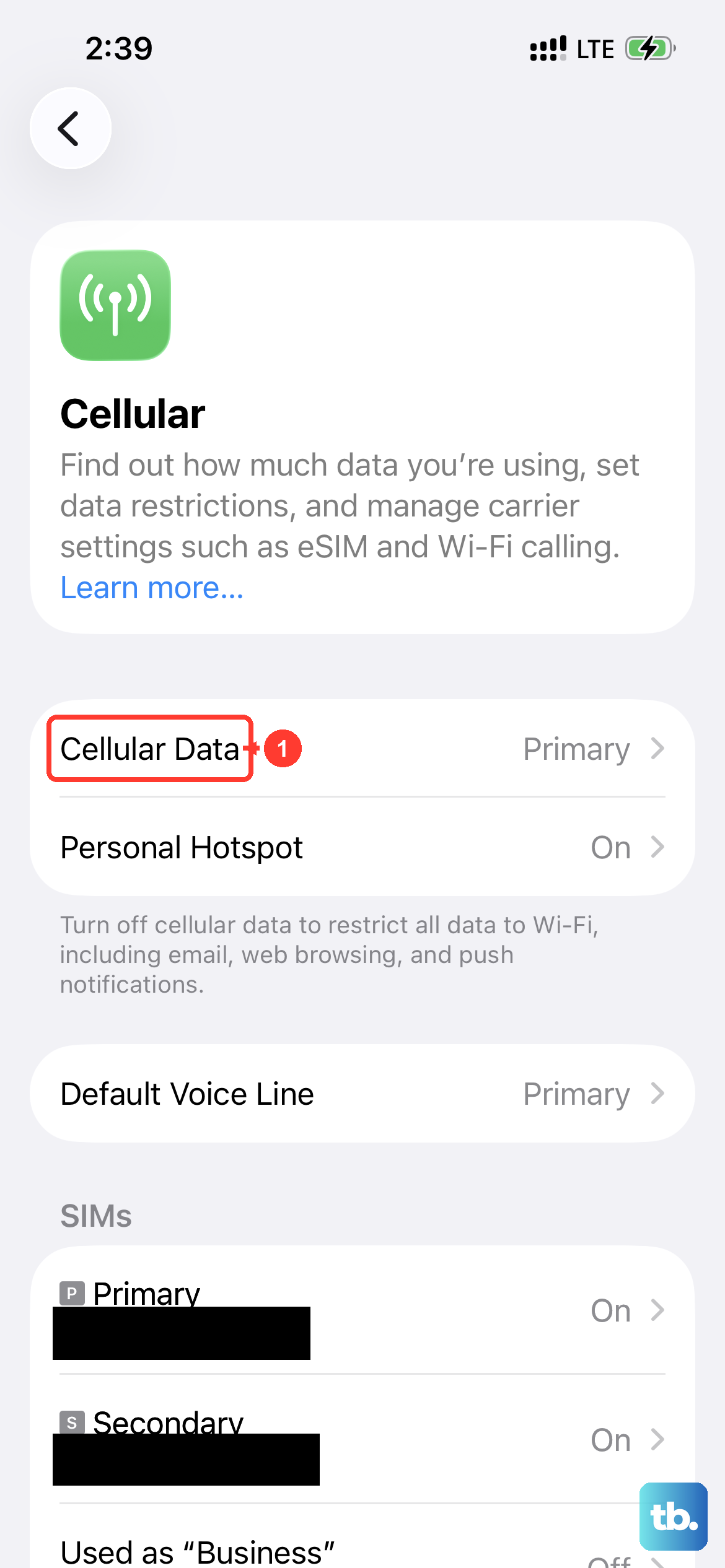
iMessages need Wi-Fi or cellular data, while SMS texts require a cellular signal. Look at the top of your screen. If you have no bars or a weak signal, try moving to a different location. You can also swipe into Control Center and toggle Airplane Mode on for 10 seconds, then off again to force a fresh connection to the network.
Toggle iMessage Off and On
Go to Settings > Apps > Messages and turn the iMessage switch off. Wait about 30 seconds, then turn it back on. This forces your iPhone 16 Pro to re-register your phone number and Apple ID with Apple's messaging servers, which often resolves sending failures for blue bubble messages.
Check for Apple System Issues
If the problem is only with iMessages (blue bubbles), the issue might be on Apple's end. Open Safari and go to apple.com/support/systemstatus. Look for iMessage in the list. If there's a yellow or red dot next to it, Apple is experiencing an outage and you'll need to wait. As a temporary workaround, you can press and hold a failed blue message and tap Send as Text Message.
Verify Your Message Settings
Incorrect settings can prevent texts from sending. Go to Settings > Apps > Messages. First, ensure iMessage is on if you use it. Then, scroll down and make sure MMS Messaging is enabled. This is required for sending pictures and group texts with non-iPhone users. Also, check that Send as SMS is turned on so messages can fall back to regular text when iMessage isn't available.
Reset Network Settings
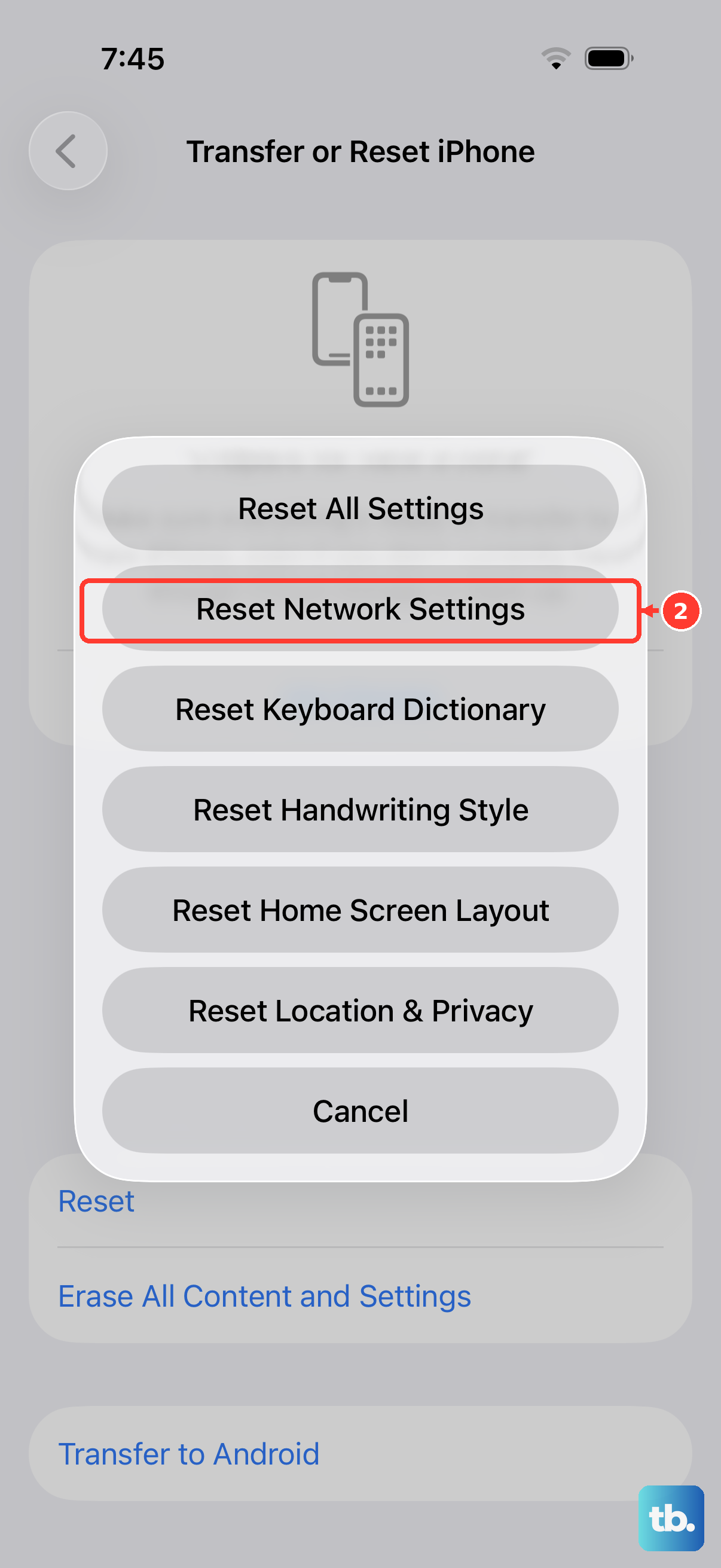
This is a more thorough step for persistent issues. Go to Settings > General > Transfer or Reset iPhone. Tap Reset and then choose Reset Network Settings. This will erase all saved Wi-Fi networks, passwords, cellular settings, and VPN configurations. Your iPhone 16 Pro will restart and rebuild these connections from scratch, which can fix deep-seated messaging problems.
Update Carrier Settings
Your carrier occasionally sends small updates that improve network connectivity and services like messaging. To check for one, go to Settings > General > About. If an update is available, a prompt will appear on this screen. Installing it can resolve carrier-specific texting issues.
Check for a Blocked Contact
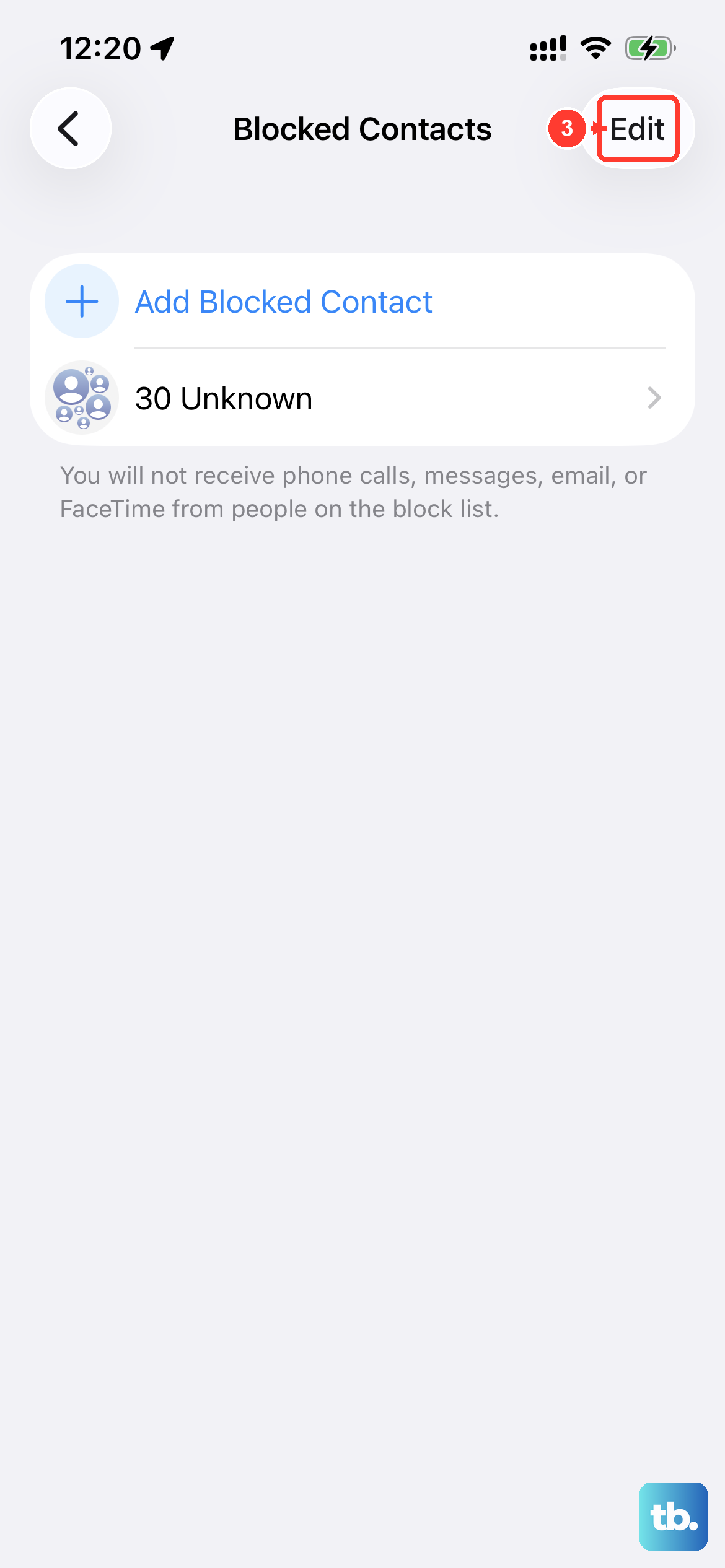
If you can't send messages to one specific person, you might have accidentally blocked them. Go to Settings > Apps > Messages > Blocked Contacts to see the list. If the person is there, swipe left on their name and tap Unblock.
Update to the Latest iOS
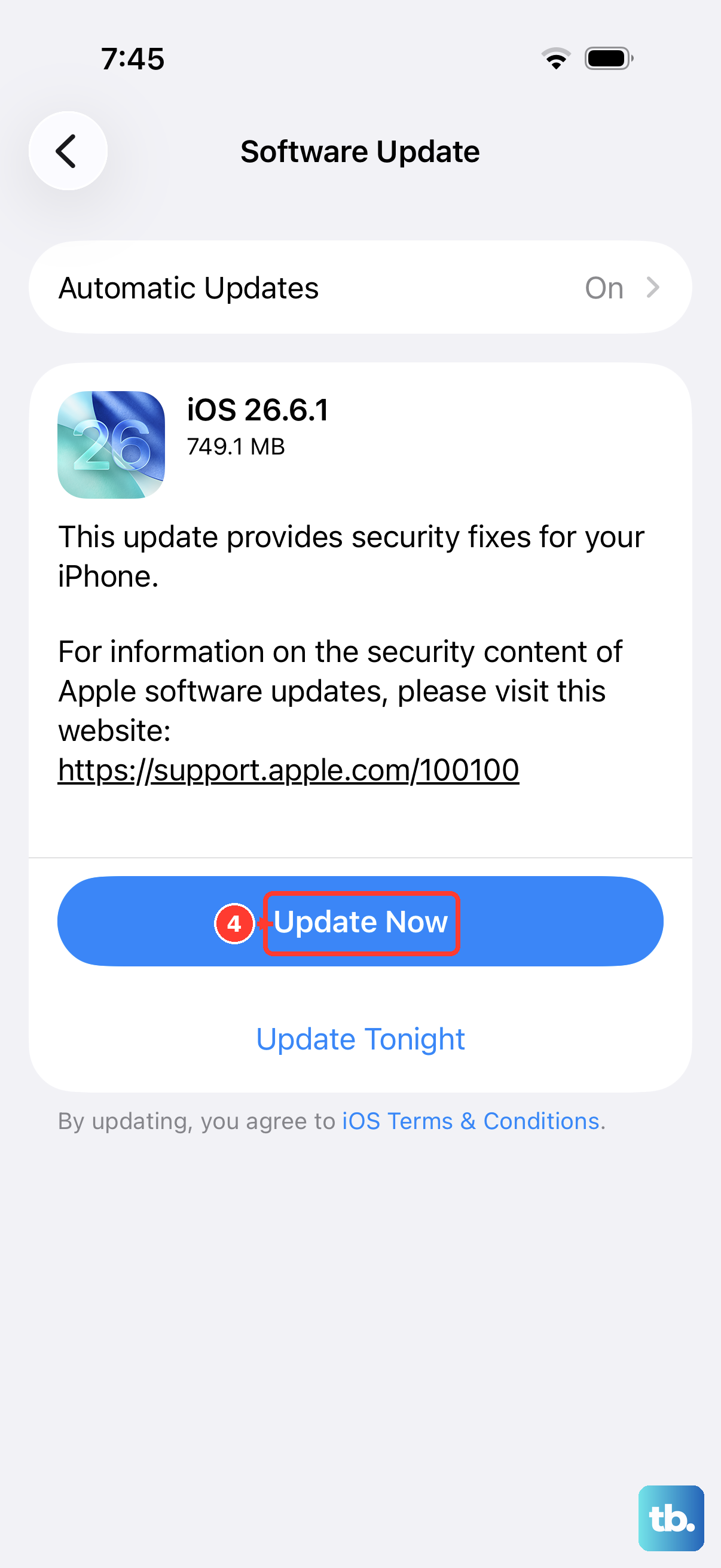
Software bugs in iOS 26 can sometimes affect messaging. Make sure you're running the latest version. Go to Settings > General > Software Update. If an update is available, download and install it. I've seen minor point updates specifically address messaging bugs.
Contact Your Wireless Carrier
If you've tried everything and texts still won't send, the problem could be with your carrier account. There might be a network outage in your area, a provisioning error, or a suspension on your messaging service. A quick call to your carrier's support line can confirm if everything is active on their end.