
Seeing "No Service" or "Searching..." in the status bar of your new iPhone 16 Pro is a real buzzkill. It means your phone can't find a cellular network for calls, texts, or mobile data. This can happen for a bunch of reasons, from simple software hiccups in iOS 26 to a physical SIM or eSIM issue.
I'd start with the quick fixes below. They solve the majority of these problems in just a minute or two.
Toggle Airplane Mode and Restart
First, swipe down from the top-right corner to open Control Center and tap the airplane icon to turn on Airplane Mode. Wait about 15 seconds, then tap it again to turn it off. This forces the cellular modem to restart its search for a signal.
If that doesn't work, give the phone itself a fresh start. A standard restart clears out temporary glitches that can affect the radio. Just hold the Side button and either volume button, then slide to power off.
Check for a Carrier Settings Update
Your carrier occasionally pushes small updates that fine-tune network connectivity. These are separate from iOS updates and are crucial for maintaining a stable connection.
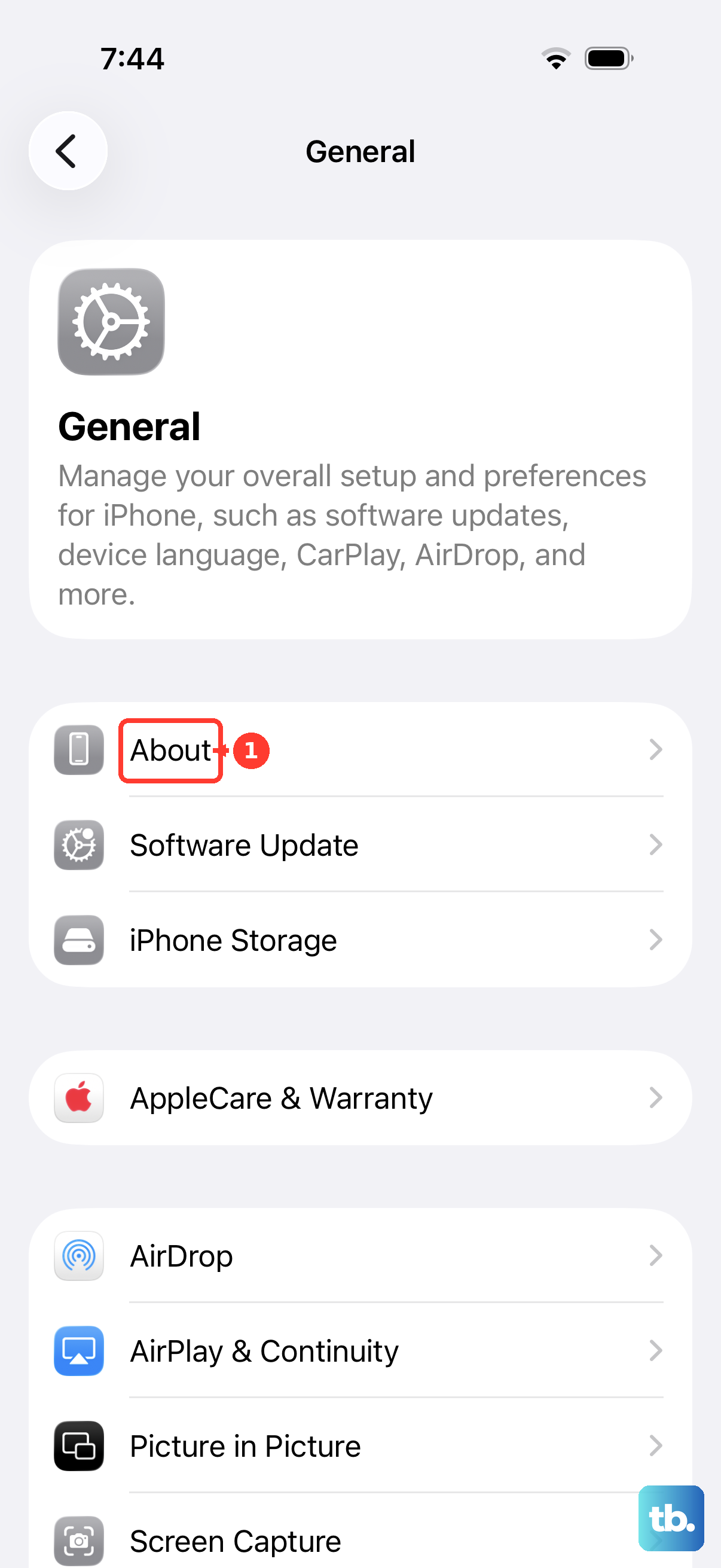
To check, go to Settings > General > About. If an update is available, a prompt will appear right on this screen. Tap "Update" if you see one. This process only takes a moment and doesn't require a restart.
Re-Enable Your Cellular Line
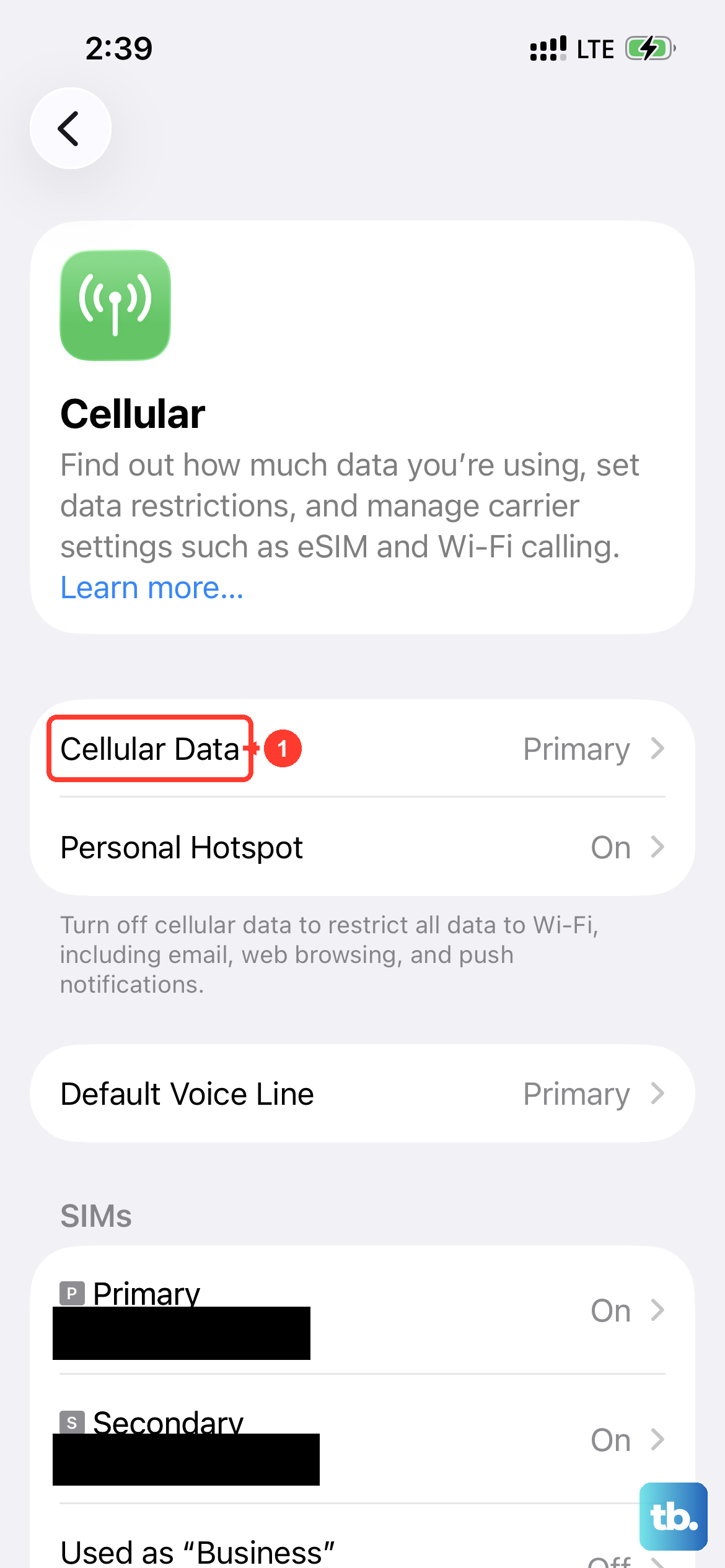
Sometimes the cellular plan on your iPhone can get temporarily disabled in the software. It's an easy thing to toggle back on. Open the Settings app and tap Cellular.
Make sure the main Cellular Data switch at the top is on. Then, tap on your cellular plan (it might be listed under "SIMs"). On the next screen, simply toggle the "Turn On This Line" option off and then back on.
Manually Select Your Network
Your iPhone usually picks the best network automatically. If it's stuck trying to connect to a weak tower, forcing a manual selection can help. Go to Settings > Cellular > Network Selection.
Turn off the "Automatic" switch. Your phone will search for a minute, then list all available networks in your area. Tap the name of your carrier (like Verizon, AT&T, or T-Mobile) from the list. After it connects, you can turn "Automatic" back on.
Reset Your Network Settings
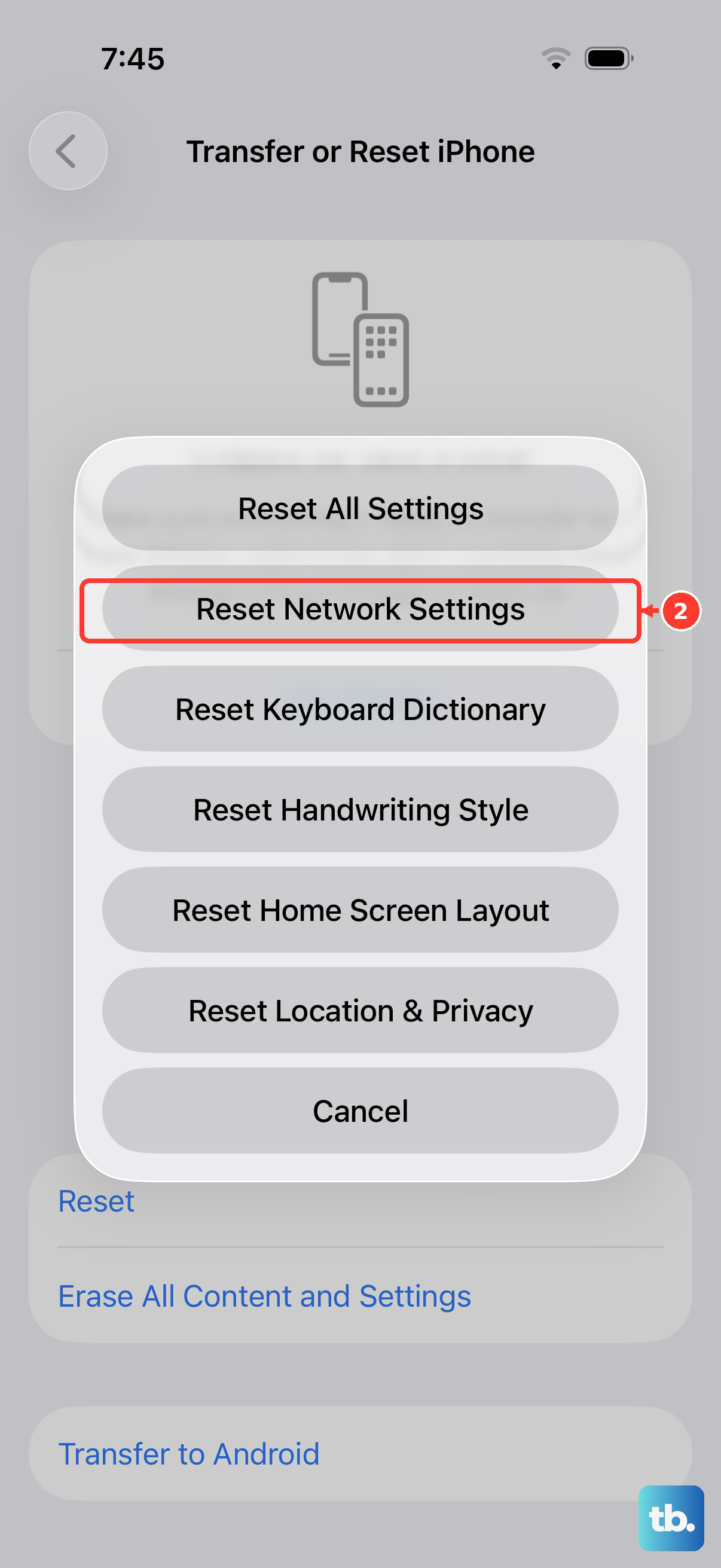
This is a more thorough step that clears all network-related data saved on your phone. It will erase your saved Wi-Fi passwords, Bluetooth pairings, and any custom VPN or APN settings.
To do it, navigate to Settings > General > Transfer or Reset iPhone. Tap Reset, and then choose Reset Network Settings. You'll need to enter your passcode and confirm. Your phone will reboot, and you'll have to rejoin Wi-Fi networks afterward.
Update iOS to the Latest Version
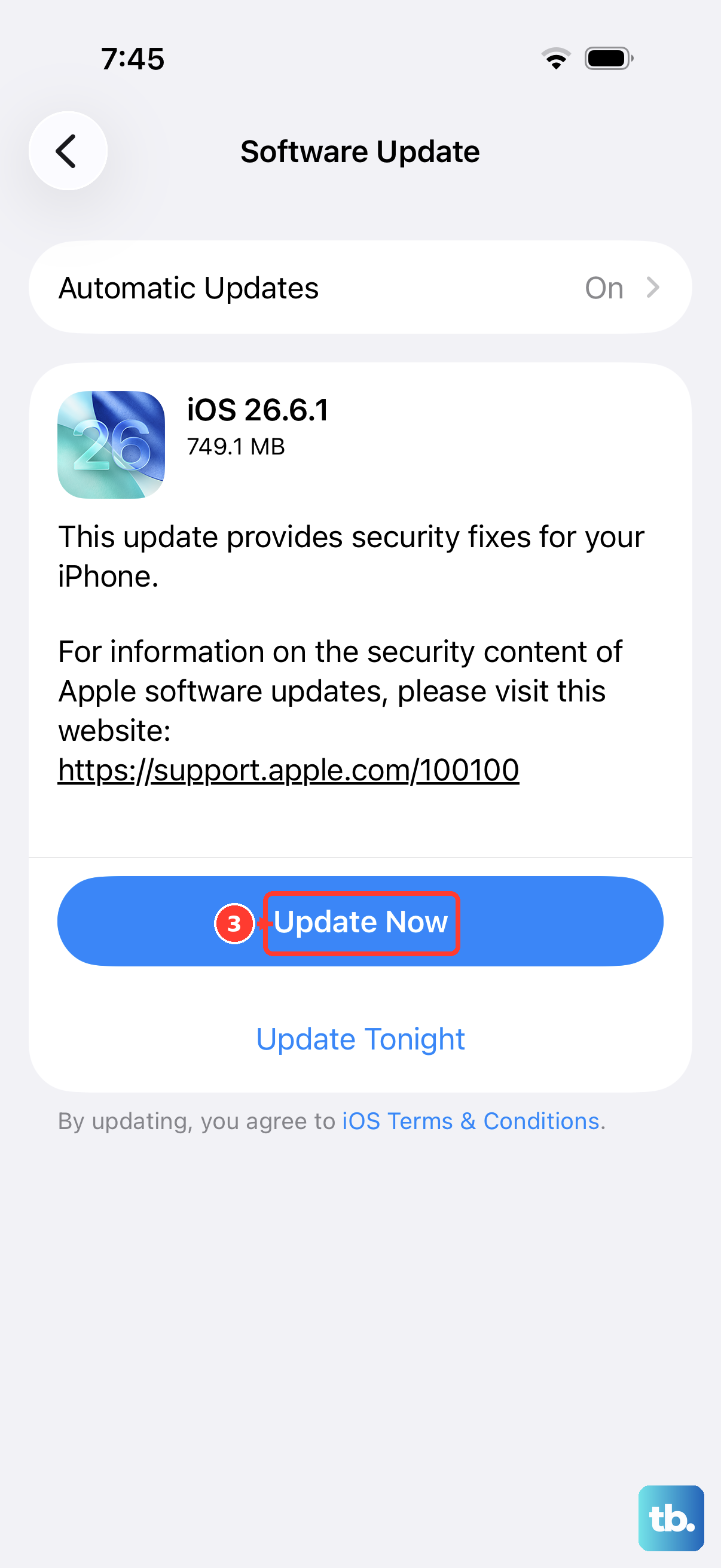
Apple is constantly fixing bugs with iOS updates. A problem with cellular connectivity in an early version of iOS 26 could very well be patched in a subsequent update.
Head to Settings > General > Software Update. Your iPhone will check for any available updates. If one is there, tap "Download and Install." Make sure your phone is plugged in and on Wi-Fi for this process.
Check for a Physical SIM Card Issue
If your iPhone 16 Pro uses a physical nano-SIM card, it's worth inspecting it. The SIM tray is on the left side of the device. You'll need a SIM eject tool or a small paperclip to open it.
Gently remove the tray and take out the SIM card. Look at the gold contacts for any obvious dirt, scratches, or corrosion. Give it a light wipe with a soft, dry cloth and carefully reinsert it, making sure it's seated correctly in the tray before pushing it back into the phone.
Review Your eSIM Configuration
For eSIM users, the issue is in the software configuration. Go to Settings > Cellular and look at your cellular plan. If it seems inactive or incorrect, you may need to re-scan the QR code provided by your carrier.
Sometimes, removing and re-adding the eSIM profile does the trick. Tap on your plan, scroll down, and select "Remove Cellular Plan." Then, you can add it again by scanning the QR code or entering the details manually.
Perform a Force Restart
A force restart is different from a standard power off. It's a deeper reset for the hardware, including the cellular radio. For the iPhone 16 Pro, the sequence is based on the iPhone 15 Pro pattern.
Quickly press and release the Volume Up button. Quickly press and release the Volume Down button. Then, press and hold the Side button. Keep holding it even when you see the power off slider, until you see the Apple logo appear, then let go.
Contact Your Carrier
If you've tried everything here, the problem might be on your carrier's end. There could be a local network outage, maintenance work, or an issue with your specific account.
Give them a call. They can check for outages, reprovision your line on their network, or determine if your SIM/eSIM needs to be replaced. They can also confirm if your iPhone 16 Pro is properly activated on their latest network technology.