
When the microphone on your iPhone 16 Pro stops picking up your voice, it can turn simple tasks into a hassle. Calls drop out, Siri ignores you, and your video messages are silent. The good news is, this is usually something you can fix yourself. Let's start by figuring out exactly which microphone is acting up.
To separate a hardware fault from a settings problem, try a mic test in your browser. Record a few seconds and play it back, and you will know exactly what you are dealing with.
Test Which Microphone Isn't Working
Your iPhone 16 Pro has several microphones. Testing them individually helps narrow down the problem. The easiest way is with the Voice Memos app.
Open Voice Memos and tap the red record button. Speak normally for a few seconds, then play it back. If the audio is muffled or missing, the primary microphone (usually at the bottom) might be blocked. For a more thorough check, try recording a video in both front and rear camera modes to test the other mics.
You can also ask Siri a question by holding the Side button. If Siri doesn't respond with "What can I help you with?" or consistently mishears you, it confirms there's an input issue.
Remove the Case and Clean the Microphone Ports
This is the most common fix, and it takes about thirty seconds. Some cases, especially rugged ones, can partially cover the microphone grilles. Take your iPhone 16 Pro completely out of its case.
Next, check the microphone openings. You'll find the main one in the speaker grille next to the USB-C port. There's another at the top near the front camera, and others near the rear camera array. Shine a light on them and look for packed lint or debris.
Use a dry, soft-bristled brush (a new, clean makeup brush works perfectly) to gently sweep across the grilles. Avoid using compressed air or sharp objects like pins, as you could push debris further in or damage the sensitive microphone diaphragm inside.
Disconnect All Bluetooth Audio Devices
If you have AirPods or any other Bluetooth headphones paired, your iPhone might still be trying to use their microphone even if you're not wearing them. This will completely override the built-in mics.
Swipe down from the top-right corner to open Control Center. Tap the Bluetooth icon so it's no longer highlighted blue. This temporarily turns Bluetooth off. Now try making a quick voice memo or call.
If your audio works now, you know the issue was a connected device. You can turn Bluetooth back on and just make sure your headphones are disconnected or powered off before using your iPhone's mic.
Force Restart Your iPhone 16 Pro
A force restart clears out temporary software glitches that can affect hardware functions. It's different from a normal power off and on. For the iPhone 16 Pro, the sequence is quick.
Press and quickly release the Volume Up button. Then, press and quickly release the Volume Down button. Finally, press and hold the Side button. Keep holding it until you see the Apple logo appear, then let go. Your phone will reboot. This doesn't delete any data.
Check App-Specific Microphone Permissions
Sometimes the problem isn't with your phone, but with a single app like Zoom, WhatsApp, or Instagram. Each app needs your explicit permission to use the microphone. If you accidentally denied it once, the app won't be able to hear you.
Go to Settings > Privacy & Security > Microphone. You'll see a list of every app that has requested microphone access. Find the app giving you trouble and make sure the toggle next to it is switched on (green).
If the app isn't even on the list, it hasn't asked for permission yet. You'll need to open the app itself; it should prompt you the next time it tries to use the mic.
Update to the Latest Version of iOS
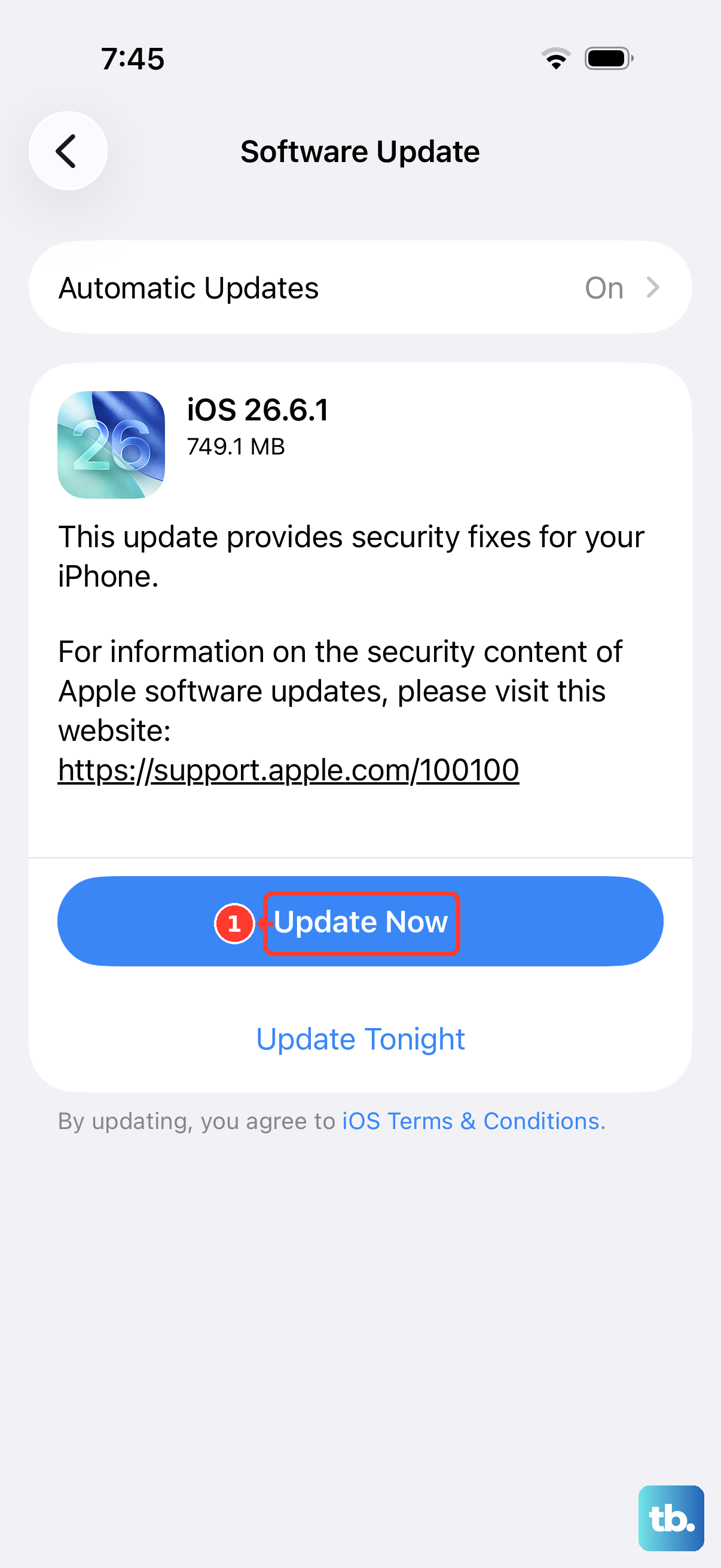
Apple regularly releases iOS updates that include bug fixes for hardware communication issues. A microphone problem in one iOS version can be completely resolved in the next. Since you're on an iPhone 16 Pro, you'll be looking for an update to iOS 26 or later.
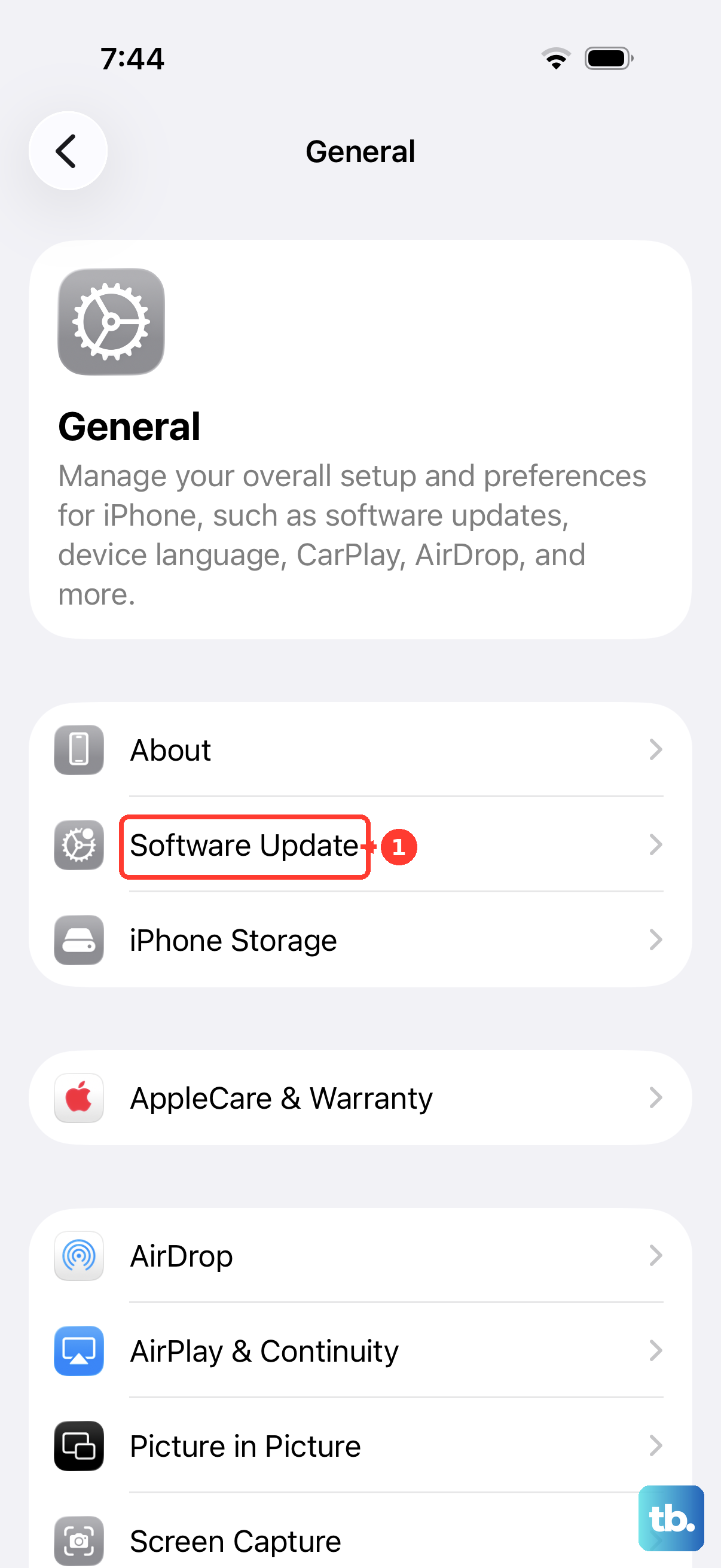
Open Settings, tap General, and then select Software Update. Your phone will check for available updates. If one is there, tap "Download and Install." I'd recommend doing this while connected to Wi-Fi and a power source.
Reset All Settings on Your iPhone
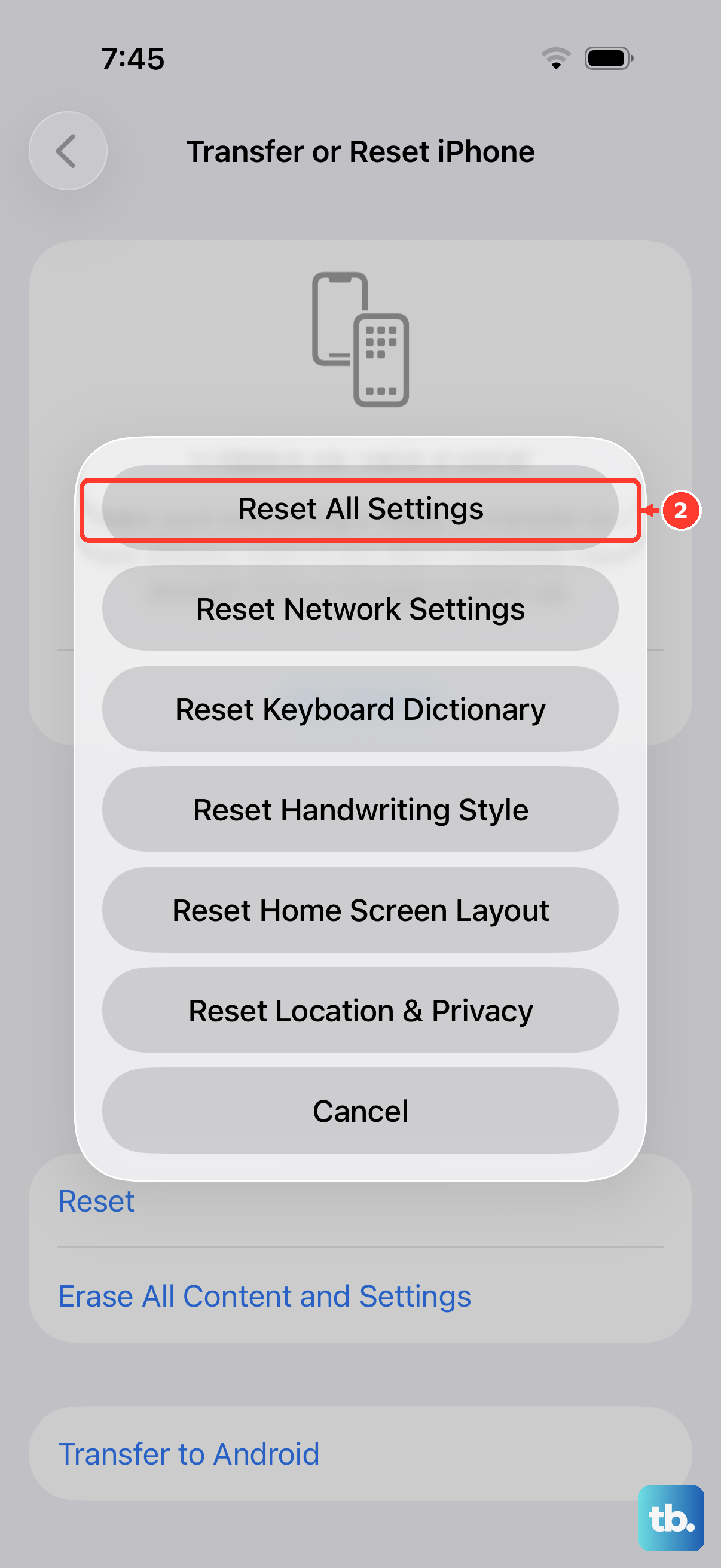
If the issue persists, a deeper software reset can help. This will revert all your system settings, like Wi-Fi passwords, wallpaper, and privacy permissions, back to their factory defaults. Crucially, it does not delete your photos, messages, or apps.
To do this, go to Settings > General > Transfer or Reset iPhone. Tap Reset at the bottom, and then choose Reset All Settings. You'll need to enter your passcode. After the phone restarts, you'll have to reconnect to Wi-Fi and re-grant microphone permissions to your apps, but it often clears up stubborn glitches.
Check for Audio Settings in Specific Apps
Some communication apps, especially those for calls and meetings, have their own internal audio settings. If you're having trouble only on FaceTime or only in Discord, open that app and dig into its settings menu.
Look for an audio or microphone section. Ensure the app is set to use your "iPhone Microphone" and not a different input source. Sometimes, after an app update, these settings can get switched around.
Try a Different Audio App
This is a simple diagnostic step. If your microphone works perfectly in Voice Memos but fails in your phone app, the problem is isolated. It points to a software issue with that specific application, not a hardware failure.
Try recording in a few different places: the Camera app's video mode, a third-party voice recorder, and a phone call to your voicemail. This pattern helps confirm where the trouble lies.
Restore Your iPhone Using a Computer
This is the most comprehensive software fix. It involves erasing your iPhone and installing a fresh copy of iOS. You must back up your phone to iCloud or your computer first, as this will delete everything.
Connect your iPhone 16 Pro to a Mac or PC using a USB-C cable. On a Mac with macOS Catalina or later, open Finder. On a PC or older Mac, open iTunes. Select your iPhone, choose "Restore iPhone," and follow the prompts. This process can fix deep-seated software corruption that other resets can't touch.