
Seeing a "Not Registered on Network" or "No Service" message on your iPhone 16 can be incredibly frustrating. It means your phone can't connect to your carrier's cellular network, so calls, texts, and mobile data won't work. This usually happens when there's a hiccup in the communication between your phone and the cell towers.
Before you do anything complicated, the quickest thing to try is toggling Airplane Mode. Swipe down from the top-right corner to open Control Center and tap the airplane icon. Wait about 15 seconds, then tap it again to turn it off. This forces your iPhone 16 to drop its current connection and perform a fresh search for the network, which often clears up temporary glitches.
Restart Your iPhone 16
A simple restart can fix a surprising number of issues. It clears the phone's memory and reloads all the system processes, including the cellular radio. To restart your iPhone 16, press and release the Volume Up button, press and release the Volume Down button, then press and hold the Side button until you see the Apple logo appear.
Let the phone boot up completely. Once you're back at your home screen, give it a minute to re-establish a connection. Check the status bar in the top-left corner to see if your carrier name and signal bars have returned.
Check for a Carrier Settings Update
Carrier settings are small files that tell your iPhone how to connect to your specific provider's network. Apple and carriers push these updates periodically to improve performance and fix bugs. To check, go to Settings > General > About.
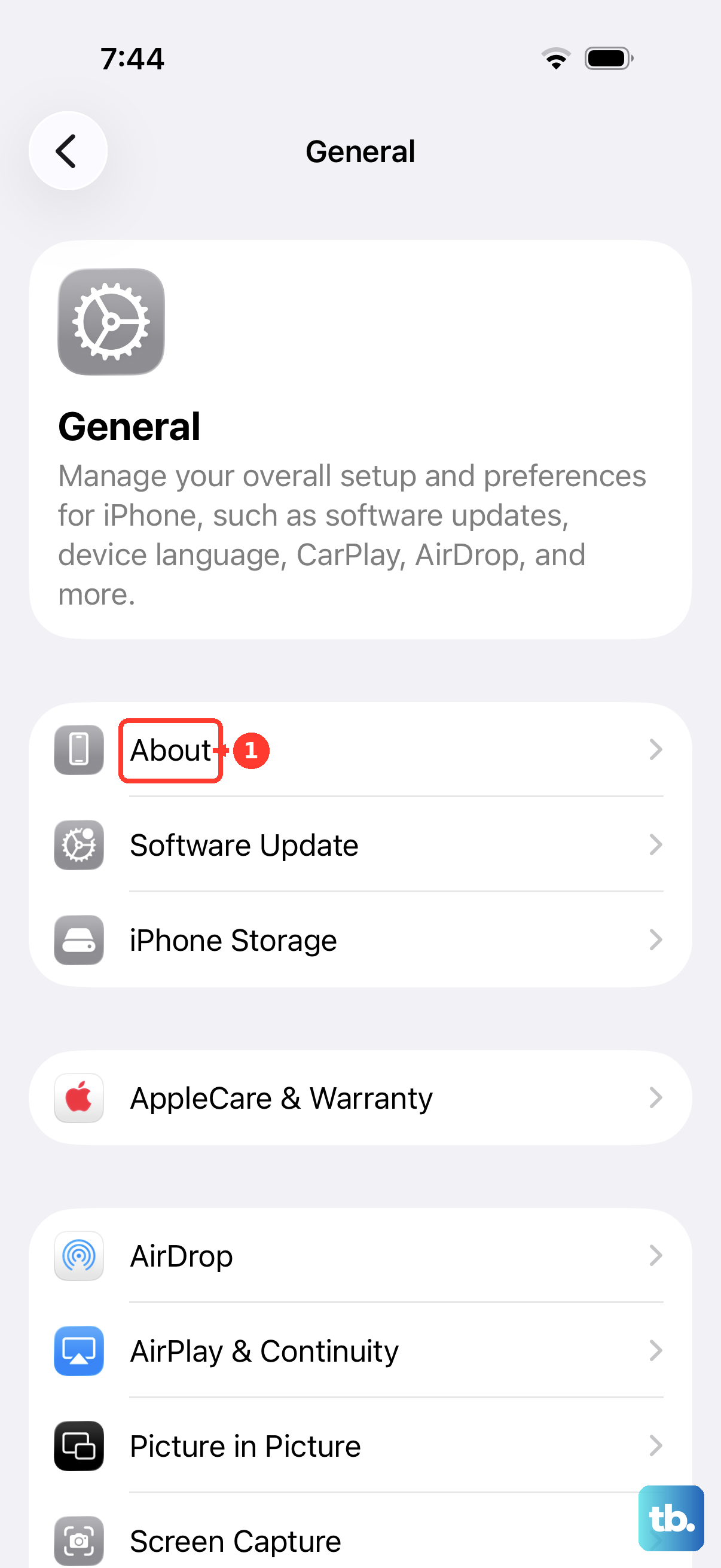
If an update is available, a prompt will appear on this screen. Tap "Update" if you see it. Your phone will reboot to apply the new settings. This is a very common fix for network registration problems, especially after a major iOS update.
Reinsert Your SIM Card
A SIM card that's come slightly loose or has dirty contacts can cause this error. You'll need the SIM ejector tool that came with your iPhone 16. Turn the phone off completely, then insert the tool into the small hole on the left side of the frame to pop out the SIM tray.
Carefully remove the SIM card, give both the card and the tray slot a gentle blow to dislodge any dust, and then reseat the SIM. Push the tray firmly back into the phone until it clicks. Power the device back on and see if it finds the network.
Update to the Latest Version of iOS
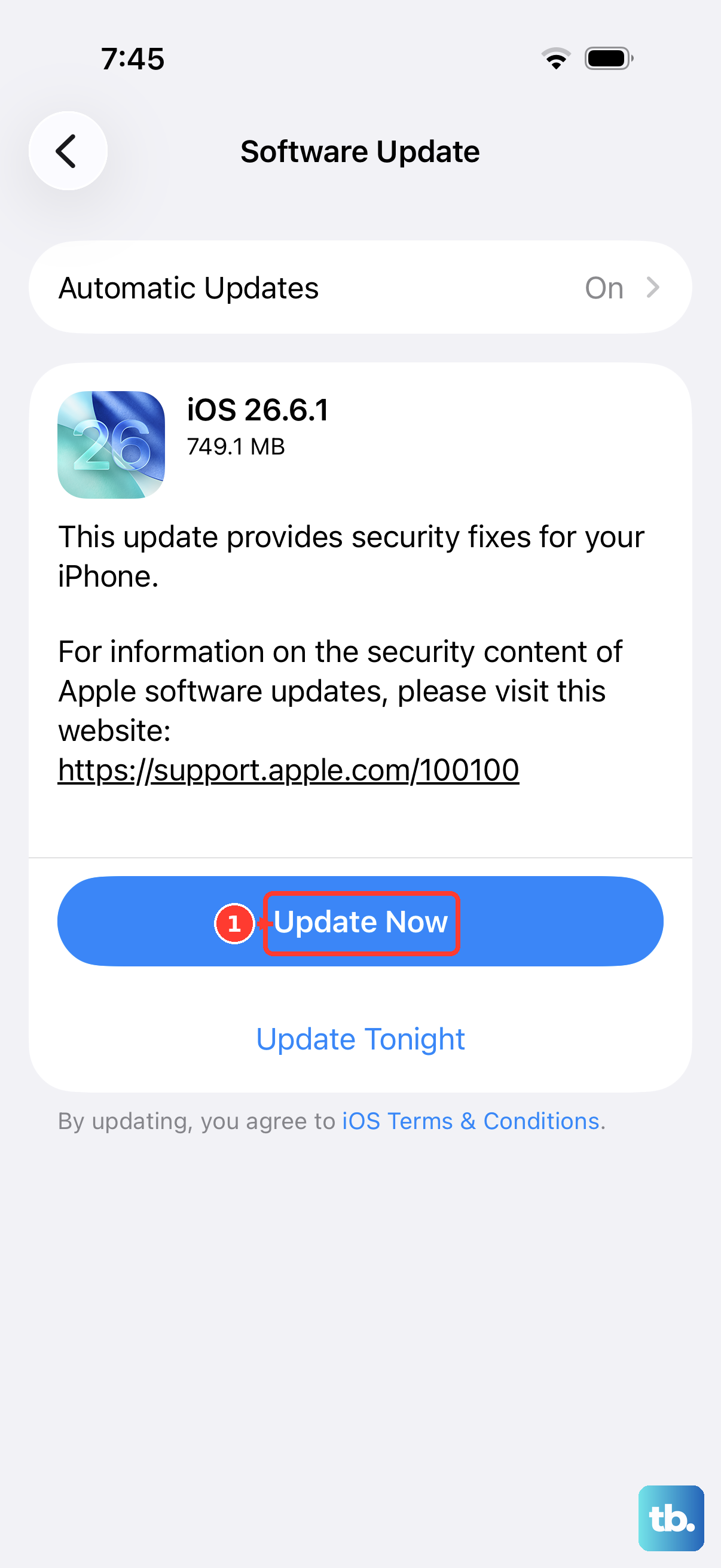
Software bugs in iOS can sometimes affect the modem firmware, which controls cellular connectivity. Apple releases updates to patch these issues. Make sure your iPhone 16 is running the latest version of iOS 26.
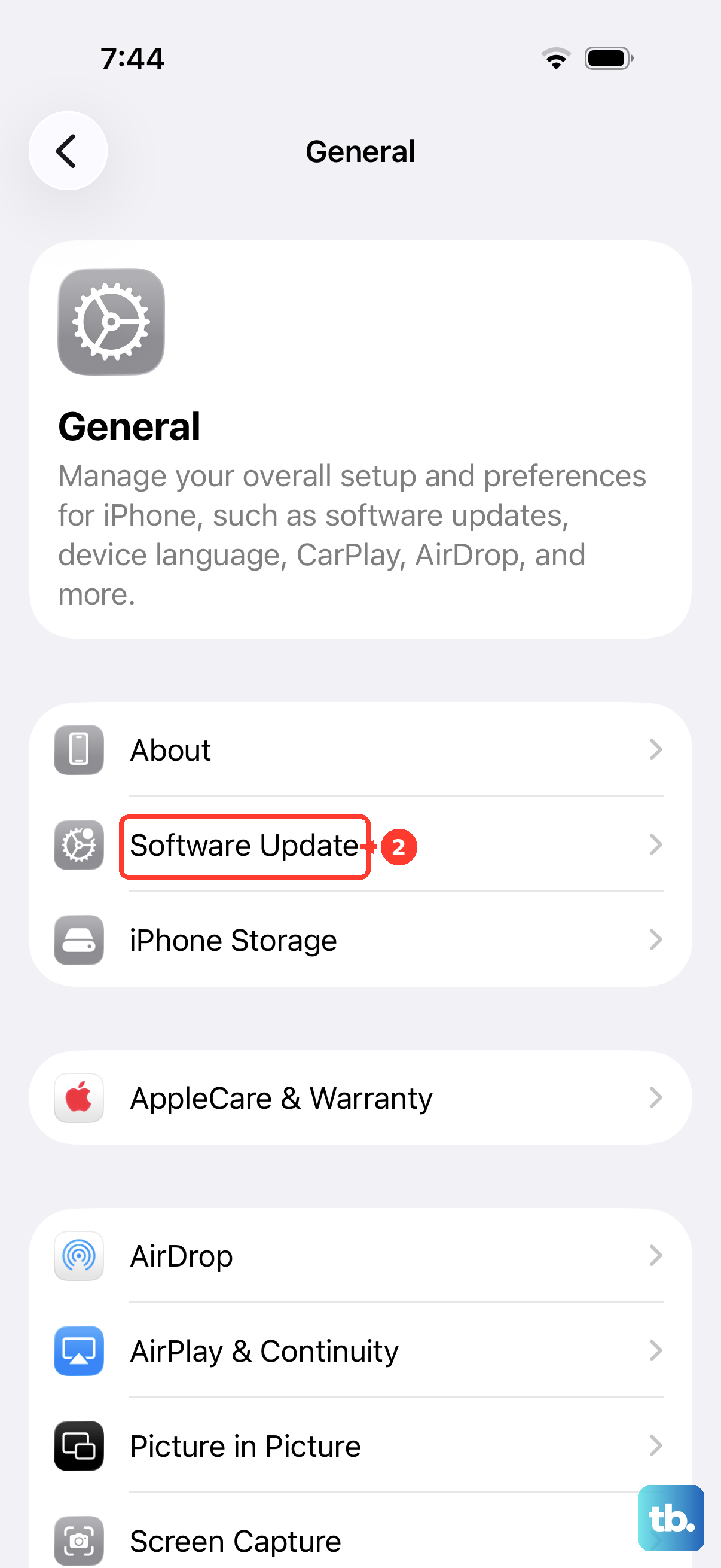
Go to Settings > General > Software Update. If an update is listed, tap "Download and Install." It's best to do this over Wi-Fi and ensure your phone is plugged into power. After the update installs and your phone restarts, check your cellular connection.
Reset Your Network Settings
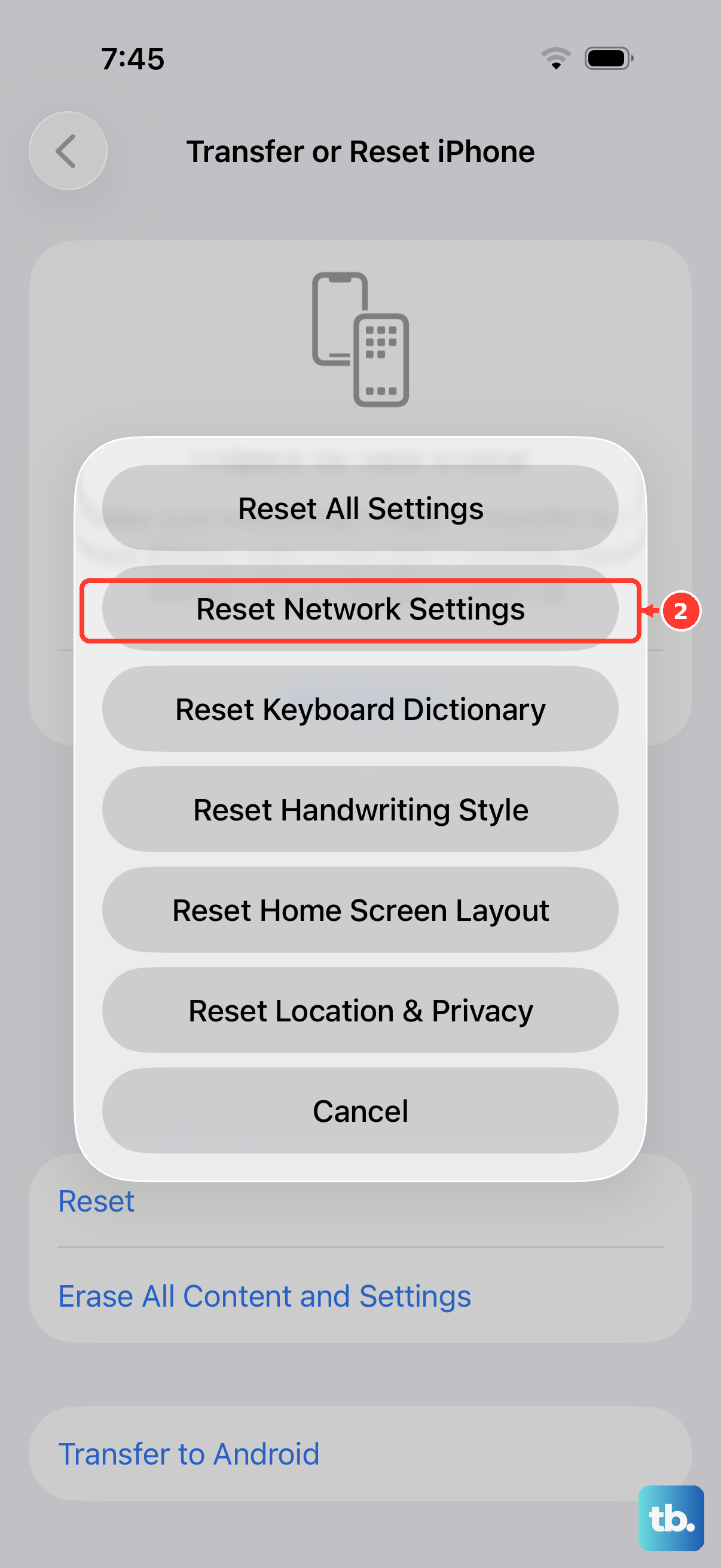
This step clears out all your saved Wi-Fi networks, Bluetooth pairings, VPN configurations, and cellular network settings. It's a deeper clean than a simple restart and can resolve corrupted configuration files that are blocking registration.
To do this, navigate to Settings > General > Transfer or Reset iPhone. Tap "Reset" at the bottom, then choose "Reset Network Settings." You'll need to enter your passcode. Your iPhone will restart, and you'll have to rejoin Wi-Fi networks and re-pair Bluetooth devices, but it often fixes stubborn cellular issues.
Try Manual Network Selection
By default, your iPhone automatically chooses the best available network. Sometimes, forcing it to manually select your carrier can kickstart the registration process. Go to Settings > Cellular.
Tap "Network Selection" and turn off "Automatic." Your phone will search for available networks. After a moment, a list will appear. Select your carrier's name from the list. If it connects, you can turn Automatic selection back on afterward.
Verify Your Account with Your Carrier
The problem might not be with your iPhone 16 at all. An account issue like an unpaid bill, a suspended line, or a plan change error on your carrier's side will prevent registration. I'd recommend checking this before moving on to more invasive fixes.
Use Wi-Fi to log into your carrier's account portal via their app or website, or call their customer support from another phone. Confirm that your line is active and in good standing. They can also sometimes reprovision your service, which sends a fresh activation signal to your phone.
Test with a Different SIM Card
This step helps you figure out if the problem is with your SIM card or the phone itself. If you can borrow a working SIM card from a friend or family member (even from a different carrier), insert it into your iPhone 16.
If the borrowed SIM card connects to a network without any issues, then your original SIM is likely faulty or deactivated. You'll need to contact your carrier for a replacement SIM. If the borrowed SIM also fails to register, the issue is almost certainly with your iPhone's hardware or software.
Contact Apple Support
If you've tried a different SIM card and your iPhone 16 still won't register on any network, there may be a hardware problem with the cellular modem. This isn't common, but it can happen. Since the iPhone 16 is a relatively new device, it should still be under its one-year limited warranty.
You can start a support session through the Apple Support app on your phone (using Wi-Fi) or on the Apple website. They can run remote diagnostics and, if necessary, guide you through service options to get your phone working again.