You connected to your iPhone 16's Personal Hotspot a hundred times before, but right now your laptop or tablet either can't see the network at all or refuses to stay connected. Maybe the hotspot toggle won't flip on, or the password keeps getting rejected even though you typed it correctly. The good news is that most tethering failures on the iPhone 16 come down to a setting, a carrier permission, or a quick refresh, and you can usually clear them in a few minutes without losing any data.
Personal Hotspot on the iPhone 16 shares your cellular data with other devices over Wi-Fi, Bluetooth, or USB. Because it depends on your phone's 5G connection, your carrier and your plan both have to permit tethering for it to work at all. The fixes below run from the easiest and safest to the most thorough, so start at the top and stop as soon as your connection comes back.
Check that your carrier and plan actually allow tethering
Before you touch a single setting, rule out the most common reason the feature simply isn't there. Personal Hotspot shares your iPhone's cellular data, so your wireless plan has to support tethering and your carrier has to enable it on your line.
If you can't find Personal Hotspot in Settings, or the toggle won't turn on at all, that usually points to a carrier or plan restriction rather than a phone fault. Contact your wireless carrier and confirm that tethering is included on your plan and switched on for your account. Until that is sorted, no on-device fix will bring the option back.
Confirm the hotspot is genuinely switched on
It sounds obvious, but the toggle can quietly turn itself off, and the connecting device will then see nothing. On the iPhone 16, open the Settings app and tap Personal Hotspot (you can also reach it through Settings > Cellular > Personal Hotspot).
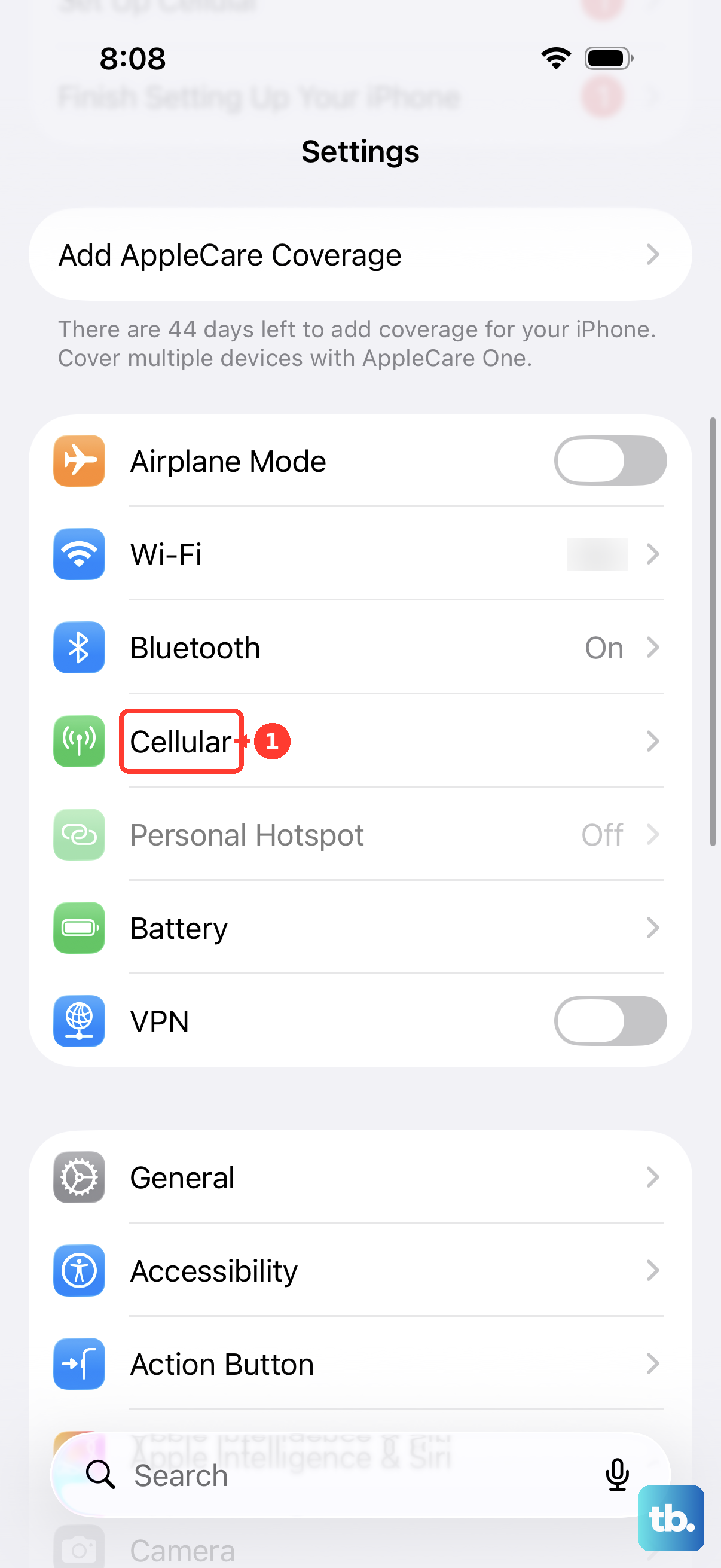
Turn on Allow Others to Join. That single toggle is what enables and disables Personal Hotspot on the iPhone providing the connection. Leave this screen open while you connect the second device, since closing it too quickly can sometimes interrupt the first handshake.
Refresh Wi-Fi on the device that needs to connect
Often the iPhone is fine and the hiccup is on the laptop, tablet, or other phone trying to join. A quick Wi-Fi refresh on that device clears a stale connection attempt.
- 1.On the device that needs to connect, turn Wi-Fi off and then back on.
- 2.Look for the correct network. It has the same name as the iPhone providing the hotspot, and a Personal Hotspot icon may appear next to it.
- 3.Re-enter the Wi-Fi password carefully. It must be at least eight characters long and use only ASCII characters, which include the uppercase and lowercase letters of the English alphabet, the numbers 0 through 9, and some punctuation marks.
If you ever changed the hotspot password to something with accented letters or symbols outside that range, the connecting device may silently fail. Reset it to a plain eight-character ASCII password and try again.
Restart both the iPhone and the connecting device
A standard restart clears temporary network glitches on both ends, and it is completely safe for your data. Restart the iPhone that provides the Personal Hotspot and the other device that needs to connect.
To restart an iPhone 16, press and hold either volume button and the side button until the power-off slider appears. Drag the slider, wait 30 seconds for the device to fully turn off, then press and hold the side button until you see the Apple logo. Restart your laptop or tablet the same way you normally would, then try the connection once more.
Update the iPhone 16 to the latest iOS
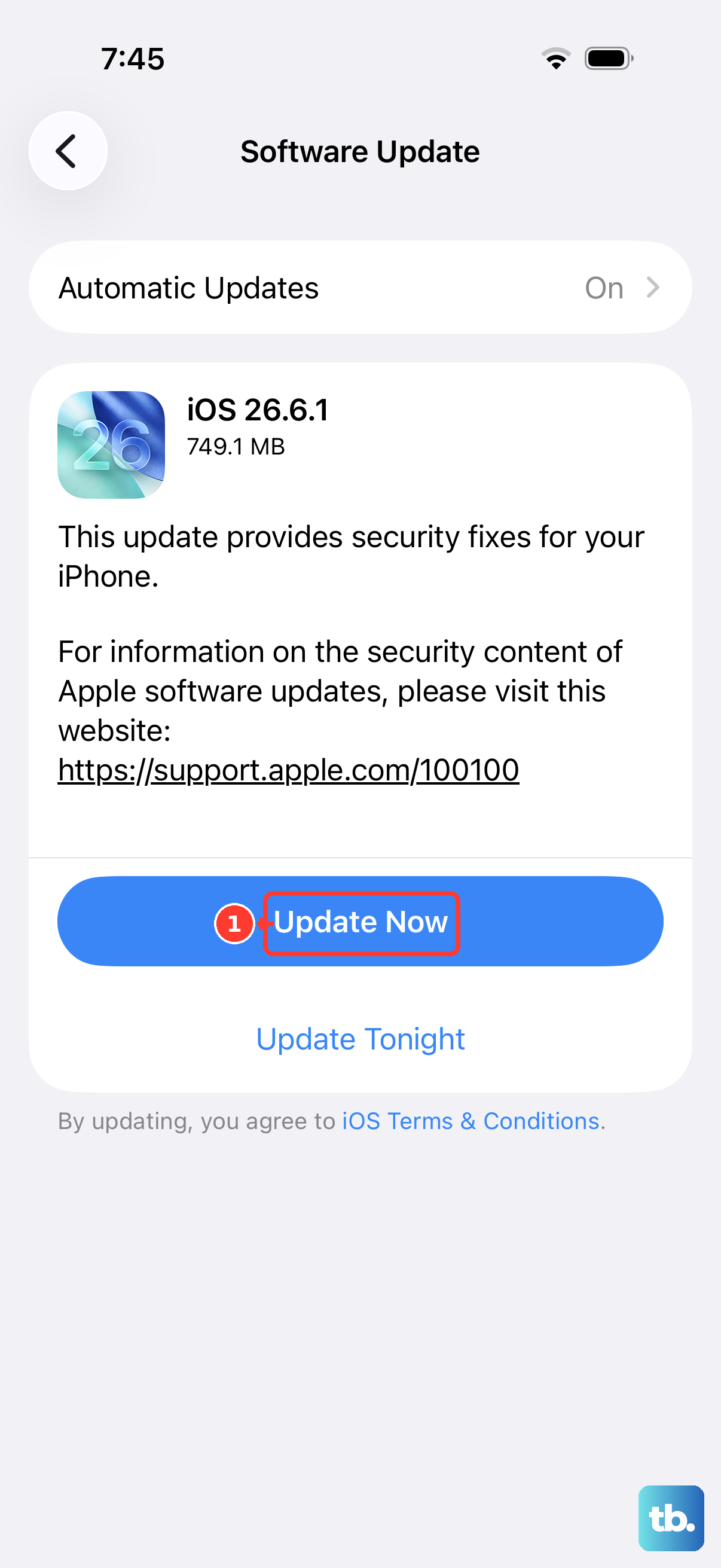
An out-of-date system version can carry networking bugs that newer releases have already fixed. Keeping the iPhone 16 current is one of the simplest long-term safeguards for hotspot reliability.
Go to Settings > General > Software Update. If an update is available, tap Download and Install. The iPhone 16 is compatible with iOS 26 (the current release is iOS 26.5), so make sure you are running the latest version before moving on to the more involved fixes.
Turn on Maximize Compatibility for stubborn devices
Some older or non-Apple devices struggle to connect to the iPhone's default hotspot mode. There is a setting designed specifically for them.
Open Settings > Personal Hotspot and turn on Maximize Compatibility. This option is available on iPhone 12 and later, which includes the iPhone 16. Note that it might reduce internet performance and Wi-Fi security, so turn it back off once the troublesome device has connected or no longer needs it.
Switch to USB or Bluetooth instead of Wi-Fi
If Wi-Fi tethering simply won't cooperate, the iPhone 16 can also share its connection over a cable or over Bluetooth. This is a useful way to confirm the hotspot itself works even when the wireless side is misbehaving.
For USB on a Mac, connect the iPhone with a USB cable, then open System Settings > Network and make sure the iPhone USB service is active (you can toggle it between Make Inactive and Make Active there). For Bluetooth, pair the iPhone with the other device. If your computer prompts you to trust the iPhone, confirm that you trust it so the connection can complete.
Reset Network Settings
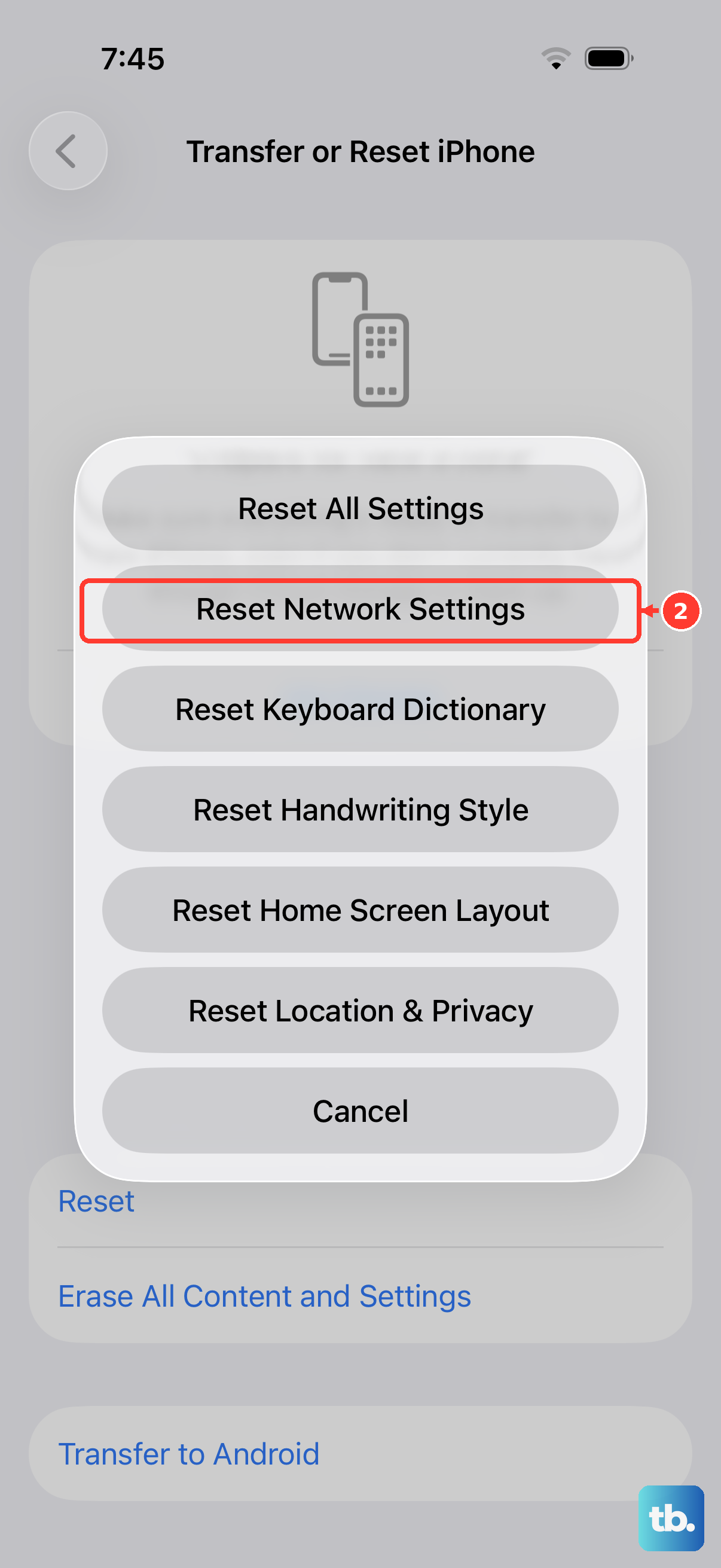
When the hotspot still fails after the steps above, clearing the iPhone's stored network configuration often resolves deeper conflicts. This does not erase your photos, apps, or messages, but it does wipe saved network details, so weigh that before you proceed.
On the iPhone 16, go to Settings > General > Transfer or Reset iPhone > Reset > Reset Network Settings. This resets the Wi-Fi networks and passwords, cellular settings, and the VPN and APN settings you've used before, so you'll need to reconnect to your known Wi-Fi networks afterward. Once it finishes, turn the hotspot on again and try a fresh connection.
Force restart an unresponsive iPhone 16
If the iPhone has frozen and won't respond when you tap Personal Hotspot, a force restart wakes it up without touching your files. The button sequence on the iPhone 16 is precise, so follow it exactly.
- 1.Press and quickly release the volume up button.
- 2.Press and quickly release the volume down button.
- 3.Press and hold the side button until you see the Apple logo. This may take over 10 seconds, so keep holding.
A force restart does not erase your data. Once the phone boots back up, return to Settings > Personal Hotspot and turn on Allow Others to Join again.
Erase the iPhone or reach out for help as a last resort
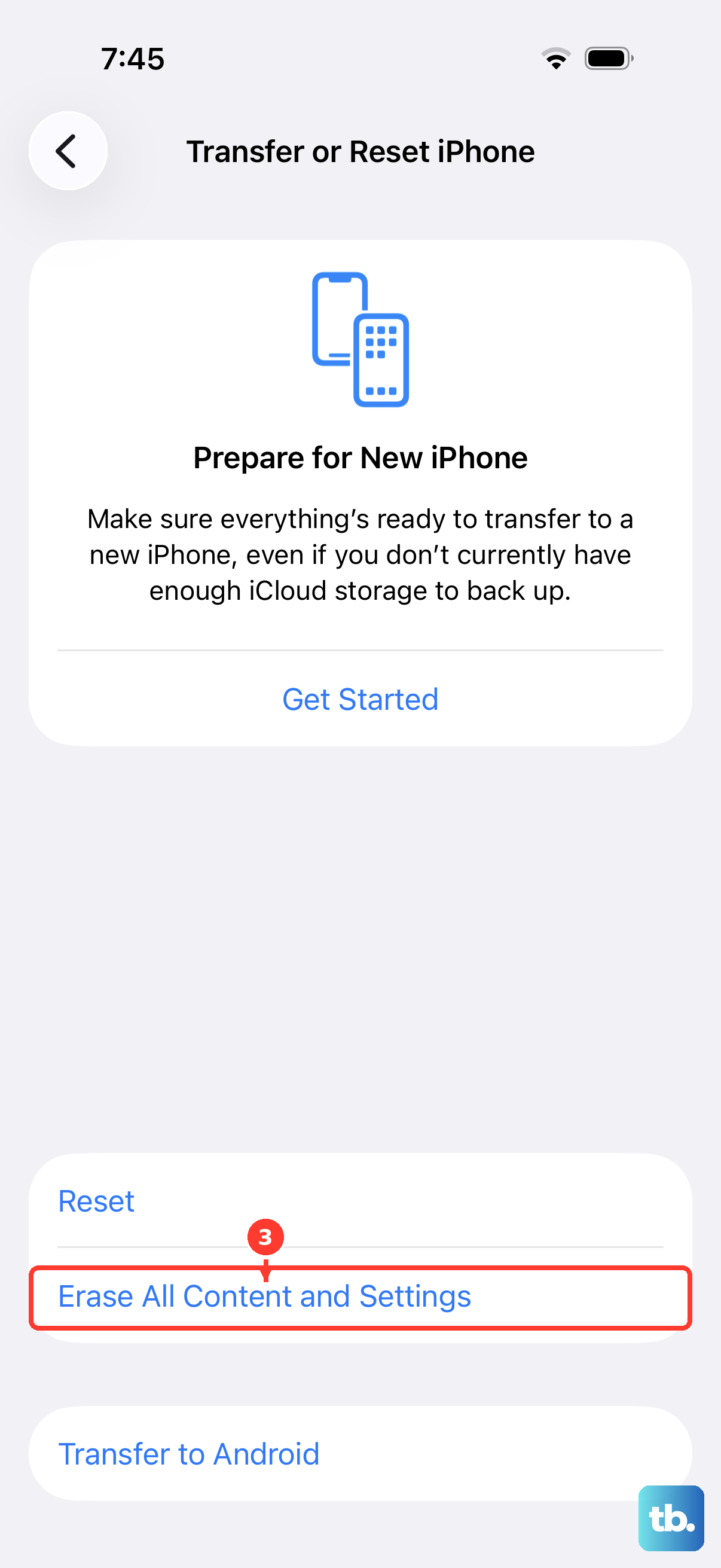
If nothing above brings the hotspot back, a factory reset is the final on-device option, and it is the most drastic one. Treat this as a true last resort and back up your iPhone first, because it removes everything.
To erase the phone, go to Settings > General > Transfer or Reset iPhone > Erase All Content and Settings, and enter your passcode or Apple Account password if asked. This removes all your content and settings and restores the iPhone to factory settings, so a current backup is essential. If you have an eSIM, you can choose to keep or erase it; erasing it means you'll need to contact your carrier to reactivate cellular service.
Should the problem survive even a full erase, the issue is likely outside your phone's control. Contact your wireless carrier for plan or tethering questions, or contact Apple Support for hardware and software help. You can also update or restore the iPhone over USB using Finder on a Mac or the Apple Devices app on a PC if the phone still isn't working properly.
Frequently Asked Questions
Why is Personal Hotspot missing from my iPhone 16 Settings entirely?
The most common reason the option doesn't appear is that your wireless carrier hasn't enabled tethering on your line, or your plan doesn't include it. Personal Hotspot shares your cellular data, so a plan that permits it is required. Contact your carrier to confirm tethering is part of your plan and switched on for your account.
My laptop sees the network but the password keeps failing. What's wrong?
Re-enter the password carefully and make sure it meets Apple's requirements. The Wi-Fi password must be at least eight characters long and use only ASCII characters, which include the uppercase and lowercase letters of the English alphabet, the numbers 0 through 9, and some punctuation marks. A password with accented or special characters outside that set can cause connections to fail.
Will turning on Maximize Compatibility slow down my connection?
It can. Apple notes that Maximize Compatibility might reduce internet performance and Wi-Fi security. It is meant to help devices that have trouble connecting, so turn it on when you need it and switch it back off once the device is connected or no longer needs it.
Does resetting network settings or force restarting delete my photos and apps?
A force restart does not erase any of your data. Reset Network Settings also leaves your photos and apps intact, but it clears the Wi-Fi networks and passwords, cellular settings, and VPN and APN settings you've used before, so you'll need to reconnect to your saved networks afterward. Only Erase All Content and Settings removes your content, which is why you should back up first.
Can I share my iPhone 16's connection without using Wi-Fi at all?
Yes. Besides Wi-Fi, the iPhone 16 can share its connection over USB or Bluetooth. For USB on a Mac, connect a cable and make sure the iPhone USB service is active under System Settings > Network. For Bluetooth, pair the iPhone with the other device and confirm the connection if prompted.