You reach for your iPhone 16 to light up a dark room, swipe down, tap the Flashlight button, and nothing happens. The rear LED stays off, or it flickers on for a second and quits, leaving you in the dark right when you need it.
Because the iPhone 16 uses that same rear LED for both the flashlight and the camera flash, the problem can come from a camera setting, a temporary glitch, heat, a blocking accessory, or, less often, a hardware fault.
The good news is that most flashlight failures are software related and clear up in seconds. The fixes below are ordered from the quickest and safest to the more involved, with the full erase and the official service path saved for last.
Work through them in order and stop as soon as the light comes back on.
Start With the Control Center Toggle and Brightness
Before assuming anything is broken, make sure the flashlight is actually being switched on and that its brightness is not turned all the way down. On the iPhone 16, which is a Face ID model with no Home button, the Control Center lives in the upper-right corner of the screen.
Swipe down from the upper-right corner to open Control Center.
Tap the Flashlight button to turn it on; tap it again to turn it off.
If the light is very dim, press and hold the Flashlight button, then drag the slider up to increase the brightness.
If you cannot find the Flashlight button at all, it may have been removed from Control Center. Go to Settings > Control Center and add Flashlight back, then return to Control Center and try the toggle again.
Quit the Camera App and Change the Flash Setting
The flashlight shares the rear LED with your camera flash, so a camera setting can interfere with how the light behaves. If the flashlight works only sometimes, the fix often lives inside the Camera app rather than Control Center.
Open the Camera app and tap the flash button to choose a different setting.
After changing it, close the Camera app completely, then go back to Control Center and try the Flashlight button again.
Switching the flash setting and clearing the camera out of the way can free the LED to respond normally.
Give a Hot iPhone Time to Cool Down
Heat is one of the most common reasons the light simply refuses to come on. When your iPhone gets too hot, the camera flash or other camera features might be temporarily disabled, and you may see a message that reads "Temperature: iPhone needs to cool down."
This is a protective measure, not a defect, and the flashlight returns on its own once the device cools.
Turn off your device.
Move your device to a cooler environment, away from direct sunlight.
Allow your device to cool down.
Once the temperature is back to normal, turn the iPhone on and test the flashlight again from Control Center.
If you were charging, gaming, navigating, or sitting in a hot car when the light cut out, this is very likely your answer.
Take Off Any Case, Film, or Accessory Near the Flash
Sometimes the LED is working perfectly and something physical is in the way or interfering with it.
Remove any case, film, or accessory (such as a polarizer, extender, or magnifier) that might block the camera or flash, or that places a magnet near the camera.
With the device bare, swipe down and tap the Flashlight button again to test it.
A thick case opening that does not line up, a stick-on lens, or a magnetic mount can all sit close enough to the LED to cause trouble, so retest before putting any accessory back on.
Restart the iPhone to Clear a Glitch
If the hardware looks clear and heat is not the cause, a simple restart can clear a temporary software glitch affecting the flashlight. The official camera and flash troubleshooting guidance lists restarting your iPhone as a step for exactly this kind of issue.
After the iPhone powers back on and you unlock it, open Control Center and tap the Flashlight button.
A normal restart is non-destructive and resolves a surprising number of one-off software hiccups, so it is worth doing before anything more drastic.
Force Restart When the Light Stays Unresponsive
If a standard restart does not help and the flashlight is still unresponsive, a force restart can recover a more stubborn software state. The sequence below is specific to the iPhone 16 as a Face ID model with no Home button, so follow it exactly.
- 1.Press and quickly release the volume up button.
- 2.Press and quickly release the volume down button.
- 3.Press and hold the side button until you see the Apple logo (this might take longer than 10 seconds).
Let go of the side button as soon as the Apple logo appears and let the device finish booting.
Once you are back at the Lock Screen, test the flashlight from Control Center again.
Install the Latest Version of iOS
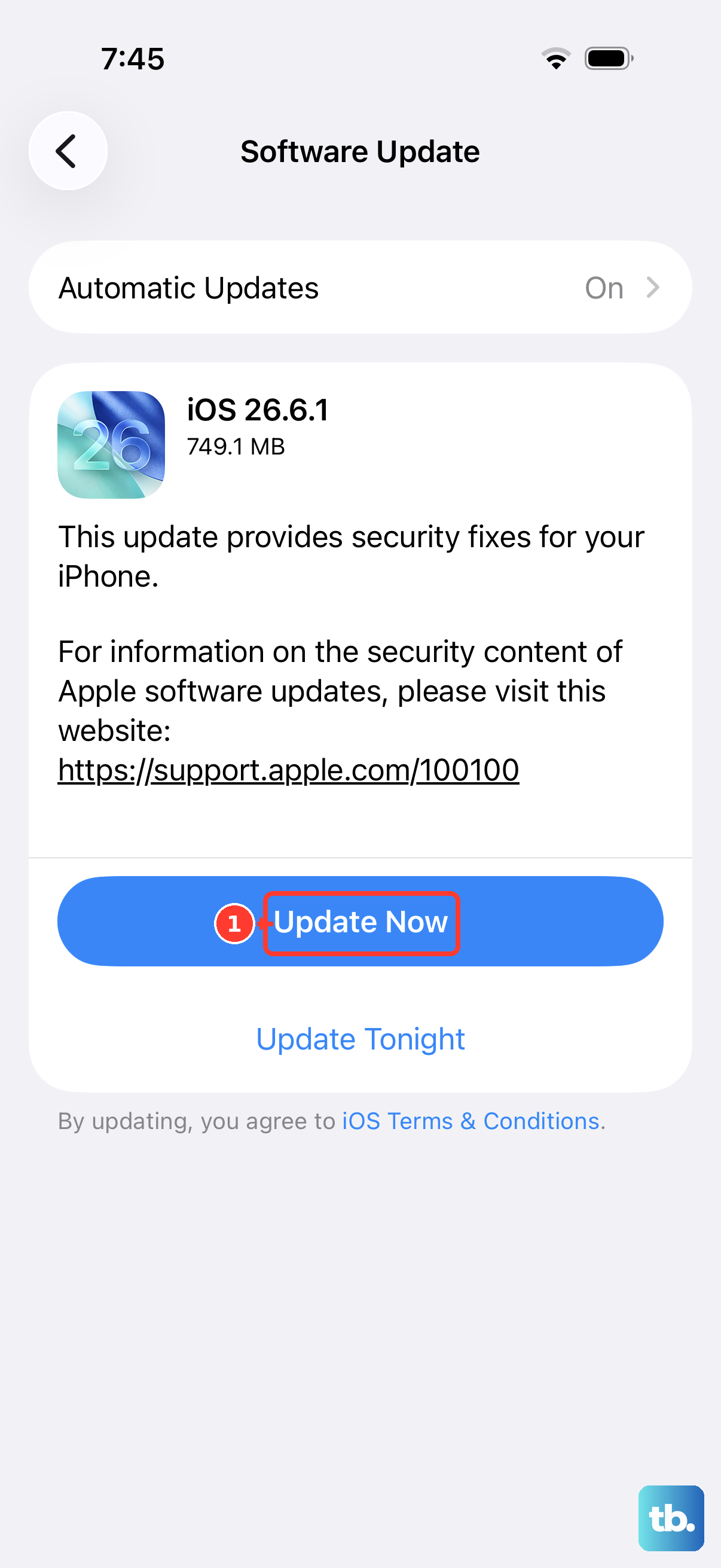
An outdated system can carry bugs that affect the camera and flash, and Apple lists updating iOS among the steps for camera and flash issues.
Keeping the iPhone 16 current also keeps it in line with iOS 26, the version it is compatible with.
Go to Settings > General > Software Update.
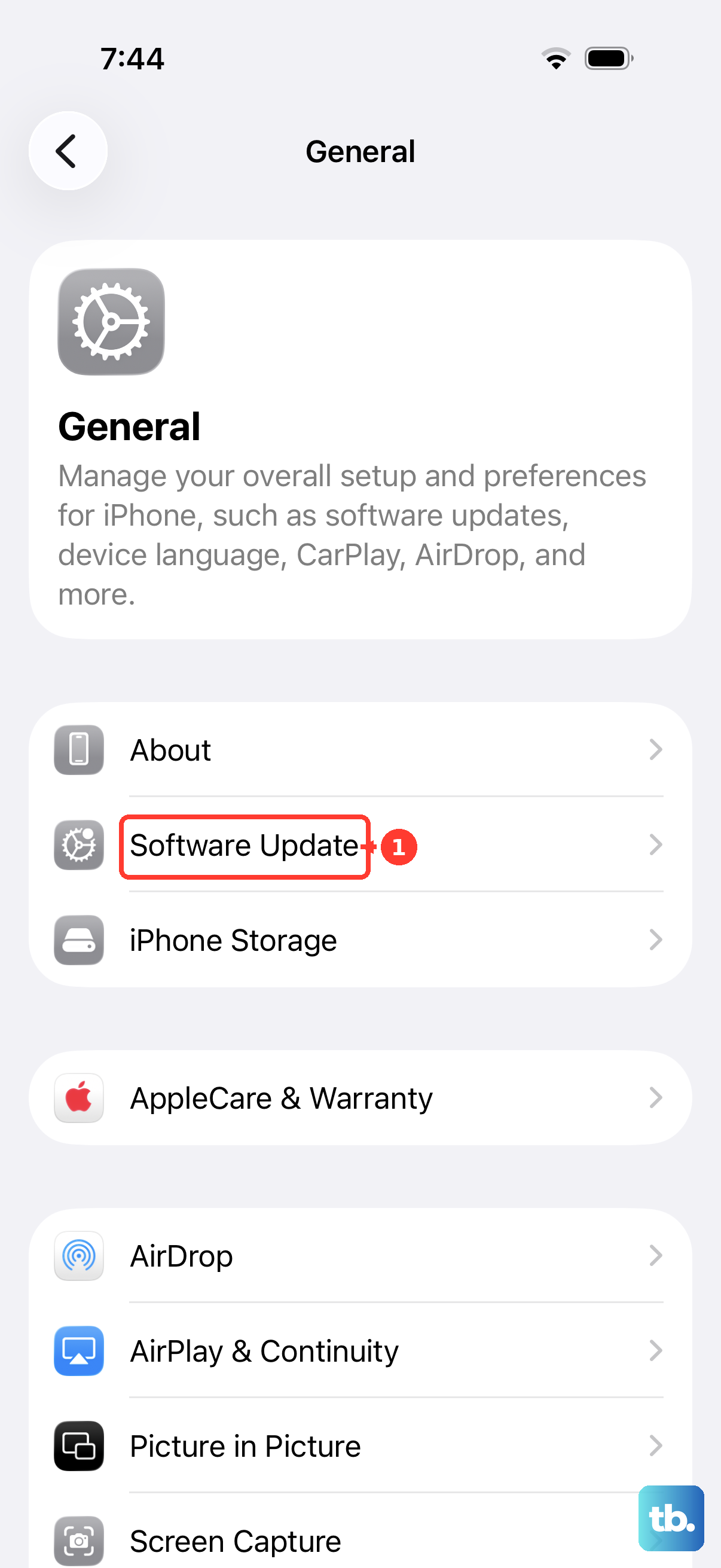
If an update is available, tap Download and Install, then follow the onscreen instructions.
If you would rather not update over the air, you can also perform the update using a computer with Finder or the Apple Devices app.
After the update finishes, open Control Center and confirm the flashlight is working again.
Erase All Content and Settings as a Last Software Step
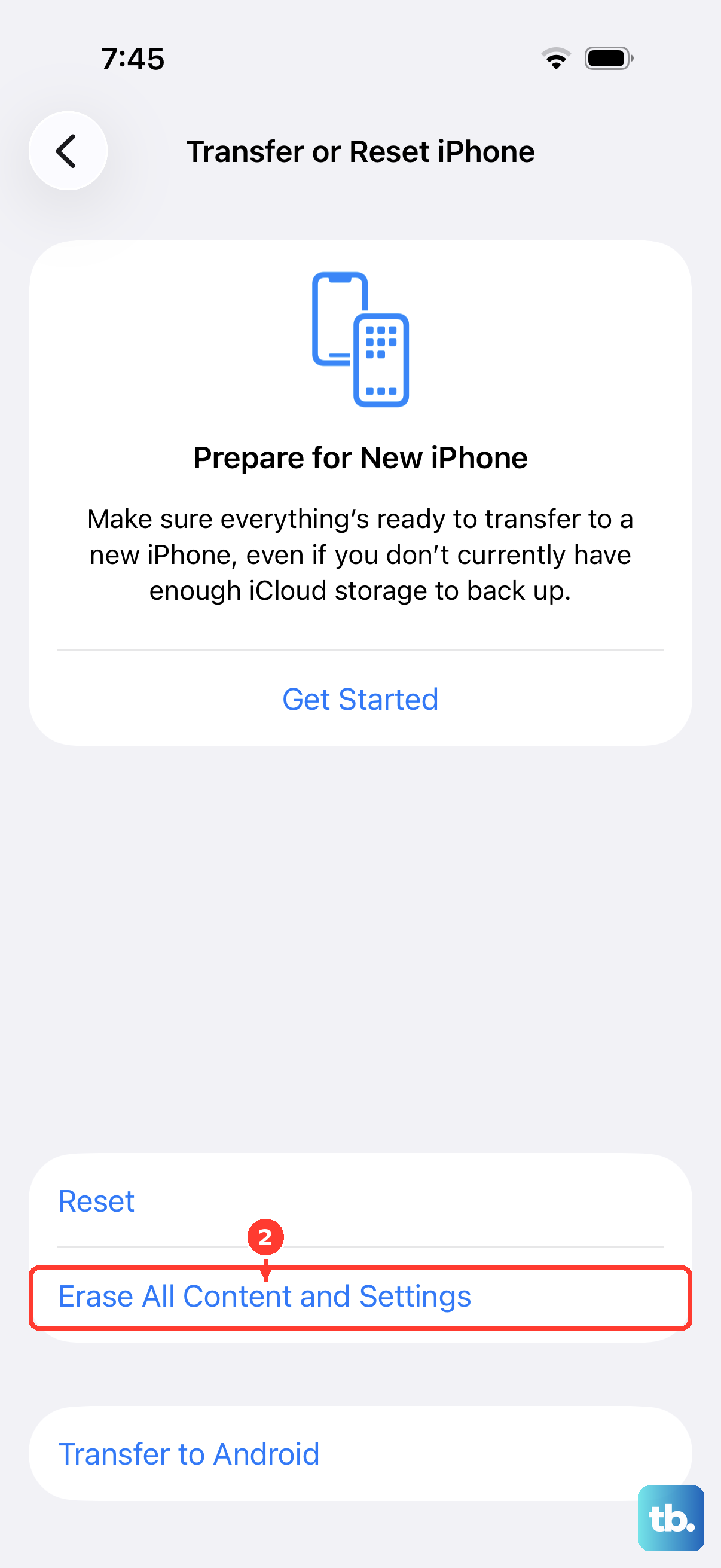
If nothing above has worked and you suspect a deeper software problem, erasing the iPhone and setting it up fresh is the final software resort.
This restores the iPhone to factory settings and removes all your data, so create a backup first that you can restore your content, settings, and apps from later.
Create a backup before you begin so you can restore your content, settings, and apps afterward.
Go to Settings.
Tap General.
Tap Transfer or Reset iPhone.
Tap Erase All Content and Settings.
Follow the onscreen prompts to complete the erase, then restore from your backup.
If you prefer, a factory restore can also be done using a computer.
Only take this step once you have confirmed your backup exists, because it removes everything currently on the device.
Contact Apple Support if It Still Will Not Work
If the camera or flash still is not working properly after all of these steps, the cause may be a hardware issue rather than software.
At that point the official guidance directs you to get service through Apple Support, where the LED can be checked and repaired or replaced if needed.
Before booking, it helps to note exactly when the flashlight fails (for example only after the phone gets hot, or only while the camera is in use), since that detail can speed up the diagnosis.
Frequently Asked Questions
Why does my iPhone 16 flashlight turn off by itself?
The most common reason is heat. When the iPhone gets too hot, the camera flash or other camera features might be temporarily disabled, and you may see "Temperature: iPhone needs to cool down." Turning the device off and letting it cool in a cooler spot away from direct sunlight usually brings the flashlight back.
Does the flashlight share hardware with the camera flash?
Yes. The flashlight uses the same rear LED as the camera flash. That is why changing the flash setting inside the Camera app, then closing the app and retrying Control Center, can fix a flashlight that works only sometimes.
The Flashlight button is missing from Control Center. How do I get it back?
Go to Settings > Control Center and add Flashlight. Once it is added, swipe down from the upper-right corner to open Control Center and the Flashlight button will be there to tap.
How do I force restart an iPhone 16 if the flashlight is frozen?
Press and quickly release the volume up button, press and quickly release the volume down button, then press and hold the side button until you see the Apple logo (this might take longer than 10 seconds). When the device finishes booting, test the flashlight again from Control Center.
Will updating or erasing my iPhone delete my photos?
Updating iOS through Settings > General > Software Update is a routine update step. Erasing the iPhone is different: choosing Erase All Content and Settings restores the device to factory settings and removes all your data, so you should create a backup first and restore your content, settings, and apps from it afterward.