
Seeing "Call Failed" pop up on your iPhone 16 is incredibly annoying, especially when you're trying to reach someone. This usually means your phone is having trouble connecting to the cellular network properly. It's often due to a weak signal, a minor software hiccup, or a setting that's gotten out of whack.
Let's run through the most effective fixes, starting with the quickest ones you can try right now.
Toggle Airplane Mode On and Off
This is the fastest way to reset your cellular connection. It clears out any temporary network glitches that might be blocking your calls. Swipe down from the top-right corner of your screen to open Control Center and tap the airplane icon to turn it on.
Wait about 10 seconds, then tap it again to turn Airplane Mode off. Your iPhone 16 will reconnect to the network, and that's often enough to get calls working again.
Check Your Cellular Signal
Weak signal is the number one reason calls fail. Take a look at the signal bars in the top-right corner of your screen. If you only have one or two bars, try moving to a different spot.
Sometimes just going near a window or stepping outside can make a big difference. If you see "No Service" or "SOS Only," you're likely in a dead zone and will need to move to get a connection.
Perform a Force Restart
A simple restart can clear out many software gremlins. For the iPhone 16, press and quickly release the Volume Up button, then press and quickly release the Volume Down button. Finally, press and hold the Side button.
Keep holding it until you see the Apple logo appear, then let go. This forces a clean reboot without deleting any of your data.
Review Your Focus Modes
Your Focus modes, like Do Not Disturb or Sleep, can sometimes be too aggressive and block incoming calls. Swipe into Control Center and see if any Focus icon is highlighted at the top.
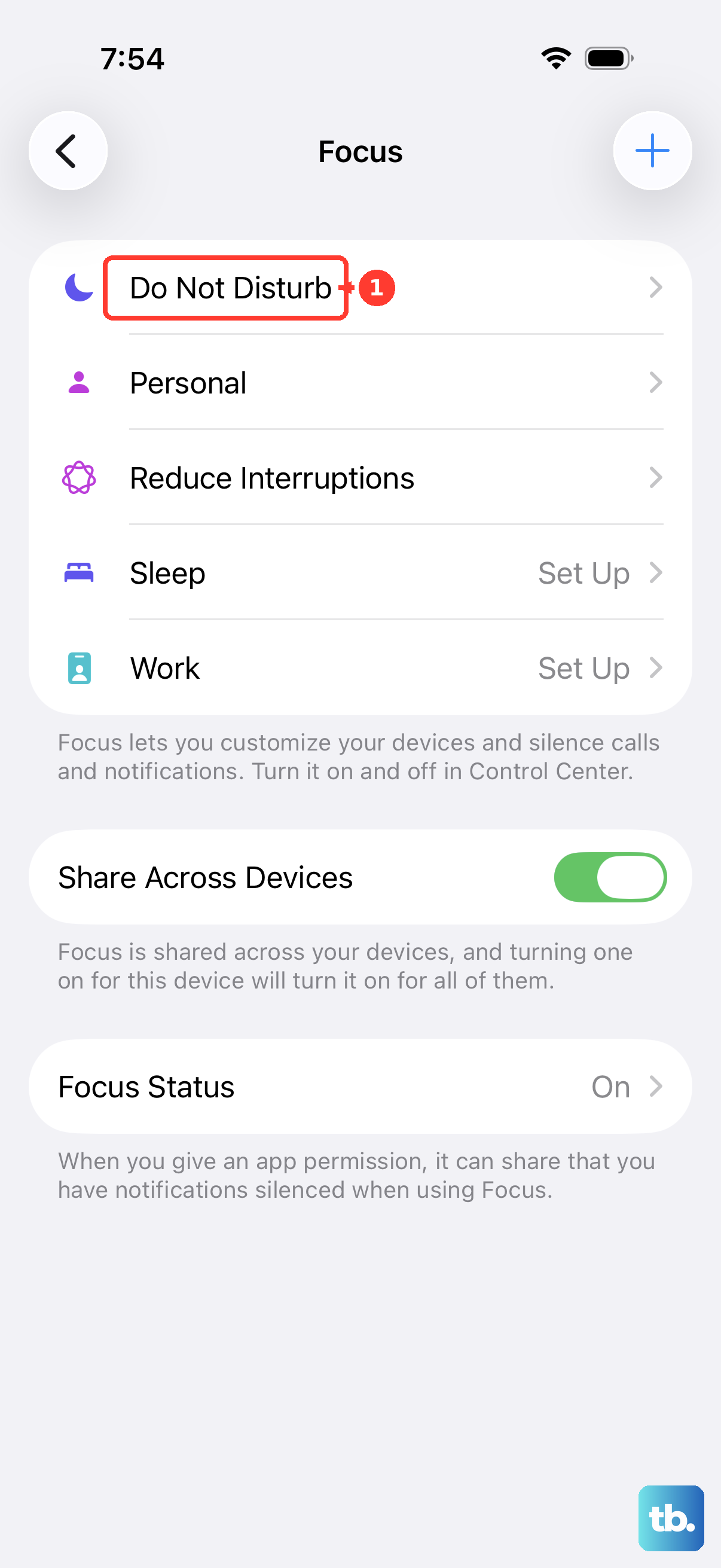
If one is active, tap it to turn it off temporarily. You can also go to Settings > Focus to check the settings for each mode and make sure important contacts can still get through.
Update Your Carrier Settings
Apple and your cellular provider occasionally release small updates that improve network connectivity. These can fix calling issues. Make sure your iPhone 16 is connected to Wi-Fi.
Then, go to Settings > General > About. If a carrier settings update is available, a prompt will appear on this screen. Just follow the instructions to install it.
Check for iOS Updates
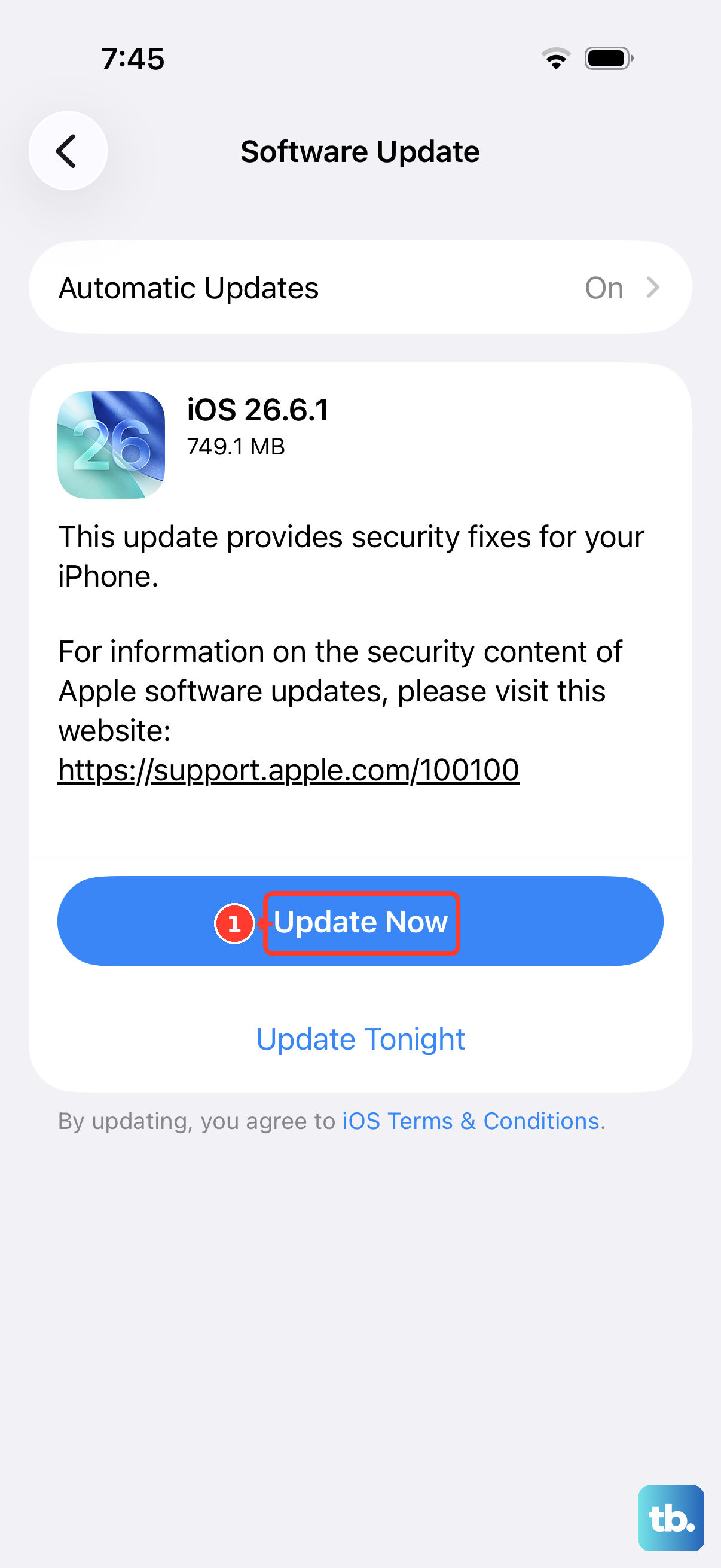
Major iOS updates often include bug fixes for cellular and calling problems. It's a good idea to make sure you're running the latest version of iOS. Plug your phone in or make sure it has plenty of battery, and connect to Wi-Fi.
Head to Settings > General > Software Update. If an update for iOS is listed, tap to download and install it. This can resolve issues introduced by older software.
Verify Your Cellular Data Settings
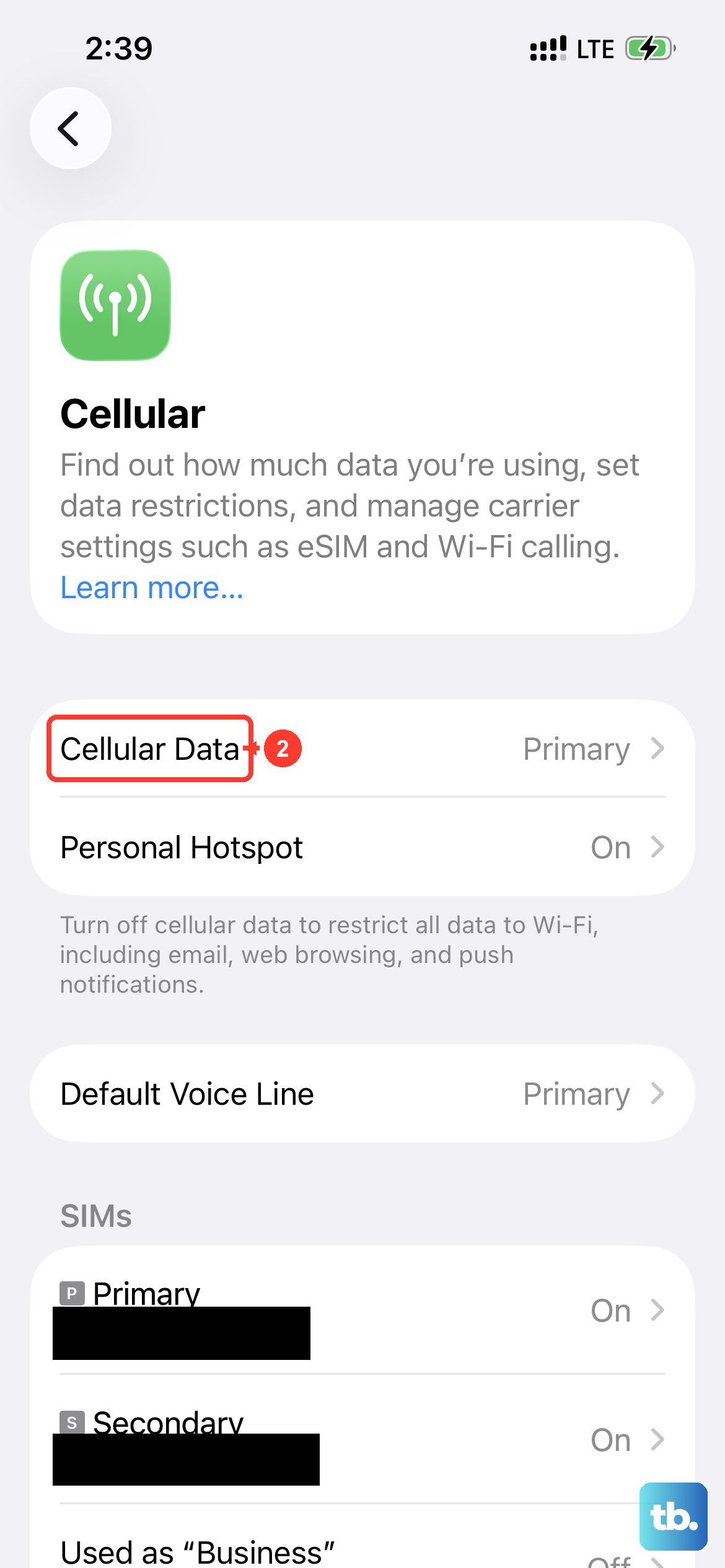
Double-check that your cellular line is active and configured correctly. Go to Settings > Cellular and make sure the main "Cellular Data" switch is turned on.
If you're traveling, you might also need to enable data roaming. Tap on your primary line, then select Cellular Data Options and turn on "Data Roaming." Be aware this might incur extra charges from your carrier.
Reset Your Network Settings
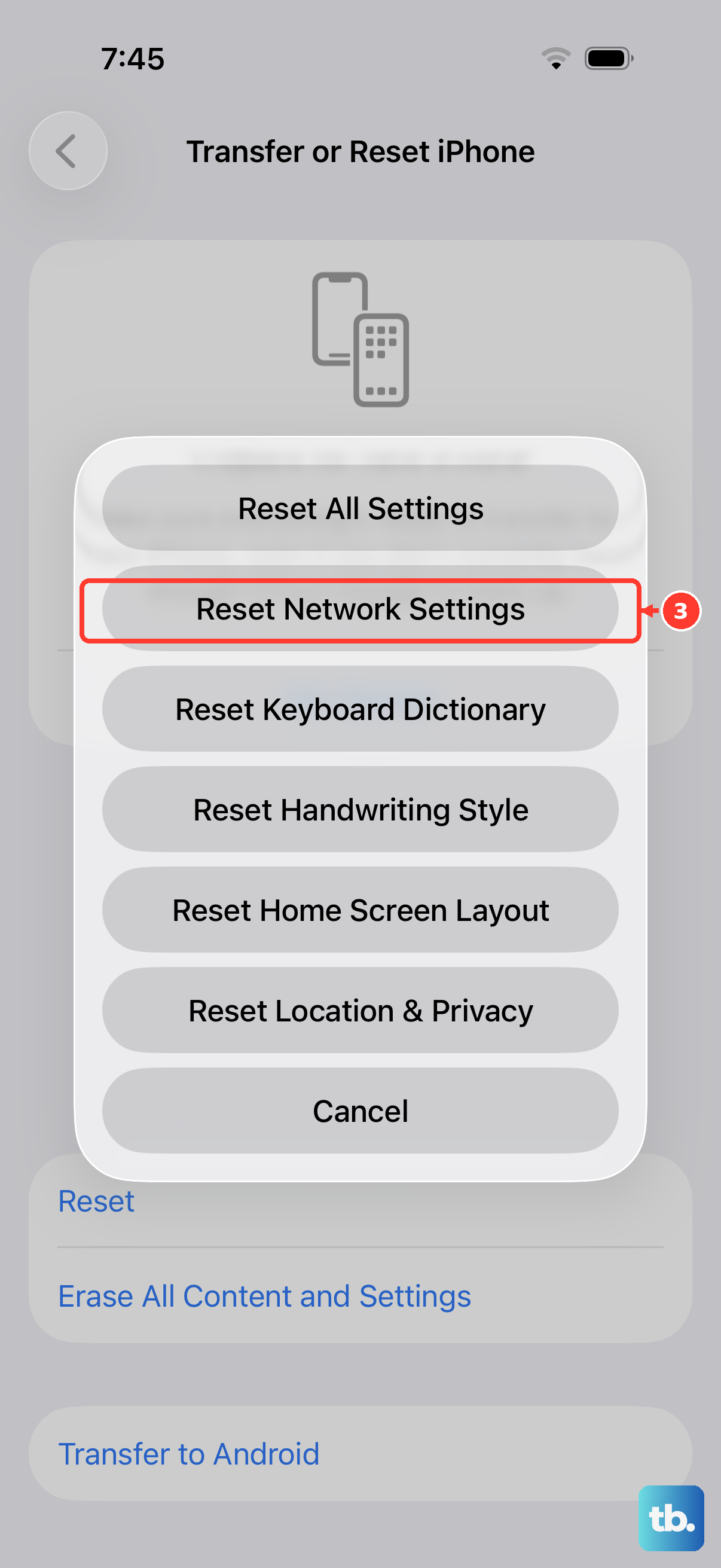
This is a more thorough step that clears all your saved Wi-Fi passwords, VPN settings, and cellular network preferences. It won't delete your photos or apps, but you will have to re-join Wi-Fi networks.
To do this, go to Settings > General > Transfer or Reset iPhone. Tap "Reset," then choose "Reset Network Settings." You'll need to enter your passcode to confirm.
Inspect Your SIM Card
A loose, dirty, or damaged SIM card can cause call failures. You'll need the SIM ejector tool that came with your iPhone 16 or a small paperclip. Gently push it into the small hole on the SIM tray on the left side of the phone.
Pull the tray out, remove the SIM card, and give the gold contacts a quick wipe with a soft, dry cloth. Reinsert the SIM card and tray firmly. If problems persist, your carrier can test the SIM or provide a replacement.
Contact Your Wireless Carrier
If you've tried everything here and calls are still failing, the issue might be on your carrier's end. There could be a network outage in your area, a problem with your account, or an issue with their towers.
Give their customer service a call from another phone or use online support. They can check for outages, reprovision your line on their network, or advise if you need a new SIM card.