You set your iPhone 15 on its wireless pad, expect to see the charging indicator light up, and nothing happens. No chime, no battery animation, no charging icon at the top of the screen. Wireless charging is a real, supported feature on the iPhone 15, so when it stops working you are almost always dealing with a fixable alignment, case, charger, or power-adapter problem rather than a phone that simply cannot do it. Work through the checks below in order, starting with the quickest and safest, and most people get a steady charge back before reaching the final steps.
First, confirm what your iPhone 15 can actually do wirelessly
Your iPhone 15 fully supports wireless charging. According to Apple's official tech specs, it handles MagSafe wireless charging up to 15W, Qi2 wireless charging up to 15W, and Qi wireless charging up to 7.5W. So a dead wireless charge is a genuine, fixable fault, not a missing capability.
Wired charging on this model uses the USB-C connector, and that distinction matters here. Per Apple, your iPhone will not charge wirelessly while it is connected to USB, so unplug any cable before you place the phone on a pad. If a cable is still attached, the pad will appear dead no matter what you do.
Place the phone on the pad the way Apple specifies
Wireless charging is fussy about position, and a small misalignment is one of the most common reasons it fails to start. Follow Apple's exact placement steps to rule this out before assuming anything is broken.
- 1.Connect your charger to power using the adapter that came with it or one recommended by the manufacturer.
- 2.Place the charger on a level surface.
- 3.Place your iPhone on the charger with the display facing up, in the center of the charger or where the manufacturer recommends.
Your iPhone should start charging a few seconds after you set it down. If you see no response within those few seconds, nudge the phone so it sits dead-center, since that is often all it takes.
Take off a thick, metal, or battery case (and anything magnetic)
Cases and stray objects sit directly between the charging coils and quietly block the connection. Apple advises that if your iPhone is not charging or is charging slowly and it has a thick case, metal case, or battery case, you should try removing the case. Pull the case off, set the bare phone on the pad, and see whether charging begins.
You should also avoid placing credit cards, security badges, passports, key fobs, or other magnetic items between the iPhone and the charger. Beyond hurting charging performance, this can damage magnetic strips and RFID chips, so clear anything like that off the pad entirely.
Use a certified charger backed by an adequate power adapter
Wireless charging only delivers full power when the charger and the adapter behind it are both up to the job. The iPhone works with Qi-certified chargers, so start by confirming yours is one. For MagSafe specifically, Apple says to connect the MagSafe Charger's USB-C connector to a recommended 30W or greater Apple USB-C power adapter, and notes a 20W or greater USB-C power adapter (9V/2.22A or 9V/2.56A or higher) for up to 15W charging.
There is also a timing quirk worth knowing. If the phone was placed on the MagSafe Charger before the adapter had power, remove your iPhone from the MagSafe Charger, wait three seconds, and put it back on to resume maximum power delivery. This simple re-seat often restores a charge that started weak or not at all.
Cool the phone down if you see "Charging On Hold"
If your Lock Screen shows "Charging On Hold," the device is temporarily too hot or too cold to charge. These thermal protections are automatic on iOS 16 or later and cannot be turned off, so the fix is to change the conditions rather than the settings.
Move the iPhone to a cooler place away from direct sunlight, or to a warmer place if it is too cold, then lock the screen or put it to sleep. Charging resumes automatically once the temperature settles. Apple recommends charging in environments between 32 and 95 degrees F (0 to 35 C), and because a thick case can trap heat, removing it can help the phone shed warmth faster.
Check whether it is just stopping at 80 percent
Sometimes the phone is charging fine and only seems stuck. With Optimized Battery Charging, the iPhone pauses charging at 80 percent and finishes closer to when you usually unplug, which reduces long-term battery wear. If your phone appears to "stop" at or near 80 percent, this feature, not a wireless-charging failure, may be the reason.
You can review this on the iPhone 15 under Settings > Battery > Charging, where you can set a charge limit between 80 and 100 percent in 5 percent increments. Knowing this is normal saves you from chasing a fault that is not there; if you want the phone to top off fully every time, adjust the limit here.
Update to the latest version of iOS
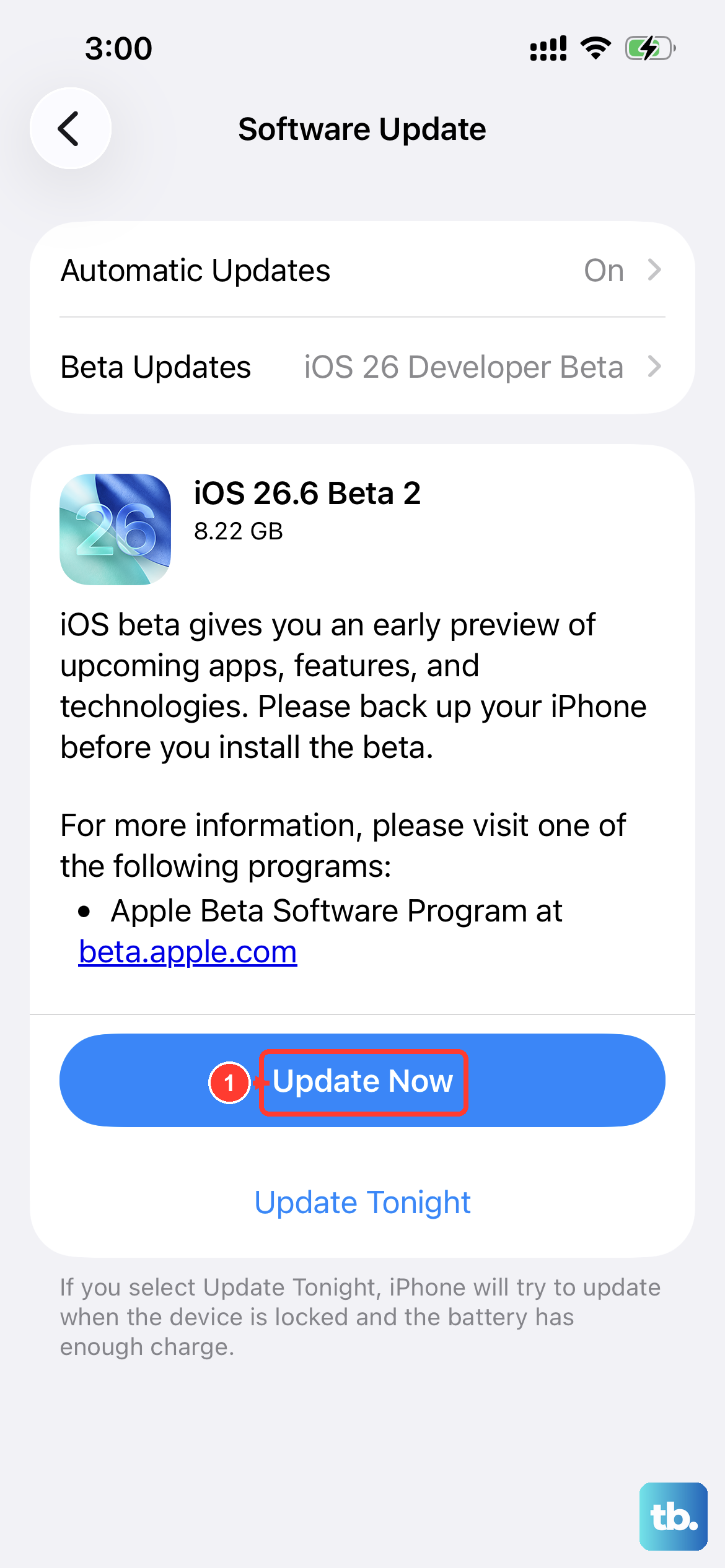
Charging behavior is tied to software, and an out-of-date system can carry bugs that affect it. Keeping iOS current can resolve charging-related software issues, so this is a low-effort step worth doing.
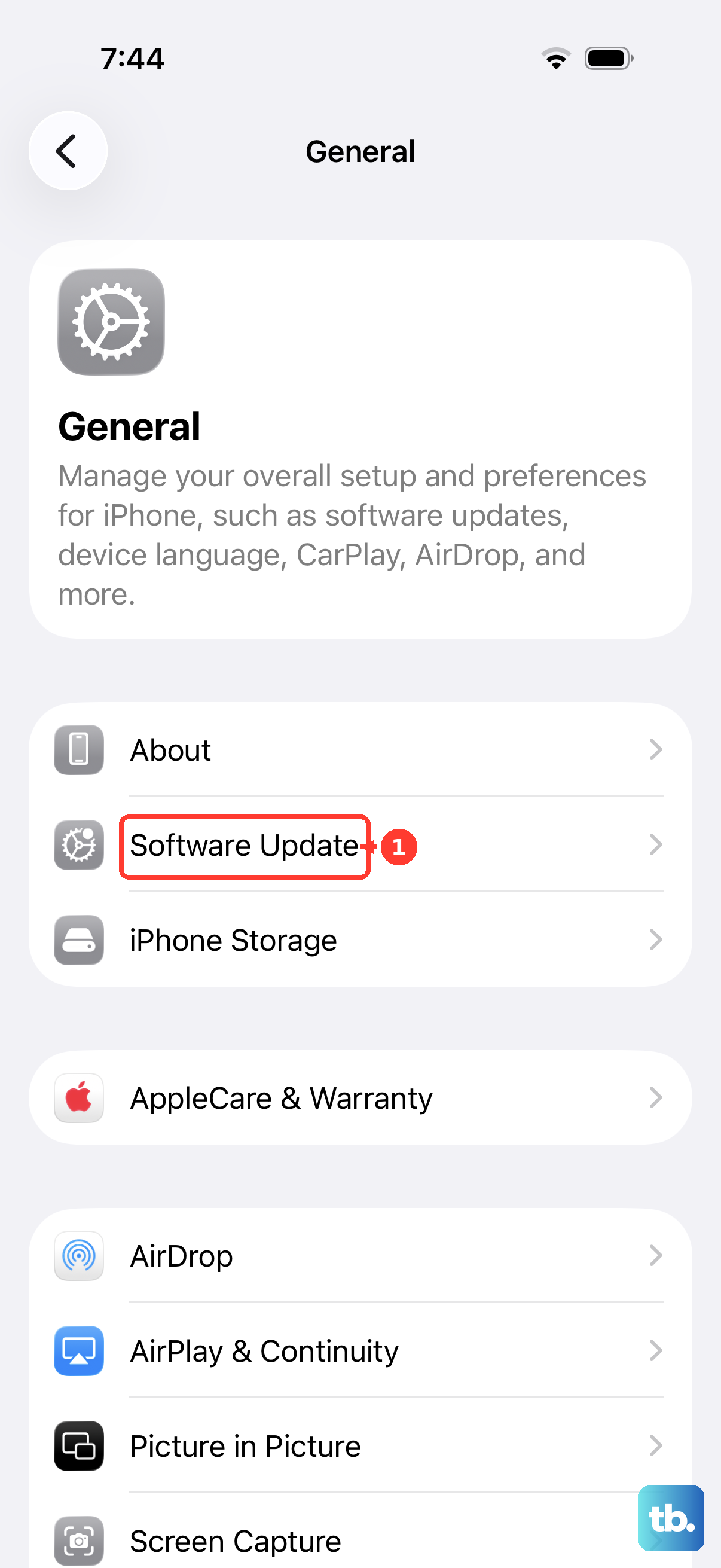
Before you start, plug into power and connect to Wi-Fi. Then go to Settings > General > Software Update; if an update is available, tap Download and Install and follow the onscreen instructions. Let the update finish completely before testing wireless charging again.
Force restart an unresponsive iPhone 15
If the phone seems frozen and is not responding, it may look like it is refusing to charge when it has simply locked up. A force restart clears that state without erasing anything. The exact sequence for the iPhone 15 matters, so follow it precisely.
- 1.Press and quickly release the volume up button.
- 2.Press and quickly release the volume down button.
- 3.Press and hold the side button.
- 4.When the Apple logo appears, release the side button.
Once the phone restarts, set it back on the pad and watch for the charging indicator within a few seconds.
Isolate a wireless-only fault, then reset or get service
At this point it helps to narrow down where the problem actually lives. If wired charging over USB-C works but wireless does not, the issue is most likely alignment, the case, the charger, or the adapter, all of which the steps above address. Revisit those first, because they solve the large majority of wireless-only failures.
If neither wireless nor wired charging works, run Apple's general charging checks. Inspect the cable and adapter for damage, try a wall outlet with firm connections, remove debris from the charging port, and let the device charge for half an hour. These quickly surface a bad cable, a loose outlet, or a blocked port.
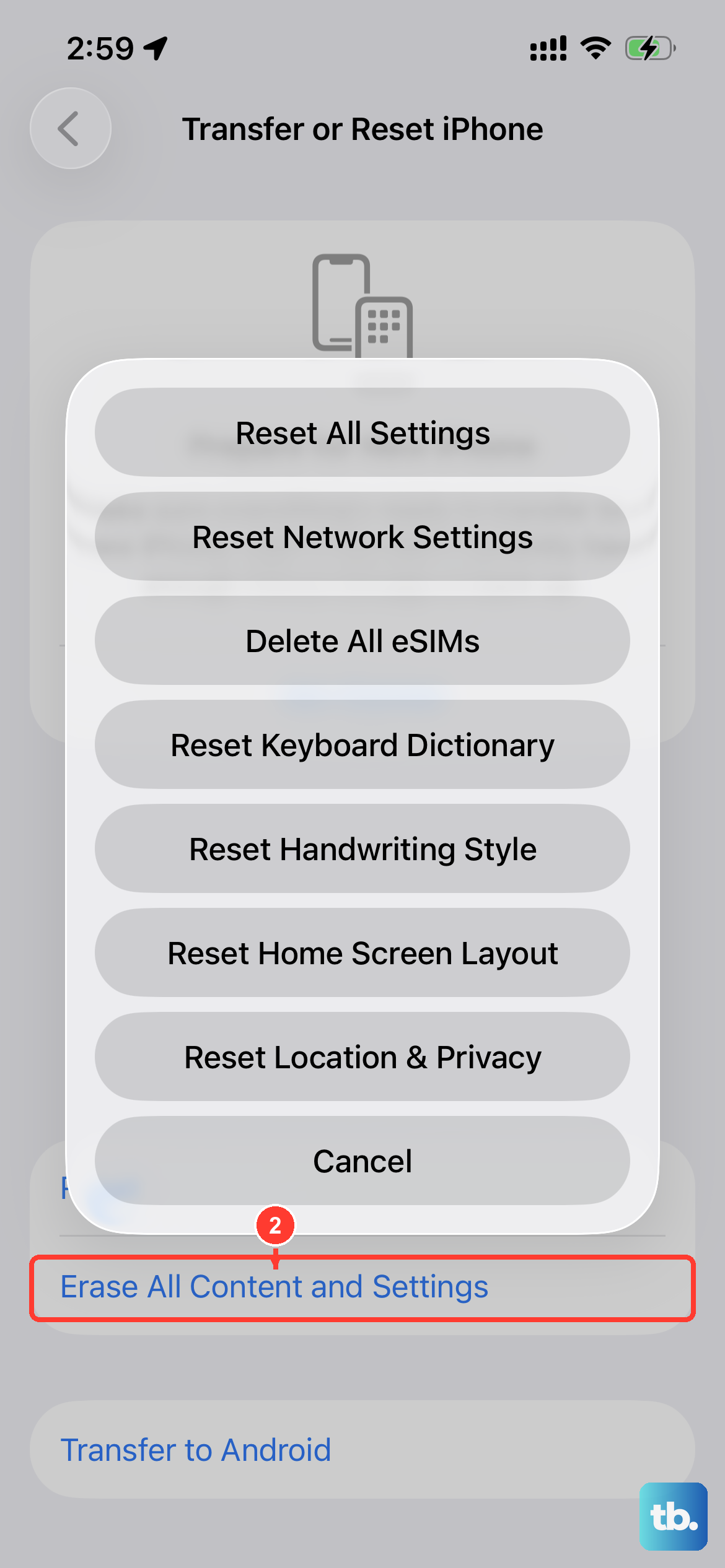
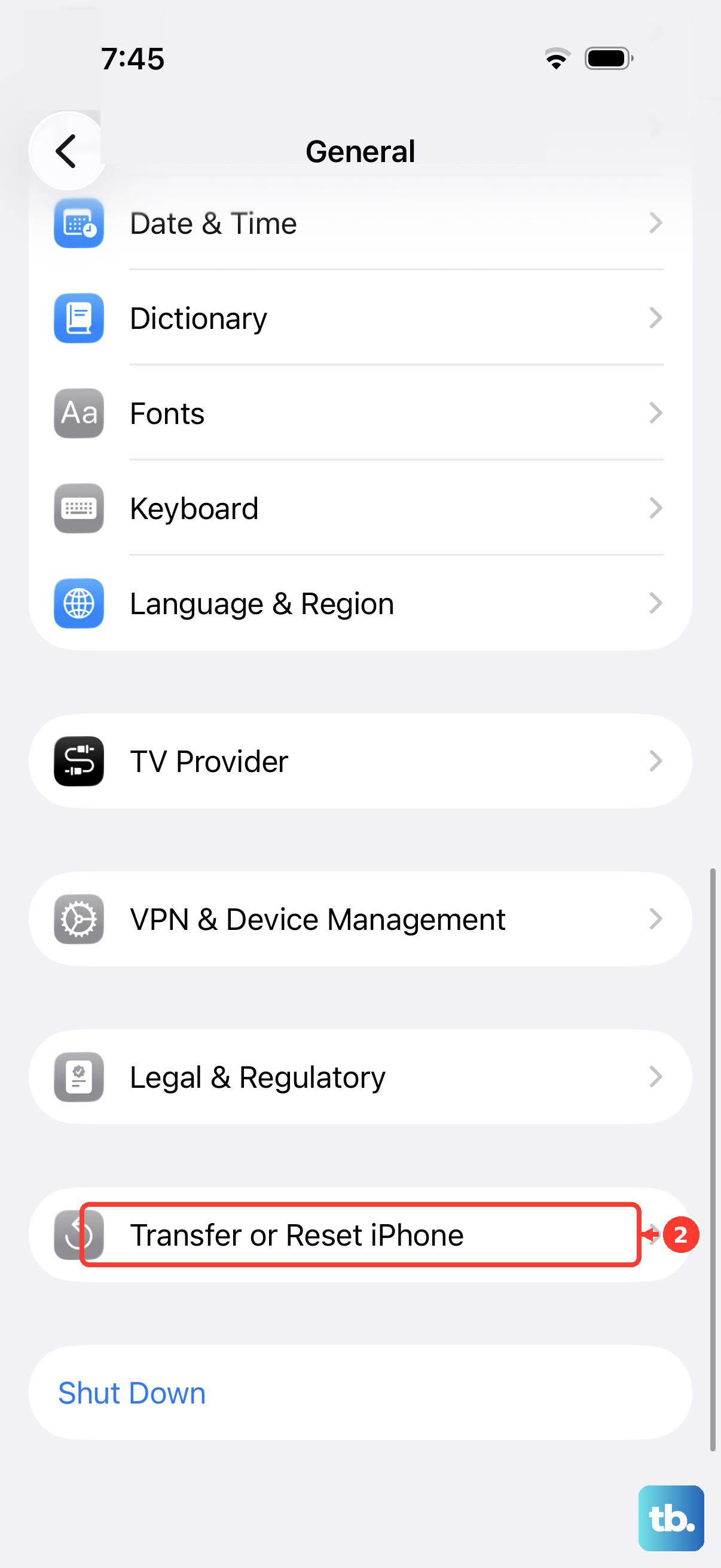
As a genuine last resort, you can back up and then erase the iPhone. Warning, this erases all of your data and restores factory settings, so back up first. Go to Settings > General > Transfer or Reset iPhone > Erase All Content and Settings, then enter your passcode or Apple Account password. If charging still fails after that, get service from Apple, either through the Apple Support app, the Apple Support website's "Get service" option, or a Genius Bar, since a persistent failure points to hardware that needs a closer look.
Frequently Asked Questions
Why will my iPhone 15 not charge wirelessly even though it is sitting on the pad?
The most common reasons are misalignment, a thick or metal case, a magnetic item between the phone and charger, or a cable still plugged in, since the iPhone will not charge wirelessly while connected to USB. Unplug any cable, remove the case and any cards or magnets, and center the phone on the pad with the display facing up.
Does the iPhone 15 actually support wireless charging?
Yes. Apple's official tech specs list MagSafe wireless charging up to 15W, Qi2 wireless charging up to 15W, and Qi wireless charging up to 7.5W for the iPhone 15, so it is a fully supported feature.
What does "Charging On Hold" mean on my Lock Screen?
It means the device is temporarily too hot or too cold to charge. These thermal protections are automatic on iOS 16 or later and cannot be turned off. Move the iPhone to a cooler or warmer place, lock the screen, and charging resumes on its own. Apple recommends charging between 32 and 95 degrees F (0 to 35 C).
Why does my iPhone 15 stop charging at 80 percent?
That is usually Optimized Battery Charging, which pauses at 80 percent and finishes closer to when you normally unplug to reduce battery wear. You can review or change this under Settings > Battery > Charging, where you can set a charge limit between 80 and 100 percent in 5 percent increments.
What power adapter do I need for full-speed MagSafe charging?
Apple recommends connecting the MagSafe Charger's USB-C connector to a 30W or greater Apple USB-C power adapter, and notes a 20W or greater USB-C power adapter (9V/2.22A or 9V/2.56A or higher) for up to 15W charging. If you placed the phone before the adapter had power, remove it, wait three seconds, and set it back on to resume maximum power delivery.