
When your iPhone 15 volume buttons stop responding, it's a real hassle. You press them and get nothing back, no sound change or haptic feedback. The good news is most of the time this is a software hiccup or a simple blockage, not a broken phone.
I'd start with the quick fixes below. They solve the majority of these issues without needing a trip to the store.
Remove Your Phone Case
Take your iPhone 15 out of its case first. Some cases, especially thicker ones or those not perfectly aligned, can press against the buttons and restrict their movement. It's the simplest thing to check and often the fix.
Perform a Force Restart
A force restart clears out temporary software glitches that can make the buttons unresponsive. This won't delete any of your photos, messages, or apps.
For your iPhone 15, press and quickly release the Volume Up button. Then press and quickly release the Volume Down button. Finally, press and hold the Side button until you see the Apple logo appear on the screen.
Check the Volume Button Setting
There's a specific setting that lets the physical buttons control your media volume. Go to Settings > Sounds & Haptics. Make sure the switch for "Change with Buttons" is turned on (green). If it's off, your buttons won't do anything in most apps.
Clean Around the Buttons
Dust and pocket lint are common culprits. The iPhone 15's buttons are precisely fitted, and even a tiny bit of debris can jam them. Use a can of compressed air to gently blow around the edges of the volume rocker.
For any sticky residue, you can dampen a cotton swab with a little isopropyl alcohol (90% or higher is best). Wipe carefully around the button seam and let it dry completely before testing.
Test the Buttons in Different Apps
Open your Music app, the Camera, or a YouTube video and try the buttons there. If they work in one app but not another, the problem is likely with that specific app, not your hardware. Try closing the problematic app completely and reopening it.
Toggle the Ring/Silent Switch
It sounds too simple, but moving the Ring/Silent switch back and forth a few times can help. After you've toggled it a couple times, try your volume buttons again. This can sometimes reset the connection.
Enable AssistiveTouch for Virtual Controls
AssistiveTouch puts a floating menu on your screen with virtual buttons. Using these can sometimes "wake up" the physical ones. Go to Settings > Accessibility > Touch > AssistiveTouch and turn it on.
Tap the floating circle, then tap Device > Volume Up or Volume Down. Use the virtual controls a few times, then try your physical buttons again.
Update to the Latest iOS
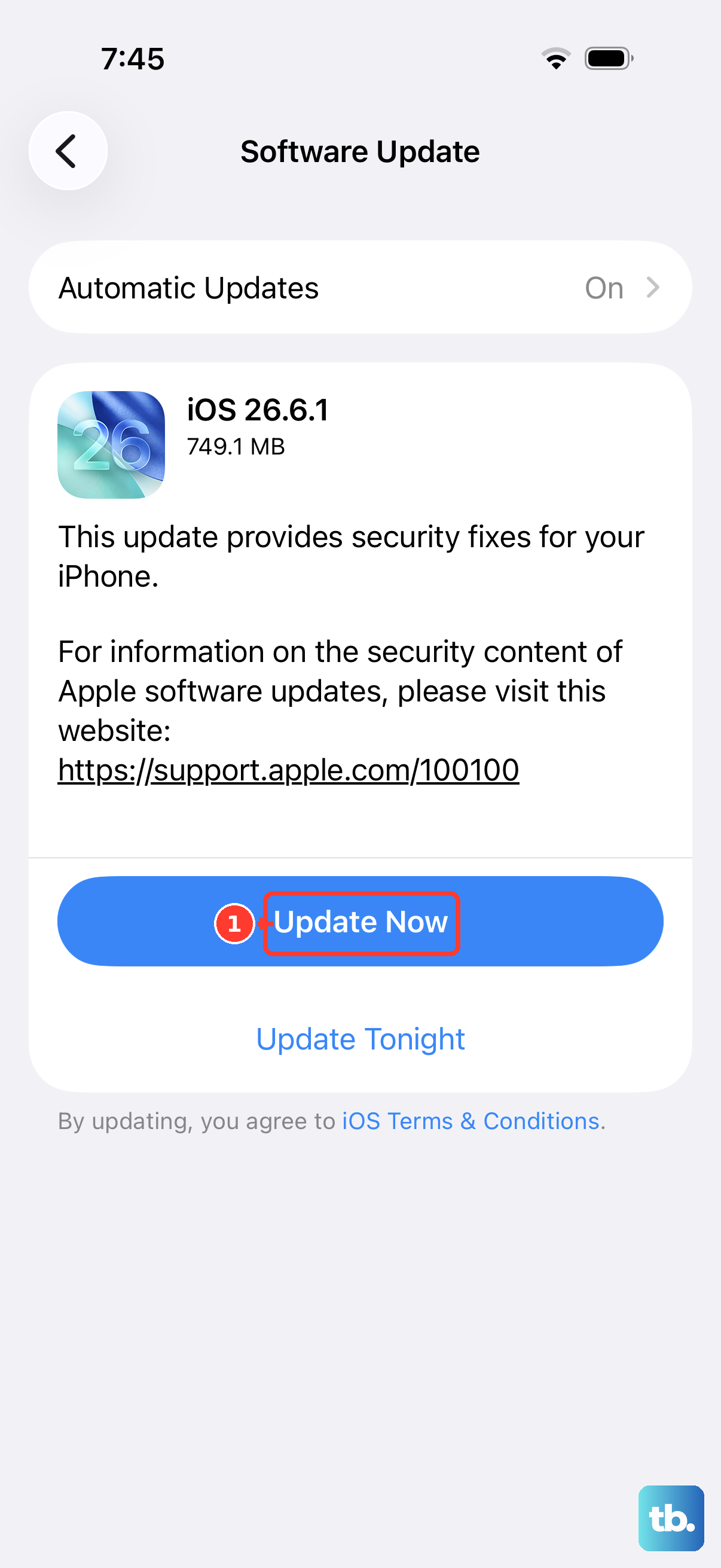
Since your iPhone 15 runs iOS, software bugs can occasionally cause input issues. Apple releases updates to fix these kinds of problems. Plug your phone into power, connect to Wi-Fi, and go to Settings > General > Software Update.
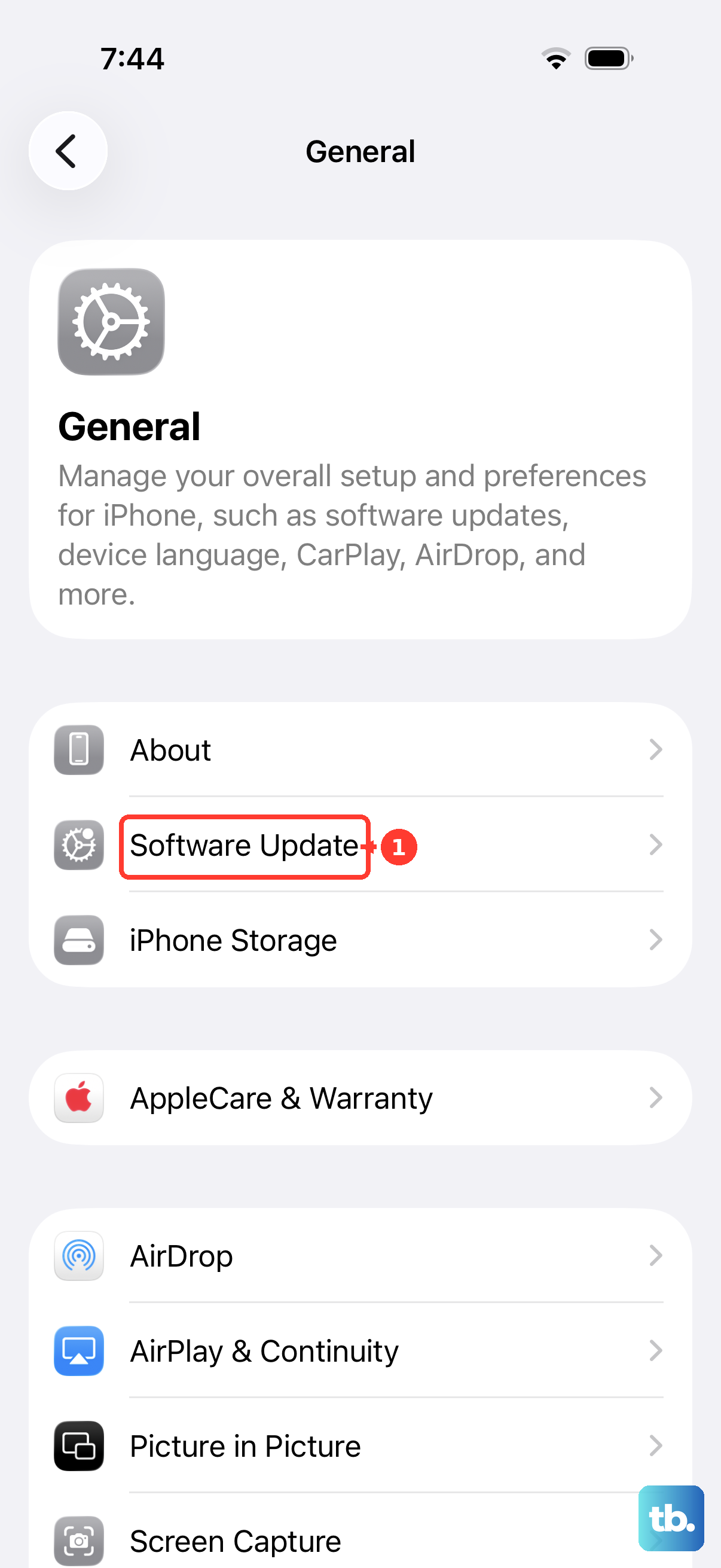
Download and install any available update. This is a very common fix for intermittent button problems that appeared after a recent iOS update.
Reset All Settings
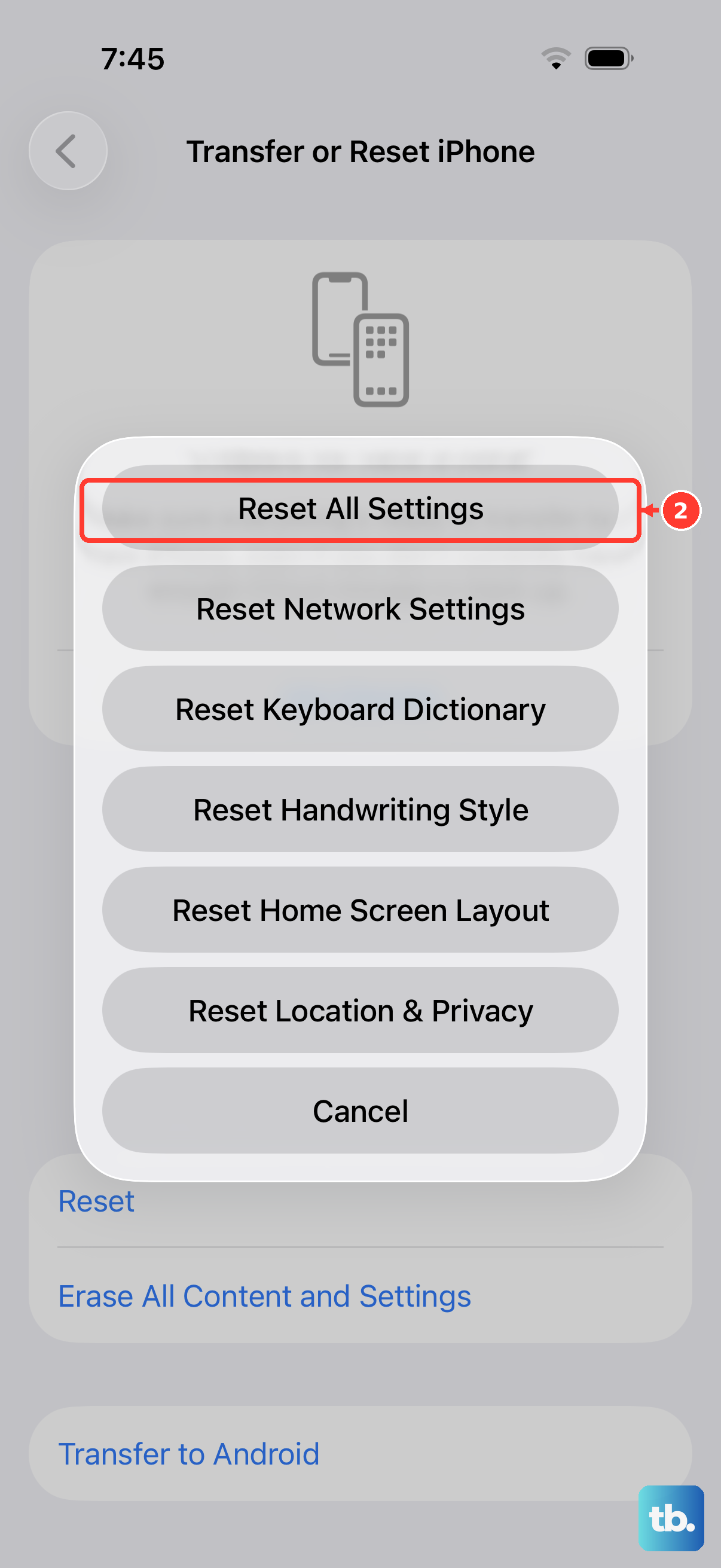
This is a stronger step than a restart but won't erase your personal data. It resets all your preferences, like Wi-Fi passwords, wallpaper, and display settings, back to default, which can clear out a corrupted setting causing the issue.
Go to Settings > General > Transfer or Reset iPhone > Reset. Then choose Reset All Settings. You'll need to re-enter your passcode and set up things like Face ID again, but your photos and apps will be safe.
Check for Physical Damage or Moisture
Look closely at the volume button area on your iPhone 15. Are there any dents, cracks, or signs the phone was dropped? Also, check the LCI (Liquid Contact Indicator) inside the SIM card tray slot with a flashlight. If it's red, there's been water exposure.
Even with its water resistance, liquid damage can corrode the tiny contacts for the buttons. If you see physical damage or a red indicator, the fix will likely require professional repair.











