
When your iPhone 15 goes silent to your voice commands, it can feel like you've lost a helpful assistant. The issue is usually a simple setting that got changed or a minor software hiccup. Let's get Siri listening and responding again.
Make Sure Siri is Actually Turned On
This sounds obvious, but it's the most common fix. Head to Settings > Siri & Search. You need to see two toggles enabled here. The first is "Listen for 'Hey Siri'". The second is "Press Side Button for Siri".
Also, check the "Allow Siri When Locked" option just below. If that's off, Siri won't respond unless your phone is unlocked. I'd start with this check, as it solves the problem more often than not.
Check for Features That Block 'Hey Siri'
Your iPhone 15 has an accessibility feature called Sound Recognition. When it's on, it listens for specific sounds like alarms or doorbells. To do this, it automatically turns off the 'Hey Siri' function.
To check, go to Settings > Accessibility > Sound Recognition. Make sure this toggle is switched off. If you need Sound Recognition, you'll have to use the side button to activate Siri instead.
Look at Your Audio and Response Settings
If Siri can hear you but isn't talking back, your volume might be down or a response setting is limiting it. First, check your Ring/Silent switch on the left side. If you see an orange stripe, your phone is in silent mode.
You can change a setting to override this. Go to Settings > Siri & Search > Siri Responses. Here, you can choose "Always" under the "Spoken Responses" section. This tells Siri to speak even when your phone is silenced.
Retrain Siri to Your Voice
If you've changed your speaking pattern or there's background noise confusion, retraining helps. Go back to Settings > Siri & Search and toggle "Listen for 'Hey Siri'" off and then on again.
Your iPhone 15 will walk you through a quick setup process. It will ask you to say a few phrases like "Hey Siri" and "Hey Siri, what's the weather?". Speak clearly and naturally. This recalibrates the voice model specifically for you.
Restart and Update Your iPhone 15
A simple force restart clears out temporary glitches that can affect the microphone or Siri service. On the iPhone 15, you press and quickly release the Volume Up button, then press and quickly release the Volume Down button. Finally, press and hold the Side button until you see the Apple logo appear.
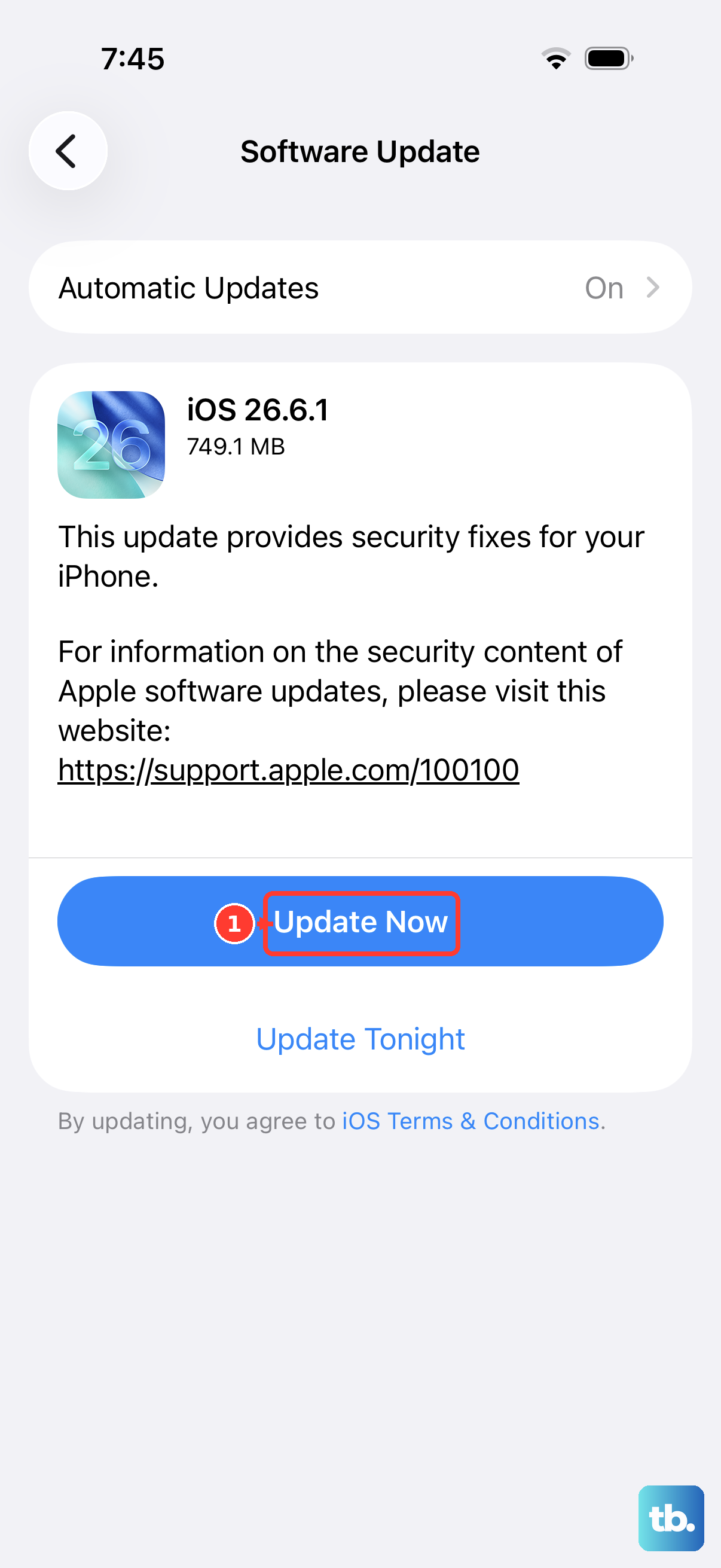
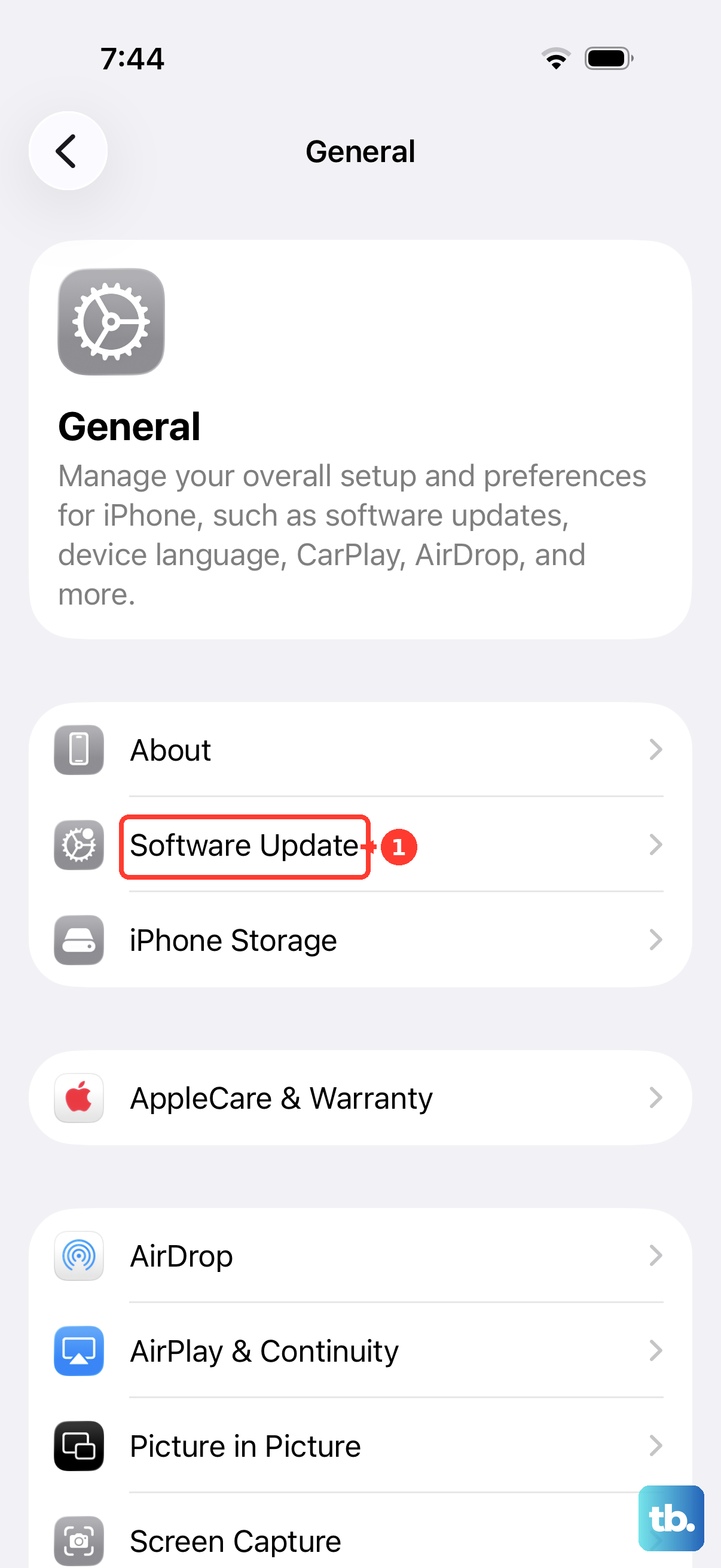
Next, check for a software update. With iOS 26, Apple is constantly refining these systems. Go to Settings > General > Software Update. If an update is available, install it. Updates frequently include fixes for voice recognition bugs.
Check Microphone Access and Position
Your iPhone 15 has multiple microphones. If they're blocked, Siri can't hear you. Check the microphone ports at the bottom, top, and rear near the camera for lint or debris. A can of compressed air can gently clear this out.
Also, be aware of the "Always Listen for 'Hey Siri'" setting in Settings > Accessibility > Siri. If this is off, Siri won't respond if your phone is face down or covered. Turning it on can help if you often use your phone in those positions.
Reset Your Network and Siri Settings
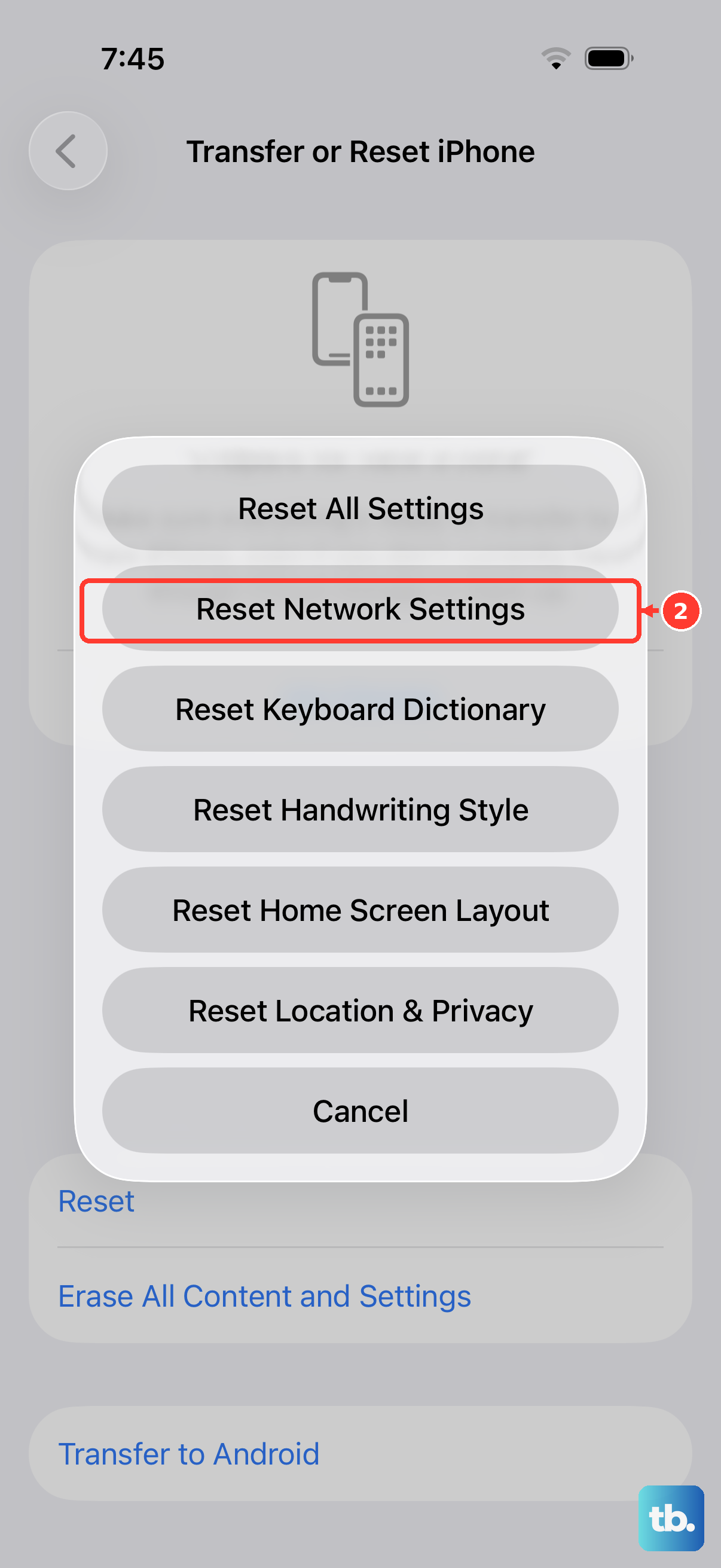
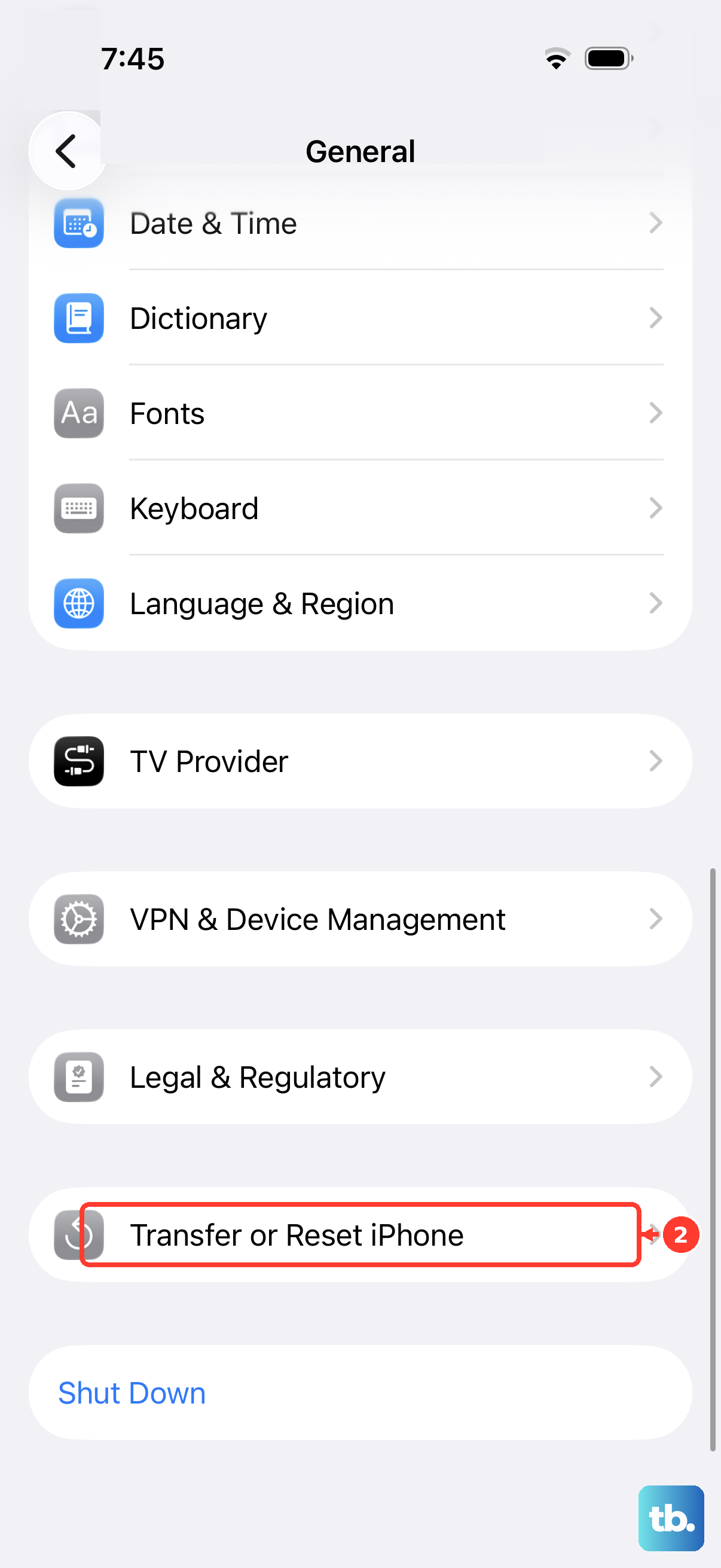
If Siri is struggling with requests that need the internet, a network reset can help. Go to Settings > General > Transfer or Reset iPhone > Reset. Choose "Reset Network Settings". You'll need to rejoin Wi-Fi networks afterward.
For a more comprehensive fix that won't delete your personal data, try "Reset All Settings" from that same menu. This returns all your preferences, including Siri and network settings, back to their factory defaults while keeping your photos, apps, and messages intact.