Your iPhone 15 powered on, flashed the Apple logo, and then just sat there. No swipe-to-unlock, no Home Screen, just that silver apple glowing while you tap the screen and nothing happens. A logo freeze is one of the more nerve-wracking glitches because the phone looks alive but refuses to finish starting up, and you have no idea whether your photos and messages are still safe inside.
The good news is that a stuck-on-logo iPhone 15 almost always recovers, and the early fixes do not touch your data at all. Work through the steps below in order, starting with the gentlest, because in many cases the screen clears before you ever reach the steps that involve a computer. The only thing that changes on the iPhone 15 versus older models is the connector, so keep that in mind when you reach the charging step.
First, Make Sure It Is Actually Stuck
Before you do anything, look closely at the screen. If you see the Apple logo with a progress bar beneath it, and that bar is slowly moving, your iPhone is probably mid-update or restoring from a backup, not frozen. Interrupting that process can cause real problems, so let it run.
The official guidance is to wait and watch. If the progress bar has not moved for at least one hour, you can treat the phone as genuinely stuck and move on to the next fix. If it is still creeping forward, even slowly, let it finish on its own.
Force Restart the iPhone 15
A force restart is one of the most effective fixes for a frozen iPhone, and it does not erase any of your data. The iPhone 15 is a Face ID model with no Home button, so it uses the button sequence Apple lists for iPhone 8 and later. The timing matters, so do the first two presses quickly and then hold the last button.
- 1.Press and quickly release the volume up button.
- 2.Press and quickly release the volume down button.
- 3.Press and hold the side button until you see the Apple logo (this might take longer than 10 seconds).
Keep holding the side button even after the screen flashes; releasing too early is the most common reason this does not work on the first try. Once the Apple logo reappears, let go and wait for the phone to boot. If it loads to the Home Screen, you are done.
Charge With a Proper USB-C Cable and Try Again
If the screen is black or shows a low-battery icon, the issue may be power rather than a software hang. The iPhone 15 is Apple's first iPhone with a USB-C connector, so it charges with a USB-C cable and a power adapter that complies with the USB-C standard (USB Power Delivery), like the cable that comes with your iPhone. A Lightning cable from an older iPhone will not fit or work here.
Plug in with a known-good USB-C cable and adapter and leave it connected. Give it time to take on a charge, since a fully drained battery can take a while before the phone responds at all. Once it has some charge, run the force restart sequence from the previous section and see if it boots.
Reinstall iOS Without Erasing Using Recovery Mode
If the phone still hangs on the logo, the next step uses a computer to repair the software while keeping your data intact. You will need a Mac running Finder (macOS Catalina 10.15 or later), a Windows PC with the Apple Devices app, or iTunes on older systems. This puts the iPhone into recovery mode and lets you reinstall iOS without wiping anything.
- 1.Connect the iPhone 15 to your computer and open Finder, the Apple Devices app, or iTunes.
- 2.Press and quickly release the volume up button.
- 3.Press and quickly release the volume down button.
- 4.Press and hold the side button until you see the Connect to computer screen (the recovery-mode screen). Do not release when the Apple logo appears; keep holding until the recovery screen shows.
- 5.When your computer asks whether to Update or Restore, choose Update.
Choosing Update tells the computer to reinstall iOS while leaving your apps and personal data in place. This will update your device to the latest version of iOS. The official wording is clear that Update keeps your data, while the other option, Restore, erases the iPhone, so be sure you pick Update here.
Install Any Pending Software Update Once It Boots
If your iPhone finally starts up at any point in this process, take a moment to install any waiting software update. Boot loops and logo freezes are sometimes caused by a bug that a newer release has already fixed, so updating reduces the odds of it happening again.
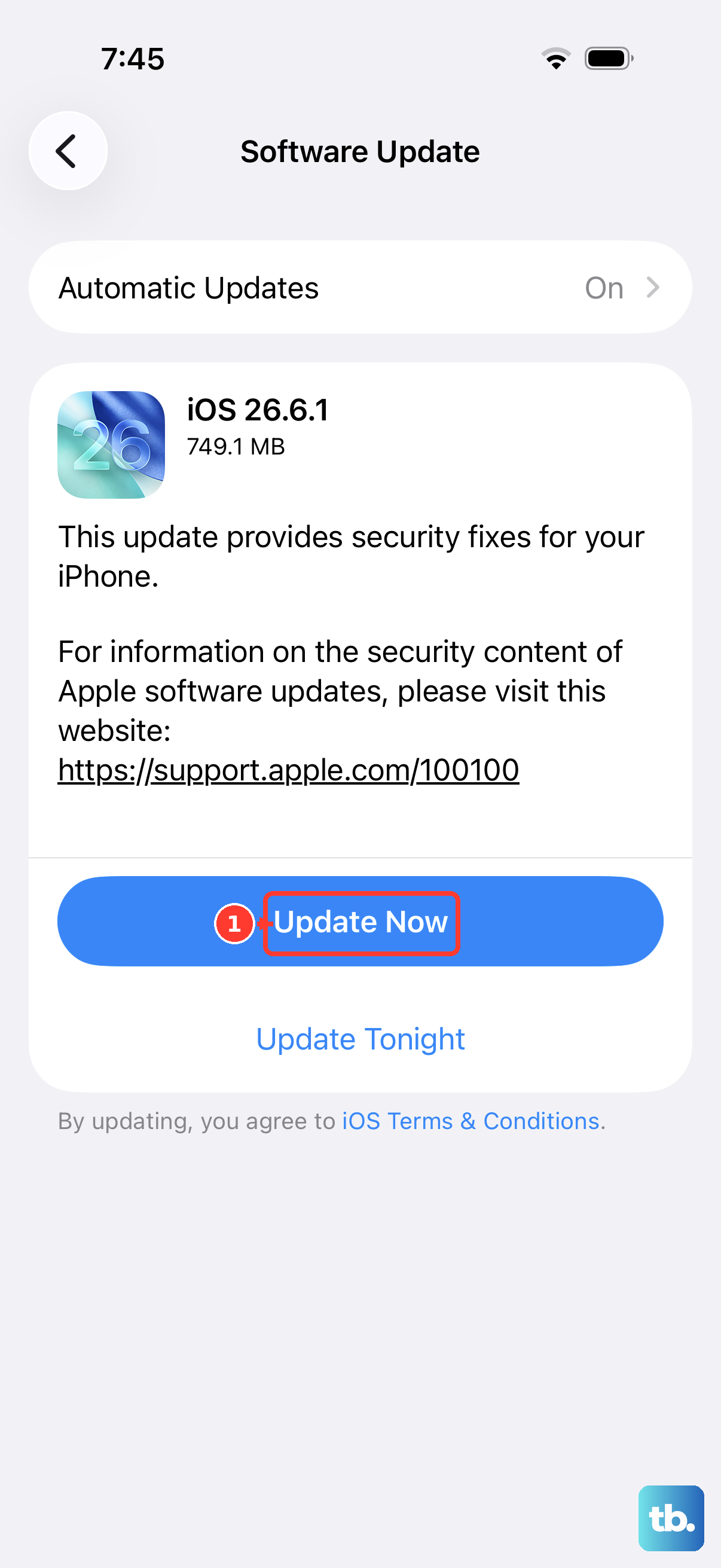
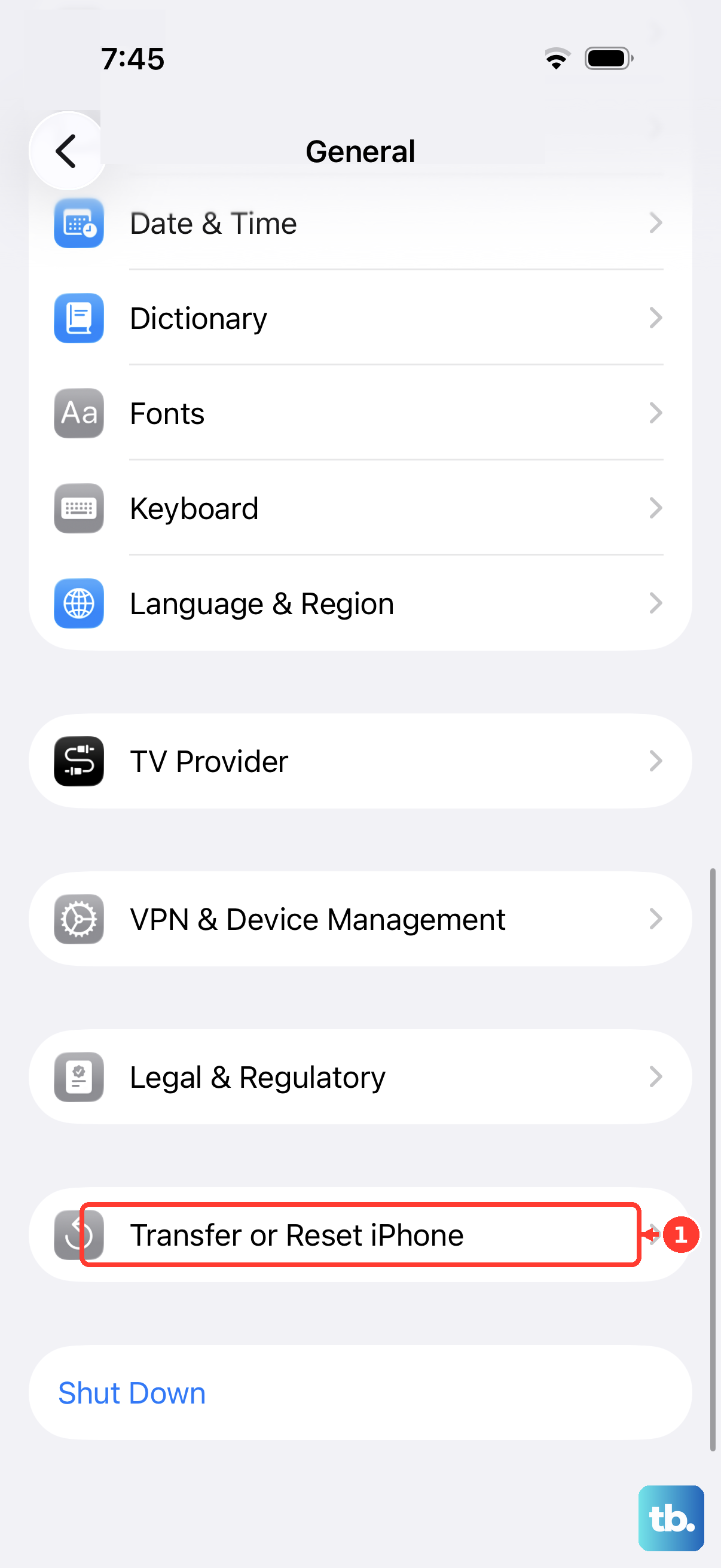
Go to Settings > General > Software Update, then tap Download and Install and follow the onscreen instructions. This step only works once the phone has booted to the Home Screen, so it is not a fix for a phone that is still stuck, but it is an important follow-up once you have it running.
Restore the iPhone in Recovery Mode
If the Update path in recovery mode did not clear the freeze, the next option is a full Restore. This is more powerful because it reinstalls iOS from scratch, but it comes with a serious warning. Choosing Restore will erase your iPhone. All of your data is wiped during this process, so use it only after Update has failed, and ideally only if you have a backup to fall back on.
Repeat the recovery-mode steps from the earlier section: connect to the computer, then press and quickly release volume up, press and quickly release volume down, and press and hold the side button until the Connect to computer screen appears. This time, when asked to Update or Restore, choose Restore.
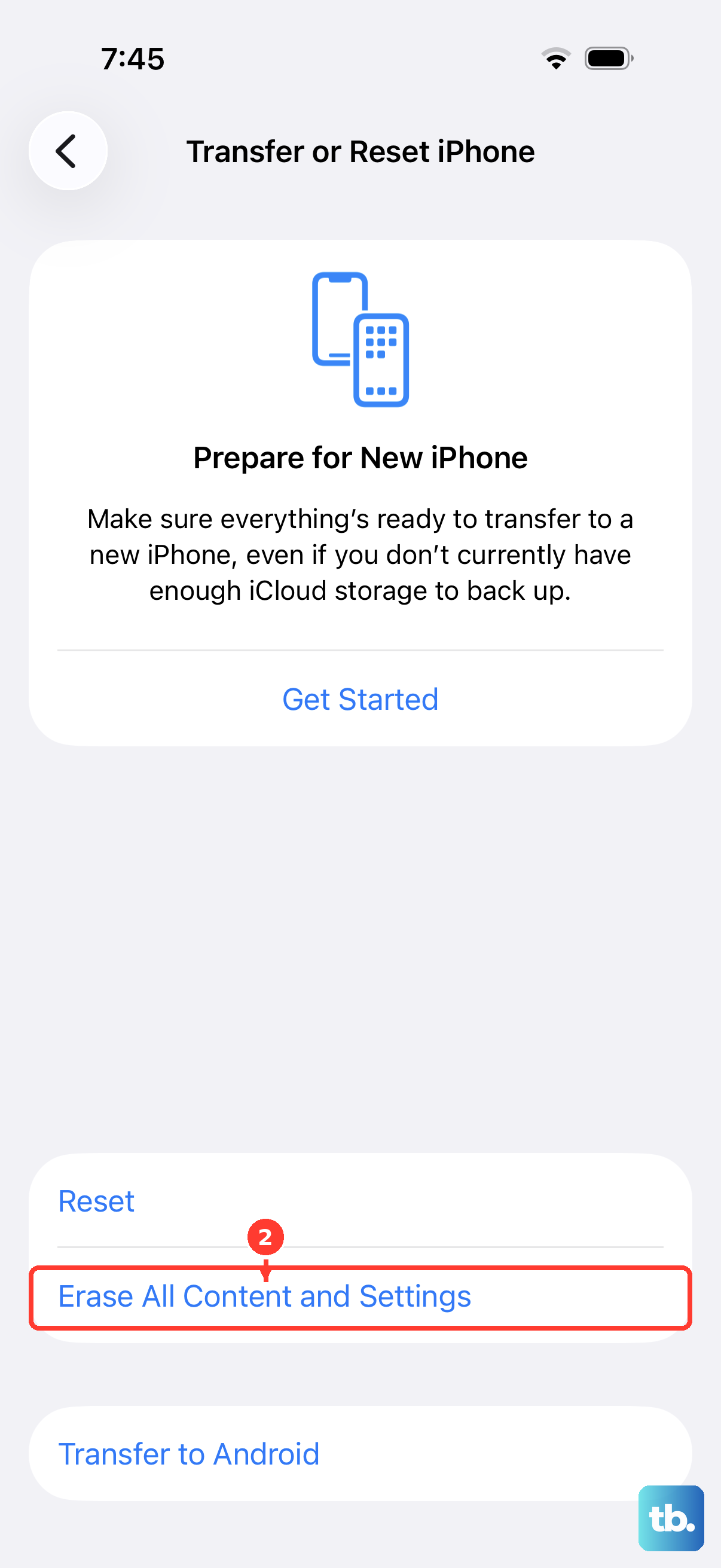
The Restore reinstalls the latest version of iOS and erases all your data. When it finishes, you set the iPhone up again as if it were new, and during setup you can restore your apps, photos, and settings from a backup if you have one. If you can boot the phone normally and simply want a clean slate, the on-device equivalent lives at Settings > General > Transfer or Reset iPhone > Erase All Content and Settings, which completely erases the device, including any credit or debit cards you added for Apple Pay, photos, contacts, music, or apps. You can also do a factory restore from a computer by opening Finder (Mac) or the Apple Devices app (PC), connecting the device, selecting it, clicking Restore, and confirming. A factory restore also erases your device, so back up first if the phone can still be accessed.
When to Hand It to Apple Support
If your iPhone 15 still will not get past the Apple logo after a force restart and after both the recovery-mode Update and Restore, the problem is likely beyond a software fix. At that point the device may need service, and the official guidance is to contact Apple Support for further help.
Explain the steps you have already tried, since that saves time and helps point toward a hardware diagnosis. A phone that refuses to boot even after a clean Restore is exactly the situation support is meant to handle, so there is no benefit in repeating the same recovery attempts over and over.
Frequently Asked Questions
Will force restarting my iPhone 15 delete my photos or data?
No. A force restart simply forces the phone to power off and back on, and it does not erase any of your data. The same is true of the recovery-mode Update option. Only the Restore option, on the device or through a computer, erases your iPhone.
Why won't my old Lightning cable charge my iPhone 15?
The iPhone 15 is Apple's first iPhone with a USB-C connector, so it needs a USB-C cable and a USB Power Delivery adapter, like the cable that comes in the box. A Lightning cable from an older iPhone is the wrong connector and will not charge the phone.
What is the difference between Update and Restore in recovery mode?
Update reinstalls the latest version of iOS without erasing your data, so it is the option to try first. Restore erases your iPhone and then reinstalls iOS, so it is a last resort that you use only after Update fails, ideally with a backup ready.
How long should I wait before deciding the logo is really frozen?
If there is a progress bar under the Apple logo and it is moving, the phone is probably mid-update or restoring, so let it continue. Treat it as genuinely stuck only if the progress bar has not moved for at least one hour.
What should I do if nothing works?
If the iPhone 15 still cannot get past the Apple logo after a force restart and after both the recovery-mode Update and Restore, the device may need service. Contact Apple Support for further help.