You unlock your iPhone 15 and the screen stutters, shimmers, or pulses brighter and dimmer for no obvious reason. Sometimes it is a quick flash when you open an app; other times the whole display jitters or shows faint lines. A flickering Super Retina XDR display is unsettling, but on most iPhone 15 units it traces back to a temporary software hiccup or a brightness setting rather than a broken panel. The fixes below run from the quickest and safest first to the official service path last, so you can stop as soon as the flicker disappears.
It is worth viewing a few test patterns from a monitor test before changing hardware. Faults that persist across every pattern point firmly at the display itself.
This guidance applies to the iPhone 15, iPhone 15 Plus, iPhone 15 Pro, and iPhone 15 Pro Max. All four use Face ID and a side button, so the restart sequences and Settings paths are identical across them, and all four are compatible with iOS 26.
Start with a force restart to clear a frozen display
A screen that freezes, glitches, or flickers is very often fixed by forcing the phone to restart. This does not erase any of your data; it simply reboots the device. It is the single fastest thing to try first.
- 1.Press and quickly release the volume up button.
- 2.Press and quickly release the volume down button.
- 3.Press and hold the side button until you see the Apple logo (this might take longer than 10 seconds).
That is the exact official sequence for the iPhone 15 and its variants. Let go of the side button as soon as the Apple logo appears and wait for the phone to finish starting up before you judge whether the flicker is gone.
Rule out cases, protectors, cables, and grime
Before assuming the problem is internal, make sure nothing on the outside is interfering. The official screen-troubleshooting guidance is to check that the screen is clean and free of any debris or water, disconnect any Lightning or USB-C accessories, and remove any cases or screen protectors.
A poorly fitting screen protector or a faulty cable or charger can cause display problems that look like flicker. If the screen behaves normally after you remove an accessory, try a different outlet, cable, or charger to pin down the culprit. Reattach things one at a time so you know which accessory was responsible.
Take control of brightness and Auto-Brightness
If the screen seems to pulse, brighten, or dim on its own, the ambient-light Auto-Brightness feature may be reacting to changing light. The simplest check is to set brightness yourself and watch whether the pulsing stops.
You can set brightness manually by opening Control Center and dragging the brightness bar up or down, or by going to Settings > Display & Brightness and dragging the slider. The official tip when brightness is not adapting correctly is to turn Auto-Brightness off and then back on.
In the Settings app, tap Accessibility.
Next, tap Display & Text Size.
Scroll to Auto-Brightness and tap to turn the feature off.
Then tap it again to turn it back on.
Toggling it off and on resets the behavior; you can also leave it off and set brightness manually if you prefer steady output.
Calm visual effects with display Accessibility options
Some visual effects and animations can make a faint shimmer or flicker far more noticeable. Dialing those effects back will not repair a damaged panel, but it can reduce the visible flicker if motion and transparency are the trigger.
Under Settings > Accessibility > Display & Text Size you can turn on Reduce Transparency, which improves contrast by reducing transparency and blurs on some backgrounds, and Reduce White Point, which reduces the intensity of bright colors. Under Settings > Accessibility > Motion you can turn on Limit Frame Rate to cut down on motion effects. Try them one at a time so you can tell which setting makes the difference for your phone.
Install the latest iOS update
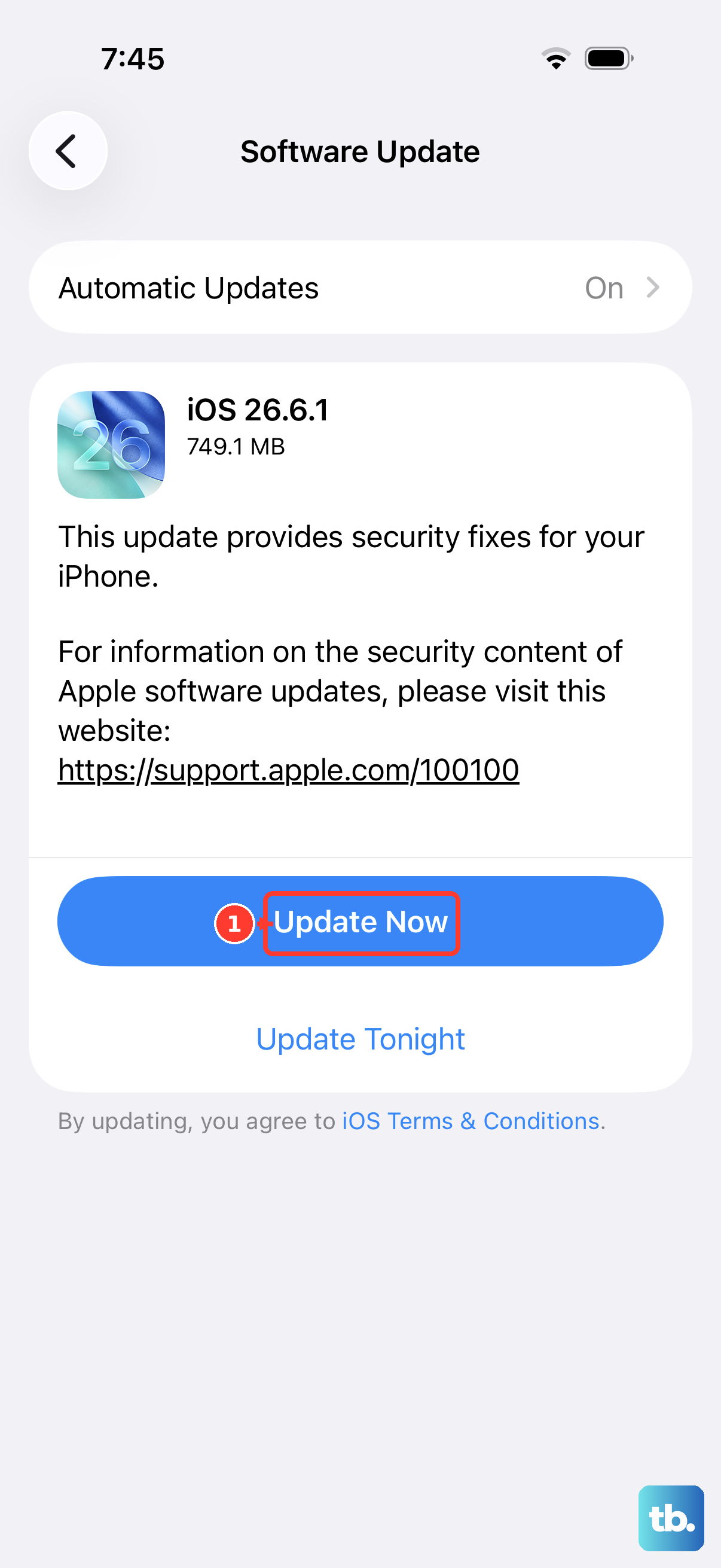
Display glitches are sometimes resolved by a software update, so it is worth making sure your iPhone is current. Back up your device first, then check for an update.
Go to Settings.
Then tap General.
If an update is available, tap Download and Install, then follow the onscreen instructions.
The iPhone 15, 15 Plus, 15 Pro, and 15 Pro Max are all compatible with iOS 26, so staying on the latest available version keeps you on the most recent software for your model.
Do a normal power-off and power-on
If the screen is responsive enough that you do not need a force restart, a normal restart can also clear temporary glitches. The difference is that this method gives the phone a full power-down cycle.
Press and hold either volume button and the side button until the power-off slider appears.
After that, drag the slider, then wait 30 seconds for your device to turn off.
To turn your device back on, press and hold the side button (on the right side of your iPhone) until you see the Apple logo.
Give it the full 30 seconds before powering back on so the shutdown completes properly.
Back up and erase all content and settings as a software last resort
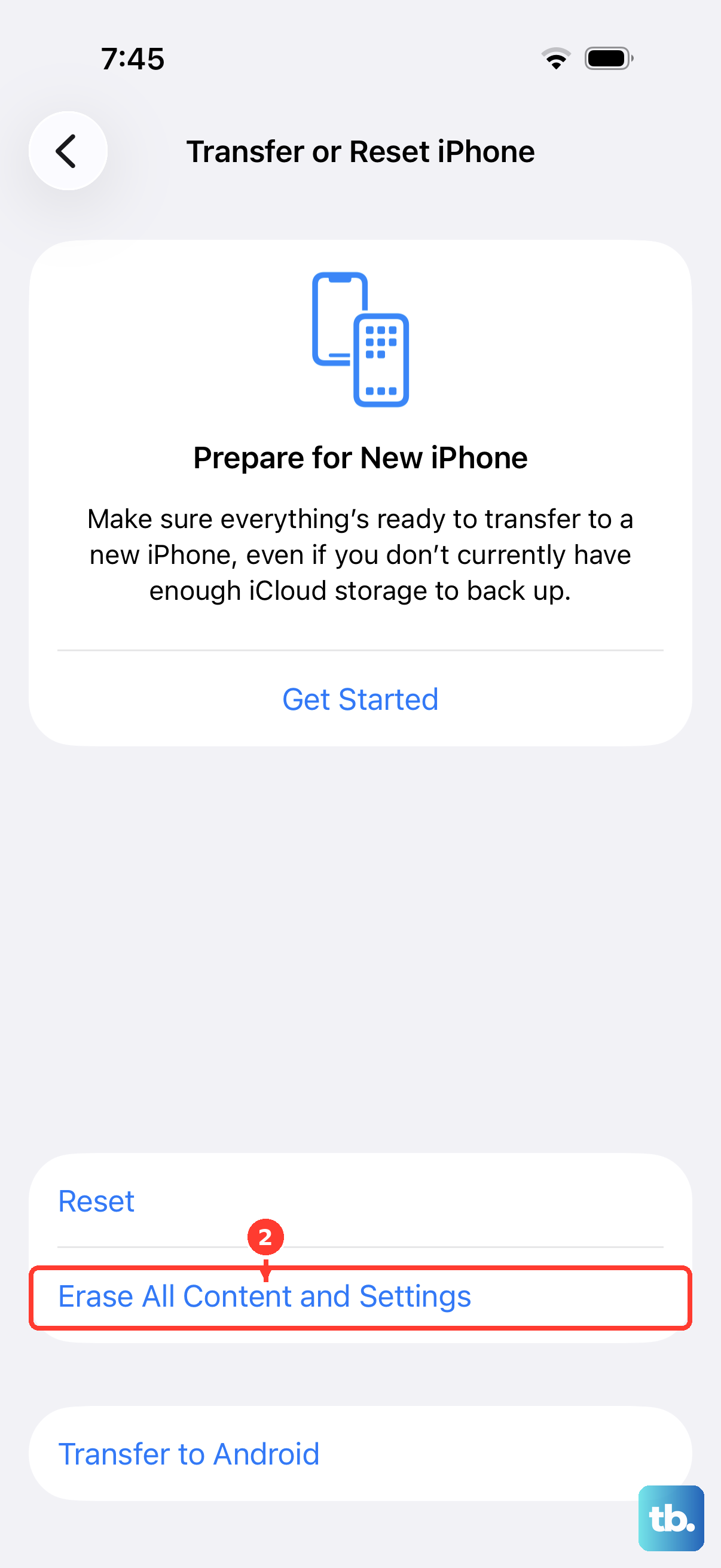
If flickering persists after everything above and you suspect a software fault rather than hardware, erasing the iPhone is the final software step to try. This permanently removes all of your content, so you must back up first.
Create a backup to iCloud or to a computer before you continue, because the erase cannot be undone. Erasing returns the iPhone to factory settings.
Go to Settings > General > Transfer or Reset [iPhone].
Tap Erase All Content and Settings.
Then tap Continue.
Enter your device passcode and Apple Account password when prompted, then confirm.
When the phone restarts, you can restore from the backup you just made. Treat this as a step to take only after the easier fixes have failed, and only if you have a current backup. Erasing is offered as a software last resort and is not a guaranteed fix for flicker, so do not erase unless you have backed up and are ready for the device to be wiped.
When to arrange service or a screen repair
Persistent flickering, lines, or distortion that survives all of the steps above can point to a hardware or display issue. The official screen-troubleshooting guidance is that if your screen still is not working, you may need to set up service.
You can describe what is happening with your iPhone screen through Apple's screen repair page, where you can see solutions to try or arrange a repair or replacement. Service is available at the Genius Bar or an Apple Authorized Service Provider. Repair pricing and eligibility depend on an inspection and on whether you have a coverage plan, so check your options with Apple before committing. If you are unsure how to proceed, contact Apple Support to walk through them.
Frequently Asked Questions
Will a force restart erase my data?
No. A force restart simply reboots the iPhone 15 and does not delete your content or settings. Erasing your data only happens if you choose Erase All Content and Settings, which is a separate, deliberate step.
Is there a safe mode on iPhone to test for a bad app?
No. There is no Apple safe mode on iPhone to rule out a third-party app; that is a separate platform's concept and does not exist in iOS. To address a suspected software fault, the supported path is to update iOS and, if needed, back up and erase the device.
Does my standard iPhone 15 have ProMotion or an Always-On display?
Only the iPhone 15 Pro and iPhone 15 Pro Max have ProMotion (adaptive refresh up to 120 Hz) and an Always-On display. The standard iPhone 15 and iPhone 15 Plus do not have those features, so any refresh-rate or Always-On settings do not apply to those models.
Does erasing my iPhone guarantee the flicker will stop?
No. Erasing returns the iPhone to factory settings and is offered as a software last resort before service, but it is not a guaranteed flicker cure. If the display still flickers after a backup, erase, and the other steps, that points toward a hardware issue and you should arrange service.
What should I do if removing my screen protector stops the flicker?
That suggests the protector or an accessory was the cause. Keep it off and confirm the screen behaves normally, and if a cable or charger seemed involved, try a different outlet, cable, or charger before reattaching anything.