
When your iPhone 15's predictive text stops working, it can really slow you down. You might notice it's not suggesting words at all, the suggestions are way off, or it's just not learning your typing habits like it used to. The good news is this is almost always a software hiccup you can fix yourself.
Restart Your iPhone 15
This is the quickest thing to try and it solves a surprising number of glitches. A restart clears out temporary memory and gives the system a fresh start. On your iPhone 15, press and quickly release the Volume Up button, then press and quickly release the Volume Down button. Finally, press and hold the Side button until you see the Apple logo appear, then let go.
Toggle Predictive Text Off and On
Sometimes the feature just needs a quick refresh. Open any app that uses the keyboard, like Messages or Notes. Tap a text field to bring up the keyboard, then tap and hold the emoji or globe icon in the bottom left corner. From the pop-up menu, tap Keyboard Settings.
In the settings, find the Predictive Text toggle and switch it off. Wait a second, then switch it right back on. Close Settings and test it out. I've found this simple reset often gets things working again immediately.
Check Your Text Replacement List
Your iPhone uses a custom dictionary that includes words you've added through Text Replacement. If this list gets corrupted or overly large, it can interfere with predictions. Go to Settings > General > Keyboard > Text Replacement.
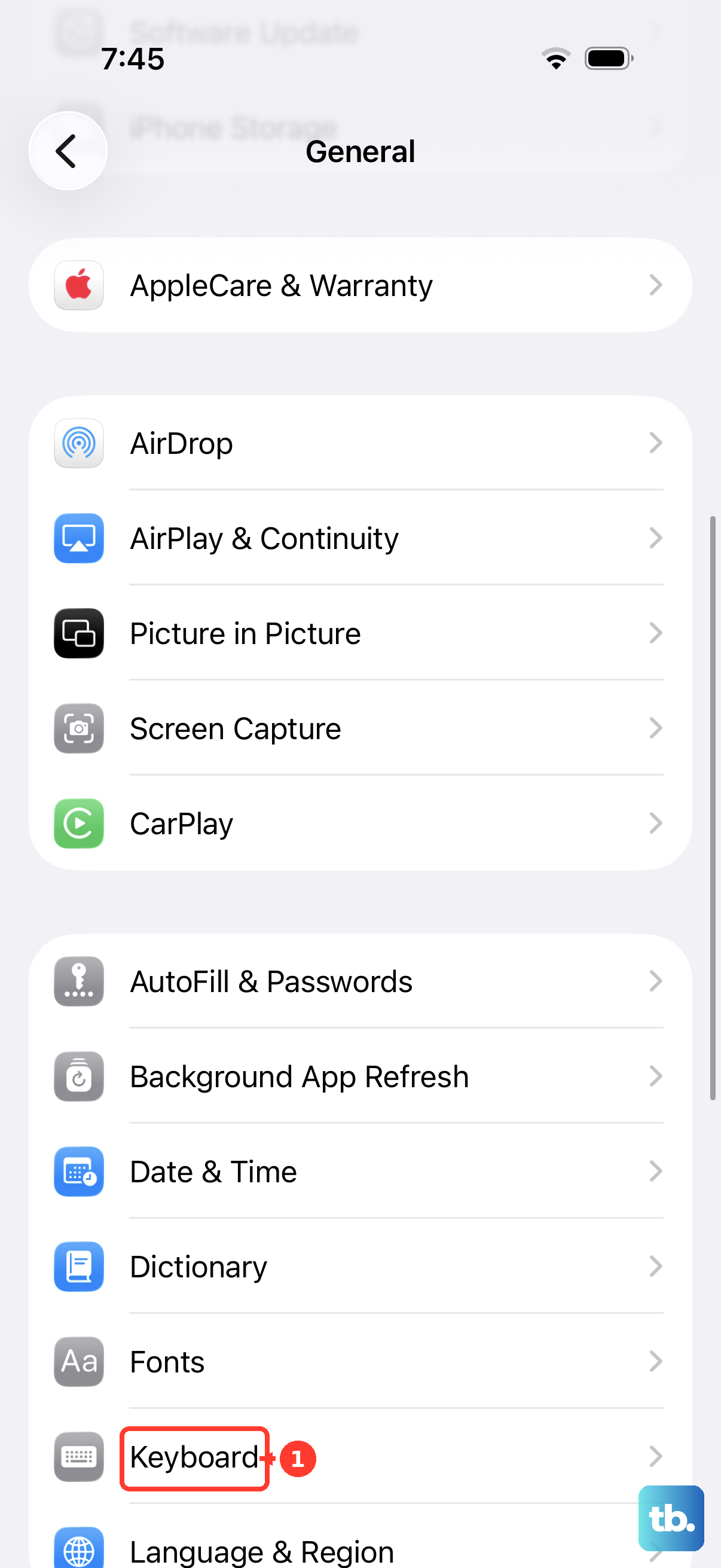
Scroll through the list. If you see any odd, duplicate, or very old entries you don't need anymore, you can swipe left on them to delete. You don't have to clear everything, but removing clutter can help the system run more smoothly.
Reset All Keyboard Dictionary Data
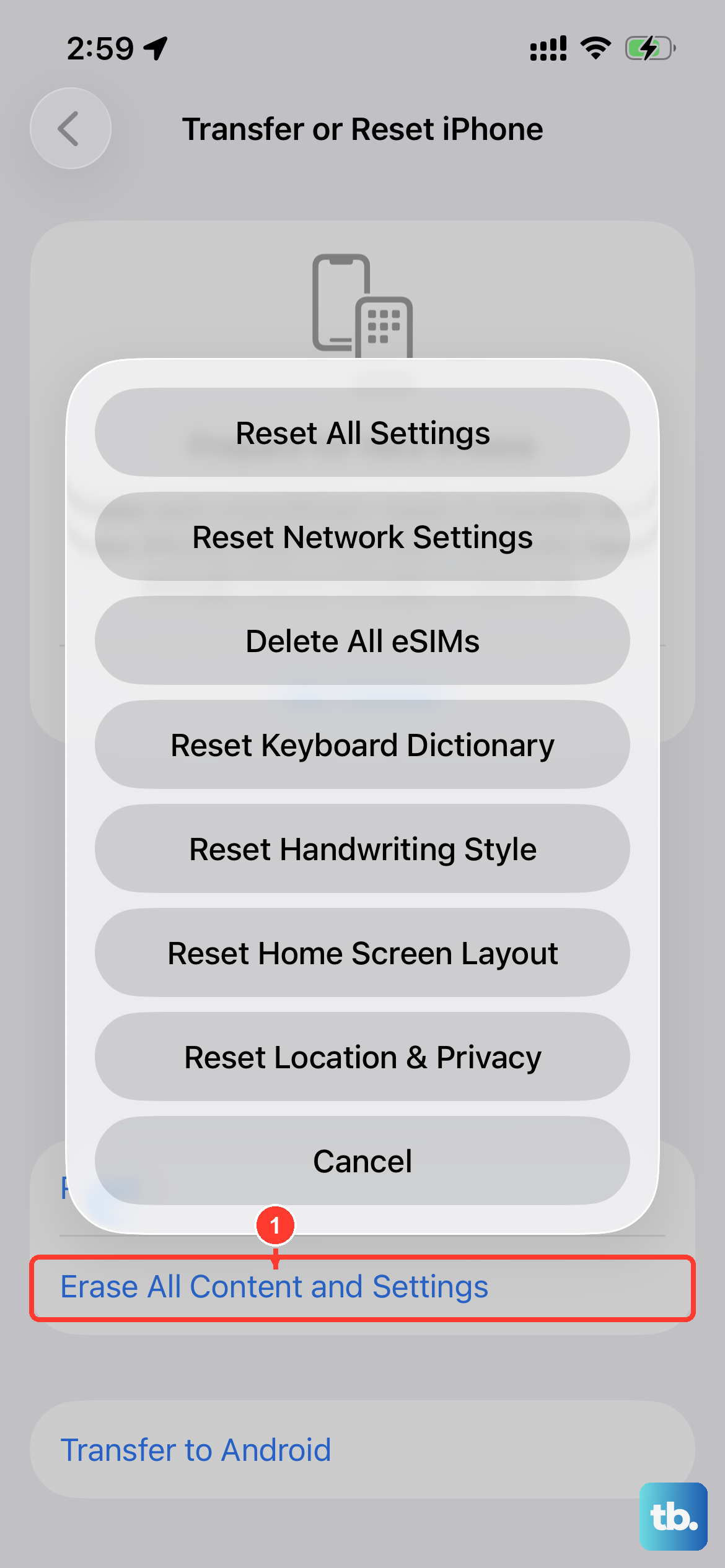
This is a more thorough step that will erase everything your keyboard has learned, including any custom words you've added by rejecting corrections. It's like giving your keyboard a complete factory reset for its memory. Go to Settings > General > Transfer or Reset iPhone.
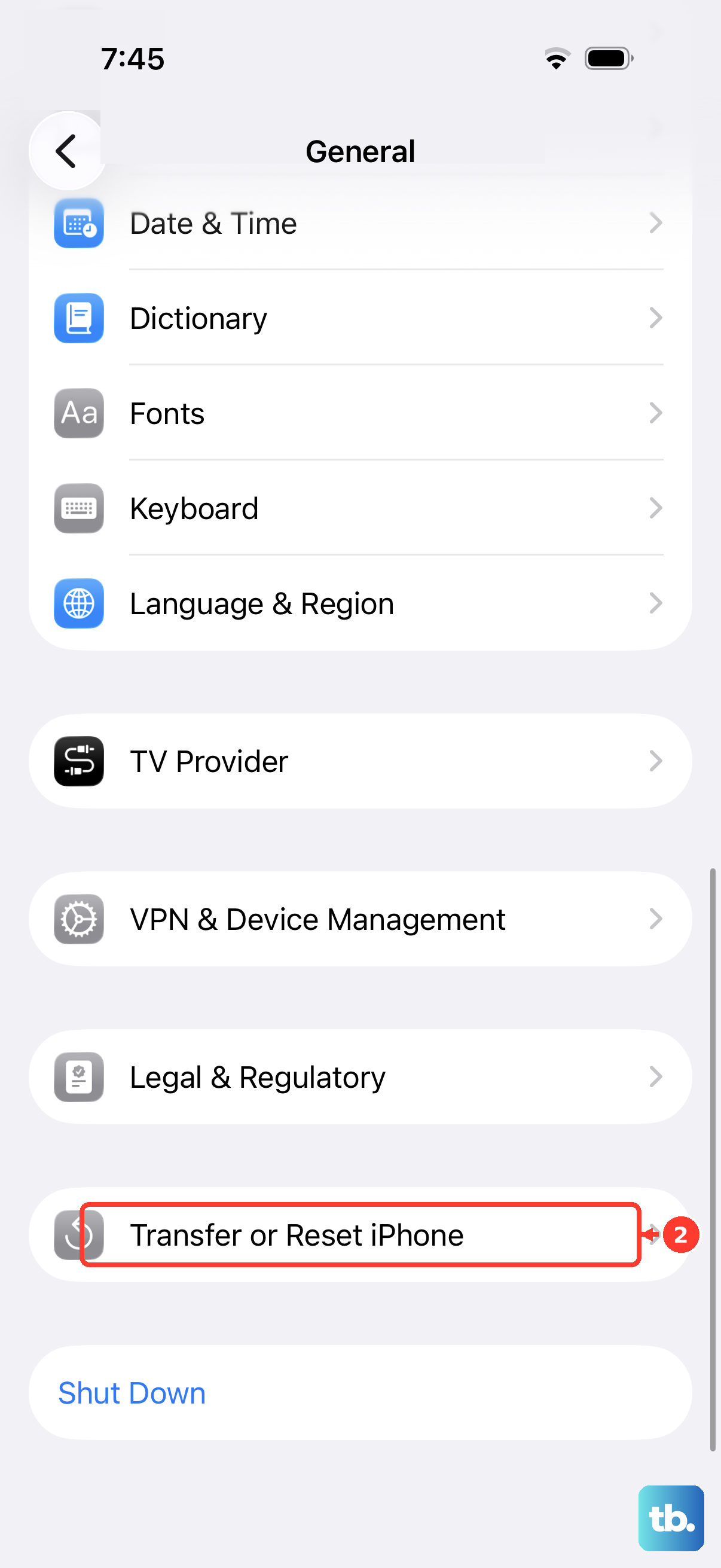
Tap Reset at the bottom. From the list of reset options, choose Reset Keyboard Dictionary. You'll need to enter your passcode to confirm. After the reset, your predictive text will start learning from scratch again.
Update to the Latest iOS Version
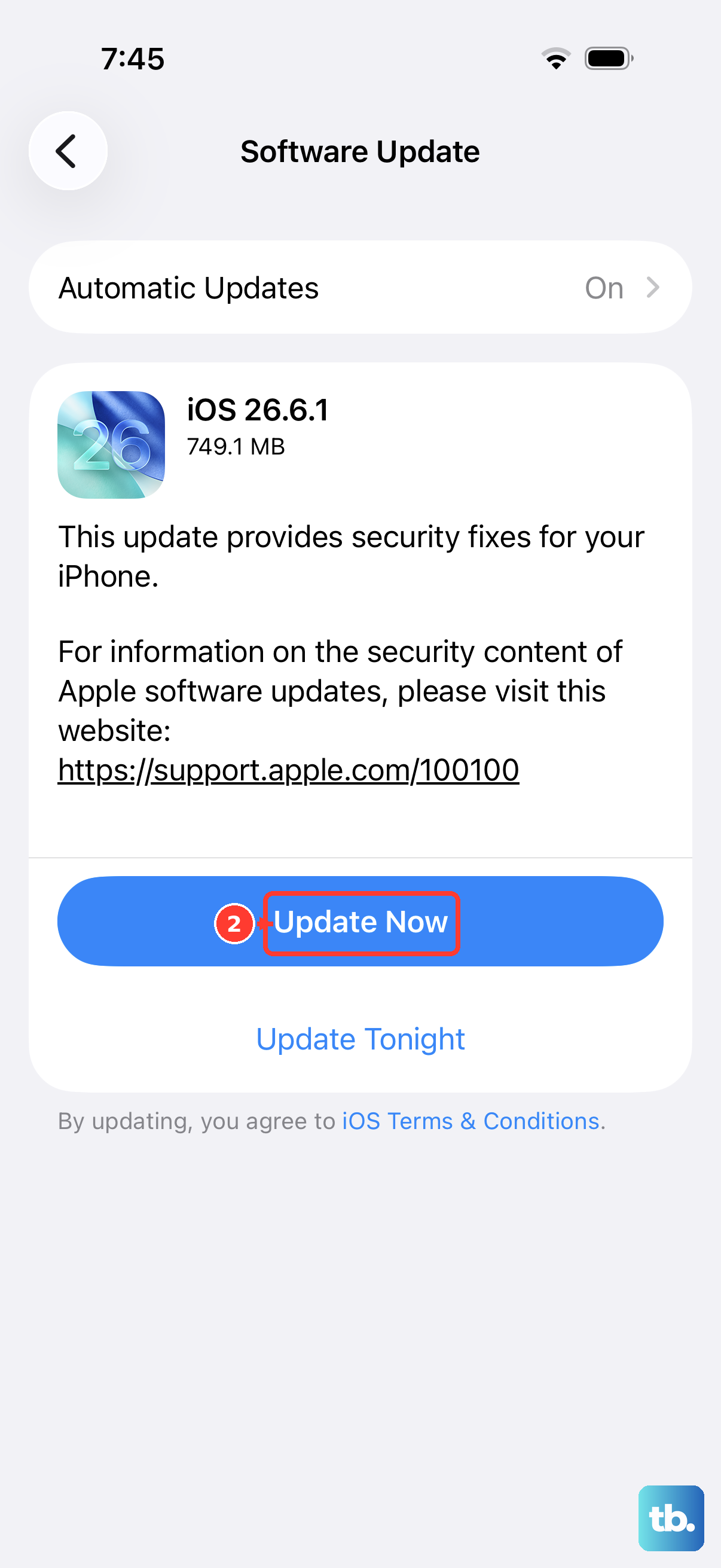
Apple frequently releases iOS updates that include bug fixes for the system keyboard. Since you're on an iPhone 15, you'll want to make sure you're on the latest version of iOS 26. Go to Settings > General > Software Update.
If an update is available, tap Download and Install. It's a good idea to plug your phone into power using a compatible USB-C cable and charger, or set it on a MagSafe charger, before starting the update. This ensures it won't run out of battery mid-process.
Check Your Language & Region Settings
If your phone's language or region settings are incorrect, the keyboard might be trying to pull predictions from the wrong dictionary. Go to Settings > General > Language & Region.
Make sure your preferred language is listed at the top under "Preferred Languages." Also, verify that the region set below matches where you actually are, as this can affect vocabulary and spelling dictionaries.