
If your iPhone 15 feels sluggish, you're not imagining it. Even a powerful phone can start to lag, especially as it fills up with apps and data. The good news is that a few simple tweaks can usually get it running smoothly again.
Start with a force restart. It's the oldest trick in the book because it works. For the iPhone 15, press and quickly release the Volume Up button, then the Volume Down button, and finally press and hold the Side button until you see the Apple logo appear. This clears out temporary glitches and gives your phone a fresh start.
Next, take a look at your storage. Go to Settings > General > iPhone Storage. Keep at least 1 GB of storage free to help avoid slowdowns. The iPhone 15 will even show you recommendations here, like reviewing large attachments or offloading unused apps.
Update to the Latest iOS
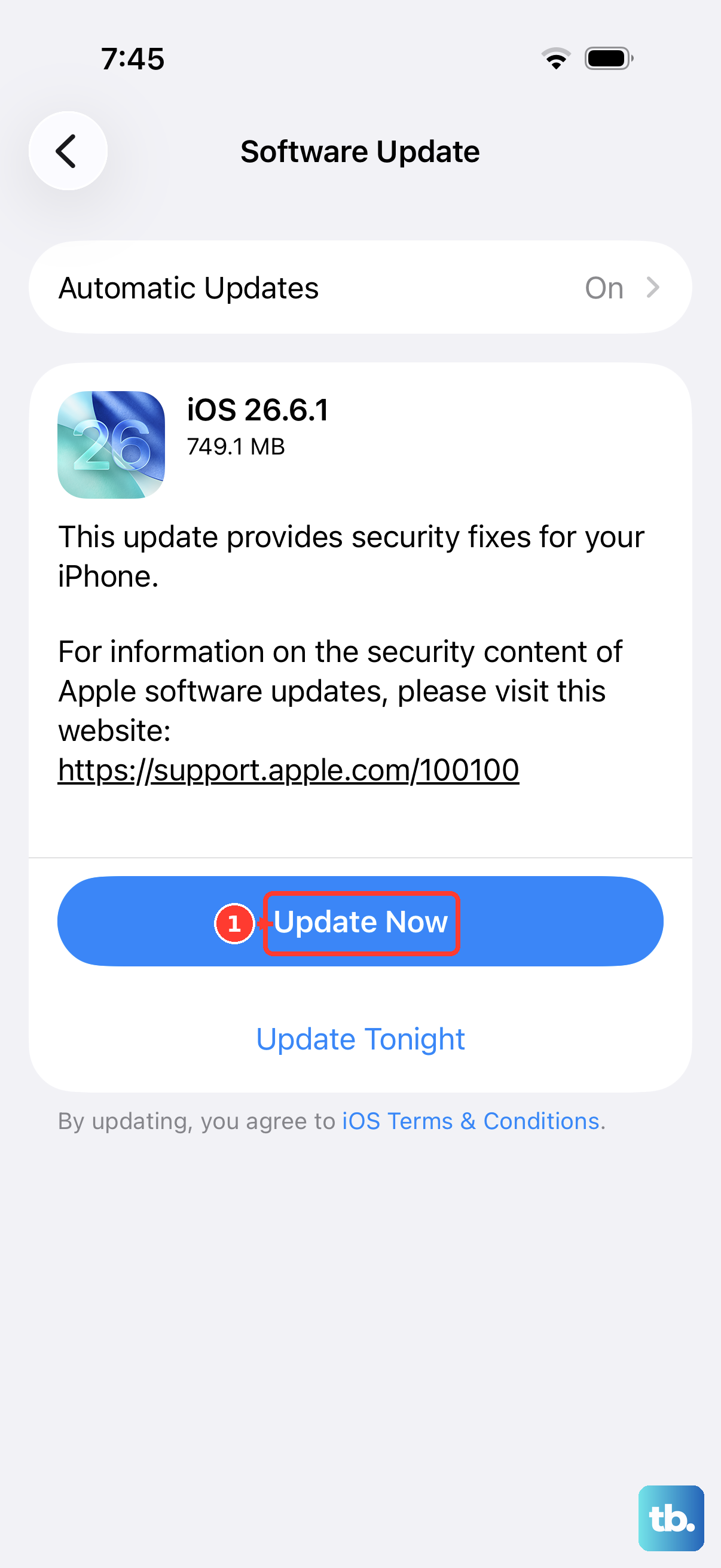
Apple is constantly releasing software updates that include performance improvements and bug fixes. Since your iPhone 15 runs iOS, make sure you're on the latest version. Head to Settings > General > Software Update and download anything that's available. Updating can help with software-related lag.
Check Your Battery Health and Settings
Go to Settings > Battery > Battery Health and check your battery's Maximum Capacity. Look for a battery replacement recommendation, since an aging battery can lose capacity and peak performance. The charge limit under Settings > Battery > Charging, which you can set from 80% to 100% in 5% steps, doesn't affect speed.
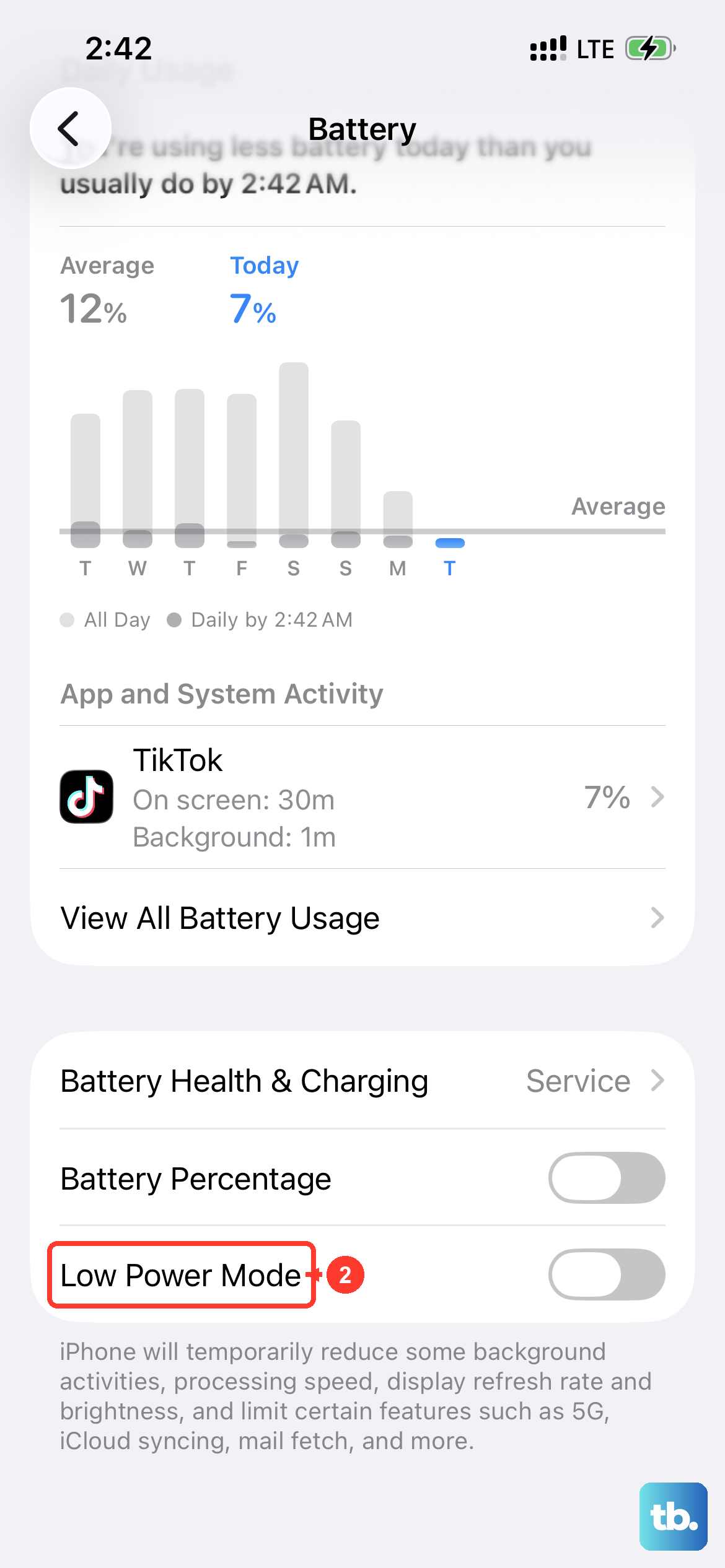
Also, go to Settings > Battery > Power Mode and turn Low Power Mode off. It saves battery by limiting background activity and making some features work slower, so leaving it off can help when you need full performance.
Manage Background App Refresh
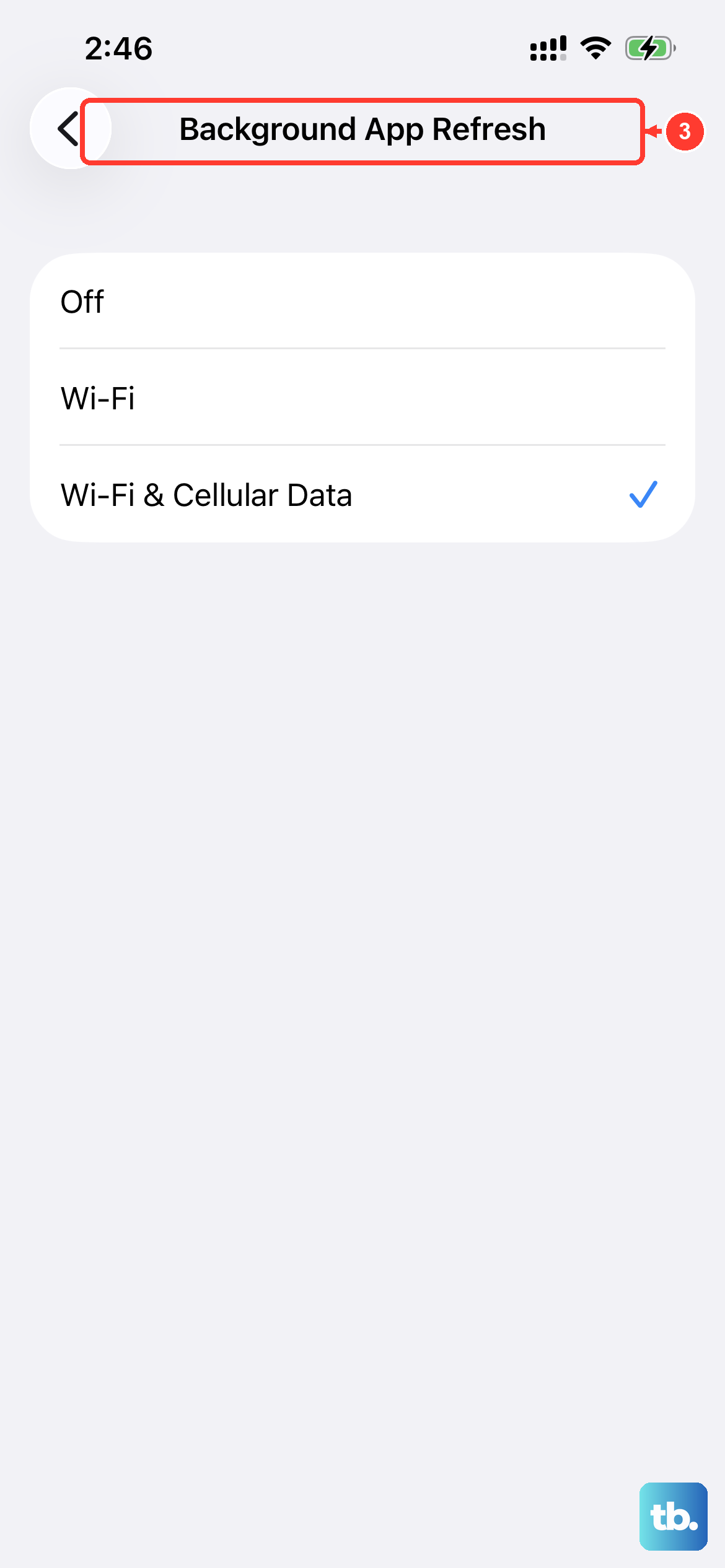
Apps can update content in the background. You don't need every single app refreshing constantly. Go to Settings > General > Background App Refresh. You can turn it off entirely or just for the most demanding apps, like social media or email clients. This reduces background activity and can save battery.
Review Your Charging Setup
This was Apple's first iPhone with USB-C, so it's easy to grab an old Lightning cable by mistake. Make sure you're using a proper USB-C cable. If your phone gets too hot or cold, it can run slower. Move it to a place with a more moderate temperature before checking its performance again. Try charging without the case for a bit to see if things improve.
Close Apps and Remove Home Screen Widgets
Close an app only if it isn't responding, since unnecessarily closing apps can slow things down when they have to reload. Swipe up from the bottom of the screen and pause in the middle, find the unresponsive app, then swipe up on its preview to close it. Also, take a look at your home screen widgets. Widgets can display updated information from apps. Long-press on any widget you don't absolutely need and tap Remove Widget.
Reduce Motion and Visual Effects
The parallax and zooming effects on the home screen look great, but they use processing power. If your iPhone 15 feels slow during navigation, try turning on Reduce Motion. Go to Settings > Accessibility > Motion and toggle on Reduce Motion. This simplifies the animations and can make the interface feel faster.
Reset All Settings
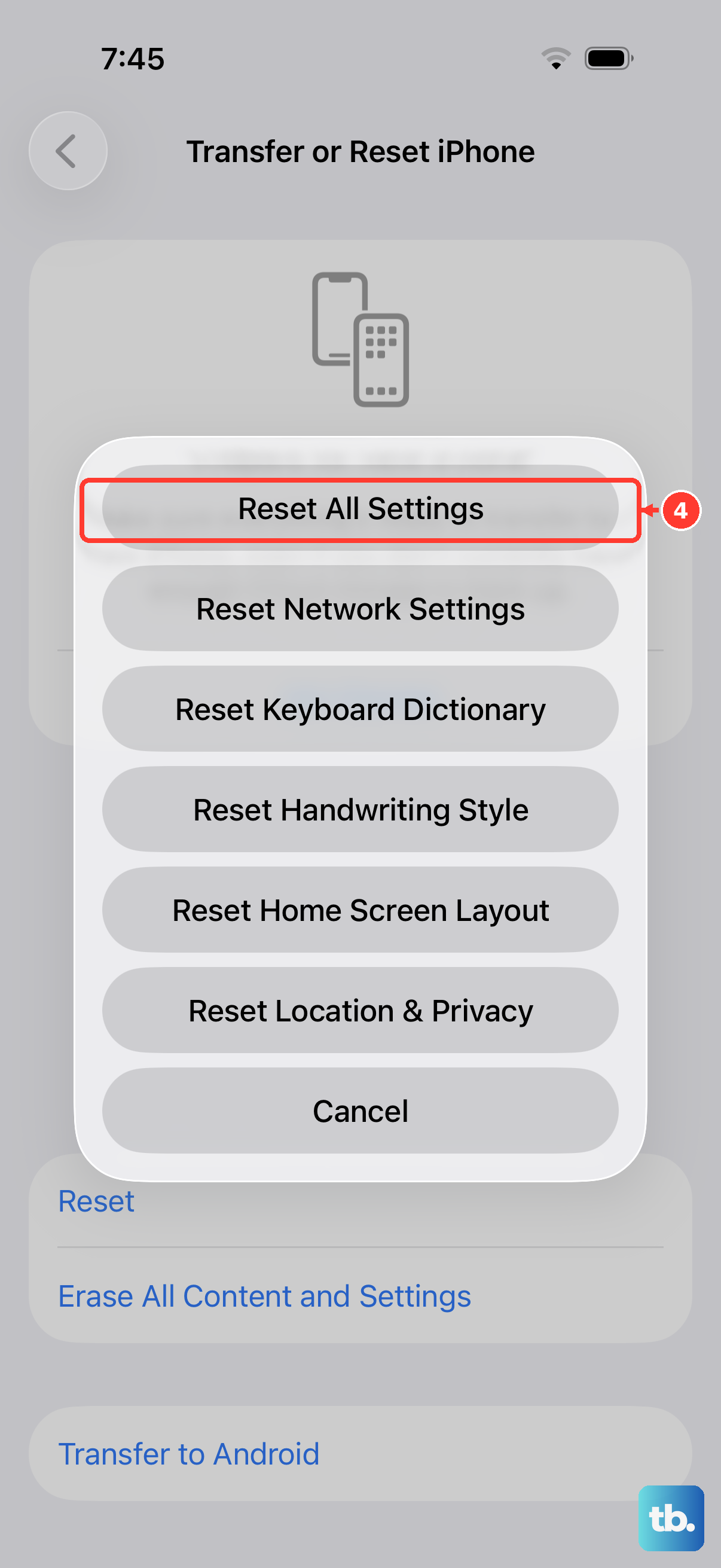
If you've tried everything and the lag persists, this is a strong next step. It resets all your preferences, like Wi-Fi passwords, wallpaper, and privacy settings, back to factory defaults without deleting any of your personal data or apps. Go to Settings > General > Transfer or Reset iPhone, tap Reset, and then choose Reset All Settings. You'll need to enter your passcode. After it reboots, you'll need to rejoin Wi-Fi, re-pair Bluetooth devices and any Apple Watch, and set up Face ID again.
Free Up Space by Offloading Apps
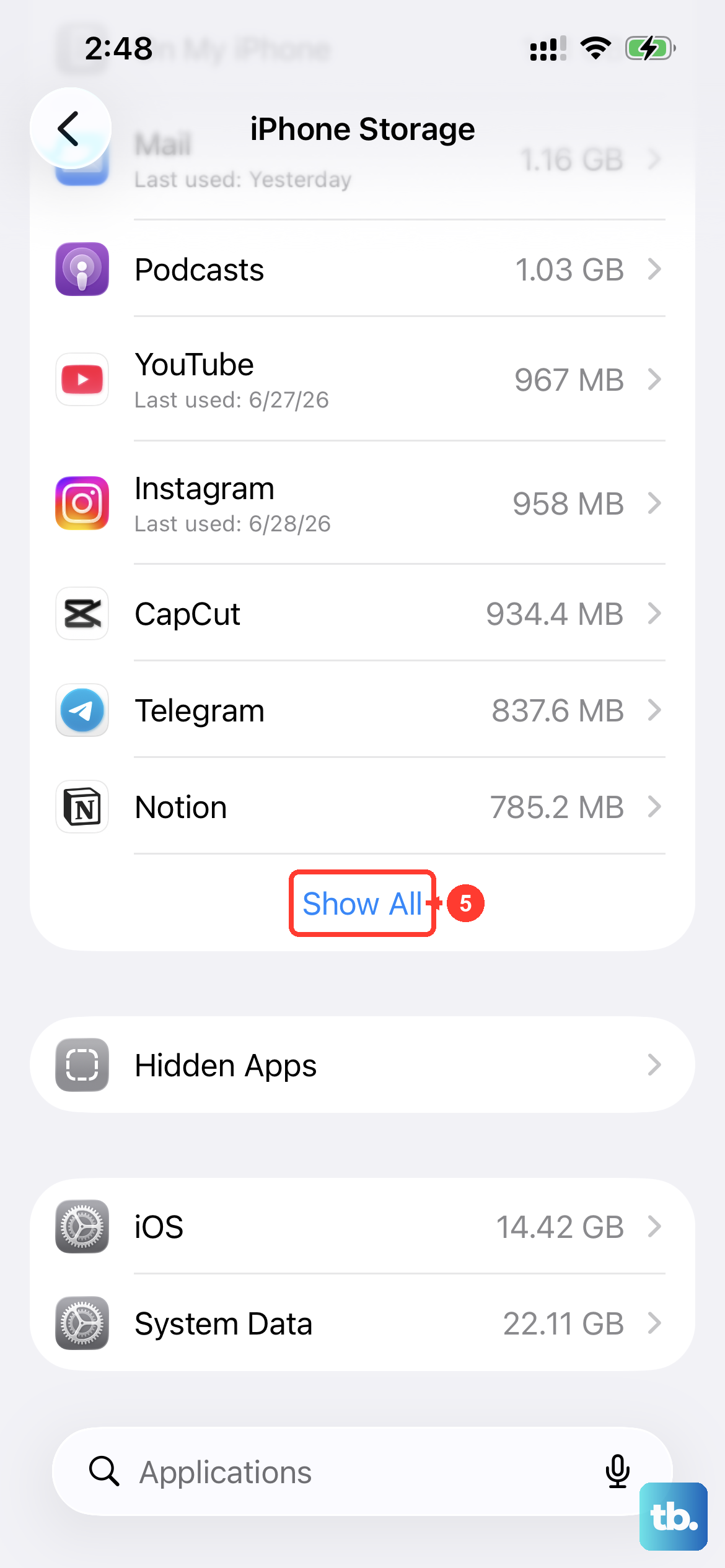
The iPhone 15 has a clever feature that can help when you're tight on space but don't want to delete apps forever. It's called Offload Unused Apps. You can enable the Offload Unused Apps recommendation in Settings > General > iPhone Storage. When enabled, it automatically removes unused apps but keeps their documents and data on your phone.
The app icon remains on your home screen with a little cloud download icon next to it. Tap it to re-download the app and use its saved documents and data. This is a great way to free up gigabytes without losing your place in a game or your app settings.