
An unresponsive iPhone 15 screen can be incredibly frustrating. The phone might be stuck on an app, the lock screen, or just showing a black screen that won't wake up. A temporary software hiccup may be the cause, and a force restart can help without erasing your photos or data.
Force Restart Your iPhone 15
This is almost always the first thing you should try. The process is slightly different from older iPhones. Quickly press and release the Volume Up button, then quickly press and release the Volume Down button. Finally, press and hold the Side button until you see the Apple logo appear; this may take longer than 10 seconds.
Don't let go when you see the screen go black. Keep holding until the logo shows up. This restarts the phone and can help resolve a temporary freeze.
Charge the Phone with the Right Cable
The iPhone 15 has a USB-C charging port, so a Lightning cable won't fit. Make sure your charging cable has a USB-C connector for the phone and connects to a compatible power adapter.
A completely drained battery can make the phone seem dead. Plug it in with a known-good USB-C cable and charge it for one hour before trying again. If it shows a low-charge battery, check the cable and adapter, then charge it for 30 minutes or until it starts. If you have the 80% charge limit enabled in Settings, the phone will stop charging at 80%, which is normal and not a sign of a problem.
Check for Overheating
Your iPhone 15 can reduce performance if its internal temperature gets too high. This can happen if you leave it in direct sunlight, use intensive apps for a long time, or charge it with a thick case on.
If the phone feels warm or hot to the touch, take it out of its case and move it to a cooler spot. Let it cool down before attempting to restart it. Avoid using MagSafe charging if the phone is already warm, as it can generate more heat.
Close a Frozen App
If the touchscreen works everywhere except in one specific app, that app is likely the culprit. Swipe up from the very bottom of the screen and pause in the middle to bring up the App Switcher.
Find the preview card for the frozen app and swipe it up and off the top of the screen to force it to close. Then, tap the app icon on your Home Screen to reopen it. If the same app freezes repeatedly, check the App Store for an update.
Free Up iPhone Storage
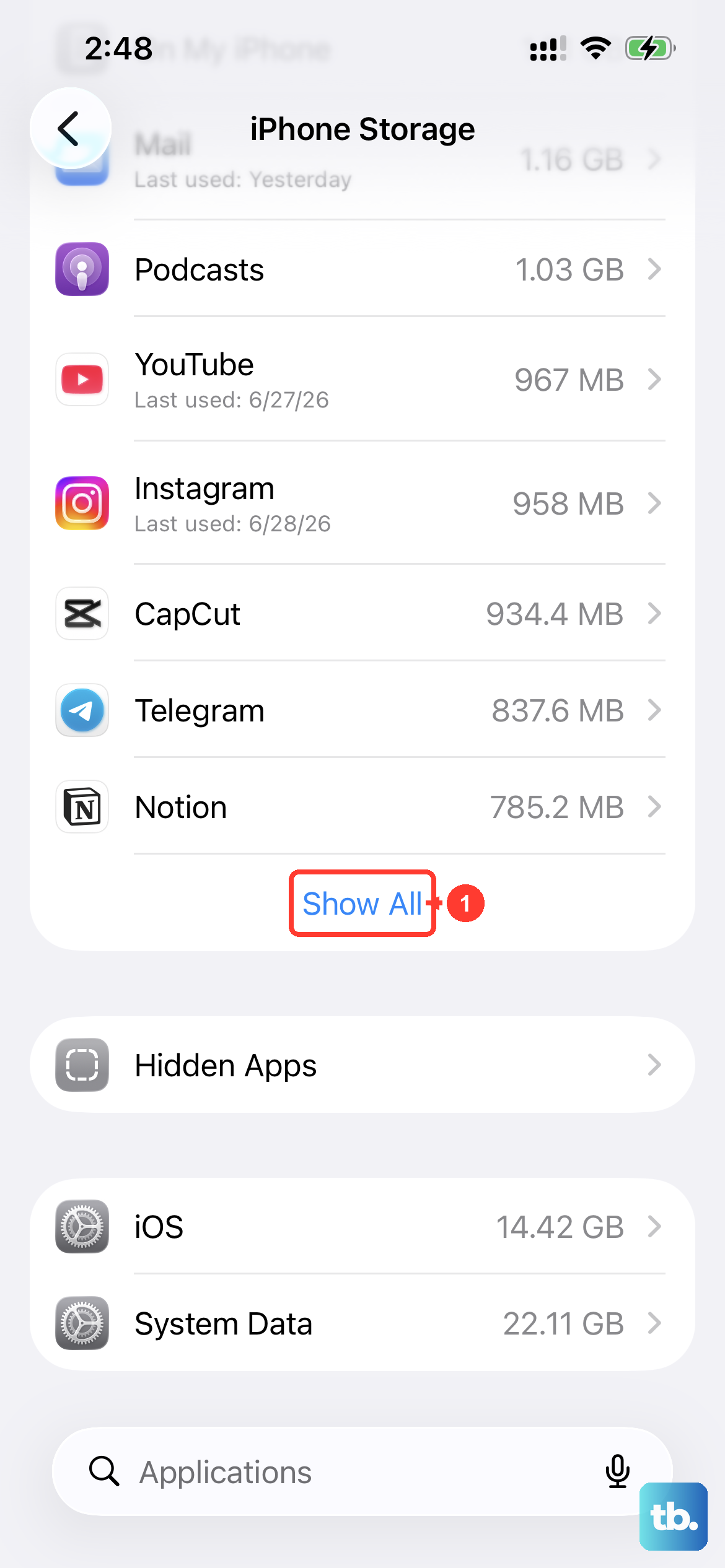
When your phone's storage is critically full, it may struggle to run smoothly. Freeing up space can help if storage is contributing to freezing or crashes.
If you can get into Settings, go to Settings > General > iPhone Storage. The system will show you recommendations and a list of apps using the most space. Deleting a few large videos or offloading unused apps can make a big difference. Follow the storage recommendations to free up more space.
Update iOS
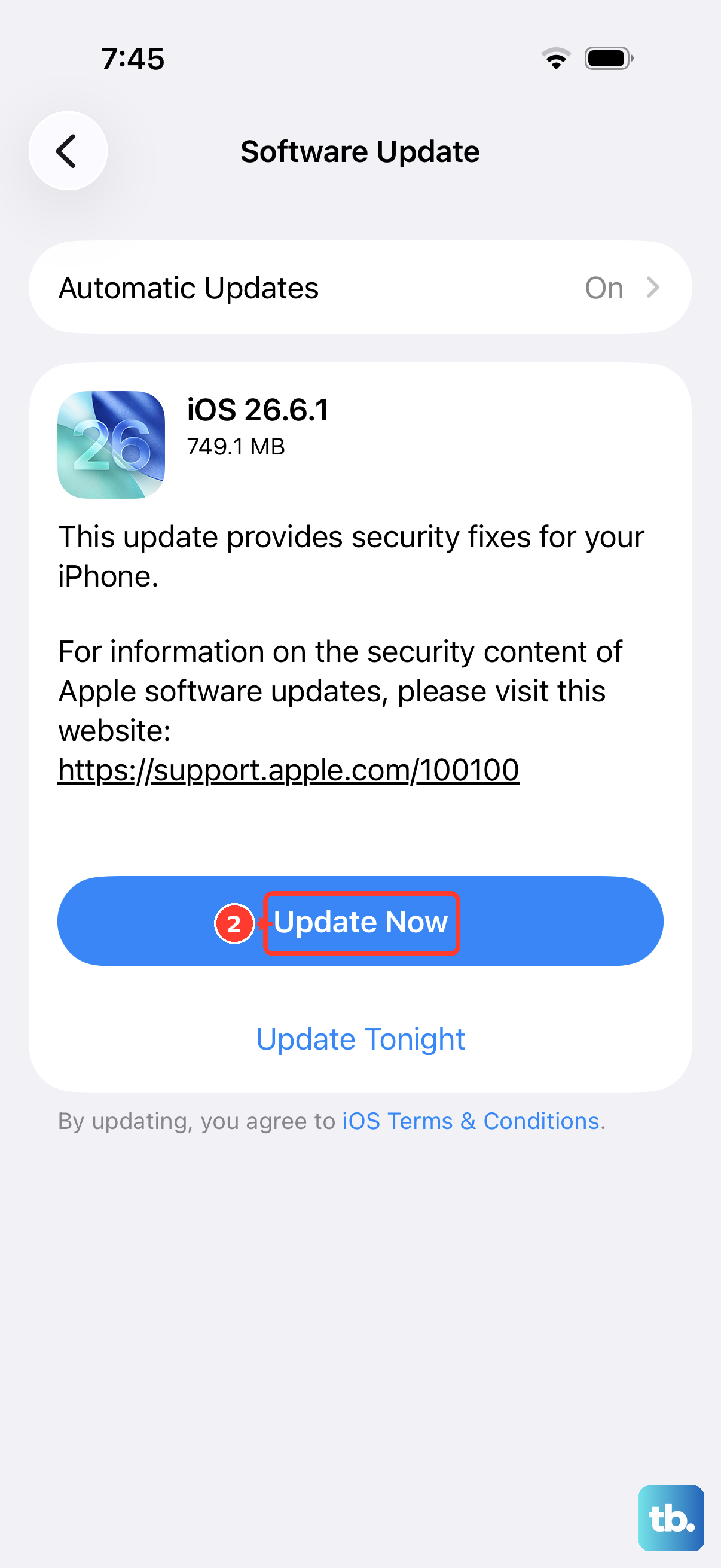
Apple frequently releases iOS updates that include bug fixes for stability issues. An outdated version of iOS could be the reason your phone is freezing.
After a successful restart, go to Settings > General > Software Update. If an update is available, download and install it. Back up your phone first, then connect it to Wi-Fi and power before updating.
Reset All Settings
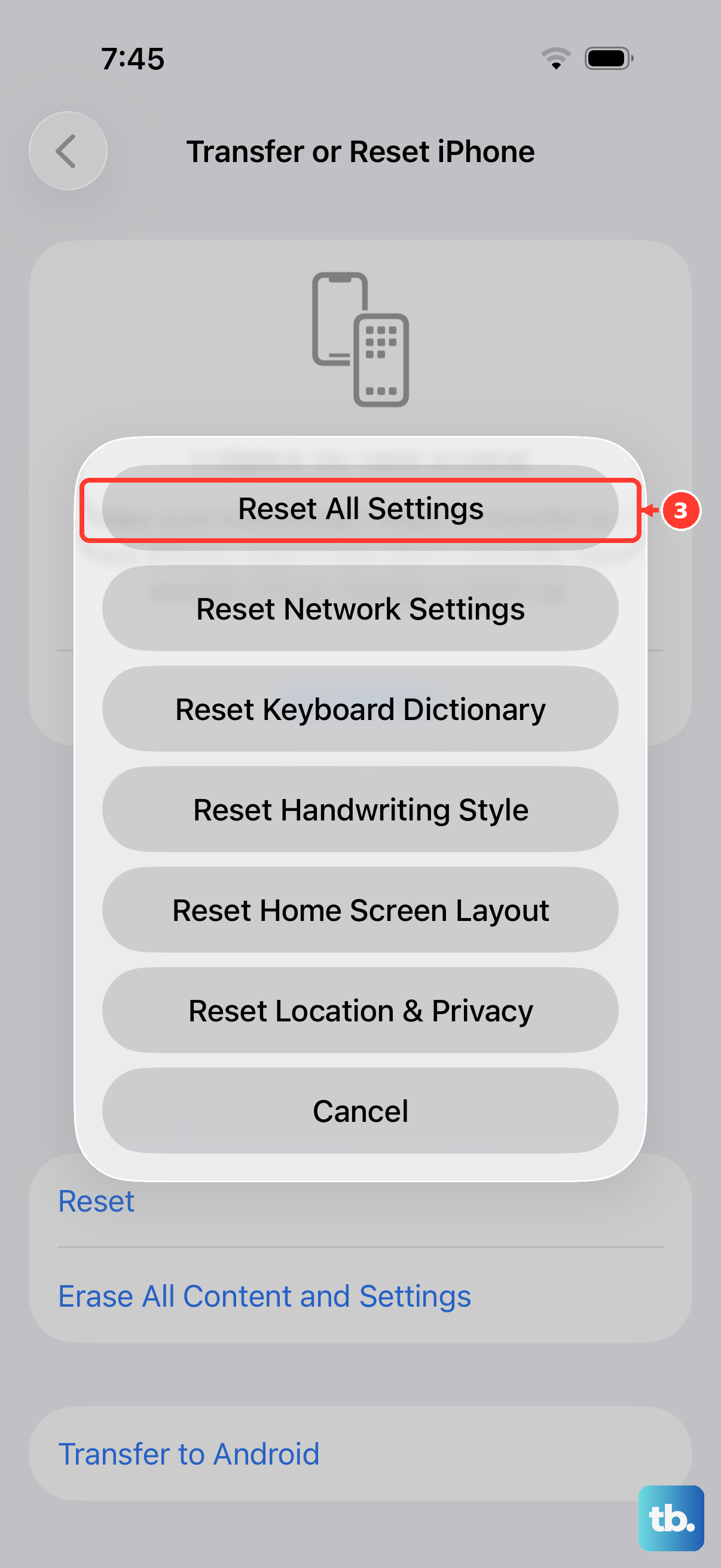
This is a more thorough step if the freezing keeps happening. It resets all your system preferences, like Wi-Fi passwords, wallpaper, and display settings, back to factory defaults without deleting any of your personal data, photos, or apps.
You can find this option at Settings > General > Transfer or Reset iPhone > Reset > Reset All Settings. Afterward, you'll need to rejoin Wi-Fi, re-pair Bluetooth devices and any Apple Watch, set up Face ID again, and reconfigure things like notifications.
Restore Using a Computer
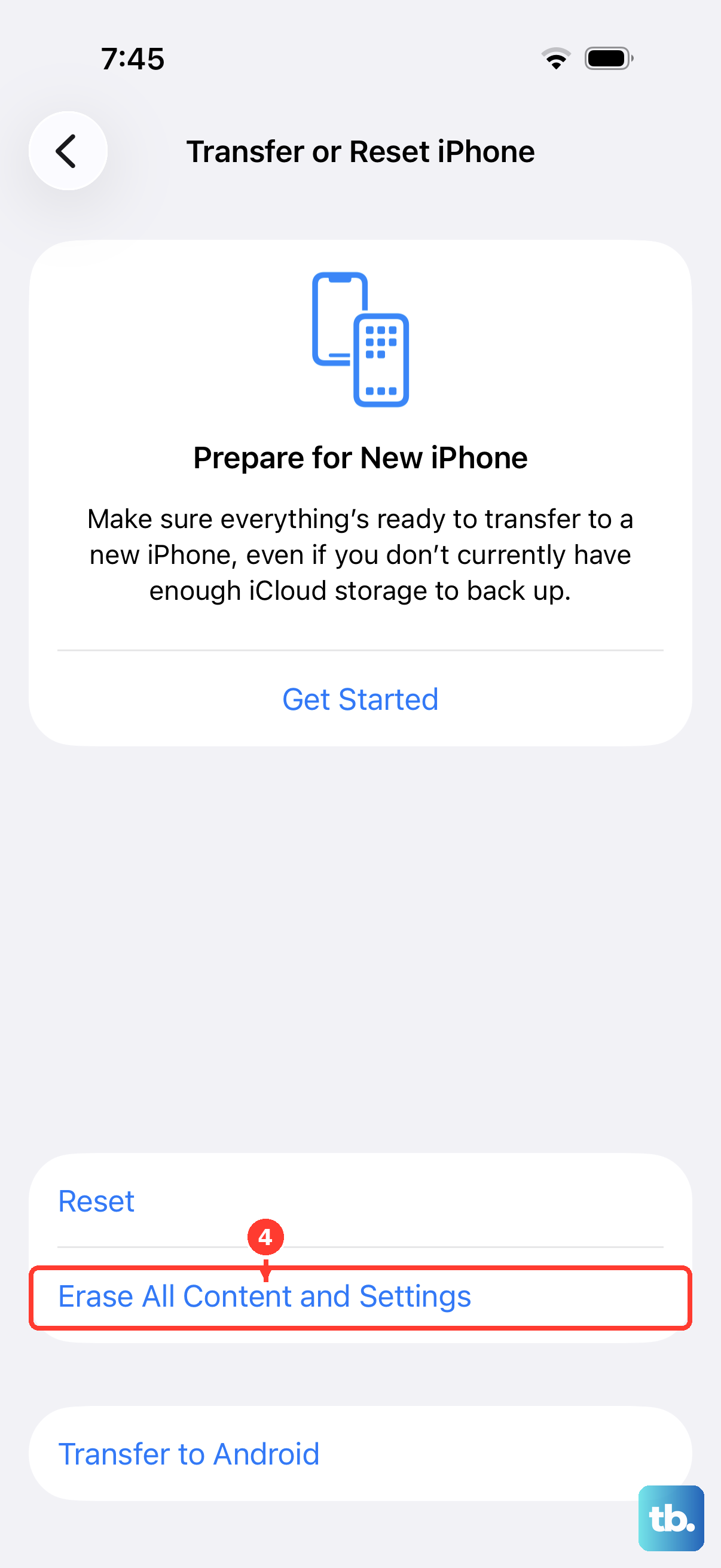
If your phone stays stuck after a force restart, you can try recovery mode using a Mac or PC. Update your Mac or the Apple Devices app on your PC first. Connect your iPhone 15 to the computer with a USB-C cable, then open Finder on a Mac with macOS Catalina or later, or the Apple Devices app or iTunes on a PC. Use iTunes on an older Mac.
Quickly press and release the Volume Up button, then quickly press and release the Volume Down button, then press and hold the Side button. Keep holding it even after the Apple logo appears until you see the Connect to computer screen on your iPhone.
The computer will detect a phone in recovery mode. First, choose the Update option. This will try to reinstall iOS without erasing your data. If the update fails or isn't available, you can then choose Restore, which will install a fresh copy of iOS but erase all content and settings.
Remove Screen Protectors and Cases
A poorly fitted screen protector or a case that presses on the edges of the screen can sometimes interfere with the touch sensors. Carefully remove any screen protector, especially if it's a thick glass one or if it has bubbles or dirt underneath.
Also, take the phone out of its case and see if touch responsiveness improves. Make sure the screen is clean and free of debris or water, and disconnect any USB-C accessories. If touch works after disconnecting an accessory, try a different outlet, cable, or charger. If the screen still isn't working, arrange service.