You reach for your iPhone 15 to light a dark hallway or find your keys, you tap the Flashlight button, and nothing happens. The rear LED stays dark, or it flickers on for a second and quits. The good news is that the iPhone 15 does have a working flashlight; Apple's tech specs list a rear True Tone flash (the same LED the Flashlight uses) plus a front Retina Flash, and the Flashlight is toggled right from Control Center and the Lock Screen. That means a dead flashlight is almost always a fixable software, heat, or accessory issue rather than a missing feature.
Work through the fixes below in order. They start with the safest and quickest checks, the ones that resolve most cases in seconds, and only move toward a full reset or a service appointment at the very end. You likely will not need to reach the bottom of the list.
Let an Overheated iPhone 15 Cool Down First
Heat is a very common reason the flashlight refuses to turn on, and it is the easiest thing to rule out. Apple confirms that when an iPhone gets too hot, the camera flash or other camera features might be temporarily disabled. You may also see an on-screen alert that reads "Temperature: iPhone needs to cool down."
If that is what is happening, turn off the device, move it out of direct sunlight to a cooler spot, and give it a few minutes. The iPhone is designed for ambient temperatures between 0º and 35º C (32º to 95º F). Once the phone is back inside that range, the flashlight should come back on by itself.
Make Sure the Camera App Isn't Holding the LED
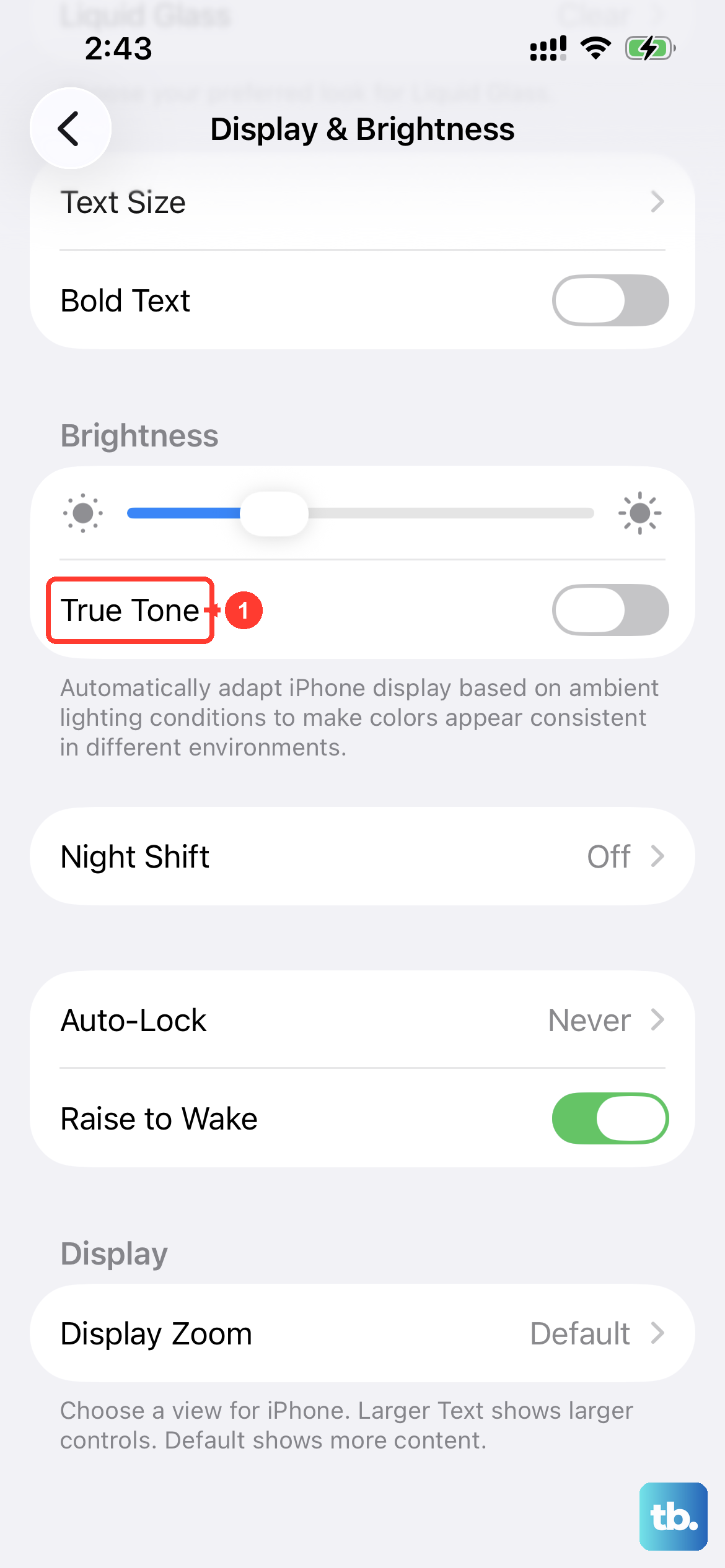
The flashlight shares the same rear True Tone LED as the camera flash. If your flashlight works only sometimes, Apple's guidance is to open the Camera app and tap the flash button to choose a different setting.
After that, fully close the Camera app and try the Flashlight again from Control Center. Letting the camera release the LED is often all it takes for the flashlight to behave normally.
Remove the Case, Screen Film, or Lens Accessory
A physical obstruction over the LED can make it look like the flashlight is broken when it is actually just blocked or interfered with. Apple's official step is to remove any case, film, or accessory (such as a polarizer, extender, or magnifier) that might block the camera or flash or that places a magnet near the camera.
Magnets near the camera are easy to overlook, so pay attention to magnetic cases, wallets, and mounts. With everything off the back of the phone, test the flashlight again before moving on.
Toggle the Flashlight and Re-Add the Control If It's Missing
It is worth confirming you are turning the flashlight on the way Apple intends, and that the control is even present. The standard methods on the iPhone 15 are quick.
Swipe down from the upper-right corner to open Control Center on your iPhone.
Tap the Flashlight button (tap again to turn it off).
On the Lock Screen, press and hold the Flashlight button, in the bottom-left corner.
If the Flashlight button is not in your Control Center at all, you can add it back. Go to Settings > Control Center, then tap Flashlight in the list of available controls. Once it appears, swipe in and try it again.
Restart the iPhone 15
A simple restart clears temporary software glitches, and Apple lists restarting among the steps when the camera or flash isn't working. This is not the same as a force restart; use this when the phone is responsive.
Press and hold either volume button and the side button until the power-off slider appears.
Drag the slider, then wait 30 seconds for the device to turn off.
Press and hold the side button until the Apple logo appears.
Once the phone finishes booting, open Control Center and test the flashlight again.
Force Restart a Frozen or Unresponsive iPhone
If the screen is frozen, unresponsive, or the normal restart will not complete, a force restart is the next step. The button sequence on the iPhone 15 must be performed in this exact order.
- 1.Press and quickly release the volume up button.
- 2.Press and quickly release the volume down button.
- 3.Press and hold the side button until you see the Apple logo (this might take longer than 10 seconds).
Do not release the side button early; it can take more than ten seconds for the logo to appear. After the phone restarts, check whether the flashlight responds.
Install the Latest iOS Update
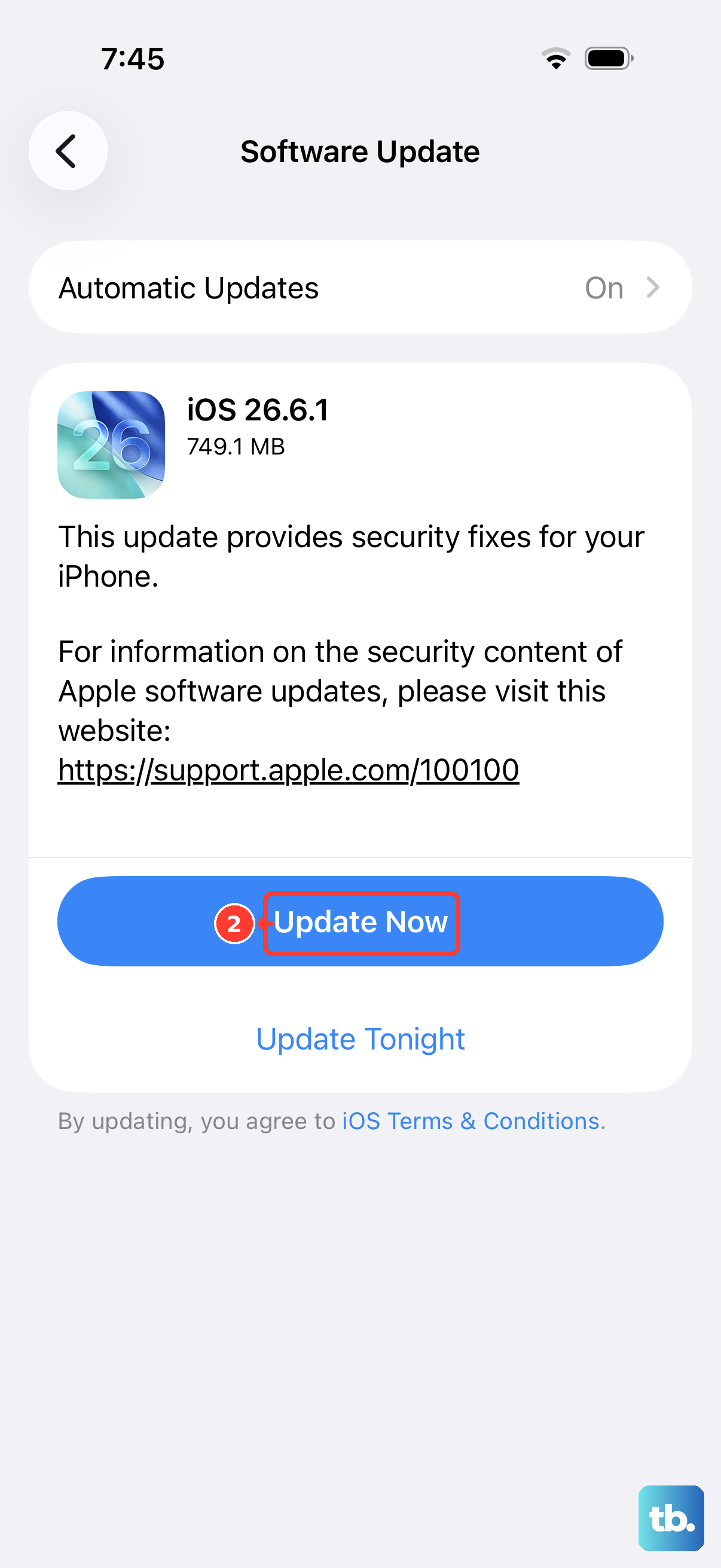
Software bugs that affect the camera and flash are often fixed in iOS updates, and Apple advises updating to the latest version of iOS and testing again. The iPhone 15 supports iOS 26, so keeping it on the latest version is worthwhile.
Back up your iPhone first, then plug into power and connect to Wi-Fi. Go to Settings > General > Software Update; if an update is available, tap Download and Install, then follow the onscreen instructions. After the update finishes installing, test the flashlight once more.
Check for a Profile or MDM Restriction That Disables the Camera
If your iPhone was issued by a school or an employer, a management policy could be turning the camera off, which also affects the flash and flashlight. A configuration profile, including a Mobile Device Management (MDM) profile, can disable the camera.
Look in Settings for any installed profile if the device is managed. If the camera and flashlight are being restricted by a profile, the administrator who manages the device is the one who can lift that restriction.
Erase All Content and Settings as a Last DIY Step
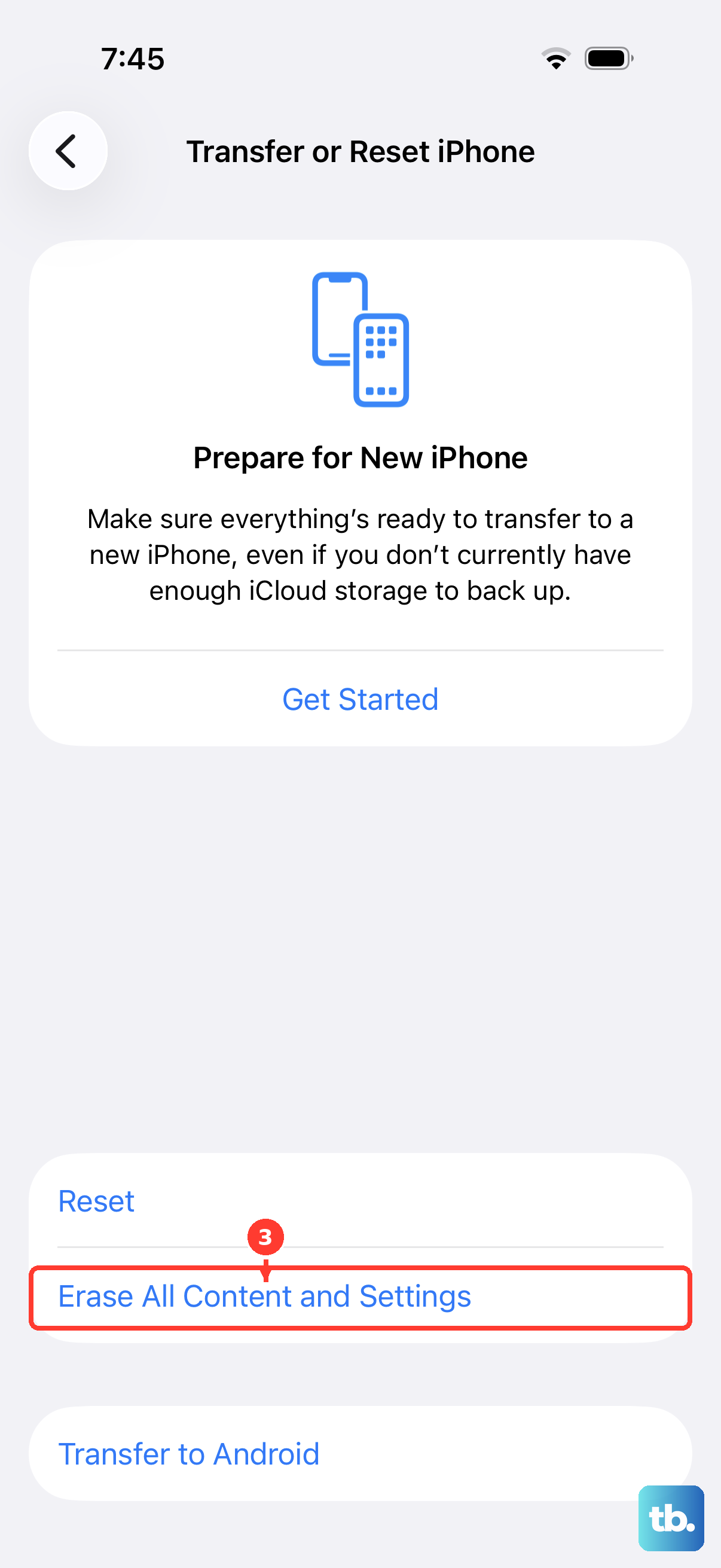
If nothing above has worked, a factory reset is the final do-it-yourself option, because it clears any deep software corruption. This is a significant step, so read the warning first.
Warning: Erasing your iPhone permanently removes all content and settings and returns the phone to the Hello setup screen. Back up to iCloud or a computer before you begin so you do not lose your data.
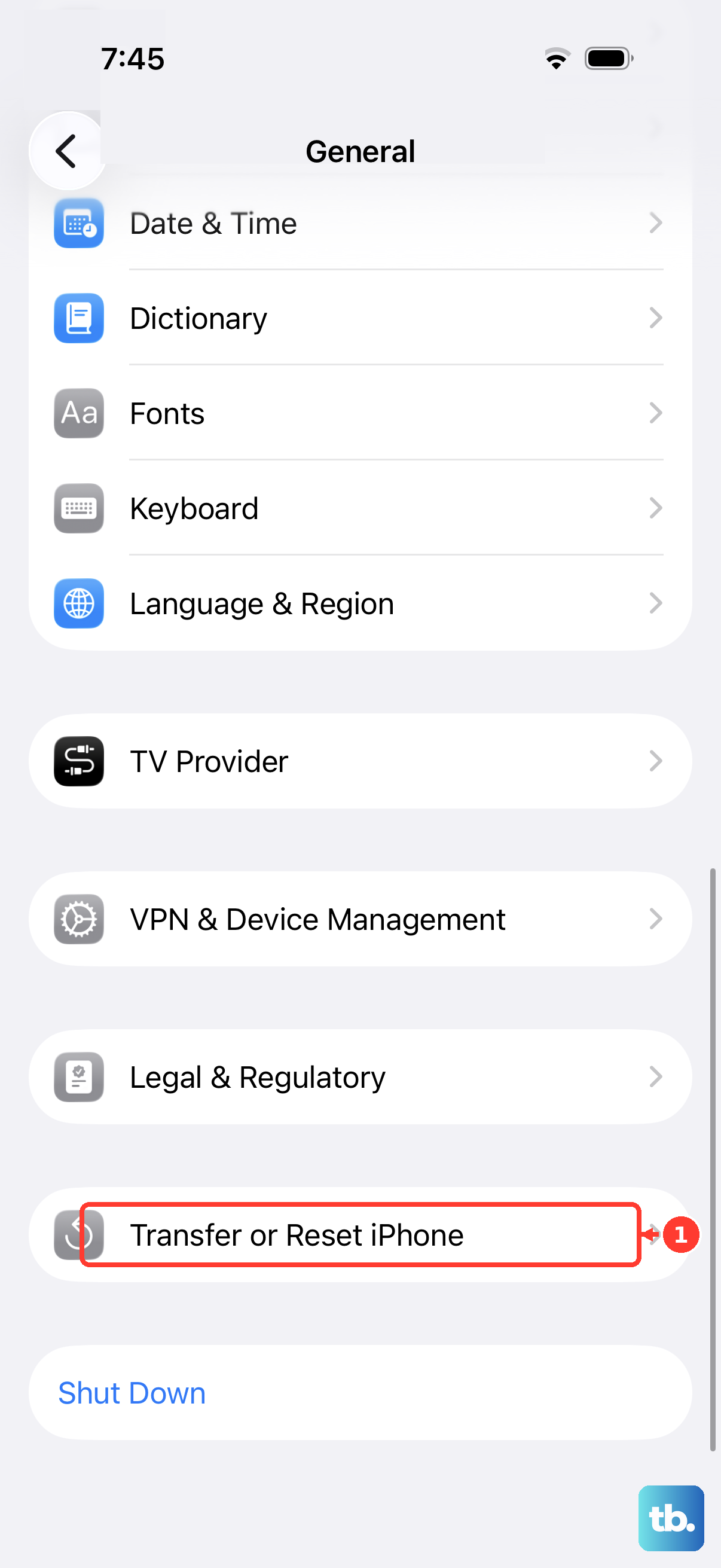
Go to Settings > General > Transfer or Reset iPhone > Erase All Content and Settings.
Tap Continue.
Choose whether to keep or delete your eSIM.
Enter your passcode and your Apple Account password to confirm.
After the phone restarts and you set it up again, test the flashlight before restoring everything, so you can tell whether the reset solved it.
When to Contact Apple for Service
If the camera or flash still isn't working properly after all of these steps, the LED itself may have a hardware fault that no software fix can address. Apple says you might need service in that situation.
Reach out through Apple's official support so a technician can arrange a repair. Because the flashlight relies on the same hardware as the camera flash, a technician can confirm whether the True Tone LED needs replacing.
Frequently Asked Questions
Why did my iPhone 15 flashlight suddenly stop working in the heat?
When the iPhone gets too hot, the camera flash or other camera features might be temporarily disabled, and you may see an alert reading "Temperature: iPhone needs to cool down." Move the phone to a cooler spot and let it return to its designed range of 0º to 35º C (32º to 95º F), and the flashlight should work again.
Does using the Camera app stop the flashlight from turning on?
The flashlight and the camera flash share the same rear True Tone LED, so it helps to close the Camera app before using the flashlight. If the flash works only sometimes, open the Camera app and tap the flash button to choose a different setting, then try the flashlight again.
The Flashlight button disappeared from my Control Center. How do I get it back?
Go to Settings > Control Center, then tap Flashlight in the list of available controls to add it. After that, swipe down from the upper-right corner to open Control Center and tap the Flashlight button.
What is the correct way to force restart an iPhone 15 if the screen is frozen?
Press and quickly release the volume up button, then press and quickly release the volume down button, then press and hold the side button until you see the Apple logo. This might take longer than 10 seconds, so keep holding the side button until the logo appears.
Will a factory reset delete my data?
Yes. Erase All Content and Settings permanently removes all content and settings and returns the phone to the Hello setup screen, so back up to iCloud or a computer first. You will find it under Settings > General > Transfer or Reset iPhone > Erase All Content and Settings.