
Is your iPhone 15's screen stuck in one orientation and refusing to flip when you turn it? It's a common hiccup where the auto-rotate feature just stops responding.
The fix is usually quick, ranging from a simple toggle you might have bumped to a quick restart. Let's get your screen rotating again.
Toggle the Rotation Lock
This is the absolute first thing to check. The Rotation Lock, which keeps your screen fixed in portrait or landscape, can be enabled from Control Center. You might have turned it on without realizing it.
To check, swipe down from the top-right corner of your screen to open Control Center. Look for the icon that looks like a lock with a circular arrow around it. If it's highlighted in white, tap it to turn Rotation Lock off.
When it's off, the icon won't be highlighted. I've seen this solve the issue more times than I can count, especially if you've recently handed your phone to a child or it was in your bag.
Restart Your iPhone 15
If the lock wasn't on, a simple restart is your next best move. A quick reboot clears out any minor software glitches that could be confusing the accelerometer, the sensor that tells your phone which way is up.
Just press and hold the Side button and either volume button until the power slider appears. Drag it to turn off, wait about 30 seconds, then press the Side button again to turn it back on. This takes less than a minute and often does the trick.
Check for App-Specific Behavior
Not every app supports both orientations. If your screen won't rotate in one particular app, like your banking app or a specific game, but works fine everywhere else, the app itself is likely the culprit.
Try opening Safari or your Photos app and tilting your phone. If they rotate normally, then the issue is isolated to that first app. Some developers lock their apps to portrait mode by design, so there's nothing wrong with your phone.
Update to the Latest iOS
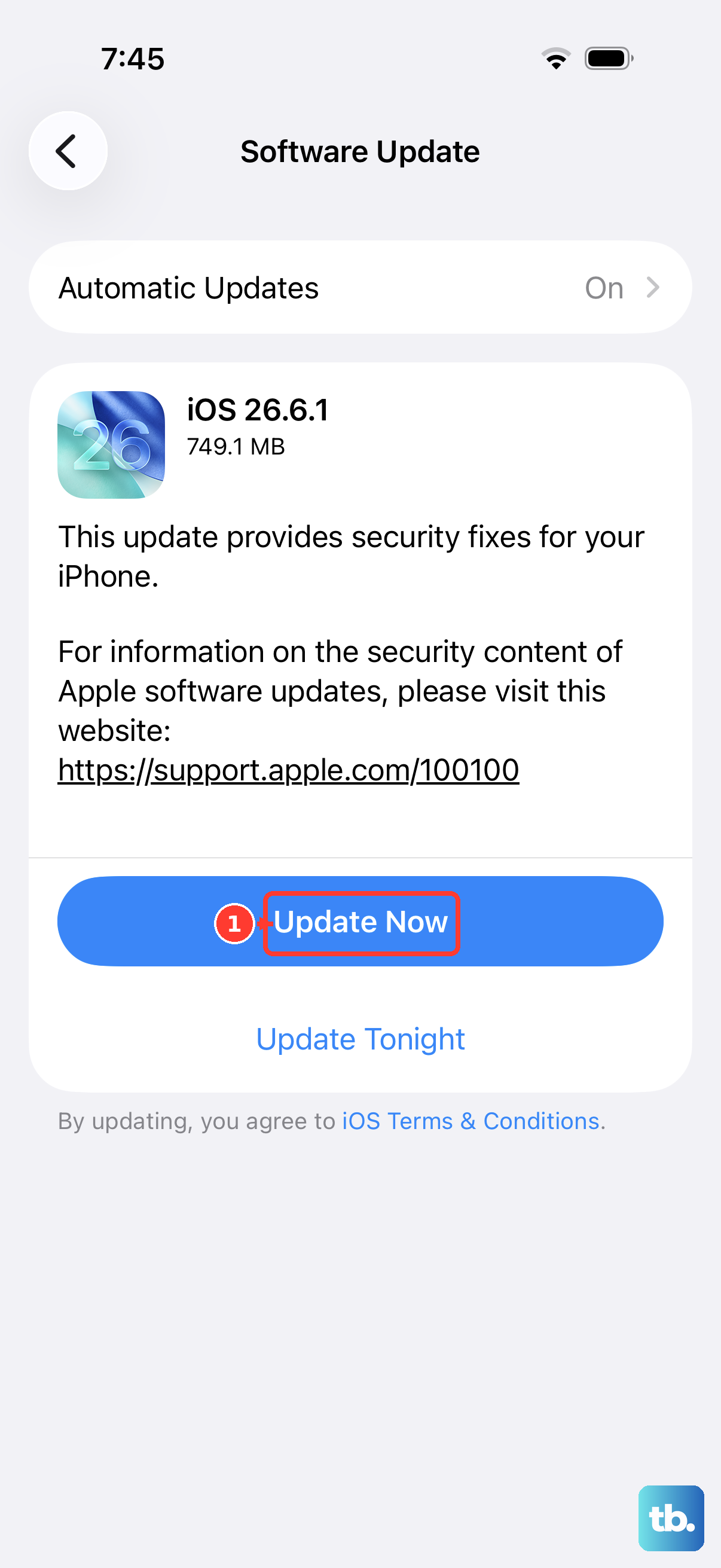
Software bugs in iOS can occasionally affect system functions like auto-rotate. Apple regularly releases updates that fix these kinds of issues. Making sure you're on the latest version of iOS 26 is a good step.
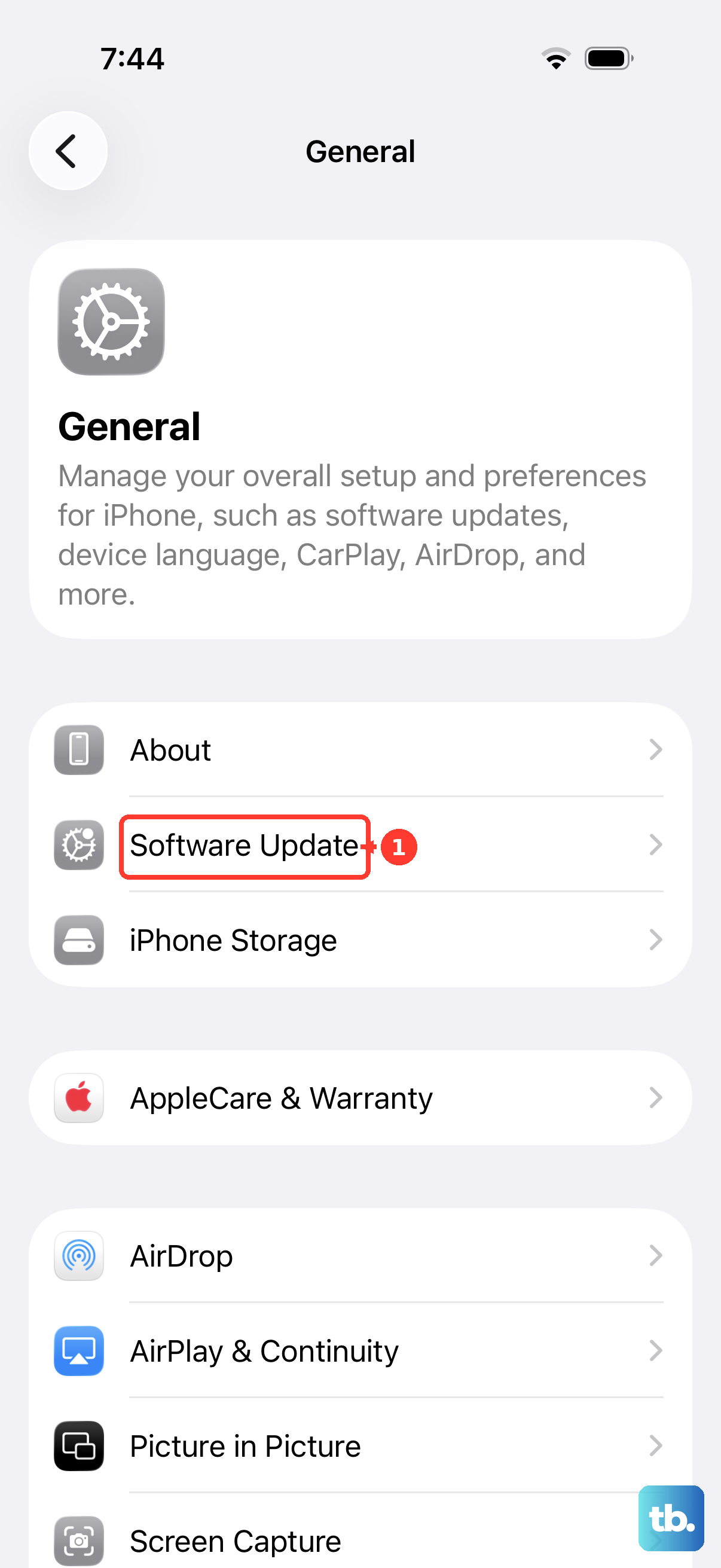
Go to Settings > General > Software Update. If an update is available, tap "Download and Install." It's best to do this while connected to Wi-Fi and with your phone plugged in to charge.
Force Restart Your iPhone
When a normal restart doesn't cut it, a force restart can clear more stubborn temporary caches. This is different from just turning your phone off and on, and it won't delete any of your data or settings.
On the iPhone 15, you do this by quickly pressing and releasing the Volume Up button, then quickly pressing and releasing the Volume Down button. Finally, press and hold the Side button. Keep holding it until you see the Apple logo appear, then let go.
Test the Gyroscope and Accelerometer
Your iPhone uses internal sensors to detect motion and orientation. If you suspect a deeper issue, you can use a free app from the App Store like "Sensor Logger" or "Physics Toolbox Suite" to check if they're working.
These apps will show you live data from the gyroscope and accelerometer. Tilt and rotate your phone. If the numbers on the screen change responsively, your hardware is likely fine and the problem is software-based.
Reset All Settings
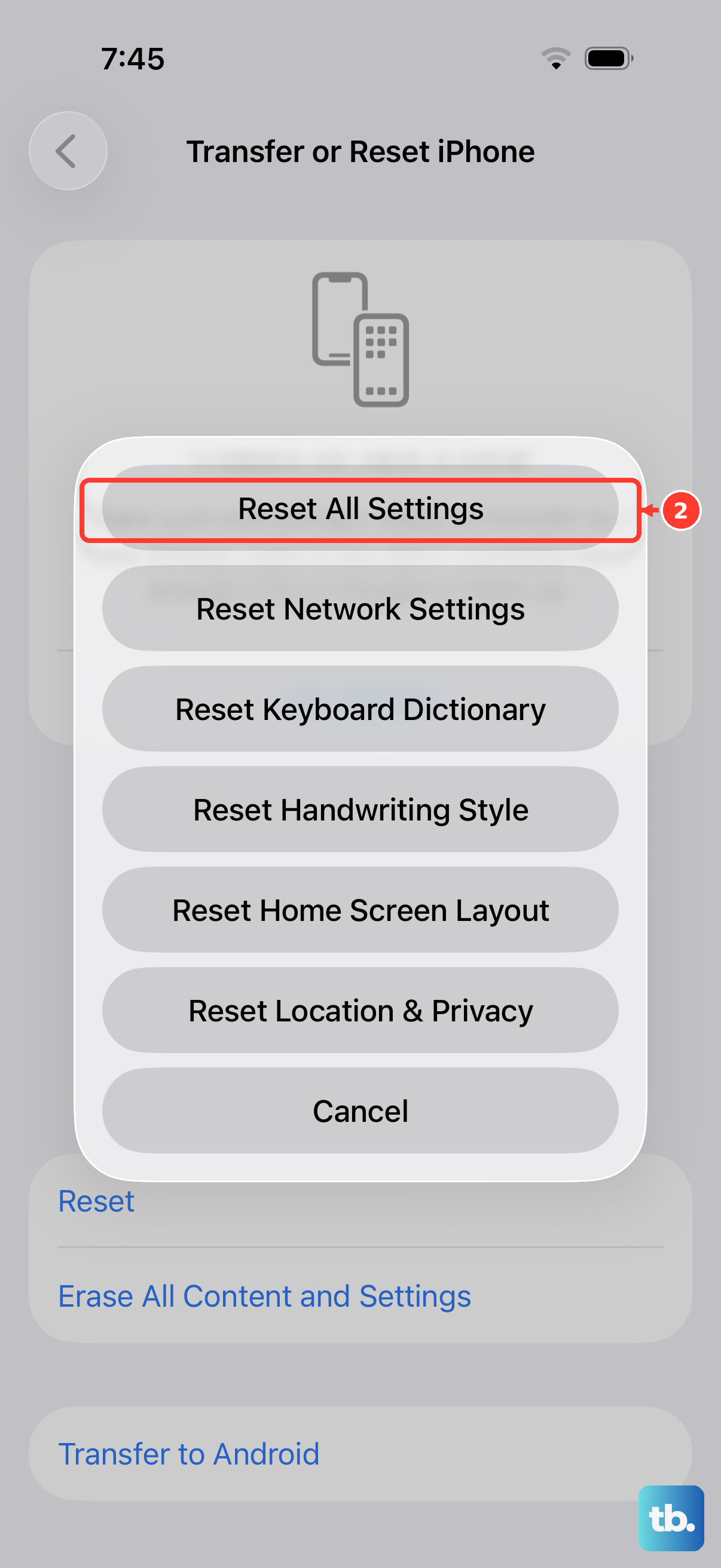
This is a more thorough step if nothing else has worked. Resetting all settings will revert every system preference, like your wallpaper, Wi-Fi passwords, and privacy settings, back to factory defaults, but it leaves your personal data and apps intact.
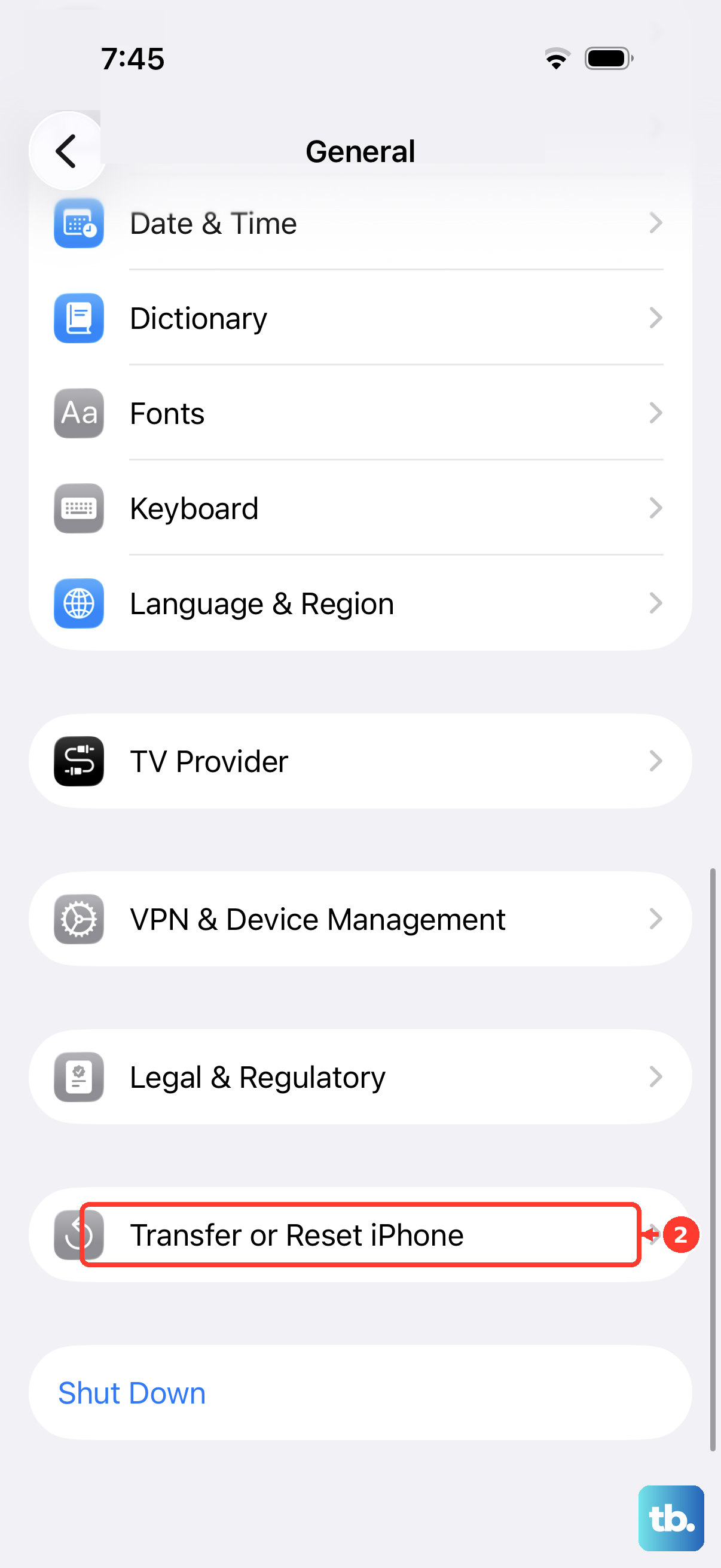
It can clear out any corrupted preference file that might be interfering with rotation. Go to Settings > General > Transfer or Reset iPhone > Reset, and then choose "Reset All Settings." You'll need to re-enter your Wi-Fi passwords afterward.
Consider a Hardware Check
If you've tried every software fix here and your screen still won't rotate in any app, there's a small chance of a hardware fault. This is rare, but possible if your phone has suffered a significant drop or liquid damage.
The sensors are part of the main logic board. In this case, the next step would be to contact Apple Support or visit an Apple Store or Authorized Service Provider for a diagnostic. They can run proprietary tests to confirm if the accelerometer or gyroscope has failed.