You went to capture a photo or install an app on your iPhone 14 and got stopped cold by a "Storage Almost Full" warning. It's frustrating when a phone with 128GB, 256GB, or even 512GB suddenly insists there's no room left, especially when you can't tell what is actually eating the space. The good news is that your iPhone 14 ships with a full set of built-in storage tools, and you can usually reclaim a meaningful chunk of room in a few minutes without deleting anything you care about.
Because the iPhone 14 has no memory-card slot, freeing space happens entirely through the iOS storage tools and iCloud rather than by adding removable storage. The fixes below are ordered from the safest and easiest to the most drastic, so start at the top and stop as soon as you have the room you need.
Start by Seeing What Is Actually Using Your Space
Before you delete anything, find out where your storage is going. Open Settings, tap General, then tap iPhone Storage. The available storage appears at the top, followed by personalized recommendations and a list of your apps ranked by how much space each one uses.
Tap any app in that list to see its details and decide whether it is worth keeping. Keep in mind that cached and temporary data might not be counted as usage, so the totals are a guide rather than an exact accounting. This single screen tells you exactly where to free space first, which saves you from guessing.
Act on the Recommendations iOS Suggests for You
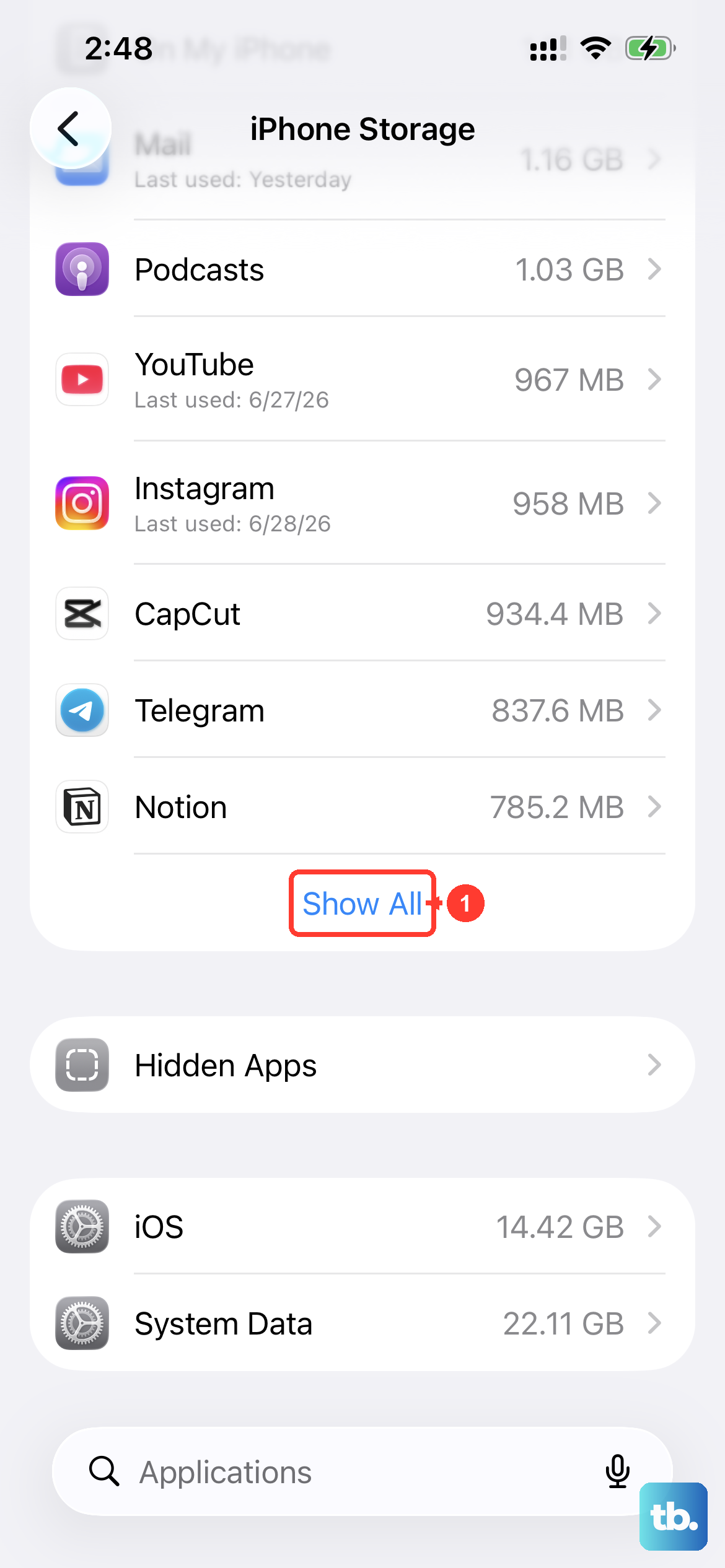
Your iPhone 14 generates its own storage suggestions and lists them near the top of the iPhone Storage screen. In Settings > General > iPhone Storage, review the Recommendations section, which often includes options like Offload Unused Apps.
Tap Show All to see every recommendation for your device, then read each description so you understand what it does. From there you can tap Enable to turn a recommendation on, or tap a recommendation to review the specific items you can delete.
Turning on Offload Unused Apps is a particularly low-risk win. It lets your iPhone automatically remove apps you don't use while keeping their documents and data, so the apps come back with your information intact the next time you need them.
Offload or Delete Individual Apps
If you want to target a specific space-hungry app rather than letting iOS choose, you can act on it directly. In Settings > General > iPhone Storage, tap the app you want to manage to open its detail screen.
From there you have two choices, and the difference matters.
- 1.Tap Offload App to free up the storage used by the app while keeping its documents and data, so reinstalling later restores your data.
- 2.Tap Delete App to remove the app and its related data entirely.
Offloading is the safest first choice because you keep all of your data and can reinstall the app whenever you want. Reserve Delete App for apps whose data you genuinely no longer need.
Move Your Photo Library to iCloud and Shrink the On-Device Copies
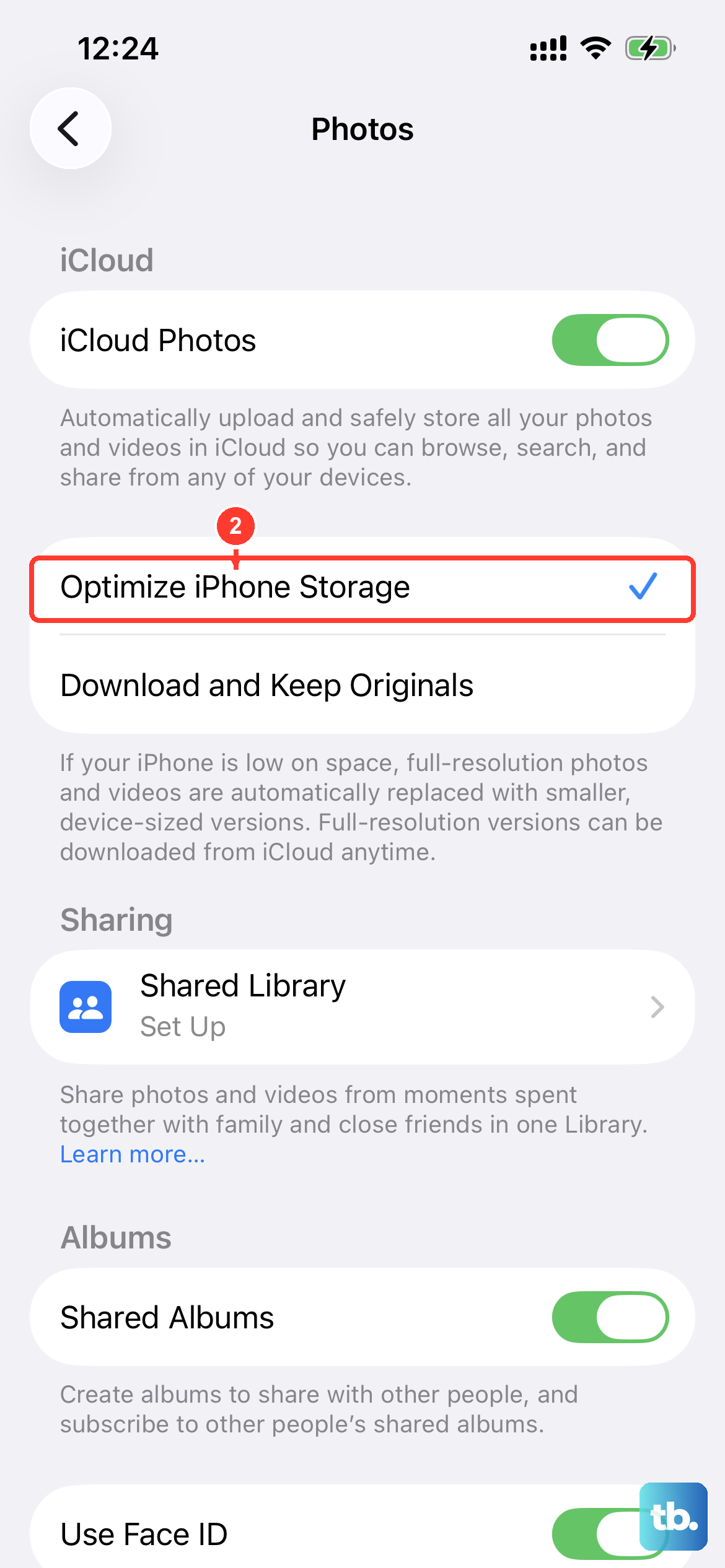
Photos and videos are the most common reason an iPhone 14 fills up, and you can keep your entire library without keeping every full-resolution file on the device. Go to Settings, tap your name, tap iCloud, then tap Photos and turn on Sync this iPhone. If your device is running iOS 15 or earlier, this toggle is labeled iCloud Photos instead.
Once syncing is on, select Optimize iPhone Storage. With this turned on, your full-resolution photos and videos are stored in iCloud while smaller, space-saving copies stay on your iPhone, and the originals download whenever you need them.
This approach frees substantial room without you losing access to a single image. Just remember that your photos still occupy iCloud space, so a very large library may eventually require a larger iCloud plan, covered further down.
Clear Out Old Messages and Their Attachments
Years of conversations, photos, and videos sent through Messages can quietly consume gigabytes. To trim them automatically, go to Settings > Apps > Messages, scroll to Keep Messages, and choose 30 Days or 1 Year. Choosing anything other than Forever auto-removes older conversations along with their attachments.
You can also delete specific items by hand. Open a conversation, touch and hold a message bubble or attachment, tap More, and remove the items you no longer need.
One detail worth knowing is that deleted messages stay in Recently Deleted for a period of time, so they keep using space until that window passes or you remove them there. If you need the room back immediately, clear the Recently Deleted area as well.
Restart the iPhone if the Storage Number Seems Stuck
Sometimes you free up space but the available-storage figure doesn't update, or the device behaves sluggishly while you work. A restart often resolves these temporary hiccups.
For a normal restart, press and hold either volume button and the side button until the power-off slider appears, drag the slider, wait 30 seconds, then press and hold the side button until the Apple logo appears.
If your iPhone 14 is frozen and won't respond, perform a force restart instead. Press and quickly release Volume Up, press and quickly release Volume Down, then press and hold the Side button, releasing it when the Apple logo appears.
Install the Latest iOS Update
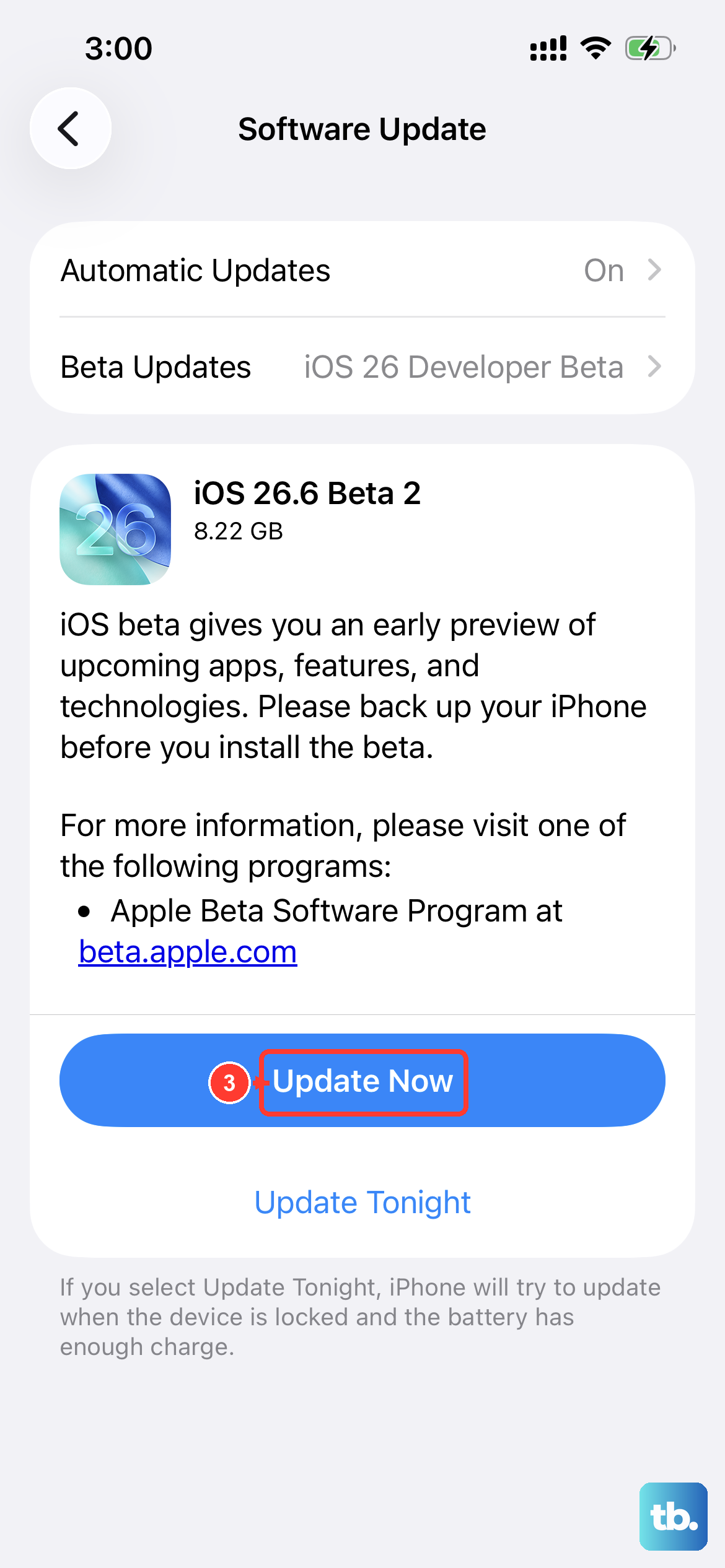
Software updates can improve how your iPhone handles storage and resolve bugs that cause space to be miscounted or held onto. Go to Settings, tap General, then tap Software Update.
If an update is available, tap Download and Install and follow the onscreen instructions. Your data and settings remain unchanged during the update, so this is a safe step to take whenever you are troubleshooting storage behavior.
Add More iCloud Storage if You Still Need Room
If your photos, files, and backups need more room than the free iCloud allowance, you can expand it rather than delete content you want to keep. Open Settings, tap your name, tap iCloud, then tap Upgrade to iCloud+. Alternatively, tap Storage, then Change Storage Plan or Get More Storage.
Choose a plan and follow the onscreen instructions to complete the upgrade. This moves data off the device and into iCloud instead of removing it, which is the right move when you have already optimized photos and cleaned up apps but simply own more than the device can hold locally.
Back Up, Then Erase All Content and Settings as a Last Resort
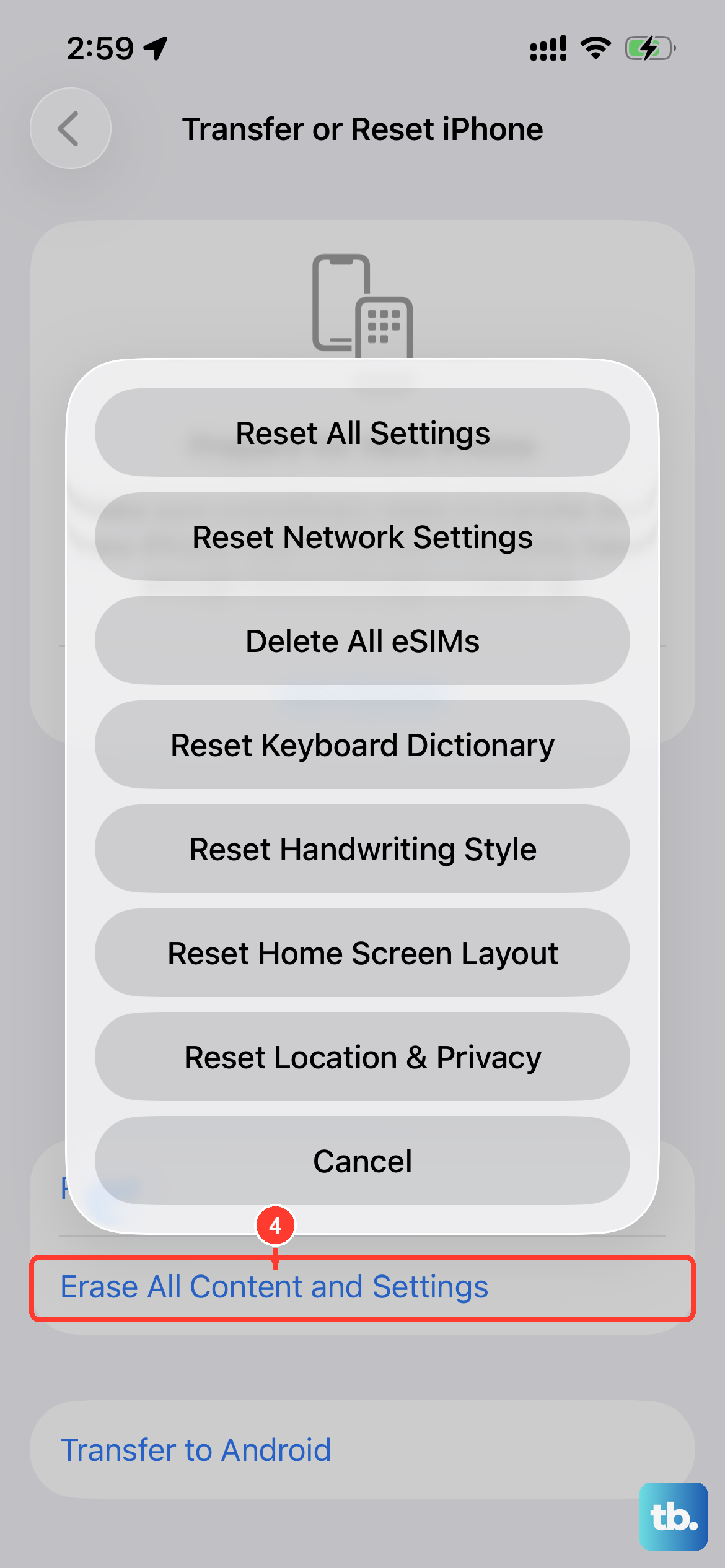
If nothing else clears enough space and you want a genuinely clean start, you can erase the iPhone and restore your data afterward. Because this step permanently removes everything on the device, treat it as the final option and prepare carefully.
First, create a backup of your iPhone, because erasing cannot be undone and anything not backed up will be lost. Then follow the official sequence.
- 1.Go to Settings > General > Transfer or Reset iPhone > Erase All Content and Settings.
- 2.Tap Continue.
- 3.Choose whether to keep or delete your eSIM.
- 4.Enter your device passcode and your Apple Account password.
This permanently erases everything on the iPhone, so only do it after you have a verified backup in place. Once the device restarts, you can restore your content, settings, and apps from that backup. If your storage problems persist after all of these steps, contact Apple Support for further help.
Frequently Asked Questions
What is the difference between offloading and deleting an app?
Offloading an app frees up the storage the app itself uses while keeping its documents and data, so reinstalling it later restores your data. Deleting an app removes the app and its related data entirely. Offloading is the safer first choice when you want to reclaim space without losing anything.
Will turning on Optimize iPhone Storage delete my photos?
No. With Sync this iPhone (or iCloud Photos on iOS 15 or earlier) turned on and Optimize iPhone Storage selected, your full-resolution photos and videos are stored in iCloud while smaller, space-saving copies stay on your iPhone. The originals download whenever you need them, so you keep access to your whole library.
Why do my deleted messages still seem to take up space?
Deleted messages stay in Recently Deleted for a period of time, so they keep using storage until that window passes or you remove them there manually. If you need the space back right away, clear the Recently Deleted area in Messages.
Does updating iOS erase my data when I'm low on storage?
No. When you go to Settings > General > Software Update and tap Download and Install, your data and settings remain unchanged. Updating can also improve how your iPhone handles storage and fix related bugs.
What should I do if none of these steps frees enough space?
If the built-in tools and an iCloud upgrade still leave you short, back up your iPhone first, then go to Settings > General > Transfer or Reset iPhone > Erase All Content and Settings to start fresh and restore from your backup. If problems persist after that, contact Apple Support.