You lined up the perfect shot on your iPhone 14, tapped the shutter, and the photo came back soft, hazy, or out of focus. Maybe every picture looks slightly muddy, maybe only the rear camera is affected, or maybe the live preview itself looks foggy before you even press capture. Camera blur on the iPhone 14 is almost always fixable at home, and the cause is usually something simple sitting in front of the lens rather than a broken camera module. The fixes below start with the quickest, safest checks and only move toward a factory reset or a service visit if nothing else works.
Start With What Is Sitting In Front Of The Lens
Before you touch any settings, look at what is physically covering the rear cameras. A thick case lip, a stick-on lens protector, a screen film that wraps around the back, or a magnetic clip-on lens can all sit just close enough to the camera to soften every shot. According to the official support guidance, you should remove any case, film, or accessory (such as a polarizer, extender, or magnifier) that might block the camera or flash or that places a magnet near the camera.
Take the obstruction off completely, then open the Camera app and take a test photo of something with clear detail, like text on a page.
If the blur disappears, the accessory was the culprit, and you can either reposition it so it no longer overlaps the lenses or replace it with one that fits the iPhone 14 properly.
Wipe The Lens The Way Apple Recommends
Fingerprints, grease, pocket lint, and dust on the lens cover scatter light and create exactly the kind of haze and softness that looks like a focus problem. The official guidance is direct here. If the photo is blurry, clean the front and back camera lenses with a microfiber cloth.
A dry microfiber cloth lifts oils without leaving streaks, and you should avoid paper towels or your shirt, which can smear the residue around or scratch the cover glass.
On supported models, the iPhone can also detect a smudged lens and suggest you clean it, a feature Apple calls Lens Cleaning Hints.
If you want to check or change that behavior, it lives under Settings > Camera.
After wiping the lenses, snap another test shot and compare it to the blurry one before you move on.
Tell The Camera Exactly Where To Focus
Sometimes the iPhone 14 is perfectly sharp, just not on the thing you wanted. The camera may lock onto the background while your subject goes soft, which reads as blur even though autofocus is working fine. You can override this yourself in the Camera app.
Frame your shot, then tap the screen where you want to move the focus area.
Next to the focus area, drag up or down to adjust the exposure if the image is too bright or too dark.
To keep focus and exposure fixed on a subject, touch and hold the focus area until you see AE/AF Lock.
Tap the screen again to unlock settings when you are done.
Setting focus manually is the fastest fix when only some of your photos look blurry, particularly close-up shots where the camera keeps guessing wrong about your subject.
Give The Phone A Normal Restart
If your photos were sharp until recently and nothing physical is in the way, a temporary software glitch may be holding the camera back. A standard restart clears that without touching any of your data or settings. The iPhone 14 uses Face ID, so it follows the Face ID restart sequence.
Press and hold either volume button and the side button until the power-off slider appears.
Drag the slider, then wait 30 seconds for your device to turn off.
To turn it back on, press and hold the side button (on the right side of your iPhone) until you see the Apple logo.
Once the phone is back up, open the Camera app and check whether the preview and your test shots look sharp again.
Force Restart A Frozen Or Black Camera Preview
A normal restart works when the phone is responsive. If the Camera app is frozen, the preview is stuck on black, or the image is blurry and the controls will not react, you need a force restart instead. This is a different button sequence, and getting the order right matters, so follow it exactly as written.
- 1.Press and quickly release the volume up button.
- 2.Press and quickly release the volume down button.
- 3.Press and hold the side button until you see the Apple logo.
The screen may go dark for a moment before the Apple logo appears, and that is normal. A force restart does not erase anything on your iPhone 14, so it is safe to use whenever the camera is unresponsive.
Install The Latest Version Of iOS
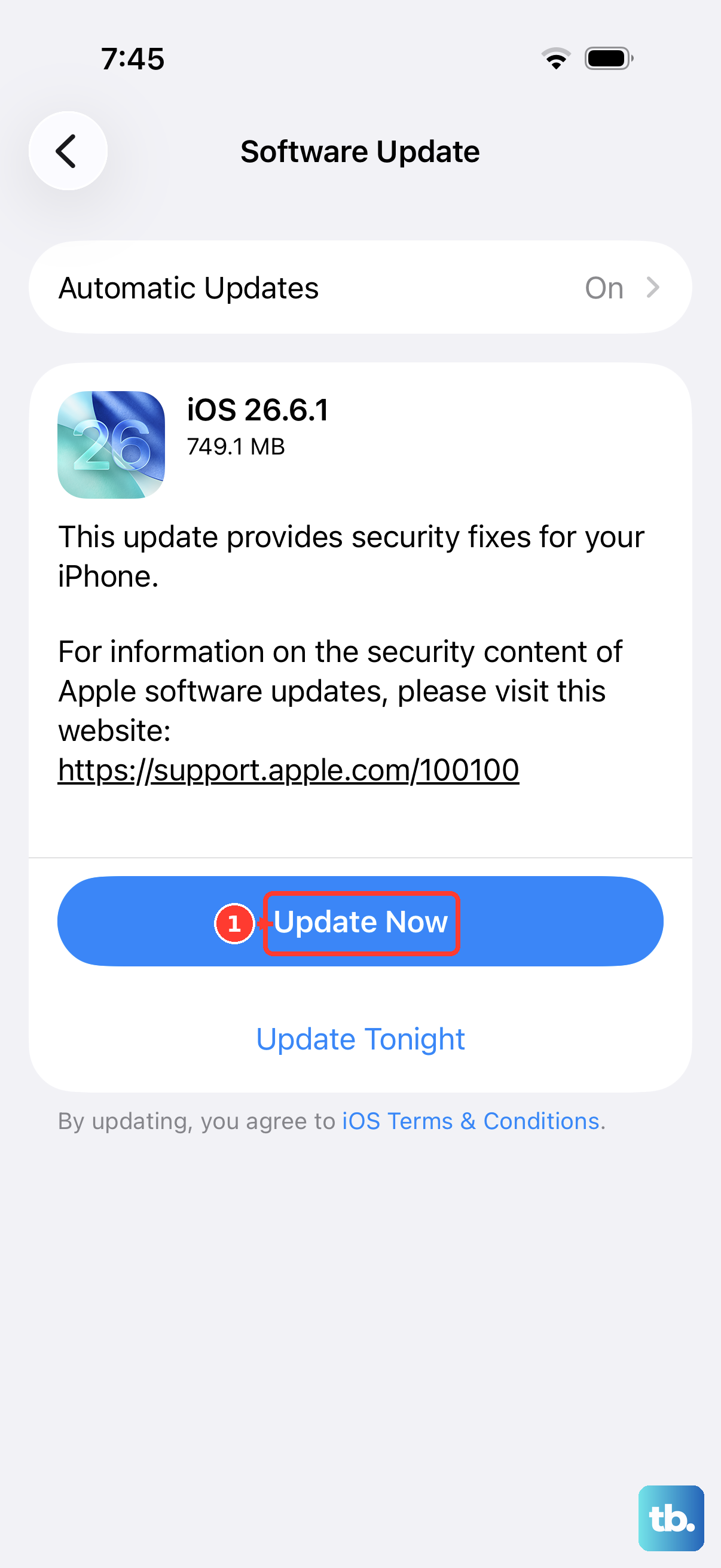
Software bugs that affect the camera are often fixed in iOS updates, and the official camera troubleshooting advice is to update your iPhone to the latest version of iOS. The iPhone 14 is officially compatible with iOS 26, so you can stay current on this model.
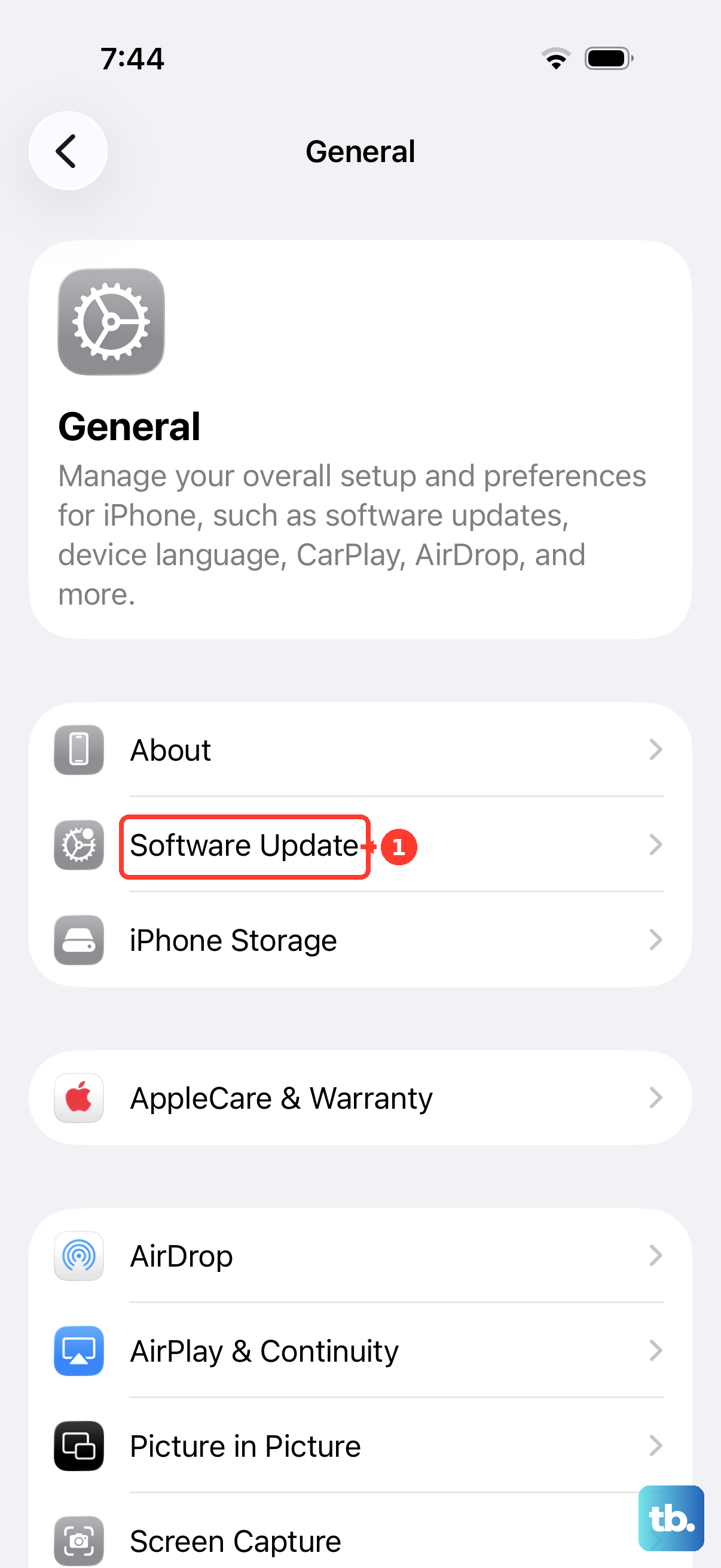
Go to Settings > General, then tap Software Update.
If an update is available, tap Download and Install.
You do not have to worry about losing photos or preferences here. When you update to the latest version of iOS, your data and settings remain unchanged. After the update finishes and the phone restarts, take a fresh test photo to confirm whether the blur is gone.
Check Both Cameras And The Flash To Pinpoint The Problem
If the blur is still there, it helps to figure out whether it affects one camera or both before you go any further.
Test by switching between the front and rear cameras and taking a photo with each, then check the LED by turning on the flashlight in Control Center.
If only the front camera or only the rear camera looks blurry, that points to one specific module rather than a general software issue.
If both are soft, or if the flash does not light up at all, note that down. This information is genuinely useful if you end up contacting support, because it narrows the diagnosis before anyone touches the hardware.
Erase All Content And Settings As The Last Software Step
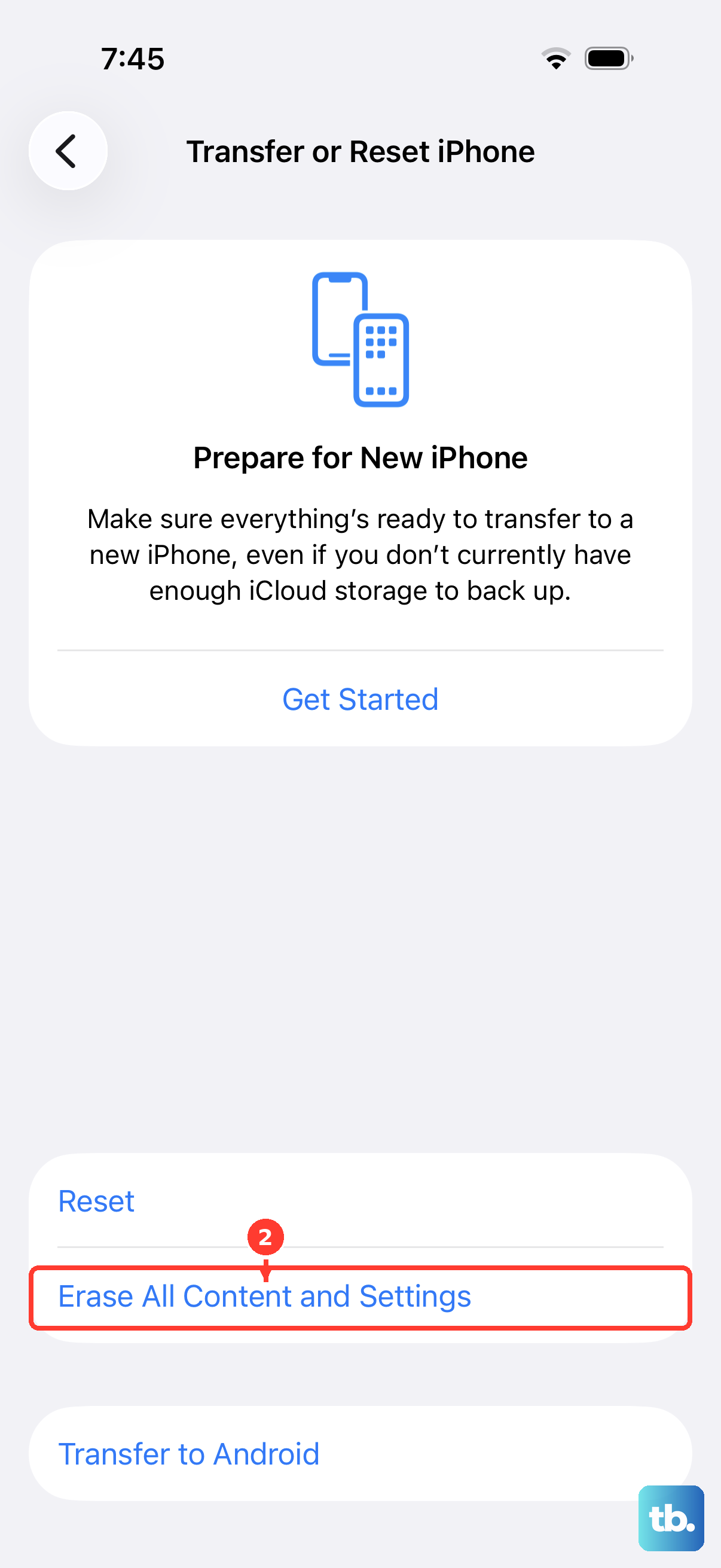
If the blur seems software-related and survived every step above, a factory reset is the final do-it-yourself option. This is a destructive step, so treat it carefully. Erasing all content and settings deletes everything on your iPhone 14, which is why a backup comes first.
Create a backup before you reset.
According to the official guidance, you can restore content, settings, and apps from that backup to a new or newly erased iPhone, so your photos and data are recoverable afterward.
You can back up to iCloud or to a computer first.
Make and confirm a complete backup of your iPhone 14.
Go to Settings > General > Transfer or Reset iPhone > Erase All Content and Settings.
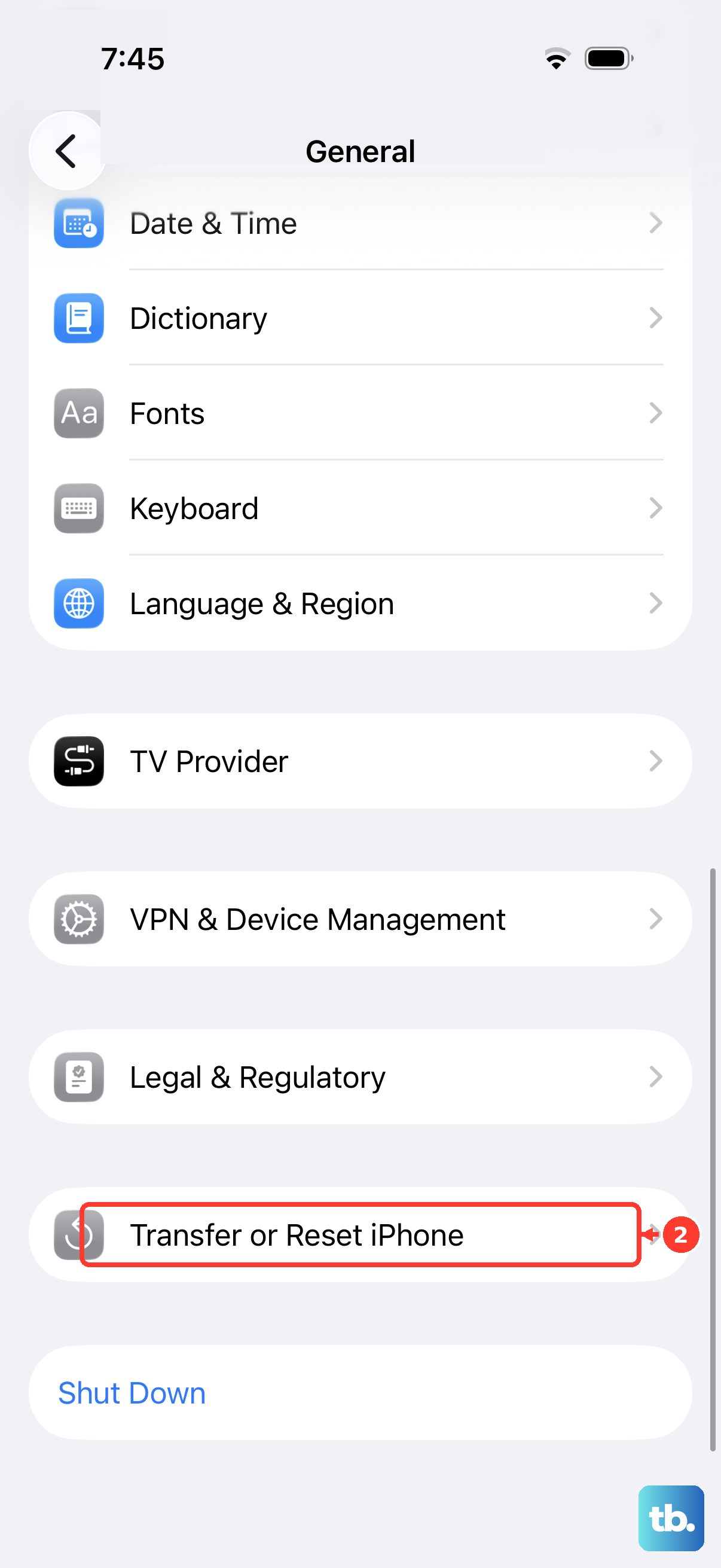
Follow the on-screen prompts, then set the phone up and test the camera before restoring everything.
Testing the camera on the freshly erased phone, before you reload your backup, tells you whether the problem was software you were carrying over.
When To Stop Troubleshooting And Get Service
If the photos are still blurry after you have removed obstructions, cleaned the lenses, set focus manually, restarted, updated, and erased the device, the issue is likely hardware. The official guidance is clear that if the camera or flash still isn't working properly, you might need service. On the iPhone 14, the camera or lens module itself can need repair, and that is not something you can fix at home.
At that point, reach out to Apple Support or an Apple Authorized Service Provider.
Bring along what you learned from testing both cameras, since knowing whether the blur affects the front camera, the rear camera, or both speeds up the diagnosis.
Frequently Asked Questions
Why does only my iPhone 14 rear camera look blurry?
Start by removing any case, film, or magnetic lens accessory covering the rear cameras, then clean the lenses with a microfiber cloth, since the rear lens cover collects fingerprints and grease easily. Use the front-and-rear camera test to confirm the blur is isolated to the back camera, which helps if you later need service.
Can I fix iPhone 14 blur by switching to Macro mode?
No. The standard iPhone 14 does not list Macro photography among its features, so Macro is a Pro-only capability on this generation, available on the iPhone 14 Pro and Pro Max. On a standard iPhone 14, focus on close subjects by tapping the screen to set the focus area instead.
Will updating iOS or restarting my iPhone 14 delete my photos?
No. When you update to the latest version of iOS, your data and settings remain unchanged, and both a normal restart and a force restart leave your data intact. Only Erase All Content and Settings deletes your photos, which is why you should back up before using that step.
What is the correct way to force restart an iPhone 14 if the Camera app freezes?
Press and quickly release the volume up button, press and quickly release the volume down button, then press and hold the side button until you see the Apple logo. This sequence is for Face ID iPhones, including the iPhone 14, and it does not erase any of your data.
What should I do if my iPhone 14 camera is still blurry after every fix?
If photos remain blurry after cleaning, removing obstructions, restarting, updating, and erasing the device, the camera hardware or lens module may need repair. The official guidance is that you might need service, so contact Apple Support or an Apple Authorized Service Provider.