You set your iPhone 13 down on its pad expecting the familiar chime and the Charging icon, but nothing happens. The phone just sits there, battery percentage frozen, while a cable would have topped it up without a fuss. The good news is that wireless charging on the iPhone 13 is real and supported, so a dead pad usually points to a setup, alignment, or software hiccup rather than a broken phone.
Every iPhone 13 model handles wireless charging. Apple's tech specs list MagSafe up to 15W, Qi2 up to 15W, and standard Qi up to 7.5W. The iPhone 13, 13 Pro, and 13 Pro Max reach up to 15W on MagSafe, while the iPhone 13 mini peaks at up to 12W. Work through the nine checks below in order, starting with the quickest and safest, and save the erase and service steps for last.
Make Sure It Is the Pad and Not the Whole Phone
Before you blame the charger, confirm that wireless charging specifically is failing. The most common surprise here is a connected cable. Apple states that "your iPhone won't charge wirelessly when connected to USB." Unplug any cable or accessory before you test the pad.
It is also worth knowing that when USB-C or Lightning accessories such as headphones are connected, MagSafe charging is limited to 7.5W, so disconnect those too for a clean test.
When wireless charging is working, your iPhone should start charging a few seconds after you place it on the charger, and you should see the Charging icon in the status bar. Watch for that icon as your signal of success. If a cable charges the phone fine but the wireless pad never shows the Charging icon, the problem is specific to wireless charging or the setup around it, not your battery.
Give the Charger Enough Power to Work
A wireless charger can only deliver what its power source provides. Apple's guidance is to "connect your charger to power" and "use the power adapter that came with your accessory or a power adapter recommended by the manufacturer."
For a MagSafe Charger on iPhone 13, that means a 20W or greater Apple USB-C power adapter, or a compatible third-party USB-C adapter, to reach up to 15W (the iPhone 13 mini peaks at up to 12W). An underpowered adapter, or charging from a low-power computer or USB port, can cause slow charging or no charging at all.
Then check the physical chain. Make sure the charging cable, the USB adapter, and the wall outlet all have firm connections, and try a different outlet if you are unsure the first one is live.
Line the iPhone Up in the Center
Placement matters more than it looks. Apple says to place your iPhone on the charger with the display facing up, and "for best performance, place it in the center of the charger or in the location recommended by manufacturer." A phone that is even slightly off the coil will rest on the pad without ever drawing power.
If you are using a MagSafe Charger, Apple's instruction is to "place your MagSafe Charger face up...on a flat surface, clear of any metal objects or other foreign material." Let the magnets pull the phone into position, and do not fight that alignment.
Poor alignment is one of the most common reasons a phone sits on a pad doing nothing, so nudge it until you see the Charging icon appear in the status bar.
Clear Out Anything Stuck Between the Phone and Pad
Wireless charging needs a clean handoff between the phone and the charger. Anything sandwiched between them can reduce performance or block charging entirely, so the back of the phone and the face of the pad both need to be clear.
That includes wallet attachments and cards. Apple specifically cautions: "Don't place credit cards, security badges, passports, or key fobs between your iPhone and MagSafe Charger, because this might damage magnetic strips or RFID chips in those items."
Take a wallet, cards, grip accessory, or a thick or metal case off the back before charging. A blocked back is an easy fix that is simple to overlook when the phone is in a heavy case.
Use a Recommended Charger and a Tidy Surface
Not every pad you place the phone on is going to behave. For MagSafe, Apple says to set the charger "on a flat surface, clear of any metal objects or other foreign material." Loose change, keys, or a magnetic mount sitting on the pad can block charging.
If you are on a Qi charger rather than MagSafe, remember the figures. The iPhone 13 supports Qi up to 7.5W and Qi2 up to 15W. Use a charger that its own manufacturer recommends, paired with the power adapter that manufacturer specifies, so the pad gets the input it was designed for.
Let It Cool If the Phone or Charger Feels Warm
Heat can quietly slow a charge. If the phone feels hot or charging seems to stall partway, give it a chance to cool before assuming there is a fault.
Move the iPhone and the charger to a cooler spot, away from direct sunlight or other heat sources, and give them a few minutes. Once the temperature drops, try charging again and watch for the Charging icon.
Install the Latest Version of iOS
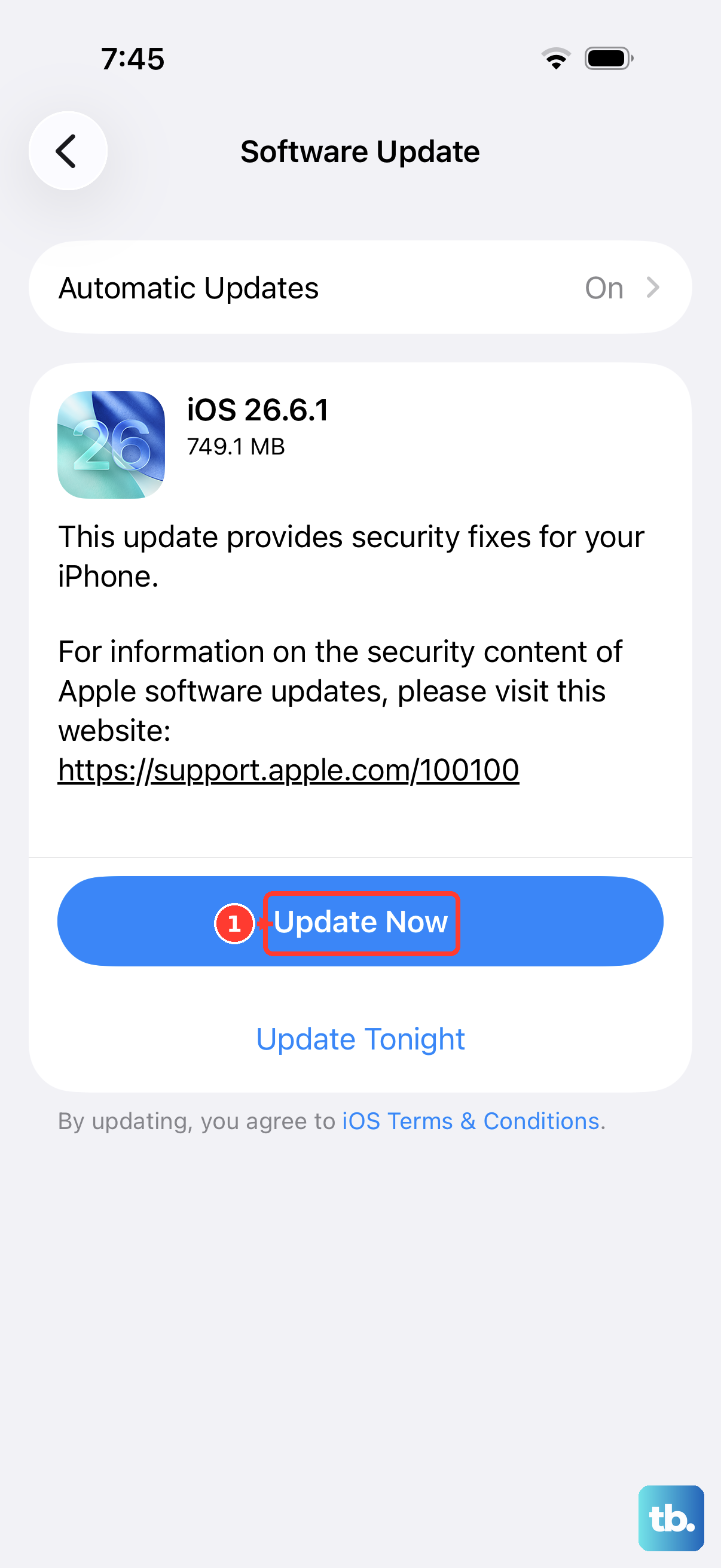
Apple's troubleshooting advice for charging includes making sure you have the latest version of iOS. Updates can resolve charging behavior, and this is one of the safest steps on the list.
- 1.Open Settings.
- 2.Tap General.
- 3.Tap Software Update.
- 4.If an update is available, tap Download and Install.
You can do this without worrying about your files. Apple states, "Your data and settings remain unchanged when you update iOS."
Force Restart the iPhone 13
If the phone is unresponsive or still will not charge wirelessly after the steps above, a force restart can clear a stuck state. This works on every iPhone 13 model and follows Apple's verified sequence for iPhone 8 and later.
- 1.Press and quickly release the volume up button.
- 2.Press and quickly release the volume down button.
- 3.Press and hold the side button. When the Apple logo appears, release the side button.
Set the phone back on the charger after it restarts and watch for the Charging icon. A force restart does not erase anything, so it is a safe step to try at this stage.
Confirm It Is Wireless Only, Then Erase as a Last Software Step
Before going further, do a clean comparison test. Charge with a known good cable and wall adapter, and check the cable and adapter for damage such as breakage or bent prongs. Remove any debris from the charging port while you are at it.
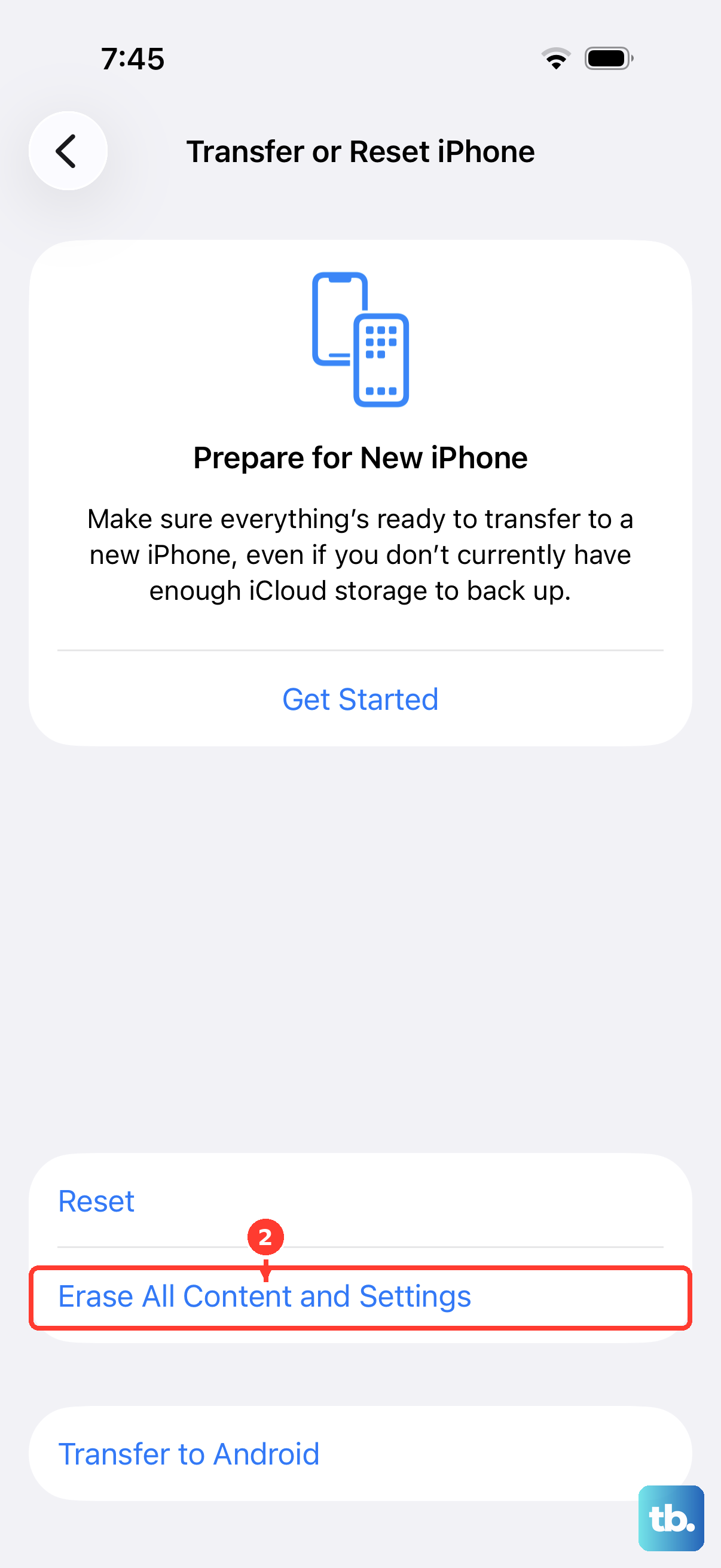
If cable charging works but wireless never does, the issue is wireless specific. As a final software-side step, you can erase the iPhone through Settings > General > Transfer or Reset [iPhone] > Erase All Content and Settings.
Warning: this erases all of your content and settings, so back up your iPhone first because you will need that backup to restore your content, settings, and apps. During the process you enter your device passcode and Apple Account password, and you can choose to keep or delete your eSIM. Deleting the eSIM means contacting your carrier to reactivate cellular, so keep it unless your carrier tells you otherwise.
When to Contact Apple Support or Book Service
If you have worked through the steps and the iPhone still will not charge wirelessly, it may need a closer look. At that point the most reliable move is to reach Apple directly rather than keep retrying the same checks.
You have several ways to get help. Contact Apple Support, book a Genius Bar or Apple Authorized Service Provider appointment, or arrange a mail-in repair. Keeping your iPhone backed up before any service means your data is safe whatever the outcome.
Frequently Asked Questions
Does the iPhone 13 support wireless charging?
Yes. All four iPhone 13 models support wireless charging. Apple's tech specs list MagSafe up to 15W, Qi2 up to 15W, and standard Qi up to 7.5W. The iPhone 13, 13 Pro, and 13 Pro Max reach up to 15W with MagSafe, while the iPhone 13 mini peaks at up to 12W.
Why will my iPhone 13 not charge wirelessly even though it is on the pad?
The most common causes are a connected USB cable (your iPhone will not charge wirelessly while connected to USB), poor alignment off the center of the pad, something between the phone and charger such as a wallet, cards, or a thick case, an underpowered adapter, or metal and debris on the charging surface. Check those first, then look for the Charging icon in the status bar to confirm it is working.
What power adapter do I need for MagSafe on the iPhone 13?
Use a 20W or greater Apple USB-C power adapter, or a compatible third-party USB-C adapter, to reach up to 15W (the iPhone 13 mini peaks at up to 12W). Charging from a low-power computer or USB port can result in slow charging or no charging.
My iPhone 13 charges slowly on the pad, what is going on?
Slow wireless charging often comes down to power and accessories. An underpowered adapter caps how fast the pad can deliver charge, and when USB-C or Lightning accessories such as headphones are connected, MagSafe charging is limited to 7.5W. Disconnect accessories and use a 20W or greater adapter for full speed.
Will erasing my iPhone 13 fix wireless charging?
Erase All Content and Settings is a last software-side step, useful only if you suspect a software issue and cable charging works while wireless never does. It erases all of your content and settings, so back up first because you will need that backup to restore your content, settings, and apps. If the problem persists after that, the phone likely needs service.