You go to make a call on your iPhone 13 and the person on the other end says they can hear nothing but a faint, muffled mumble, or worse, total silence. Maybe your voice memos play back empty, or video clips you just shot have no sound. A microphone problem on the iPhone 13 is frustrating because it can break calls, FaceTime, recordings, and any app that listens to you, yet most of the time it traces back to something simple you can fix yourself in a few minutes.
Start by confirming the basics with a free online mic test. It shows a live level meter and lets you hear a short playback, so you know in seconds whether any signal is coming through.
The iPhone 13 has built-in microphones in more than one place, and it supports modern features like Voice Isolation and Wide Spectrum microphone modes. Work through the fixes below in order, starting with the easiest and safest, so you only reach the data-erasing step or a service appointment if nothing earlier solves it.
Clear the case, film, and mic openings first
Apple's very first recommendation is the most overlooked one. Remove any screen protectors, films, or cases from your iPhone, then clear any debris from the microphone openings. A snug case lip, a thick protector, or a plug of lint or pocket dust over a mic hole is one of the most common reasons audio sounds muffled or disappears entirely.
Because the iPhone 13 has microphone openings in more than one place, check the openings at the bottom edge as well as those near the top of the phone. Gently clear any visible grime from those openings, then test again before moving on.
Find out which microphone is actually failing
Before you change settings, narrow down whether one mic is broken or all of them are. The iPhone 13 uses different microphones for different tasks, so this quick test points you in the right direction.
To check the mic used for phone and FaceTime calls, do the following:
Open Voice Memos.
Tap the Record button.
Speak at the bottom of your phone.
Stop the recording and play it back.
To check the front and rear microphones used for speakerphone and video, do the following:
Open Camera.
Record a video while speaking at the top of your iPhone.
Switch cameras and repeat.
Play back each clip.
If one test sounds fine and another sounds dead, you have a specific mic at fault. If every test is silent or muffled, the problem is more likely software or debris than a single failed component.
Confirm the app is allowed to use your microphone
If the trouble shows up in only one app (a messaging app, a game, a recorder) and calls are otherwise fine, the app may simply lack permission to hear you. iOS controls this per app.
Go to Settings > Privacy & Security > Microphone, then make sure that the app is enabled. If the app already has permission, or it is not listed at all, and it still can't hear you, the issue is on the app's side; contact the app developer for help.
Check your Mic Mode during a call
The iPhone 13 lets you switch how it processes your voice on calls and recordings, and the wrong mode can make you sound off in a noisy room. This choice affects only the app you are currently using.
During a call or recording, do the following:
Swipe down from the top-right corner to open Control Center.
Tap [App] Controls.
Under Audio & Video, select a Mic Mode.
Voice Isolation prioritizes your voice and blocks out ambient noise; Standard uses standard voice processing; Wide Spectrum leaves ambient noise unfiltered. If callers say background noise is drowning you out, try Voice Isolation. Note that Voice Isolation on phone calls requires iOS 16.4 or later.
Disconnect Bluetooth accessories that may be hijacking the audio
If callers can't hear you but your iPhone seems fine otherwise, a paired headset, earbuds, or car system may be capturing the audio instead of the phone's built-in microphone. Temporarily turning Bluetooth off forces the iPhone to use its own mic so you can confirm.
You can do this quickly from Control Center: open Control Center and tap the Bluetooth button so the icon dims and grays out. For a fuller disconnect, go to Settings > Bluetooth, then turn off Bluetooth. Test the call again with everything disconnected.
Restart the iPhone to clear temporary glitches
A simple restart clears temporary software hiccups that can interfere with audio, and it is completely safe for your data. On a Face ID iPhone like the iPhone 13, the sequence is specific.
Press and hold either volume button and the side button until the power-off slider appears.
Drag the slider, then wait 30 seconds for your device to turn off.
Press and hold the side button until you see the Apple logo.
Force restart if the iPhone is frozen or unresponsive
If the screen is stuck or the phone won't respond to the normal restart, a force restart is the next step. This does not erase your content; it just forces the device to reboot. Follow the sequence exactly, because the steps differ from older iPhones.
- 1.Press and quickly release the volume up button.
- 2.Press and quickly release the volume down button.
- 3.Press and hold the side button until you see the Apple logo (this might take longer than 10 seconds).
Install the latest iOS update
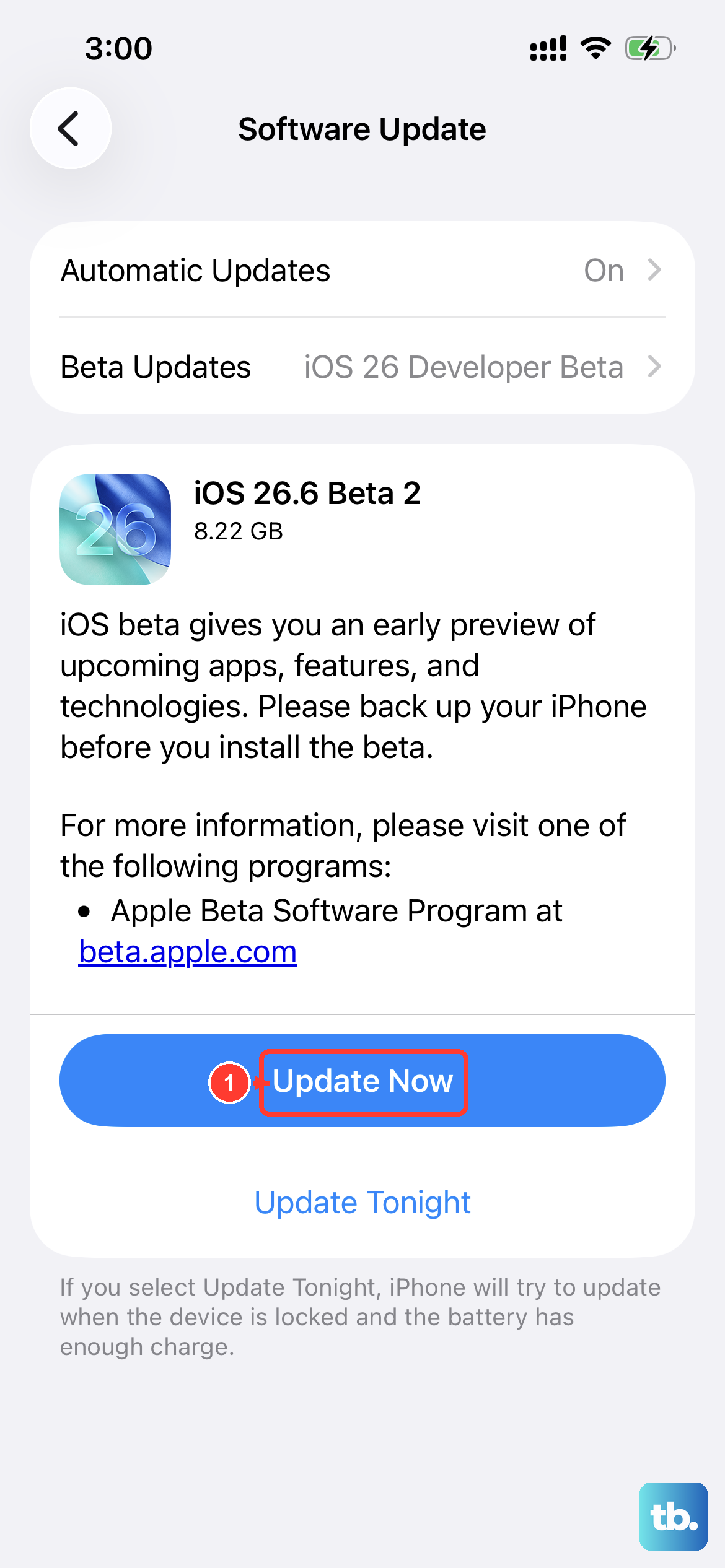
Keeping your software current fixes bugs that can affect audio, and the iPhone 13 supports iOS 26, so there is no reason to fall behind. Before updating, connect to Wi-Fi and power, and back up your iPhone.
Go to Settings > General > Software Update.
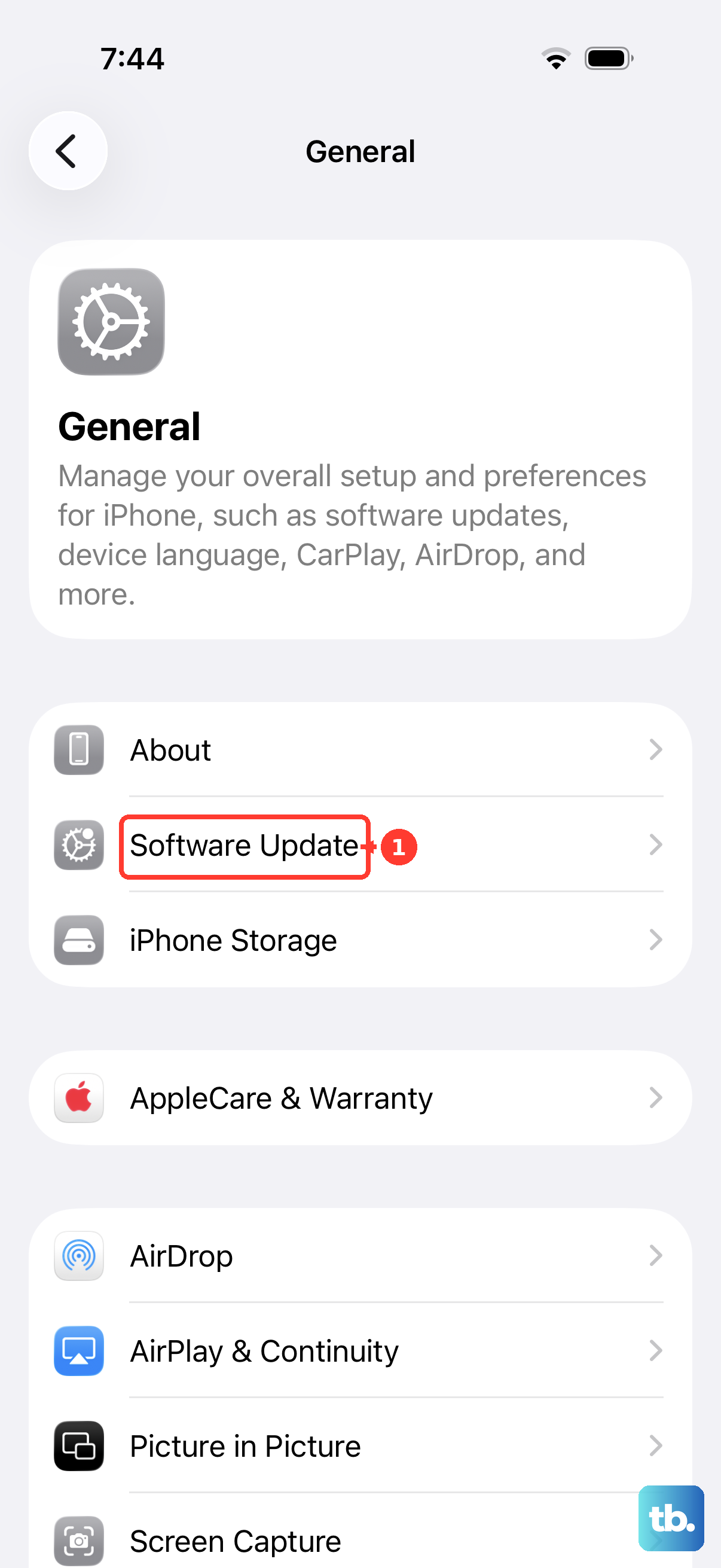
If an update is available, tap Download and Install, then follow the onscreen instructions.
Once the phone restarts, retest your microphone with Voice Memos or a call.
Erase and set up as new as the last software step
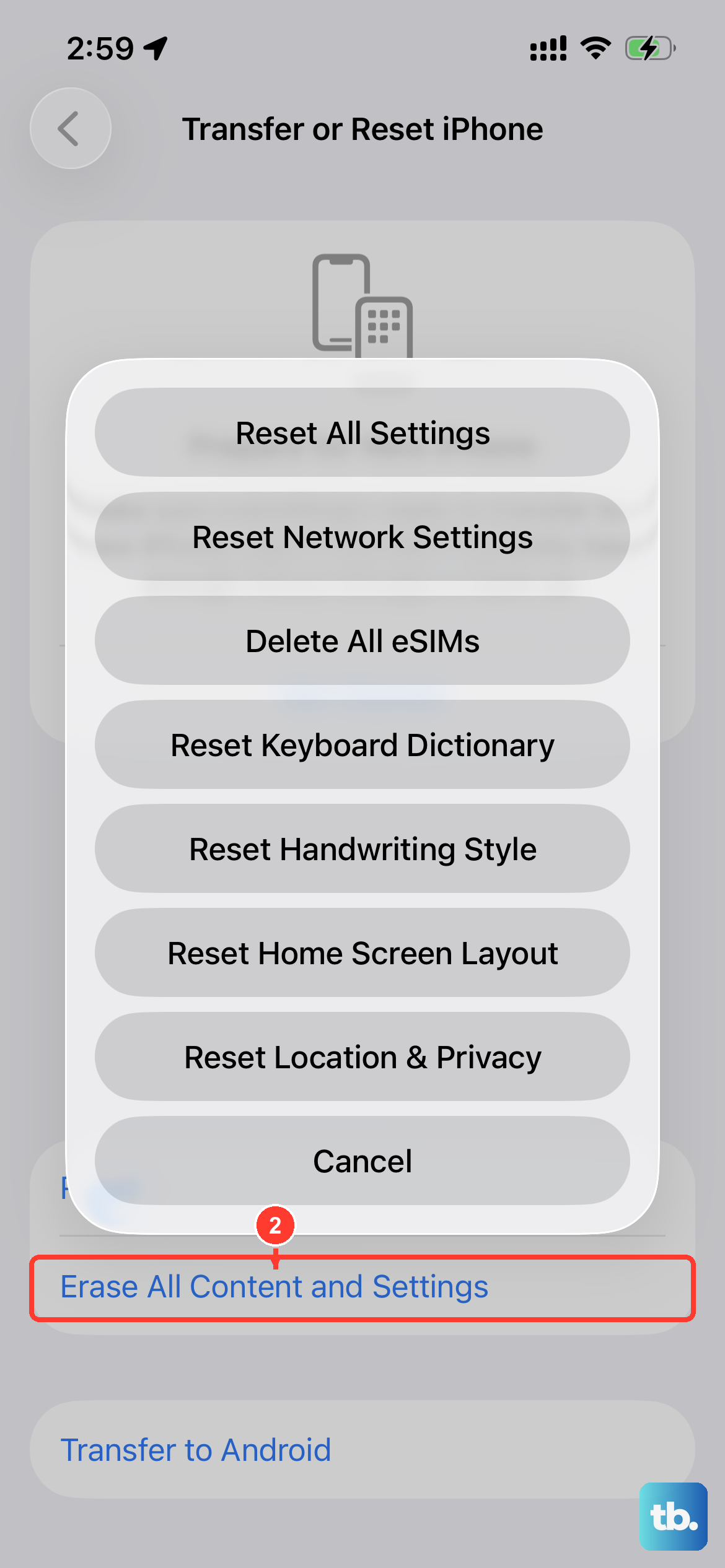
If you have worked through everything above and the mic still fails in software, erasing the iPhone returns it to factory settings and rules out a stubborn configuration problem. This is a serious step that erases all content and settings, so back up your iPhone first so you can restore your data afterward.
Once you have a backup, do the following:
Go to Settings > General > Transfer or Reset iPhone > Erase All Content and Settings.
Tap Continue.
Enter your passcode and Apple Account password when prompted.
After the iPhone restarts, test the microphone before restoring your backup. If the mic works on a clean setup, something in your old configuration was the culprit; if it still fails, the problem is almost certainly hardware.
Get help from Apple Support or book a repair
If you still sound unclear during calls, recordings, or apps after all of these steps, the microphone hardware itself may need service. The official guidance is that you might need service at this point, and it directs you to Apple's support and service options.
You can start a request through Apple Support to describe the symptom and arrange a repair through Apple or an Apple-authorized service provider. Having already identified which microphone fails (from the Voice Memos and Camera tests earlier) will help the technician zero in on the problem faster.
Frequently Asked Questions
Why can people hear me on speakerphone but not on a normal call?
The iPhone 13 uses different microphones for different tasks, so one path can fail while another works. If speakerphone is fine but a normal call is not, run the Voice Memos test (speaking at the bottom) and the Camera test (speaking at the top) to confirm which specific mic is failing.
One app can't hear me but everything else is fine. What should I do?
Check that the app has microphone permission under Settings > Privacy & Security > Microphone and make sure it is enabled. If the app has permission, or it is not listed, and it still can't hear you, contact the app developer, since the issue is on the app's side rather than your iPhone's hardware.
Will updating iOS or erasing my iPhone fix a microphone problem?
It can if the cause is software. Updating to the latest iOS through Settings > General > Software Update fixes bugs that affect audio, and erasing the device clears stubborn configuration issues. Always back up first, especially before Erase All Content and Settings, which removes all content and settings from the phone.
How do I know if my iPhone 13 microphone needs a repair?
If the mic still sounds muffled or silent during calls, recordings, and apps after clearing the openings, checking permissions and Mic Mode, disconnecting Bluetooth, restarting, updating, and erasing, the hardware likely needs service. At that point, contact Apple Support or an Apple-authorized service provider.
Does turning off Bluetooth really matter for the microphone?
Yes. A paired headset or car system can capture your voice instead of the iPhone's built-in mic, so callers hear nothing from the phone. Open Control Center and tap the Bluetooth button to dim it, or go to Settings > Bluetooth and turn it off, then test the built-in mic again.