You tap a text field on your iPhone 13 and nothing happens. Maybe the onscreen keyboard refuses to appear, the keys feel frozen, or letters lag behind your fingers in one app while working fine in another. A keyboard that stops responding makes your phone nearly unusable, but the cause is almost always a software hiccup rather than broken hardware, which means you can usually fix it yourself in a few minutes.
The fixes below are ordered from the safest and quickest to the most involved. Start at the top and stop as soon as your keyboard starts behaving. The later steps erase data, so you only reach those if the simple ones do not work.
Start by giving the stuck app a clean slate
When the keyboard misbehaves in just one app, the app itself may have gotten into a bad state rather than the keyboard. Closing it fully and reopening it clears that temporary glitch without touching anything else on your phone.
From the Home Screen, swipe up from the bottom edge and pause in the middle of the screen to open the App Switcher. Swipe up on the preview of the app where the keyboard is failing to close it completely. Reopen the app and tap a text field to see whether the keyboard responds.
If the keyboard works again, you are done. If it is still unresponsive, or the problem shows up across several apps, move on to a full restart.
Restart the iPhone 13 to clear a system glitch
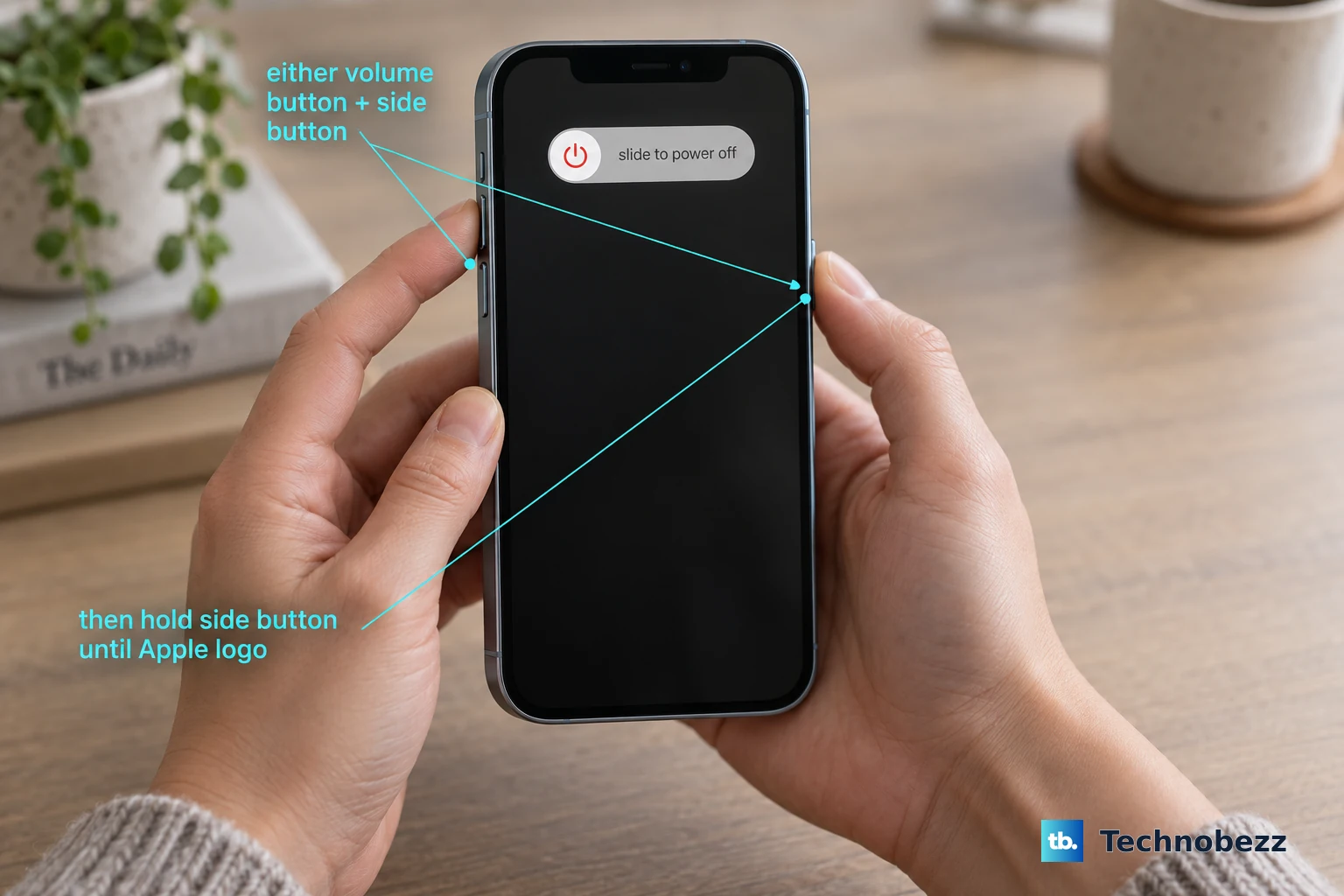
A quick power cycle clears the most common keyboard glitches affecting the whole phone. Because the iPhone 13 has no Home button, the turn-off sequence uses the side and volume buttons together.
Press and hold either volume button and the side button until the power-off slider appears. Drag the slider, then wait 30 seconds for your device to turn off.
To turn it back on, press and hold the side button (on the right side of your iPhone) until you see the Apple logo. Once it boots back up, open any app with a text field and test the keyboard before going further.
Force restart when the screen or keyboard is frozen
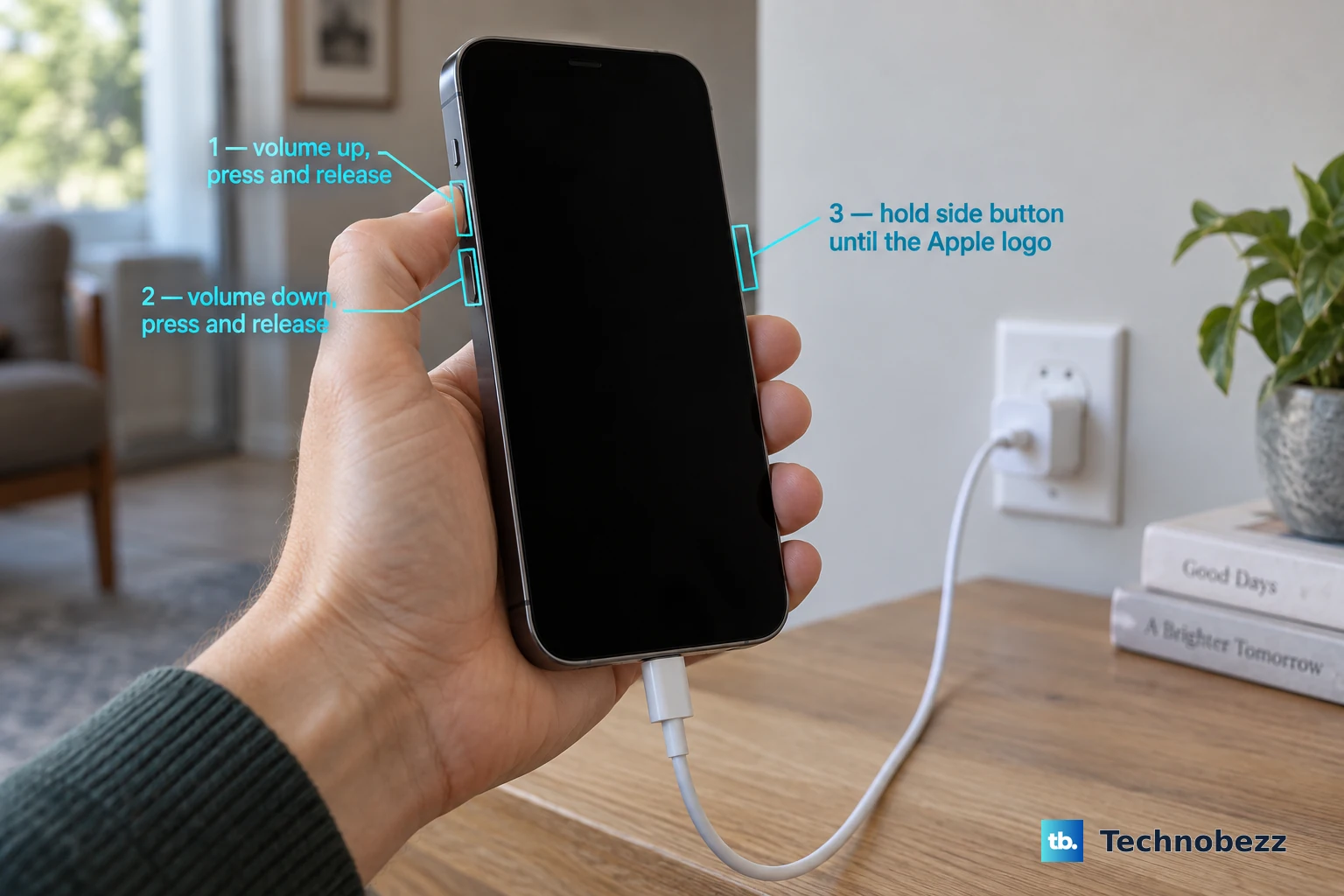
If the iPhone 13 is completely unresponsive and a normal restart will not work, a force restart can bring it back. This is a quick button sequence, and it does not erase anything on your phone.
- 1.Press and quickly release the volume up button.
- 2.Press and quickly release the volume down button.
- 3.Press and hold the side button until you see the Apple logo (this might take longer than 10 seconds).
Keep holding the side button through the blank screen until the Apple logo appears. Let go too early and you will need to start the sequence over.
Install the latest iOS update
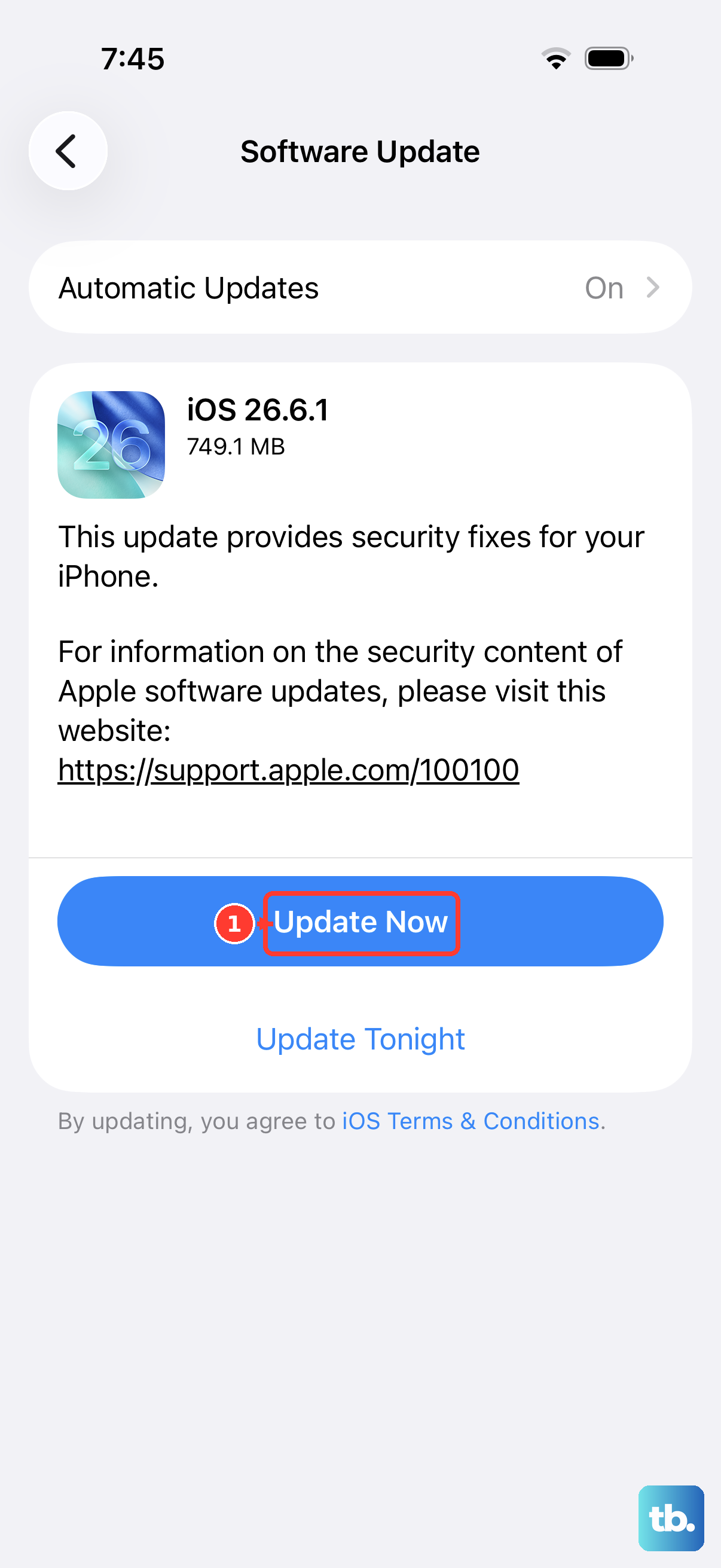
Software bugs are a common cause of keyboard glitches, and Apple frequently ships fixes in iOS updates. Installing the latest version available for your iPhone 13 is one of the most reliable ways to clear a typing problem that survives a restart.
Go to Settings, then tap General and tap Software Update. If an update is available, tap Download and Install, then follow the onscreen instructions.
Keep your iPhone connected to power and Wi-Fi while it updates. After it finishes and restarts, test the keyboard again.
Switch off a misbehaving third-party keyboard
If the trouble only appears when you are using a third-party keyboard you installed, the keyboard app, not your iPhone, is likely the problem. You can switch back to Apple's built-in keyboard or remove the troublesome one entirely.
Open Settings > General > Keyboard. To make sure Apple's keyboard is available, tap Add New Keyboard and select it.
To remove a third-party keyboard, follow these steps. In Settings > General > Keyboard, tap Edit. Tap the remove control next to the keyboard you want to delete. Tap Delete, then tap Done.
With the problem keyboard gone, test typing again using Apple's keyboard. If it works cleanly, the third-party app was the culprit.
Get a Bluetooth keyboard accessory connecting again
The iPhone 13 can pair with external Bluetooth keyboards, and those have their own troubleshooting path separate from the onscreen keyboard. If your external keyboard is not typing, start with the basics before re-pairing.
Keep the accessory and your iPhone close together, turn the accessory off and back on again, and make sure it is on and fully charged or connected to power. Many connection drops clear up with that alone. If the keyboard still will not work, pair it fresh.
Unpair the accessory from your iPhone, then put it back in discovery mode. Pair and connect it again. Once it reconnects, test typing in a text field to confirm the link is working.
Reset All Settings without losing your data
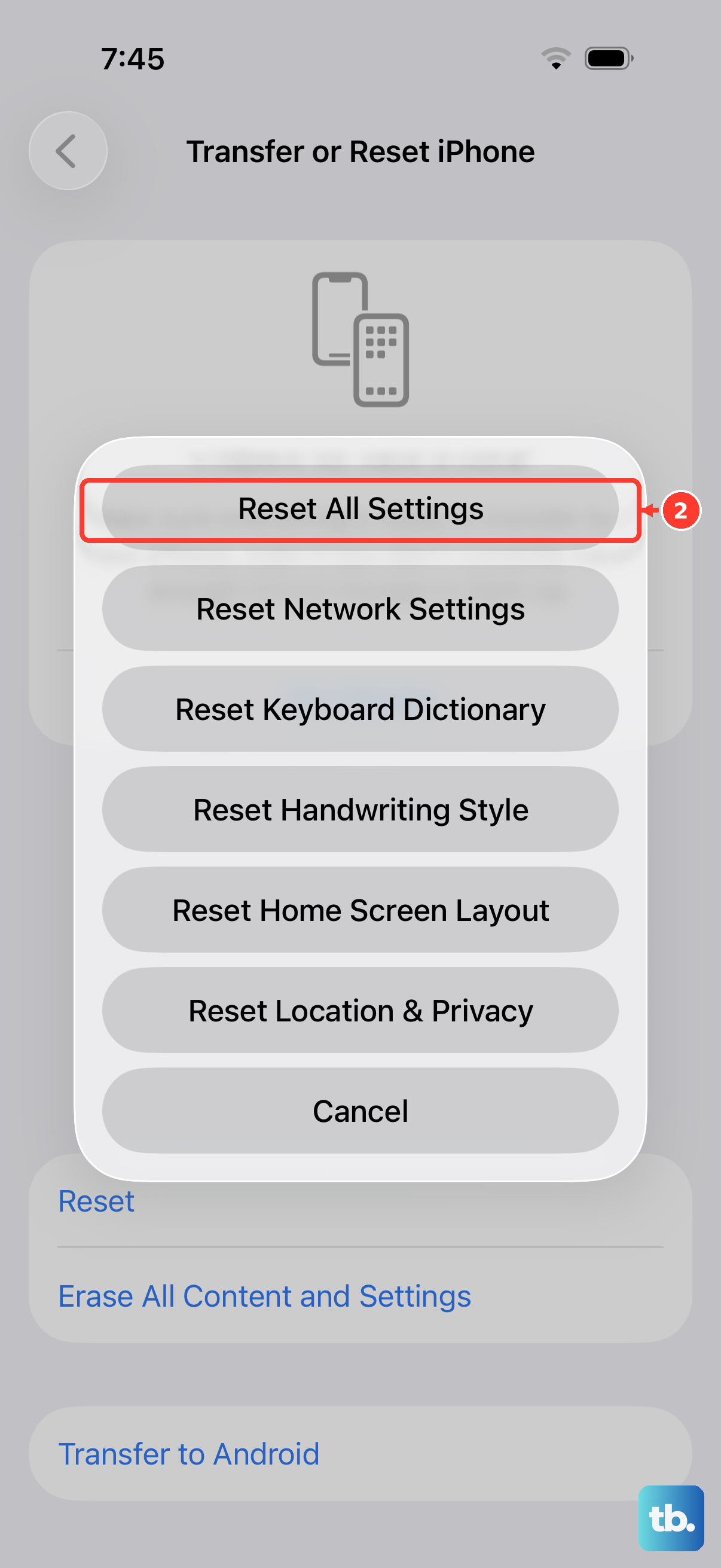
If the keyboard is still misbehaving after the steps above, resetting your system settings can clear a stubborn configuration problem. This option returns settings to their defaults but leaves your personal content untouched.
Open Settings, tap General, then tap Transfer or Reset [device]. Tap Reset, then tap Reset All Settings.
No data or media get deleted, including photos, videos and music; apps and app data; messages and call history; contacts and calendar events; documents and files; and downloaded content. You will need to reconfigure some preferences afterward, such as Wi-Fi passwords and display settings.
Erase all content and settings as a last software step
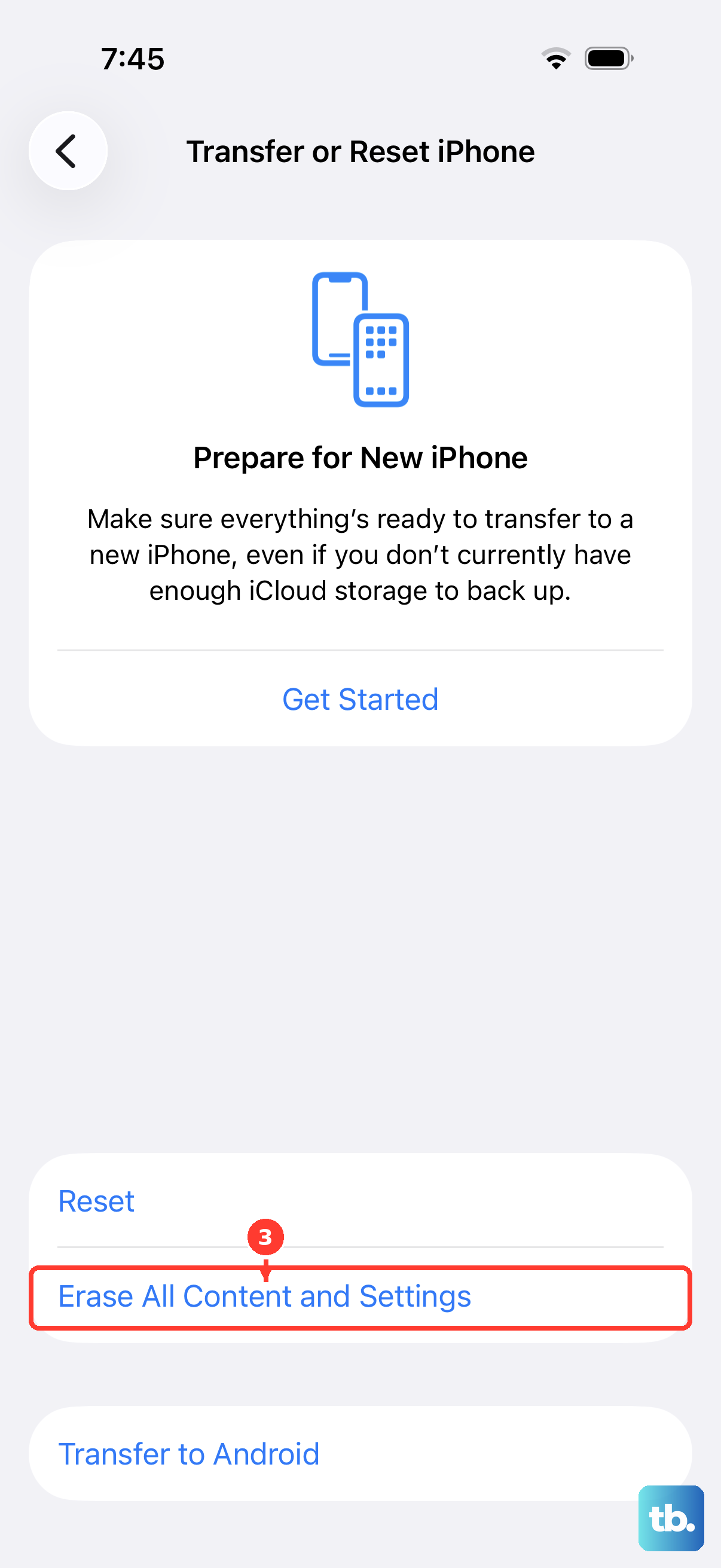
A full factory reset is the most aggressive software fix and should only be used after everything else has failed. This erases everything on your iPhone 13, so create a backup first; Apple advises this so you can restore your content, settings and apps afterward.
Go to Settings, tap General, then tap Transfer or Reset [device]. Tap Erase All Content and Settings, then enter your passcode or Apple Account password and confirm.
Once the reset completes, restore from the backup you made and test the keyboard on the freshly set-up phone. If typing works again, the problem was software-related.
Restore with a computer or reach out to Apple Support
If nothing has worked, or the iPhone 13 stays unresponsive and you cannot get into Settings at all, you can restore it to factory settings using a computer. Connect the phone and use Finder on a Mac, or the Apple Devices app or iTunes on a PC, to perform the restore. A restore erases the iPhone, so use the backup you made earlier to bring back your content.
A keyboard that still fails after a computer restore points toward a hardware issue rather than software. At that point, contact Apple Support to arrange service for your iPhone 13.
Frequently Asked Questions
Why does my iPhone 13 keyboard work in some apps but not others?
When the keyboard fails in only one app, the app has usually gotten into a temporary bad state. Closing it from the App Switcher and reopening it, or restarting your iPhone, clears that glitch in most cases. If it persists across many apps, work down through the system-level fixes such as an iOS update or Reset All Settings.
Will fixing my keyboard erase my photos and messages?
The early fixes, including restarting, force restarting, updating iOS, and Reset All Settings, do not delete your personal data. Reset All Settings leaves photos, videos, music, apps, messages, contacts and files in place. Only Erase All Content and Settings (the factory reset) wipes everything, which is why you should back up before using it.
How do I force restart an iPhone 13 with no Home button?
Press and quickly release the volume up button, then press and quickly release the volume down button, then press and hold the side button until you see the Apple logo. This might take longer than 10 seconds, so keep holding through the blank screen until the logo appears.
My external Bluetooth keyboard stopped typing. What should I try first?
Keep the keyboard and iPhone close together, turn the accessory off and back on, and make sure it is on and fully charged or connected to power. If it still will not type, unpair it, put it back in discovery mode, and pair and connect it again.
What if the keyboard still fails after a factory reset?
If a full Erase All Content and Settings, or a restore using a computer, does not fix the keyboard, the issue is likely hardware rather than software. Contact Apple Support to arrange service for your iPhone 13.