You plug your Lightning EarPods into your iPhone 13 and hear nothing, or your Bluetooth earbuds connect but the sound keeps playing from the phone's own speaker. Audio problems on the iPhone 13 are usually fixable at home, and most of the time the cause is something small like debris in the Lightning port, a stray Bluetooth setting, or audio quietly routed to another device. Work through the fixes below in order, starting with the quickest and safest checks before moving toward a software update or a call to Apple.
Before working through the fixes, run a quick headphone test in your browser. It plays the left and right sides separately, so you can tell right away whether one channel is actually dead.
One thing to clear up first. The iPhone 13 has a Lightning connector and no 3.5mm headphone jack, and it does not use USB-C. That means "headphones" on this model are either wired headphones that plug into the Lightning port (such as Lightning EarPods), wired headphones used through a Lightning-to-3.5mm adapter, or Bluetooth 5.0 wireless headphones and earbuds. The fixes are sorted so you can stop as soon as your sound comes back.
Inspect and Clean the Lightning Port and Earbud Meshes
For wired headphones, lint and pocket debris packed into the Lightning port is one of the most common reasons the connection feels loose or cuts out. Inspect the port for debris, and examine the headphone cable, connector, remote, and earbuds for any visible damage. A frayed cable or a bent connector can stop audio entirely.
Gently brush the openings and the earbud meshes with a small, soft-bristled brush that is clean and dry. Then firmly plug your headphones back in, removing your case if needed to get a solid connection. A surprising number of "dead" headphones come back to life once the connector seats fully.
Turn the Volume Up and Make Sure Audio Isn't Going Somewhere Else
It sounds obvious, but the volume may simply be down, or your iPhone may still be sending audio to another speaker or device. Adjust the volume using the buttons on the side of the iPhone or the Volume slider in Control Center, then confirm the sound is not being routed elsewhere.
You can also test the audio output another way. Open Settings, tap Sounds and Haptics, and drag the Ringtone and Alerts slider back and forth. If you hear the test tone change as you drag, your iPhone's audio is working and the issue is more likely with the headphones or how they are connected.
Try a Second Pair of Headphones to Find the Real Culprit
Swapping in a different pair of headphones is the fastest way to tell whether the problem lives in the headphones or in the iPhone. Connect a second pair and play some audio.
If the second pair works, the issue is with your original headphones, and you should contact their manufacturer about a replacement. If the second pair also fails, the problem is more likely with the iPhone itself, and you will want to contact Apple Support. This single test saves you from chasing the wrong fix.
Restart the iPhone, or Force Restart If It's Frozen
A simple restart clears temporary glitches that can scramble audio routing. Restart your iPhone the usual way and test your headphones again.
If the iPhone is unresponsive or frozen, perform a force restart instead.
- 1.Press and quickly release the volume up button.
- 2.Press and quickly release the volume down button.
- 3.Press and hold the side button until you see the Apple logo (this might take longer than 10 seconds).
Once the Apple logo appears, let the iPhone finish starting up, then reconnect your headphones.
For Bluetooth Headphones, Recharge and Reconnect Them
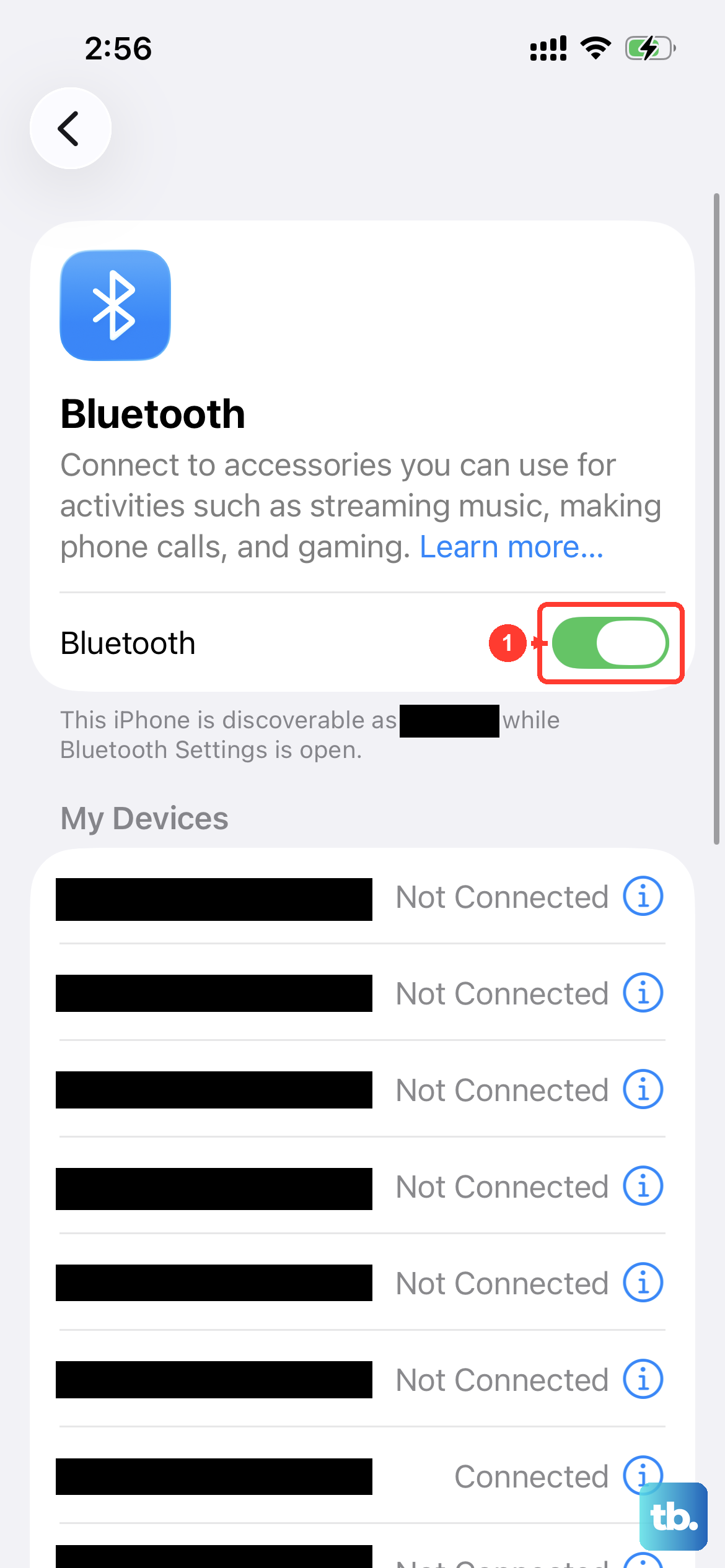
Wireless headphones bring their own set of variables, including distance, battery, and per-app permissions. Make sure the accessory and the iPhone are close to each other, and that the accessory is on and either fully charged or connected to power. Then turn the Bluetooth accessory off and back on so it reconnects cleanly.
It is also worth checking that the app you are using actually has Bluetooth permission. Open the Settings app, tap Privacy and Security, then select Bluetooth, and make sure Bluetooth is turned on for that app. Without this permission, some apps cannot route audio to your wireless headphones.
Forget the Bluetooth Headphones and Pair Them Again
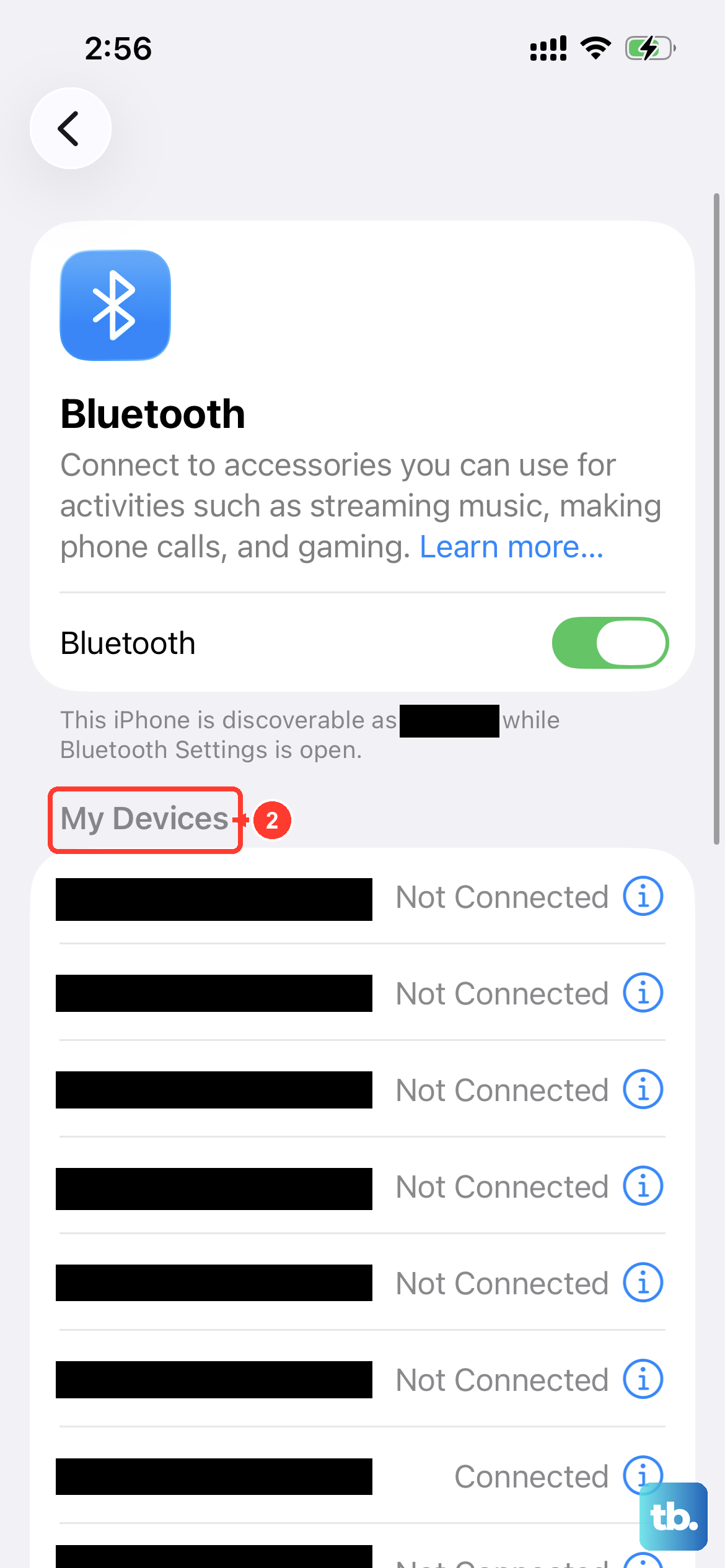
If wireless headphones still refuse to work, removing the old pairing and starting fresh often resolves a stuck connection. To unpair them, go to Settings > Bluetooth, tap the More Info button next to the device, then tap Forget This Device.
Keep in mind that unpairing removes the accessory from all devices signed in to your Apple Account, so you will need to pair it again everywhere you use it. To re-pair, put the accessory back into discovery mode, then tap its name when it appears under Settings > Bluetooth. Your iPhone must be within about 33 feet (10 meters) for pairing to succeed.
Install the Latest Version of iOS
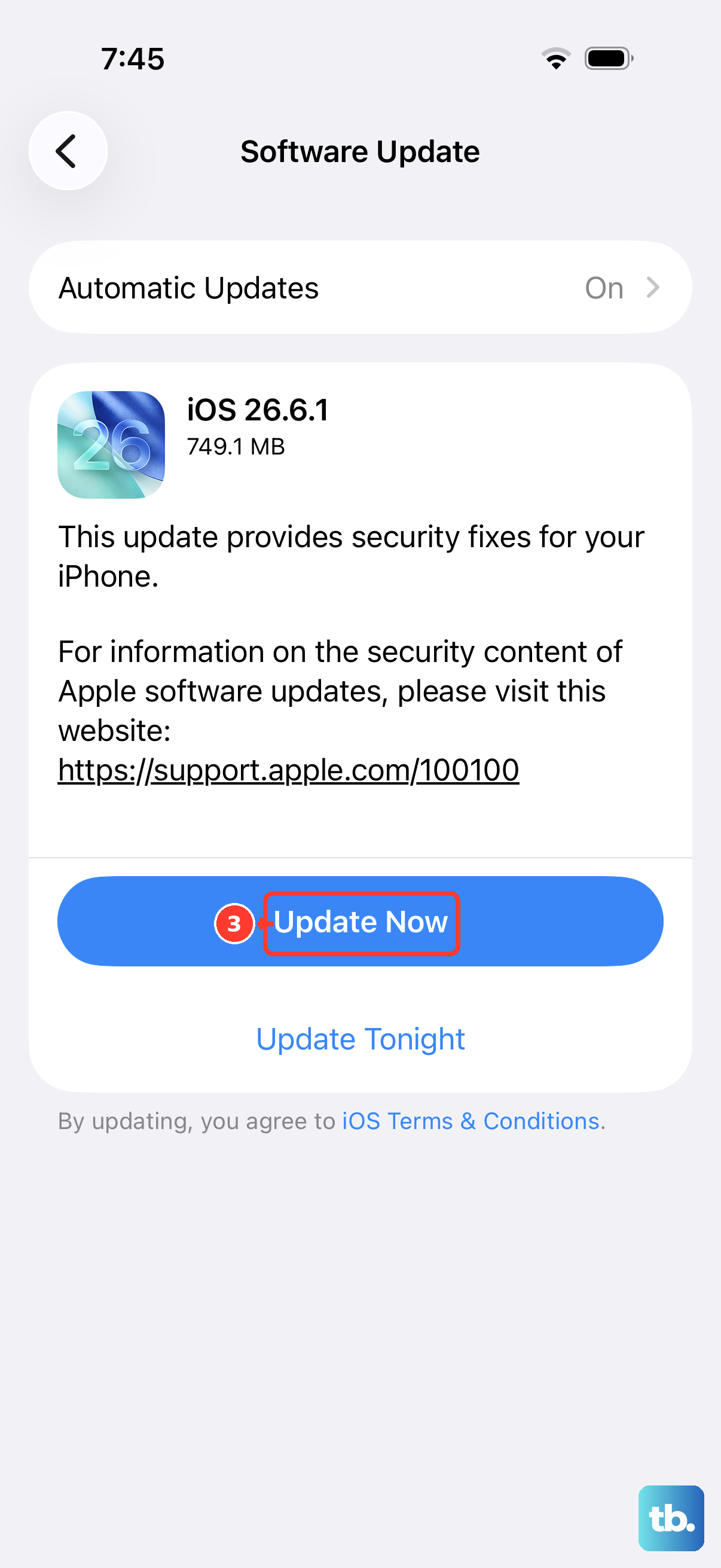
Apple advises keeping your iPhone on the latest version of iOS, since updates include fixes that can resolve audio and Bluetooth bugs. To check, go to Settings > General > Software Update, then tap Download and Install and follow the onscreen instructions.
Let the update complete fully and let the iPhone restart on its own before you test your headphones again. If an update was waiting, this step alone sometimes restores sound.
Erase All Content and Settings as a Last Resort
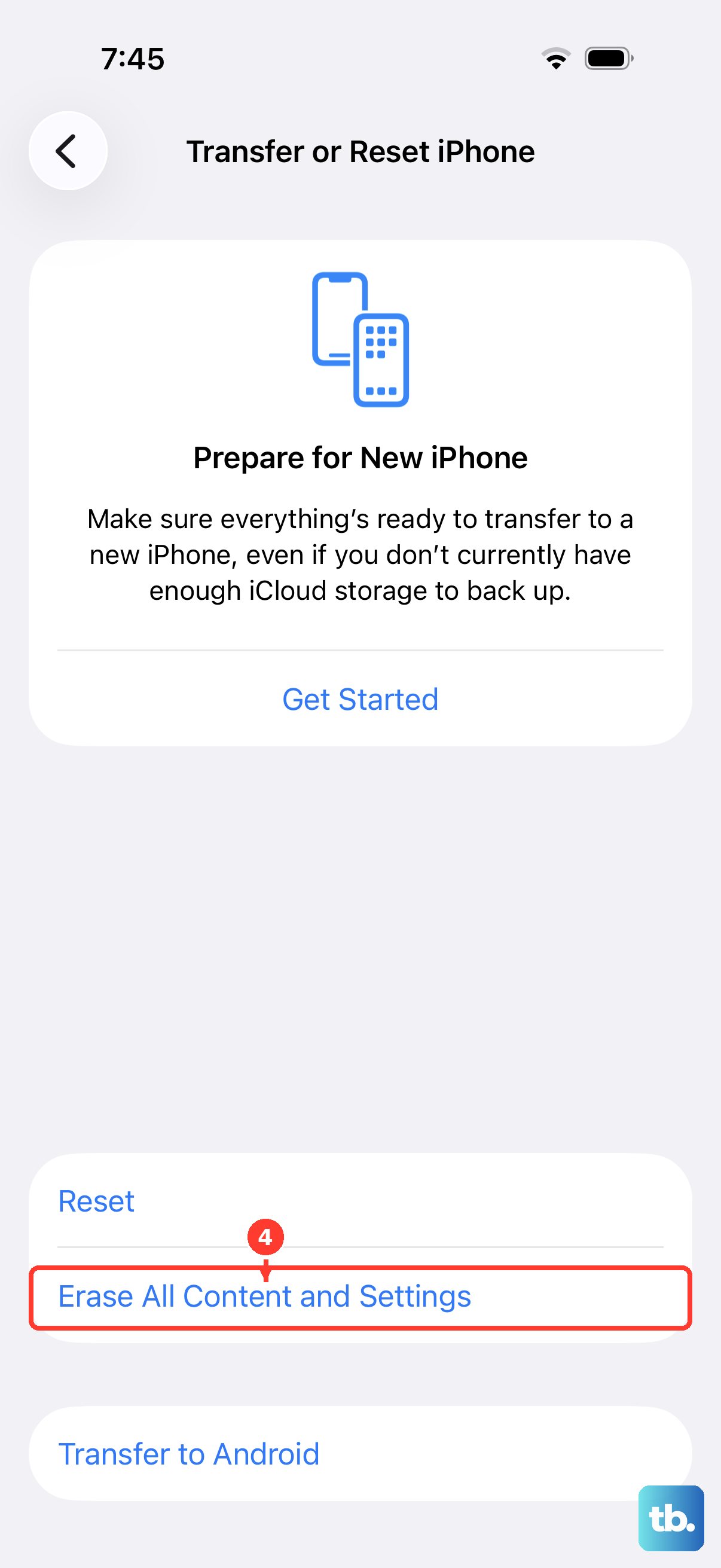
If nothing above works and you suspect a deeper software problem, a factory reset is the final do-it-yourself step. This is destructive, because it restores the iPhone to factory settings and removes your content and settings, so back up your iPhone first so you can restore your data later.
Once you have a backup, go to Settings > General > Transfer or Reset iPhone > Erase All Content and Settings. Tap Continue, choose whether to keep or erase your eSIM, then enter your passcode and your Apple Account password to confirm. After the iPhone returns to its setup screen, you can restore from your backup and test your headphones.
Contact Apple Support or Arrange Service
If your headphones still do not work after trying a second pair, restarting, and updating, the issue may need professional attention. Contact Apple Support for further help or service.
You can reach out through the Apple Support app or the Get Support website to ask about repair options. If the second-headphones test pointed to a hardware fault in the iPhone, this is the right path to a fix.
Frequently Asked Questions
Does the iPhone 13 have a 3.5mm headphone jack?
No. Per Apple's iPhone 13 Tech Specs, the device has a Lightning connector and no 3.5mm headphone jack, and it does not have a USB-C port. To use wired headphones, plug them into the Lightning port directly (such as Lightning EarPods) or use a Lightning-to-3.5mm adapter. Otherwise, use Bluetooth 5.0 wireless headphones.
How do I test whether the problem is my headphones or my iPhone?
Try a different pair of headphones. If the second pair works, the issue is with your original headphones, and you should contact their manufacturer about a replacement. If the second pair also fails, contact Apple Support, because the iPhone itself is the likely cause.
My iPhone 13 won't respond at all. How do I force restart it?
Press and quickly release the volume up button, then press and quickly release the volume down button, then press and hold the side button until you see the Apple logo. This might take longer than 10 seconds, so keep holding until the logo appears.
Why does sound keep playing from the speaker instead of my headphones?
Your iPhone may still be routing audio to another speaker or device. Check the volume using the side buttons or the Volume slider in Control Center, and confirm the audio output is not set to a different destination. For Bluetooth headphones, make sure they are charged, switched on, and that the app you are using has Bluetooth turned on under Settings > Privacy and Security > Bluetooth.
Will erasing my iPhone delete my data?
Yes. Erase All Content and Settings restores the iPhone to factory settings and removes your content and settings, so back up your iPhone first so you can restore your data later. Use it only as a last resort after the other fixes, and you will need your passcode and Apple Account password to complete it.