You pressed the power button expecting your iPad to spring to life, but instead it parks on the white Apple logo and refuses to go any further.
Maybe the logo glows steadily for minutes, maybe it fades in and out, but either way you cannot reach the Home Screen, open an app, or do anything useful.
The good news is that a logo freeze is almost always a software hang or a power problem rather than a dead device, and Apple even names this exact scenario ("iPad is stuck on the Apple logo") in its official support guidance.
The fixes below run from the gentlest and safest to the most drastic, so start at the top and stop the moment your iPad boots normally.
The early steps risk nothing; the later ones can erase your data, so they come with clear warnings and only belong near the end.
A couple of steps also depend on whether your iPad has a Home button, so match the sequence to your model carefully because a wrong button combination simply does nothing.
Give a Drained Battery Time to Recover
A deeply discharged battery can imitate a logo freeze, showing the Apple logo while there is not yet enough charge to finish booting.
Before you do anything more involved, plug the iPad into its USB charging cable and an Apple USB power adapter in a working outlet, then leave it alone.
Be patient here, because the device may look stuck when it is really just charging in the background.
According to the official guidance, if your iPad does not turn on you should check your hardware and charge your device, and you might need to charge for up to an hour before it responds.
Resist the urge to keep tapping the screen or yanking the cable during that window.
Force Restart Using the Sequence for Your Model
If charging alone does not break the freeze, a force restart clears a hung boot without touching any of your data.
The exact button sequence differs depending on whether your iPad has a Home button, so use the version that matches your model.
On an iPad without a Home button, the volume buttons are on the edge and there is no round Home button below the screen.
- 1.Press and quickly release the volume button closest to the top button.
- 2.Press and quickly release the volume button farthest from the top button.
- 3.Press and hold the top button until you see the Apple logo.
On an iPad with a Home button, press and hold both the Home button and the top button until you see the Apple logo.
Keep holding through the moment the screen goes dark; do not let go early.
When the Apple logo reappears, release the buttons and let the iPad finish starting up on its own.
Rule Out the Cable, Adapter, and Temperature
If the iPad still will not power through, the problem may be the way it is being charged rather than the iPad itself.
Connect it to a USB charging cable (preferably the one that came with it) plugged into the Apple USB power adapter in a working outlet.
When it still will not charge or boot, swap parts one at a time: use a different power adapter or a different charging cable, since a frayed cable or a weak adapter is a common culprit.
Also make sure that your iPad is not too hot or too cold, because extreme temperature can stop it from charging or starting.
Once you have a known-good setup, run the force restart for your model again.
Install the Latest iPadOS If It Reaches the Home Screen
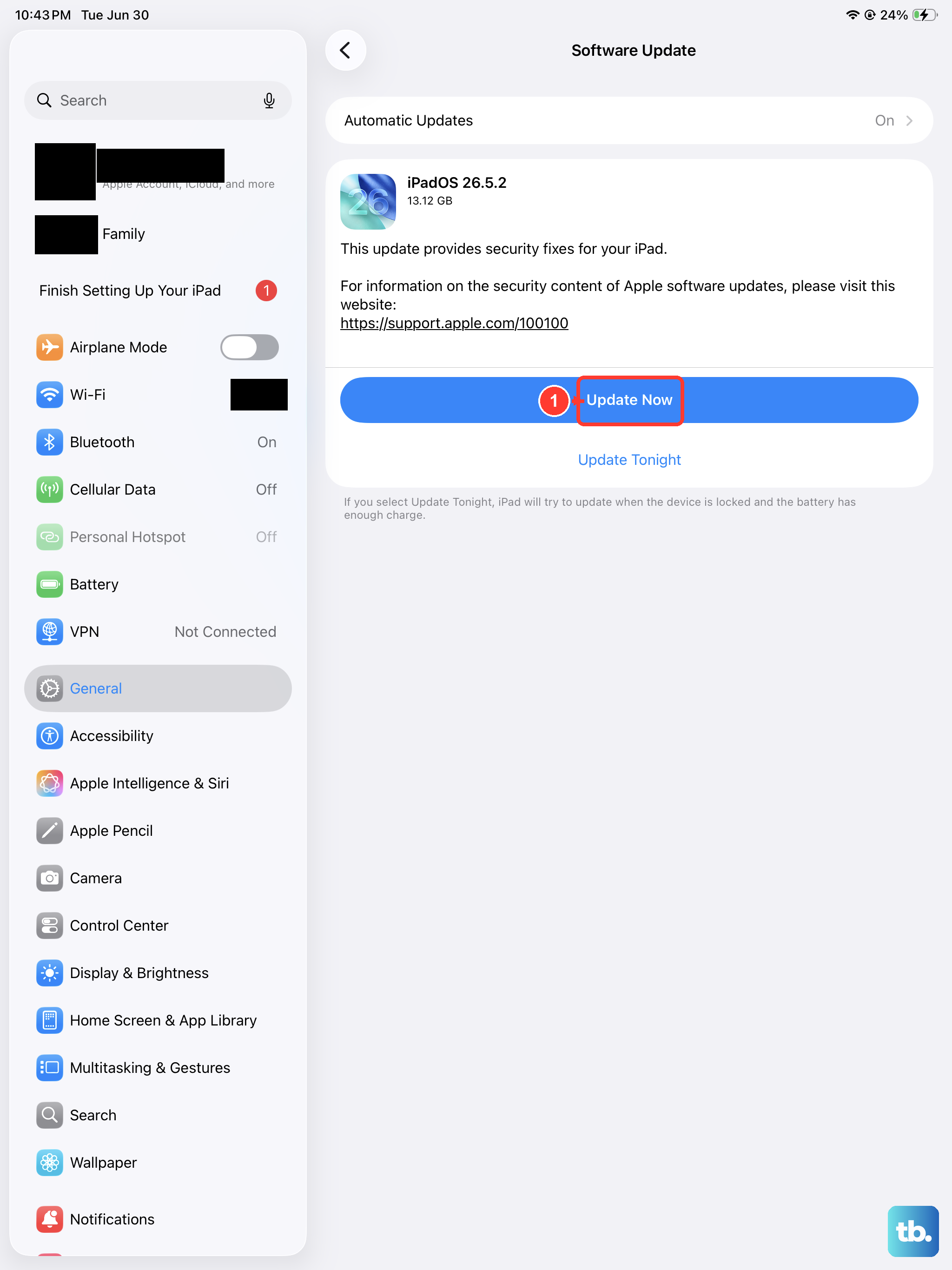
Sometimes the iPad does eventually boot but behaves erratically, freezing again on the logo on the next restart.
If it can get to the Home Screen even briefly, installing the latest iPadOS can clear the software bug behind the instability.
Back up your data first, then connect the iPad to Wi-Fi and to power so it does not lose charge mid-update.
Go to Settings > General > Software Update, and if an update is available, tap Download and Install and follow the onscreen instructions.
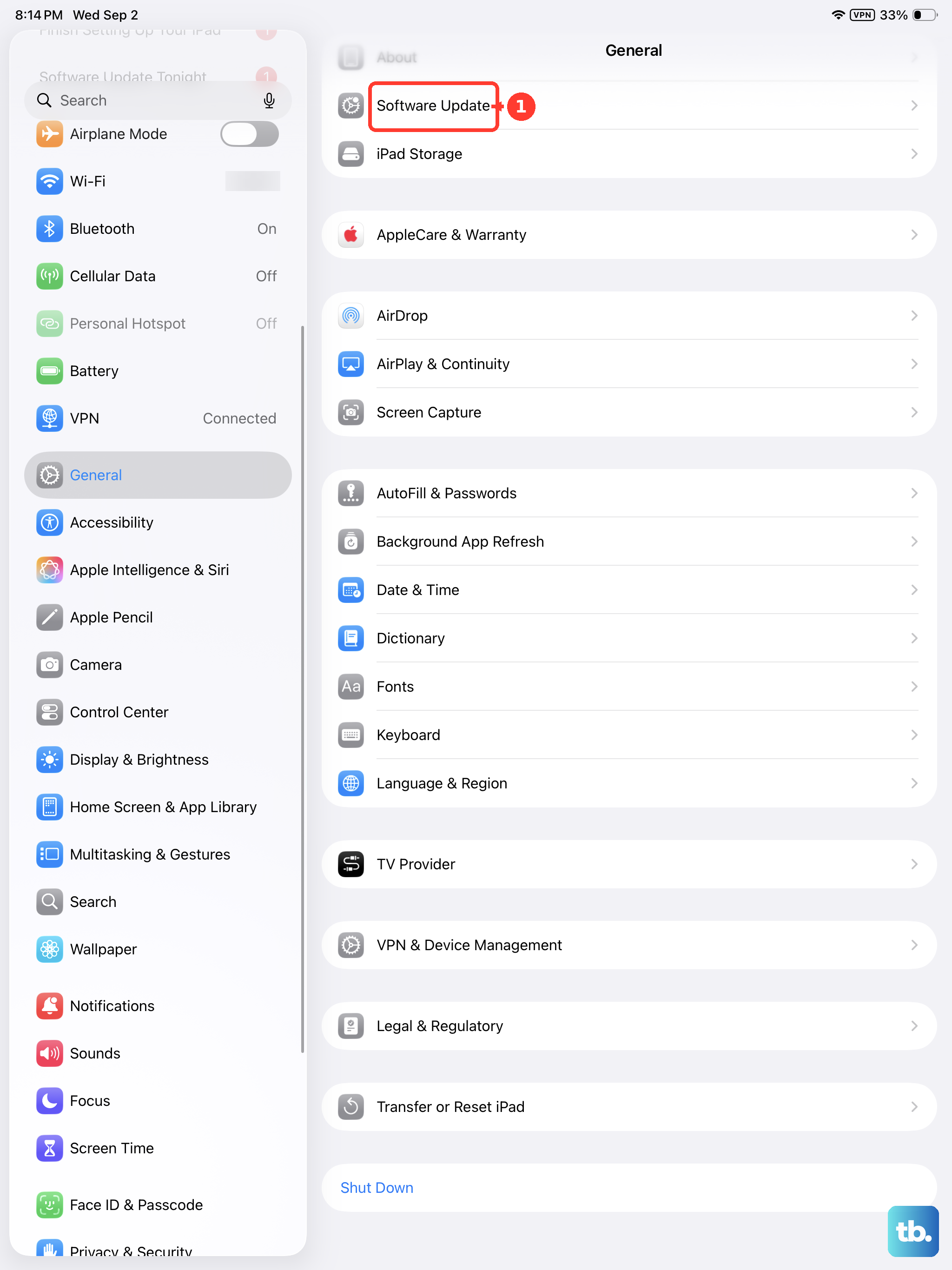
This step only works when the iPad can stay on the Home Screen long enough to reach the update screen.
Reinstall iPadOS in Recovery Mode Without Losing Data
When the logo stays put and you cannot reach the Home Screen at all, recovery mode lets a computer step in and reinstall iPadOS while keeping your files.
You will need a computer running Finder on macOS Catalina 10.15 or later, the Apple Devices app on a Windows PC, or iTunes on older macOS systems or PCs without the Apple Devices app (iTunes on macOS Mojave or earlier).
Connect the iPad to the computer, then put it into recovery mode using the sequence for your model.
On an iPad without a Home button, press and quickly release the volume button closest to the top button.
Then press and quickly release the volume button farthest from the top button.
Next press and hold the top button.
Keep holding the top button until you see the recovery mode screen.
On an iPad with a Home button, press and hold both the Home and the top button at the same time.
When your iPad turns off, release the top button, but keep holding the Home button until you see the recovery mode screen.
When you get the option to restore or update, choose Update.
This reinstalls iPadOS without erasing your data, which is exactly why it comes before any erase step.
If the download takes more than 15 minutes and your iPad exits the recovery mode screen, let the download finish, then repeat the recovery-mode step.
Erase All Content and Settings from the Settings App
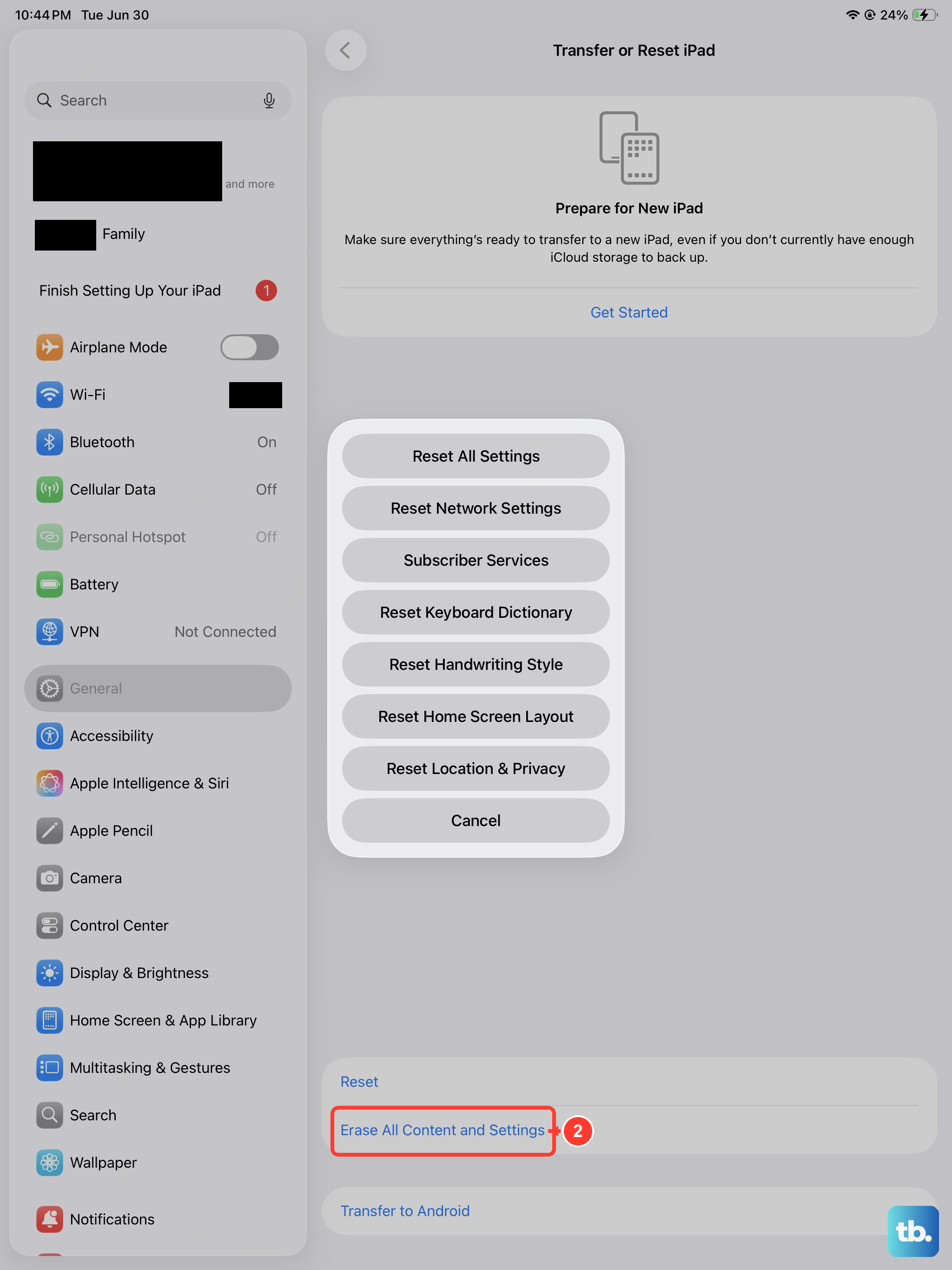
If the iPad boots but keeps failing, and a non-erasing reinstall has not held, a factory reset gives you a clean software slate.
This is a data-loss step, so back up your data first; everything on the device is removed.
Go to Settings > General > Transfer or Reset iPad > Erase All Content and Settings and tap Continue, then enter your passcode and your Apple Account password when asked.
When you erase your iPad, it is restored to factory settings, after which you can set it up fresh and restore from your backup.
Only take this step once you are confident your backup is complete.
Restore in Recovery Mode as a Final Software Fix
If the logo persists with no progress and the recovery-mode Update did not help, a full restore is the last software option before service.
Connect the iPad to a computer and enter recovery mode again using the same model-specific sequence you used earlier, but this time choose Restore when you see the option to Restore or Update.
Apple is explicit about the cost of this step.
Restore reinstalls iPadOS and erases all of your data, and if you are troubleshooting an issue and have not tried updating yet, you should try updating first.
Once the restore finishes, set the iPad up again and bring your information back from your most recent backup.
When to Hand It Over to Apple
If recovery mode fails to complete, you cannot trigger it because a volume or top button is broken, or the iPad still will not start after a restore, the issue may be hardware rather than software.
At that point Apple says you might need service.
Use Apple's Get service flow to arrange a repair or to get further help, especially for an out-of-warranty device or one with damaged buttons.
Provide your model details and a short description of the logo-freeze behavior so the support path can route you correctly.
Frequently Asked Questions
Will a force restart delete anything on my iPad?
No. A force restart simply interrupts a hung startup and reboots the device, leaving your apps, photos, and settings untouched. It is the safest fix on this list, which is why it comes so early.
How long should I leave my iPad charging before I worry?
Give it real time on a working cable and Apple USB power adapter, because a deeply drained battery can show the logo before it has enough charge to boot. The official guidance notes you might need to charge for up to an hour before the iPad responds.
What is the difference between Update and Restore in recovery mode?
Update reinstalls iPadOS without erasing your data, so it is the option to try first. Restore reinstalls iPadOS and erases all of your data, so it is reserved for when updating has not fixed the freeze and you have a backup ready.
Do I need a phone app to run recovery mode?
No. Recovery mode uses a computer, not a phone app. You can use Finder on a Mac with macOS Catalina 10.15 or later, the Apple Devices app on a Windows PC, or iTunes on older macOS systems or PCs without the Apple Devices app.
Why does the button sequence look different from what I remember?
The force-restart and recovery-mode sequences differ depending on whether your iPad has a Home button. Match the exact steps to your model, because the combination for one type does nothing on the other.