
When the volume buttons on your iPad Pro M5 go silent, it can throw off your whole flow. You press them and nothing happens, the on-screen volume indicator stays put, and you're stuck adjusting audio through the control center. Fortunately, most of these issues have straightforward fixes that don't require a trip to the Apple Store.
1. Take Off the Case
This is the quickest thing to check. Some iPad cases, especially thicker or older ones, can press against the volume buttons or block their movement. Pop the case off completely and test both buttons.
If they start working again, you've found the culprit. Look for a case that has cutouts that align properly with the M5's side buttons.
2. Force Restart the iPad Pro M5
A force restart clears up temporary software glitches that can mess with the volume buttons. It doesn't delete any data, so it's safe to try right now.
On the iPad Pro M5, the sequence is specific: press and quickly release the Volume Up button, then press and quickly release the Volume Down button, then press and hold the Top button until the Apple logo appears. Keep holding through any power-off slider that might pop up, wait for the logo.
3. Check the Volume Button Settings
iPadOS 18 has a setting that determines whether physical buttons control the ringer volume. If it's turned off, the buttons won't do anything for ringtone volume, but they should still work for media. Still, it's worth double-checking.
Open Settings > Sounds. Under Ringtone and Alert Volume, make sure Change with Buttons is toggled on. If it was off, turn it on and test the volume buttons again.
4. Clean the Volume Buttons
Dirt and pocket lint can lodge around the buttons and prevent them from clicking properly. On the iPad Pro M5, the buttons are flush with the aluminum edge, so debris can accumulate without being obvious.
Use a can of compressed air to blow around the buttons from different angles. For sticky buildup, dab a cotton swab in a tiny bit of isopropyl alcohol (90% or higher) and gently wipe the edges. Be careful not to push anything deeper into the seam.
5. Press the Buttons Repeatedly
Sometimes the mechanical switch inside gets slightly stuck. Rapidly pressing each volume button a dozen times can help free it up. Listen for a click, if you hear it, the button is moving. If it feels mushy or silent, it might be physically obstructed.
Alternate between pressing and releasing quickly. This can also dislodge any tiny debris that's wedged under the button cap.
6. Try the Volume Slider in Control Center
While you're troubleshooting, you can still adjust volume without the physical buttons. Swipe down from the top-right corner of the screen to open Control Center, then use the volume slider. This confirms the software side is working fine.
You can also go to Settings > Sounds and drag the Ringtone and Alert Volume slider to test whether system audio responds. If the slider works but the buttons don't, the issue is likely mechanical or the button mapping is off.
7. Test in Different Apps
Open a few different apps, Music, YouTube, a game, and press the volume buttons. If the buttons work in some apps but not others, the problem is probably app-specific rather than hardware-related. Restart the problematic app or check if it has its own volume settings.
This also helps isolate whether the issue is with media volume, ringer volume, or system sounds. On iPad, the volume buttons control media by default unless you're on the Home screen.
8. Turn on AssistiveTouch
AssistiveTouch gives you a floating on-screen button with virtual volume controls. Enabling it can sometimes reset the physical button connection, and it's a great backup while you troubleshoot.
Go to Settings > Accessibility > Touch > AssistiveTouch and turn it on. Tap the floating icon, then Device > Volume Up or Volume Down. Use these virtual buttons a few times, then try the physical buttons again.
9. Update iPadOS 18
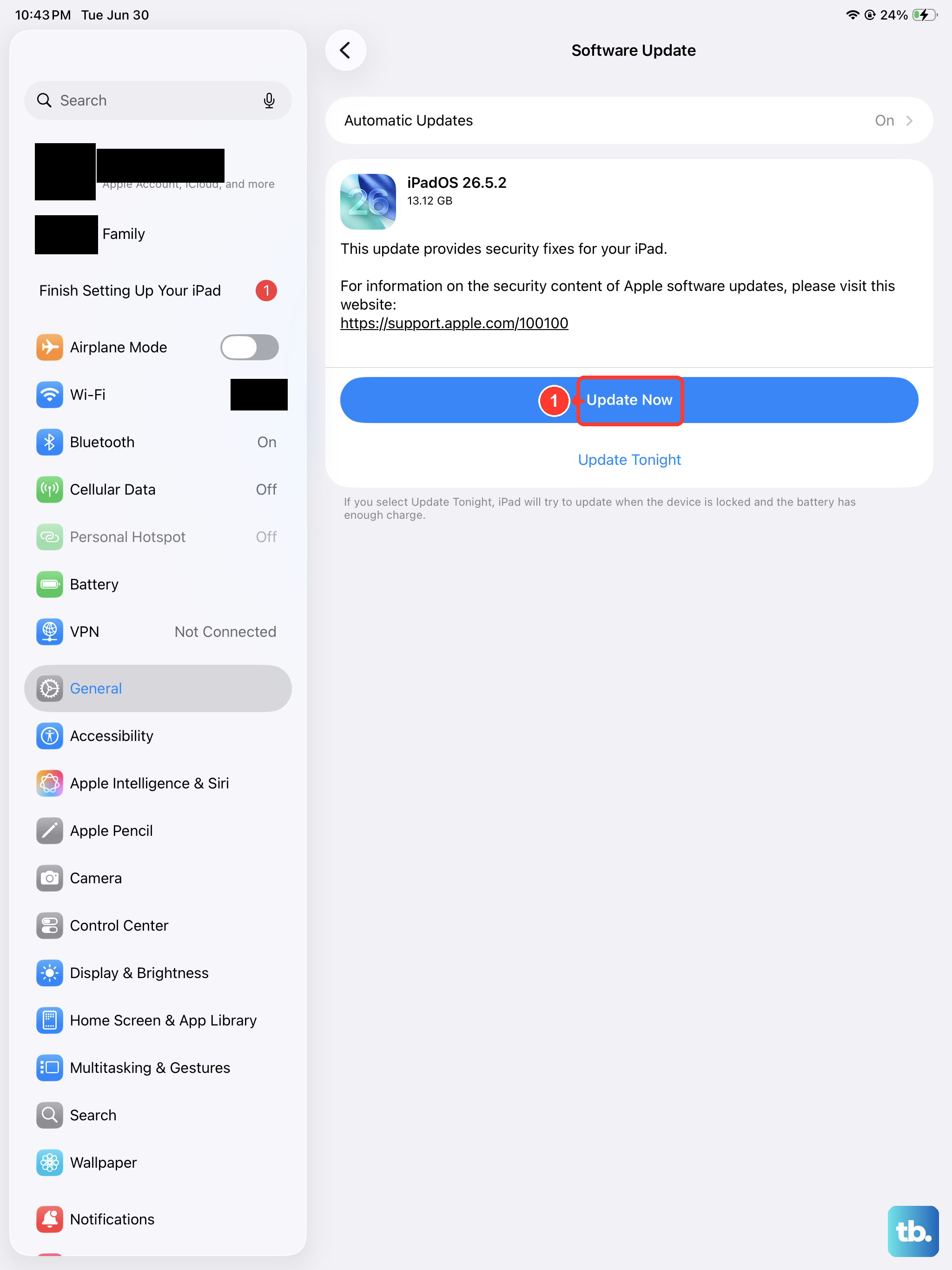
Software bugs in early versions of iPadOS 18 could affect button responsiveness. Apple often releases patches that fix these issues. Make sure your iPad Pro M5 is on the latest version.
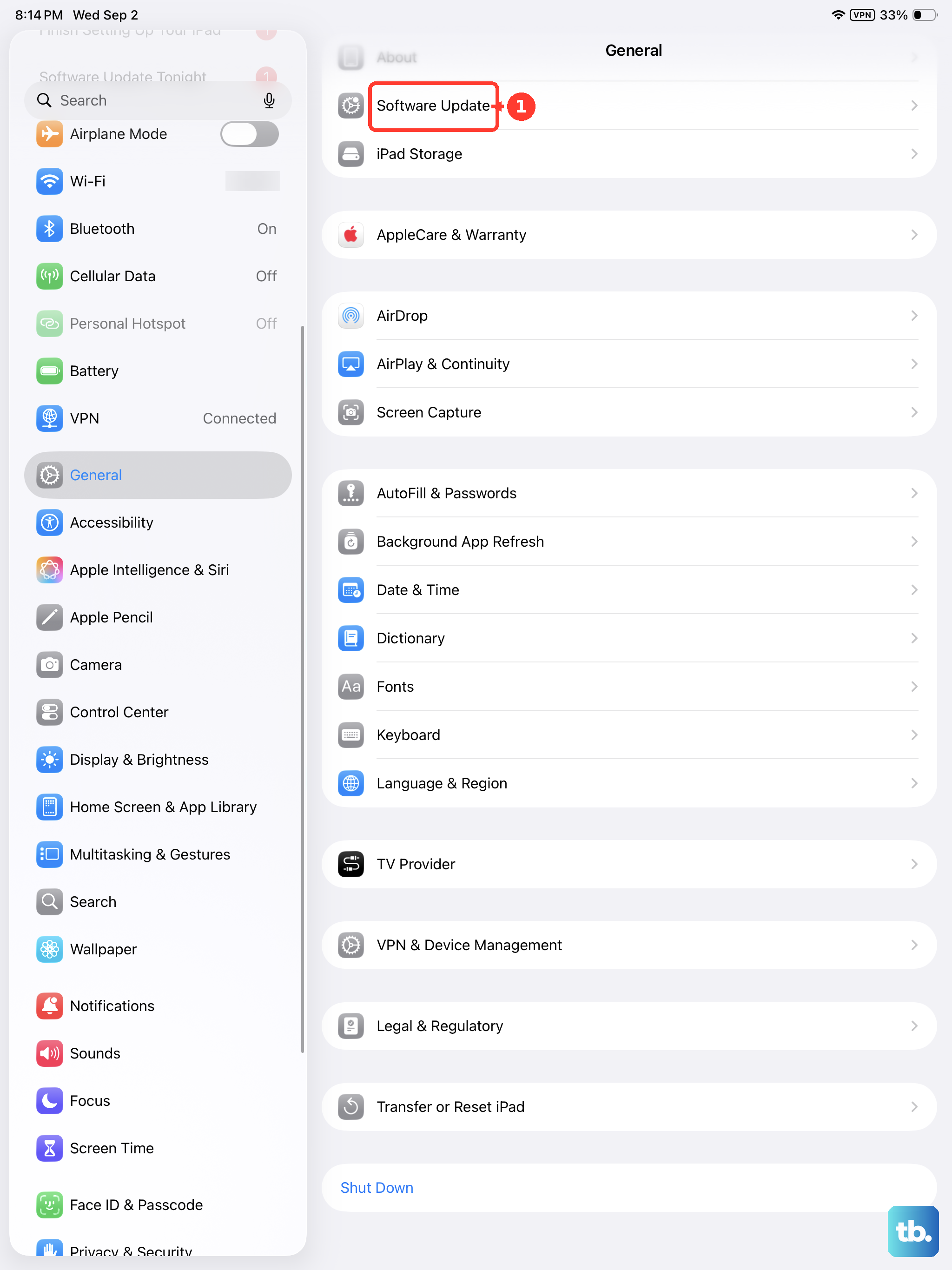
Plug it into power and connect to Wi-Fi, then go to Settings > General > Software Update. If an update is available, download and install it. The iPad will restart, and you can test the volume buttons afterward.
10. Restore the iPad as New (Last Resort)
If none of the above worked, a full restore can wipe out deeper software corruption that might be interfering with the button drivers. This will erase all data, so back up your iPad first, either to iCloud or to a computer.
Connect the iPad to a Mac (Finder) or PC (iTunes or the Apple Devices app). Select your iPad, choose Restore iPad, and confirm. The process downloads the latest firmware and reinstalls iPadOS from scratch. Once it's done, set it up as new and test the volume buttons before restoring your backup. If they work, the backup likely had a corrupted setting.