
You picked up your iPad Pro M5 to find it noticeably warm, maybe even hot to the touch. It's a common issue with these powerful tablets, especially during fast charging or when you're pushing the M5 chip with demanding apps. Here's what's going on and how to cool things down.
The iPad Pro M5 supports fast charging up to 60W, which can get the battery to 50% in about 30 minutes. That speed generates heat, and it's normal for the iPad to feel warm during a fast charge session. But if it's uncomfortable to hold or the display dims, that's a sign it's running too hot.
Stop Fast Charging When It Gets Warm
If your iPad Pro M5 is getting hot while plugged in, the fast charging is the most likely culprit. Unplug it and let the tablet cool down for 10-15 minutes. Once it's back to a normal temperature, you can plug it back in, but consider using a lower-wattage charger if the heat bothers you.
Apple's own 40W dynamic power adapter (model A3351) balances speed and heat well, but any USB-C charger under 60W will charge slower and generate less heat. You don't need to buy anything new, just use an older iPad charger or a standard 20W iPhone brick for cooler charging.
Check Your Charging Cable and Adapter
A damaged charging cable or adapter can cause the iPad to work harder, which creates extra heat. Look for frayed spots, bent pins, or kinks in the cable. If you see any damage, swap it out immediately. The same goes for the power adapter, if it's cracked or the plug feels loose, replace it.
Dust in the USB-C port is another sneaky cause. Grab a flashlight and look inside the iPad's charging port. If you see lint or debris, gently remove it with a wooden toothpick or a soft brush. Never use anything metal, as it can short out the pins.
Close Demanding Apps and Background Processes
The M5 chip in the iPad Pro is a beast, but running heavy apps like video editors, 3D games, or multiple browser tabs can push it hard. Swipe up from the bottom and pause in the middle to open the App Switcher. Swipe away any apps you're not actively using.
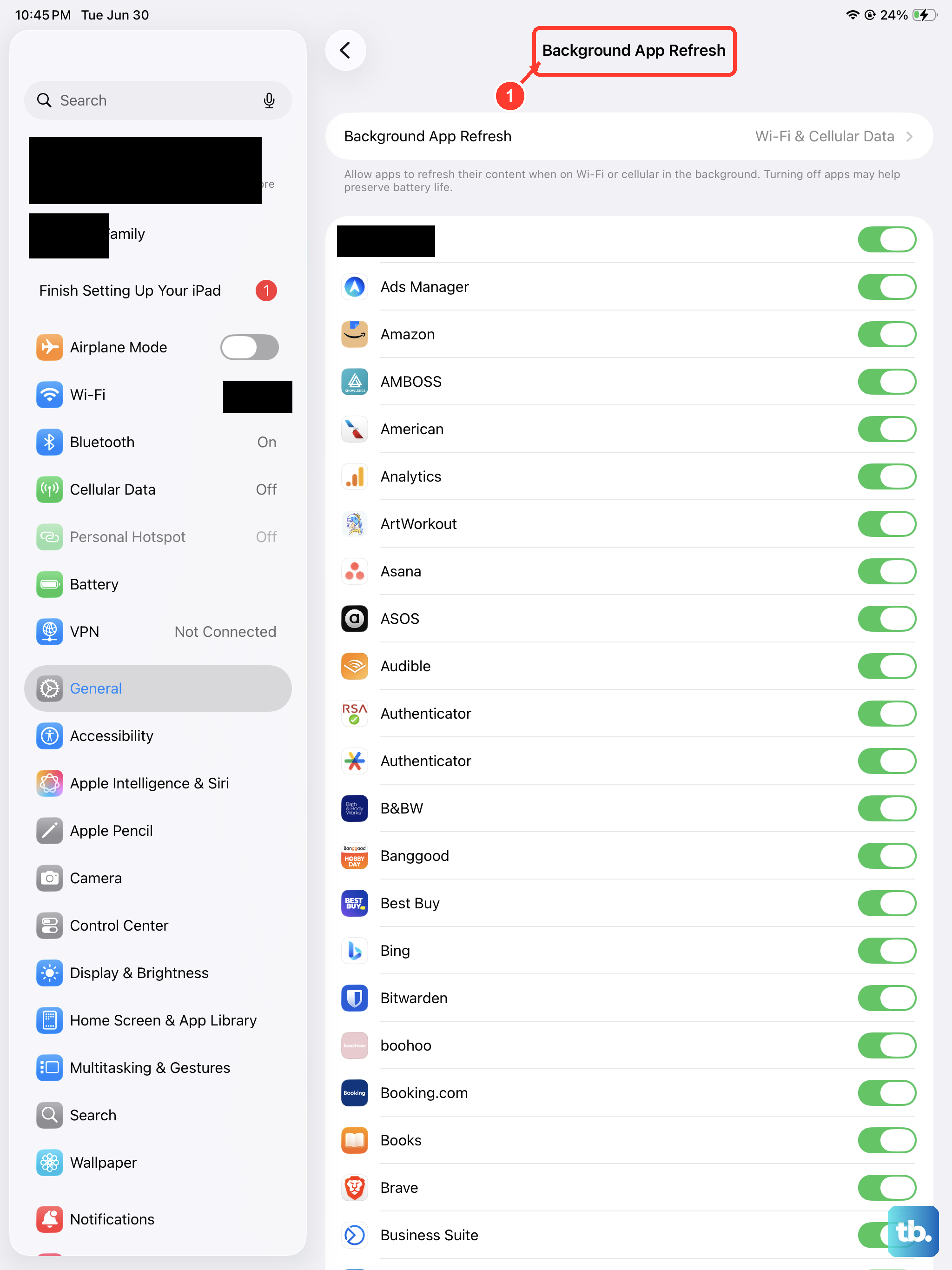
Also check for background activity. Go to Settings > General > Background App Refresh and turn it off for apps that don't need it, especially games and streaming services. This stops them from using the processor when you're not looking.
Force Restart the iPad
A software glitch in iPadOS 18 can sometimes lock the processor into a high-power state, which generates constant heat. A force restart clears that without erasing any data.
Press and quickly release the Volume Up button, then press and quickly release the Volume Down button, then press and hold the Top button until the Apple logo appears. Let go once you see the logo and let the iPad restart normally.
Update to the Latest iPadOS 18 Version
Apple releases iPadOS updates that include thermal management fixes. If your iPad Pro M5 has been running hot since you bought it, there's a good chance a software update addresses exactly that issue.
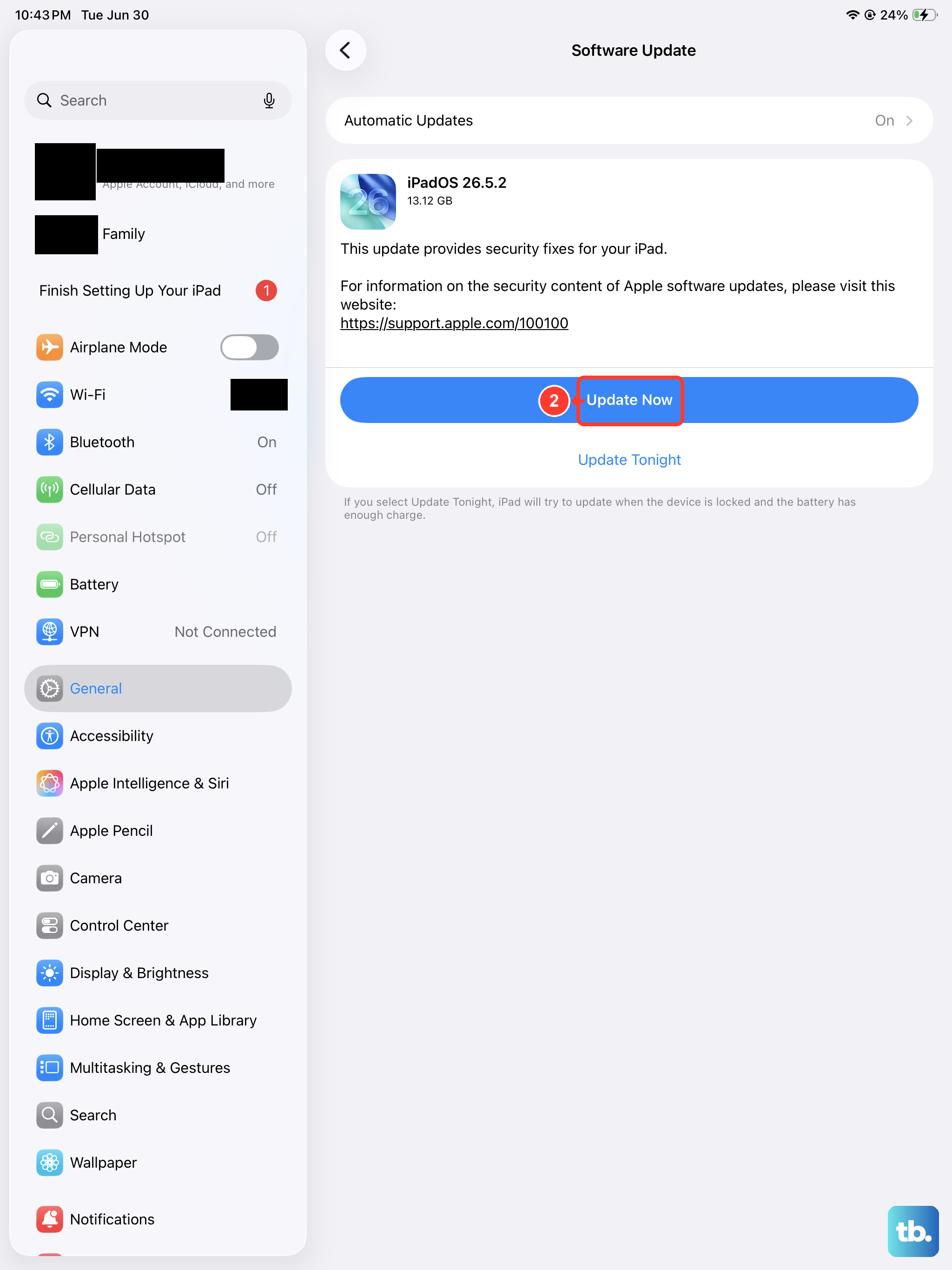
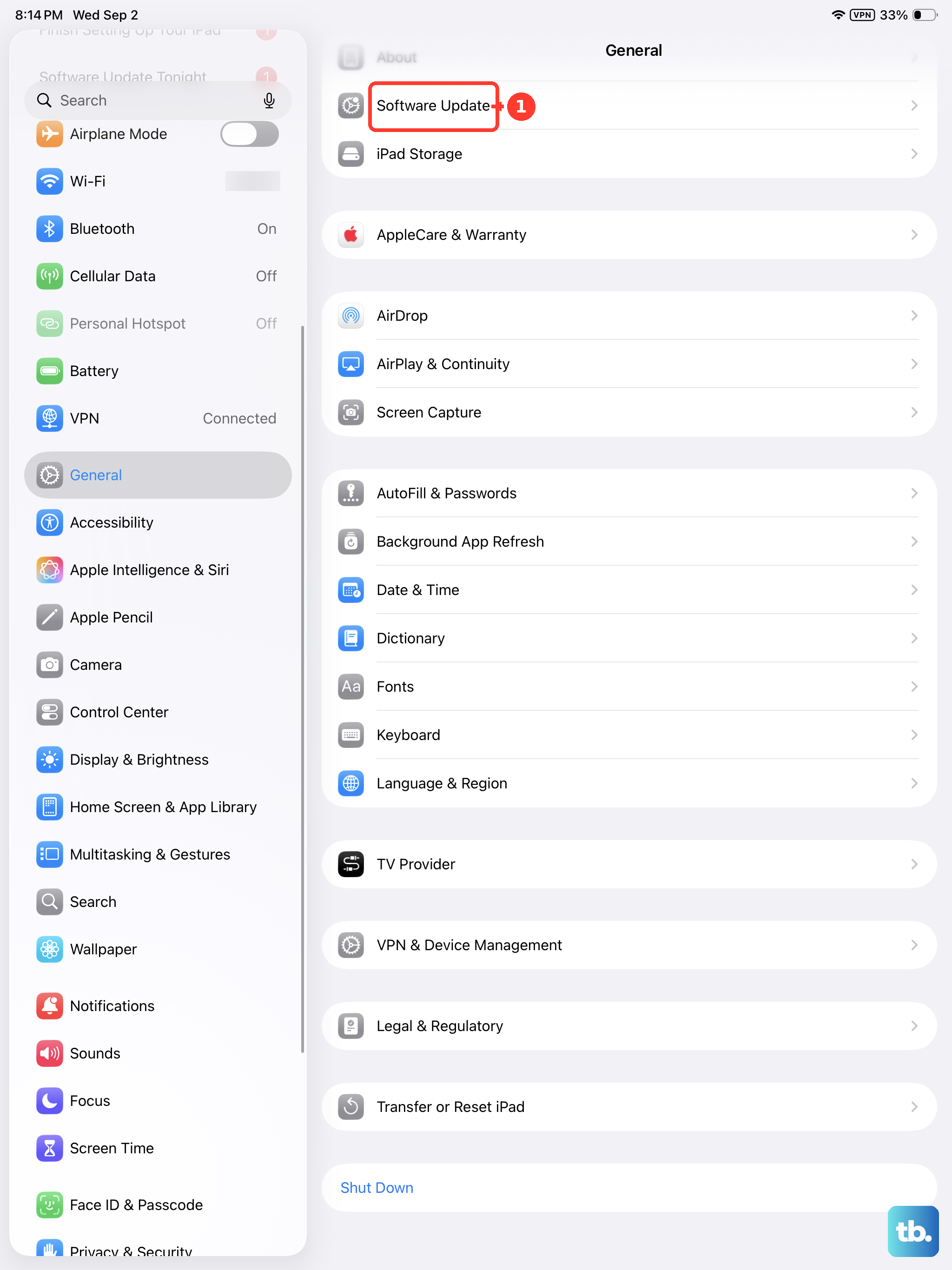
Open Settings > General > Software Update. If an update is available, download and install it while the iPad is plugged in and connected to Wi-Fi. The process itself might warm the iPad up a bit, but that's temporary.
Avoid Direct Sunlight and Hot Surfaces
The iPad Pro M5's aluminum body absorbs heat from the environment really well. Leaving it on a car dashboard, near a window with direct sunlight, or on a dark surface that's been baking in the sun will make it run hotter than it needs to.
Keep it on a cool, flat surface like a desk or table. Avoid soft surfaces like blankets or pillows that trap heat underneath. If you're using it outside, try to stay in the shade.
Remove Thick Cases While Charging
A heavy-duty case can trap heat around the iPad's aluminum back, especially during fast charging. If your iPad Pro M5 is getting warm, pop the case off and let the bare aluminum dissipate heat more efficiently.
This is especially important if you're using the iPad for graphics-intensive tasks like video editing or gaming while it's charging. The case acts like insulation, keeping the heat inside.
Let the iPad Cool Down Naturally
If the iPad feels too hot to handle or you see a temperature warning on screen, just turn it off and leave it alone for a while. Place it on a cool, hard surface and give it 20-30 minutes to return to a normal temperature. Don't put it in the fridge or freezer, the rapid temperature change can cause condensation damage.
Once it's cool, you can power it back on and check if the issue returns. If it overheats again under normal use without fast charging or heavy apps running, that's worth noting for further troubleshooting.
Most of the time, the heat is tied to fast charging or demanding apps. A few simple adjustments to how you charge and use the iPad usually bring the temperature back to normal quickly.