
Your iPad Pro M5 is getting noticeably hot while charging. The back of the device is uncomfortable to touch, or you're seeing a "Charging on hold due to high temperature" notification.
You have one of a few things going on. Some are normal iPadOS thermal protections you can work with, and some are real hardware or charging-setup issues you should address.
Here is the full diagnostic order, from the simplest to the most involved.
Normal Heat vs Concerning Heat
iPad batteries warm up as they charge. This is expected behavior, and iPadOS throttles the charging current as the battery approaches full to manage the heat. A slightly warm back during charging, especially in the last 20 percent of the battery, is normal.
The heat becomes a problem when the iPad displays a temperature warning or a "Charging on hold due to high temperature" message.
It's also a problem when the back is hot enough to be uncomfortable to hold during normal charging (not heavy use), when the iPad shuts down or refuses to charge until it cools, or when the heat is concentrated specifically around the USB-C port.
If any of those is happening, the fixes below address each in order of likelihood.
Stop Using the iPad While It Charges
The single most common cause of charging heat is using the iPad heavily while it is plugged in. Streaming video, gaming, screen mirroring, video editing, and prolonged calls all generate heat from the CPU and GPU.
That heat stacks on top of the heat from the charging battery. The combined load can push the iPad past its thermal limit.
Try plugging in, locking the screen, and leaving the iPad alone for 30 to 60 minutes. If the heat subsides, the issue is heat from usage stacking with charging heat. Switch to charging during non-use times (overnight, while you are out), and the heat resolves on its own.
Check Your Cable and Charger
Damaged USB-C cables or low-quality chargers cause inefficient power delivery, which generates extra heat.
Start by inspecting the USB-C cable for fraying, kinks, or visible damage at the connector ends. Try a different cable (preferably the original Apple-supplied one) to see if the heat changes.
Then check the wall adapter. A no-name or low-wattage adapter forced to deliver more current than it is rated for runs hot itself and pushes inefficient power into the iPad. Switching to a genuine Apple USB-C Power Adapter (20W, 30W, or the 40W Dynamic Power Adapter), or a reputable third-party USB-PD adapter, usually solves this.
Finally, look inside the USB-C port itself with a flashlight. Lint, dust, or pocket debris compressed in the port causes the connector to seat poorly, which increases resistance and generates heat. Use a soft toothpick to gently lift any visible debris, then try charging again.
Charge in a Cool Location
If the room is warm (direct sunlight, near a heat vent, on a soft surface that traps heat under the iPad), charging will run hot regardless of everything else.
Apple specifies that iPads are designed to operate between 32 and 95 degrees Fahrenheit (0 to 35 degrees Celsius). Charging at the higher end of that range is allowed but adds heat margin.
Move the iPad to a cooler, harder surface (a wood desk, a tile counter, not a couch or bed). Avoid covering the back with a thick case during long charging sessions; if your case is heavy, remove it for charging.
Reset Settings and Update iPadOS
If the heat persists after the physical checks, the next path is software.
Start with a force restart. Press and quickly release Volume Up, then quickly press and release Volume Down, then press and hold the Top button until the Apple logo appears. That clears temporary software glitches that can keep background processes running hot.
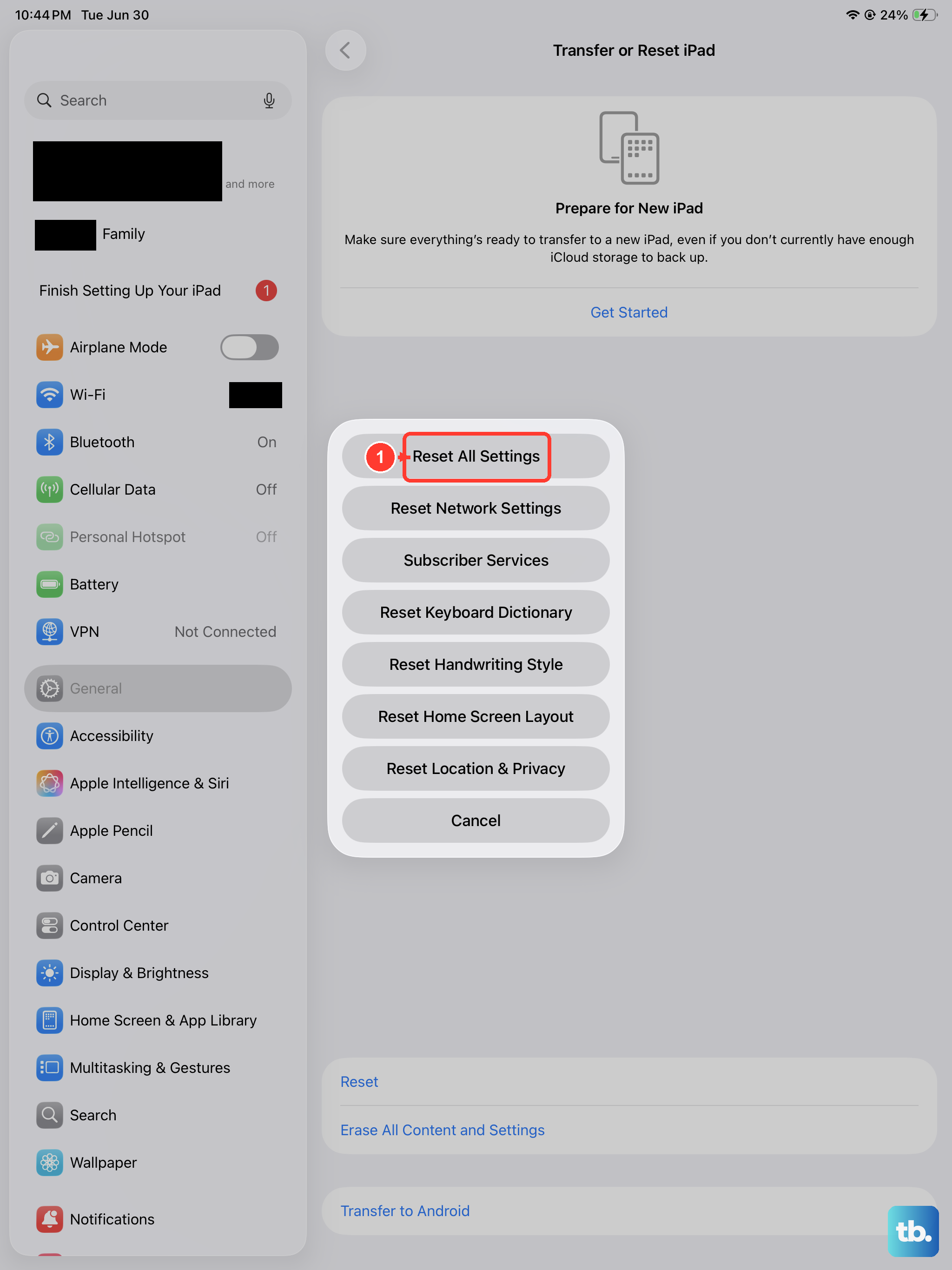
Then check for an iPadOS update at Settings > General > Software Update. Point releases frequently include thermal management improvements.
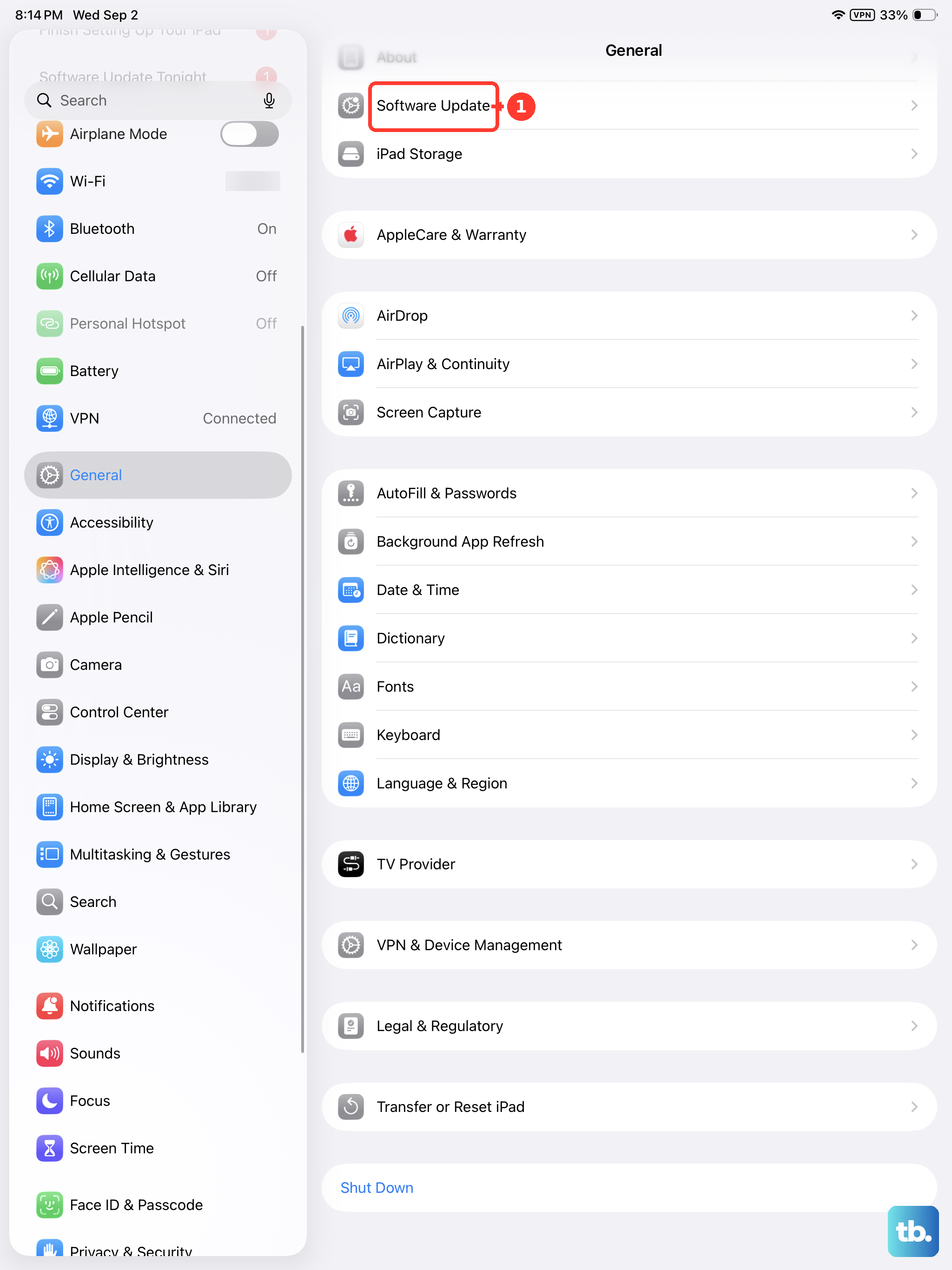
If those don't help, the heavier option is to Reset All Settings. Go to Settings > General > Transfer or Reset iPad > Reset > Reset All Settings. That wipes preferences and network settings (your data stays). If a settings corruption is causing background processes to run hot, this clears it.
When to Contact Apple Support
If the heat continues after all of the above, you may have a hardware issue. The most common is a degrading battery or a USB-C port that has been damaged by a worn cable.
Contact Apple Support or schedule a Genius Bar appointment. Apple's diagnostic can test the battery and charging circuit and tell you if a repair is needed. iPads under warranty get this service free.
Bring the iPad with the same cable and charger you have been using. The tech may need to test the whole setup, not just the iPad.
What This Doesn't Mean
Charging heat, even when uncomfortable, does not damage your data and almost never damages the iPad permanently.
iPadOS has multiple thermal protections (current throttling, charging pause, eventual shutdown) that prevent the battery and internal components from reaching damaging temperatures.
The fixes above address the comfort issue and the underlying cause, but your iPad is not in danger as long as iPadOS is doing its job.