
Getting the red exclamation mark on your iPad Pro M5 is frustrating, especially when you need to confirm plans or send an urgent update. Whether your iMessages (blue bubbles) are stuck or your SMS texts (green bubbles) fail to send, the core problem is usually a bad connection, a software hang on iPadOS 18, or a configuration error. Here's how to get your messages sending again.
Check your signal and data connection
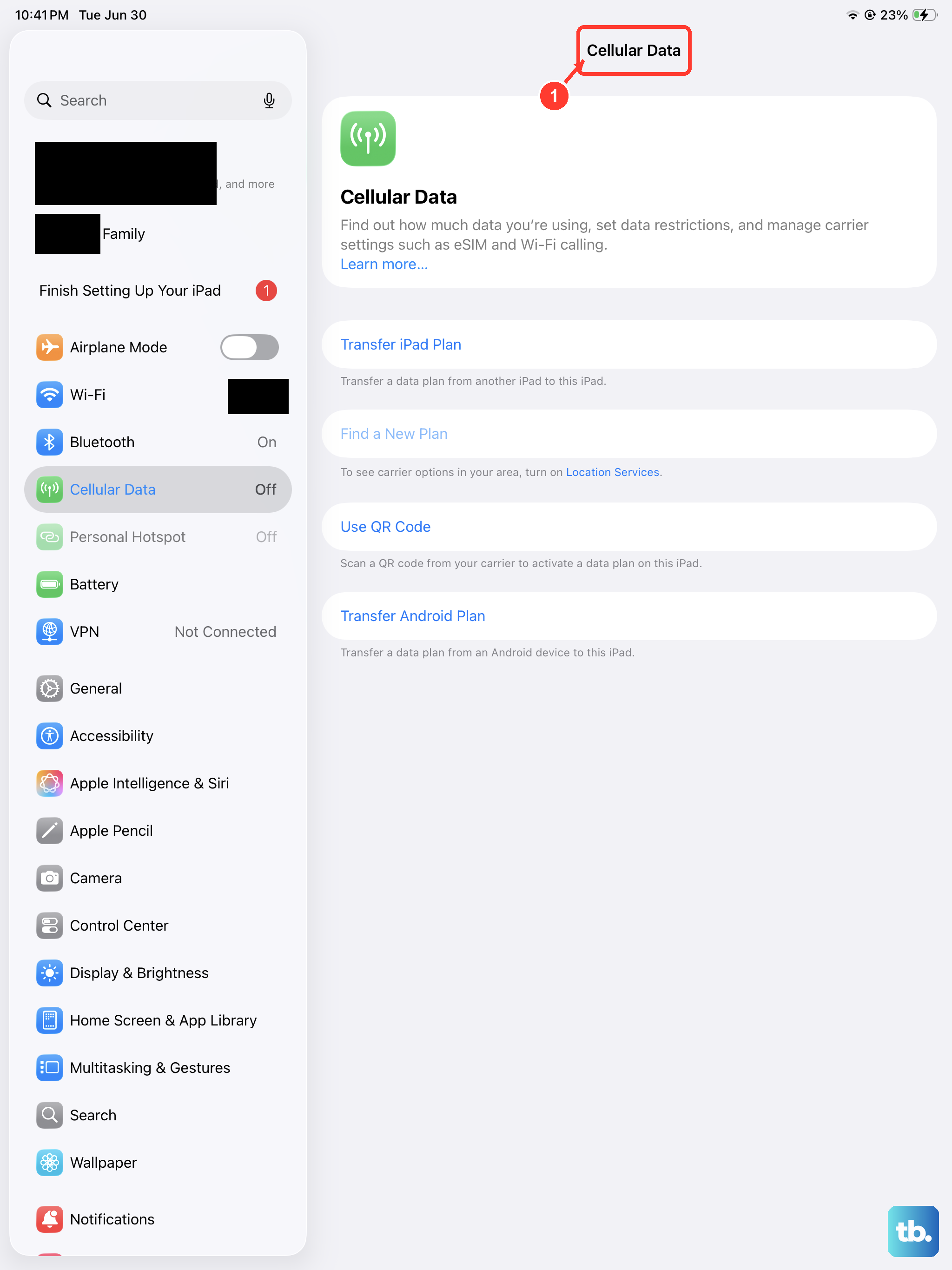
Your iPad Pro M5 needs a cellular connection for SMS and MMS texts or an internet connection (Wi-Fi or Cellular) for iMessage. Pull down Control Center and check your signal bars. If you have no cellular signal or you're in a spotty area, move to a different location or connect to a reliable Wi-Fi network.
Tap the cellular icon in Control Center to make sure Cellular Data is enabled if you rely on it. Toggling Airplane Mode on and off can also force your device to re-scan for the best available network signal.
Force restart the iPad Pro M5
A force restart clears out temporary glitches in the messaging and modem software without erasing any of your data. This is a specific sequence and different from a standard restart.
Press and quickly release the Volume Up button, then press and quickly release the Volume Down button, then press and hold the Top button until the Apple logo appears. Let go of the button once you see the logo. Your iPad will boot back up in about 45 seconds.
Try sending a message again after the restart. This single step fixes a surprising number of stuck sending failures.
Is iMessage down?
If your blue iMessages are sending but not delivering, the problem might be on Apple's end. Apple has a system status page where you can check for outages. If iMessage shows an issue, you simply have to wait for Apple to fix it.
While you wait, you can send failed messages as regular SMS texts. Press and hold the failed blue message bubble and tap Send as Text Message to switch it over.
Toggle iMessage off and on
This manually re-registers your iPad Pro M5 with Apple's servers. Go to Settings > Apps > Messages and turn the iMessage switch off. Wait a full 30 seconds, then turn it back on.
It can take a few minutes for the activation to complete. Keep your iPad connected to Wi-Fi or Cellular data during this time. Once it says "Waiting for activation" and then succeeds, your blue bubbles should work normally.
Check your blocked contacts list
If messages fail to send to a single person but work for everyone else, check your blocked list. It's easy to accidentally block a contact. Go to Settings > Apps > Messages > Blocked Contacts and see if the person is listed. If they are, swipe left on their name or tap Edit and tap Unblock.
Reset network settings
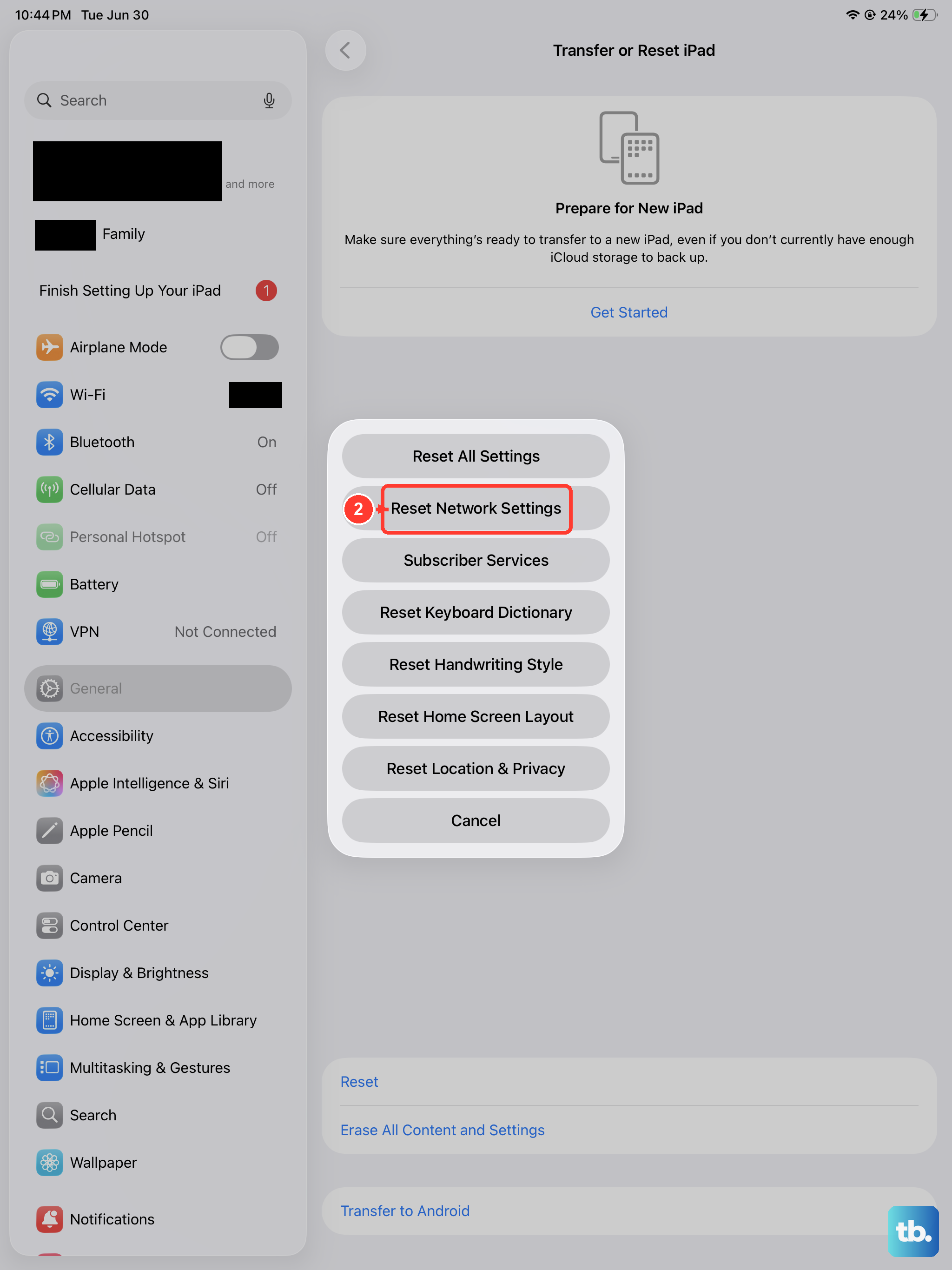
This fix clears out all your saved Wi-Fi networks, Bluetooth pairings, and VPN settings. It rebuilds your networking stack from scratch. I've seen it fix iMessage activation loops and MMS configuration errors that nothing else could touch.
Go to Settings > General > Transfer or Reset iPad > Reset > Reset Network Settings. Your iPad will restart. You'll need to reconnect to Wi-Fi networks afterward, but it's worth the minor hassle to get messages working.
Check MMS and SMS settings
iMessages might work fine while regular texts or picture messages fail. This usually points to a setting being turned off. Head to Settings > Apps > Messages and confirm that MMS Messaging is enabled.
Also make sure SMS and Send as SMS are toggled on. This allows your iPad to automatically fall back to sending a standard green text when iMessage is unavailable or the recipient isn't on an Apple device.
Check your cellular plan and eSIM
Your iPad Pro M5 might use a physical nano-SIM or an eSIM. If there's a billing issue or a provisioning error on your carrier's side, messaging can fail completely. Go to Settings > Cellular and verify that your cellular plan is active and shows a signal.
If you have a physical nano-SIM, power off your iPad, use a SIM eject tool to pop the tray out, wait 30 seconds, and reinsert it. For an eSIM, you may need to contact your carrier to re-send the activation information or refresh the line.
Update iPadOS and carrier settings
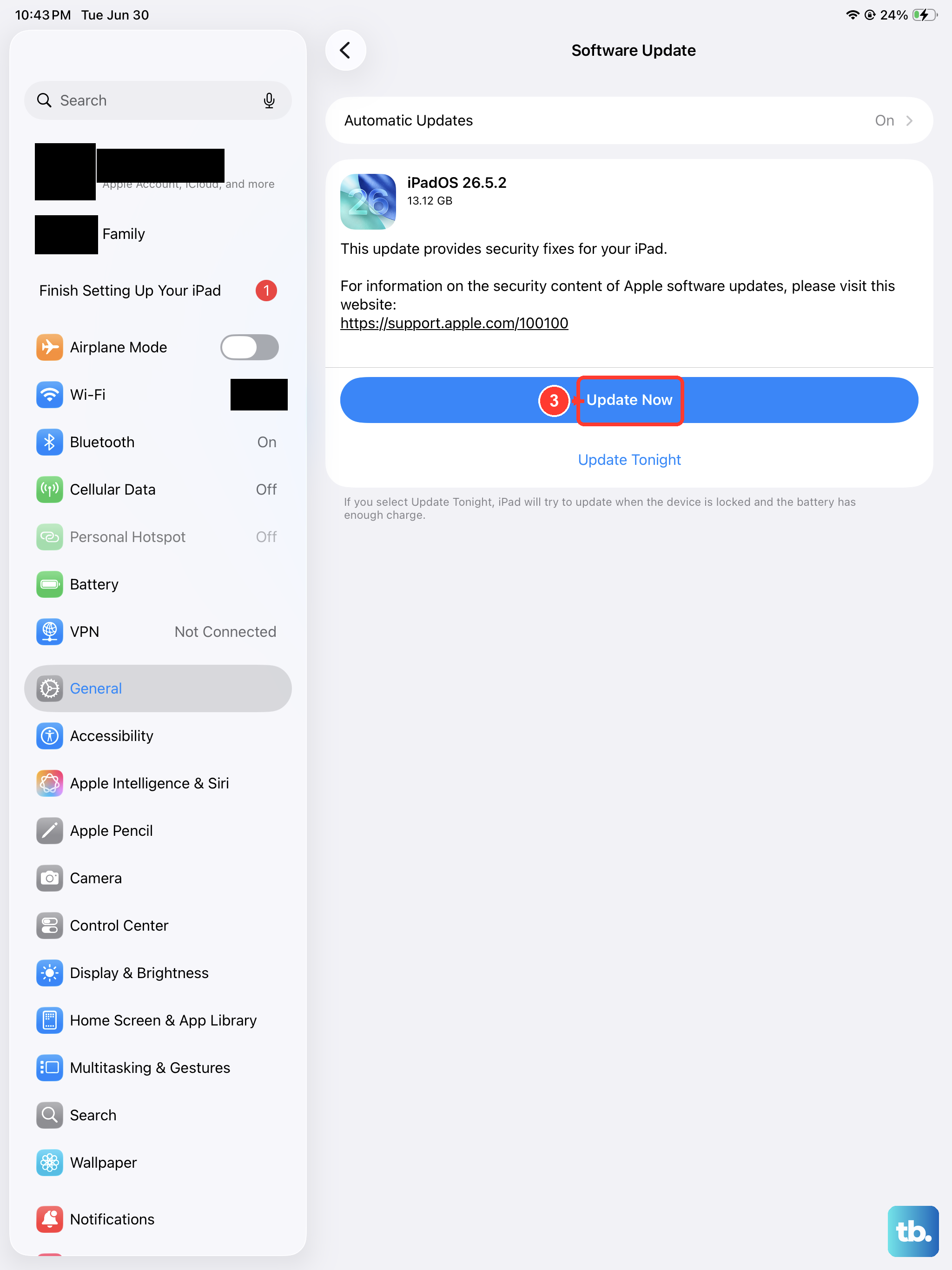
Running outdated software can cause incompatibility with messaging protocols. Go to Settings > General > Software Update to install the latest version of iPadOS 18. Apple frequently includes bug fixes for iMessage and cellular connectivity in these updates.
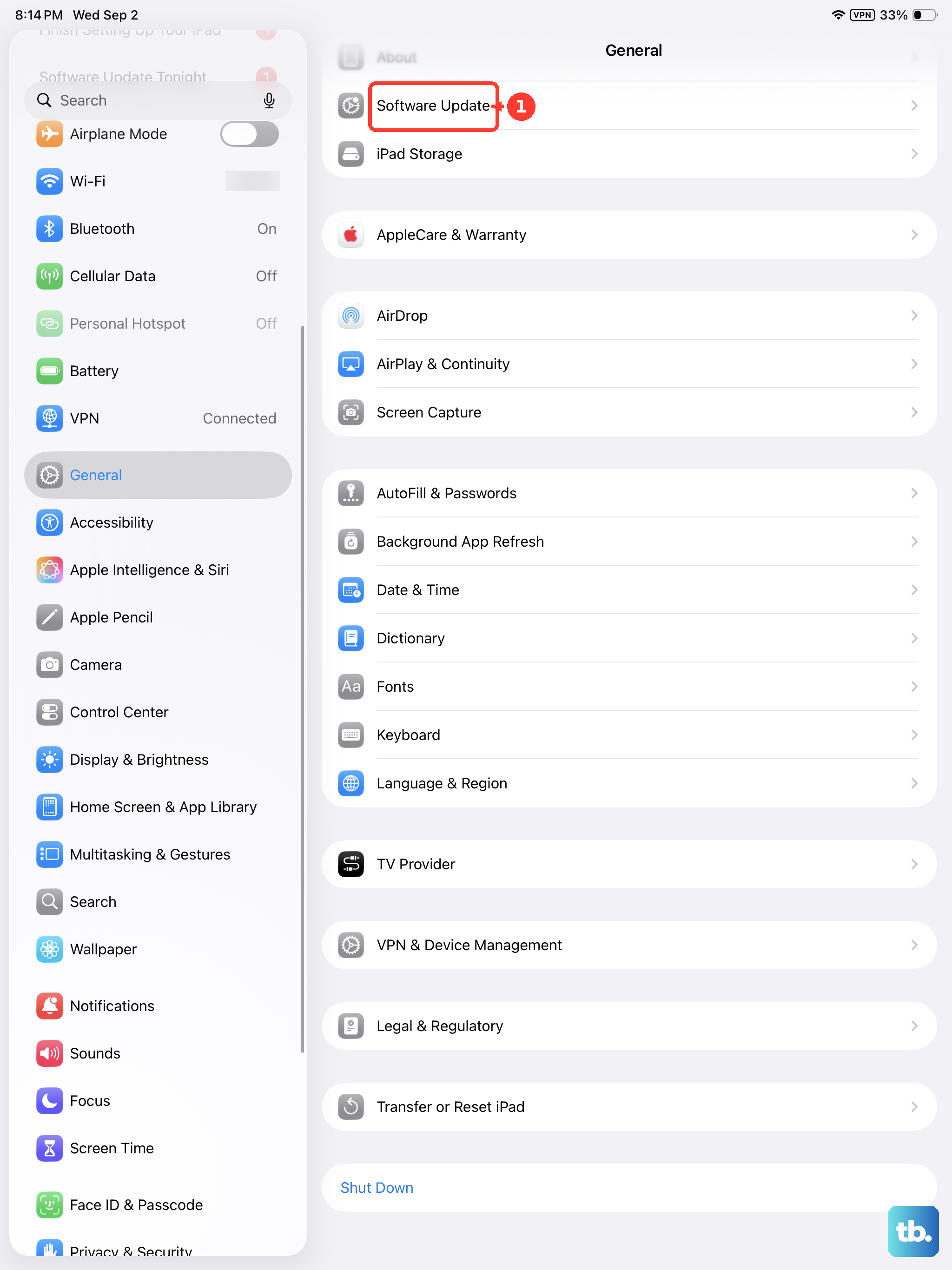
Carrier settings are smaller configuration files that fine-tune network behavior. Go to Settings > General > About. If a carrier update is available, a pop-up will automatically appear asking you to install it. Tap Update to apply it.
Contact your carrier
If you've tried everything else, the root cause is likely on your carrier's end. SMS and MMS provisioning on your account could be disabled, or there might be an outage in your area that affects texting but not voice calls.
Call your carrier's support line and ask them to check your messaging features. They can refresh your line on the network side, which usually resolves the issue within a few minutes.