
A frozen iPad Pro M5 screen is jarring, especially on a device this powerful. Whether the display is stuck on an app, a black screen, or just won't respond to taps, don't panic. Most freezes are temporary and fixable without losing your files.
Force Restart the iPad Pro M5
This is the fix you'll use most often. It interrupts whatever is stuck without deleting your data. Press and quickly release the Volume Up button, then press and quickly release the Volume Down button. Then press and hold the Top button until the Apple logo appears. Keep holding for a solid 15-20 seconds even if nothing seems to happen at first.
Give It a Few Minutes
Your tablet might not actually be frozen. It could be processing a heavy background task like indexing photos after an iPadOS update or syncing a large file. If the screen is stuck but the back of the iPad feels warm, it's likely still working. Let it sit for 5 to 10 minutes before you try anything else.
Check the Cable, Charger, and Port
A dead battery can look exactly like a frozen screen. Plug the iPad into a charger and wait at least 15 minutes. The iPad Pro M5 charges over USB-C and supports fast charging, but you need a 60W adapter for the best speeds. Inspect your charging cable and adapter for any fraying or visible damage, and take a look inside the USB-C port for dust or debris that might be blocking the connection.
Close the Stuck App
If iPadOS is still working but one app is frozen, you don't need to restart the whole device. Swipe up from the bottom of the screen and pause to open the App Switcher. Swipe up on the unresponsive app to close it. Then tap it again to open it fresh from the Home Screen.
Free Up Storage Space
The iPad Pro M5 can freeze up when its storage is critically full. The system needs room to create temporary files, and without it, things grind to a halt. Go to Settings > General > iPad Storage and delete apps, old messages, or photos you no longer need. Aim for at least 2-3 GB of free space to keep the system running smoothly.
Update iPadOS
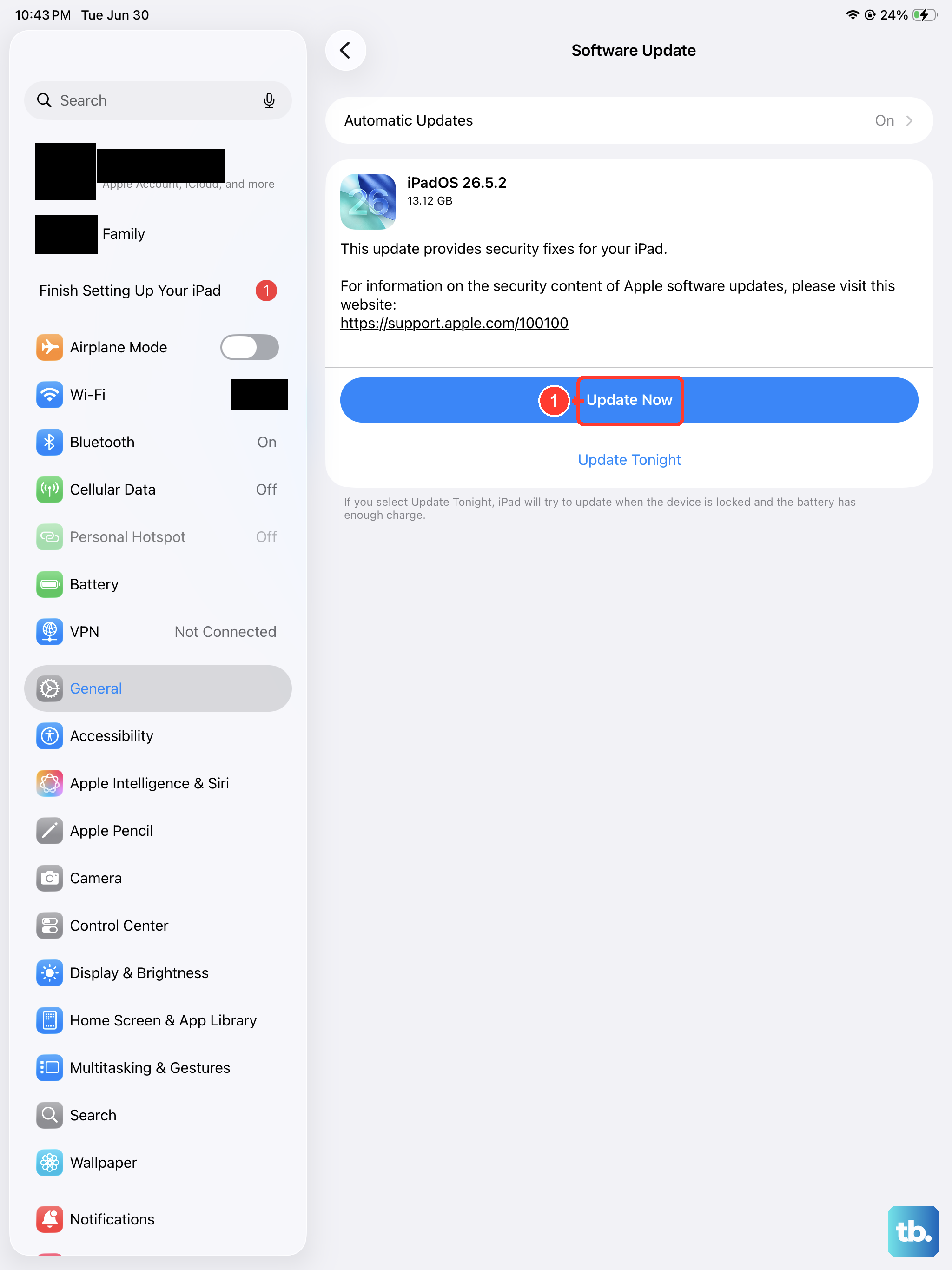
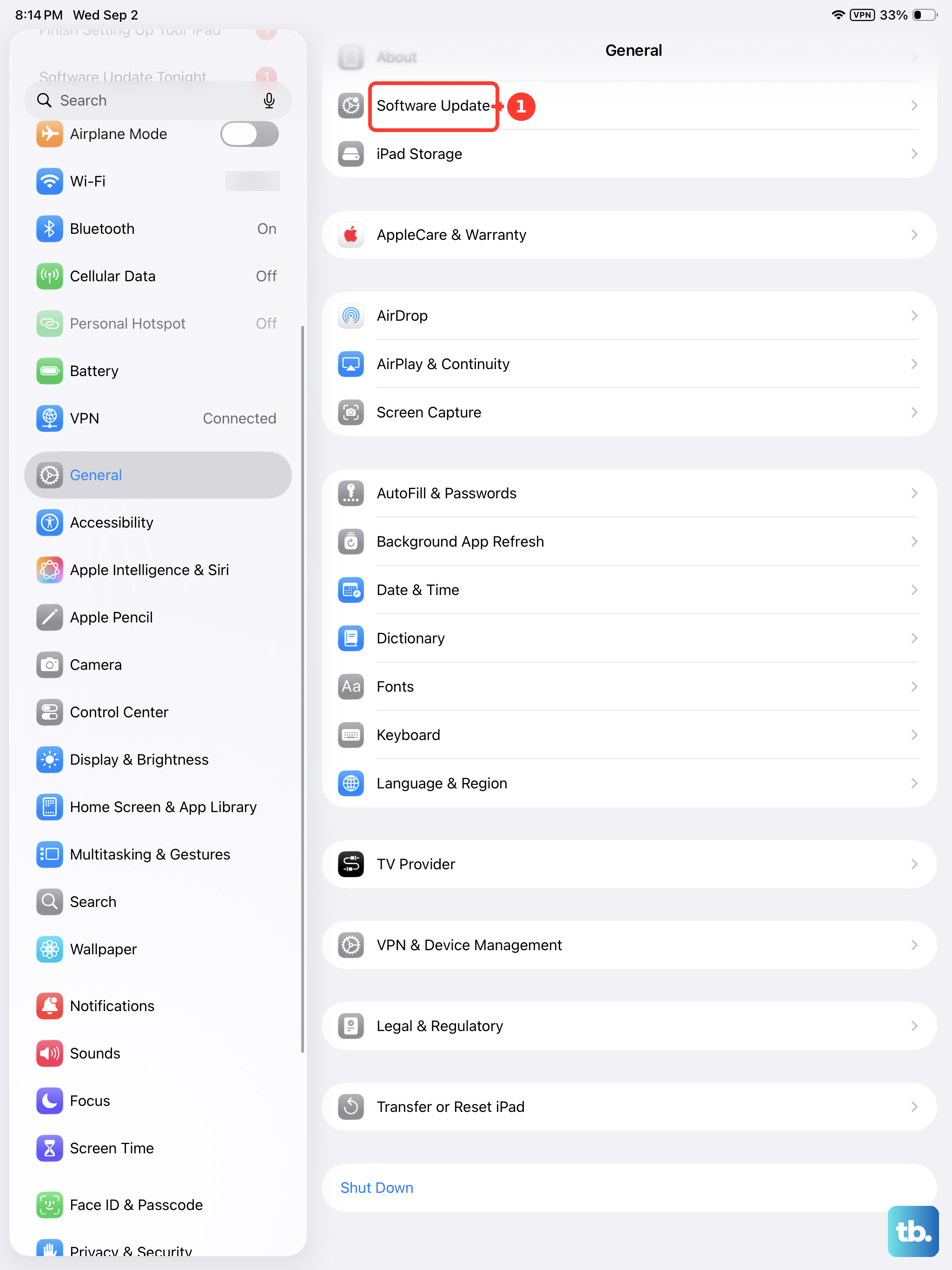
Software bugs are a common cause of freezing. Apple regularly releases updates to fix these exact issues. Go to Settings > General > Software Update and install any available version. If the iPad freezes during the update process, connect it to a computer and update through Finder or iTunes instead.
Reset All Settings
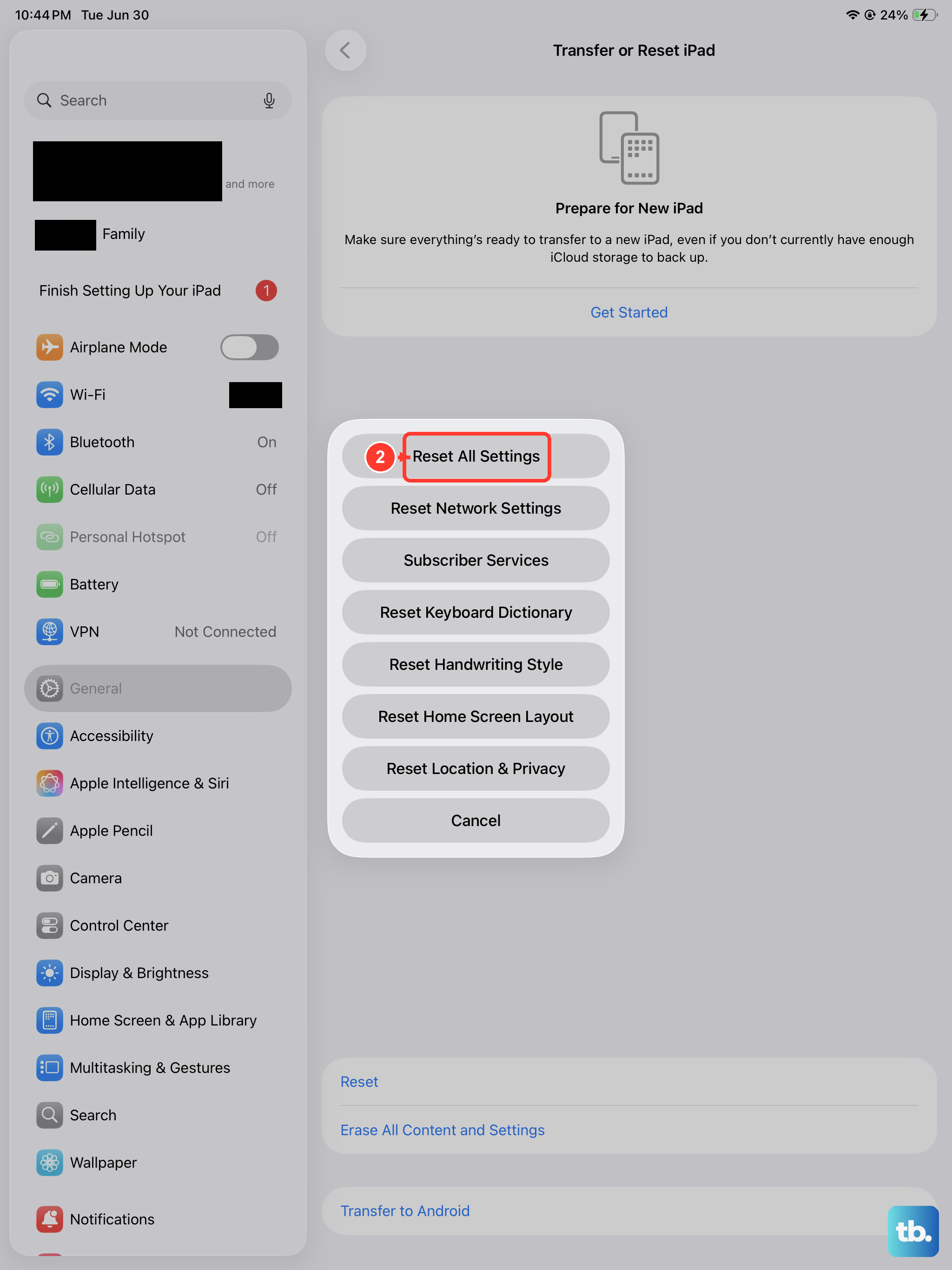
If freezing happens repeatedly, a corrupted settings file might be the root cause. This won't erase your apps or data, but it will reset preferences like Wi-Fi passwords and wallpapers. Go to Settings > General > Transfer or Reset iPad > Reset > Reset All Settings. It's a surprisingly effective fix for weird behavior.
Restore the iPad with a Computer
For persistent freezing that won't clear up, a full restore is the best option. Connect the iPad Pro M5 to a Mac or PC and open Finder or iTunes. Put the iPad into recovery mode using the force restart sequence. When the recovery screen appears, choose Update first to reinstall iPadOS without deleting your files. If that fails, select Restore to wipe it clean and start fresh.
Let the iPad Cool Down
An overheating iPad will lock itself up to protect the internal components. If the tablet feels hot to the touch, remove it from direct sunlight and take off any case. Let it sit for 15 to 20 minutes to cool down completely before turning it back on. Avoid charging it while it's still warm.