
When the flashlight on your iPad Pro M5 stops working, it's more annoying than you'd expect. The button might be grayed out in Control Center, or tapping it does nothing. Here's how to get it working again.
Close the Camera App
The flashlight and camera share the same LED. If the Camera app is open (even in the background), the flashlight button in Control Center will be grayed out and unavailable. Close the Camera app by swiping up from the bottom to open the App Switcher, then swiping the Camera card away. The flashlight should become available again immediately.
Restart Your iPad Pro M5
Press and hold the Top button along with either Volume button until the power slider appears. Slide to power off, wait 30 seconds, then turn it back on. A restart clears the software state that controls the LED and often fixes a non-responsive flashlight. If the iPad is unresponsive, force restart it instead: press and quickly release Volume Up, then Volume Down, then press and hold the Top button until the Apple logo appears.
Check Low Power Mode
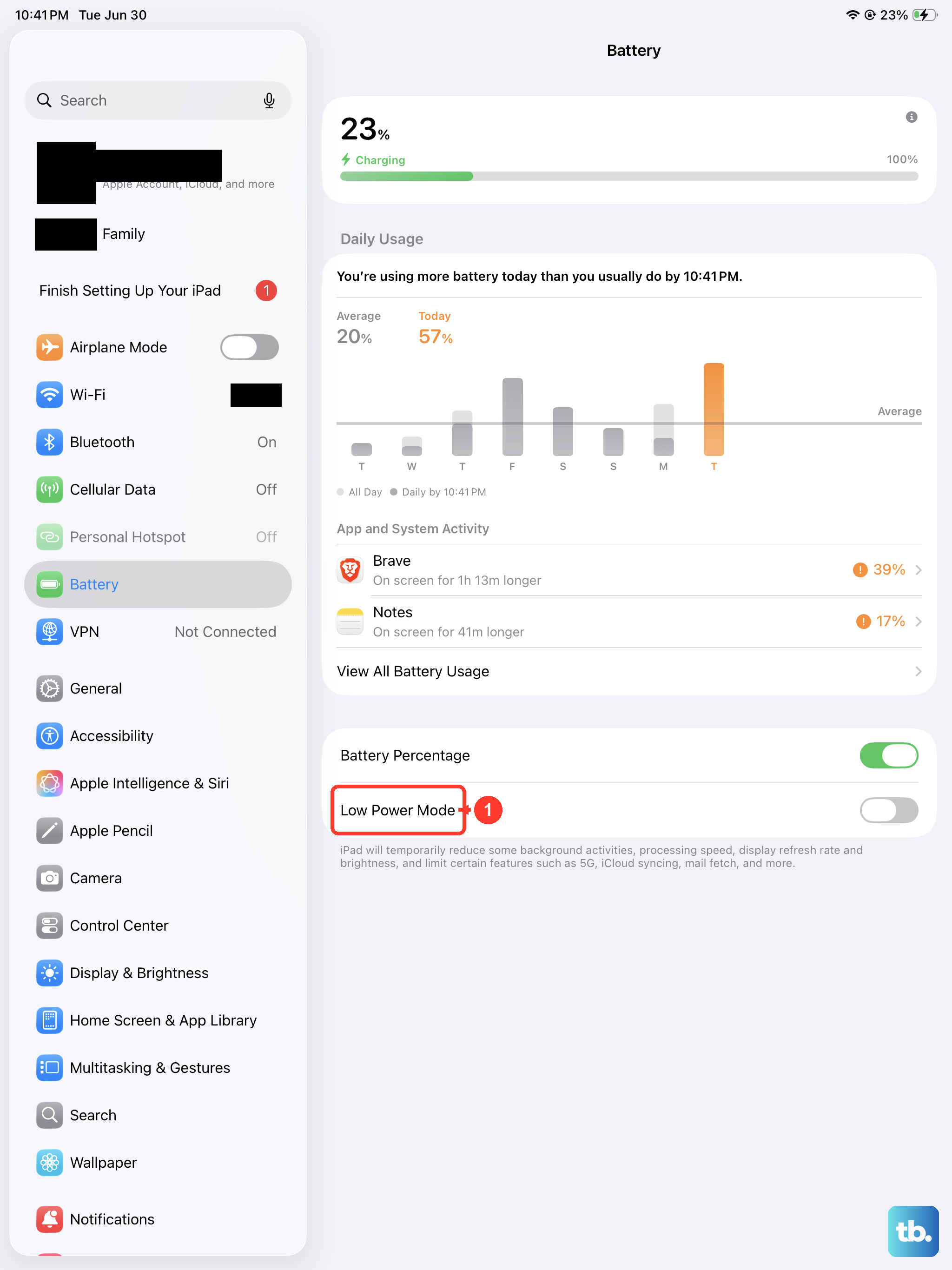
Low Power Mode doesn't disable the flashlight, but some users report it being less responsive when active. Go to Settings > Battery and turn off Low Power Mode if it's on. Try the flashlight again.
Cool Down Your iPad Pro M5
If your iPad is overheating, iPadOS disables certain features including the flashlight. If the device feels hot, let it cool down in a cooler environment for 10-15 minutes. The flashlight will work again once the temperature normalizes.
Toggle via Siri
Say "Hey Siri, turn on the flashlight". If Siri can activate it but the Control Center button doesn't work, there's a UI glitch. A restart usually fixes this. You can also try toggling it off and on through Siri to reset the state.
Adjust Flashlight Brightness
Press and hold the flashlight button in Control Center instead of tapping it. A brightness slider appears. Drag it to maximum. If the flashlight was set to the lowest brightness, it might appear like it's not working in well-lit environments.
Reset All Settings
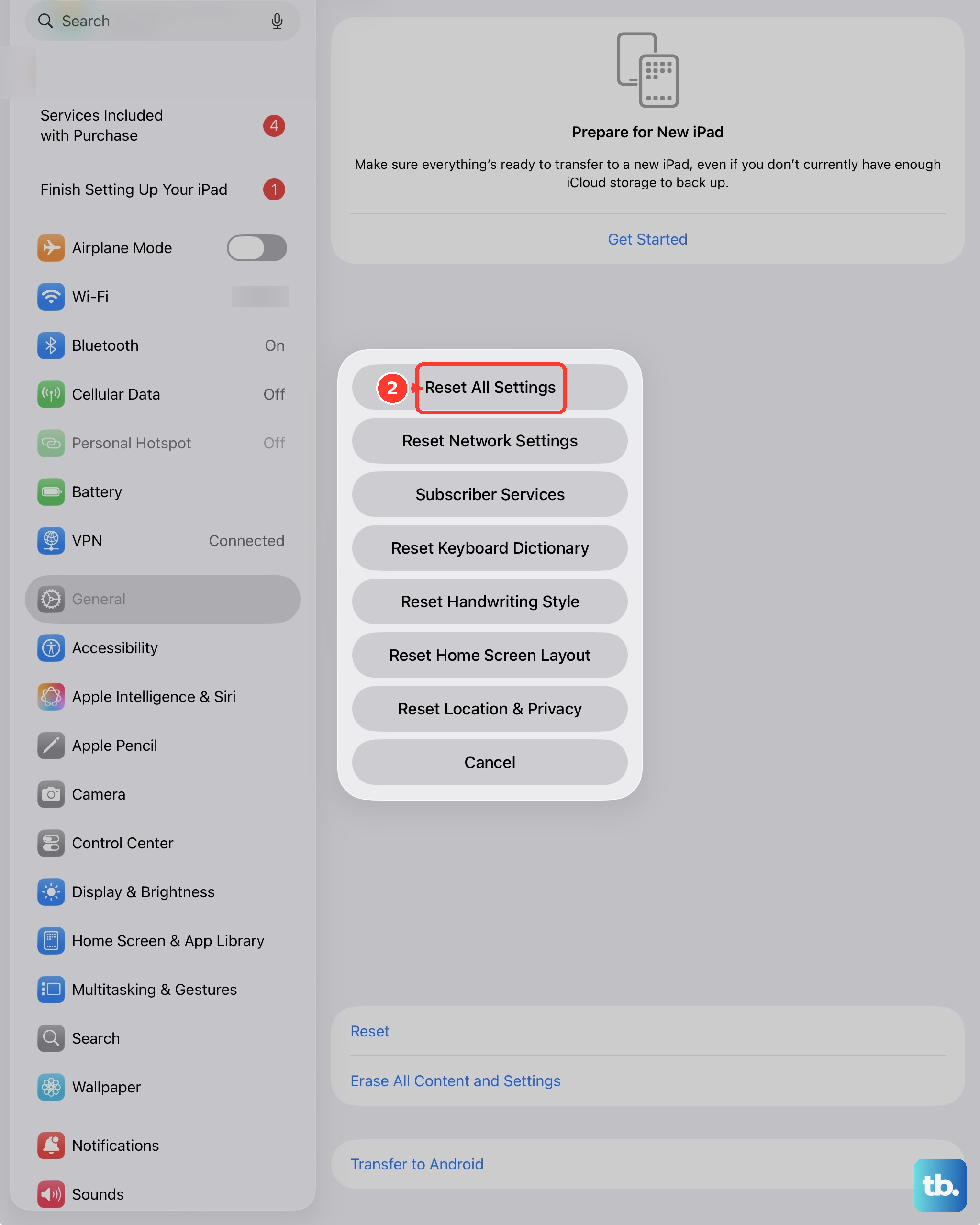
Go to Settings > General > Transfer or Reset iPad > Reset > Reset All Settings. This resets system configurations without erasing data. It can fix persistent Control Center or hardware control issues.
Update iPadOS
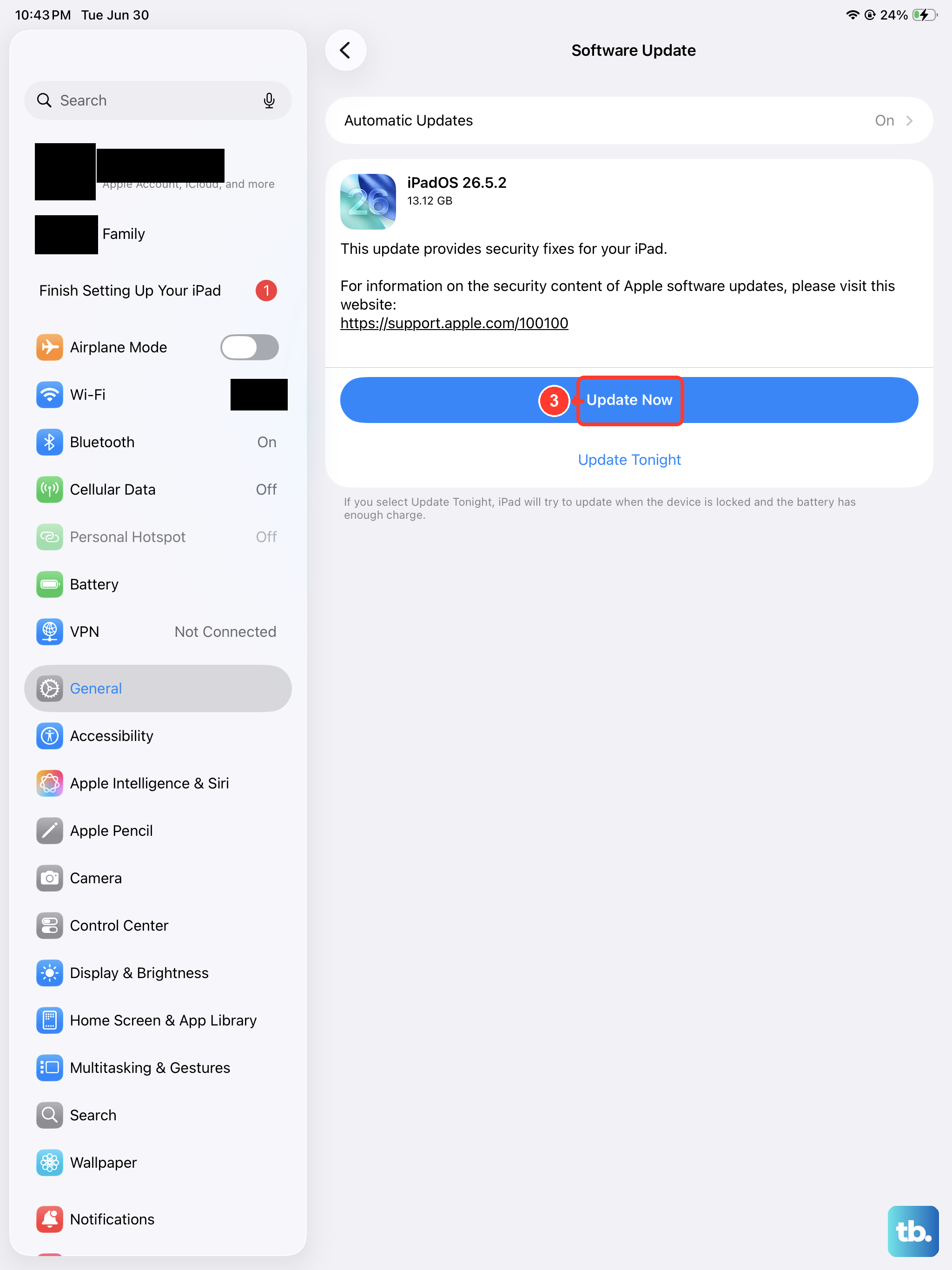
Go to Settings > General > Software Update and install any available update. Apple has fixed flashlight bugs in past iPadOS releases, including issues where the button becomes permanently grayed out.
Check for Hardware Damage
If the flashlight still doesn't work after trying everything above, the LED itself may be damaged. Open the Camera app and try using the flash for a photo. If the camera flash also doesn't work, the LED hardware needs repair. Visit an Apple Store or authorized service center for diagnosis.