
If your iPad Pro M5 is charging slowly when you need it to be fast, you're not alone. The M5 supports 60W fast charging, which can get you from 0% to 50% in about 30 minutes, but only if everything is set up correctly. A wrong adapter, a worn cable, or even a thick case can slow things down to a crawl.
Use a 60W or Higher USB-C Adapter
Fast charging on the iPad Pro M5 requires a USB-C power adapter that delivers at least 60W. Apple's 40W dynamic power adapter (model A3351) works too, but for full speed you want 60W or higher. Check the wattage printed on your adapter, the small 20W iPhone charger will charge it, but not at the expected pace.
Stick with a USB-C to USB-C Cable
You need a USB-C to USB-C cable that supports USB Power Delivery. Older USB-A to USB-C cables or Lightning cables won't cut it, they're limited to slower charging speeds regardless of the adapter. Use the cable that came with your iPad, or any MFi-certified USB-C cable rated for charging.
Set the iPad Down While It Charges
Using the iPad Pro M5 while it's plugged in generates heat, and iPadOS will throttle charging speed to protect the battery. Gaming, video editing, or streaming video all slow things down considerably. For the fastest charge, leave it on a table, or put it in Airplane Mode.
Pop Off the Case
Thick or non-ventilated cases trap heat, and fast charging already pushes the temperature up. The iPad Pro M5's thermal management will pull back charging speed if it gets too warm. Remove the case while charging, especially if you're trying to get a quick top-up before heading out.
Check for Overheating
If your iPad feels hot to the touch, charging speed drops automatically. Don't charge it in direct sunlight, on a soft surface like a bed, or in a hot car. A cool, hard surface like a desk or a table is best for fast charging. Give it a few minutes to cool down if it's already warm.
Force Restart the iPad
Sometimes a software glitch can mess with charging speed or even make the iPad act like it's not charging properly. Perform a force restart: press and quickly release the Volume Up button, then press and quickly release the Volume Down button, then press and hold the Top button until the Apple logo appears. This won't erase anything, but it clears temporary issues.
Turn Off Optimized Battery Charging Temporarily
Go to Settings > Battery > Battery Health & Charging > Optimized Battery Charging. This feature intentionally slows charging past 80% to extend battery lifespan. If you need a full fast charge right now, toggle it off. Just remember to turn it back on later for long-term battery health.
Clean the USB-C Port
Dust, lint, or debris in the USB-C port can prevent a solid connection, reducing charging speed or stopping it entirely. Use a wooden toothpick or a soft brush to gently remove any gunk. Don't use metal objects, you can damage the pins. Compressed air also works well. A clean port ensures maximum power delivery.
Update to the Latest iPadOS
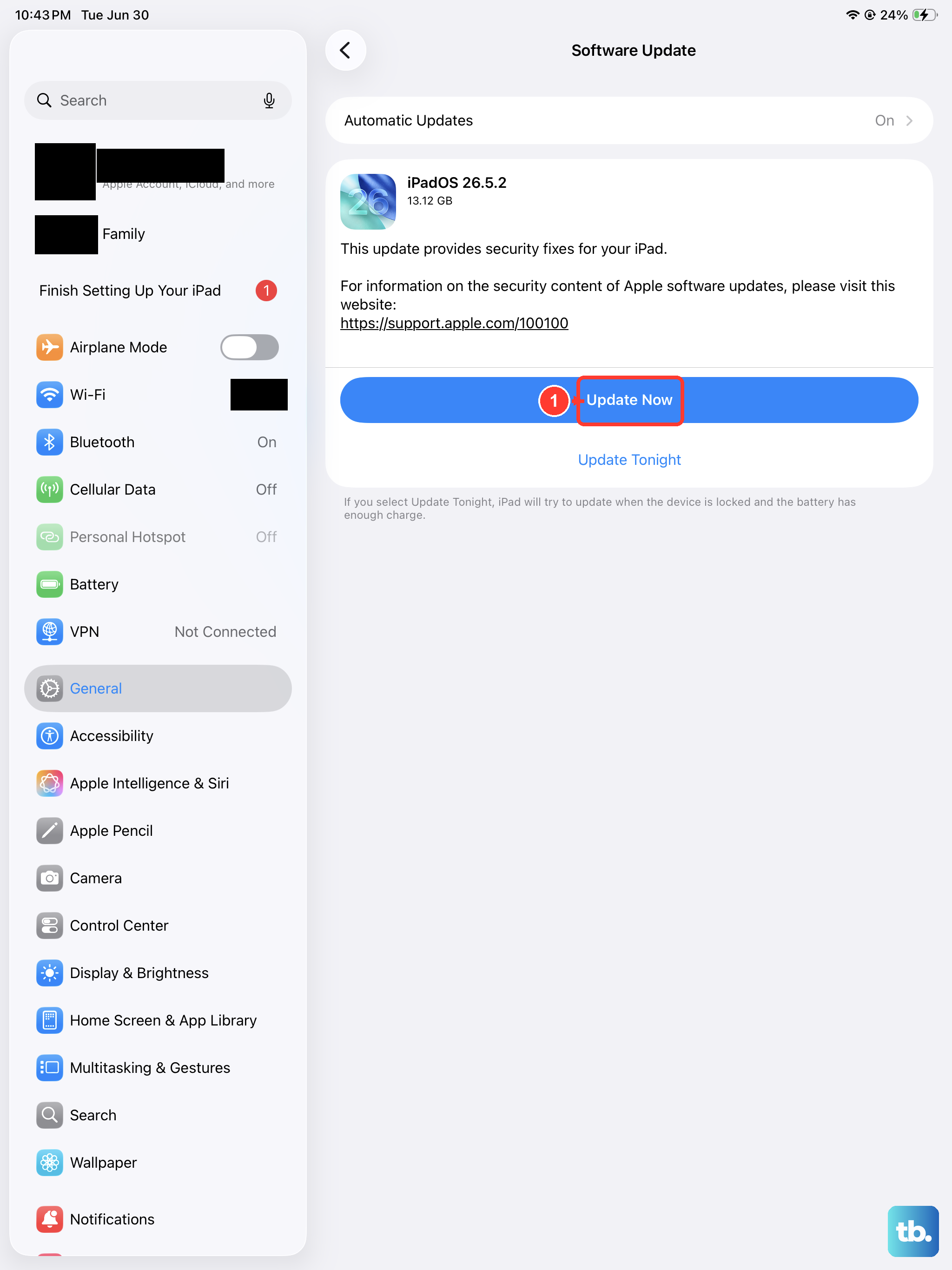
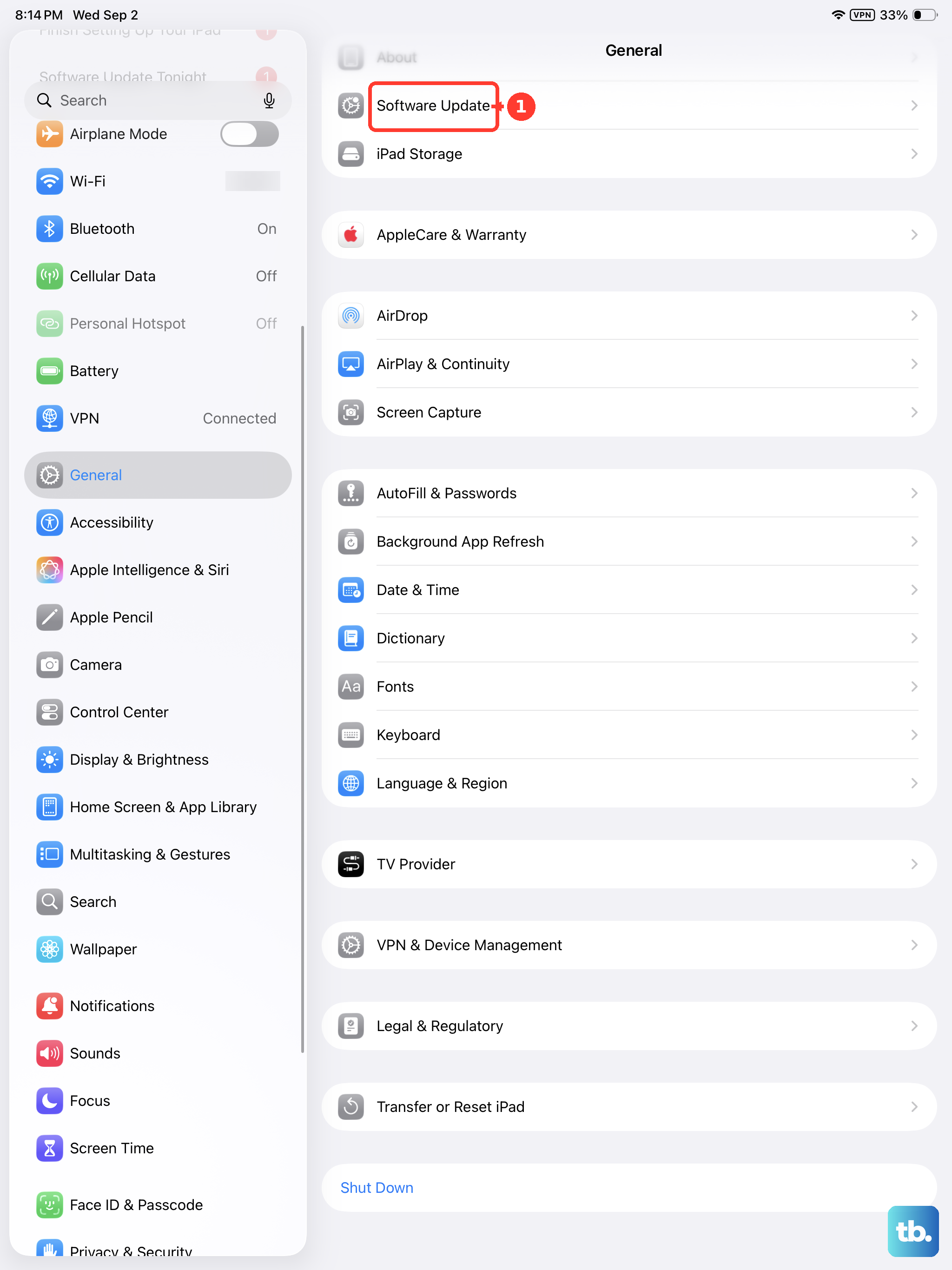
Go to Settings > General > Software Update. Apple occasionally adjusts charging behavior through iPadOS updates, fixing bugs that could slow things down. Running iPadOS 18 with the latest patch ensures you have the most optimized charging algorithms for the M5.
Try a Different Cable or Adapter
Cables wear out over time, especially near the connector ends. If you see any fraying or bending, swap it out. Borrow a friend's USB-C charger and cable, or test with another device to see if your adapter is the problem. If fast charging works with a new cable, you've found the culprit.