Your iPad Pro M4 has the screen of a small laptop and a Messages app that looks ready to fire off texts, so it feels broken when a conversation simply will not go through. Maybe the blue iMessage bubbles stall on the way out, maybe the green replies your friends send never land on the tablet at all, or maybe nothing you type ever leaves the keyboard. Before you assume the hardware is faulty, it helps to understand how an iPad actually handles messages, because the cause is almost always a setting rather than a defect. The steps below apply to the iPad Pro 11-inch (M4) and iPad Pro 13-inch (M4) on iPadOS 26, and they move from the quickest checks to the official reset and support path.
Know what your iPad can and cannot text
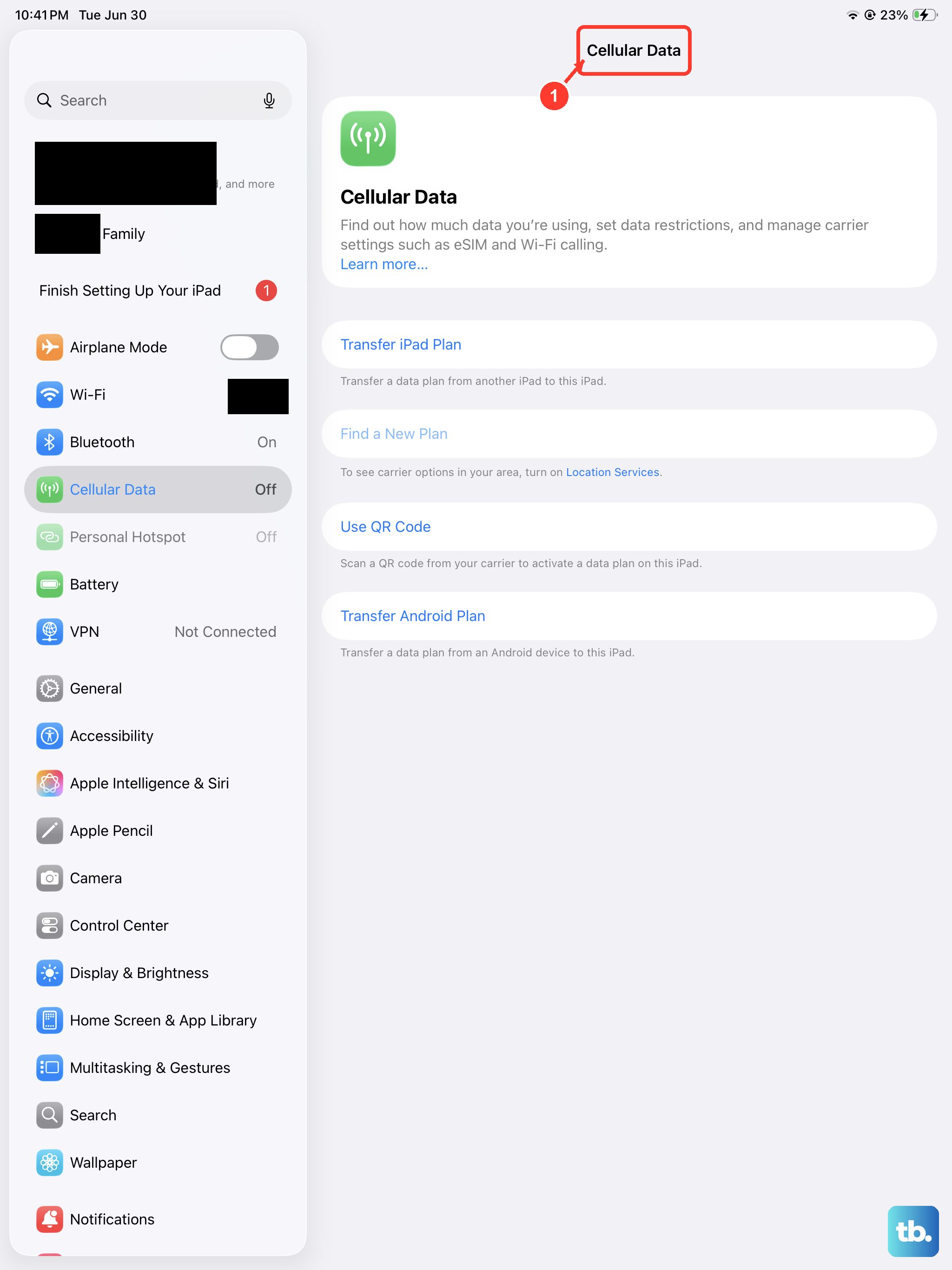
An iPad sends and receives iMessage (the blue bubbles) over Wi-Fi or cellular data, but it has no standard SMS or MMS service of its own. Even a Wi-Fi + Cellular iPad Pro M4 uses a data-only plan, so it cannot send a green-bubble text by itself. Those normal SMS and MMS texts only appear on the iPad when they are relayed from a paired iPhone that has Text Message Forwarding turned on, with both devices signed in to the same Apple Account.
That means "iPad not sending texts" almost always comes down to one of two things, iMessage is not set up or activated on the iPad, or Text Message Forwarding from the iPhone is off or broken. Start by confirming the connection, since iMessage needs it. To send a message as iMessage you need a working cellular data or Wi-Fi connection, so verify that Wi-Fi or cellular data is switched on and actually online before changing anything else.
Switch iMessage on and choose your numbers
If your blue bubbles are not sending, the most common reason is that iMessage is either off or pointed at the wrong address. Take a moment to confirm both in the Messages settings.
- 1.Open Settings, tap Apps, then tap Messages.
- 2.Make sure iMessage is turned on.
- 3.Tap Send & Receive and confirm the phone number and email addresses you want are selected under "You can receive iMessages to and reply from."
If the right address was not selected, iMessages can fail silently or arrive in the wrong place. Setting Send & Receive correctly usually restores sending right away.
Rule out an Apple-side outage first
Sometimes the problem is not on your iPad at all. Open Apple's System Status page and check whether iMessage is listed as experiencing a service outage. If Apple shows an active issue with iMessage, the fault is on Apple's side and the only fix is to wait for the service to come back. This quick check saves you from running through deeper steps for a problem you cannot solve.
Set the right date, time, and time zone
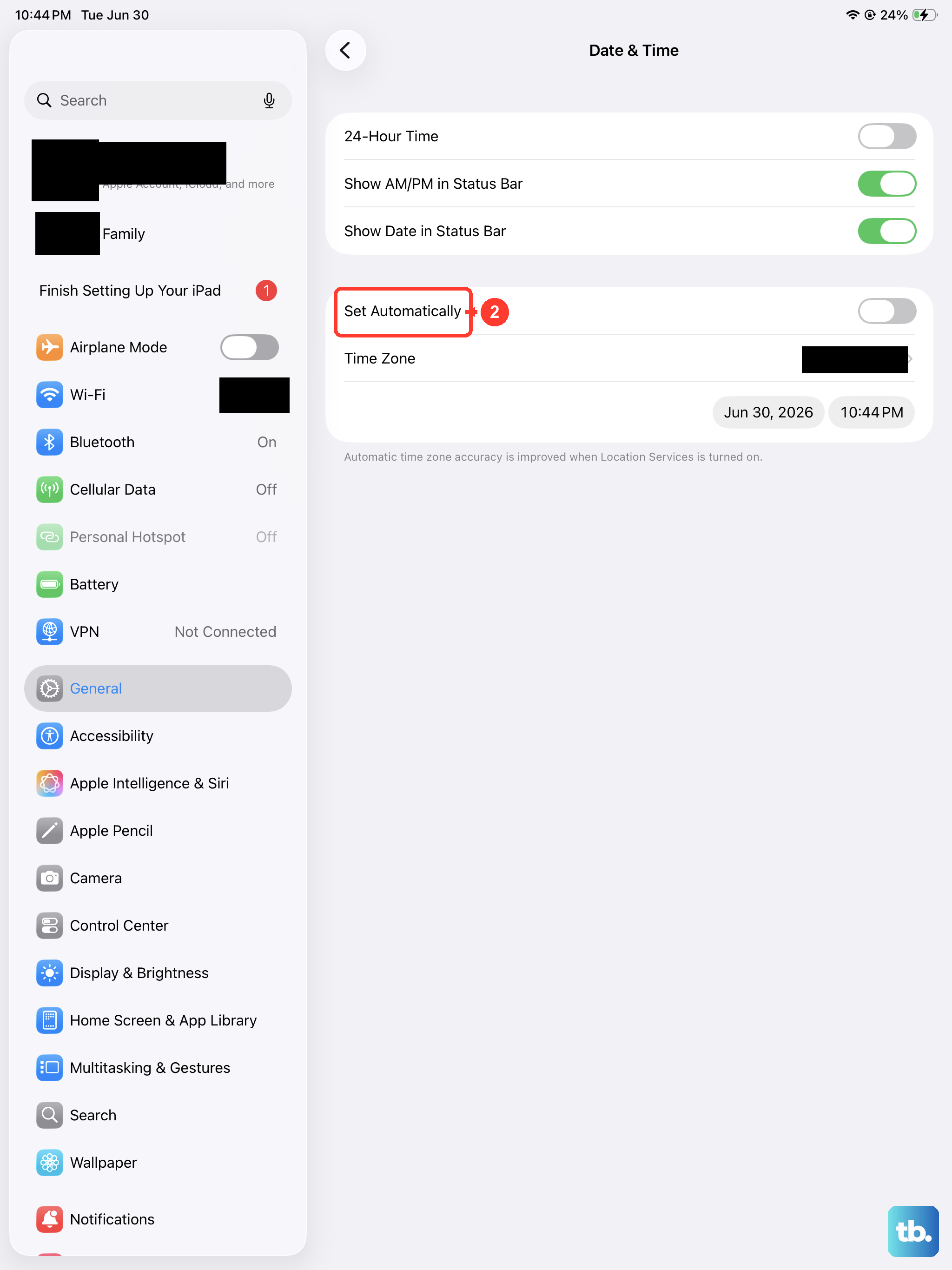
An incorrect clock can quietly block iMessage from activating and sending, which is easy to overlook. Go to Settings > General > Date & Time and make sure the time zone is set correctly. The time zone is normally handled for you, so turning on Set Automatically keeps both the date and the zone accurate. Once the clock is right, try sending again.
Turn on Text Message Forwarding for green-bubble texts
If your blue iMessages send fine but normal SMS and MMS (green) texts will not go out from the iPad, that feature depends entirely on a paired iPhone. The iPhone is the controlling device, and it relays those texts to your iPad once forwarding is enabled.
- 1.On the iPhone, go to Settings > Messages > Text Message Forwarding.
- 2.Choose which devices can send and receive text messages from your iPhone, and enable your iPad.
Both devices must be signed in to iCloud with the same Apple Account, and the iPhone must be turned on and connected to Wi-Fi or cellular for the relay to work. As a helpful safety net, you can also open Settings > Apps > Messages on the iPhone and turn on Send as Text Message, so a message that fails to send as iMessage goes out as a green text instead.
Toggle iMessage off and on, then restart
If iMessage is on but still not cooperating, refreshing it often clears the problem. Go to Settings > Messages and turn off iMessage, restart the iPad, then turn iMessage back on. Activation can take up to 24 hours to complete, so be patient. If you see a spinning gear during activation, there is no need to repeatedly toggle the switch off and on.
Sign out of iMessage and back in
When messages still refuse to send, refreshing your activation with Apple's servers can help. Follow Apple's steps to sign out of and back in to iMessage on the iPad. While you are at it, make sure you are signed in with the correct Apple Account, since a mismatched account is a frequent cause of texts failing to route to the tablet.
Install the latest iPadOS
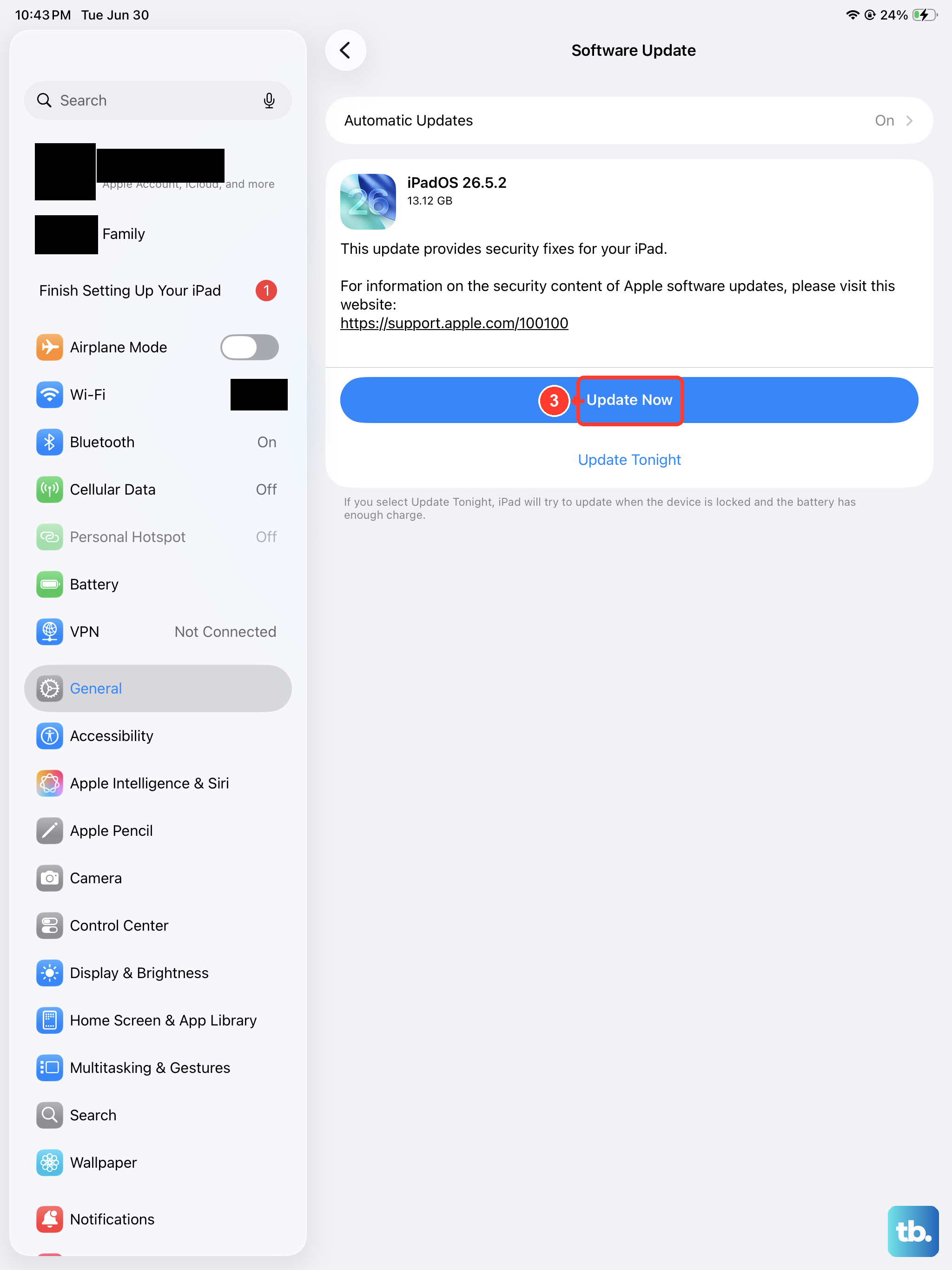
An outdated system can carry messaging bugs that a later release has already fixed, so keeping the iPad current is worth doing. Plug the iPad into power and connect it to Wi-Fi first, then go to Settings > General > Software Update and tap Download and Install. Apple notes that your data and settings remain unchanged when you update, so this step is safe to run.
Force restart when Messages freezes
If the Messages app itself is frozen or unresponsive, a force restart can bring it back without affecting your content. On the iPad Pro M4, which has no Home button, use Apple's exact sequence.
- 1.Press and quickly release the volume button nearest to the top button.
- 2.Press and quickly release the volume button farthest from the top button.
- 3.Press and hold the top button.
- 4.When the Apple logo appears, release the top button.
Follow the order precisely, since pressing the wrong button or holding too early will not trigger the restart.
Erase everything as a last resort and reach Apple Support
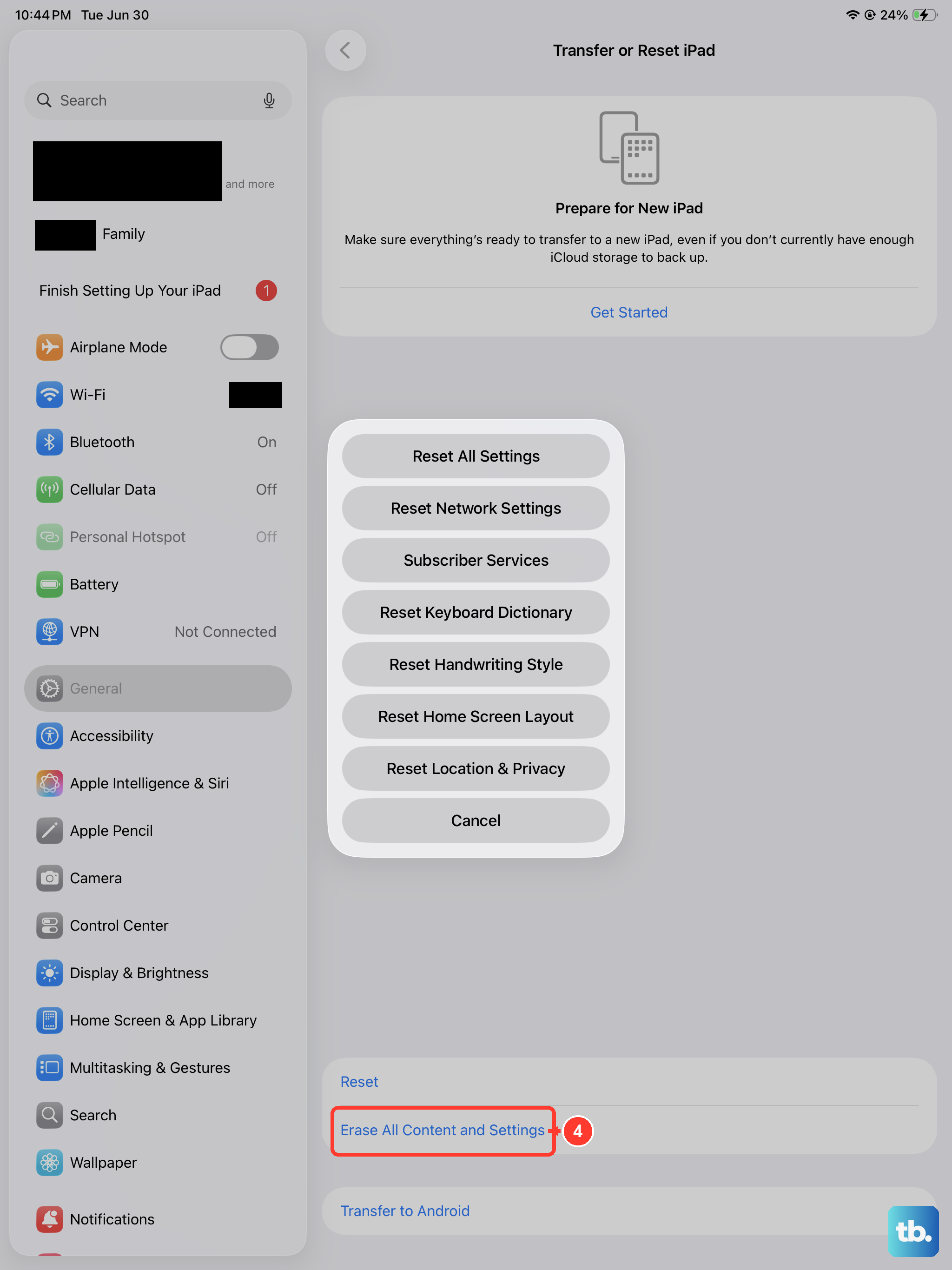
If nothing above works, a full erase is the final step, but it removes everything, so treat it carefully. Back up the iPad first, because this action permanently removes all of your content and settings, and a current backup is essential. When your backup is ready, go to Settings > General > Transfer or Reset iPad > Erase All Content and Settings, enter your passcode or Apple Account password if asked, then tap Continue.
If texts still will not send after the erase and restore, it is time to get help. Contact Apple Support for the iPad, and contact your carrier for any SMS issues on the paired iPhone, since the iPhone and its plan are what actually carry those green-bubble texts.
Frequently Asked Questions
Can a cellular iPad Pro M4 send regular text messages on its own?
No. Even a Wi-Fi + Cellular iPad Pro M4 uses a data-only plan with no native SMS or MMS, so it cannot send standard green-bubble texts by itself. It can send and receive iMessage over Wi-Fi or cellular data, and it can show and send SMS or MMS texts only when paired with an iPhone that has Text Message Forwarding turned on.
Why do my friends' green texts never reach my iPad?
Green texts are SMS or MMS messages, which the iPad does not handle on its own. They appear on the iPad only when a paired iPhone relays them, so go to Settings > Messages > Text Message Forwarding on the iPhone and enable your iPad, with both devices signed in to iCloud using the same Apple Account.
How long does iMessage take to activate after I turn it on?
Activation can take up to 24 hours. If you see a spinning gear during that time, leave it alone rather than repeatedly switching iMessage off and on.
Will updating iPadOS delete my messages or settings?
No. Apple notes that your data and settings remain unchanged when you update, so it is safe to install the latest iPadOS from Settings > General > Software Update. Plug into power and connect to Wi-Fi before you start.