You pressed the top button on your iPad mini, the Apple logo flashed onto the screen, and then everything froze right there. The logo sits in the middle of the 8.3-inch display, the startup seems to stall partway, and no amount of tapping or swiping wakes the tablet. It is an unsettling sight on a device you keep close all day, but a logo that refuses to clear is almost always a startup that stalled, not hardware that died.
Apple officially calls this tablet the iPad mini (A17 Pro), introduced in 2024, and it runs iPadOS on an A17 Pro chip with a USB-C connector, volume buttons, and a top button that doubles as a Touch ID sensor. Because it has no Home button and no Face ID, the recovery steps below use the exact sequence Apple documents for an iPad without a Home button. Work through the fixes in order, starting with the safest, and stop as soon as your iPad mini boots normally.
Start With Power Before You Assume the Worst
A screen that looks frozen can sometimes be a tablet with a drained battery that only had enough charge to show the logo before stalling. Connect your iPad mini to power using its USB-C cable and a working adapter, then give it real time on the charger. Apple's guidance is direct here: "If your iPad doesn't turn on, follow these steps to check your hardware and charge your device. You might need to charge for up to an hour."
Leave it plugged in for that full window before deciding anything is broken. If a low-battery or charging indicator appears on screen, that is a good sign; wait it out, then try to start the tablet normally. Only move on to the next fix if the logo is still stuck after a proper charge.
Force Restart the iPad mini With the Volume and Top Buttons
A force restart is the primary fix for a frozen screen or an iPad stuck on the Apple logo, and it does not erase any of your data. The button order matters, and the presses need to follow one another quickly, so read the sequence before you begin. Because this model has no Home button, use the iPad-without-a-Home-button method.
- 1.Press and quickly release the volume button closest to the top button.
- 2.Press and quickly release the volume button farthest from the top button.
- 3.Press and hold the top button until you see the Apple logo.
Release the top button once the logo appears, then let the tablet finish starting up on its own. If nothing changes the first time, run the sequence again carefully, since long pauses between the quick presses can interrupt it. A clean force restart often clears the stall by itself.
Reinstall iPadOS in Recovery Mode and Keep Your Files
If the iPad mini turns on but gets stuck on the Apple logo (or shows a red or blue screen) during startup, recovery mode lets you reinstall the system software without wiping your content. You will need a computer for this. On a Mac with macOS Catalina 10.15 or later, open Finder; on an earlier Mac (Mojave or older), open iTunes; on a Windows PC, use the Apple Devices app or iTunes.
Connect the iPad mini to the computer with its cable and locate your device in the app, then put the tablet into recovery mode using these steps.
Press and quickly release the volume button closest to the top button.
Press and quickly release the volume button farthest from the top button.
Press and hold the top button until you see the Apple logo. Keep holding the top button.
Keep holding the top button until you see the recovery-mode screen.
When the choice appears on your computer, Apple says, "When you get the option to restore or update, choose Update." Choosing Update reinstalls iPadOS while keeping your personal data intact. Apple also warns about timing: "If it takes more than 15 minutes, your iPad will exit recovery mode, and you'll need to repeat steps 2-4." If that happens, just run the button sequence again from the start.
If a Restore Screen Appears, Pick Update Not Restore
Sometimes a Restore screen shows up on its own during a stuck startup, and the safe move is to avoid wiping the tablet. Keep the iPad mini connected to your computer with its cable and do not disconnect it, then force restart the tablet using the same volume-and-top-button sequence described above.
If the Restore screen still appears after that force restart, open Finder on a Mac or the Apple Devices app on a PC (or iTunes), keep the device connected, and watch for the prompt. When the option appears, Apple's instruction is specific: "Click Update (not Restore) to reinstall iOS or iPadOS and keep your personal data." Update preserves your files, while Restore would erase them, so read the buttons before you click.
Install the Latest iPadOS Once It Boots
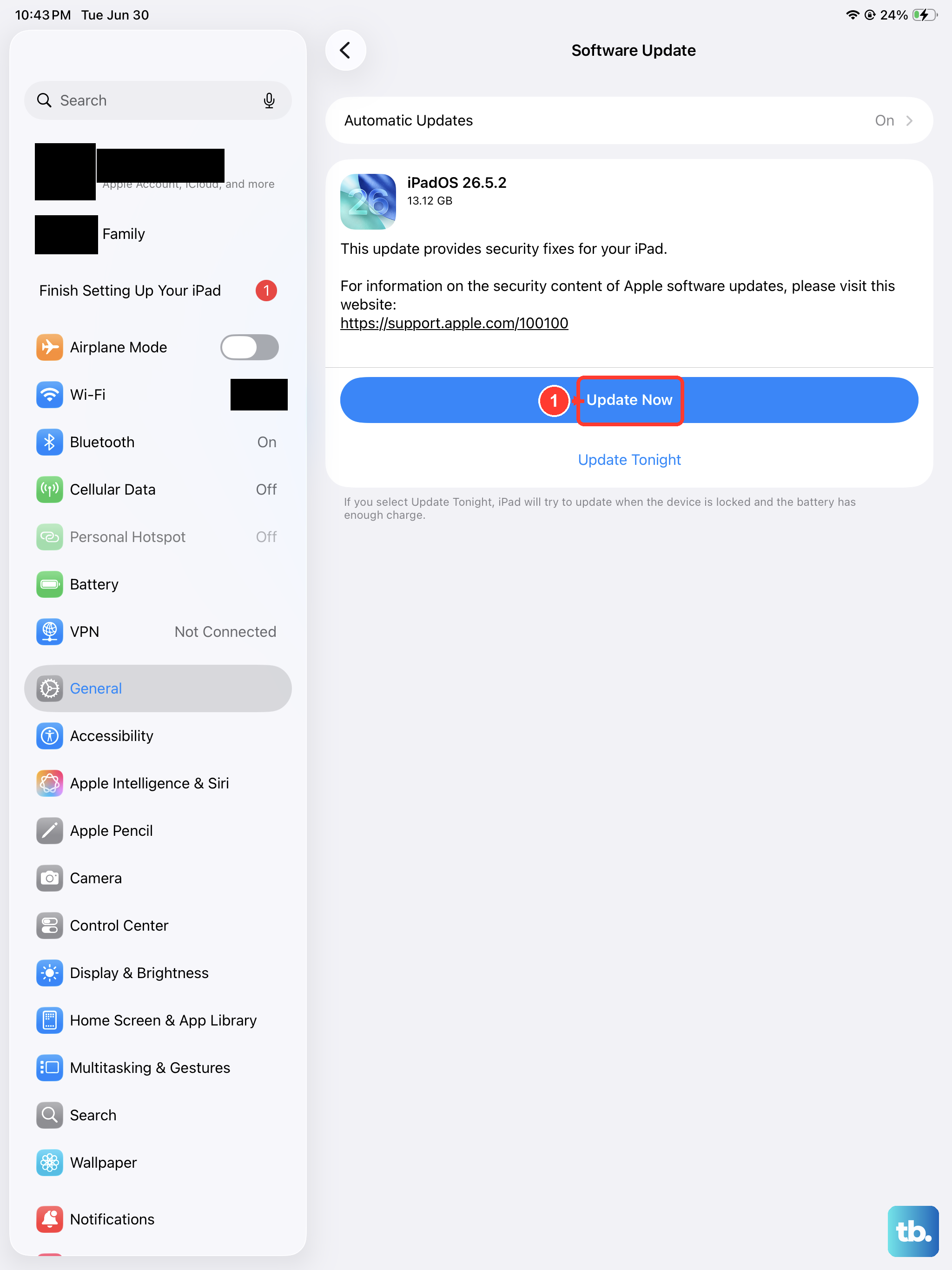
After your iPad mini starts normally again, installing any pending update can clear the software bug that caused the boot to stall in the first place. Back up your tablet first if you can, so your content is protected before any change. Apple's opening instruction is to prepare the device: "Plug your device into power and connect to the internet with Wi-Fi."
Then update through Settings > General > Software Update.
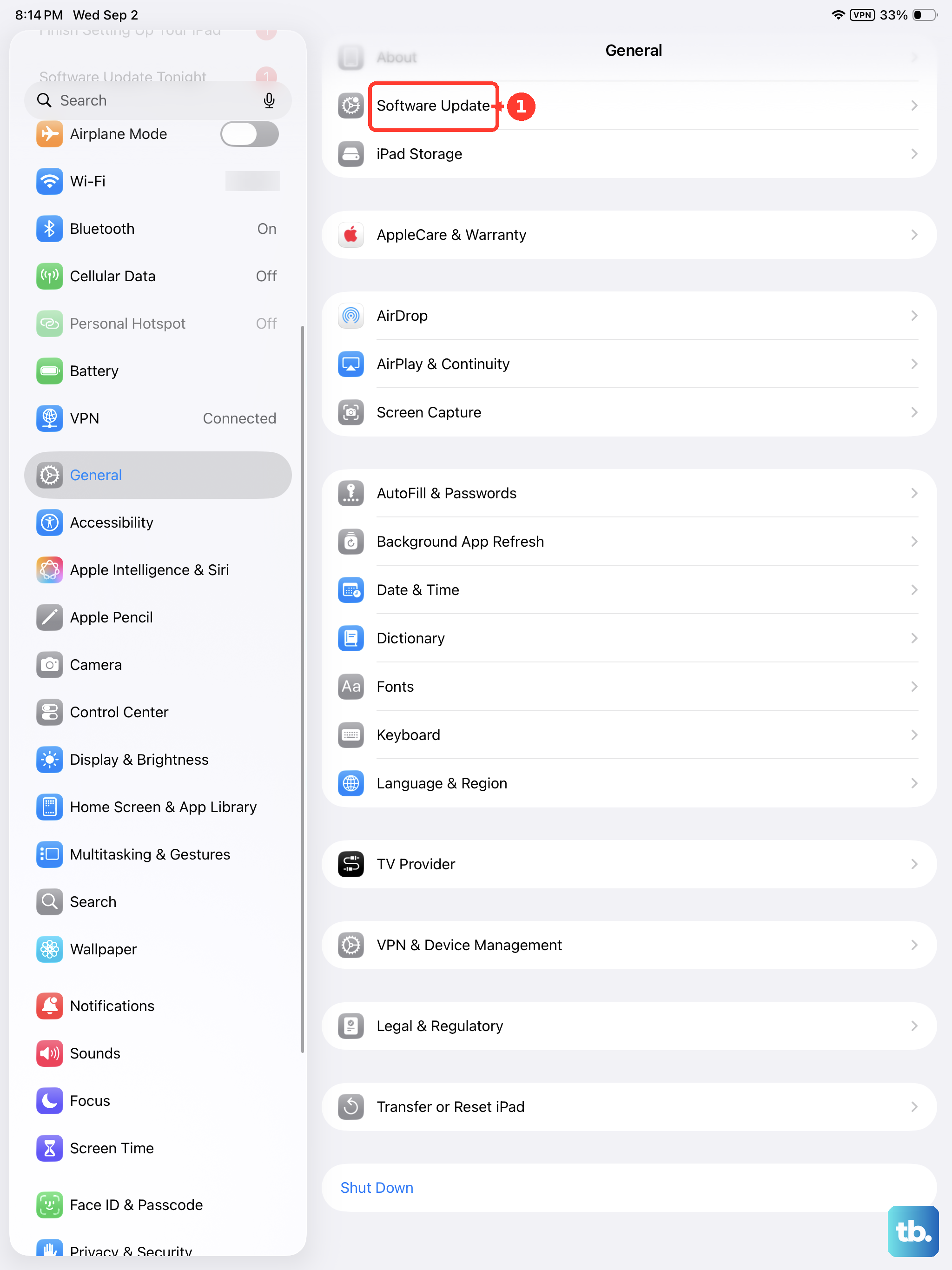
Go to Settings.
Tap General.
Tap Software Update.
If an update is available, tap Download and Install, then follow the onscreen instructions. Updating to the latest iPadOS leaves your data and settings unchanged while replacing the software that misbehaved.
Erase and Factory Restore Only as a Last Resort
Turn to this step only if the iPad mini still will not boot after charging, a force restart, and a recovery-mode Update. This is the destructive option, so treat it with caution. Erasing or factory restoring the tablet removes everything on it, and you should back up your data first if there is any way to do so.
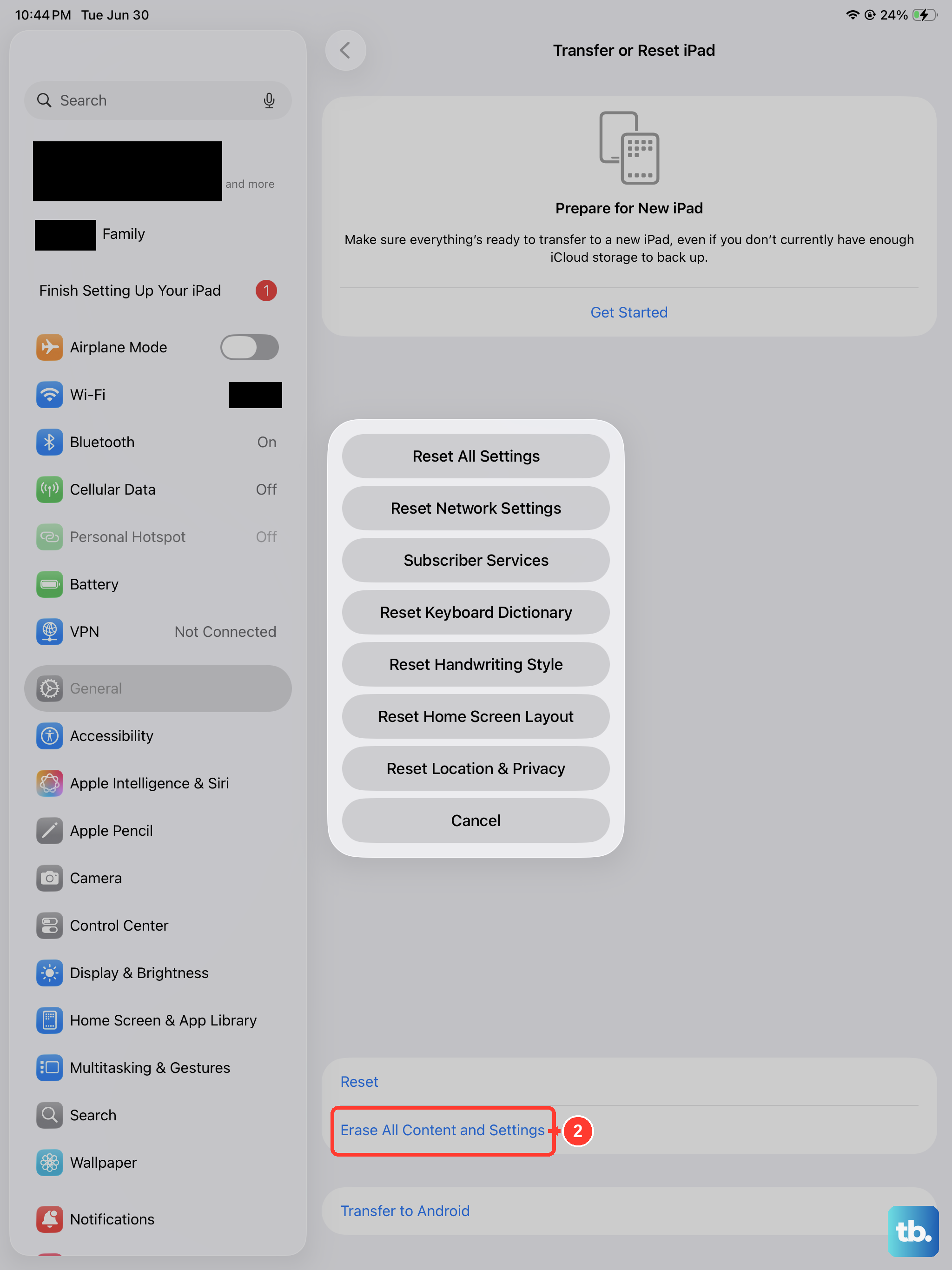
If the tablet can still reach its menus, erase it from Settings > General > Transfer or Reset [device].
Go to Settings.
Tap General.
Tap Transfer or Reset [device].
Tap Erase All Content and Settings, then tap Continue.
Enter your device passcode.
Enter your Apple Account password.
This restores the iPad to factory settings and completely erases it. If the iPad mini cannot boot far enough to open Settings, restore it with a computer instead. First turn off Find My on the device at Settings > [Your Name] > Find My > Find My iPad, then switch it off. Next, open Finder on a Mac, or the Apple Devices app on a PC, or iTunes, connect the iPad mini, and select it. Then "Click Restore [Device]" and "Click Restore again to confirm." Apple notes that "This factory restore removes all information and settings" and installs the latest iPadOS.
When the Logo Still Won't Clear, Reach Apple
If the iPad mini still is not working after a force restart, a full charge, and a recovery-mode reinstall, the problem may be hardware rather than software. At that point Apple's advice is to get the device serviced. Use Apple's official service and repair channel to arrange help rather than guessing at further at-home steps.
If your tablet is still under warranty, going through Apple's official service channel instead of a third-party repair helps protect that coverage. Have your device details ready so support can confirm your options quickly.
Frequently Asked Questions
Does a force restart erase the data on my iPad mini?
No. A force restart simply forces the tablet to power off and start again, and it does not delete your files, apps, or settings. It is the first thing to try for a screen stuck on the Apple logo.
What is the difference between Update and Restore in recovery mode?
Update reinstalls iPadOS while keeping your personal data, which is why Apple recommends choosing it first. Restore wipes the tablet completely and installs the latest iPadOS, so use it only when you have no other choice or have a backup ready.
Is this really a 2026 iPad mini?
Apple's official name for this model is iPad mini (A17 Pro), with a year introduced of 2024, and Apple's specification page does not use a "7th generation" or 2026 label. The fixes here apply to that iPad mini regardless of how the model is informally described.
Do I need a computer to fix an iPad mini stuck on the logo?
Not always. Charging and a force restart are done on the tablet itself, and many stuck-on-logo cases clear at that point. You only need a computer running Finder, the Apple Devices app, or iTunes if you have to enter recovery mode or perform a factory restore.