
Unlock your iPad mini from carrier restrictions to use any cellular network provider you choose.
What You Need to Know First
For the iPad mini (7th generation), the unlock process is a bit different than for a phone. The device itself needs to be removed from your carrier's whitelist, rather than you entering a PIN code. Your carrier submits your iPad's unique identifier to Apple's database to clear the lock.
You'll need your iPad's IMEI/MEID number, which you can find in Settings > General > About. It's also printed on the original box. Having your account information and proof of purchase handy will make the request much smoother with your carrier.
Request the Unlock from Your Current Carrier
This is almost always the first and best step. If you bought your iPad mini on a payment plan or with a carrier discount, it's likely locked. Major carriers like AT&T, T-Mobile, and Verizon will unlock it for free once you meet their requirements.
Common requirements include the device being fully paid off, not reported lost or stolen, and having been active on their network for a specific period (often 60 days). I'd start by checking your carrier's website for their specific unlock policy page; it's usually the fastest route.
How to Check if Your iPad mini Is Already Unlocked
Before you contact anyone, it's smart to check the lock status. The simplest way is to insert a SIM card from a different carrier. If you get a cellular signal and data works, it's already unlocked. If you see a message like "SIM Not Supported," it's locked.
You can also check in your settings. Go to Settings > Cellular and look for a "Carrier Lock" line. If it says "No SIM restrictions," you're all set. If it says "SIM Locked," you'll need to proceed with an unlock request.
Completing the Carrier Unlock Process
Once you've confirmed you're eligible, contact your carrier. You can usually do this online through your account portal, via a chat service, or by calling customer support. They will ask for your iPad's IMEI number and may require account verification.
After submitting the request, the carrier informs Apple to remove the lock from your device's record in their activation servers. This process can take anywhere from a few hours to several business days. You won't receive a code to enter; the unlock happens on their end.
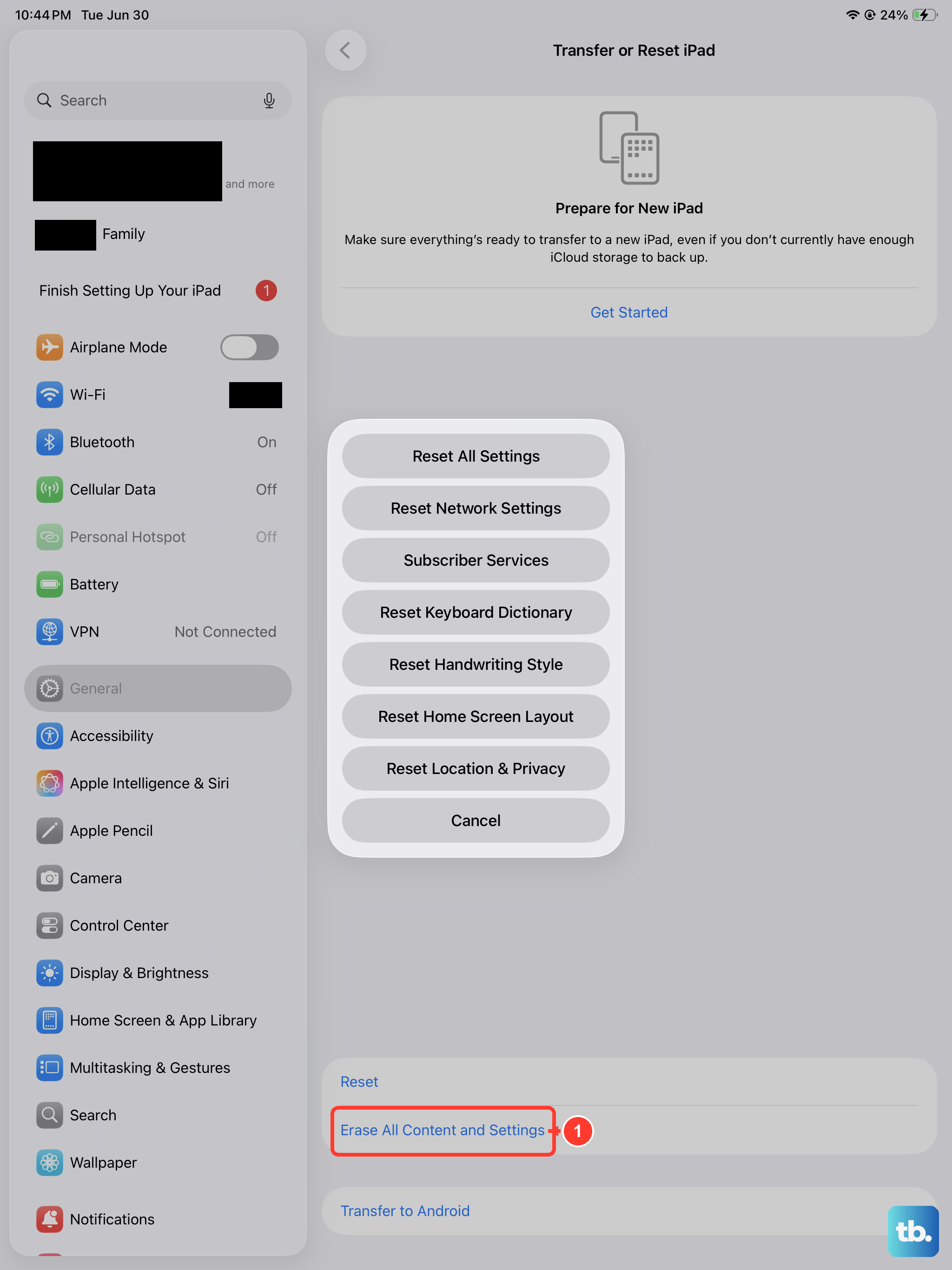
When they confirm it's done, the final step is to restore your iPad. Connect to Wi-Fi, back up your data, then go to Settings > General > Transfer or Reset iPad and tap "Erase All Content and Settings." After it restarts, the unlock should be complete. You can then insert a new SIM card.
Using a Third-Party Unlocking Service
If your carrier refuses to unlock your iPad mini or you need it done faster, third-party services are an option. These services act as an intermediary, submitting the unlock request to the carrier's systems on your behalf. They are not free, but they can be reliable.
Choose a service with strong, verifiable reviews and a clear guarantee. You'll provide them with your iPad's IMEI number. They handle the rest and notify you when the unlock is processed, at which point you'd perform the same erase and restore step mentioned earlier.
Be wary of any service promising "instant" unlocks or asking you to download software. The legitimate process for modern iPads involves a database update, not a software crack. I've seen reputable services work well when the official channel is blocked.
What to Do If You Get an Error
Sometimes, even after a successful unlock request, you might insert a new SIM and still see an error. The most common fix is to ensure your iPad is connected to a Wi-Fi network and then erase it via Settings as described above. This forces the device to check in with Apple's activation servers and fetch its new, unlocked status.
If that doesn't work, double-check with your carrier that the IMEI they processed is correct. One wrong digit can cause the unlock to fail. They can resubmit the request if needed. Don't keep inserting different SIMs repeatedly; the issue is almost always server-side, not with the physical SIM card.
Once unlocked, your iPad mini (7th gen) will work with any compatible cellular network, which is perfect for travel or switching to a plan with better data rates. Just remember to keep that USB-C port clean if you're using a wired connection for anything, as debris can cause other issues down the line.