A flickering screen on your iPad mini (7th generation) is unsettling, especially on the crisp 8.3-inch Liquid Retina display that normally looks rock solid. The shimmer might show up as a faint pulse in brightness, a flicker over translucent menus and pop-ups, or a stutter that comes and goes as you tilt the tablet in changing light. The good news is that most flicker on this model traces back to a software hiccup, a display setting, a dirty panel, or a charging accessory rather than a broken screen, and those causes are quick to rule out.
Work through the fixes below in order, from the safest and simplest to the official repair path, and stop as soon as the flicker disappears.
Start with a free screen test to check the panel with fullscreen test patterns. What you see there tells you whether to blame the display, the cable, or the source.
Start With a Restart and a Clean Panel
Power glitches and a smudged or wet screen are the two easiest culprits to clear, so handle them before you touch any settings. The official support guidance for a screen that flickers or responds erratically opens with two basic checks.
First, restart the iPad mini the normal way, which clears temporary memory and software hiccups that can make the display behave oddly.
Then, before anything else, "Make sure that your screen is clean and free of any debris or water," since moisture or grime on the glass can trigger erratic touch response and visible flicker. Wipe the display gently with a soft, dry cloth and check the bezels and corners for trapped grit.
Rule Out Accessories, Cases, and Screen Protectors
A faulty cable or charger and a too-tight case or protector are common, easily missed causes of display flicker. The official screen guidance walks through them in a specific order.
Disconnect any Lightning or USB-C accessories.
If your screen works after removing an accessory, try using a different outlet, cable, or charger.
Remove any cases or screen protectors.
Pay special attention to the charging setup, since a low-quality or damaged cable can make the screen pulse or flicker while the iPad is plugged in. If the flicker stops the moment you unplug or swap a cable, you have found the problem.
Likewise, a protector with trapped air or a case that presses on the edges of the panel can produce shimmer, so test the iPad bare for a few minutes.
Force Restart When the Screen Will Not Settle
If the display is flickering, frozen, or unresponsive and a normal restart did not help, a force restart is the next safe step. The iPad mini (A17 Pro) has no Home button, so it uses the volume-and-top-button sequence. Follow these presses exactly in order.
- 1.Press and quickly release the volume button closest to the top button.
- 2.Press and quickly release the volume button farthest from the top button.
- 3.Press and hold the top button until you see the Apple logo.
This does not erase any of your data; it simply forces the iPad to power-cycle. If the screen returns to normal afterward, the flicker was almost certainly a temporary software state.
Install the Latest iPadOS
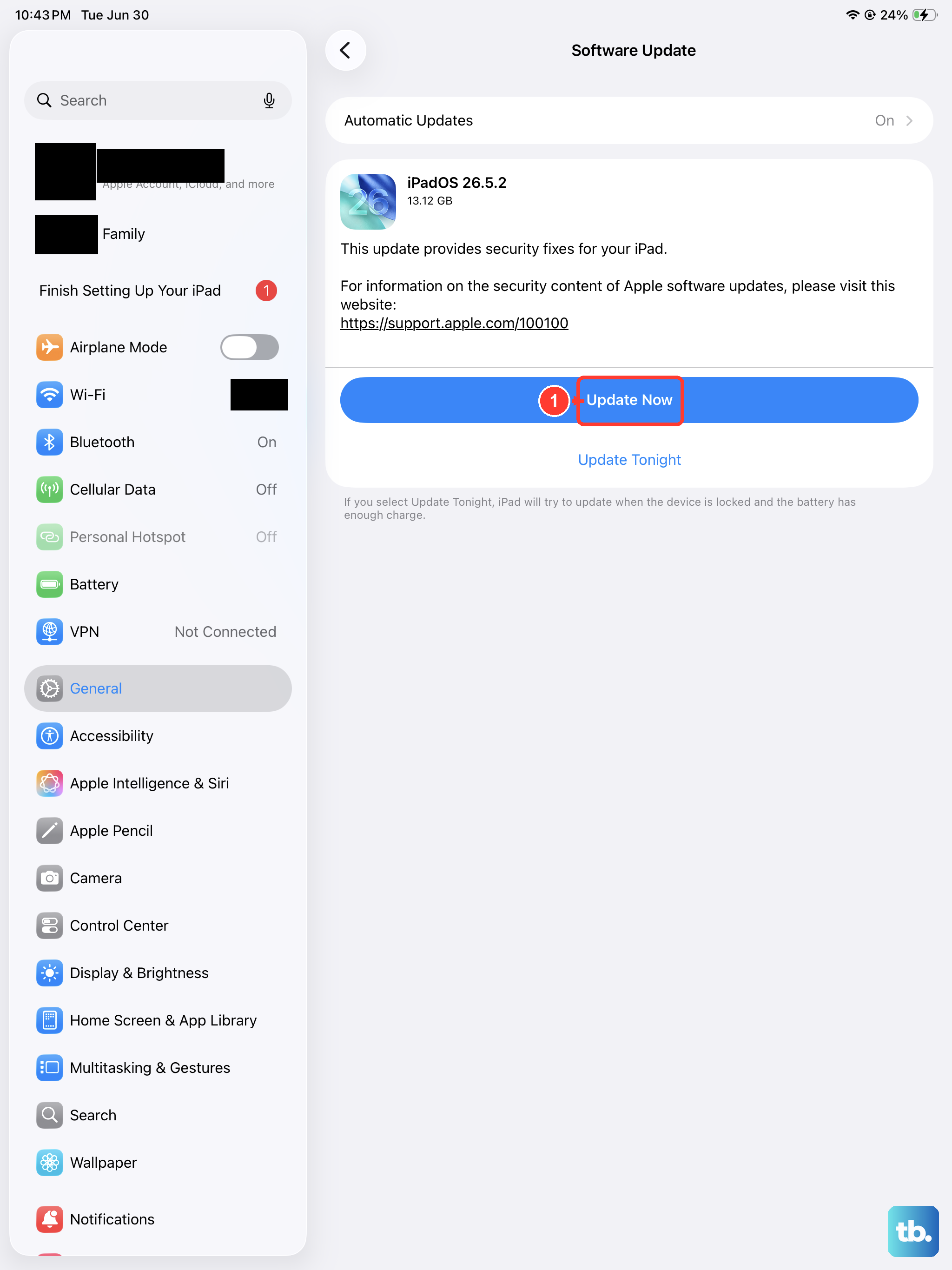
Display and graphics glitches are sometimes fixed in software, so make sure your iPad mini is running the current version of iPadOS. Back up the tablet first, then plug it into power and connect to Wi-Fi before you begin.
Go to Settings.
Tap General.
Tap Software Update.
If an update is available, tap Download and Install, then follow the onscreen instructions.
Updating this way keeps your photos, apps, and settings intact.
If the iPad gets stuck on the Apple logo during the update and will not finish, you can update it from a computer without erasing your data.
Connect the iPad to a computer and open Finder (on macOS Catalina 10.15 or later) or the latest Apple Devices app or iTunes (on Windows or older macOS), then press and quickly release volume up, press and quickly release volume down, and press and hold the top button until the recovery-mode screen appears.
When you get the option to restore or update, choose Update so your content is preserved.
Test Whether Auto-Brightness Is Behind the Pulsing
If the brightness seems to pulse or breathe, the display may simply be adjusting to the light around you. Auto-Brightness changes the screen brightness for current lighting conditions, and in rapidly changing light that adjustment can look like a flicker. To find the toggle and turn it on or off for testing, use this path.
Go to Settings > Accessibility.
Tap Display & Text Size.
Turn on Auto-Brightness (or turn it off to test for brightness pulsing).
Switch it off for a while and watch whether the pulsing stops; if it does, Auto-Brightness reacting to your environment was the cause rather than a fault. Keep in mind Apple's note that "Turning off Auto-Brightness may increase power consumption," so you may prefer to turn it back on once you have confirmed the behavior.
Calm Translucent Effects With Reduce Transparency
Some flicker appears only over the frosted, see-through layers in the interface, such as Control Center, folders, and notification backgrounds. Reducing those effects can stop the shimmer. Apple describes the setting as one that "Improves contrast by reducing transparency and blurs on some backgrounds."
Go to Settings > Accessibility > Display & Text Size.
Turn on Reduce Transparency.
After turning it on, revisit the menus where you saw the flickering to confirm whether the translucent areas are now steady. This change affects only the look of those backgrounds and is easy to switch back off if you prefer the standard appearance.
Dial Down Bright Colors With Reduce White Point
If the flicker reads as a harsh, jittery brightness on white or very bright screens, easing the intensity of those colors can help. Reduce White Point "Reduces the intensity of bright colors" and tones down how strong the brightest parts of the display look.
Go to Settings > Accessibility > Display & Text Size.
Turn on Reduce White Point to tone down the intensity of bright colors.
Give your eyes a moment to adjust, then check whether the perceived flicker has settled. As with the other display settings, you can turn it off again at any time if it does not make a difference.
Erase and Set Up Fresh After a Backup
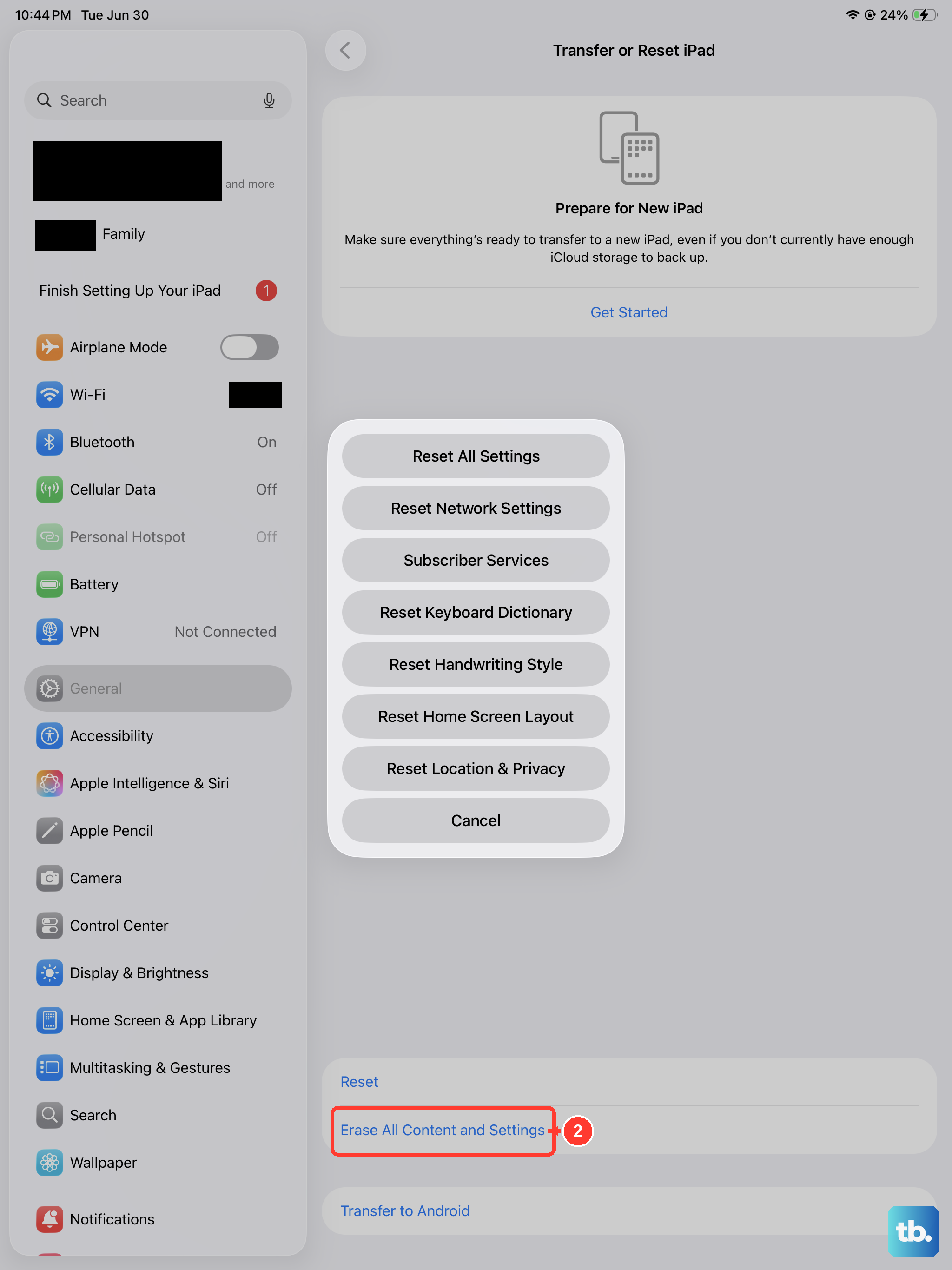
If the flicker survives every step above and seems tied to software, a clean reset removes any deep configuration or app conflict that a normal restart cannot clear. This is destructive, so a backup is essential first. Apple's warning is direct: "When you erase your iPad, it's restored to factory settings," and "Before you begin: Back up your iPad so you can restore your data later on a different device."
Go to the Settings app on your iPad.
Tap General, then tap Transfer or Reset iPad.
Tap Erase All Content and Settings.
If asked, enter your iPad passcode or Apple Account password.
Tap Continue to confirm.
Once the iPad restarts, set it up and restore your backup, then watch the display.
If the screen is steady on a clean, freshly erased system, the flicker was software-related and you are done.
If it returns even on a factory-fresh setup, that points toward hardware.
When to Book a Repair
A flicker that persists after a clean erase, or one that is clearly visible across the whole display regardless of settings, suggests a possible hardware or display issue. As the official guidance puts it, "If your screen still isn't working, you might need to set up service for your device." At that point, repair is the right move rather than more troubleshooting.
Use Apple or an Apple Authorized Service Provider so the display is handled correctly. You can start a service request on Apple's official iPad repair page. Have your backup ready, because service may involve replacing or restoring the device.
Frequently Asked Questions
Why does my iPad mini screen flicker only when the light around me changes?
That is usually Auto-Brightness doing its job. The setting adjusts the screen for current lighting conditions, and a fast change in ambient light can look like a flicker. Turn it off temporarily under Settings > Accessibility > Display & Text Size to test, remembering that leaving it off may increase power consumption.
Does the iPad mini have a Limit Frame Rate option to stop flickering?
No. The iPad mini (A17 Pro) uses a 60Hz Liquid Retina display and is not a ProMotion model, so the Limit Frame Rate accessibility option does not appear on it. That setting exists only on ProMotion devices, so it is not a fix you can use here.
Will erasing my iPad to fix the flicker delete everything?
Yes. Erase All Content and Settings restores the iPad to factory settings, which removes your data. Back up the iPad first so you can restore your content afterward, and only use this step if the earlier fixes did not help.
The flicker came back after a factory reset. What now?
A flicker that returns on a freshly erased, factory-fresh iPad points to a hardware or display problem rather than software. Set up service through Apple or an Apple Authorized Service Provider so the display is repaired correctly, and have a current backup ready before you hand it in.