
If your iPad mini (7th generation) is taking longer than expected to charge, it can be pretty annoying. You expect that quick top-up, but instead, you're watching the battery percentage crawl. The good news is that the fix is usually simple and involves checking the gear you're using or a quick setting change.
Start with the Right Charger and Cable
Your iPad mini needs a USB-C Power Delivery (PD) adapter rated for 20W or higher to charge at its fastest speed. The small 5W or 12W adapters from older devices just won't cut it. I'd check the small print on your adapter's plug for its wattage rating. Apple's 20W or 30W USB-C adapter is perfect, but many third-party USB-C PD adapters that meet the 20W+ spec will work just as well.
You also need a good USB-C to USB-C cable. The cable that came with your iPad mini is designed for this, but if you're using another one, make sure it's a quality cable capable of handling the power. Older USB-A to USB-C cables or worn-out USB-C cables can bottleneck the entire process, limiting you to a slow trickle charge.
Check and Clean the USB-C Port
This is a common culprit, especially if you carry your iPad in a bag or pocket. Lint and debris can get packed into the USB-C port, preventing the cable from seating fully and making a solid connection. Take a look inside the port with a flashlight. If you see any fuzz or dirt, gently clean it out with a dry, soft-bristled brush or a wooden toothpick. Avoid using anything metal, as it could damage the delicate contacts inside.
Don't Use Your iPad While It's Charging
Using your iPad mini for anything intensive while it's plugged in, like gaming, video editing, or even just streaming a movie, generates heat. iPadOS is designed to protect the battery, and part of that protection involves slowing down the charging speed if the device gets too warm. For the absolute fastest charge, just let it sit idle on a table. Putting it in Airplane Mode can help even more by turning off battery-draining radios.
Remove the Case During Charging
If your iPad has a thick or insulating case, it can trap the heat generated during charging. This extra warmth can trigger the system to throttle the charging speed as a safety measure. Try taking the case off while you're fast charging, especially if the back of the iPad feels warm to the touch. Letting it dissipate heat on a cool, hard surface is ideal.
Restart Your iPad mini
Sometimes, a simple software glitch can interfere with how the iPad manages power. A restart clears out these temporary hiccups. To restart your 7th generation iPad mini, quickly press and release the Volume Up button, then quickly press and release the Volume Down button. Finally, press and hold the Top button until you see the Apple logo appear on the screen.
Check for Software Updates
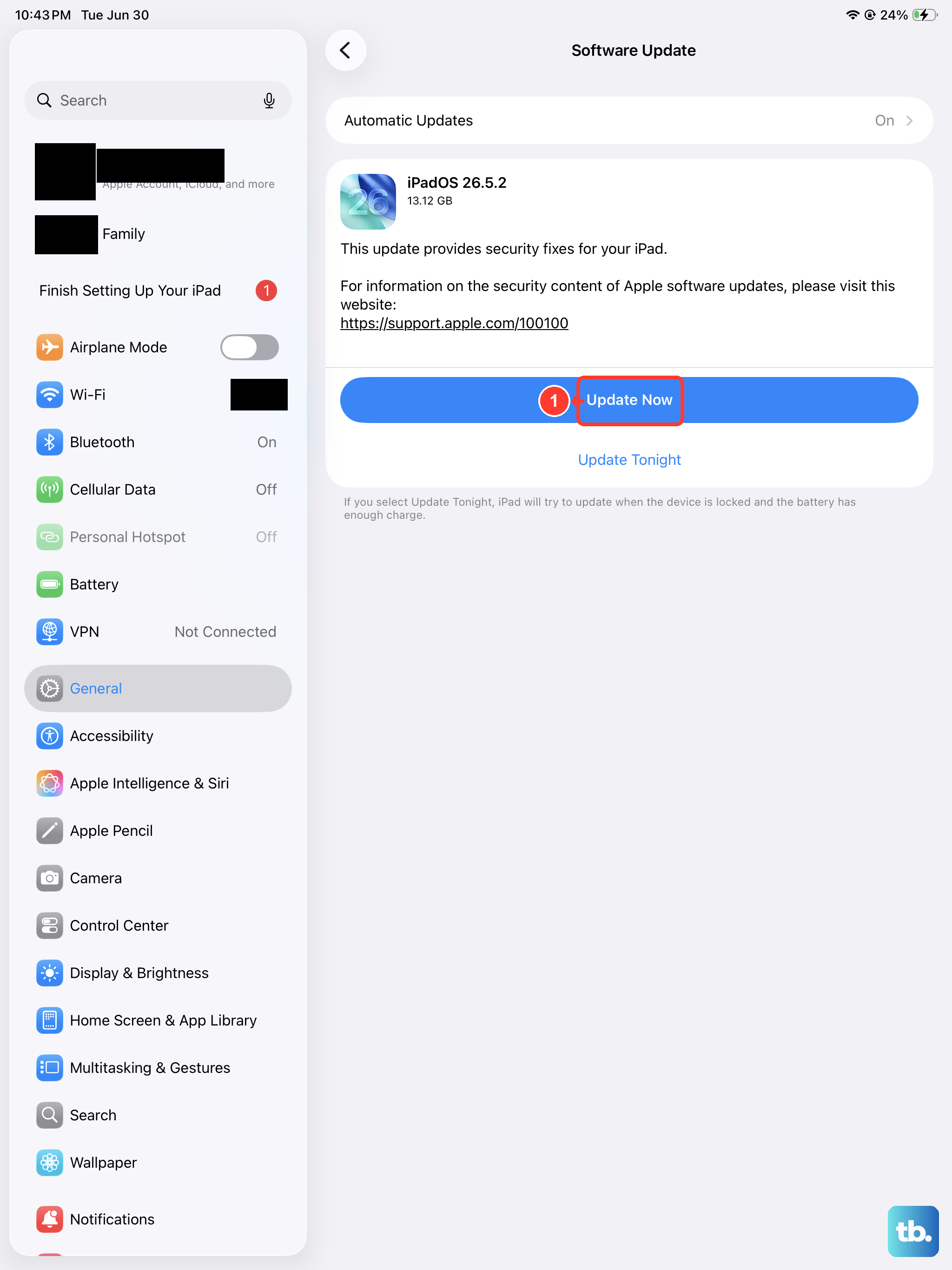
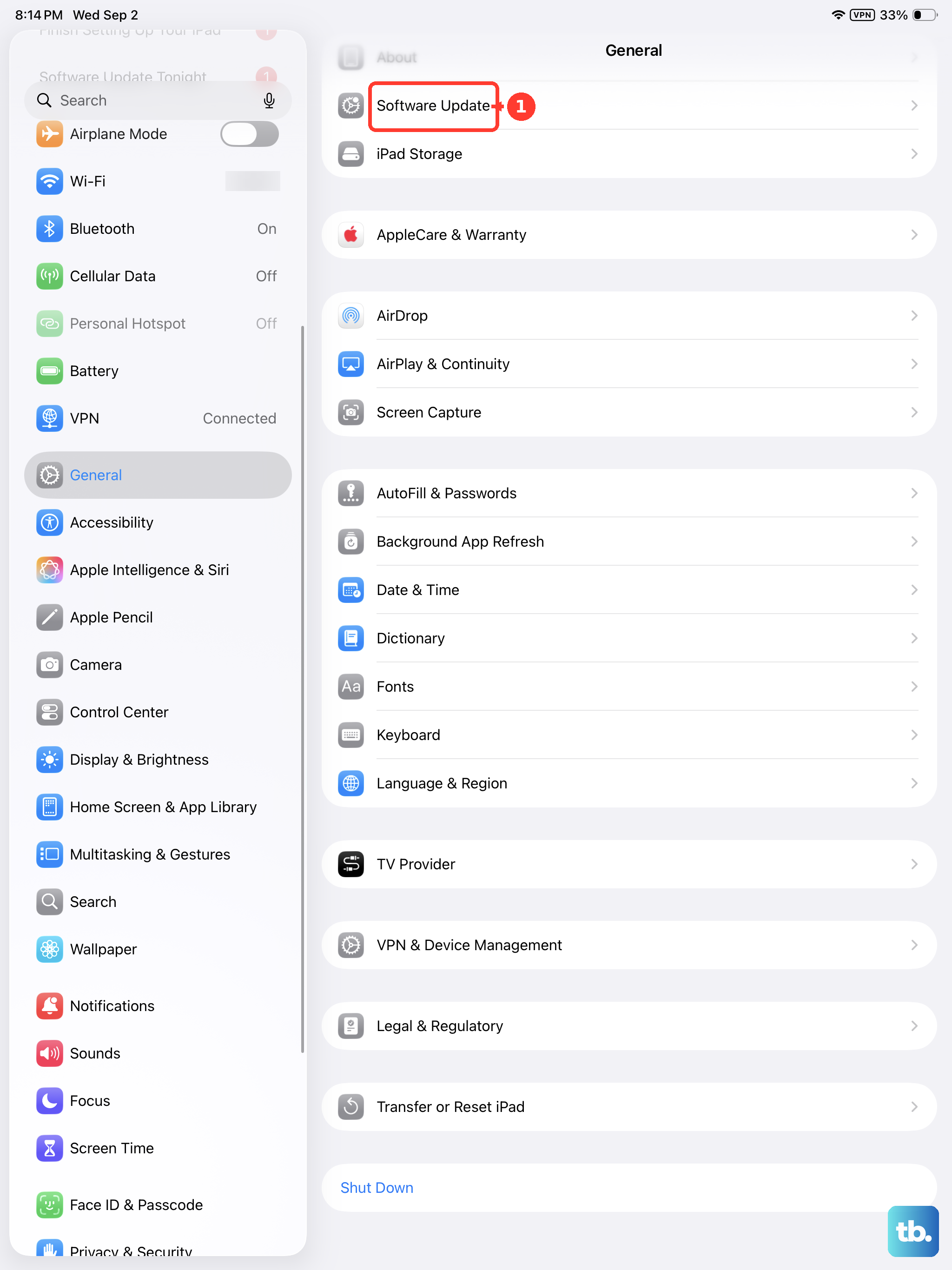
Head to Settings > General > Software Update. Apple releases iPadOS updates that often include improvements to power management and charging algorithms. Making sure you're on the latest version of iPadOS 26 ensures your iPad is using the most optimized and efficient charging process available.
Inspect Your Charging Environment
Is your iPad charging in direct sunlight, on a blanket, or in a very warm room? Ambient heat is a major factor. The charging system will deliberately slow down to prevent the battery from overheating. Move your iPad to a cooler, shaded spot on a hard surface like a desk or nightstand. This small change can make a big difference in charging speed.
Temporarily Disable Optimized Battery Charging
This is a smart feature designed to extend your battery's lifespan by learning your routine. It will often slow charging past 80% if it thinks you won't need a full battery for a while. If you need a complete charge as fast as possible right now, you can temporarily turn it off. Go to Settings > Battery > Battery Health & Charging and toggle off Optimized Battery Charging. Just remember to turn it back on later for long-term battery health.
Test with a Different Outlet and Adapter
It's worth eliminating the power source as the issue. Try plugging your USB-C adapter into a different wall outlet. If you have access to another compatible 20W+ USB-C PD adapter and cable, try that combination. If your iPad starts charging quickly with the different gear, you've found the problem, either your original adapter, cable, or the outlet itself wasn't delivering power properly.
Look for Physical Cable Damage
Cables wear out, especially near the connectors where they bend repeatedly. Examine your USB-C cable for any fraying, kinks, or loose connections. Even minor damage inside the cable can increase electrical resistance and drastically reduce the power that reaches your iPad. A new, high-quality USB-C cable is a worthwhile investment if yours is showing its age.