
A flashing screen on your iPad Air M3 is hard to ignore. The display might flicker, show random lines, or briefly go black before coming back. It usually comes down to a software setting, a glitchy app, or something going on with the display hardware itself. Let's walk through the fixes that are most likely to help.
Force Restart the iPad Air M3
A standard restart sometimes doesn't clear certain persistent display glitches. A force restart is different and can fix flickering that a normal power off won't touch. Press and quickly release Volume Up, then Volume Down, then press and hold the Top button until the Apple logo appears. That's the full sequence for the iPad Air M3, and it only takes a few seconds.
You won't lose any data doing this. It just cuts power completely and forces a fresh boot, which often clears screen issues that started after an update or a weird app crash.
Turn Off Auto-Brightness
The iPad Air M3 uses an ambient light sensor to adjust screen brightness automatically. If that sensor is misbehaving, it can make the screen appear to flicker as it constantly readjusts. Go to Settings > Accessibility > Display & Text Size and toggle off Auto-Brightness. Then set your brightness to a fixed level from the Control Center and see if the flashing stops.
Disable True Tone
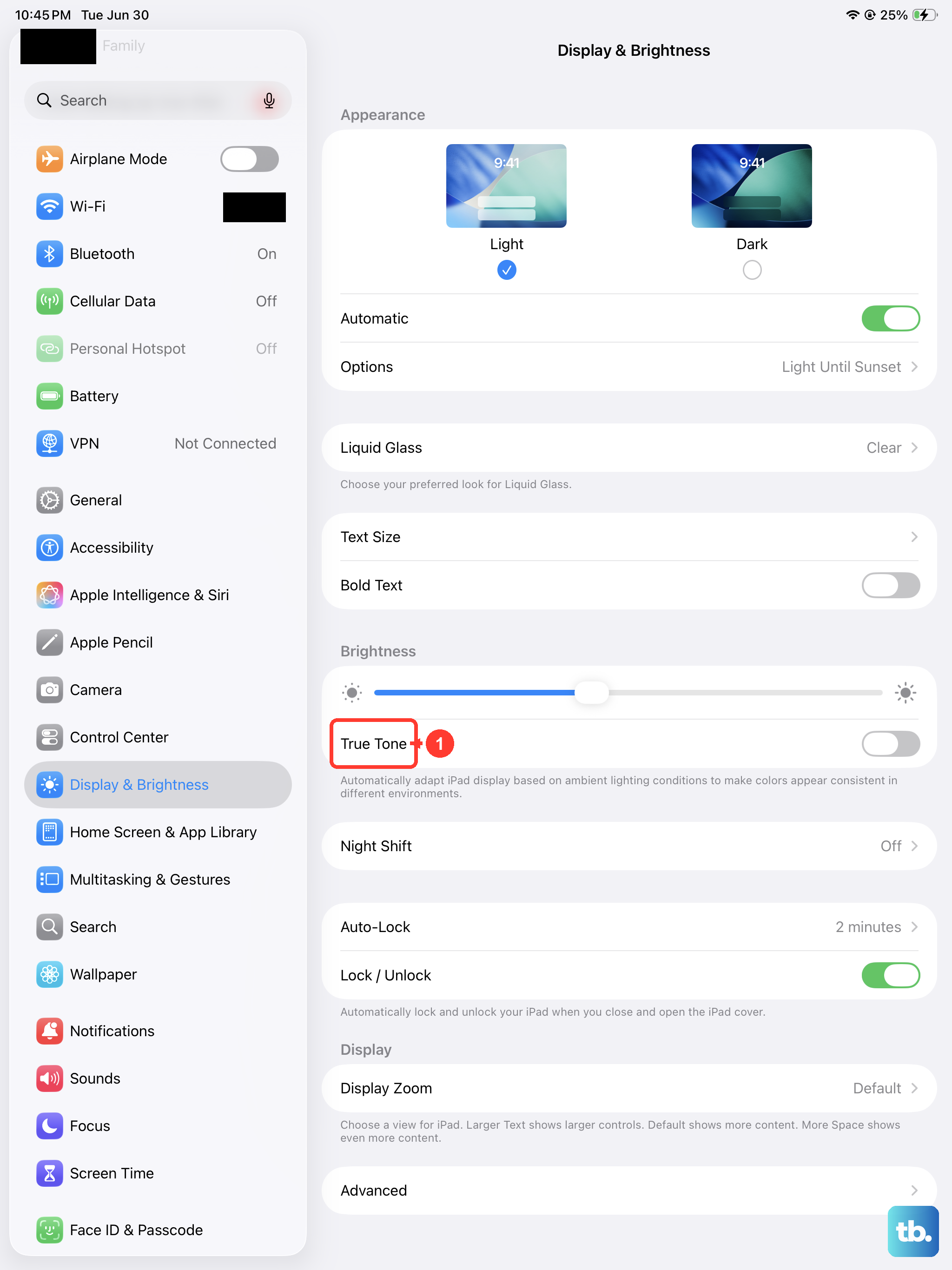
True Tone changes the screen's color balance based on the light around you. It's usually subtle, but a glitchy sensor reading can cause visible shifts that look like flickering. Head to Settings > Display & Brightness and turn off True Tone. If the screen stabilizes, leave it off or wait for the next iPadOS update to fix the sensor calibration.
Check for a Rogue App
Sometimes a single app can mess with the display, especially one that plays video, uses the camera, or runs in split view. Close all your open apps by swiping up from the bottom and pausing in the middle of the screen to open the App Switcher. Swipe up on each app card to close it. If the flickering stops, reopen your apps one at a time until you find the one causing trouble.
If you identify a specific app, check the App Store for an update. Developers often push fixes for compatibility issues with iPadOS 18.
Update iPadOS
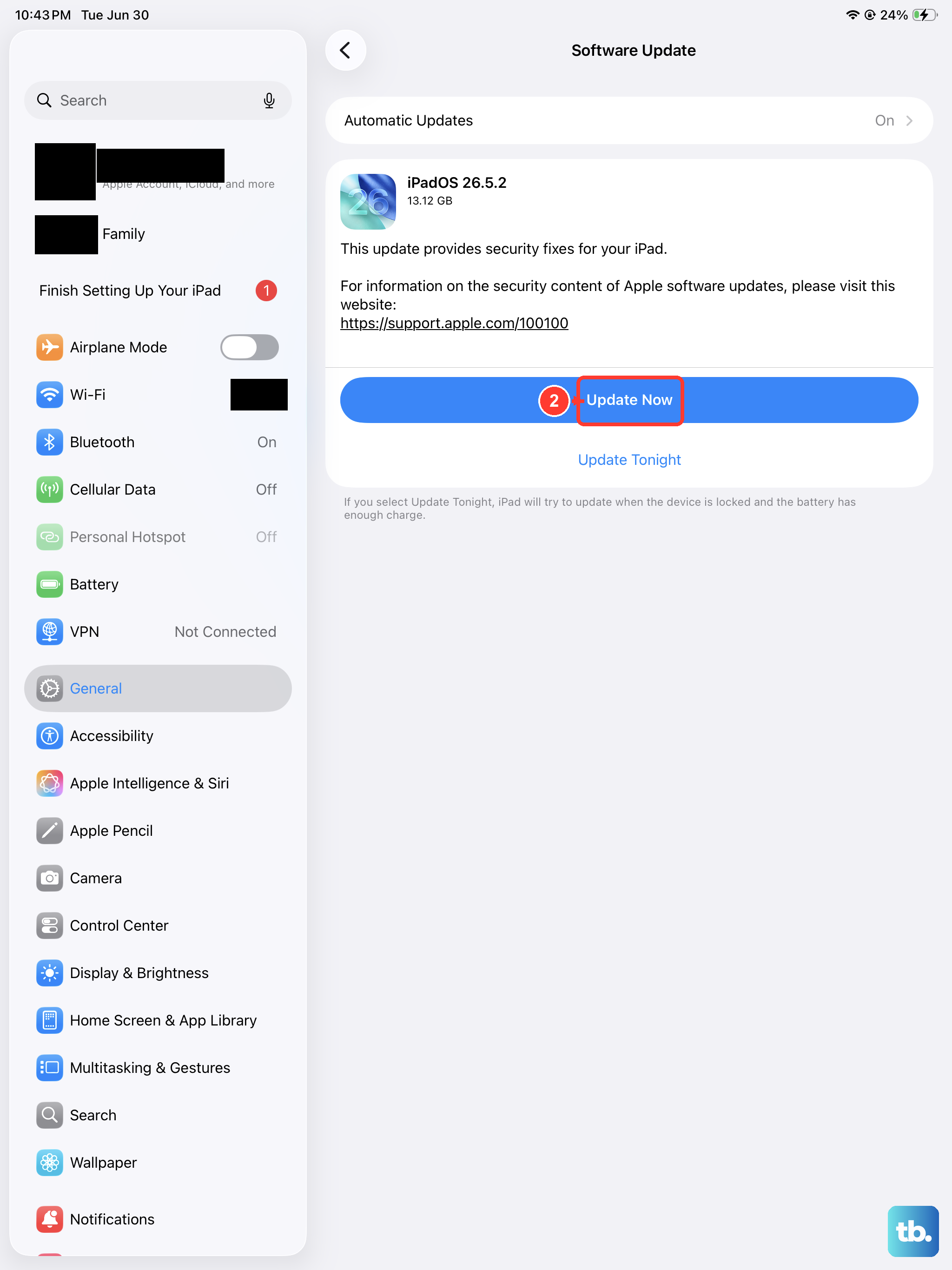
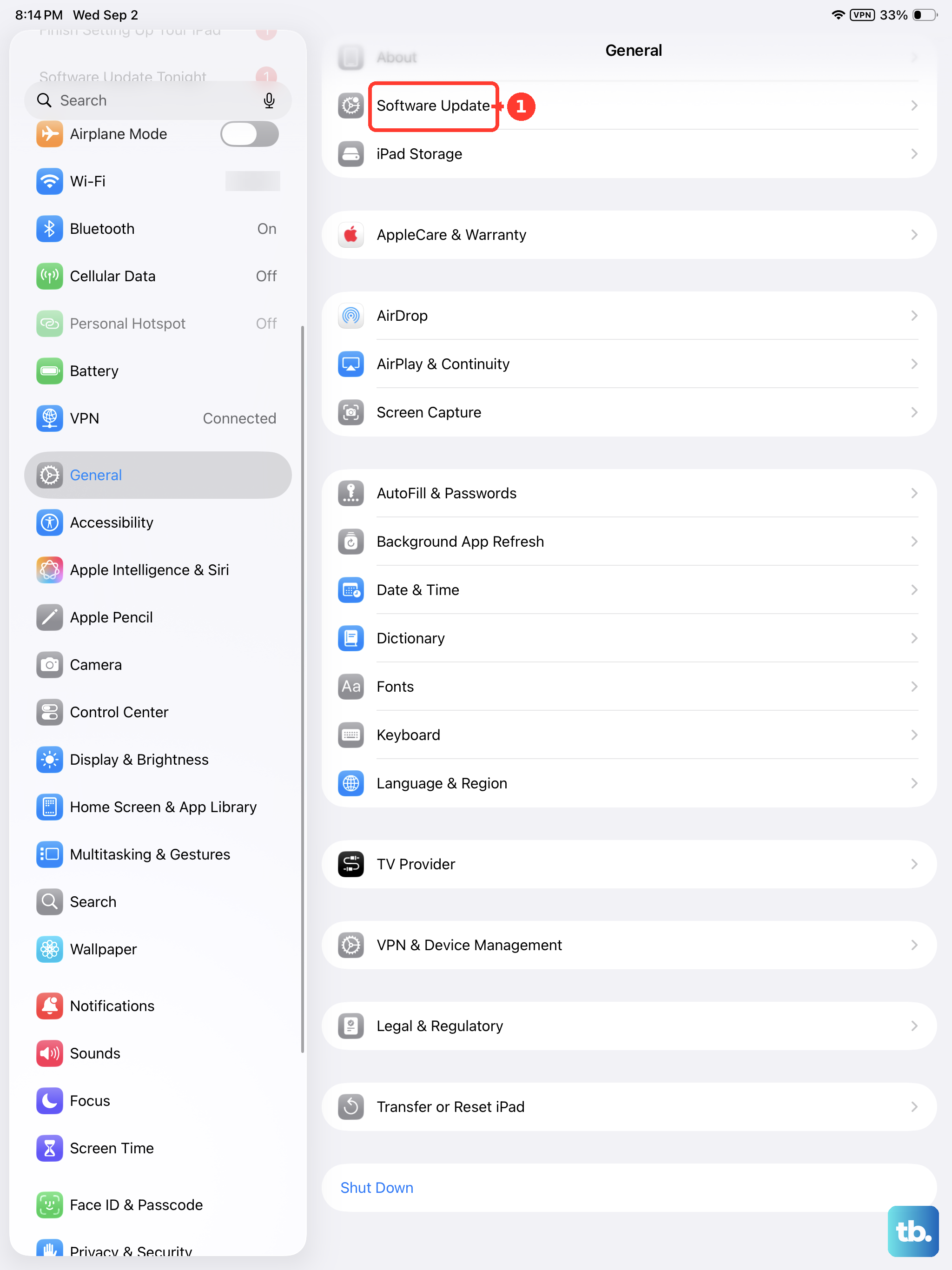
Apple regularly patches display bugs in system updates. Go to Settings > General > Software Update and install anything that's available. The iPad Air M3 shipped with iPadOS 18, and early releases of that version had some display quirks that later updates addressed. This is one of those fixes that takes a couple minutes and can save you a lot of frustration.
Reset All Settings
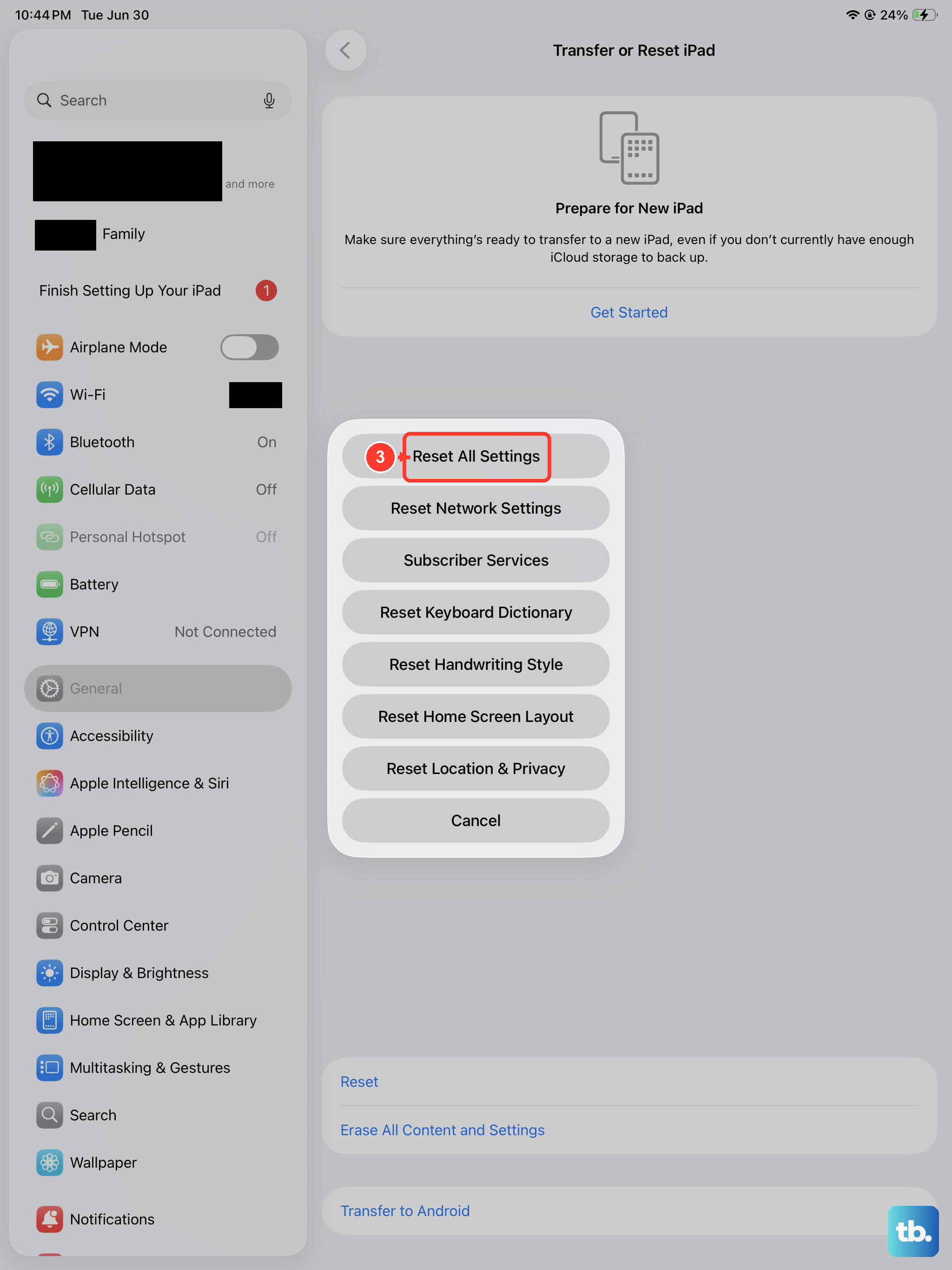
If the flickering is coming from a misconfigured display setting that you can't pin down, a settings reset can clean it up. Go to Settings > General > Transfer or Reset iPad > Reset > Reset All Settings. This doesn't erase your photos, apps, or data. It just resets system settings like Wi-Fi passwords, display preferences, and accessibility options back to defaults. You'll need to reconnect to Wi-Fi afterward, but it often nails software-related screen issues.
Check for Physical Damage
Did the screen start flashing after a drop or bump? The iPad Air M3 has a laminated display, and even without visible cracks, the internal cables can loosen or the panel can get damaged. Look closely for any hairline cracks, pressure marks (dark or bright spots), or color distortion. Physical damage won't go away with software fixes.
If you see any signs of impact, the screen likely needs service. Use the crack or color shift as your clue that it's hardware, not software.
Restore the iPad from a Computer
This is the nuclear option for software-related flickering. Back up your iPad first, then connect it to a computer. Open Finder (on a Mac) or iTunes (on a Windows PC), select your iPad, and click Restore iPad. This erases everything and installs a clean copy of iPadOS 18. If the flickering stops after the restore, you can safely assume it was software related. If it continues on a clean system, the display itself has a hardware issue that will need professional repair.