You sit down to move your iPad Air (2026) onto the latest iPadOS 26, open Settings > General > Software Update, and the download simply refuses to cooperate. Maybe the progress bar freezes partway, maybe the update never starts, or maybe the screen is stuck on the Apple logo and you are not sure whether to wait or pull the plug. Because the iPad Air 11-inch (M4) and 13-inch (M4) ship with iPadOS 26 and receive every future update over the air, a stalled update is almost always something you can clear yourself.
The good news is that an update that "won't update" is rarely a hardware fault. It is usually a weak connection, not enough free space, a half-downloaded file, or a temporary glitch that a restart resolves. The fixes below are ordered from the quickest and safest to the most involved, so work through them in sequence and stop as soon as the update goes through.
Start with your connection and Apple's servers
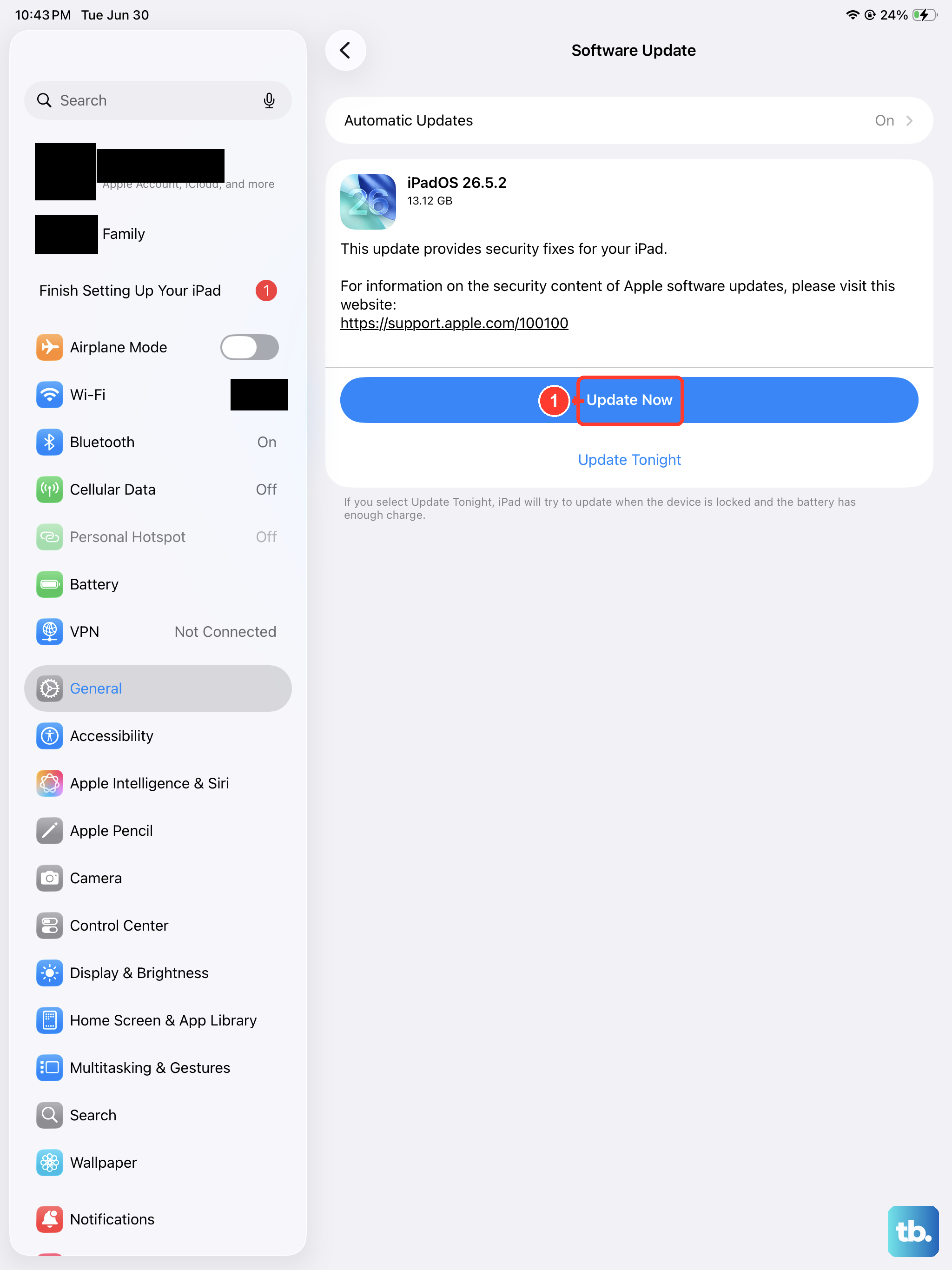
An iPadOS update can only download over a working internet connection, so the first thing to confirm is your Wi-Fi. Connect to a reliable Wi-Fi network and avoid streaming, downloading, or uploading anything else while the update runs, since competing traffic can starve the download. A flaky or congested network is one of the most common reasons an update appears to hang at the very start.
If your connection is solid and the update still will not begin, the problem may not be on your end at all. Check Apple's System Status page to confirm there is no Apple-side outage affecting the software update servers. If a service is having issues, the fix is simply to wait and try again once it is back to normal.
Clear enough room for the download
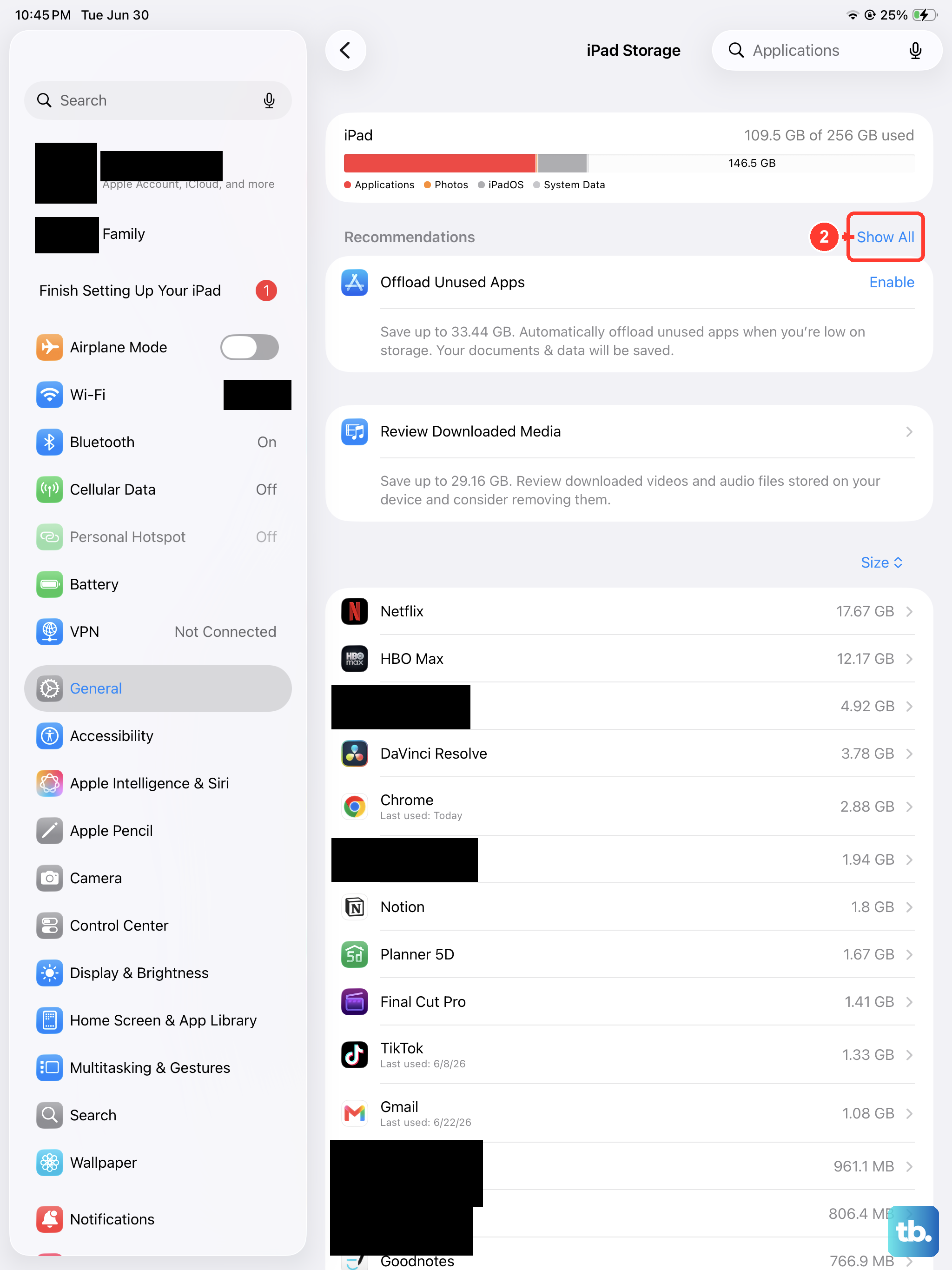
Every iPadOS update needs a chunk of free space to download and unpack, and a nearly full iPad Air will refuse to proceed. Go to Settings > General > iPad Storage to see what is taking up room, then use the Recommendations section to clear space quickly. You can also tap Enable next to Offload Unused Apps, or manually delete apps and content you no longer need.
You do not have to worry about losing your personal files in the process. The iPad will also try to free space automatically by removing app data it can re-download later, without affecting your photos, documents, or other personal data. Once you have a comfortable margin of free storage, return to Software Update and try again.
Keep it charged while the bar crawls
During an over-the-air update, the progress bar can move slowly depending on the size of the update and the number of files on your device. What looks like a frozen install is often just a large update working through your data, so give it time before assuming something is wrong. Keep the iPad Air connected to a power source the entire time so it does not run down mid-install.
If the battery does drain and the iPad shuts off during the update, do not panic. Connect it to power and turn it back on, and let the update pick back up and finish on its own.
Run the update the right way from Settings
With your connection, storage, and power sorted, install the update directly from Settings > General > Software Update. This screen shows your current iPadOS version along with any available update. Tap Download and Install, then follow the onscreen instructions to complete the process.
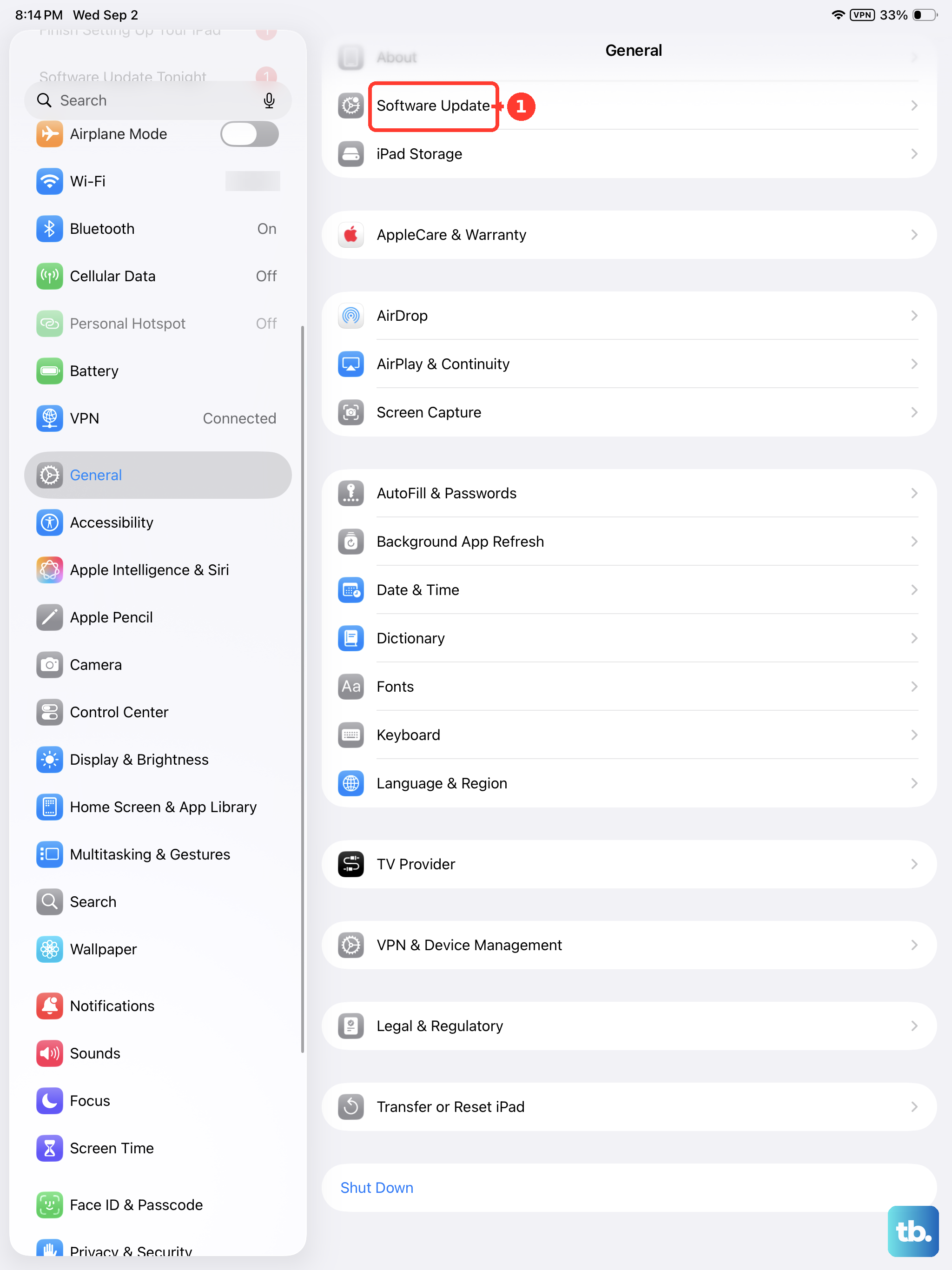
If you are worried about your files, there is no need: your data and settings remain unchanged when you update to the latest version of iPadOS. To avoid this hassle in future, you can also turn on Settings > General > Software Update > Automatic Updates so the iPad downloads and installs updates overnight on its own.
Wipe out a half-finished update file
If a download fails partway, or the update simply will not proceed no matter how many times you tap, the cause is often a corrupted update file sitting on your device. Removing it forces the iPad to fetch a clean copy. Go to Settings > General > iPad Storage, find the update in the list of apps, tap the update, then tap Delete Update.
Once the stuck file is gone, go back to Settings > General > Software Update and download the update again from scratch. This single step resolves a surprising number of "won't install" situations.
Force restart a frozen iPad Air
If the iPad Air is frozen or completely unresponsive during the update, a force restart clears the temporary state without touching your data. Because the iPad Air (M4) has no Home button, you cannot use the older button combinations; use the exact sequence below instead.
- 1.Press and quickly release the volume button nearest to the top button.
- 2.Press and quickly release the volume button farthest from the top button.
- 3.Press and hold the top button.
- 4.When the Apple logo appears, release the top button.
The timing matters more than the force you use, so make each of the first two presses quick. Once the iPad reboots, head back to Software Update and try the install one more time.
Push the update through a computer
When the update still will not go through over Wi-Fi, a computer can often finish the job. Connect the iPad Air to a computer using a USB-C cable, then update through Finder on a Mac or the Apple Devices app on a Windows PC.
It helps to make sure your computer's own software is current before you start. Once connected, follow the prompts in Finder or the Apple Devices app to download and install the latest iPadOS for your iPad Air.
Bring in recovery mode for a stuck Apple logo
Some failed updates leave the iPad showing the Apple logo for several minutes with no progress bar, or your computer reports that the iPad is in recovery mode. In that case, connect the iPad to the computer and open Finder (Mac) or the Apple Devices app (Windows PC). Keep the iPad connected until the recovery mode screen appears, then choose Update.
Choosing Update reinstalls iPadOS while trying to preserve your data, which is why you should always try Update before Restore (Restore erases the device). If a download takes more than 15 minutes and the iPad exits recovery mode during the process, let that download finish and then repeat the recovery steps.
Erase as a last resort and call in Apple
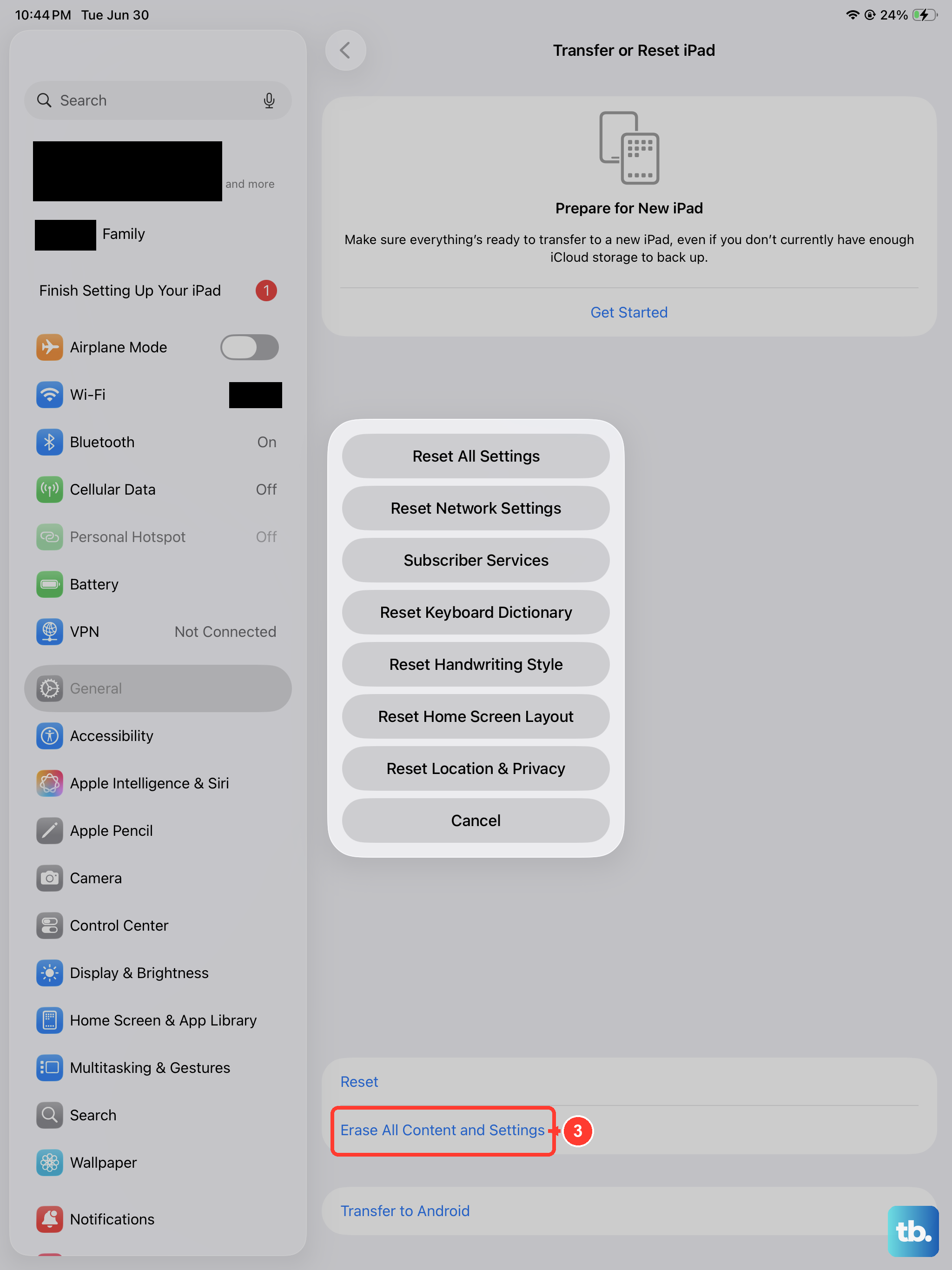
If nothing above works, a full erase gives the iPad a clean slate, but it removes everything, so treat it as a final option. Back up the iPad first, then go to Settings > General > Transfer or Reset iPad > Erase All Content and Settings. If asked, enter your passcode or Apple Account password, then tap Continue to confirm.
Be clear on the warning: this removes all your content and restores factory settings, which is exactly why the backup matters, so you can restore your data afterward. If the iPad still will not update or restore, or recovery mode keeps failing because of broken buttons, the device may need service, and the right move is to contact Apple Support to arrange it.
Frequently Asked Questions
Will updating my iPad Air (2026) erase my data?
No. Your data and settings remain unchanged when you update to the latest version of iPadOS through Settings > General > Software Update. Only an Erase All Content and Settings or a recovery-mode Restore wipes the device, which is why you should back up before using either of those options.
Why does my update keep stalling on the progress bar?
During an over-the-air update the progress bar can move slowly depending on the update size and the number of files on your device, so a slow bar is often normal. Keep the iPad connected to power and a reliable Wi-Fi network, and avoid downloading other content while it runs. If it is genuinely frozen, force restart the iPad and try again.
It says there is not enough space to update. What now?
Go to Settings > General > iPad Storage and use the Recommendations section, tap Enable next to Offload Unused Apps, or delete content you do not need. The iPad will also try to free space automatically by removing app data it can re-download, without affecting your personal data.
Is recovery mode going to delete everything?
Not if you choose Update. In recovery mode, Update reinstalls iPadOS while trying to keep your data, whereas Restore erases the device, so always try Update first. If a recovery-mode download takes more than 15 minutes and the iPad exits recovery mode, let it finish and repeat the steps.
What if my iPad still won't update after all of this?
If you have worked through every fix, including a computer update and recovery mode, and the iPad still will not update or restore (for example because of broken buttons), the device might need service. Contact Apple Support to have it checked.











