Your iPad Air (2026) powers on, shows the white Apple logo, and then simply stops there. The logo might sit frozen or pulse for a while, the startup never finishes, and the touchscreen ignores every tap. It is one of the more unnerving things an iPad can do, because you cannot tell whether the problem is a drained battery, a software hiccup, or something that needs a technician.
The good news is that a logo that will not move past the boot screen is usually fixable at home, and most of the fixes below keep your photos, apps, and settings intact. Work through them in order, starting with the gentlest options, and only move to the steps that erase data if the safe ones fail. Everything here is tailored to the iPad Air 11-inch (M4) and iPad Air 13-inch (M4), which have Touch ID in the top button and no Home button, so the button sequences differ from older iPads.
Start With a Wired Charge and a Port Check
A nearly empty battery can leave the iPad stuck before it ever finishes booting, so rule that out first. The iPad Air (2026) has no wireless charging, which means you need a USB-C cable and a power adapter, not a charging pad.
Plug the iPad into a USB-C cable and power adapter and let it charge for up to an hour.
If you do not see a charging screen within an hour, or you see the connect-to-power screen, check the connector, the cable, and the adapter.
Make sure everything is plugged in firmly, free of debris, and not damaged, then try again.
Give it real time on power before deciding the charge step failed. A bent cable, a loose adapter, or lint packed into the USB-C port can all mimic a more serious fault.
Force Restart Without Losing a Thing
A force restart clears a stalled boot without touching your content, and it works even when the screen is black or the buttons seem dead. Because this model has no Home button, you must use the no-Home-button sequence, and the older press-and-hold-Home method does nothing here.
- 1.Press and quickly release the volume button nearest to the top button.
- 2.Press and quickly release the volume button farthest from the top button.
- 3.Press and hold the top button.
- 4.When the Apple logo appears, release the top button.
The timing matters more than force. Tap the two volume buttons in quick succession, then hold the top button through the logo until the iPad either restarts normally or returns to the same stuck screen, which tells you to keep going.
Install the Waiting iPadOS Update
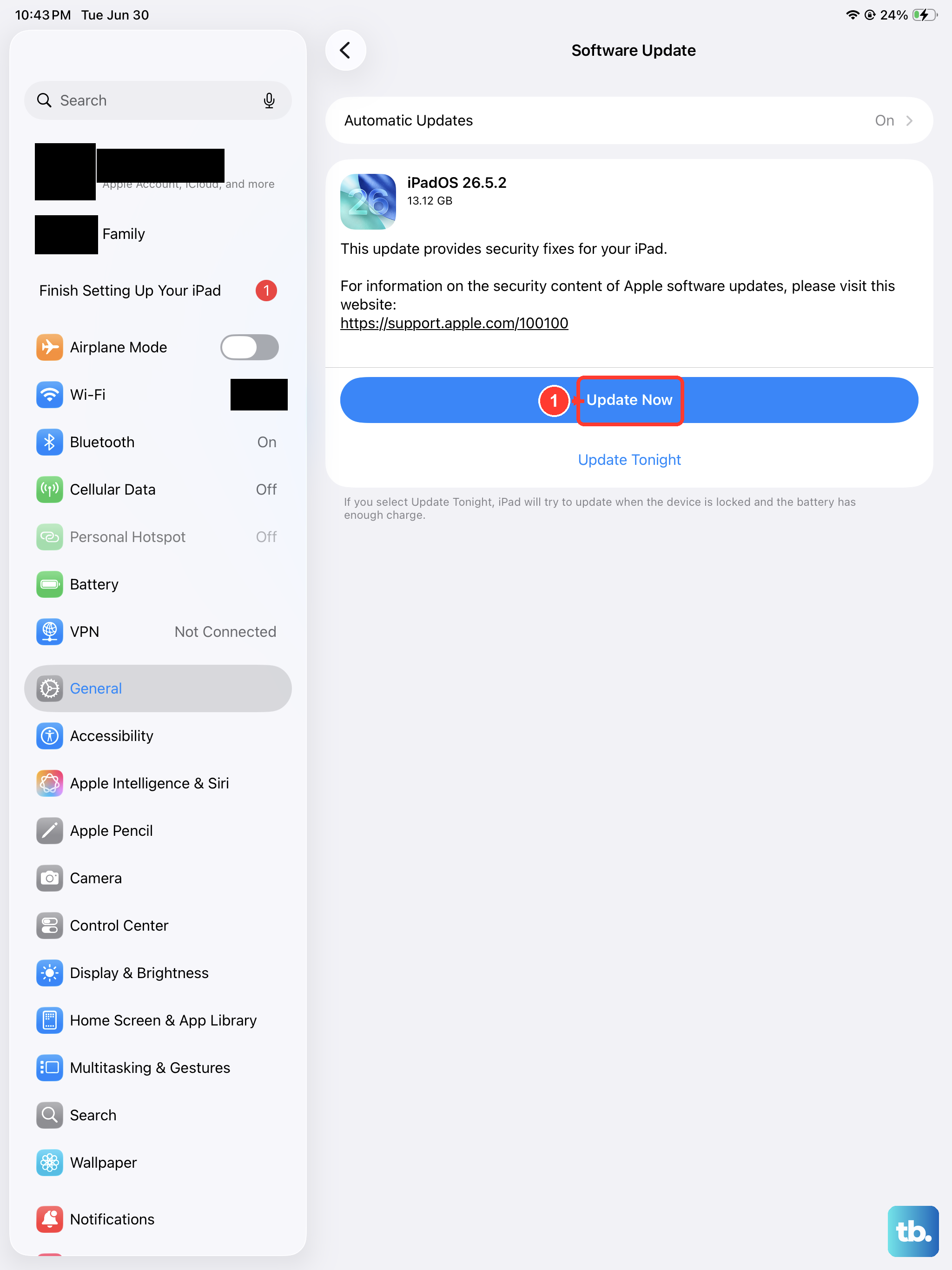
If the force restart gets you back to the Home Screen, a pending software update may be the reason the boot was unstable. Installing the latest iPadOS keeps your data and settings unchanged and can clear software-related startup problems.
Go to Settings > General > Software Update.
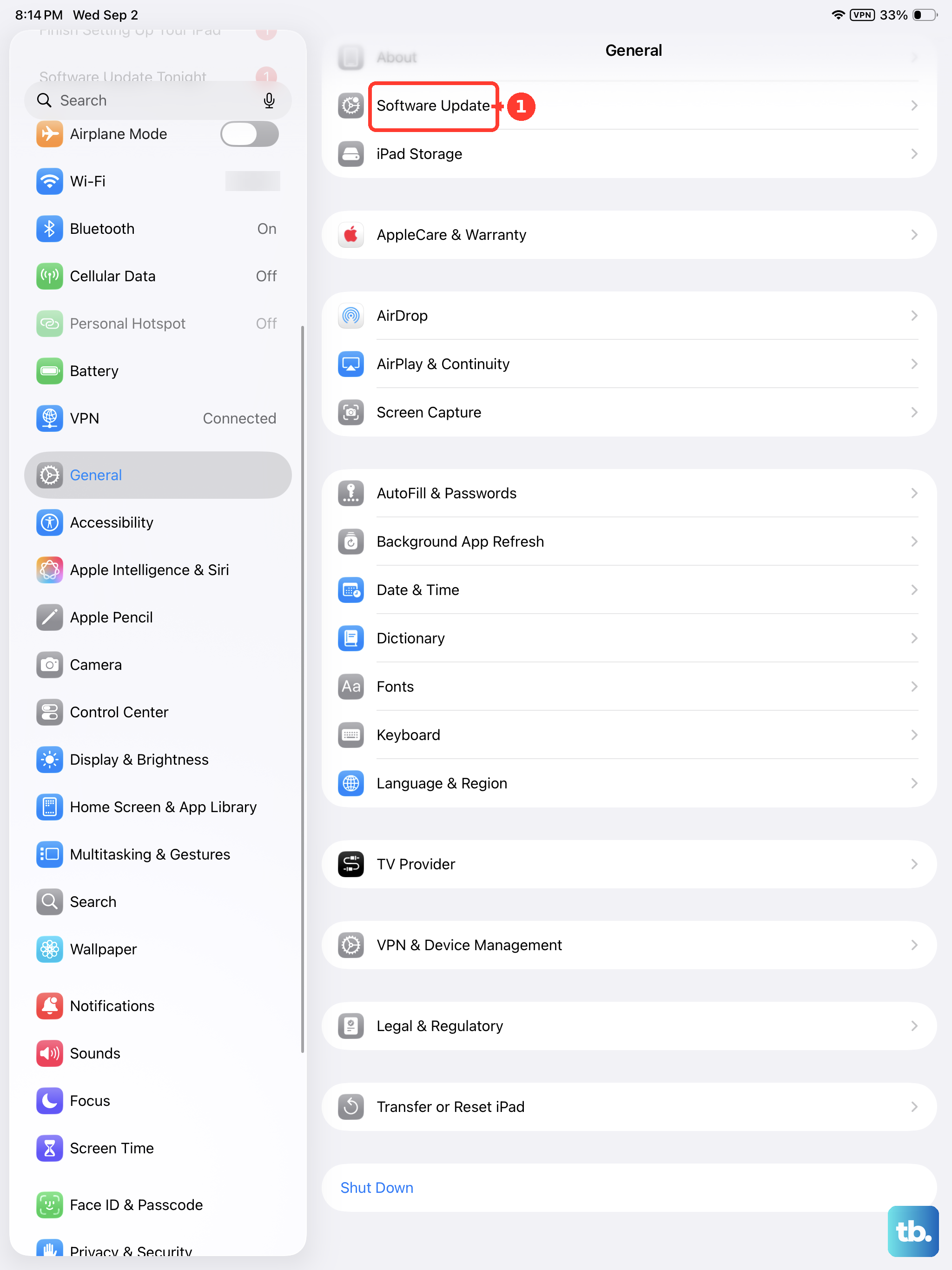
Tap Download and Install and follow the onscreen instructions.
Keep the iPad plugged into power and on Wi-Fi for the whole update so it does not stall partway. Once it finishes, restart the iPad normally and confirm it boots cleanly a couple of times before you trust it again.
Hook Up to a Computer and Choose Update in Recovery Mode
When the iPad stays frozen on the Apple logo no matter what, recovery mode lets a computer reinstall iPadOS for you. The first option you should pick reinstalls the software without erasing anything, so this is still a safe step.
Open the Finder on your Mac, or open the Apple Devices app on your PC.
If your PC does not have the Apple Devices app, or your Mac is using macOS Mojave or earlier, open iTunes instead.
Connect the iPad to the computer with its USB-C cable, then put it into recovery mode.
Press and quickly release the volume button closest to the top button.
Press and quickly release the volume button farthest from the top button.
Press and hold the top button, and keep holding it until you see the recovery-mode screen.
When you get the option to Restore or Update, choose Update. This downloads the software and reinstalls iPadOS without erasing your data, so always try it before any restore.
When the Recovery Download Stalls, Slow Down and Retry
Recovery downloads are large, and a slow connection can outlast the recovery-mode window. If the download takes more than 15 minutes and the iPad exits the recovery-mode screen, let the download finish, then repeat the recovery steps from the start.
A few setup tweaks make a stubborn retry more likely to succeed. Make sure your computer software is up to date, and if it still fails, try a different USB-C cable, a different USB port, or a different computer before you move on to anything that erases data.
Restore Through a Computer When Nothing Else Lands
If Update in recovery mode does not fix the boot, the next step is a full restore, and this one is destructive. Apple warns that Restore reinstalls iPadOS and erases all of your data, so only do this if you have a backup you can return to.
Connect the iPad to the computer and enter recovery mode again using the same button sequence.
When you see the option to Restore or Update, choose Restore.
Let the process reinstall iPadOS and erase the device completely.
After it finishes, you can set the iPad up again and restore from an iCloud or computer backup. If the download passes 15 minutes and the iPad leaves the recovery screen mid-restore, let the download complete and repeat the steps.
Erase From Settings if It Boots but Keeps Crashing
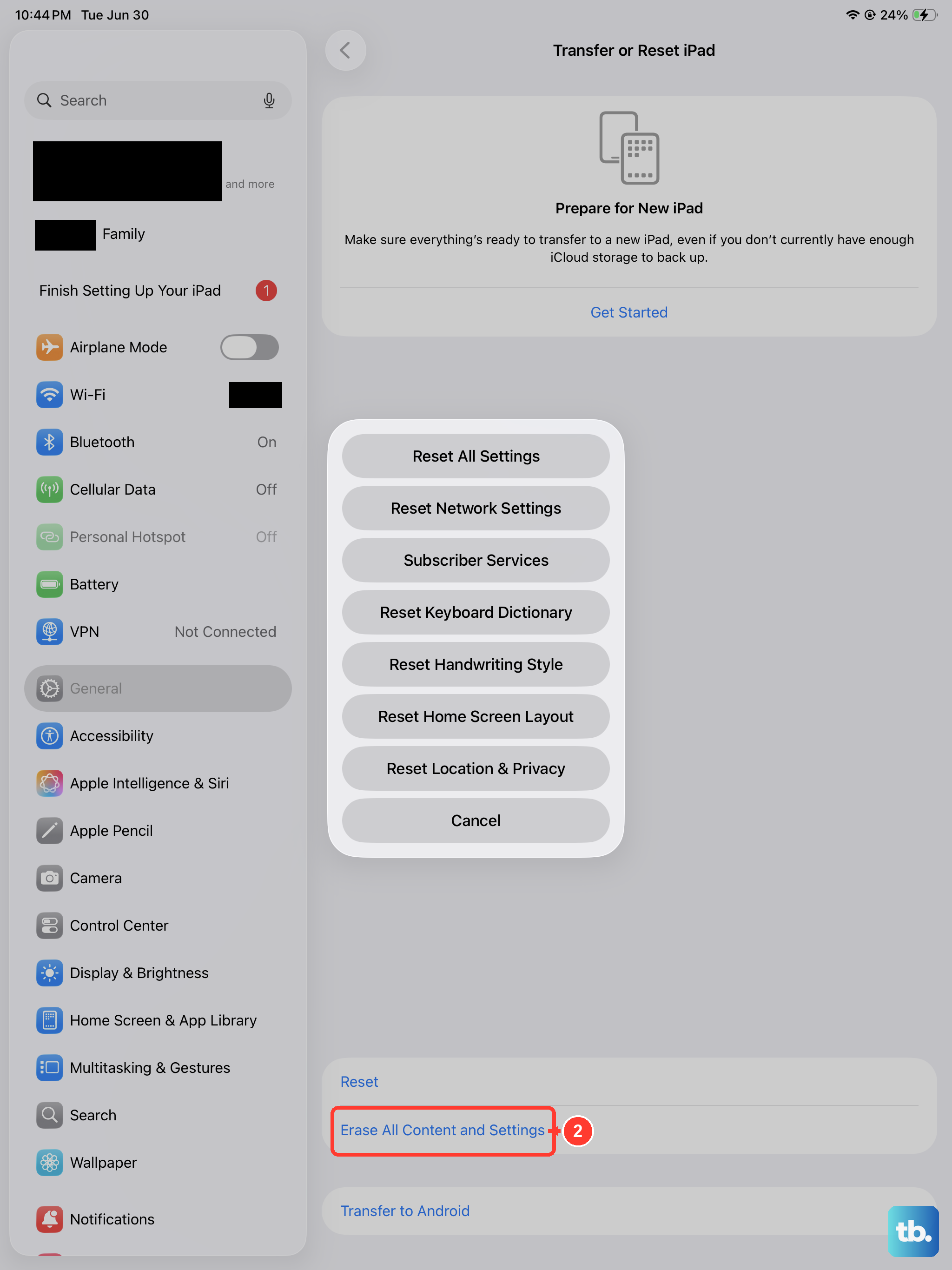
Sometimes the iPad does reach the Home Screen but keeps freezing or rebooting, which can point to corrupted software rather than a one-time glitch. If you can get into the interface, you can erase it from the device itself, but this also wipes everything, so back up first.
Go to Settings > General > Transfer or Reset iPad > Erase All Content and Settings.
If asked, enter your iPad passcode or Apple Account password and tap Continue.
Apple warns that this restores the iPad to factory settings, including Apple Pay cards, photos, contacts, music, and apps. Treat it as a last in-device option, used only after a current backup is safely stored in iCloud or on a computer.
Book a Repair When the Buttons or Boot Will Not Cooperate
If none of these steps work, or you cannot trigger recovery mode because a volume or top button is broken, the iPad likely needs service. A boot that never clears the logo after a clean restore often points to a hardware fault rather than software.
You can start a repair, book a Genius Bar or Apple Authorized Service Provider visit, or arrange mail-in service through Apple's official iPad repair and contact channels. Have your backup and Apple Account details ready so a technician can pick up where you left off.
Frequently Asked Questions
Does force restarting my iPad Air (2026) delete my files?
No. A force restart does not erase content, it only forces the iPad to power off and start again. It is safe to try first and works even when the screen is black or the buttons seem unresponsive.
What is the correct force-restart sequence for this model?
Because the iPad Air (2026) has no Home button, press and quickly release the volume button nearest to the top button, press and quickly release the volume button farthest from the top button, then press and hold the top button and release it when the Apple logo appears. Do not use any Home-button method, since this model does not have one.
What computer software do I need to update or restore it?
Open the Finder on a Mac, or open the Apple Devices app on a Windows PC. If your PC does not have the Apple Devices app, or your Mac is using macOS Mojave or earlier, open iTunes instead.
Will choosing Update in recovery mode erase my data?
No. In recovery mode, choosing Update reinstalls iPadOS and downloads the software without erasing your data, which is why you should try it before Restore. Restore, by contrast, reinstalls iPadOS and erases all of your data.
How long should I leave it charging before deciding it is dead?
Charge it with a USB-C cable and power adapter for up to an hour. If you still do not see a charging screen within that hour, or you see the connect-to-power screen, check the connector, cable, and adapter for a loose connection, debris, or damage.