You reach for your iPad Air (2026) to install an app or save a video, and instead you get a "Storage Almost Full" warning that will not go away. Whether you have the 128GB model or the 1TB version, photos, app data, and browser clutter quietly fill the drive over time, and because the iPad Air (M4) uses fixed internal flash storage with no microSD slot, you cannot just pop in a card to add room. The good news is that iPadOS 26 has everything you need built in to find what is hogging space and clear it safely.
Work through the fixes below in order. The first few are quick and completely safe, the middle ones reclaim the most space, and the final option erases everything, so it stays last for a reason.
Find out exactly what is eating your space
Before you delete anything, see where your storage has actually gone so you do not waste time guessing. Go to Settings > General > iPad Storage. The bar at the top shows how much space is available, and below it your apps are listed by how much space each one uses.
That same screen surfaces recommendations for freeing up space, tailored to your device. Use the list to decide what to clear first, since one or two large apps or a bloated photo library often account for most of the problem. Knowing the worst offenders up front makes every step that follows faster, and you can return to this screen after each fix to watch your available space climb and stop once you have enough.
Offload apps without losing their data
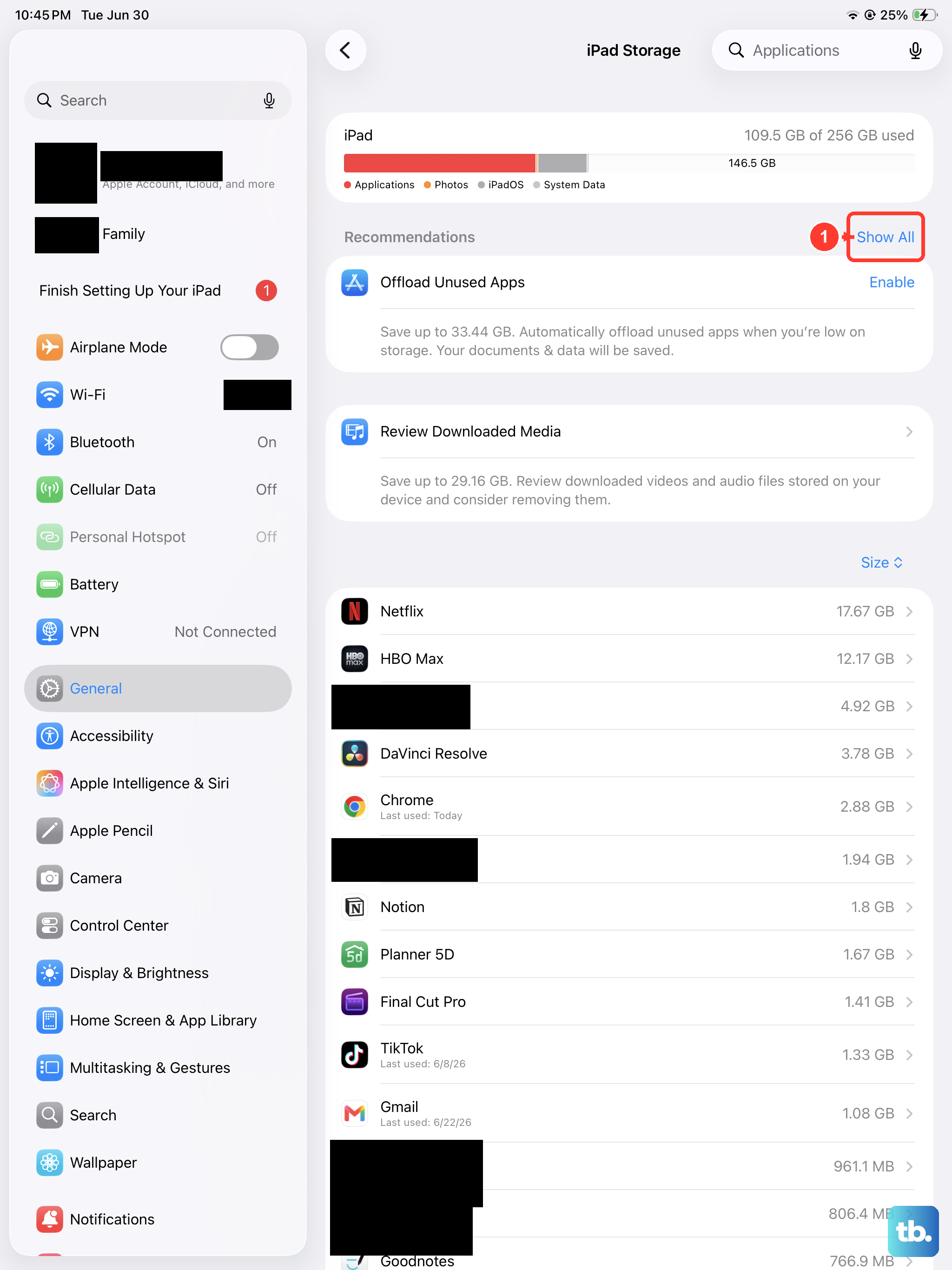
Offloading is the gentlest way to recover room because it removes the app itself but keeps your documents and data intact. Go to Settings > Apps > App Store and turn on Offload Unused Apps. When storage runs low, your iPad Air automatically removes apps you do not use while preserving their data.
You will still see the app's icon on the Home Screen, now marked with a small cloud symbol; tap it to reinstall the app and pick up right where you left off. If you would rather handle one app at a time, you can also offload an individual app from its entry in Settings > General > iPad Storage. This is the ideal first move when you are not sure what you can afford to lose.
Remove apps you have stopped using
When offloading is not enough, deleting unwanted apps frees the most space, because it clears both the app and all of its data. Streaming downloads, large games, and apps that have built up years of cached data are usually the biggest wins here. Many apps can be removed manually and re-downloaded later from the App Store if you ever change your mind.
Open Settings > General > iPad Storage, tap any app you no longer want, and choose to delete it. Be deliberate here: unlike offloading, deleting wipes the app's documents and data along with the app, so only remove things you truly do not need on the device.
Wipe Safari's cache, history, and cookies
Web browsing leaves behind cached files, cookies, and history that grow steadily in the background. To clear them, go to Settings > Safari, then tap Clear History and Website Data. This clears the Safari cache on your iPad and removes the history of websites you visited along with cookies and other stored website data.
Keep in mind that this only affects Safari. It does not clear browsing history kept inside other apps, so if you use a different browser you will need to clear that one separately within its own settings.
Send your photo library to iCloud
Photos and videos are often the single biggest space user on an iPad, especially high-resolution clips. Go to Settings > [your name] > iCloud > Photos and choose Optimize iPad Storage. With this turned on, full-resolution originals are stored in iCloud while smaller, space-saving versions stay on the device.
This option is on by default when iCloud Photos is enabled, and the alternative setting, Download and Keep Originals, is what fills your drive in the first place. It also helps to open the Photos app and clear out screenshots, duplicates, and clips you no longer want; deleted items move to the Recently Deleted album and keep taking up room until you remove them there. If your iCloud storage is also running low, you can upgrade to iCloud+ for more cloud space so your full library has somewhere to live.
Clear out stray files and bulky message attachments
Downloads and saved documents pile up where you rarely look. Open the Files app to find and delete documents and data you no longer need; old PDFs, downloads, and one-off attachments add up quickly. Items you delete in Files also sit in a Recently Deleted folder for a while, so empty that to reclaim the space right away.
Messages is another quiet culprit. Attachments such as photos, videos, and files take up far more space than text, so deleting old conversations and large attachments frees real room. If you have Messages in iCloud turned on, clearing them also frees iCloud storage, not just space on the iPad.
Install the latest iPadOS
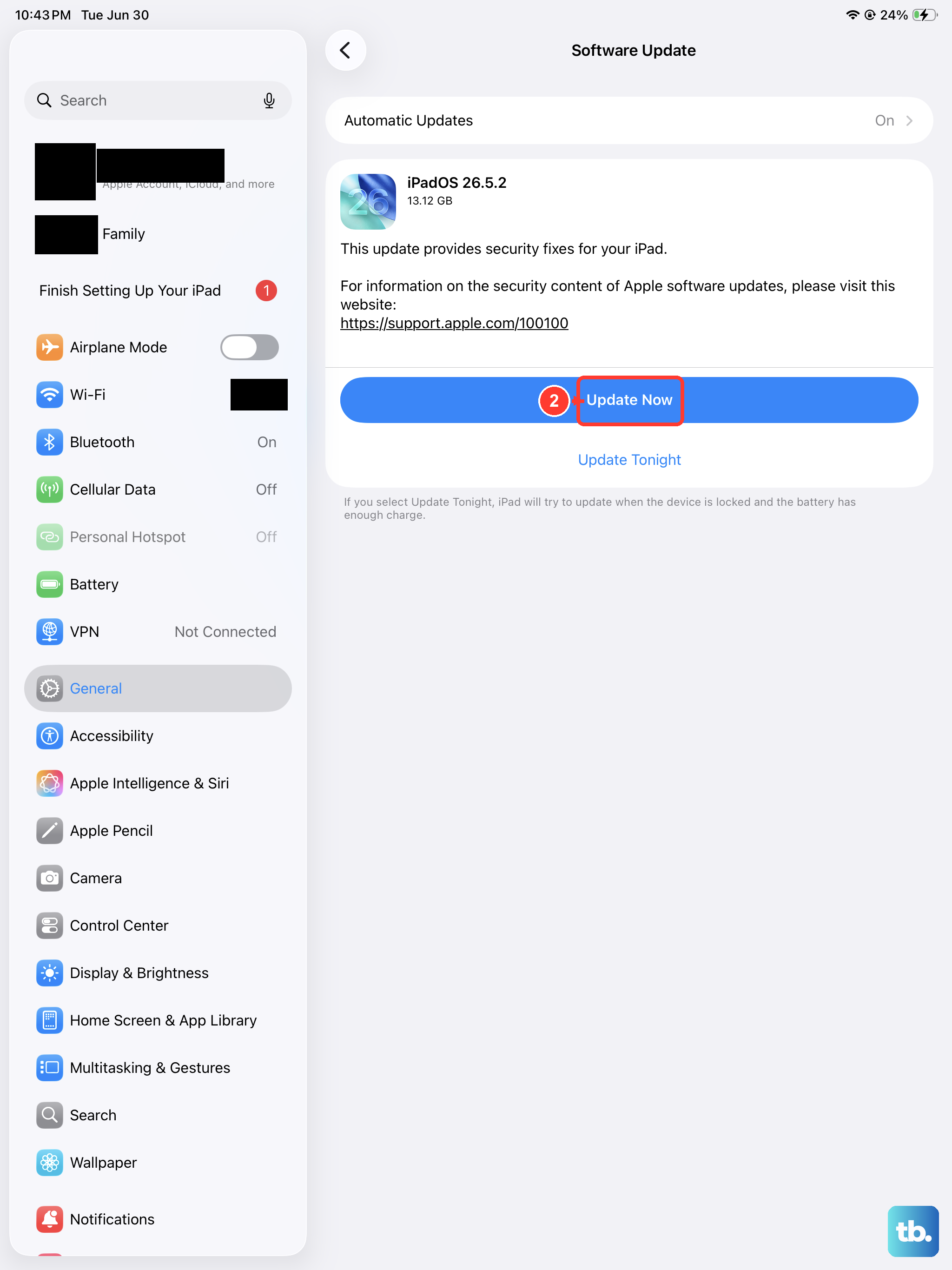
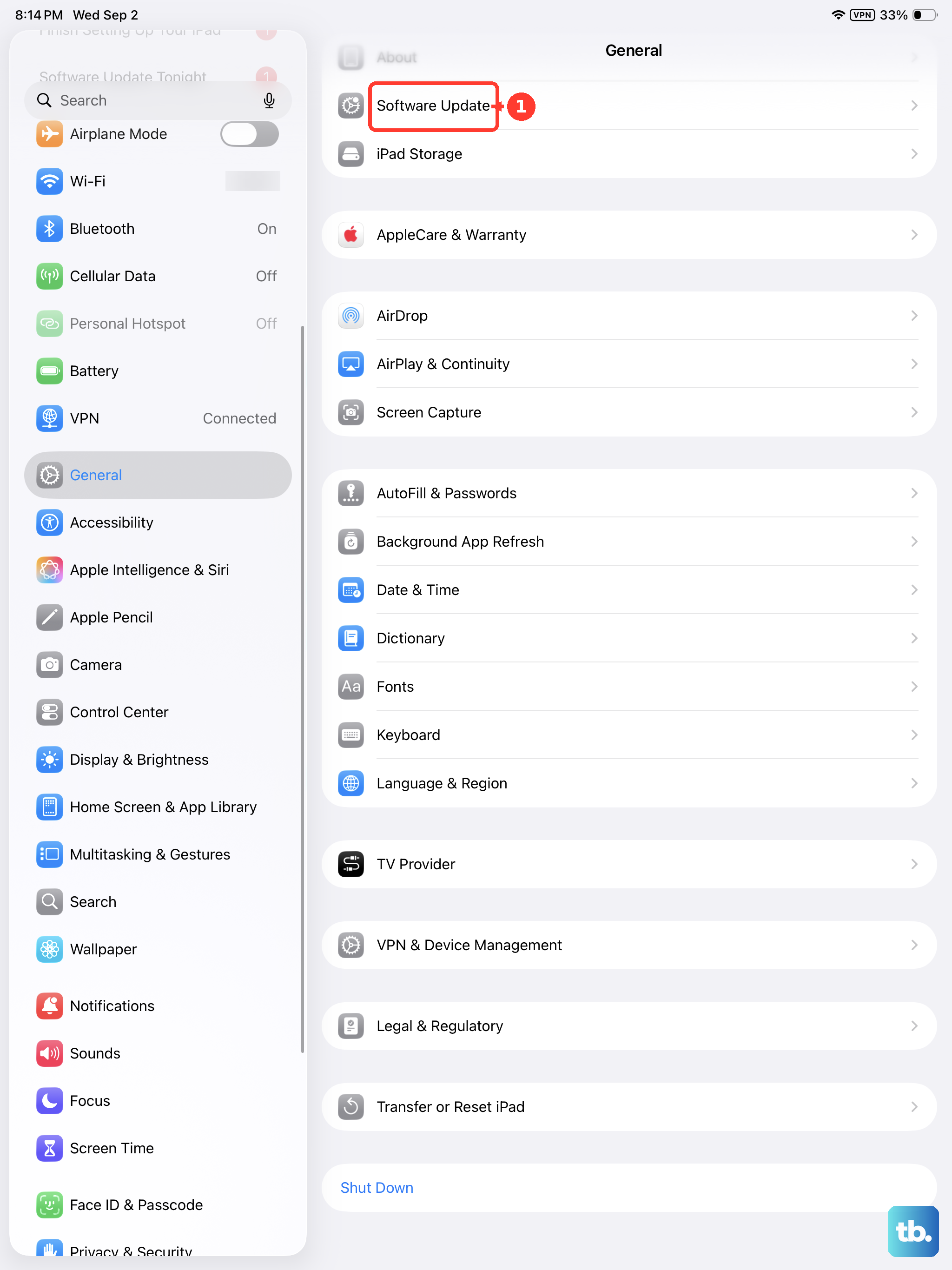
Running the current software helps your storage tools work as intended and can resolve odd space-reporting glitches. Go to Settings > General > Software Update, where the installed iPadOS version and any available update are shown. An update sometimes needs a chunk of free space to install, so clearing some room first can also unblock a stalled download.
Tap Download and Install and follow the onscreen instructions. Before you start, back up the iPad and connect it to Wi-Fi and power so the update can complete without interruption.
Force restart a frozen Storage screen
Sometimes the trouble is not full storage but a stuck system: the iPad Storage screen freezes, or an app refuses to delete. If your iPad Air becomes unresponsive while you are clearing space, a force restart clears the hang without erasing any of your content.
The iPad Air (2026) has no Home button, so the sequence uses the volume and top buttons in a specific order:
- 1.Press and quickly release the volume button nearest to the top button.
- 2.Press and quickly release the volume button farthest from the top button.
- 3.Press and hold the top button until the Apple logo appears, then release it.
Once the iPad restarts, return to Settings > General > iPad Storage and try your deletions again.
When nothing else works, back up and erase
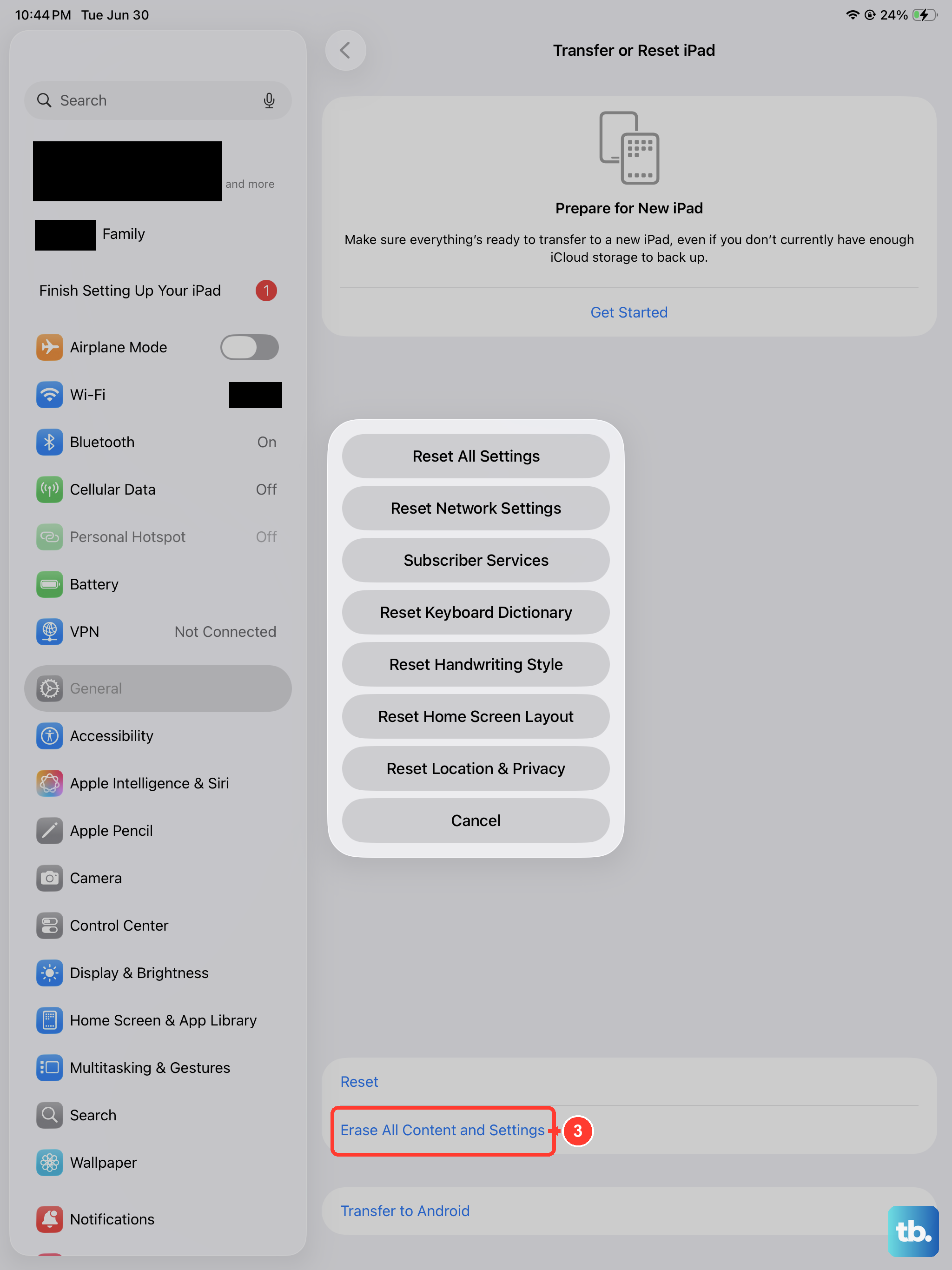
If storage problems persist after everything above, a full erase is the last resort. This step is destructive, so back up the iPad first using iCloud Backup (Settings > [your name] > iCloud), or by connecting to a computer and using Finder on a Mac or the Apple Devices app on a Windows PC.
With a current backup in hand, go to Settings > General > Transfer or Reset iPad > Erase All Content and Settings. This restores the iPad to factory settings and completely erases the device, including photos, contacts, music, apps, and any Apple Pay cards, which is exactly why the backup is essential. You can then set the iPad up again and restore your data. If the issue still continues after that, contact Apple Support.
Frequently Asked Questions
Can I add a microSD card to expand my iPad Air (2026) storage?
No. The iPad Air (M4) uses fixed internal flash storage (128GB, 256GB, 512GB, or 1TB) and has no microSD or expandable storage slot. To gain room you have to offload or delete content, or move it to iCloud, rather than add a card.
Does offloading an app delete my data?
No. Offloading removes the app itself but keeps its documents and data. The icon stays on the Home Screen with a cloud symbol, and tapping it reinstalls the app so you can continue where you left off. Deleting an app, by contrast, removes both the app and its data.
Will choosing Optimize iPad Storage delete my photos?
No. With Optimize iPad Storage on, your full-resolution originals are kept safely in iCloud while smaller, space-saving versions stay on the device. You still see your whole library, and the originals download again when you need them.
Will updating iPadOS or clearing Safari data erase my files?
No. Updating iPadOS through Settings > General > Software Update leaves your content in place, though backing up first is wise. Clearing History and Website Data only removes Safari's cache, history, cookies, and other website data, not your apps or personal files.
What should I do before I Erase All Content and Settings?
Back up everything first, because Erase All Content and Settings completely wipes the device, including photos, contacts, music, apps, and Apple Pay cards. Use iCloud Backup, or Finder on a Mac or the Apple Devices app on a Windows PC, so you can restore your data afterward.











