
When your iPad Air goes silent, it can really throw off your workflow, whether you're trying to watch a video, join a call, or just listen to some music. The good news is that most audio problems on the iPad Air (2026) are caused by simple software glitches or settings that are easy to fix yourself. I'd start with the quick checks at the top of this list, as they solve the majority of issues.
It is worth confirming the basics with a quick speaker test. If neither channel plays a tone, you are looking at a hardware or connection problem rather than a settings issue.
Check the Physical Buttons and Mute Switch
First, make sure your iPad isn't physically muted. On the iPad Air, you'll find the volume buttons on the top-right edge when holding it in portrait mode. Press the volume up button a few times while playing a video or song to see if the on-screen indicator appears and the sound returns.
Also, check the side switch. In iPadOS 26, you can set this switch to either mute the iPad or lock screen rotation. Go to Settings > Sounds and see what the "Lock Rotation" option is set to. If it's off, then flipping the switch up or down will mute or unmute your iPad's sound.
Disconnect Any Bluetooth Audio Devices
Your iPad might be trying to send sound to a paired Bluetooth speaker, headphones, or a car stereo. Even if those devices are off or out of range, the iPad can sometimes get stuck trying to route audio to them.
Open the Control Center by swiping down from the top-right corner of the screen. In the audio playback module, tap the name of the current output device and select your iPad from the list. For a more thorough check, go to Settings > Bluetooth and toggle the main Bluetooth switch off. This will force all audio back to the iPad's internal speakers.
Force Restart Your iPad Air
A force restart is different from a normal shutdown and can clear out temporary software bugs affecting the audio system. It won't delete any of your data or settings.
Here’s how to do it on the 2026 iPad Air: quickly press and release the Volume Up button, then quickly press and release the Volume Down button. Finally, press and hold the Top button (the one on the top edge) until you see the Apple logo appear on the screen. Release the button and let your iPad restart completely.
Check Your Focus Modes
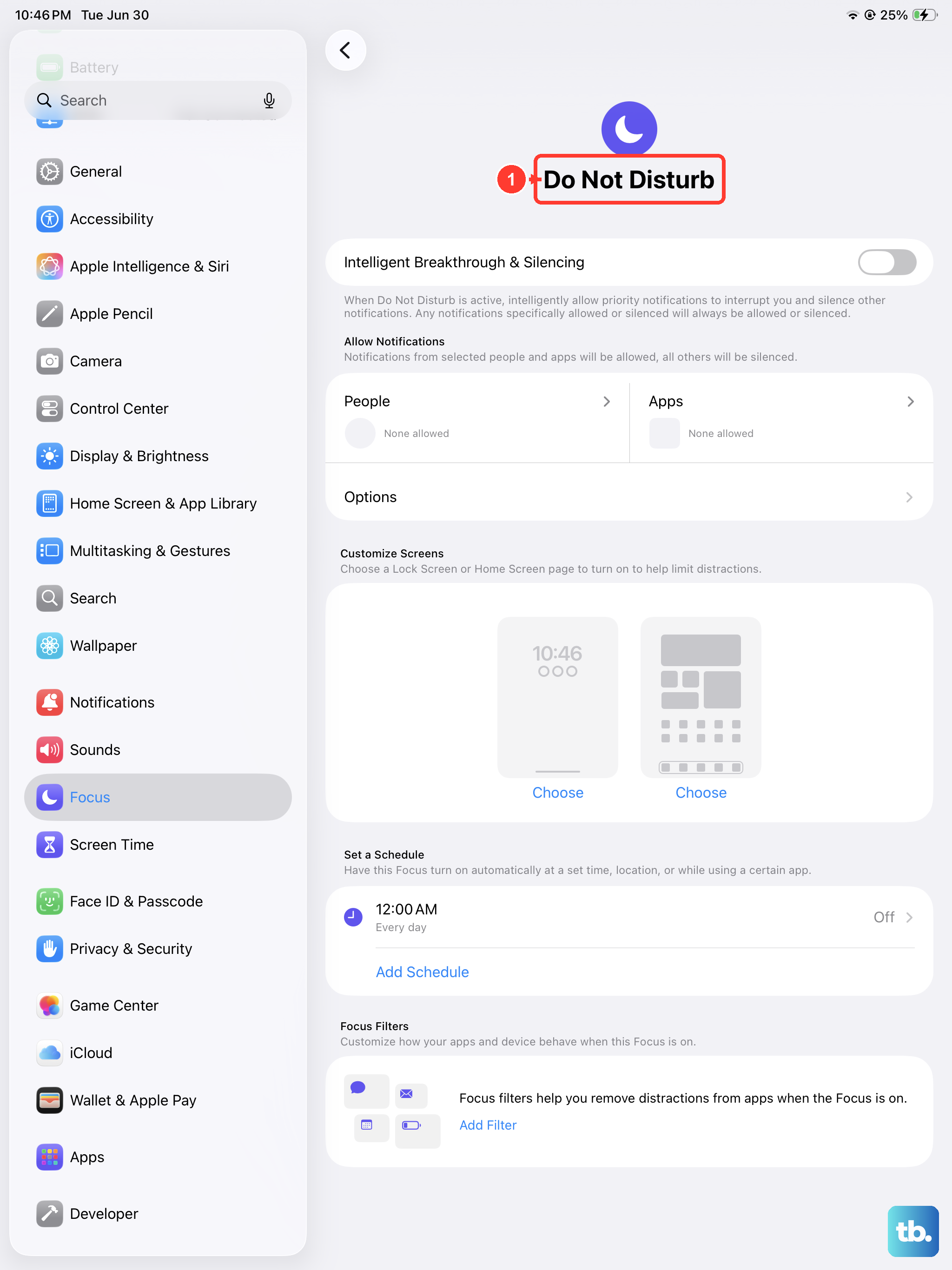
Focus modes like Do Not Disturb, Sleep, or Work can silence notifications and sometimes system sounds. Swipe down from the top-right to open Control Center and look at the Focus icon in the top-left. If a moon or another Focus icon is highlighted, tap it to turn the active Focus off.
You can also check all your Focus settings by going to Settings > Focus. Make sure no Focus is scheduled or active that might be blocking sound. Within each Focus, you can also check the "Options" to see if "Silence Notifications" is set to "Always" instead of "When iPhone is Locked," which could affect sound while you're using the iPad.
Review Sound and Accessibility Settings
A few settings deep in the menus can affect audio output. First, go to Settings > Sounds & Haptics. Make sure the "Change with Buttons" option is turned on, and drag the ringer and alerts slider to a higher level.
Next, check the Accessibility settings. Go to Settings > Accessibility > Audio & Visual. Ensure that the "Balance" slider is centered. Also, look at the "Headphone Accommodations" and "Background Sounds" features to make sure they aren't inadvertently altering or muting your audio.
Update iPadOS
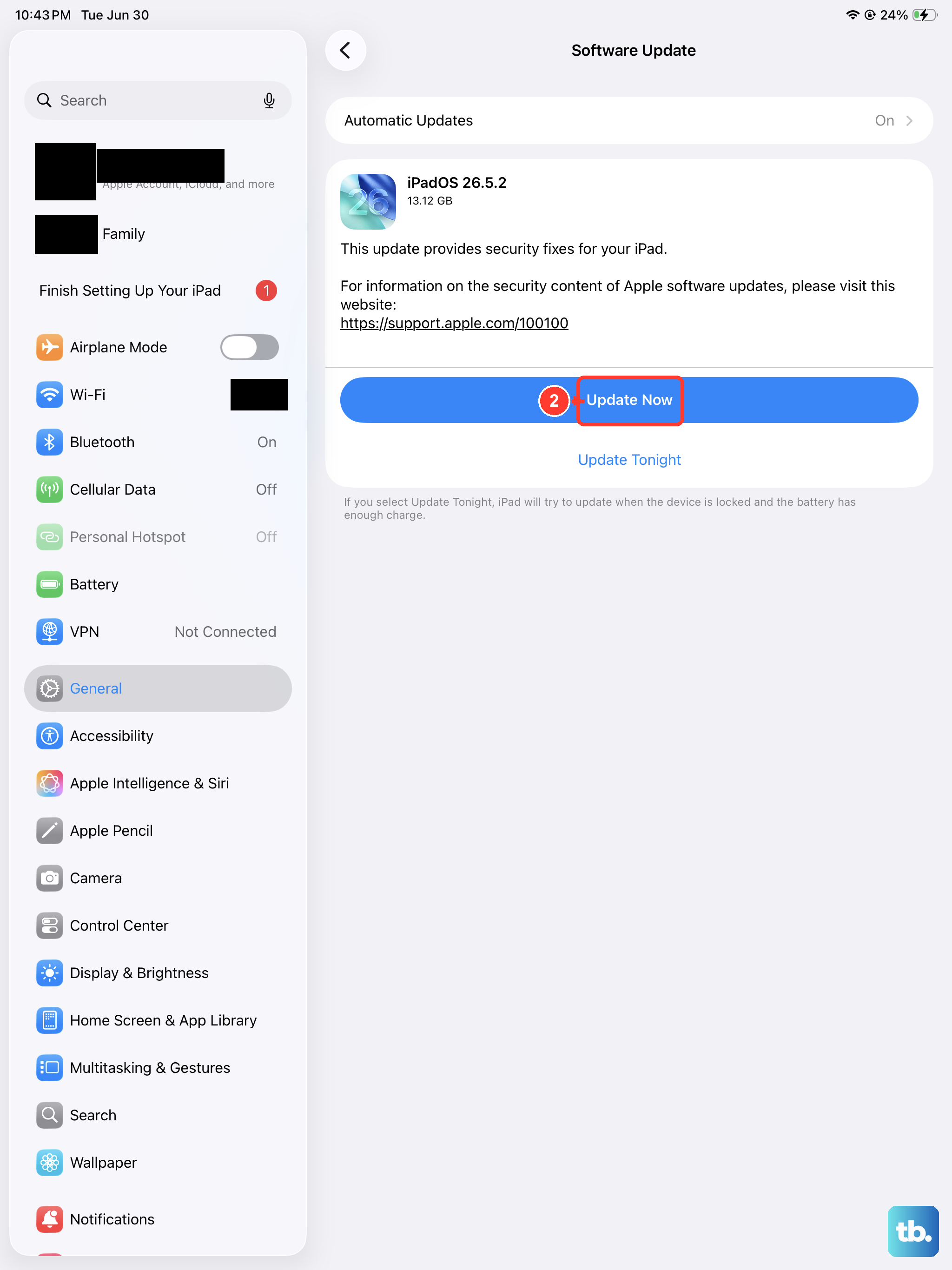
Apple regularly releases updates for iPadOS that include bug fixes for audio and system performance. An outdated version could be the source of your sound problem.
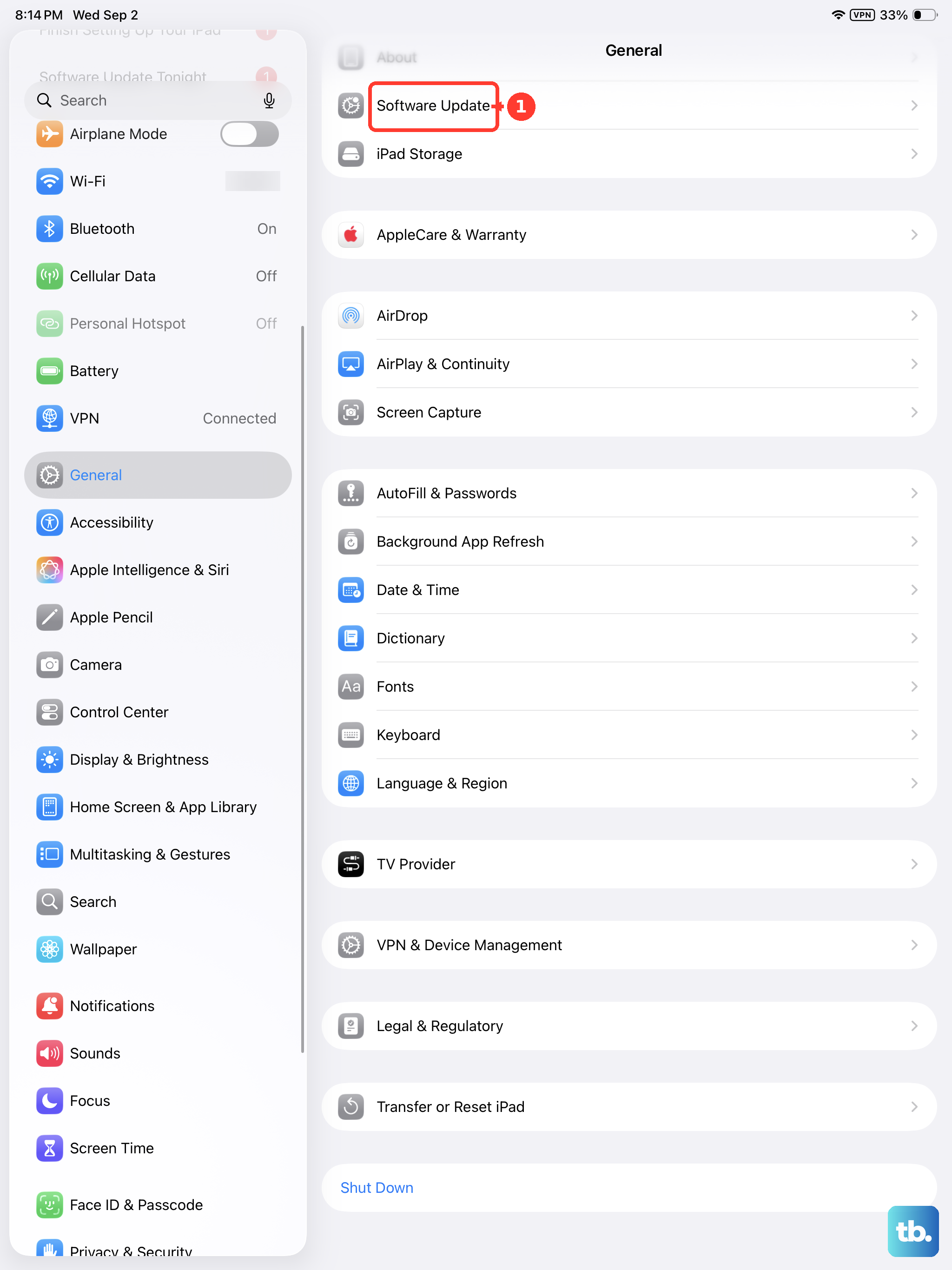
Connect your iPad to Wi-Fi and plug it into power with a USB-C PD charger to ensure the update doesn't get interrupted. Then, go to Settings > General > Software Update. If an update is available, tap "Download and Install." Keeping your iPad Air on the latest version of iPadOS 26 is one of the best ways to maintain stability.
Check for App-Specific Issues
If you only have no sound in one app, like YouTube, Netflix, or FaceTime, the problem is likely with that app, not your iPad's system. First, try force-closing the app. Swipe up from the bottom of the screen and pause in the middle to enter the App Switcher. Find the app's window and swipe it up and off the top of the screen to close it.
Then, reopen the app and test the sound. If that doesn't work, check the App Store for any updates to that specific application. Sometimes, developers release patches for audio bugs.
Reset All Settings
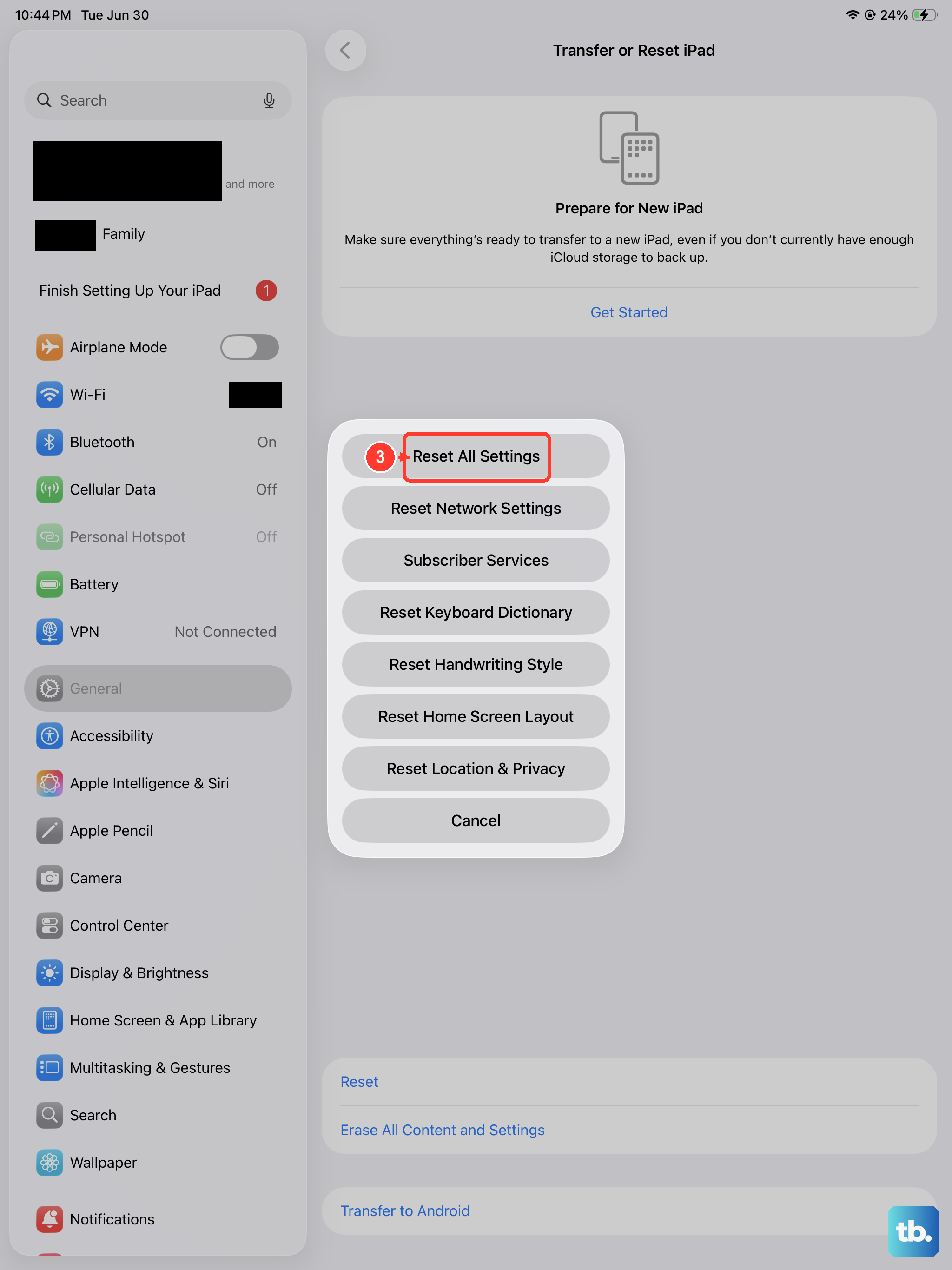
This is a more significant step, but it can resolve persistent sound issues caused by a corrupted system setting. It will reset your network settings, wallpaper, privacy permissions, and keyboard dictionary back to factory defaults, but it will not delete any of your personal data like photos, apps, or documents.
Before you proceed, make sure you know your Wi-Fi passwords, as you'll need to rejoin networks. To do it, go to Settings > General > Transfer or Reset iPad. Tap "Reset" at the bottom, and then choose "Reset All Settings." Enter your passcode and confirm.
Clean the Speaker Grills
Over time, lint, dust, or other debris can get packed into the small speaker grills on your iPad Air, muffling or blocking sound completely. The speaker grills are the tiny rows of holes, typically found on the bottom edge of the iPad when held in portrait mode.
Turn your iPad off first. Then, use a soft, dry, clean-bristled brush (a new, clean makeup brush works well) to gently brush over the grills. You can also use a can of compressed air, but hold it upright and use very short bursts from a few inches away. Never use a toothpick, paperclip, or anything sharp to poke inside the holes, as this can permanently damage the speakers.